WhatsApp lets your practice message patients on the channel they already use every day. Once WhatsApp Business is connected to your account, conversations flow into the Aesthetix CRM inbox alongside your other messaging tools, so your team can reply, automate follow-ups, and keep every chat attached to the patient record.
This guide walks you through connecting WhatsApp Business to your account, choosing the onboarding path that fits your situation, verifying your number, and creating the templates required to message patients.
Note: A Meta Business account and page are required to connect WhatsApp. The connection runs through Meta's embedded signup flow, where you sign in with the Facebook account tied to your business and select the business account you want to link.
Aesthetix CRM supports WhatsApp Coexistence (also called dual-platform messaging), which lets you use the WhatsApp Business App and Aesthetix CRM at the same time with the same phone number. Coexistence allows you to:
Continue using your WhatsApp Business App on your mobile device
Send and receive WhatsApp messages inside Aesthetix CRM
Use one WhatsApp phone number across both platforms simultaneously
This means you do not lose access to the WhatsApp Business App when connecting WhatsApp to your account.
Inside Aesthetix CRM, you can:
View WhatsApp conversations in the unified inbox
Store WhatsApp chats on patient records
Trigger workflows and automations from WhatsApp messages
Send approved WhatsApp templates
Track reporting and engagement metrics
Even after enabling WhatsApp, you can still use the WhatsApp Business App for:
Manual 1-to-1 messaging
Groups
Status updates
Voice calls
Messages sync between the app and Aesthetix CRM.
Note: You manage your WhatsApp profile from the WhatsApp Business App, not from Aesthetix CRM. Template messages, however, can only be sent through Aesthetix CRM (not the WhatsApp Business App), and Coexistence supports a maximum of one phone number.
To connect WhatsApp to your account, you must have:
A WhatsApp Business App number
The latest version of the WhatsApp Business App installed
A phone number from a supported country or region
One WhatsApp number per Aesthetix CRM account
A Meta Business account and page
Personal WhatsApp numbers are not supported.
Note: Coexistence is not available for phone numbers from Nigeria or South Africa.
The onboarding flow offers three setup paths based on how your practice currently uses WhatsApp. Choosing the correct path helps prevent setup delays, protects existing WhatsApp assets, and ensures WhatsApp connects to your account correctly:
Connect an existing WhatsApp Business App with Coexistence: Keep using your existing app alongside Aesthetix CRM.
Create a new WhatsApp Business Account: Start fresh with a brand-new number.
Migrate from an existing BSP: Switch from another Business Solution Provider.
Each path is designed for a different scenario, making it easier to choose the right method before you start:
Flexible onboarding paths: Choose the setup option that matches your current WhatsApp setup.
Coexistence support: Continue using the WhatsApp Business App on a phone while managing conversations inside Aesthetix CRM.
Chat history sync: Bring up to six months of WhatsApp chat history into Aesthetix CRM when using Coexistence.
Self-service BSP migration: Migrate from another BSP using Meta's embedded signup flow.
Asset preservation during migration: Preserve the phone number, display name, quality rating, messaging limits, Official Business Account status, and approved templates.
Faster setup with 555 numbers: Eligible accounts can claim up to two +1-555 business numbers during onboarding (subject to eligibility and availability).
Instant number verification: 555 numbers are automatically verified, so you only need display-name approval before using WhatsApp.
Less manual work during setup: In eligible cases, you can onboard without porting or sourcing a dedicated number first.
Connect an existing WhatsApp Business App with Coexistence is best when:
Your practice already uses the WhatsApp Business App.
You want to continue using WhatsApp on a mobile device.
You want WhatsApp conversations available inside Aesthetix CRM.
Before starting Coexistence, verify the country code, confirm the number in Meta Business Manager, and make sure the WhatsApp Business App is available.
Create a new WhatsApp Business Account is best when:
Your practice does not already have a WhatsApp Business Account.
You have a landline or unused mobile number available.
You want to start with a new WhatsApp setup.
You are eligible to claim a free +1-555 business number.
Before starting a new account, remove the number from personal WhatsApp or the WhatsApp Business App if applicable, back up chats before removing the number, and confirm the number can receive SMS or voice verification (unless using an eligible auto-verified 555 number).
Migrate from an existing BSP is best when:
Your practice currently uses a BSP such as 360Dialog, Twilio, Wati, Manychat, or another provider.
You want to move the existing WhatsApp Business Account to Aesthetix CRM.
You want to preserve your existing WhatsApp number and account assets.
You want to avoid creating a new WhatsApp Business Account (WABA).
Before starting a migration, turn off two-step verification, confirm business verification in Meta Business Manager, and confirm display-name approval.
555 business phone numbers help eligible practices start WhatsApp onboarding without sourcing a dedicated phone number first. These numbers are designed for use with the WhatsApp Business Platform and can speed up setup. Eligible accounts can claim up to two free +1-555 numbers during onboarding.
Limitations:
555 numbers cannot be migrated to another WABA.
555 numbers cannot be used outside the WhatsApp Business Platform.
555 numbers are subject to eligibility and availability.
Display-name approval is still required.
Coexistence lets your practice keep using the WhatsApp Business App on a phone while also managing conversations in Aesthetix CRM. It is useful for teams that already rely on the WhatsApp Business App but want CRM features such as centralized conversations, automation, patient records, and reporting.
Navigate to Settings → WhatsApp and select Connect your WhatsApp.
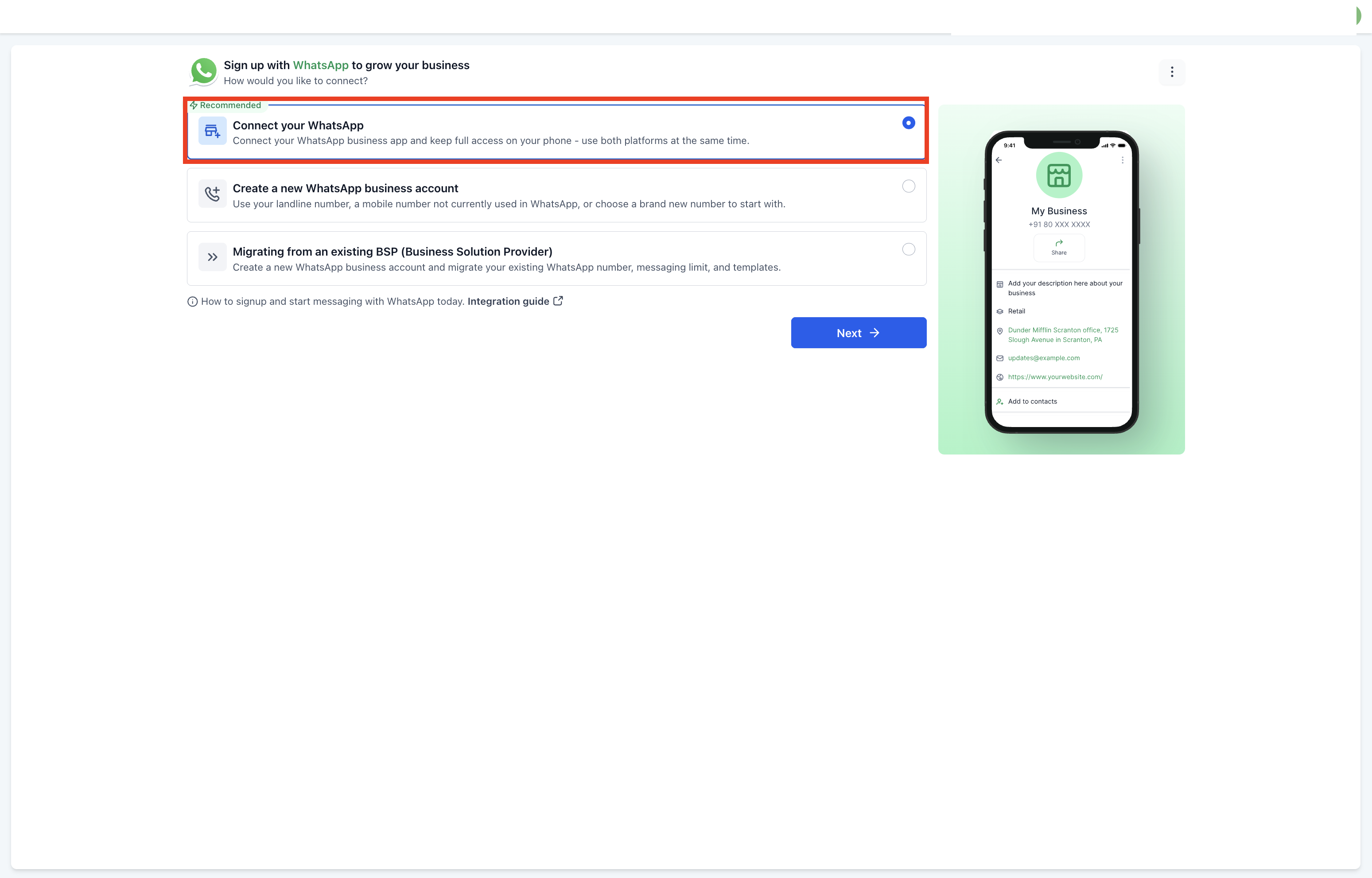
Follow the on-screen instructions to begin the registration process.
Click Continue to proceed with the integration.
Click Connect a WhatsApp Business App, then tap Next.
Add your WhatsApp Business phone number and tap Next.
Review your WhatsApp Business Account details and make any corrections before proceeding.
Import contacts and up to six months of chat history from the WhatsApp Business App into Aesthetix CRM.
Update your WhatsApp Business App to the latest version before this step.
Look for a message from the official Facebook Business account and scan the QR code when prompted.
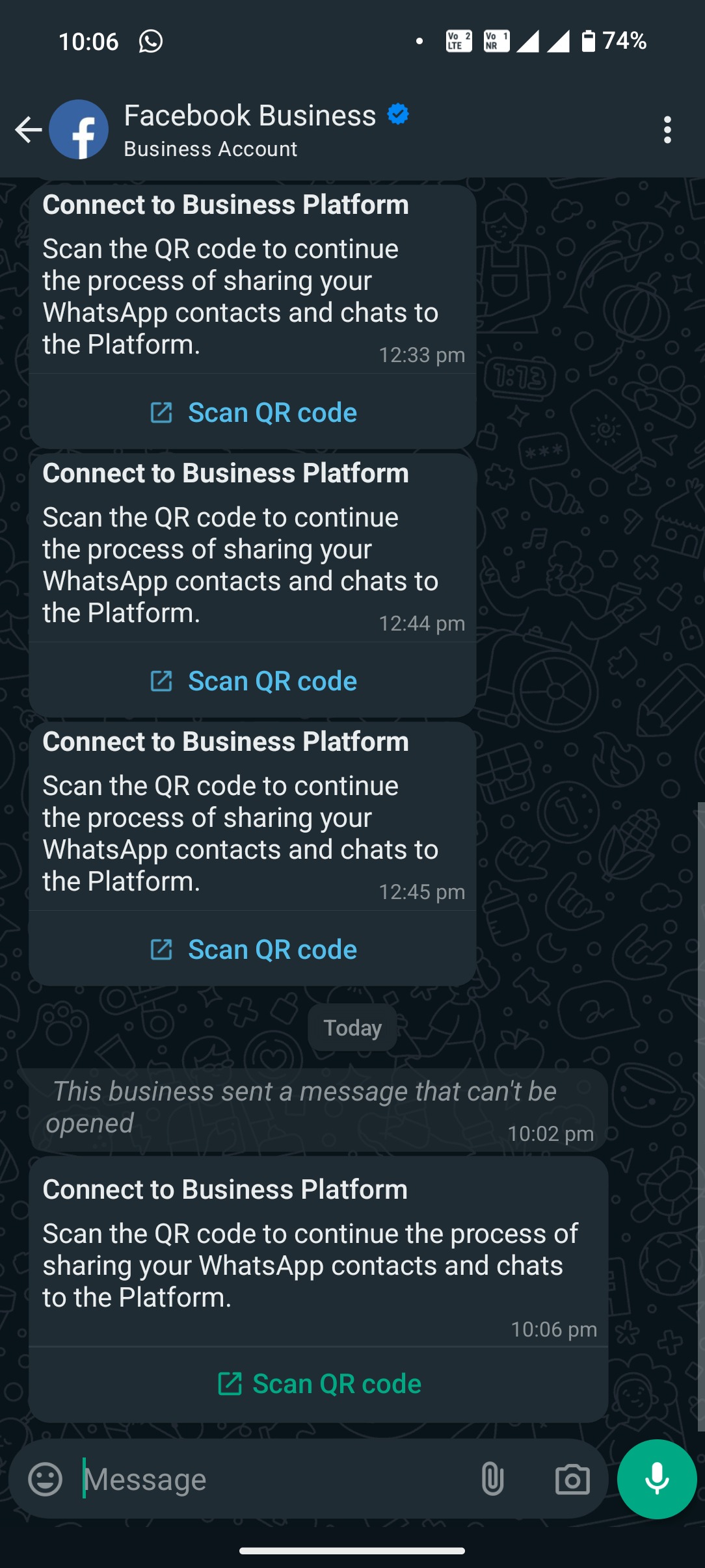
Scan the QR code to complete the connection. You can continue using your WhatsApp Business App alongside Aesthetix CRM.
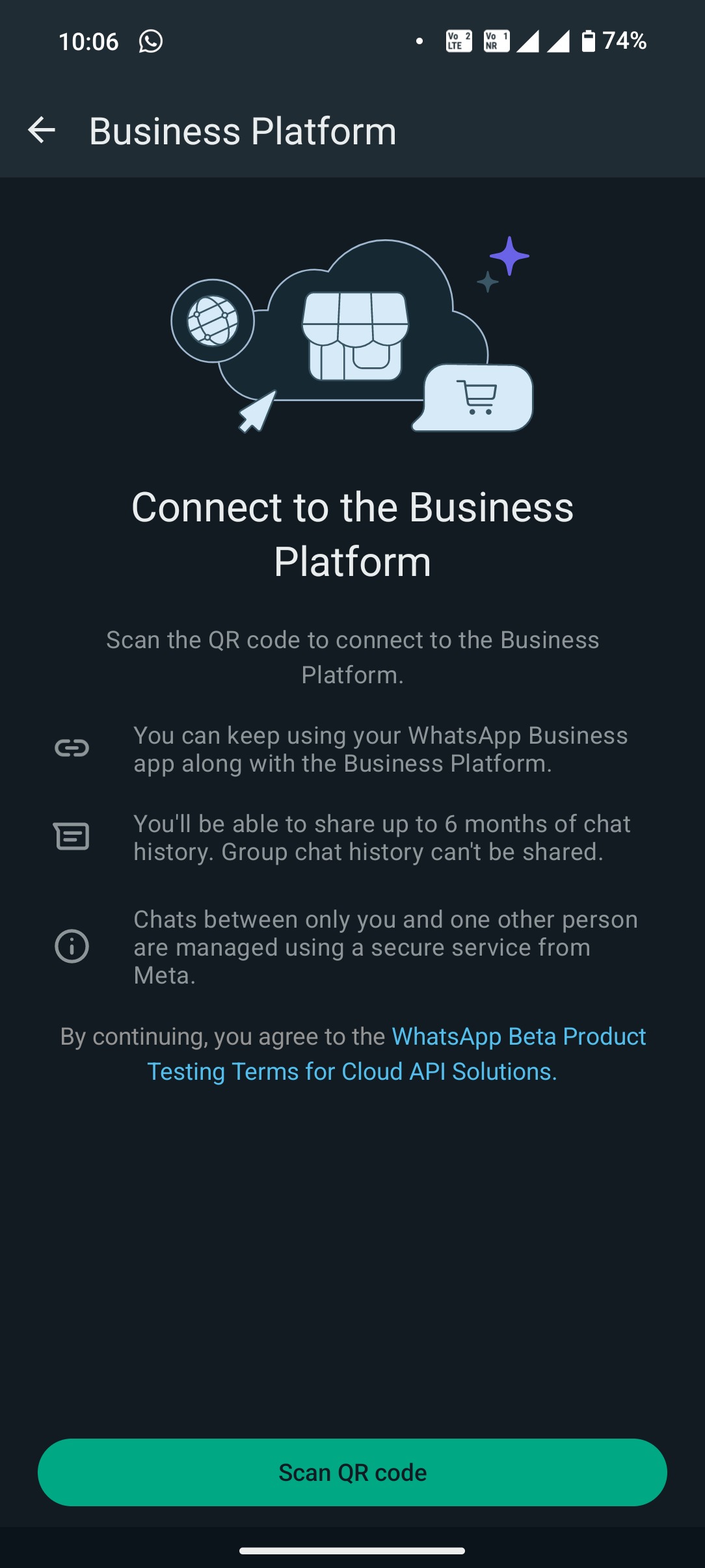
Your contacts and conversations sync securely with Aesthetix CRM.
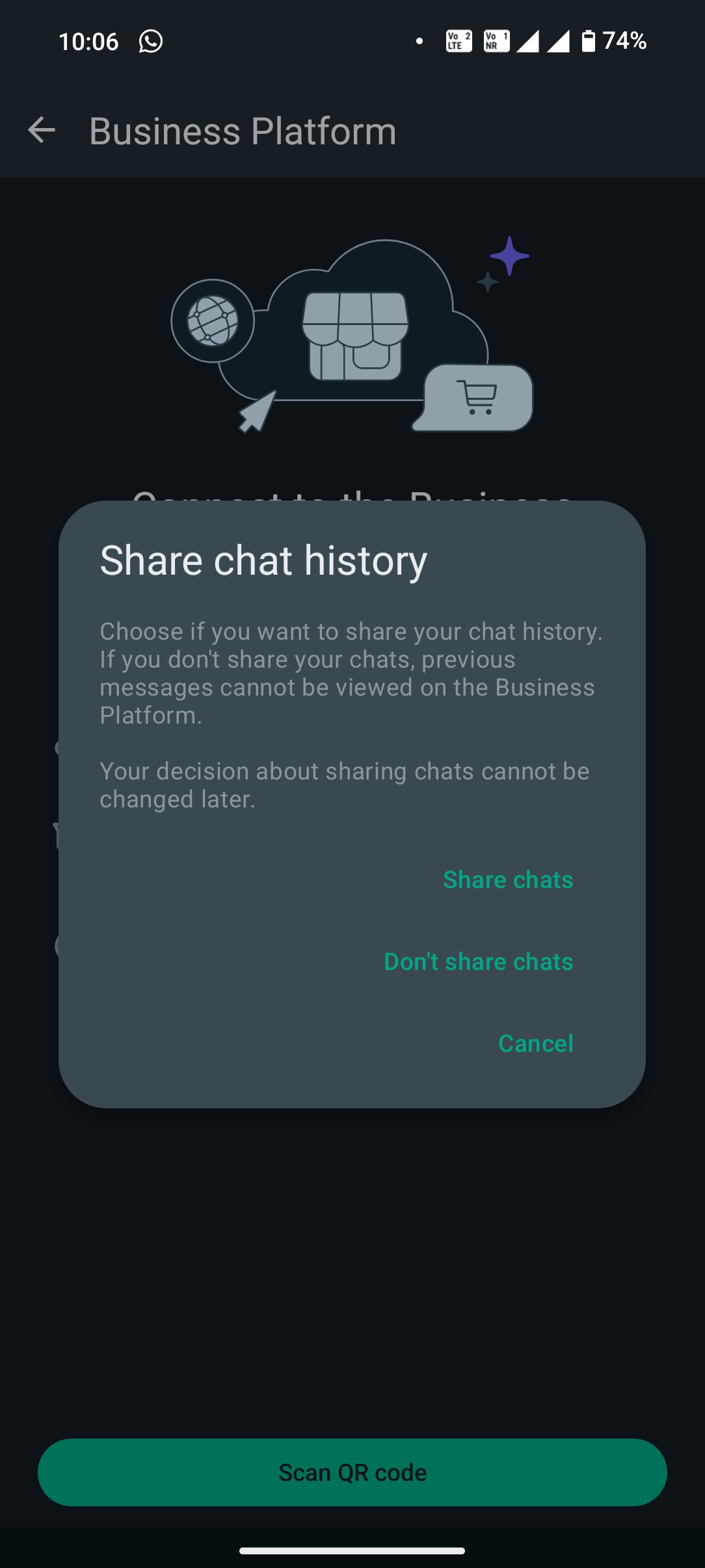
Your WhatsApp Business App is now successfully connected to Aesthetix CRM.
Check all entered details carefully, then click Confirm.
Click Finish. Your WhatsApp Business App is fully connected to Aesthetix CRM.
Note: Template messages can only be sent through Aesthetix CRM, not the WhatsApp Business App. You manage your WhatsApp profile from the WhatsApp Business App, and Coexistence supports a maximum of one phone number.
Creating a new WhatsApp Business Account is best for practices starting fresh or connecting a number that is not currently active on WhatsApp. This path works with a landline, an unused mobile number, a brand-new number, or an eligible 555 business number.
Navigate to Settings → WhatsApp and click Create a new WhatsApp business account.
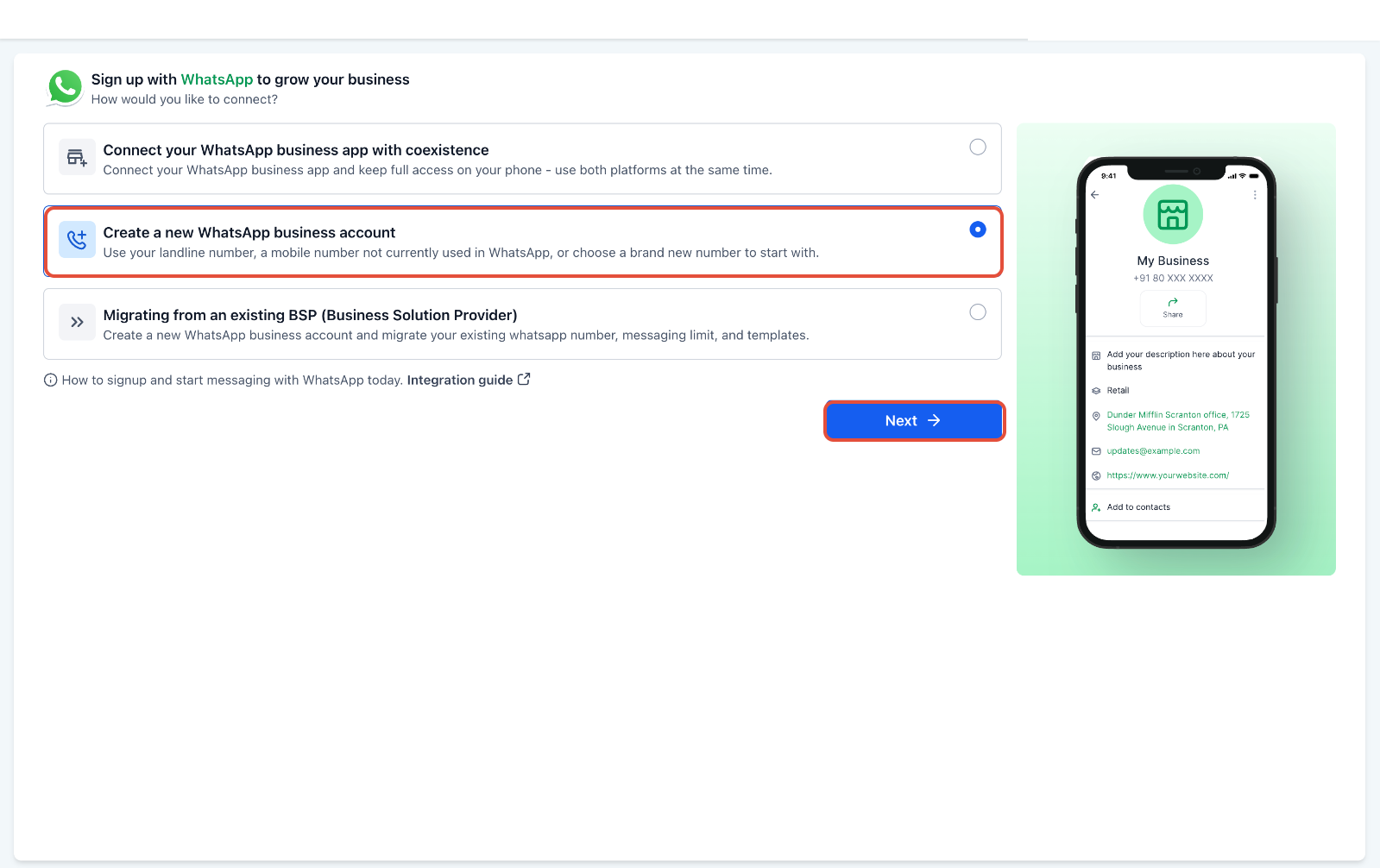
Click Continue with Facebook and log in using the Facebook account associated with your business.
Tap Continue to initiate the setup process.
Fill in all required business information, select Create WhatsApp Business Account, then click Next.
Enter the phone number you want to connect. Make sure it is active and accessible for verification.
Enter the one-time password received by SMS or voice call, then click Next.
Note: If you are verifying a Twilio number, text message two-factor verification will not work. Use the phone call verification method instead.
Check all entered details carefully, then click Confirm.
Your WhatsApp Business Account is now successfully connected and ready to use.
BSP migration lets a practice already using another WhatsApp Business Solution Provider move its WhatsApp Business Account to Aesthetix CRM. This path preserves existing WhatsApp assets and avoids the need to create a new WABA.
Navigate to Settings → WhatsApp and click Migrating from an existing BSP (Business Solution Provider).
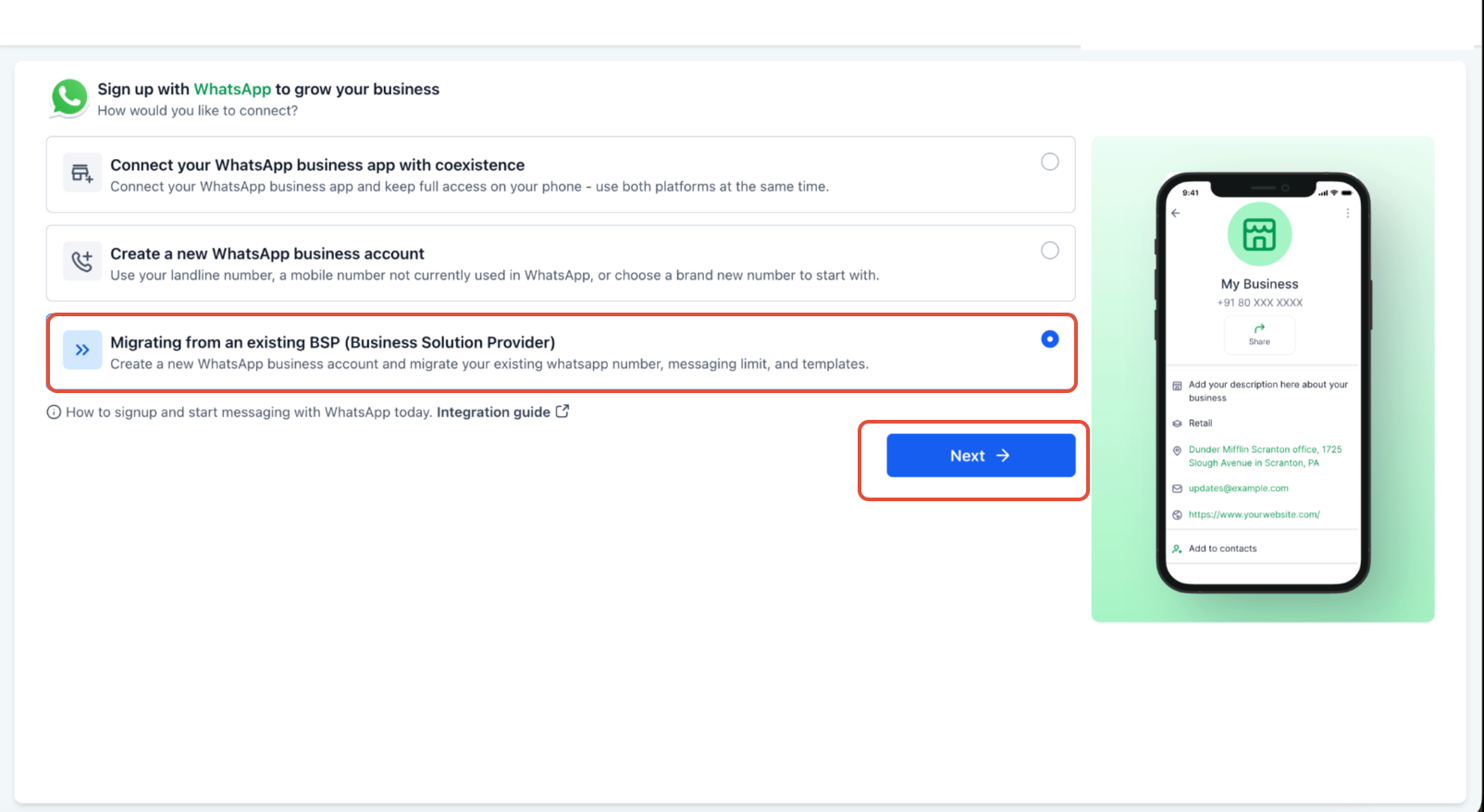
Tap Continue to initiate the migration process.
Choose the business assets you want to migrate. Make sure you select the correct WhatsApp Business Account and associated assets.
Fill in all required business information accurately, then click Next.
Enter the phone number you want to migrate. Ensure it is active and accessible for verification, then click Next.
Click Next to receive your verification code and proceed with number verification.
Enter the one-time password received by SMS or voice call, then click Next.
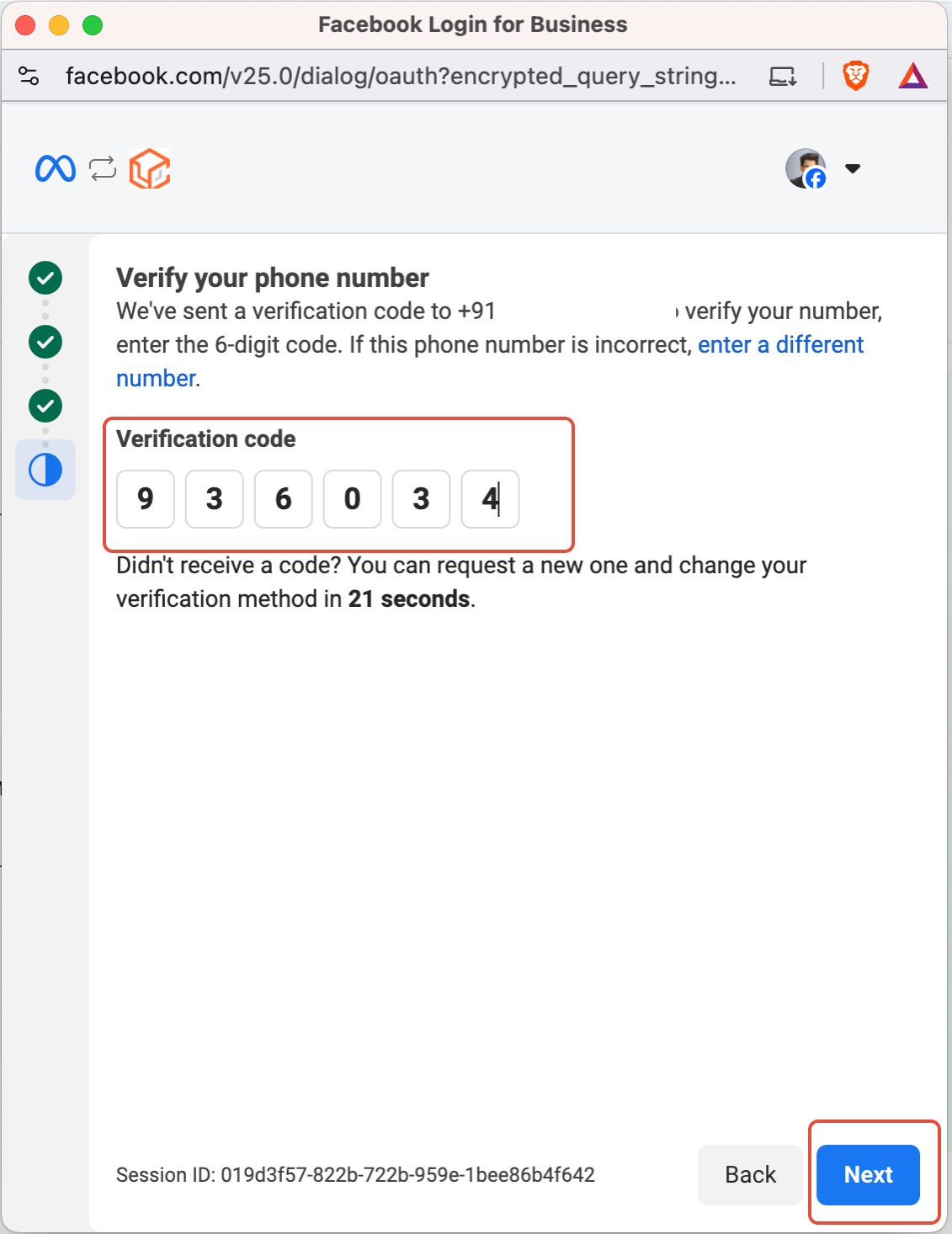
Check all entered details carefully, then click Confirm to complete the migration.
Your WhatsApp Account has been successfully migrated and is ready to use.
Reviewing the prerequisites for each path reduces failed onboarding attempts and helps preserve existing WhatsApp data, account status, and approved assets.
Navigate to the account where WhatsApp should be connected.
Go to Settings.
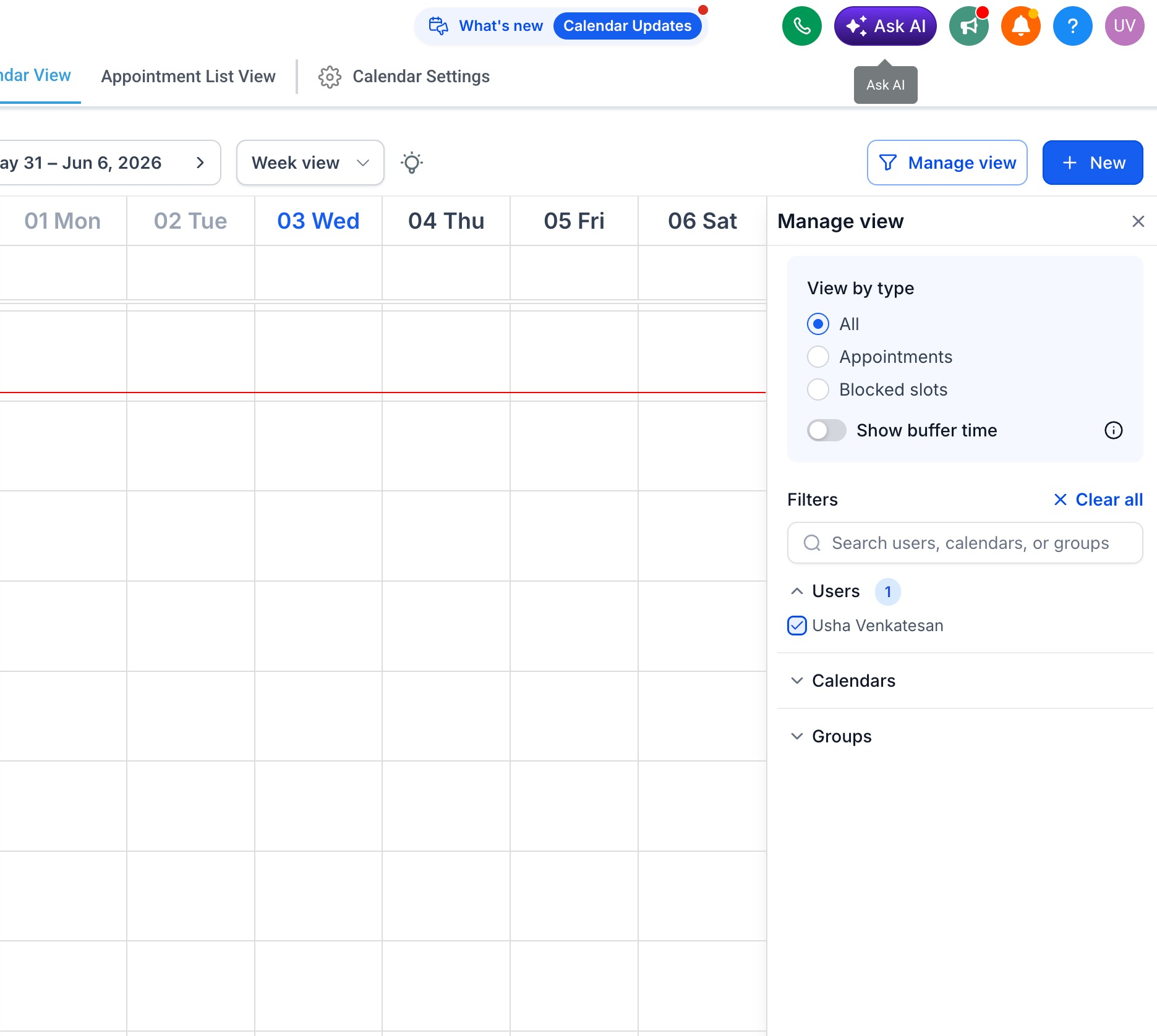
Select WhatsApp and review the available onboarding paths.
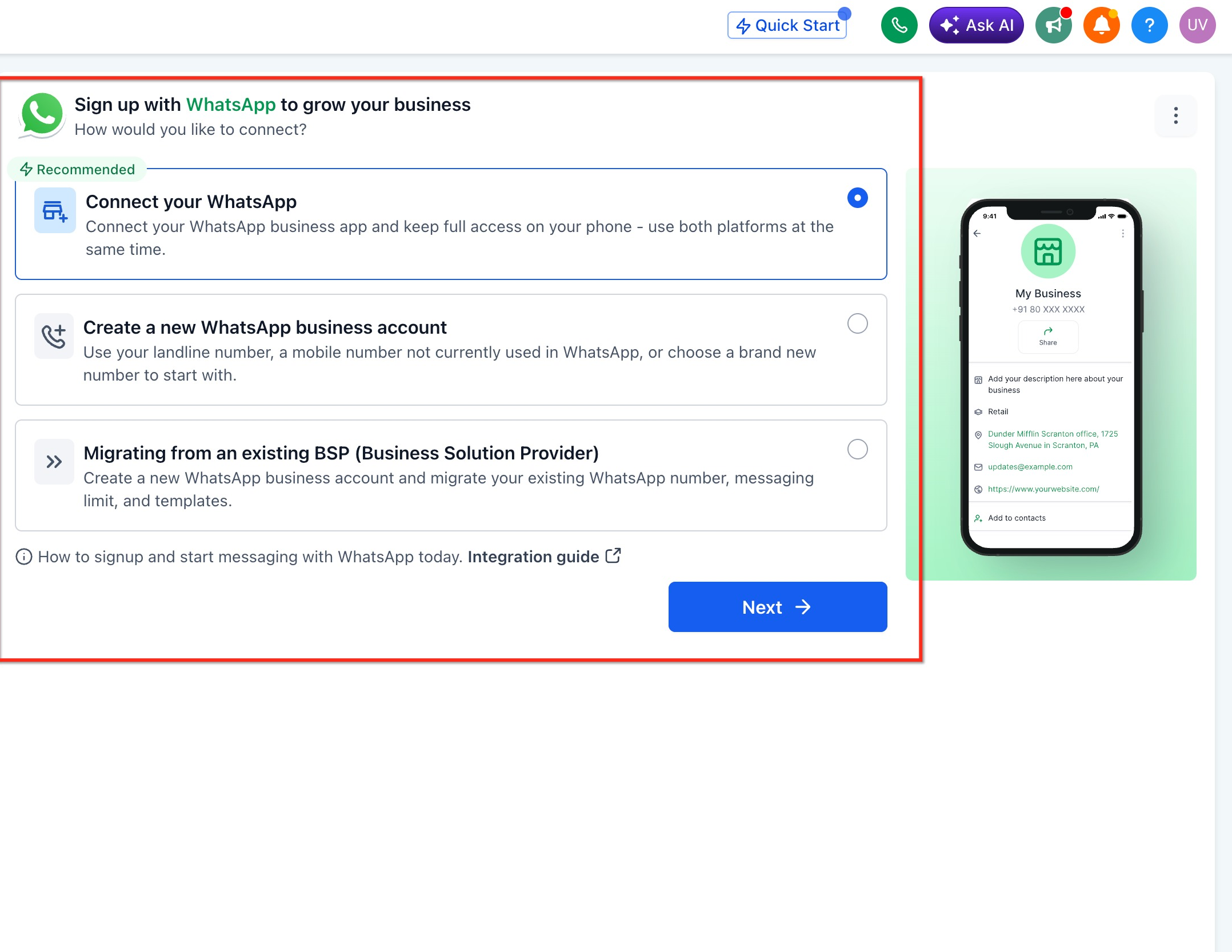
Choose the path that matches your practice's current WhatsApp setup:
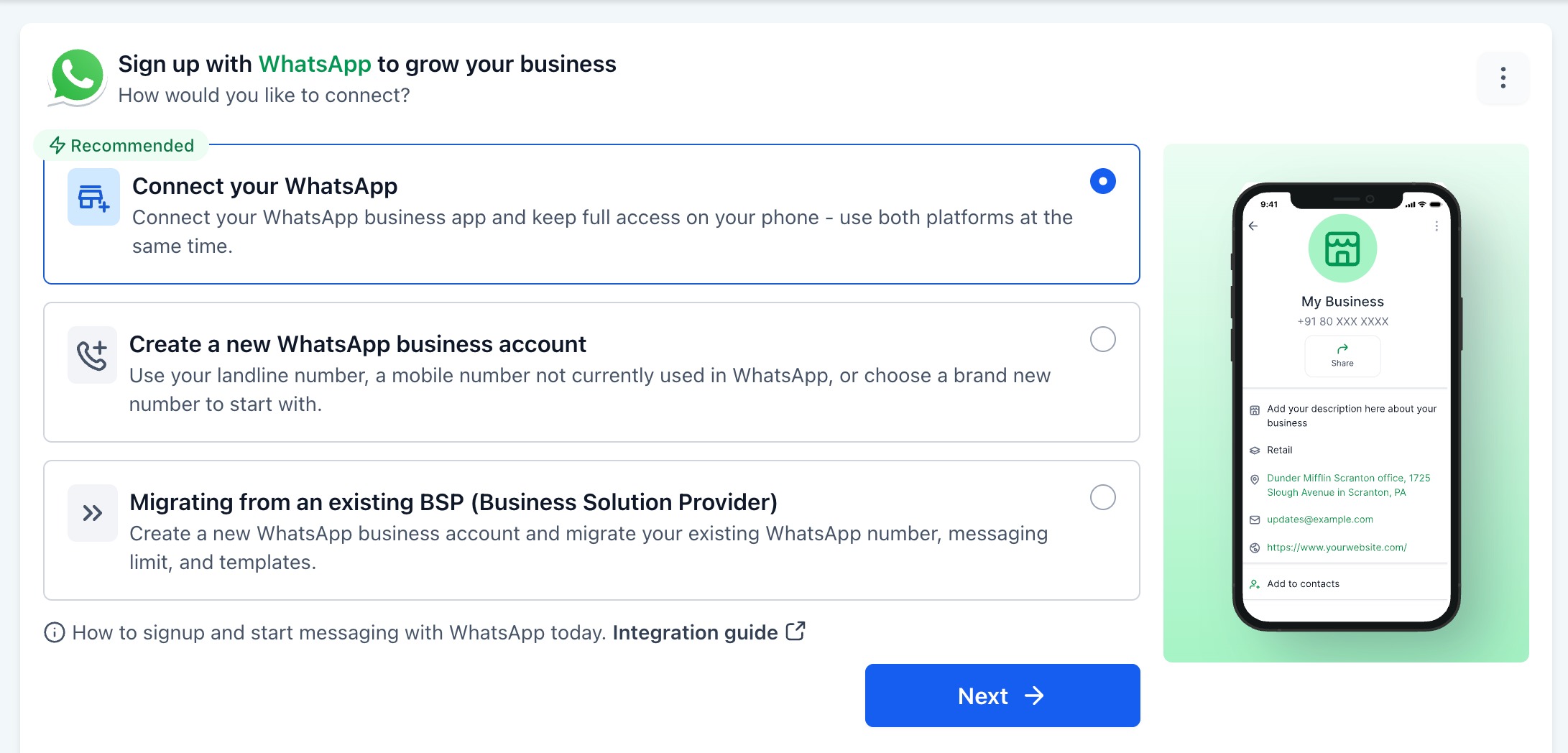
Select Connect your WhatsApp Business App with Coexistence if you want to keep using the WhatsApp Business App and sync conversations.
Select Create a New WhatsApp Business Account if you are starting fresh with a landline, unused mobile number, brand-new number, or eligible 555 number.
Select Migrate from an Existing BSP if your practice already uses WhatsApp through another provider.
Review the prerequisites shown in the onboarding screen.
Complete the required preparation for the selected path.
Click Connect with Facebook.
Complete the Meta embedded signup flow.
Follow the remaining prompts to finish connecting WhatsApp.
After onboarding is complete, review the WhatsApp settings, templates, phone number, and conversation behavior.
Once your phone number is verified, you receive a confirmation message stating that you are ready to start chatting with patients through WhatsApp.
Message limits: A business can send up to 250 business-initiated messages per phone number. These limits may expand over time as your account is approved for additional messages.
Templates are required for WhatsApp automation, especially when you fold WhatsApp into your patient nurture workflows. Templates must be approved by Meta, and once approved they are categorized by message type (for example, marketing or utility).
To create a template:
After setup, you see your WhatsApp number in the WhatsApp settings. You can add additional numbers if needed.
Select one of the available categories (currently marketing or utility).
Customize the message using headers, footers, and custom variables (for example, inserting a patient's first name).
Submit the template for approval.
Note: Message pricing varies based on the template category.
Once setup is complete, WhatsApp messages work inside the Aesthetix CRM inbox like your other messaging tools. Keep these points in mind:
If a patient has not messaged you in the past 24 hours, you must use an approved template to start the conversation.
Once the conversation is initiated, you can chat with the patient freely for 72 hours.
You can reply to inbound WhatsApp messages directly from the inbox.
Outbound messages must use approved WhatsApp templates.
Templates can be sent via workflows, campaigns, or manual sends from patient records.
Free-form outbound messages outside the 24-hour window are not allowed (Meta policy).
WhatsApp is introducing usernames, a privacy feature that lets people message your practice without sharing their phone number. Aesthetix CRM supports this by automatically creating a contact whenever a username-based message reaches your business for the first time, so no lead slips through untracked. This works automatically with your existing WhatsApp configuration and requires no setup changes.
When a patient using a WhatsApp username messages your practice for the first time:
The patient messages your business through WhatsApp using their username instead of sharing their phone number.
WhatsApp delivers the message along with the username and a business-scoped user identifier (BSUID) in place of the phone number.
Aesthetix CRM automatically creates a new contact record using that identifier, so the conversation is tracked on a patient record like any other.
This identifier is scoped to your practice alone and stays stable for the life of that patient relationship, so it continues to work as a reliable stand-in for a phone number on future messages. The same patient messaging a different business receives a different identifier, and no other business can use it to reach your patient.
Note: You cannot start a new conversation with a username-only contact. WhatsApp does not offer username lookup, so a patient must message you first through their username before you can reply. Once they do, standard WhatsApp session-window and template rules apply, the same as any other WhatsApp conversation.
WhatsApp username support is currently in beta with Meta and is rolling out gradually by region. It is currently enabled in Algeria, Azerbaijan, Ghana, Libya, Nepal, Colombia, the Dominican Republic, Singapore, Malaysia, and Peru, with more regions expected to follow. No action is required on your part: as Meta enables username support in additional regions, contact capture in Aesthetix CRM automatically works in those new markets.
No gap in lead capture: Contacts are created automatically when username adopters message you, so no conversation or potential patient goes untracked.
No setup changes: Username capture works automatically alongside your existing WhatsApp setup.
Respects patient privacy: Patients can choose how they share their contact details while your team keeps the ability to engage and follow up.
Future-ready: Keeps your practice aligned as WhatsApp expands its privacy features and more patients adopt usernames.
Please be aware of the following:
Templates must be sent from Aesthetix CRM, not the WhatsApp Business App.
Only one WhatsApp number can be connected per account.
Some regions and countries are not currently supported.
Media handling and formatting may differ slightly between platforms.
WhatsApp usernames are not currently stored in a dedicated contact field or available for export.
Which WhatsApp onboarding path should I choose?
Choose Coexistence if you already use the WhatsApp Business App and want to keep using it. Choose new account setup if you are starting fresh with a new or unused number. Choose BSP migration if your WhatsApp Business Account is connected through another provider and you want to move it to Aesthetix CRM.
Can I keep using the WhatsApp Business App after connecting?
Yes, when using the Coexistence path. Coexistence lets you keep using the WhatsApp Business App while managing conversations inside Aesthetix CRM.
How much chat history can sync into Aesthetix CRM?
Coexistence can sync up to six months of WhatsApp chat history into Aesthetix CRM.
Will I lose my templates when migrating from another BSP?
No. Approved templates are preserved when migrating from another BSP to Aesthetix CRM through the supported migration flow.
Do I need to create a new WhatsApp Business Account when migrating from another BSP?
No. BSP migration moves your existing WhatsApp Business Account to Aesthetix CRM without creating a new WABA.
Why do I need to turn off two-step verification before BSP migration?
Two-step verification can block or delay migration. Turning it off before starting helps Meta complete the transfer through the embedded signup flow.
What happens if my display name is not approved?
WhatsApp may not be fully usable until the display name is approved. Review Meta's display name requirements and resubmit if needed.
What happens to my chat history if I connect an existing account without Coexistence?
If you connect an existing account outside the Coexistence path, all previous WhatsApp chat history is lost, and you can no longer use the WhatsApp Business App with that account. For this reason, we recommend either using Coexistence or creating a fresh WhatsApp Business Account.
Why do I see a "number is already registered" error when connecting WhatsApp?
This means the number is still active on the standard WhatsApp or WhatsApp Business app. A number cannot be active on two platforms at once through the standard connection path. Use the Coexistence path to keep the number on your phone while connecting it to Aesthetix CRM, or disconnect the number from the existing app first and wait a few minutes before re-entering it. If the number was previously connected through another provider, Meta may require a longer cooldown of several weeks before it becomes available again.
Can I verify a Twilio number by text message?
No. Text message two-factor verification does not work with a Twilio number. Use the phone call verification method instead.
How many WhatsApp numbers can I connect?
You can connect one WhatsApp number per account, and Coexistence supports a maximum of one phone number.
Can patients message my practice without sharing their phone number?
Yes. WhatsApp usernames let patients message your practice without revealing their phone number. Aesthetix CRM automatically creates a contact from the username and its business-scoped user identifier (BSUID), so the conversation is still captured on a patient record.
Can I message a patient first if they are only known to me by a WhatsApp username?
No. WhatsApp does not offer username lookup, so you cannot start a conversation with a username-only contact. Once the patient messages you first, you can reply following the standard WhatsApp session-window and template rules.
Can I export or store a patient's WhatsApp username in a custom field?
Not currently. WhatsApp usernames are not yet stored in a dedicated contact field or available for export.
Is WhatsApp username support available in my region?
It depends on Meta's rollout. Username support is currently in beta and enabled in Algeria, Azerbaijan, Ghana, Libya, Nepal, Colombia, the Dominican Republic, Singapore, Malaysia, and Peru, with more markets added automatically as Meta expands availability.
