Collect payments and deposits directly in your forms and surveys, including offline options like cash, checks, and bank transfers.
Forms and surveys can do more than capture information. They can also collect a payment or deposit from a patient at the moment they submit, which is ideal for securing a consultation deposit, prepaying for a product, or booking a service. Aesthetix CRM supports both online payments through connected providers and manual (offline) payments for practices that handle cash, checks, or card payments in person.
This guide covers how to enable manual payment methods and how orders flow through your account when a patient pays.
When you add a product to a form or survey, patients can pay online through a connected provider (such as Stripe or PayPal) or through a manual payment method that you enable. Manual payment methods include:
Cash on Delivery (COD): The patient pays in cash when they receive their product or service.
Custom Payment Methods: Covers bank transfers, checks, in-person card payments, or other offline options you accept.
Note: To collect payments online, you first need a payment provider connected to your account. See the Payments collection for provider setup and configuration.
Manual payments let you accept offline payments and track their status inside your account.
In your account, go to Payments > Integrations > Manual Payment Methods.
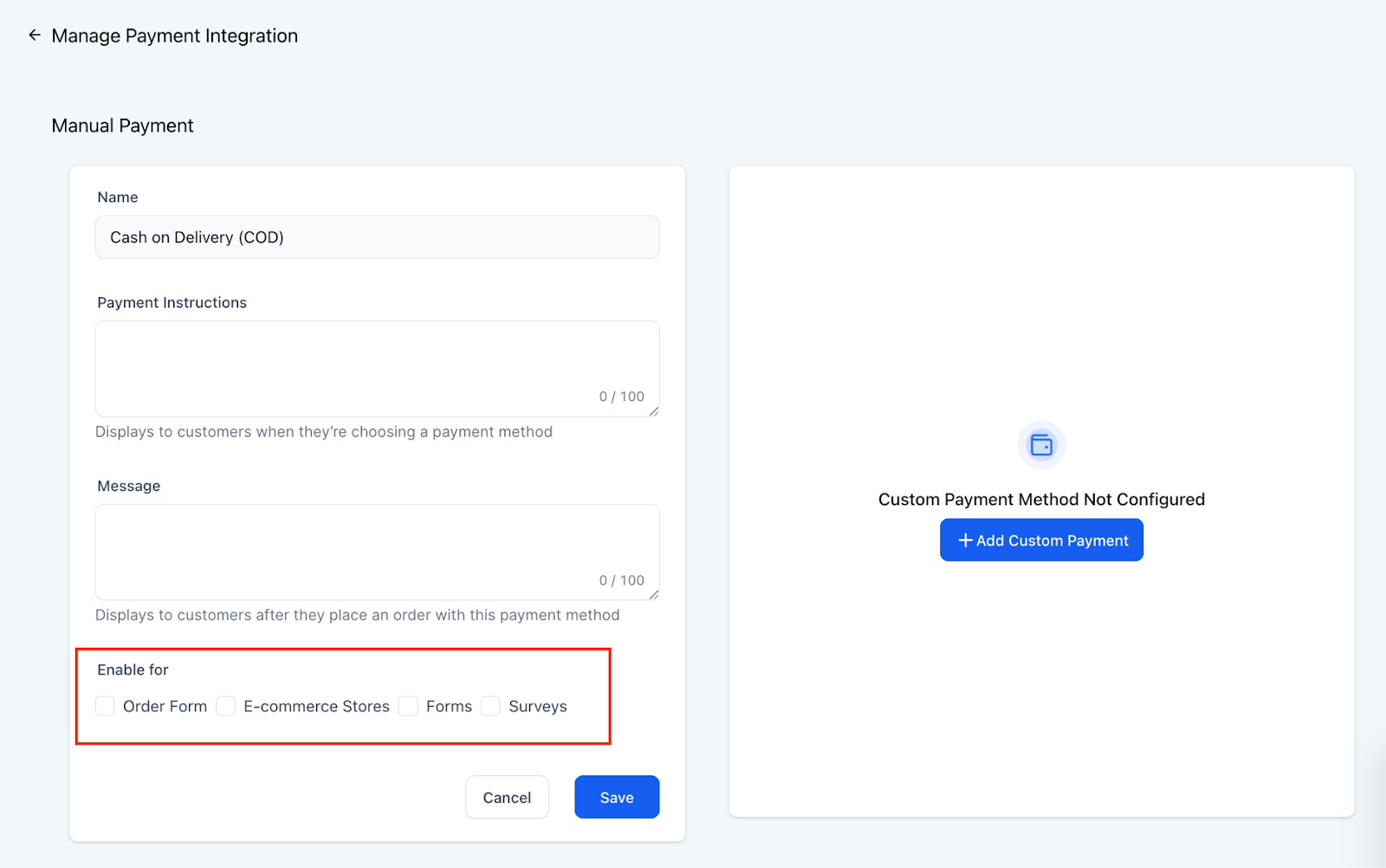
Enable Cash on Delivery or Custom Payment Methods as needed.
Configure the description and post-purchase message for each payment type so patients know what to expect after they submit.
Make sure the manual payment option is enabled specifically for forms and surveys.
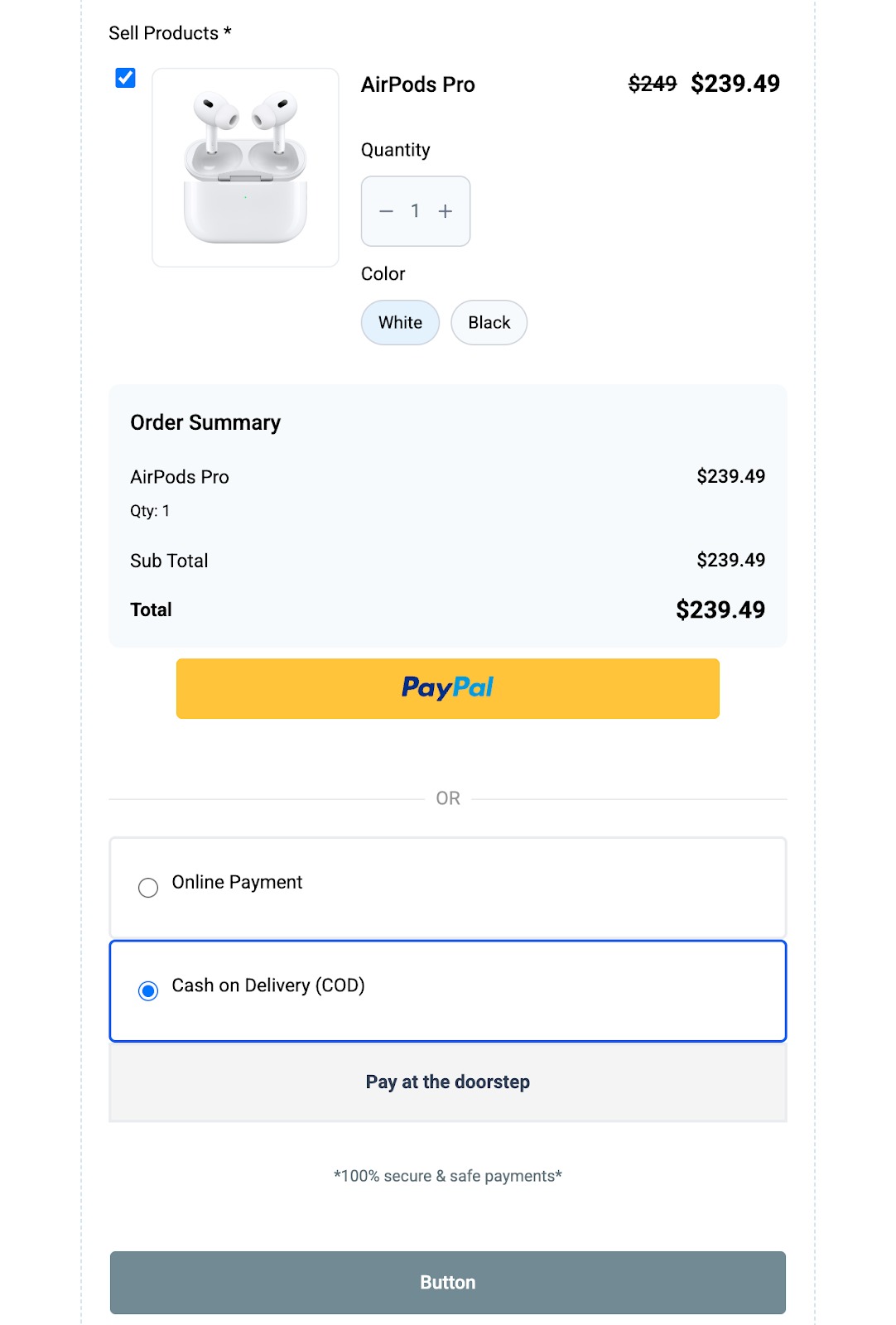
When you add a product to a form or survey, the manual payment option automatically appears in the payment selection alongside any online options.
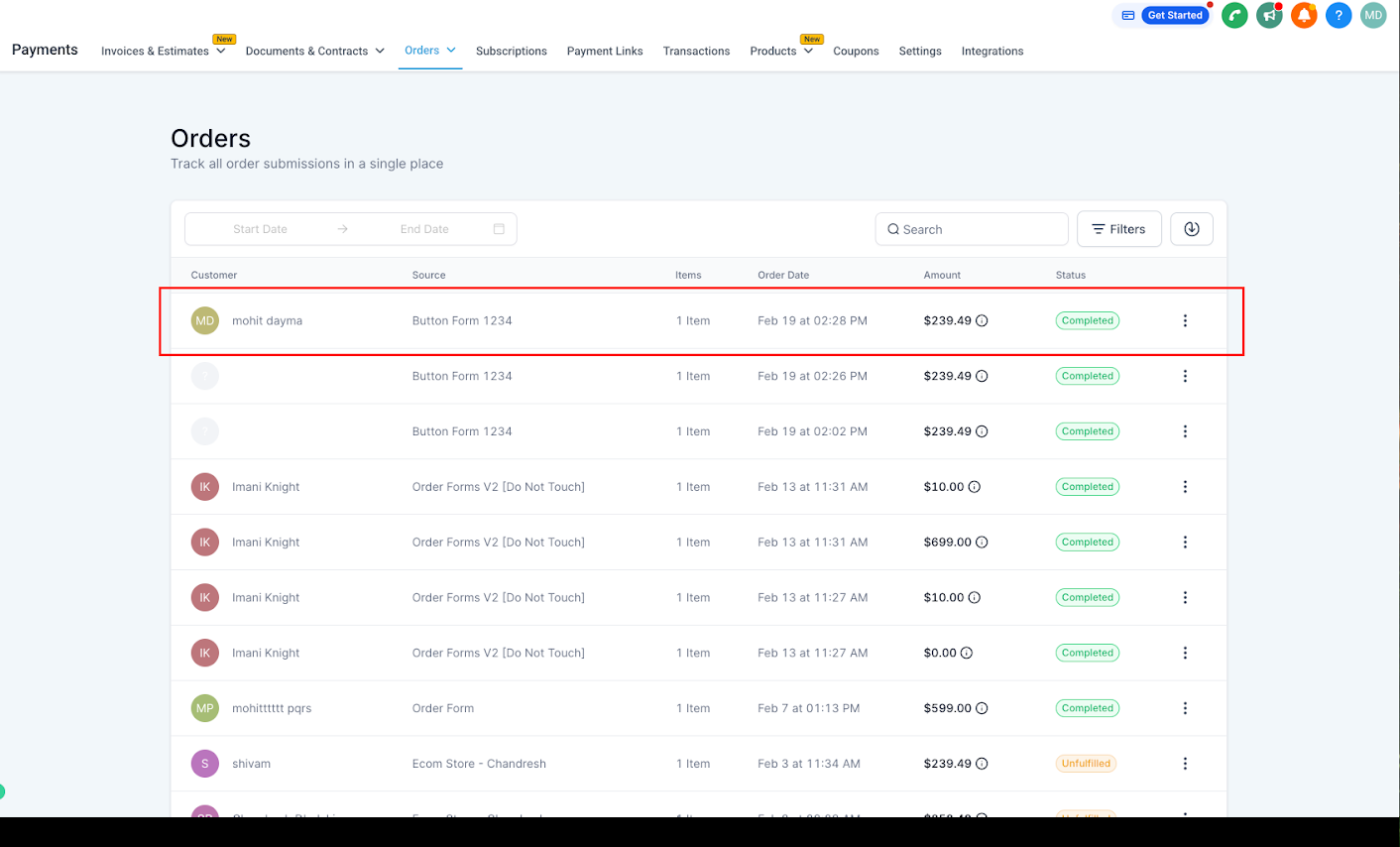
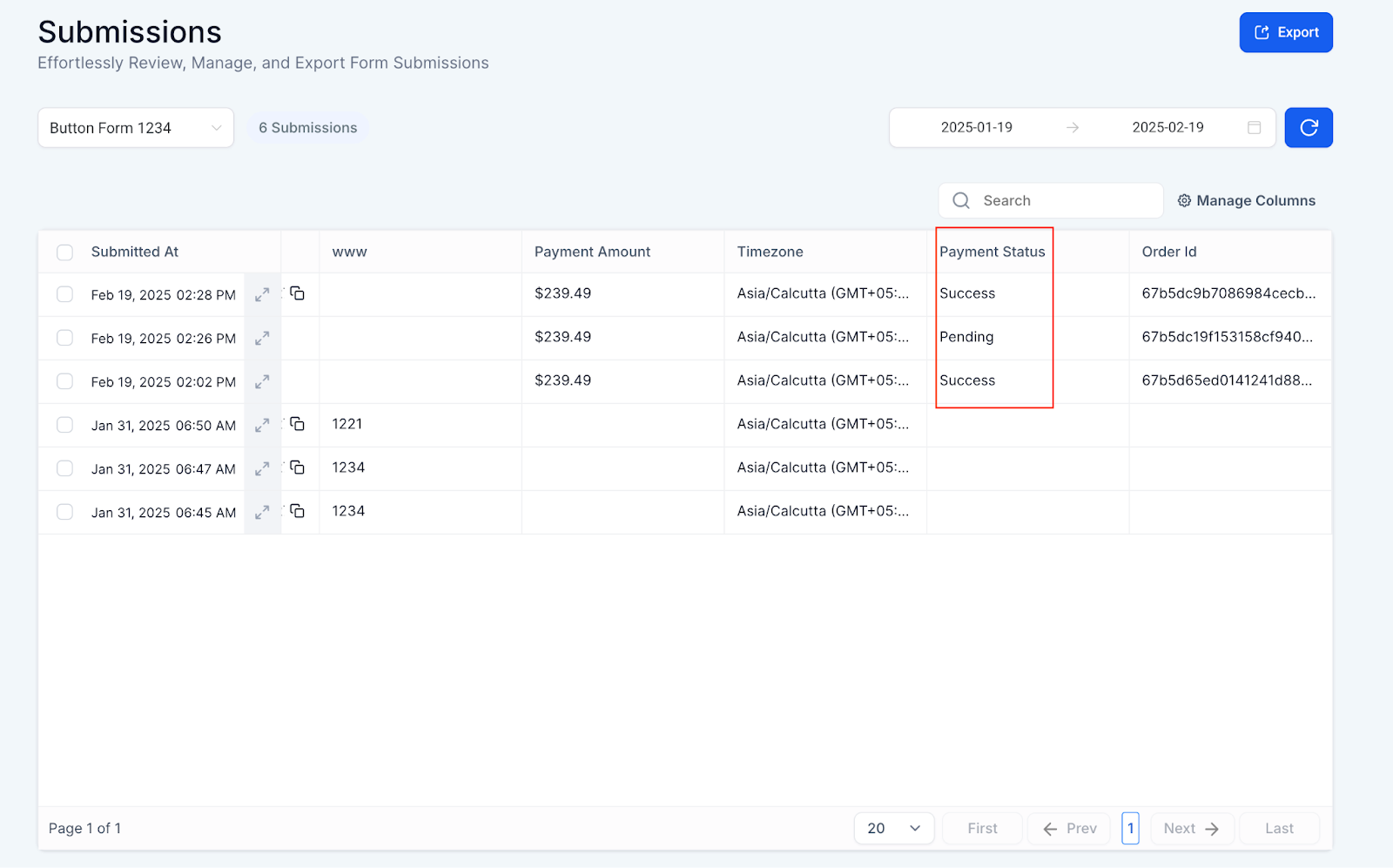
When a patient submits a form with a manual payment selected, the order appears under Payments > Orders with a Pending status.
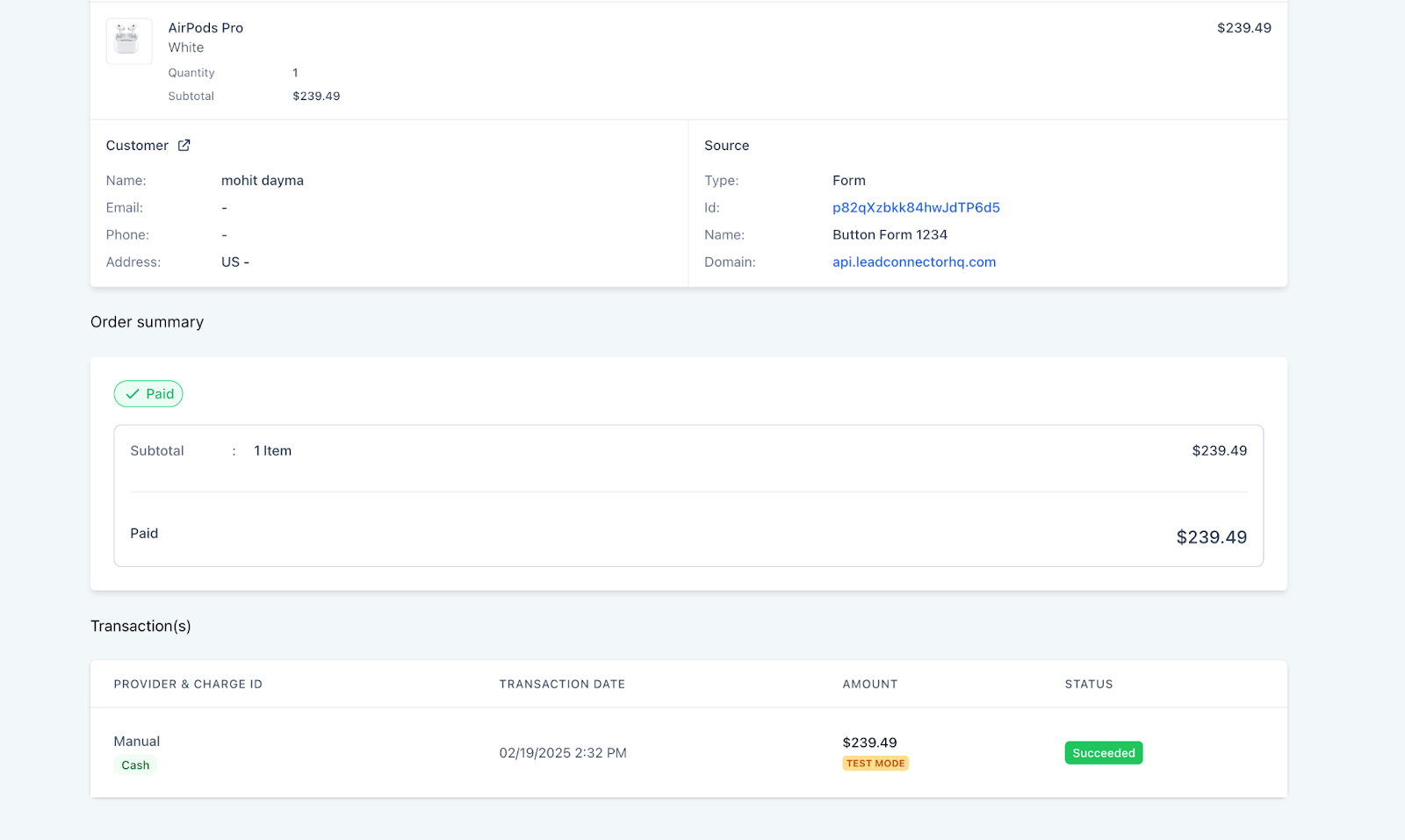
When payment is received, mark the order as paid and choose the payment mode (cash, card, check, bank transfer, or other).
The payment status you set in the Orders section syncs automatically with the Form Submissions section, so both views stay accurate.
If a product on your form or survey totals $0 with no recurring charges attached, you can skip credit card collection entirely so patients can complete a free order without entering payment details.
On the Sell Products element, disable the Require Credit Card toggle.
This setting defaults to on, so your existing forms and surveys keep requiring a card until you turn it off.
Once disabled, payment fields are hidden automatically whenever the order qualifies, on both desktop and mobile, including forms embedded in a funnel.
Card details are hidden only when all of the following are true:
Order total is $0: the combined price of all selected products, variants, and order bumps, including any applied coupon, equals zero.
No recurring charges are scheduled: even if today's charge is $0, a card is still required if a subscription or trial will bill the patient later.
The total is confirmed and stable: the pricing summary has fully loaded. If a patient submits while the total is still updating, such as right after changing a product, variant, coupon, or order bump, the payment fields are shown instead.
If any condition fails or can't be confirmed, the form falls back to showing the payment fields and collecting a card as usual, so a submission never goes through without the payment it needs.
Tip: A 100% discount coupon that brings the order to $0 triggers this behavior automatically, which is useful for promotional campaigns. Free orders are still created and recorded in Form Submissions and Payments > Orders, so your tracking and reporting stay accurate.
Greater payment flexibility: Support a variety of offline payment options for patients who prefer to pay in person.
Seamless order tracking: Orders and payments are managed together in one dashboard.
Automatic synchronization: Payment status updates reflect in both the Orders and Submissions sections.
Ideal for in-person collection: Well suited to practices that take deposits or payments at the front desk, such as a consultation deposit.
What can I collect payment for on a form? You can collect payment for any product you add to a form or survey, such as a consultation deposit, a prepaid service, or a retail product. The payment is collected at the moment the patient submits the form.
Do I need a payment provider to accept payments in forms? To accept online payments, yes. You need a provider like Stripe or PayPal connected to your account first. Manual (offline) payment methods do not require a provider, since you collect and record those payments yourself.
What is the difference between online and manual payments? Online payments are processed automatically through a connected provider when the patient submits. Manual payments are for offline transactions (cash, check, bank transfer, or in-person card) that you collect and then mark as paid inside your account.
Where do form payments show up after submission? Every order appears under Payments > Orders. Manual payments start with a Pending status until you mark them as paid. The status also appears in the Form Submissions section.
How do I mark a manual payment as paid? Open the order under Payments > Orders, mark it as paid, and select the payment mode (cash, card, check, bank transfer, or other). The updated status syncs to Form Submissions automatically.
Can I customize what patients see after they pay? Yes. When you enable each manual payment method, you can set a description and a post-purchase message so patients receive clear instructions after submitting.
Will the payment status stay in sync between Orders and Submissions? Yes. Any status change you make in the Orders section automatically reflects in the Form Submissions section, so you never have to update it in two places.
Can I skip credit card collection for free orders in forms? Yes. Disable Require Credit Card on the Sell Products element. Payment fields are hidden automatically whenever the order totals $0 with no recurring charges scheduled.
Will patients ever see payment fields on a $0 order? Yes, if the total can't be confirmed as $0 and stable, such as while the pricing summary is still loading or updating, the payment fields are shown as a safety default.
