Compare Aesthetix CRM native forms with webhook-connected external forms, and learn how to capture submissions from outside forms into your account.
When building a lead capture or patient intake process online, one of the first decisions is whether to use the native form builder within Aesthetix CRM or to connect a third-party form (like Jotform, Typeform, or Gravity Forms) into your account. Both methods can collect lead or appointment request data, but the differences in compliance, attribution tracking, and setup complexity can have a significant impact on your practice's operations, data integrity, and marketing performance.
This guide covers when to use native forms versus an external form connection, and how to capture submissions from non-Aesthetix forms directly into your account.
Aesthetix CRM's native form builder is purpose-built for medical aesthetics practices. Here are the top advantages.
Aesthetix CRM forms ensure that no data is stored on your public website, even temporarily. All submitted information is securely routed and stored within your Aesthetix CRM environment, helping you remain HIPAA compliant without needing to configure additional protections on your web host.
Aesthetix CRM forms automatically capture and associate leads with their original source (such as Google Ads, Organic Search, Facebook Ads, Instagram, Direct, or Referral). This lets your team track ROI and optimize ad spend, something most third-party form tools don't support out of the box.
With a lightweight iframe embed, you can add an Aesthetix CRM form to nearly any page builder, including WordPress, Webflow, Wix, and Squarespace, without custom coding.
While the benefits are significant, there are a few potential drawbacks to keep in mind.
Because the forms are embedded via iframe, they may not fully inherit your website's CSS styling. This can occasionally lead to formatting issues depending on your website platform or theme.
In rare cases, iframe-based forms can cause slightly slower load times compared to native HTML forms, especially on slower hosting environments.
Using third-party form tools connected via webhooks may seem attractive for teams already using platforms like Typeform or Jotform, but there are important trade-offs.
Webhook implementations require custom code, often needing a developer familiar with both the third-party form system and the Aesthetix CRM API and webhook framework. This adds time, complexity, and ongoing maintenance costs.
External forms cannot natively capture or pass through marketing attribution data (such as source, medium, campaign). This means leads from Google Ads or Meta Ads may appear as "Direct" or "Unknown," making ROI tracking difficult.
Unless your external form provider and web hosting environment are both HIPAA compliant, you risk exposing PHI (Protected Health Information) during form submission. This can leave your practice legally vulnerable.
Feature | Native Forms | Webhooks |
|---|---|---|
HIPAA Compliant | Yes | Often No |
Built-in Attribution Tracking | Yes | No |
Requires Developer Setup | No | Yes |
Easy to Embed on Website | Yes | Depends on Tool |
Styling Flexibility | Limited (iframe-based) | Fully Customizable |
Speed Performance | Can be slower (iframe) | Often Faster (HTML) |
For most aesthetic practices prioritizing HIPAA compliance, ease of setup, and marketing ROI tracking, Aesthetix CRM's native forms offer the most complete and compliant solution. However, if you have unique styling requirements and developer resources, an external form approach may be appropriate, provided you take proper care with compliance and tracking.
Note: If you already run external forms and want their submissions in your account without building a webhook, use External Tracking (covered below). It captures supported external form submissions automatically, with no third-party tools or custom code.
External Tracking lets you capture form submissions from external websites directly into your account with zero manual setup. It automatically detects supported forms like Gravity Forms, WPForms, and custom HTML forms, then sends submissions into your account in real time. This eliminates the need for third-party tools, webhooks, or custom integrations while improving attribution and lead tracking accuracy.
External Tracking is a lightweight script that connects your external website activity to your account, allowing you to track page views and automatically capture form submissions from third-party sites.
With the latest enhancement, External Tracking now automatically detects DOM-based forms and captures submissions without requiring manual configuration, making it significantly easier to track leads from platforms like WordPress, Shopify, Wix, and custom-built websites.
External Tracking simplifies lead capture and improves visibility into external website performance, helping you make better marketing and automation decisions.
Automatic Form Detection: detects supported forms like Gravity Forms, WPForms, and custom HTML automatically
Real-Time Submission Capture: instantly captures submissions without delays or integrations
Automatic Contact Creation: creates or updates contacts immediately after submission
Smarter Field Mapping: maps fields intelligently to existing contact properties and custom fields
Attribution Tracking: captures UTM parameters, page URLs, and session data
Multi-Form Support: tracks multiple forms on the same page independently
Zero Configuration: no need for third-party tools, webhooks, or manual mapping
External Tracking scans your website for supported forms rendered directly in the DOM, allowing most modern form builders to work instantly after installation. This removes the need for manual validation and ensures a seamless experience when capturing leads from external sites.
Supported forms include:
WordPress forms (Gravity Forms, WPForms, Contact Form 7)
Custom HTML forms
No-code website builders
Forms embedded via iframes or third-party widgets are not supported.
Field mapping is handled automatically using intelligent matching, ensuring that captured data aligns with your contact records without requiring manual setup. This improves data accuracy and reduces the need for post-submission cleanup.
Matches fields using name, label, and existing custom fields
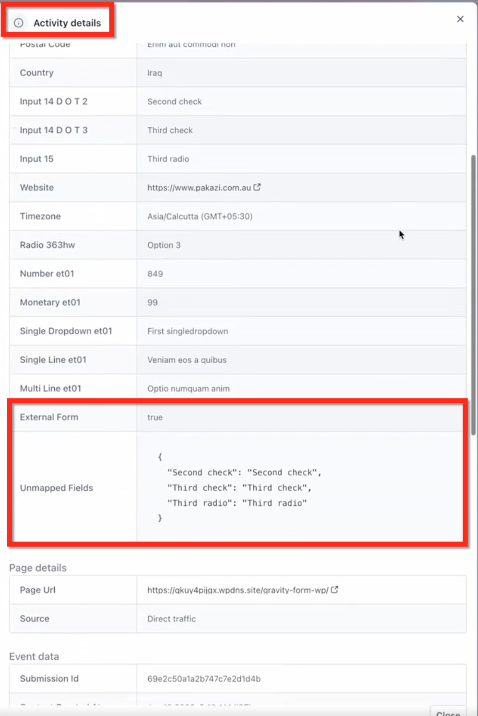
Stores unmapped fields safely for later use
Supports multiple field types (text, dropdowns, checkboxes, dates, etc.)
Displays only relevant fields in the UI
Correct installation ensures that all external form submissions and page activity are captured reliably, enabling accurate reporting and automation.
Go to Settings → External Tracking, then click Copy Script.
This script is unique to your account and acts as the connection between your website and your account. Do not modify the tracking ID.
Paste the script before the closing </body> tag of your website so it loads on every page and can detect forms automatically.
<script src="https://link.yourdomain.com/js/external-tracking.js" data-tracking-id="tk_xxxxxxxxxxxxxxxxxxxxxxxxxxxxxxxx"></script>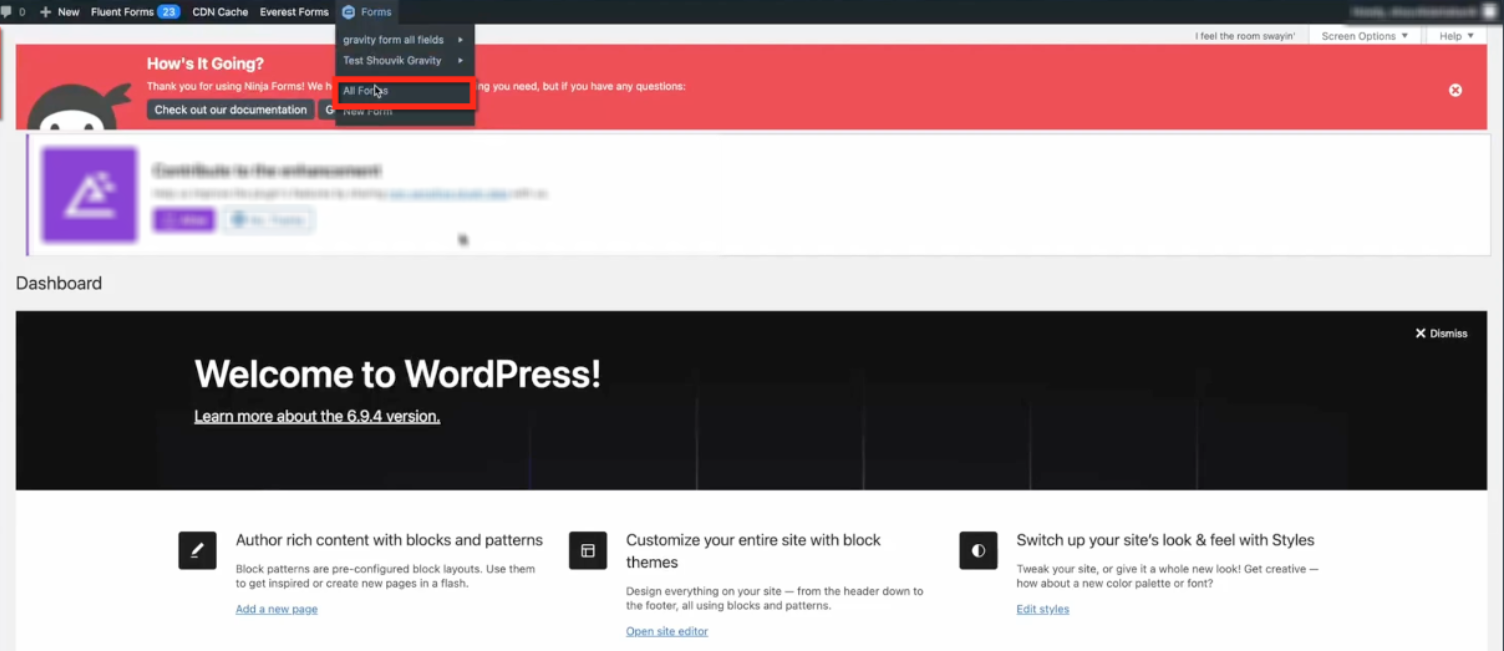
This can be implemented across multiple platforms including WordPress, Shopify, Wix, Webflow, or any custom HTML site.
Although global installation is recommended, you can also place the script directly inside a form using an HTML block. This is often used in page builders or form editors for quick implementation.
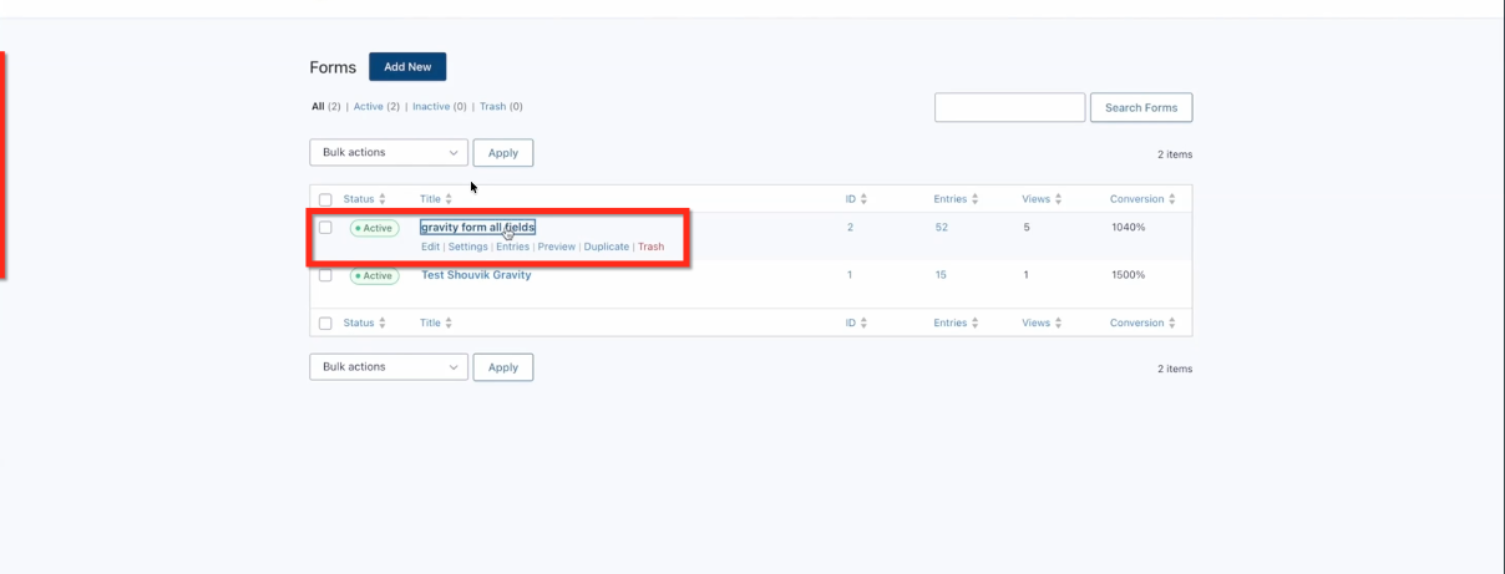
Once inside the form builder, you can insert the script into an HTML block to ensure it loads with the form.
After installation, simply submit the form as a user would. The system will automatically detect the form and capture all supported field data without additional configuration.
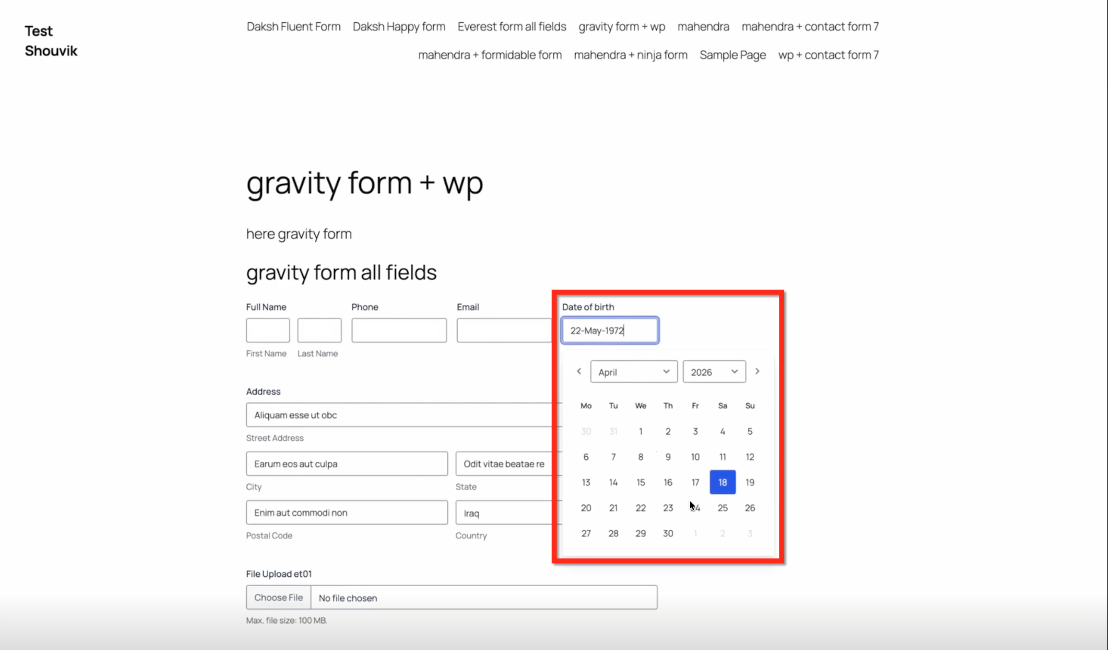
Once submitted, the form behaves normally from the user's perspective while sending data to your account in the background.

Captured submissions are instantly available inside your account, allowing you to review and manage incoming leads.
Navigate to Web Tools → Forms → Submissions
Select External Forms to filter results
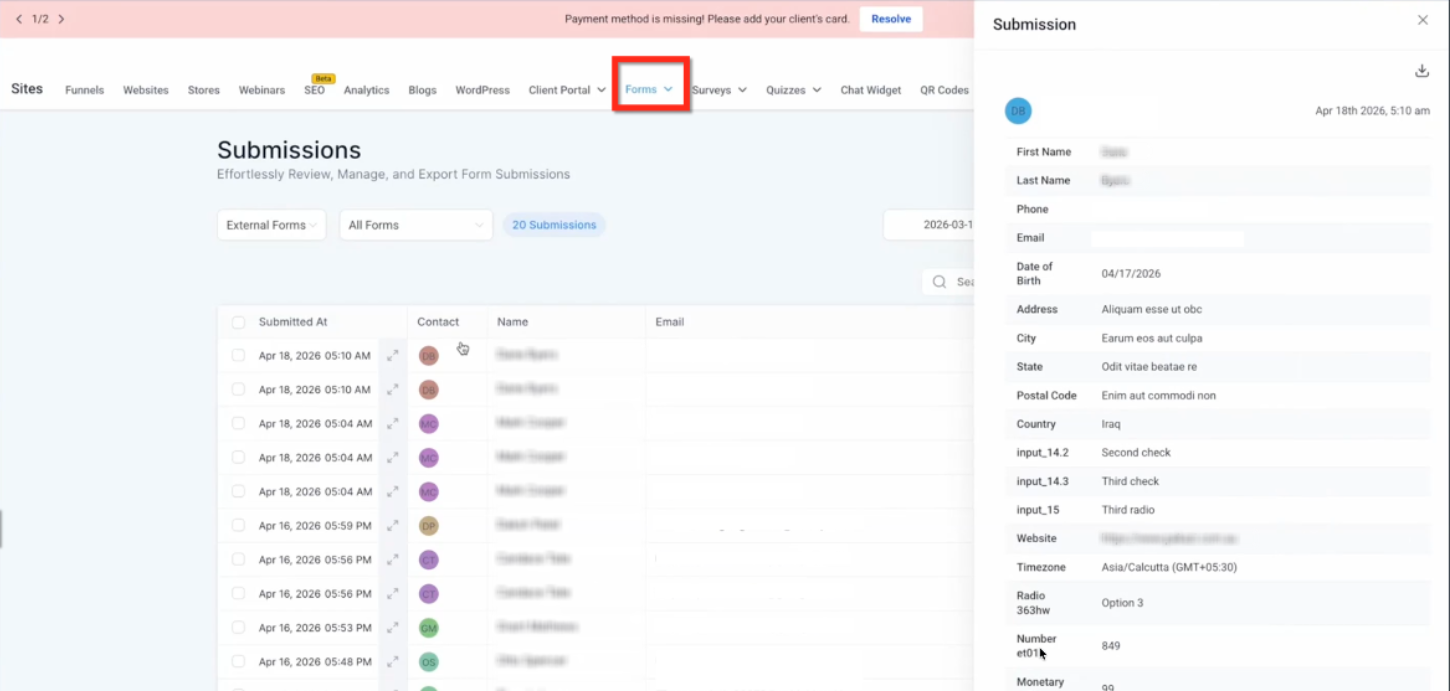
Each submission is also attached to a contact record, providing full visibility into the captured data and user activity. This allows you to use the information for segmentation, automation, and follow-up.
External Tracking works automatically when forms meet basic structural requirements, ensuring reliable detection and data capture.
Must use a valid <form> HTML element
Fields must include name attributes
An email field should be present
Fields must be visible in the DOM
Not supported:
Iframe-based forms
Popup widgets without real form elements
Third-party scripts that do not expose inputs
External Tracking enables automation based on user behavior, allowing you to respond to leads instantly and efficiently.
Page View Trigger: fires when a visitor lands on a page with the tracking script (even anonymously)
Form Submission Trigger: fires when a detected form is submitted
Available filters:
Domain
Page path
External form name
UTM parameters
When should I use a native form instead of an external form?
Use a native Aesthetix CRM form when HIPAA compliance, built-in source attribution, and fast, code-free setup matter most, which is the case for most practices. Consider an external form only when you have unique styling needs and developer resources to manage compliance and attribution yourself.
Can I bring submissions from my existing external forms into my account without a webhook?
Yes. External Tracking captures submissions from supported external forms automatically, so you do not need to build a webhook or write custom code.
Do I need to configure anything after installing the tracking script?
No. Form detection and submission tracking happen automatically once the script is installed.
Does this work with Gravity Forms and WPForms?
Yes. Most DOM-based WordPress forms, including Gravity Forms, WPForms, and Contact Form 7, are supported out of the box.
Can multiple forms on the same page be tracked?
Yes. Each form is detected and tracked independently.
Are iframe-based forms supported?
No. Only forms rendered directly in the DOM are supported. Iframe-based forms, popup widgets without real form elements, and third-party scripts that do not expose inputs are not detected.
Where can I view captured submissions?
Go to Web Tools → Forms → Submissions and filter by External Forms. Submissions also appear within the matching contact record and its activity log.
What happens to unmapped fields?
They are stored safely and can be used later for mapping or in workflows.
Will external forms capture marketing attribution?
External Tracking captures UTM parameters, page URLs, and session data. This is a key advantage over a manual webhook connection, which typically cannot pass attribution and may log leads as "Direct" or "Unknown."
