
Add inline forms and surveys to your email campaigns to collect patient feedback and ratings, then track every response.
Inline forms and surveys let you collect structured feedback directly inside an email, so patients can rate a treatment or answer a quick question without ever leaving their inbox. This guide covers how to add a form to an email, customize it to match your practice branding, switch between form types, and report on the responses you receive. For more on building and sending campaigns, see the Email Marketing collection.
What Are Form and Survey Elements?
The Form/Survey element lets you add pre-built or custom feedback forms, such as 1-10 scoring, like/dislike, and 5-star ratings. It helps you collect and analyze responses through the Submissions tab under your campaign statistics.
Use these elements to:
Collect treatment or product feedback on a 1-10 scale.
Gather service reviews with 5-star ratings.
Use like/dislike forms for simple, one-tap feedback.
Export data for patients who leave low ratings so your practice can follow up.
How to Add a Form to an Email
Go to Marketing > Emails > Campaigns and open an existing campaign or create a new one.
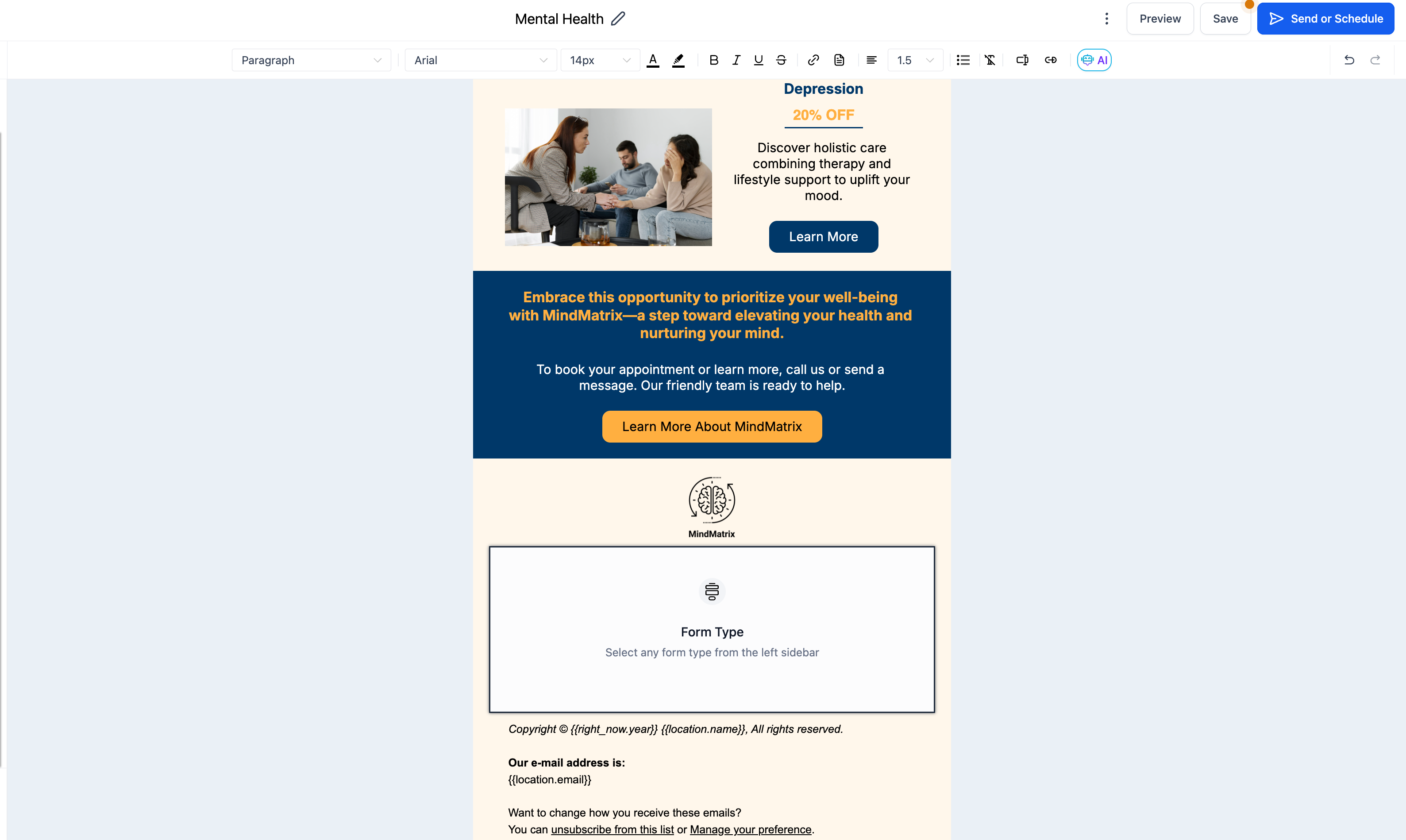
Add the Form element.
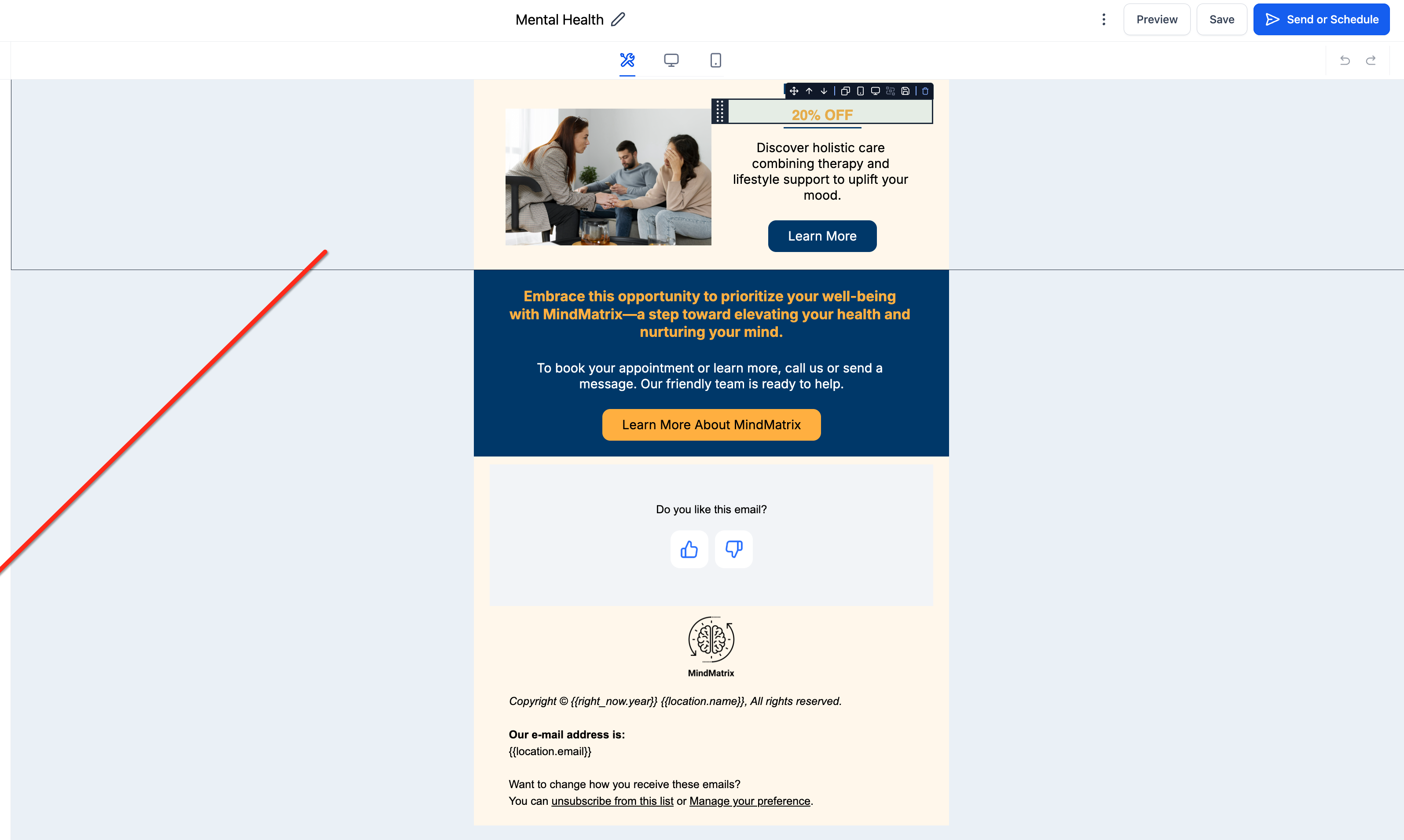
Choose the feedback type (NPS, ratings, and so on).
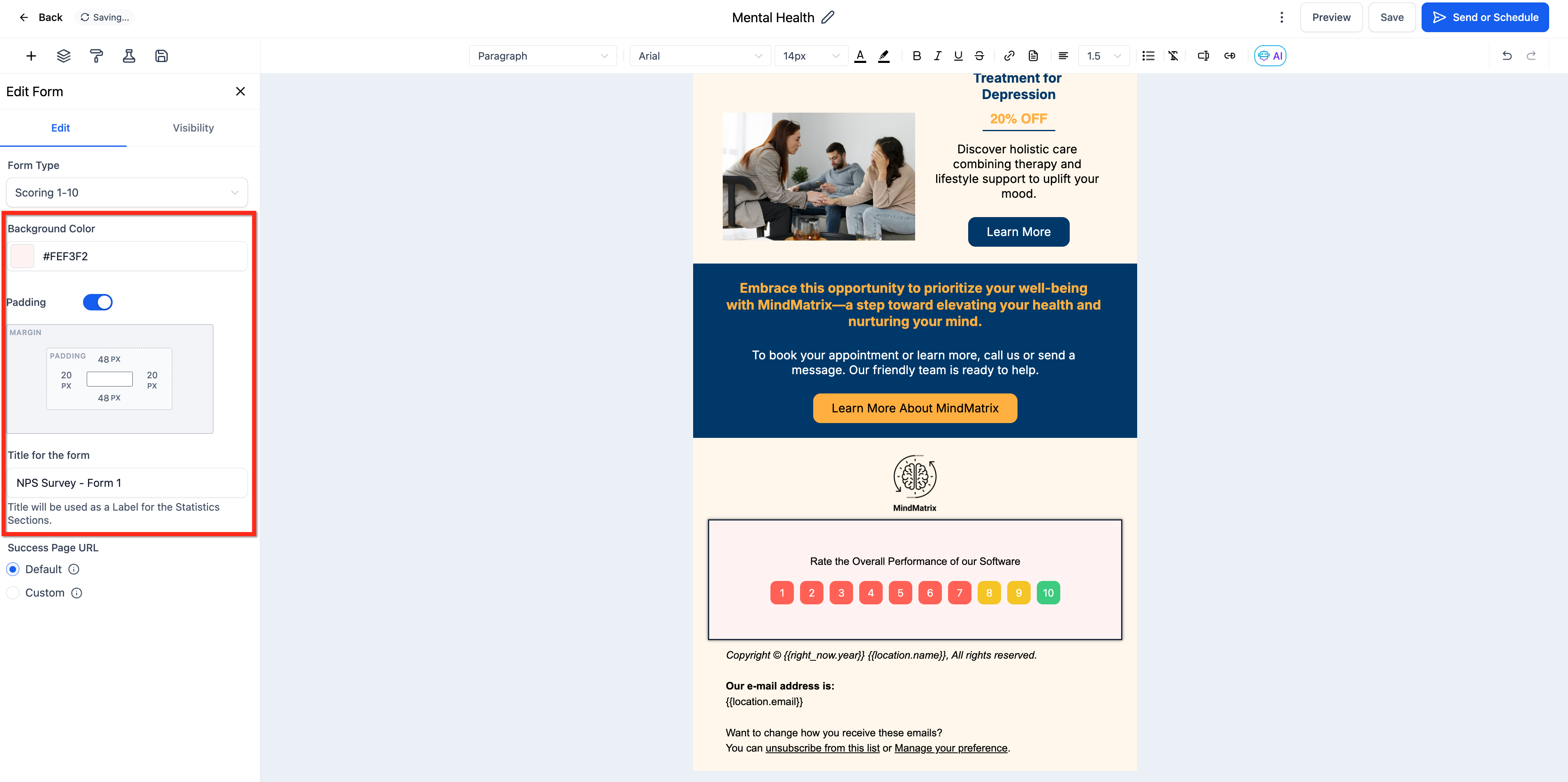
Customize the form design, settings, and name.
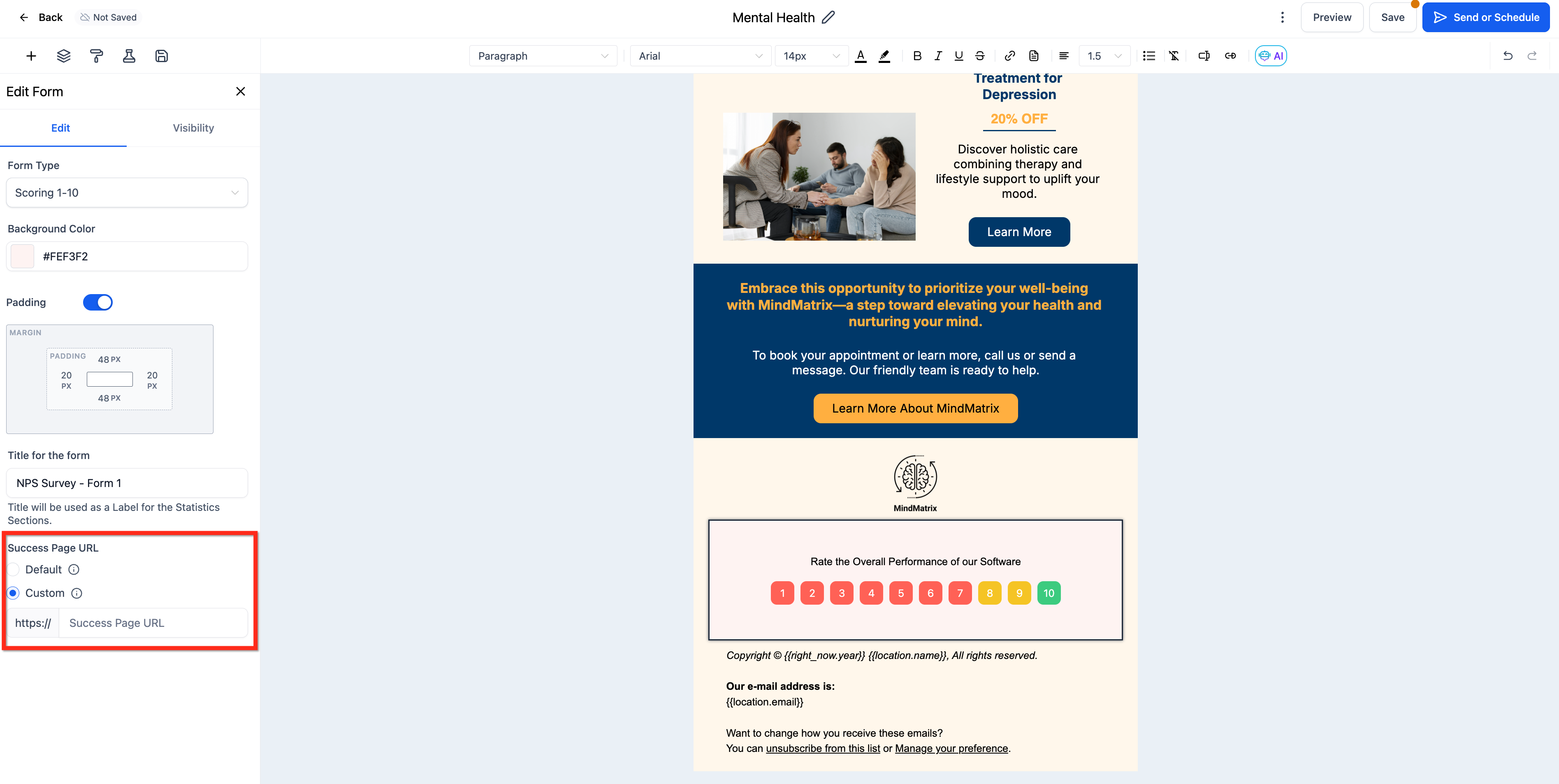
Set a success page URL.
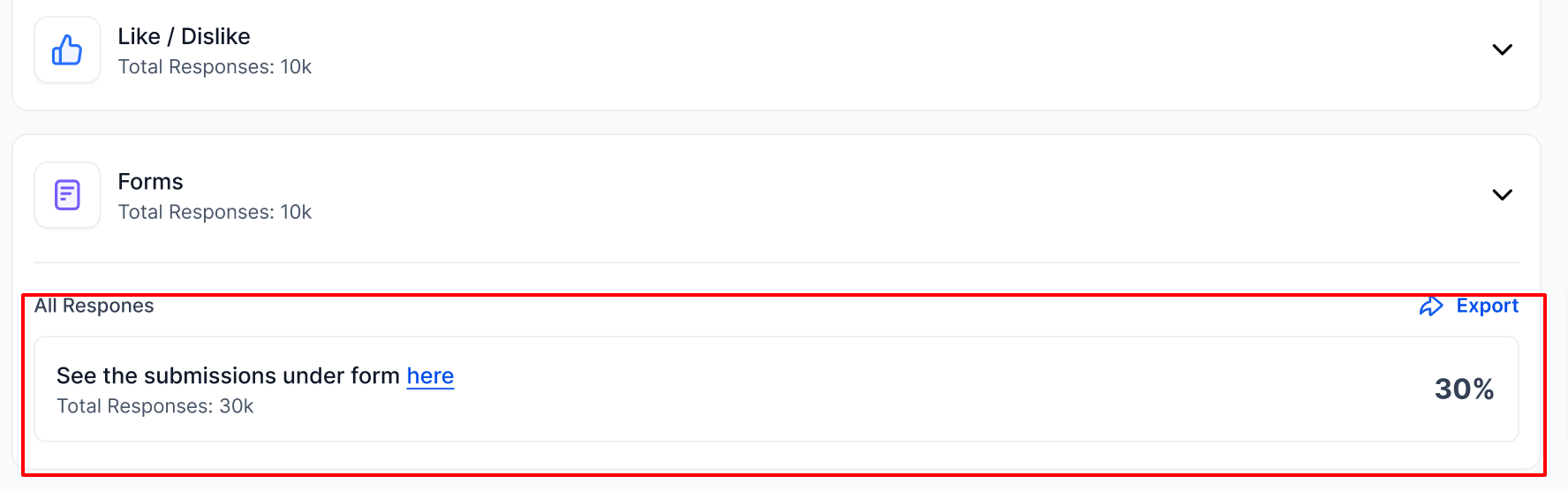
Send your campaign and monitor responses under Campaign Statistics > Submissions.
Export the list of respondents if needed.
For pre-built forms, navigate directly to the submission page.
How to Switch the Form Type
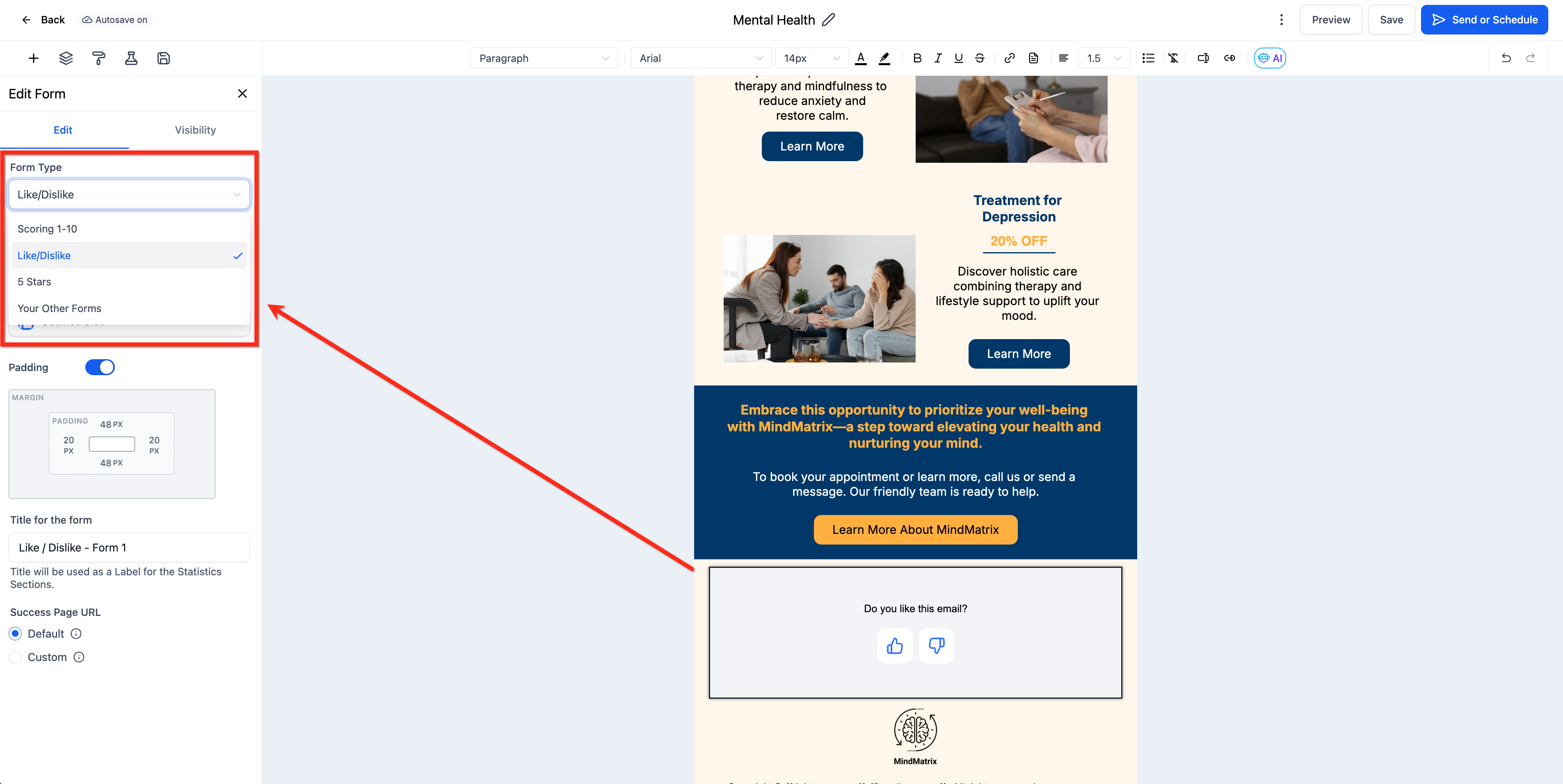
You can switch between form types at any point while editing.
To change the form type, click the form element. Use the Change Form Type dropdown to select a different form type. If you return to the original type within the same session, your previous settings will be restored.
Frequently Asked Questions
Do I need a custom success URL for form responses to be tracked?
No. Form submissions, including ratings, like/dislike, and scoring, are tracked as soon as a patient clicks the element inside the email. A custom success URL is completely optional. It only controls where the patient is redirected after clicking, for example a thank-you page or an external link.
Will responses still be recorded if I do not set a redirect?
Yes. Even without a redirect, every submission still appears in your campaign statistics under the Submissions tab.
How do I tell each form's responses apart?
Give every form a unique title during setup. A clear title makes it easy to identify which form each response belongs to when you review the Submissions tab.
What types of feedback forms can I add?
You can add pre-built or custom forms, including 1-10 scoring, NPS, 5-star ratings, and simple like/dislike forms.
Where do I view the responses patients submit?
Open your campaign, go to Campaign Statistics, and select the Submissions tab to see all responses collected from the inline form.
Can I follow up with patients who leave low ratings?
Yes. Export the list of respondents from the Submissions tab so your practice can reach out to patients who left low scores.