Control how and when your forms appear on websites and funnels using embed layouts, trigger timing, activation, and deactivation settings.
Embedding options give you control over how and when your forms appear on your practice's website or funnels. You can choose the layout a form uses, decide when it shows based on scrolling or a time delay, and set rules that activate or deactivate it automatically. These settings help you match forms to your goals, whether you are improving the patient experience, running a time-sensitive promotion, or managing how you collect new leads.
Keep in mind that embed codes are static once placed on a page. Any change you make to a form, such as its layout, triggers, or deactivation settings, requires generating a new embed code and replacing the old one so the update takes effect.
Time-limited campaigns: Deactivate a form after a set number of displays to create urgency or exclusivity, such as for limited-time offers or seasonal promotions.
Lead management: Deactivate a form automatically once a patient submits their information, so you stop showing it to people who have already converted.
After creating a form, click the Integrate button to open the form's integration settings.
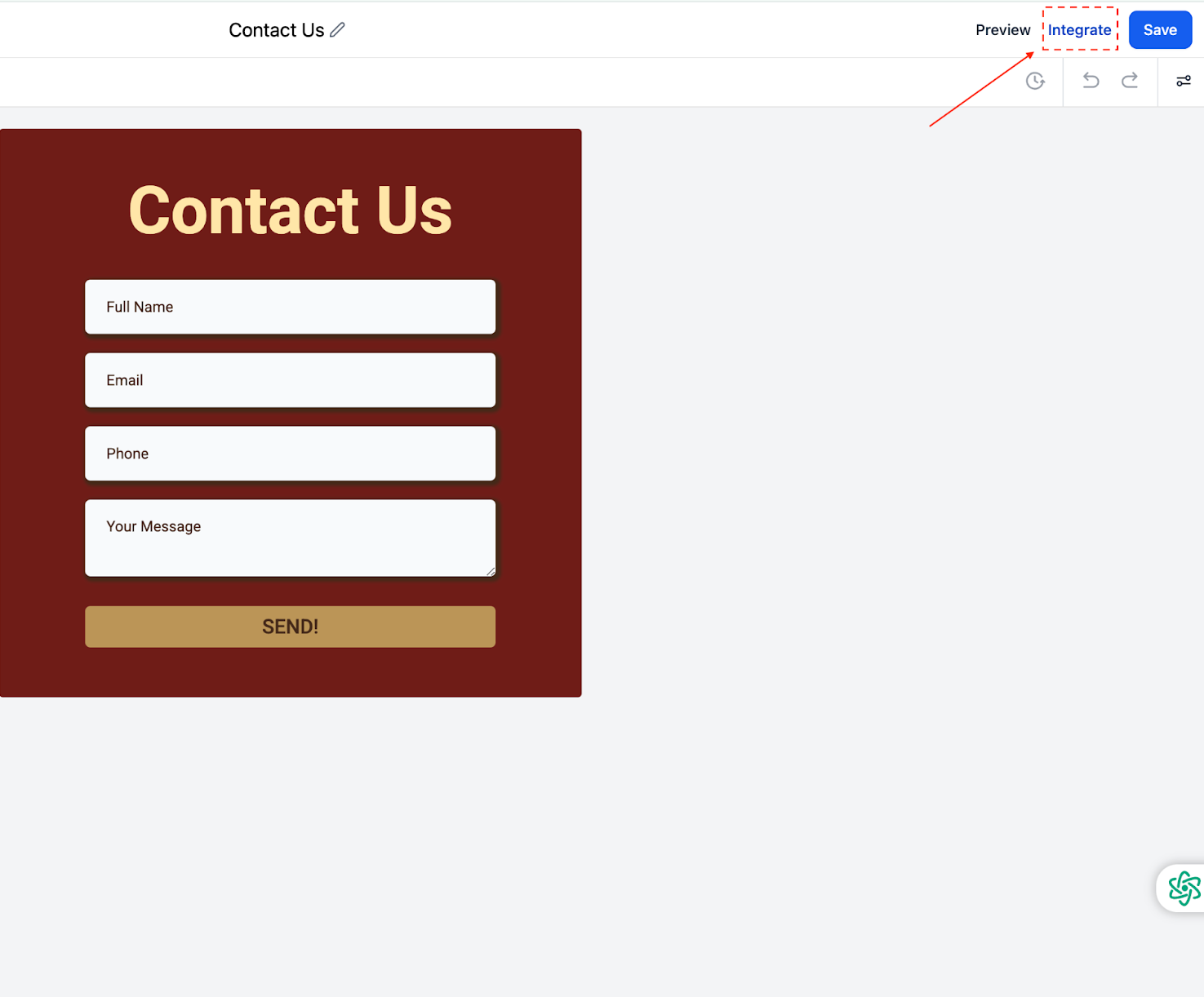
The following screen appears.
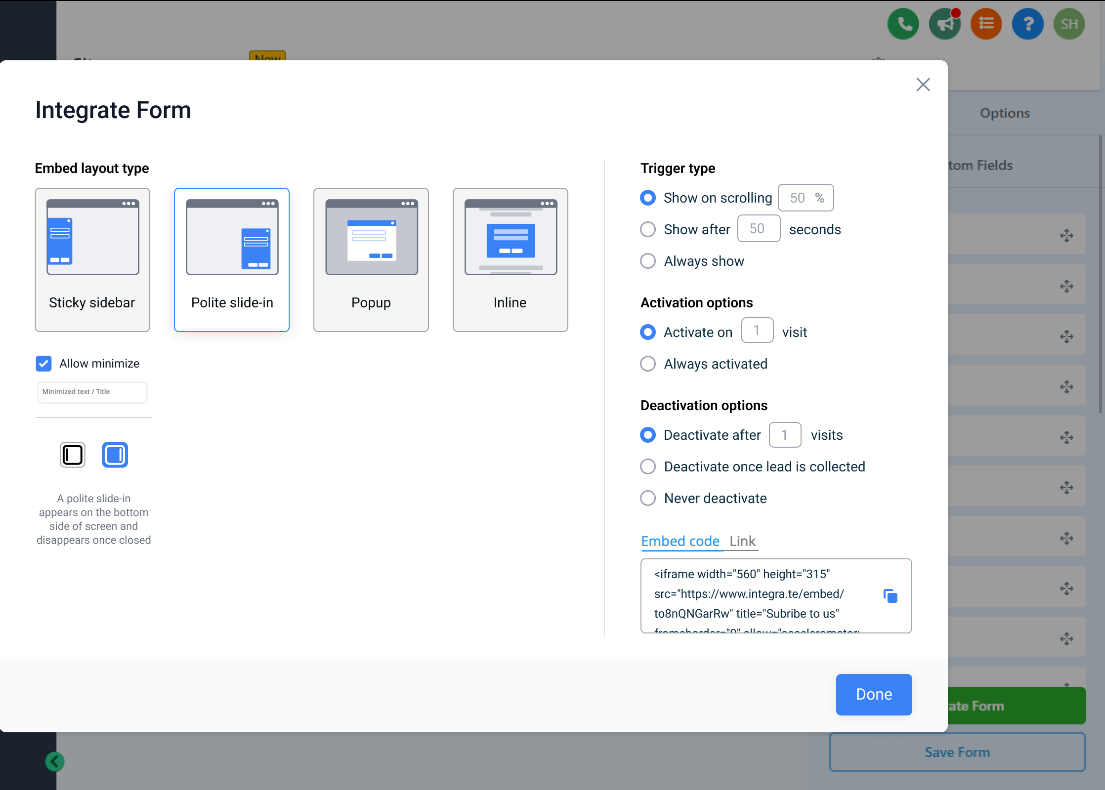
From here you can configure every embedding option, including the layout type, activation options, and deactivation options.
Select how the form will appear on your website or funnel. The options include:
Sticky Sidebar: The form appears as a sticky element on the left or right of the screen, remaining visible as the patient scrolls. It can be minimized or maximized as needed.
Maximized:
Minimized:
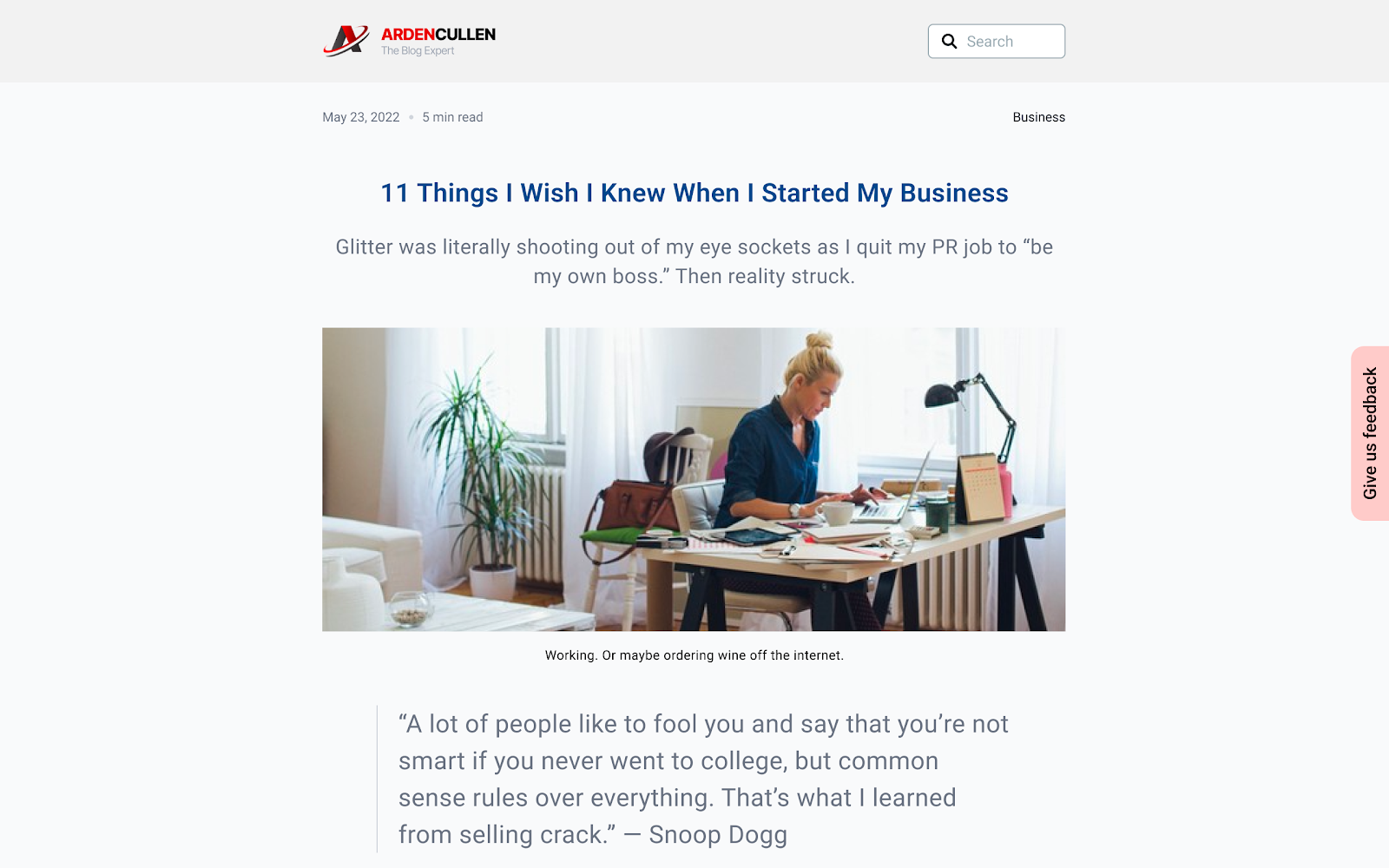
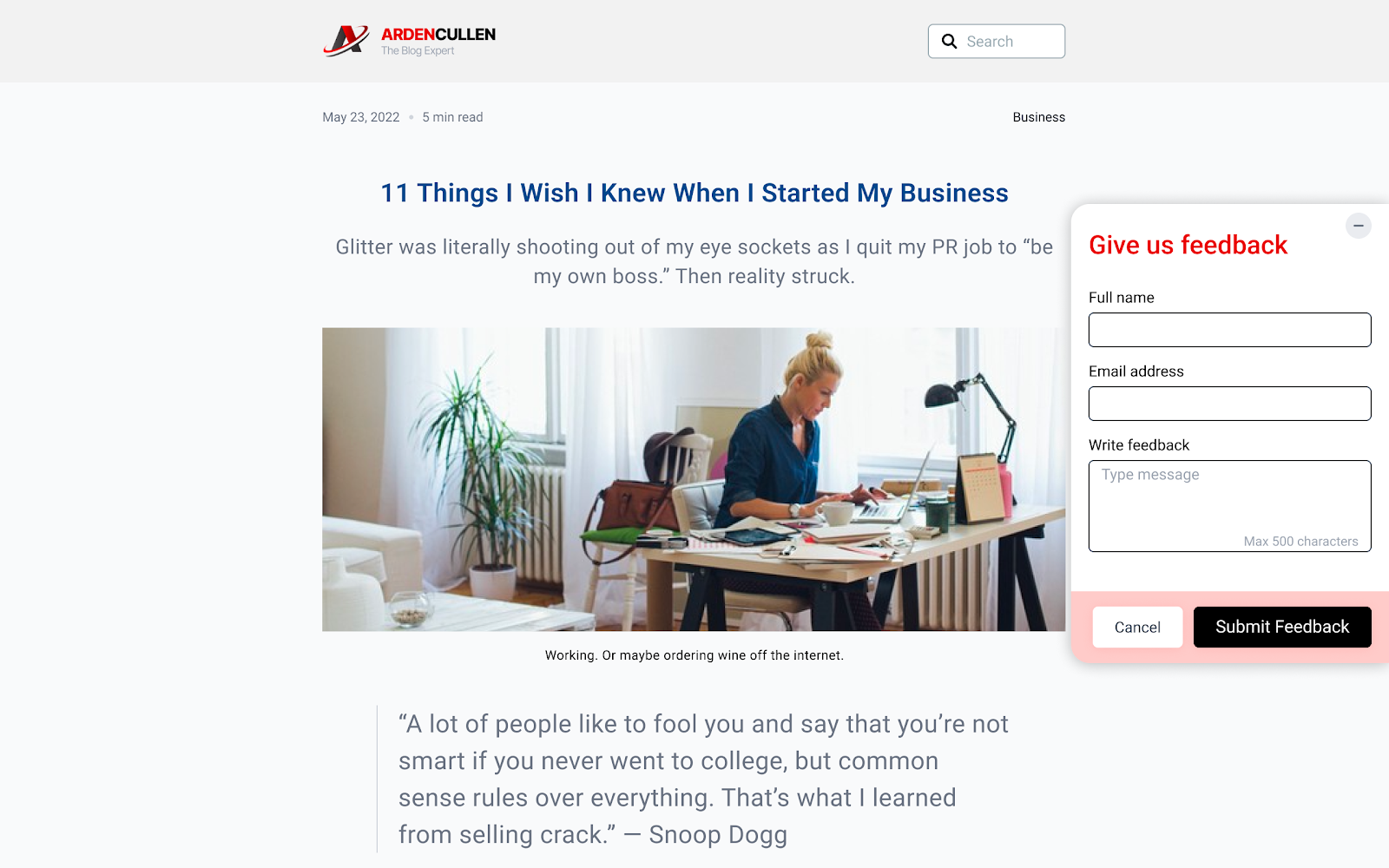
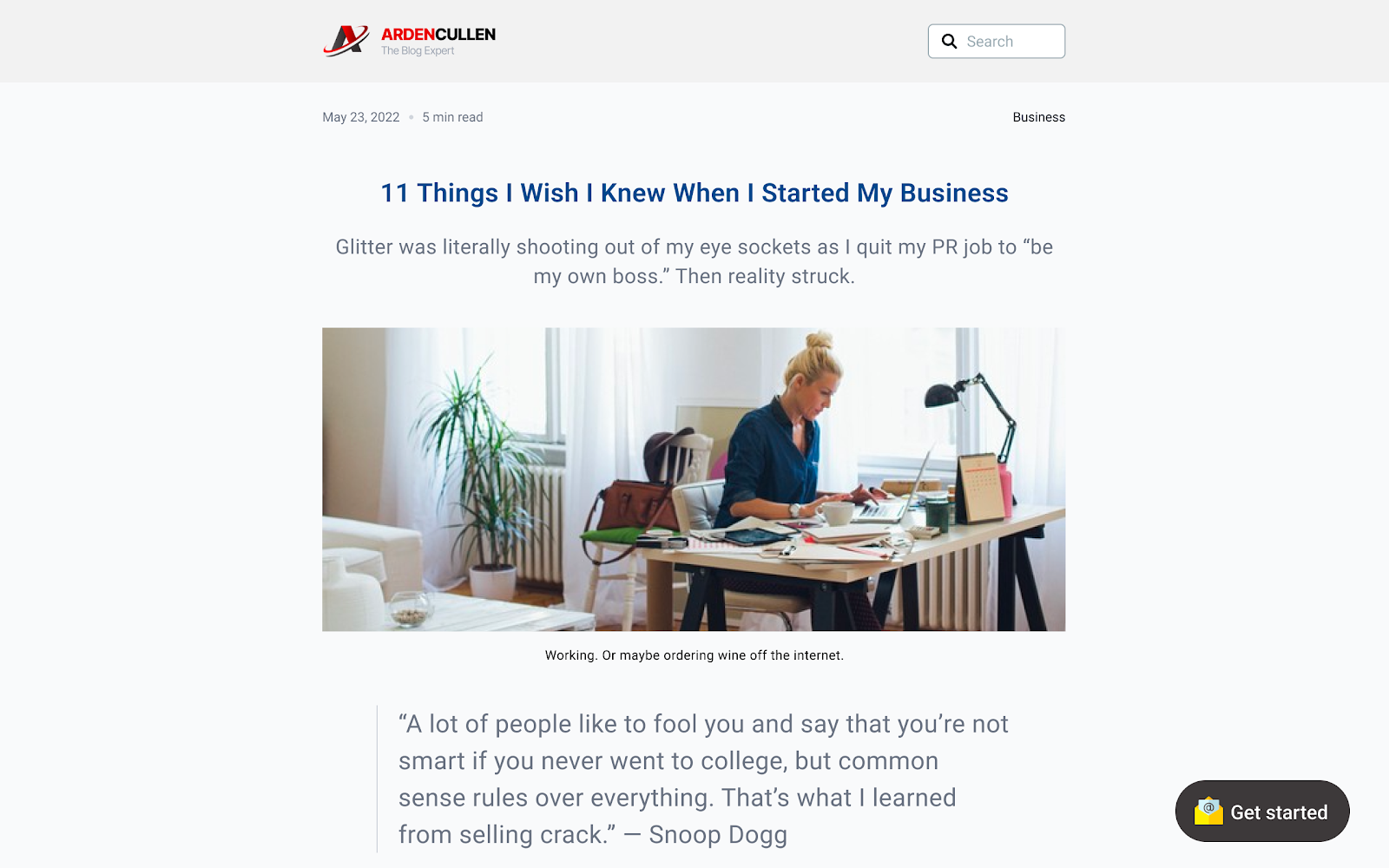
Polite Slide-In: The form slides in from the left or right side of the screen, subtly catching the patient's attention. It can also be minimized to avoid disruption.
Maximized:
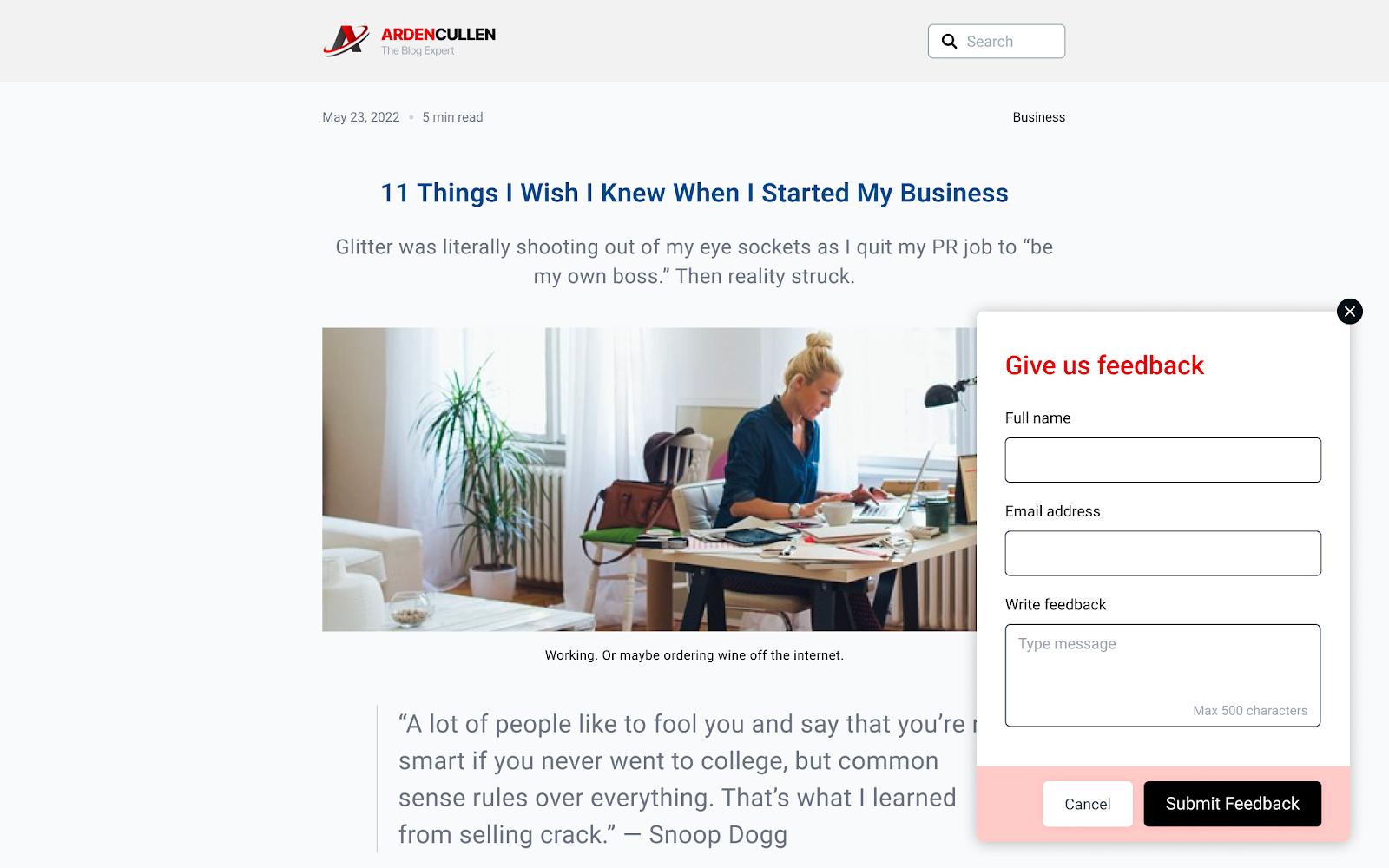
Minimized:
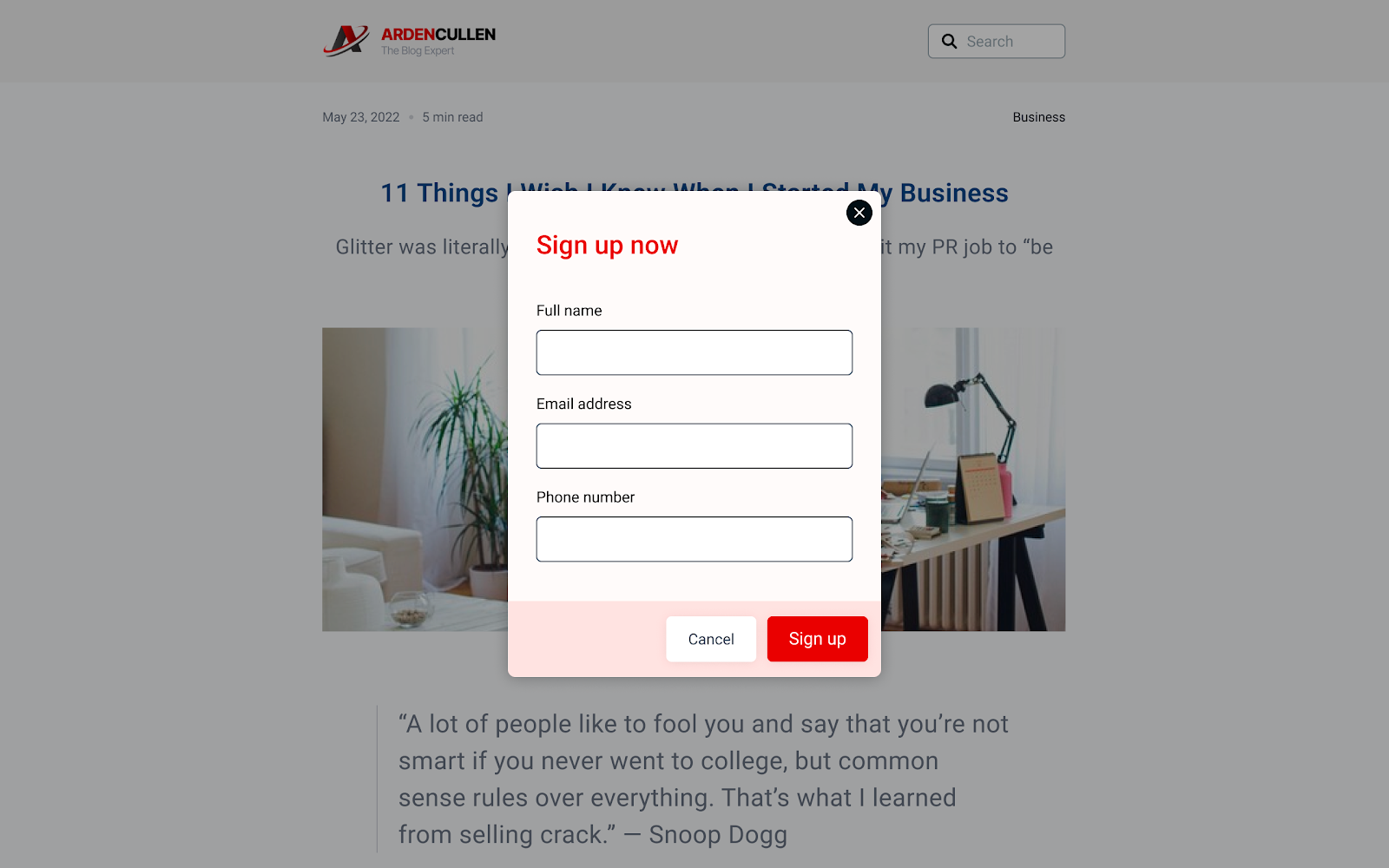
Popup: The form appears in a modal window that overlays the page content. It grabs immediate attention but must be dismissed to view the underlying content.
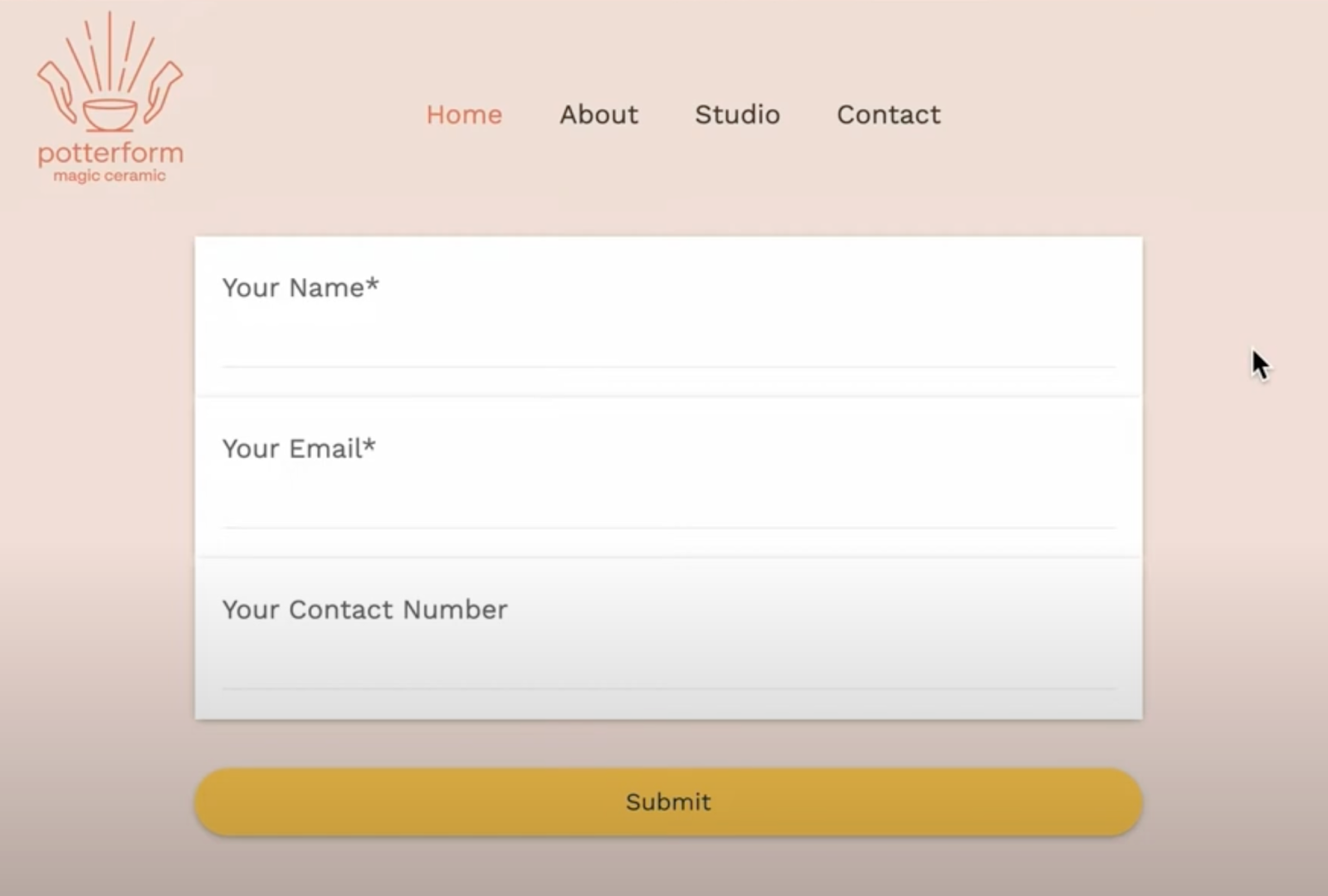
Inline: The form is embedded directly into the page content as a native element, so it does not interrupt the browsing experience.
Custom modal height gives you more control over how embedded forms appear on external pages. It helps prevent non-inline embeds from feeling oversized or overflowing on the host page, while keeping existing embed behavior unchanged.
You can set a Modal height for these embed layout types:
Popup
Polite Slide-In
Sticky Sidebar
The Inline layout does not show this option.
How to configure modal height:
Open your form and click Integrate after the form finishes loading.
Select Embed Code.
Choose one of these layouts:
Popup
Polite Slide-In
Sticky Sidebar
Enter your preferred height in the Modal height field.
Click Copy embed code and paste it on your website.
Important details:
The default modal height is 500 px.
The field accepts any whole number 1 or greater.
Existing embeds without this setting continue to work as before.
The field is hidden for Inline layouts.
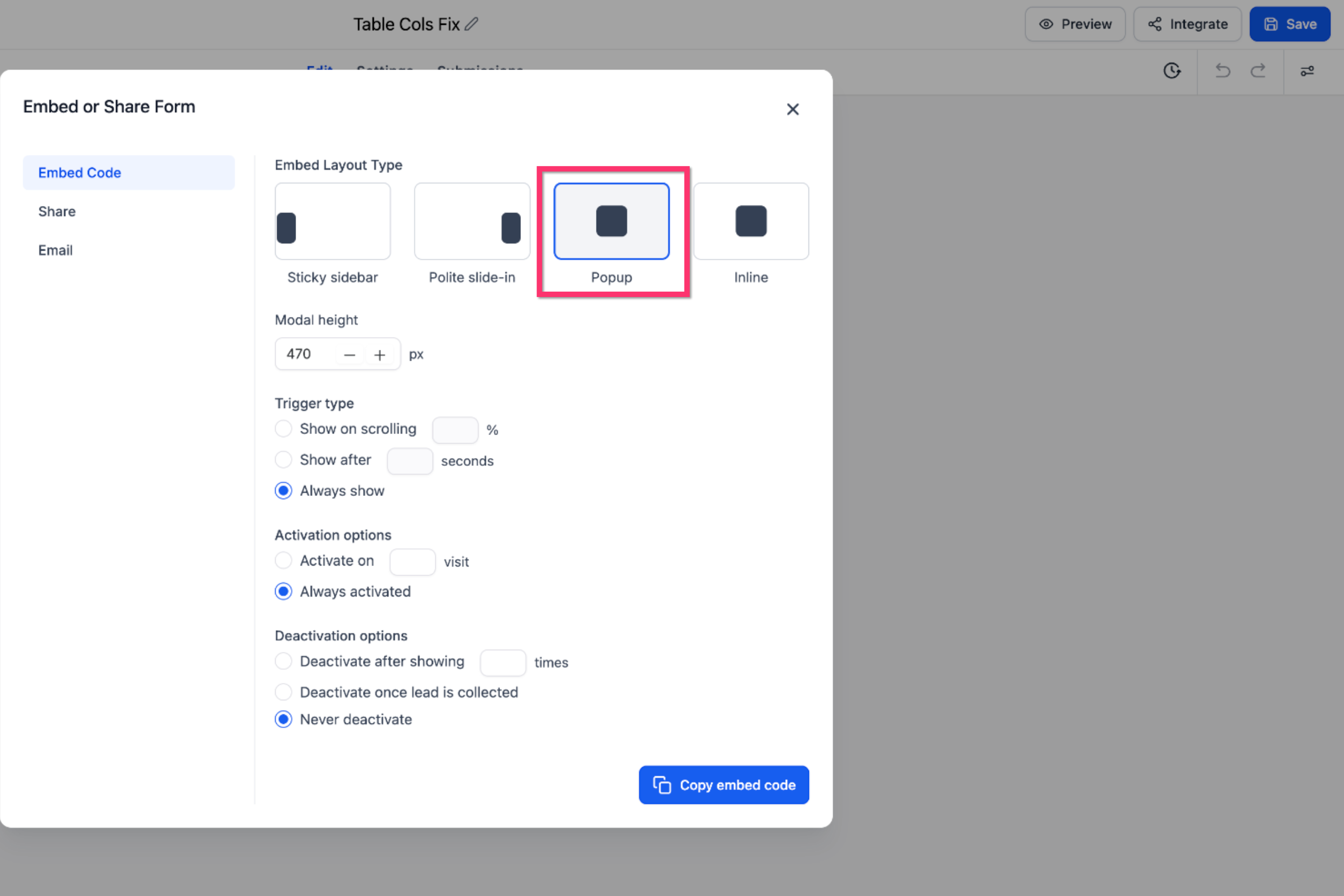
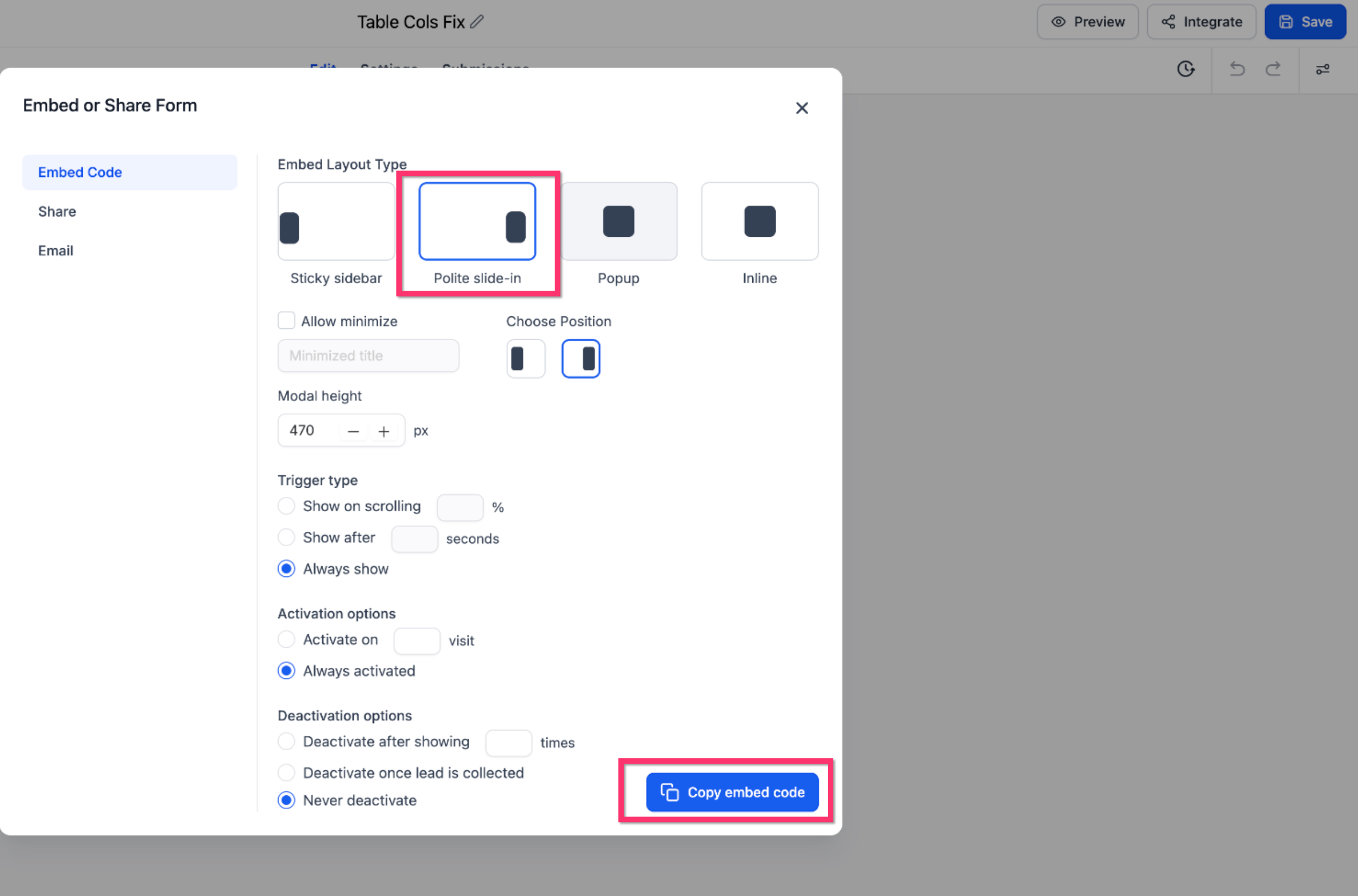
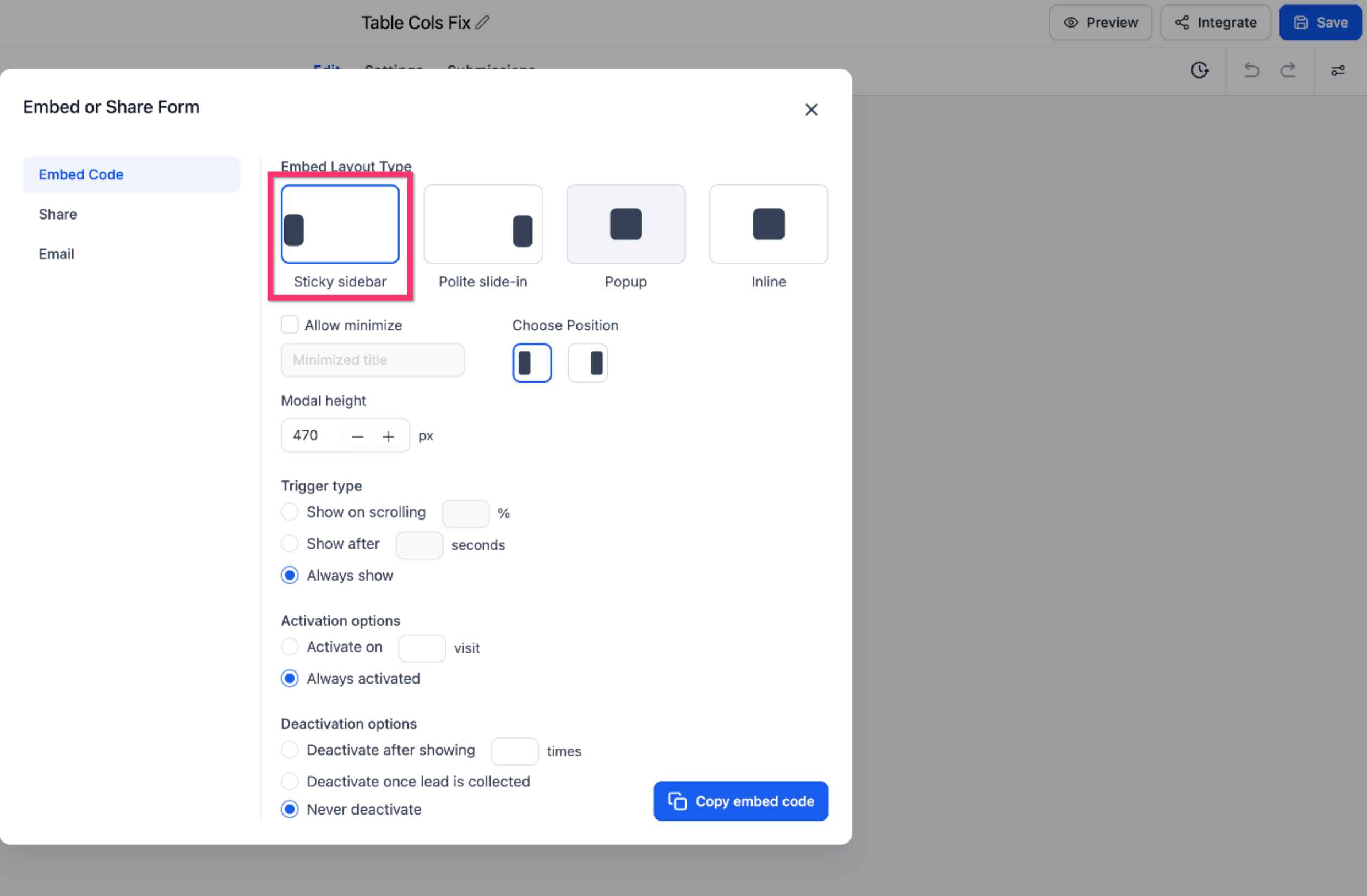
Trigger options control when the form appears. Select one of the following:
Show on Scrolling [X]%: The form appears after the patient scrolls a certain percentage of the page (for example, 50%).
Show After [X] Seconds: The form appears after a delay (for example, 5 seconds).
Always Show: The form is always visible and does not rely on patient interaction.
Define when the form should become active:
Activate on [X] Visit: The form is displayed only after the patient has visited the page a set number of times (for example, on their third visit).
Always Activated: The form remains active at all times.
Decide when the form should stop being displayed:
Deactivate After Showing [X] Times: Stops displaying the form after it has been shown a specific number of times (for example, 3 times).
Deactivate Once Lead Is Collected: The form deactivates automatically once the patient submits their information.
Never Deactivate: The form remains active and visible indefinitely.
Click Copy Embed Code to get the HTML code for embedding the form into your website. Paste this code into your website's HTML wherever you want the form to appear.
Alternatively, click Copy Form Link to get a direct URL for the form. Use this link in emails, social media, or other platforms where you want patients to access the form.
Note: Embed codes are static once placed on a page. If you change any embedding option after the code is live, generate a new embed code and replace the old one so your changes take effect.
How do triggers and deactivation options work together?
Triggers determine when the form appears, such as after a delay or once the patient scrolls. Deactivation options control when the form stops appearing, such as after a specific number of displays or after a lead is collected. Both can work at the same time to create a dynamic experience.
Do I need to update existing embed codes for the new features to work?
Yes. To use new embed options such as triggers or deactivation settings, update the integration by generating a new embed code from the form's integration settings, then replace the old code on your site.
Can embedded forms update dynamically if I change my options?
No. Embed codes are static once they are placed on a website. Any change you make to the form requires generating and replacing the embed code with the updated version for the changes to take effect.
Which layouts support a custom modal height?
Popup, Polite Slide-In, and Sticky Sidebar all support a custom modal height. The Inline layout does not show this option.
What is the default modal height?
The default modal height is 500 px. You can enter any whole number of 1 or greater to override it.
What is the difference between the embed code and the form link?
The embed code is HTML you paste into your website so the form appears in place, using your chosen layout and trigger settings. The form link is a direct URL you can share in emails, social media, or other channels so patients can open the form on its own page.
Which layout should I use to avoid interrupting the browsing experience?
The Inline layout embeds the form directly into the page content as a native element, so it does not interrupt patients as they browse. Sticky Sidebar and Polite Slide-In are less disruptive than a Popup and can be minimized if needed.
