Add math calculation fields to forms and surveys to score answers, total selections, and estimate treatment package prices in real time.
Math calculations let your forms and surveys do the work for you. Add a score field, define calculation logic from other fields, and watch totals update instantly as patients make selections. Whether you are building a treatment quiz, a self-assessment, or a tool that estimates a package price from the services a patient chooses, this feature turns a simple form into a dynamic, interactive experience without any custom code.
You can assign custom numeric scores to the following fields, so each selectable option carries its own value:
Radio Select
Checkbox
Single Dropdown
Multi Dropdown
You can also use dedicated Number and Monetary fields directly in your calculations.
The scored selection fields can be combined with Number and Monetary fields to support more complex, customized scoring logic. Use the Calculator to define how scores from different fields are totaled, added, or otherwise manipulated.
As patients make selections, scores are calculated instantly in Preview Mode. This helps you validate and test your form logic before it goes live.
Open your form or survey builder and drag the Score field from the Quick Add menu onto your form. This custom field holds the calculated total based on patient inputs.
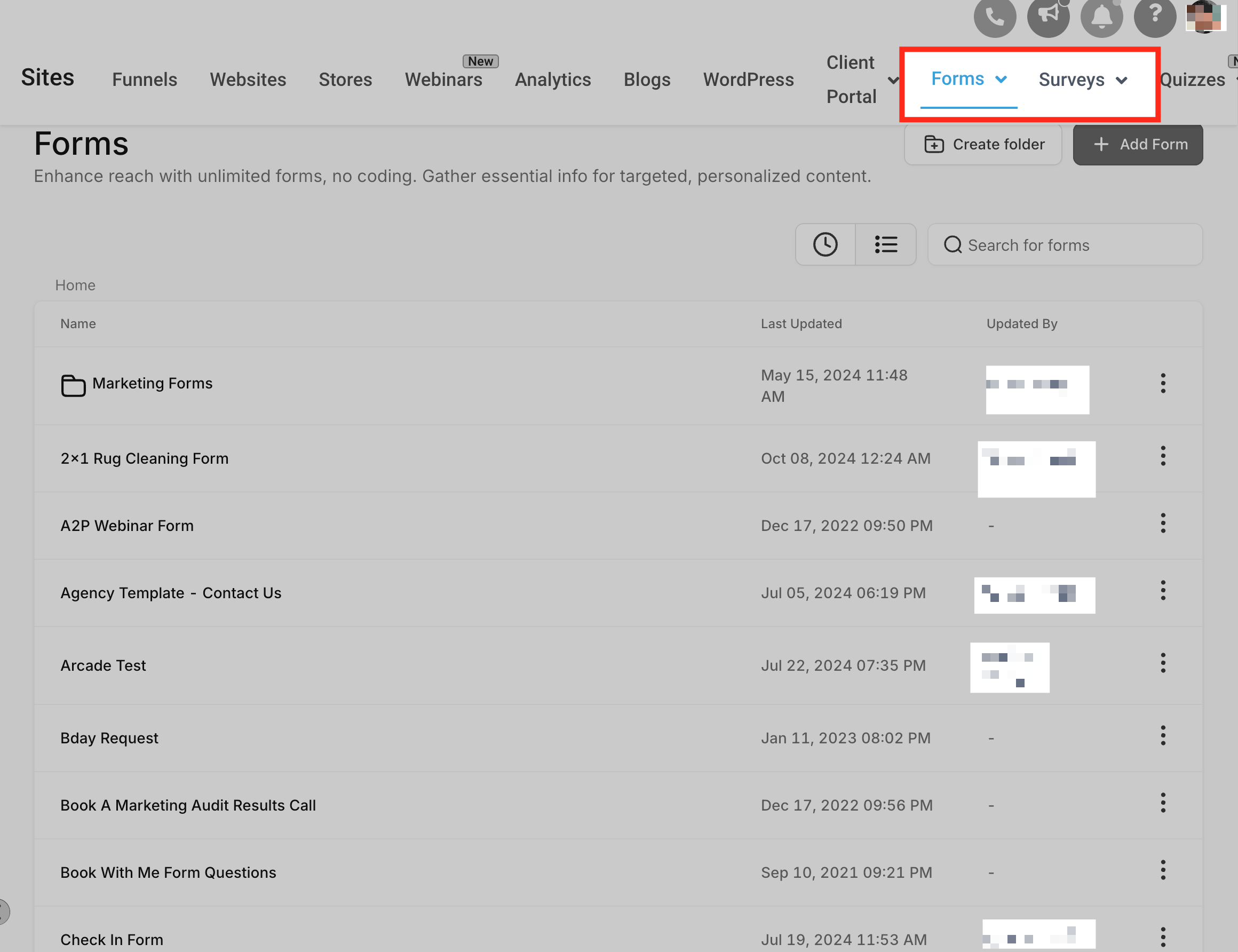
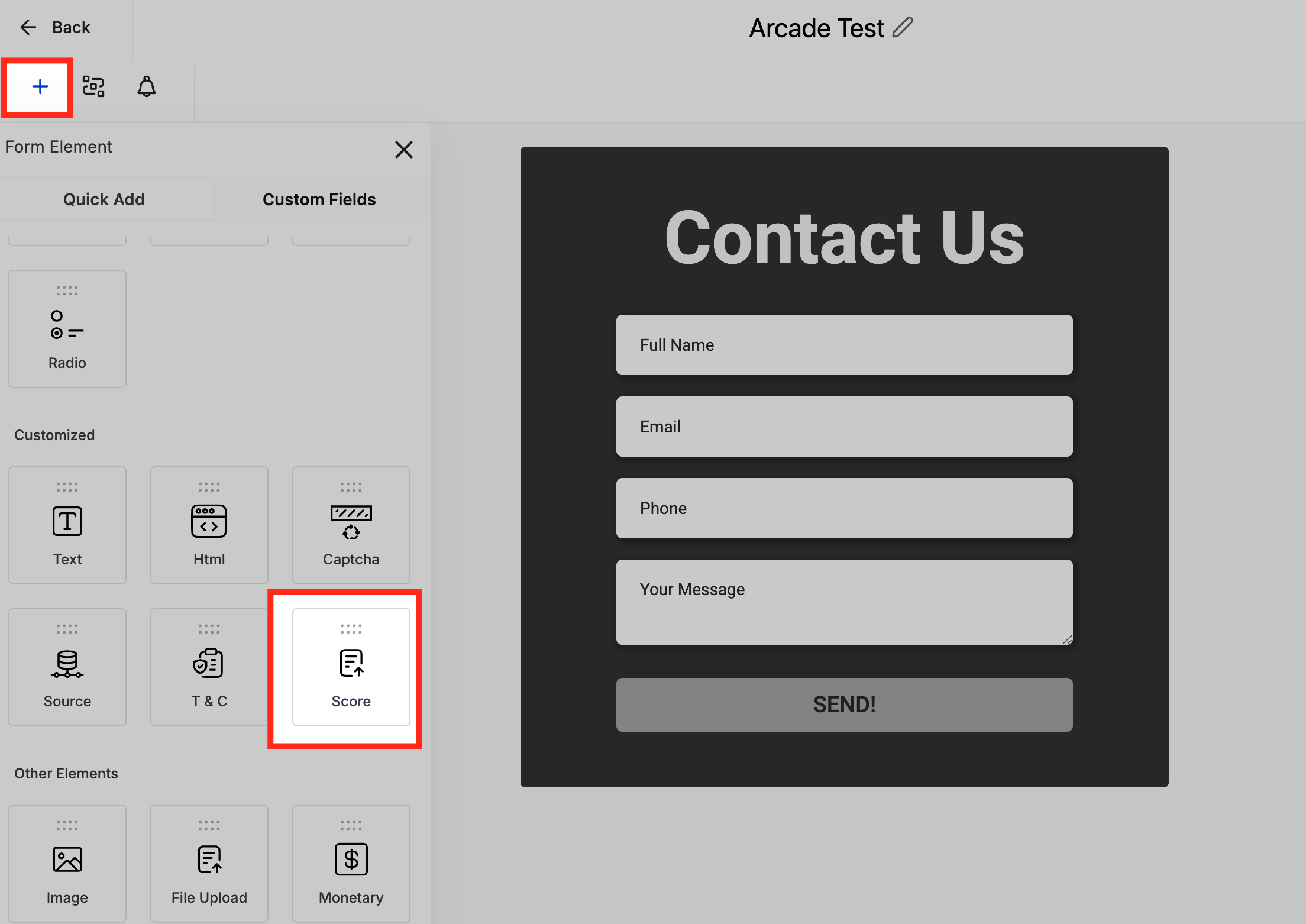
Use the Quick Add menu to drag in any of the fields you want to include in the calculation:
Radio Select
Checkbox
Single Dropdown
Multi Dropdown
Number
Monetary
Click into each selectable field and assign a score to every option. These values contribute to the total calculation.
Note: You can assign both decimal and negative values to options for more flexible scoring.
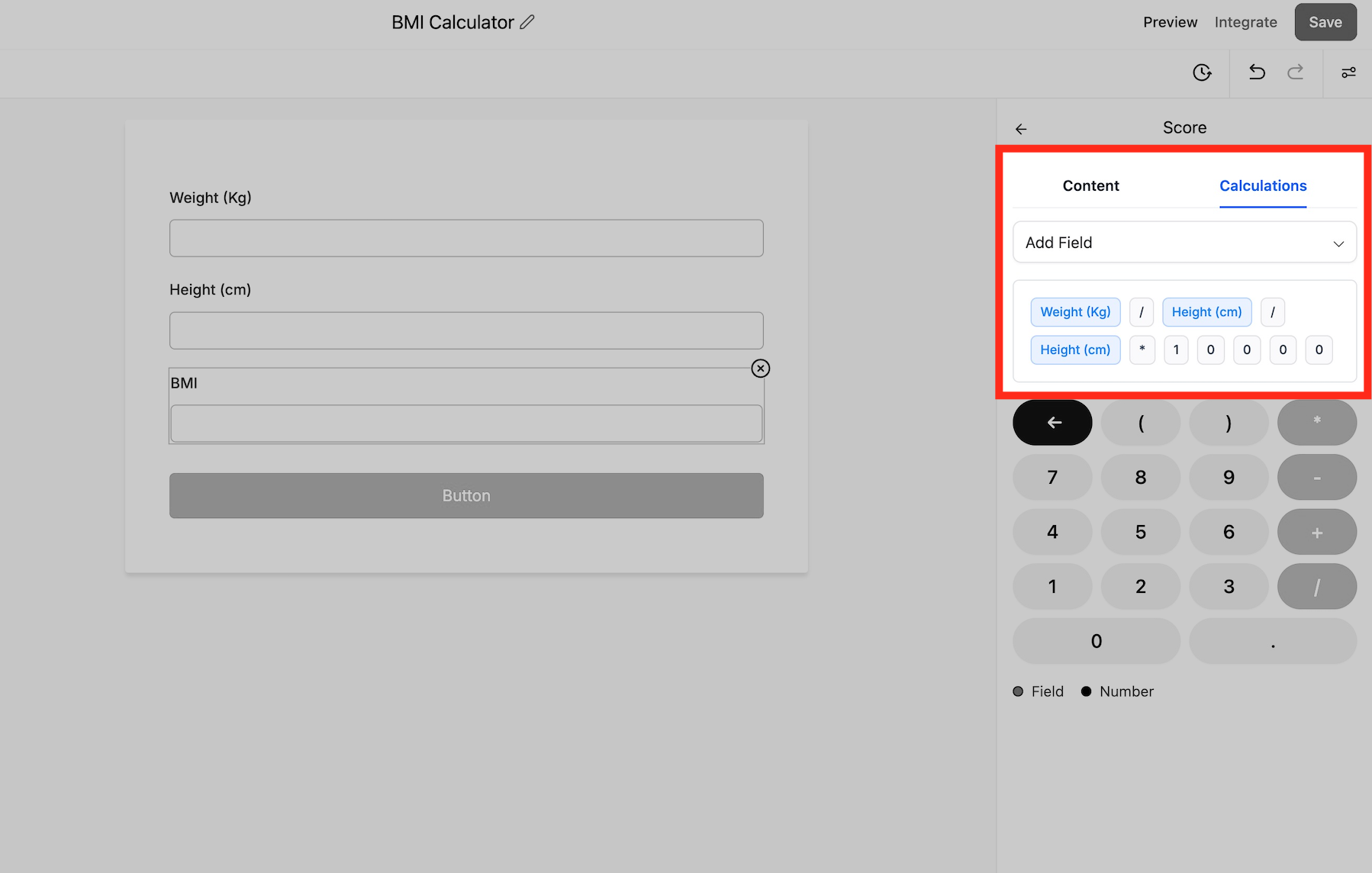
Open the Calculator in the form builder's calculation settings. Select the relevant fields, then specify the rules for how their scores should be totaled, added, or otherwise combined.
Switch to Preview Mode to test your form or survey. The total score updates immediately as different options are selected, so you can confirm the logic works as intended.
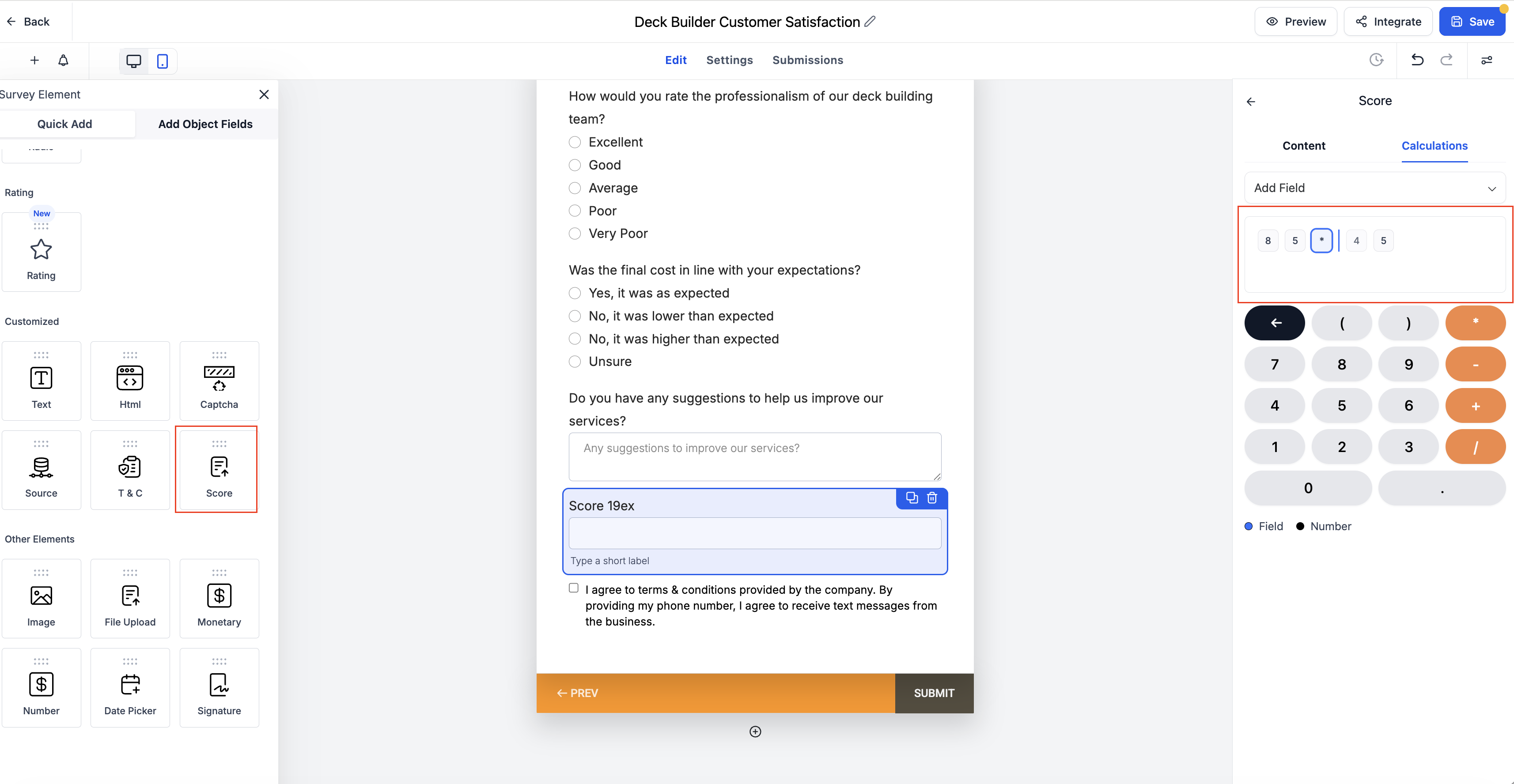
The Score Editor supports inline cursor edits so you can make quick changes without rebuilding an expression. Place the cursor anywhere in the formula to edit in place. Arrow keys move one character at a time, Home jumps to the start, and End jumps to the end. Edits apply exactly at the cursor, so there is no need to clear the entire formula.
Package price estimates: Total the services or products a patient selects to show a running estimate for their treatment package.
Treatment quizzes and knowledge checks: Automatically calculate a patient's score based on their answers.
Lead qualification: Score responses to qualify new patient inquiries based on their input.
Self-assessments: Give patients instant feedback based on the choices they make.
You can build conditional logic and workflows around a calculated score. Use it to redirect to a URL, disqualify a submission, or show and hide fields based on the total. For follow-up actions after submission, pass the score into a workflow so your practice can automate the next step.
Can I assign decimal or negative scores to options? Yes. You can assign both decimal and negative values to field options for more flexible scoring.
Do calculations work on live forms or just in preview? Calculations display in Preview Mode during setup. For live forms, you configure how the score is displayed or used, for example by passing it to custom fields, hidden fields, or a confirmation page.
Can I use conditions or logic based on the calculated score? Yes. Scores are supported in conditional logic, so you can redirect to a URL, disqualify a submission, or show and hide fields. More advanced follow-up actions can be handled with workflows or custom automation.
Which field types can be scored? Radio Select, Checkbox, Single Dropdown, and Multi Dropdown options can each carry a custom score, and these can be combined with Number and Monetary fields in your calculation.
Are older forms affected by this update? No. Existing forms continue to function as before. You update a form manually if you want to add the newer calculation features.
Is this available in surveys as well as forms? Yes. Math calculations apply to both forms and surveys.
How do I edit a formula quickly? Use the Score Editor's inline cursor editing. Click into the expression, then use the arrow keys, Home, and End to navigate and edit exactly where the cursor sits.
