Use conditional logic to show or hide fields, redirect patients, display messages, disqualify leads, or branch survey slides based on answers.
Conditional logic makes your forms and surveys smarter and more responsive. It lets you show or hide fields, redirect patients, display custom messages, disqualify leads, or jump to different survey slides, all based on how someone answers. Instead of showing every question to every patient, you can reveal a treatment-specific question only when that service is selected. This guide explains how conditional logic works, how to set it up, and which fields are supported.
Conditional logic automates actions inside a form or survey based on patient input. You define conditions that trigger a result. For example:
If the answer is "No," show a message.
If a screening score is below 5, disqualify the lead.
If a preferred date falls within a range, redirect to another page.
In surveys, jump to a specific slide instead of showing every question.
This creates a more personal and efficient experience for the people filling out your forms.
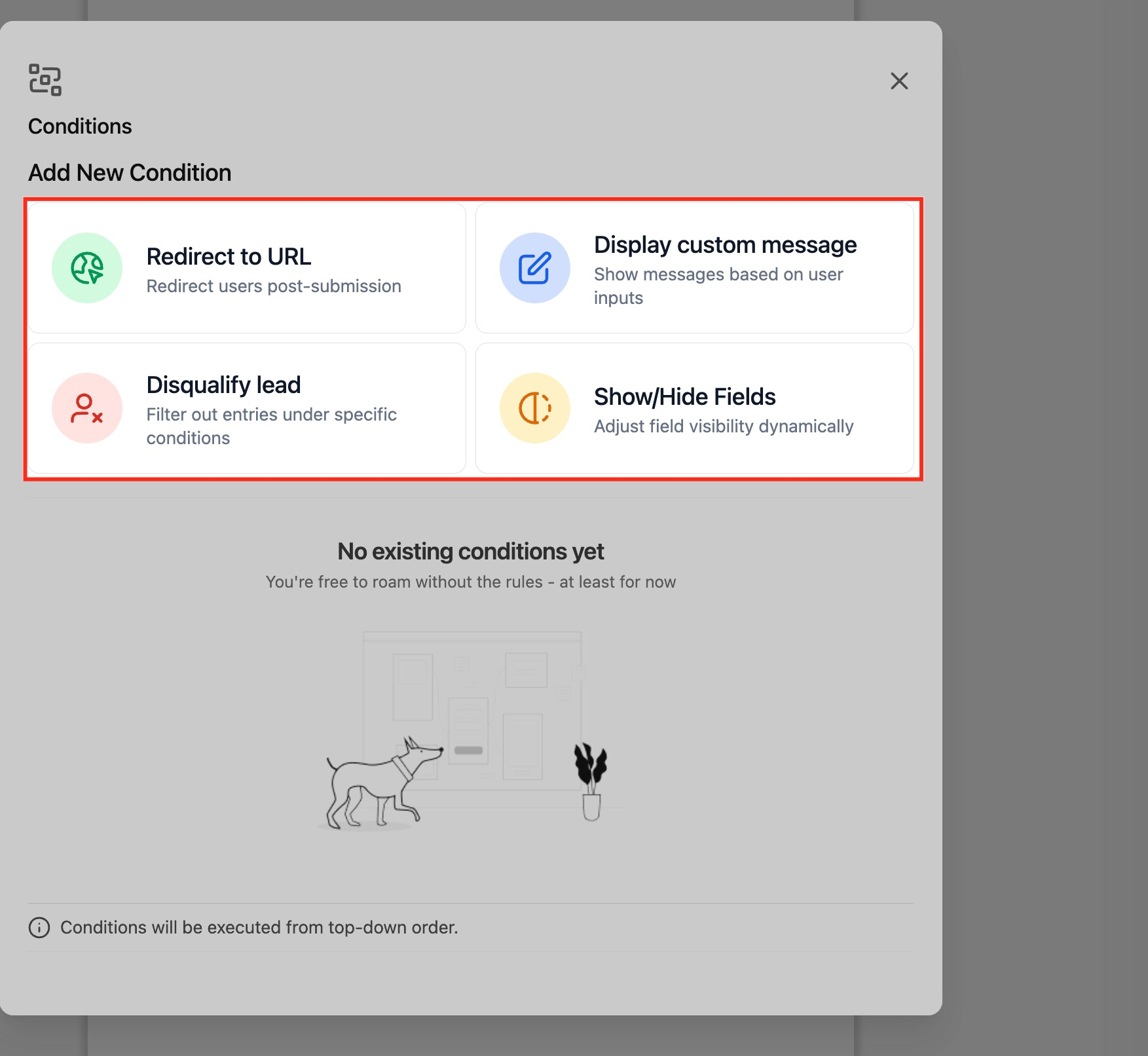
When you open Conditional Logic, you'll see four action types you can create.
Action | Description |
|---|---|
Redirect to URL | Send patients to a specific webpage after submission |
Display Custom Message | Show a personalized message based on answers |
Disqualify Lead | Automatically reject unqualified form submissions |
Show/Hide Fields | Dynamically control which fields appear or hide |
Note: All conditions run in top-down order. Later matching rules override earlier ones when applicable.
Conditional logic gives you a streamlined builder and expanded capabilities:
Simplified 3-step builder: Select Field, Select State, Provide Value.
"Between" operator: For numeric, date, score, and monetary fields.
Survey branching (Jump To): Create slide-to-slide jumps.
Expanded field support: Checkboxes, multi-dropdowns, Terms & Conditions (TnC1, TnC2), file uploads, and signatures.
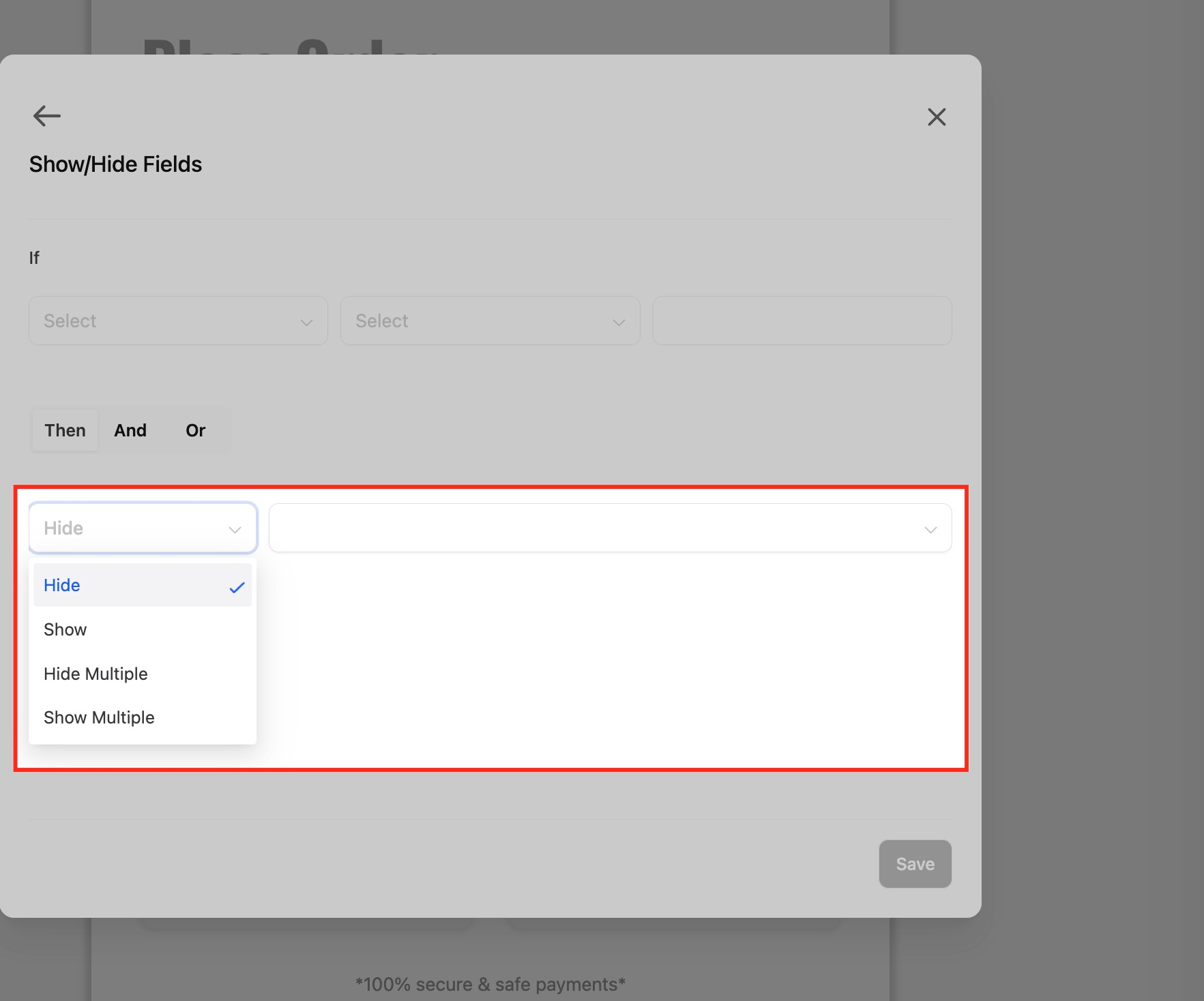
New show/hide targets: Payment, text, HTML, image, and Terms & Conditions elements.
Rule list filtering (surveys): Filter rules by field or slide.
Cycle protection: Prevents loops (Slide A to Slide B back to Slide A).
Localized and accessible: Translated interface with keyboard navigation.
Conditional logic also applies when a custom form is used inside a supported calendar booking flow. This gives you more control over qualification and the final confirmation experience.
In calendar bookings:
Show/hide logic updates fields dynamically as the patient answers questions.
Disqualify lead logic is checked before the appointment is booked.
If a lead is disqualified, the system does not create the appointment.
If a lead is disqualified, the system does not collect payment.
Redirects and custom messages can be used as part of the booking outcome.
If the calendar confirmation page is set to Use custom form rules, the system shows the form's redirect or custom message after submission. If the form does not include either one, the booking uses the default confirmation page instead.
Note: Calendar support described here applies to supported booking flows that use custom forms. Services (v2) and Rentals are not included yet.
You can add and manage rules directly inside the Form or Survey Builder.
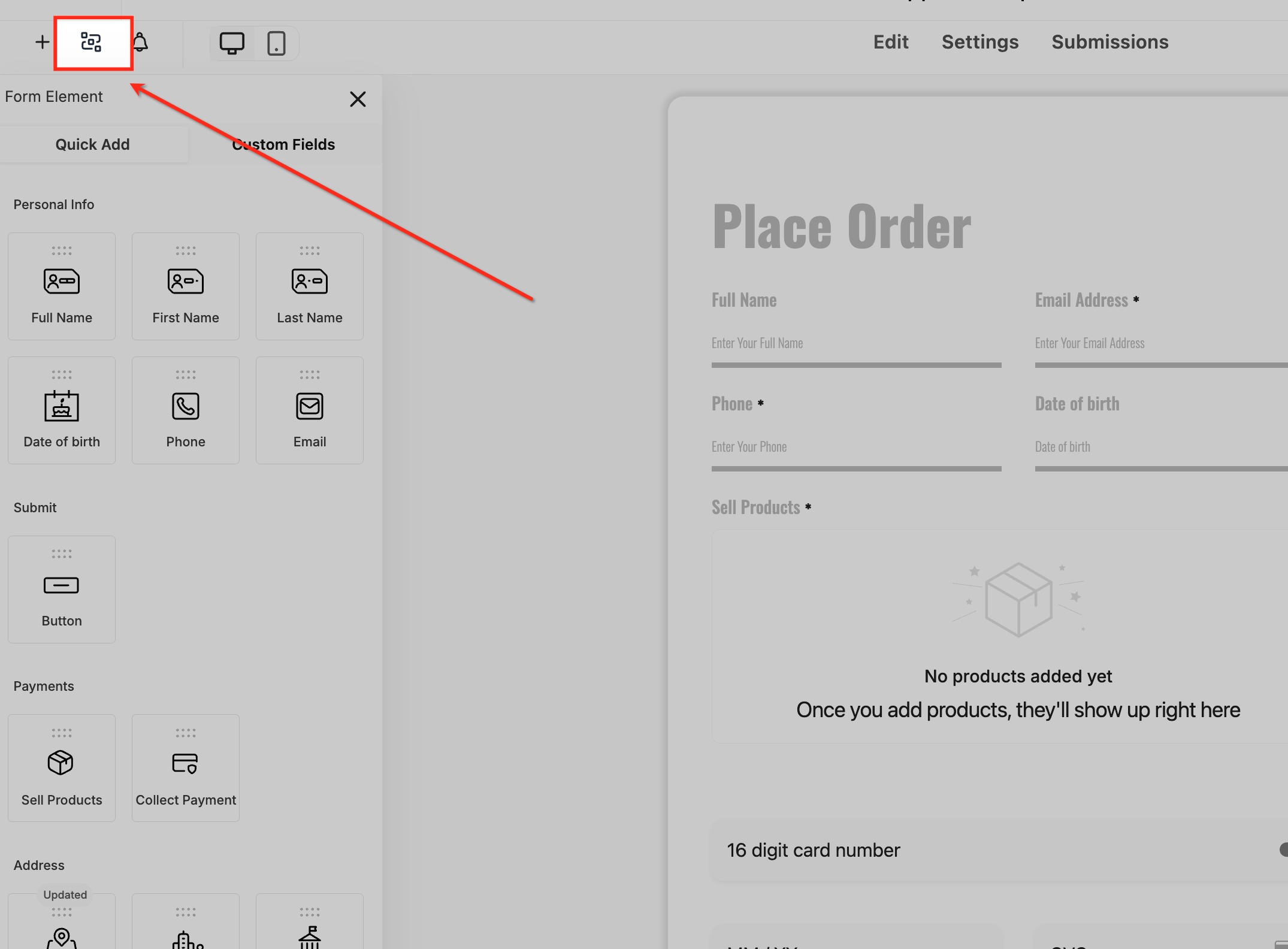
In the builder, click Conditional Logic in the top bar.
Click Add New Condition.
Choose an action (Redirect, Message, Disqualify, or Show/Hide).
The logic builder opens for that action.
Follow the guided 3-step flow:
Select Field. Choose the form field or slide to base the rule on.
Select Field State. Pick the condition (for example, is equal to or is empty).
Provide a Value. Enter the matching value (text, number, or date).
You can add more conditions using AND or OR connectors.
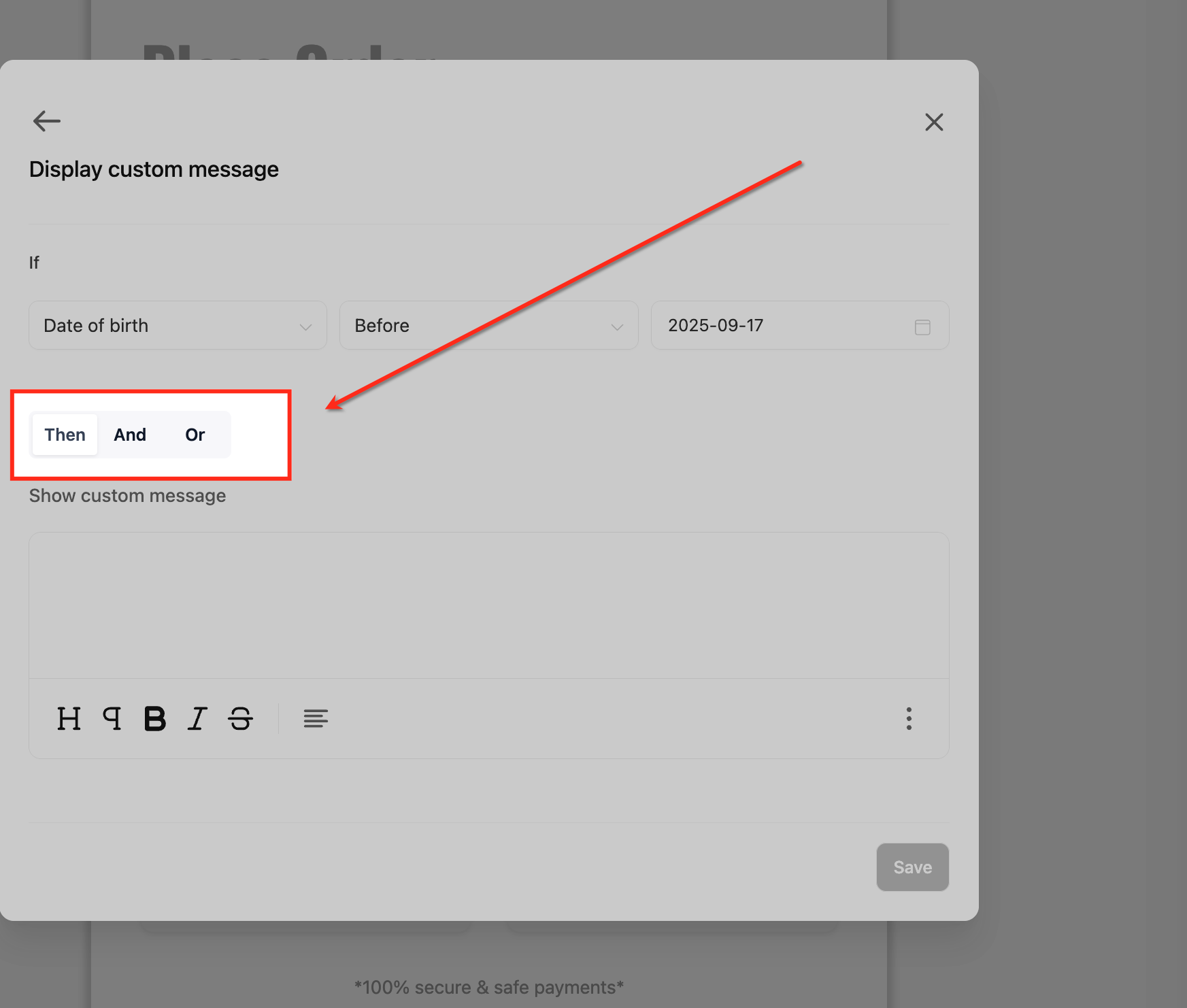
Note: Some operators don't require values, such as "is empty" or "is checked."
Depending on the action type:
Redirect: Add a valid URL (for example, https://example.com).
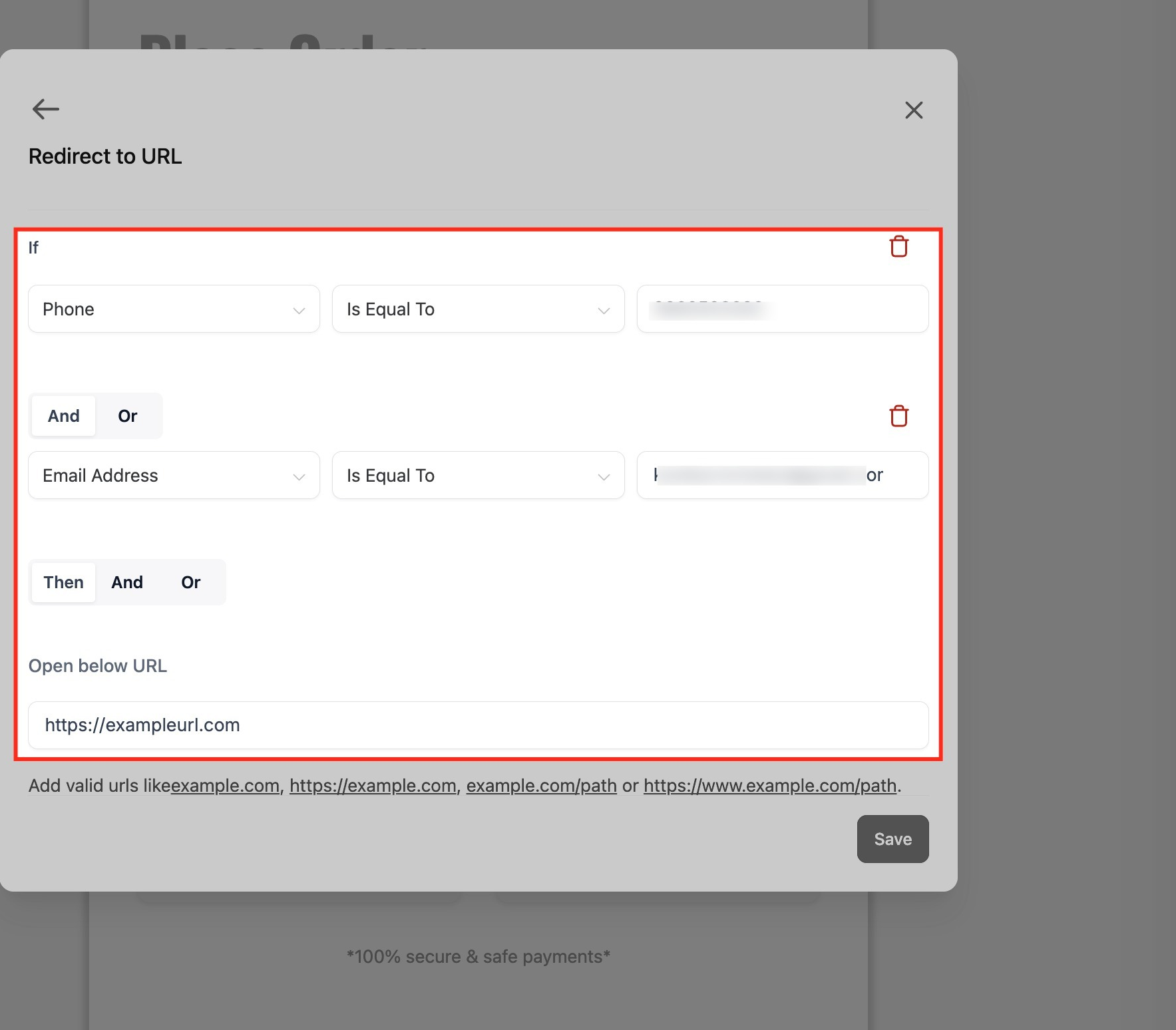
Display Message: Enter your message text.
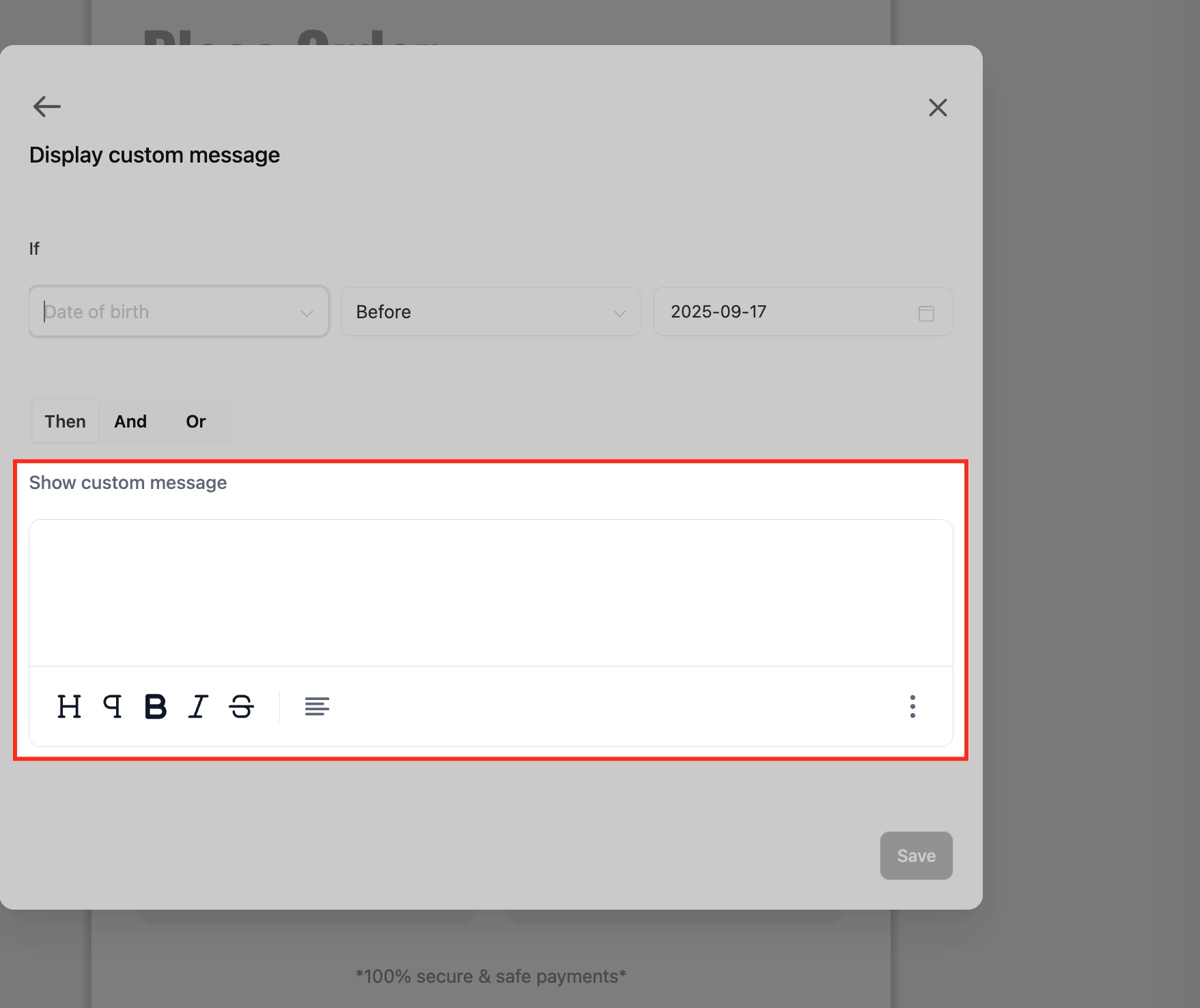
Show/Hide Fields: Pick which fields appear or hide.
Disqualify Lead: The form stops submission when matched.
Jump To (surveys only): Choose the target slide or question.
The Save button activates only after all required inputs are valid.
The system checks for missing values and prevents loops automatically.
Rules run top-down, and later matches override earlier ones.
Conditional logic supports a wide range of field types.
Personal Info
First Name
Last Name
Phone
Form Fields
Single Line
Multi Line
Number
Monetary
Score
Date Picker
Dropdown (Single)
Dropdown (Multi)
Radio Select
Checkbox
Terms & Conditions (TnC1 / TnC2)
File Upload
Signature
Content & Payment Elements
Text
HTML
Image
Payment
Note: Calendar fields are not yet supported.
Field Type | Operators |
|---|---|
Text (single/multi line) | equal to, not equal to, contains, does not contain, starts with, ends with, is empty, is filled |
Phone / Email | equal to, not equal to, contains, starts with, ends with, is empty, is filled |
Number / Score / Monetary | equal to, not equal to, greater than, less than, between, is empty, is filled |
Date | equal to, before, after, between, is empty, is filled |
Dropdown (single) | is equal to, is not equal to, is empty, is filled |
Multi Dropdown / Checkbox | is equal to {Option}, is not equal to {Option}, is empty, is filled |
TnC1 / TnC2 | is checked, is not checked |
File Upload / Signature | is empty, is filled |
IF basis: Field or slide.
THEN action: Jump to a slide or question.
Evaluation: Happens when the patient clicks "Next."
Conflict handling: If multiple Jump To rules match, the first one runs.
Protection: Prevents self-loops and slide-to-slide cycles automatically.
In surveys, you can filter rules by:
Field: Show all rules related to a field.
Slide: Show all rules that affect or belong to that slide.
Rules execute top-down in order.
For Redirect, Message, and Disqualify, only the first matching rule runs.
For Show/Hide, later matches override earlier ones.
For multi-selects, "is equal to {Option}" checks whether the option is selected.
Text logic ignores case and extra spaces.
Dates use your account's timezone.
Use Between for number or date ranges (inclusive).
Try date presets like Today or This Week.
The "Radio Other" option appears only if enabled for that field.
Always preview the form or survey to verify rule behavior.
Can I mix AND and OR in the same rule?
No. Each rule must use one type of connector, either AND or OR.
Can I have multiple rules in the same form?
Yes. Each rule works independently.
What happens if more than one condition matches?
For submission actions (Redirect, Message, Disqualify), the first match wins. For Show/Hide, later rules override earlier ones.
Can I create loops in Jump To logic?
No. The builder prevents loops and shows an error message if one is detected.
Can I show a treatment-specific question only when a service is selected?
Yes. Create a Show/Hide rule that reveals the question when the matching service is selected, so patients only see questions relevant to their choice.
Do operators like "is empty" require a value?
No. Some operators, such as "is empty" or "is checked," evaluate the field state on their own and don't need a value entered.
Does conditional logic work in calendar booking forms?
Yes. When a custom form is used in a supported booking flow, show/hide and disqualify logic apply, and redirects or custom messages can run as part of the booking outcome.
Why isn't my Save button active?
The Save button activates only after all required inputs are valid. Check for missing values in your rule, since the system also blocks saves that would create a loop.
