
Use the Spread to Column option to arrange radio, image, and checkbox choices side by side for cleaner, easier-to-read forms and surveys.
When your intake forms and surveys include multiple-choice questions, long single-column lists of options can feel cluttered and make patients scroll more than they should. The Spread to Column option lets you distribute radio buttons, radio images, and checkboxes across multiple columns, giving your forms a cleaner, more organized layout that is easier for patients to scan and complete.
This layout control is available for radio buttons, radio images, and checkboxes in both forms and surveys, so you can improve the styling and organization of any question that offers a set of choices.
How to Use Spread to Column
Follow these steps to arrange a field's options into columns.
Open your Form or Survey Builder.
Click on the Radio, Checkbox, or Radio Image field you want to adjust.
In the right settings panel, enable the Spread to Column option.
Specify the number of columns you want the options to spread across.
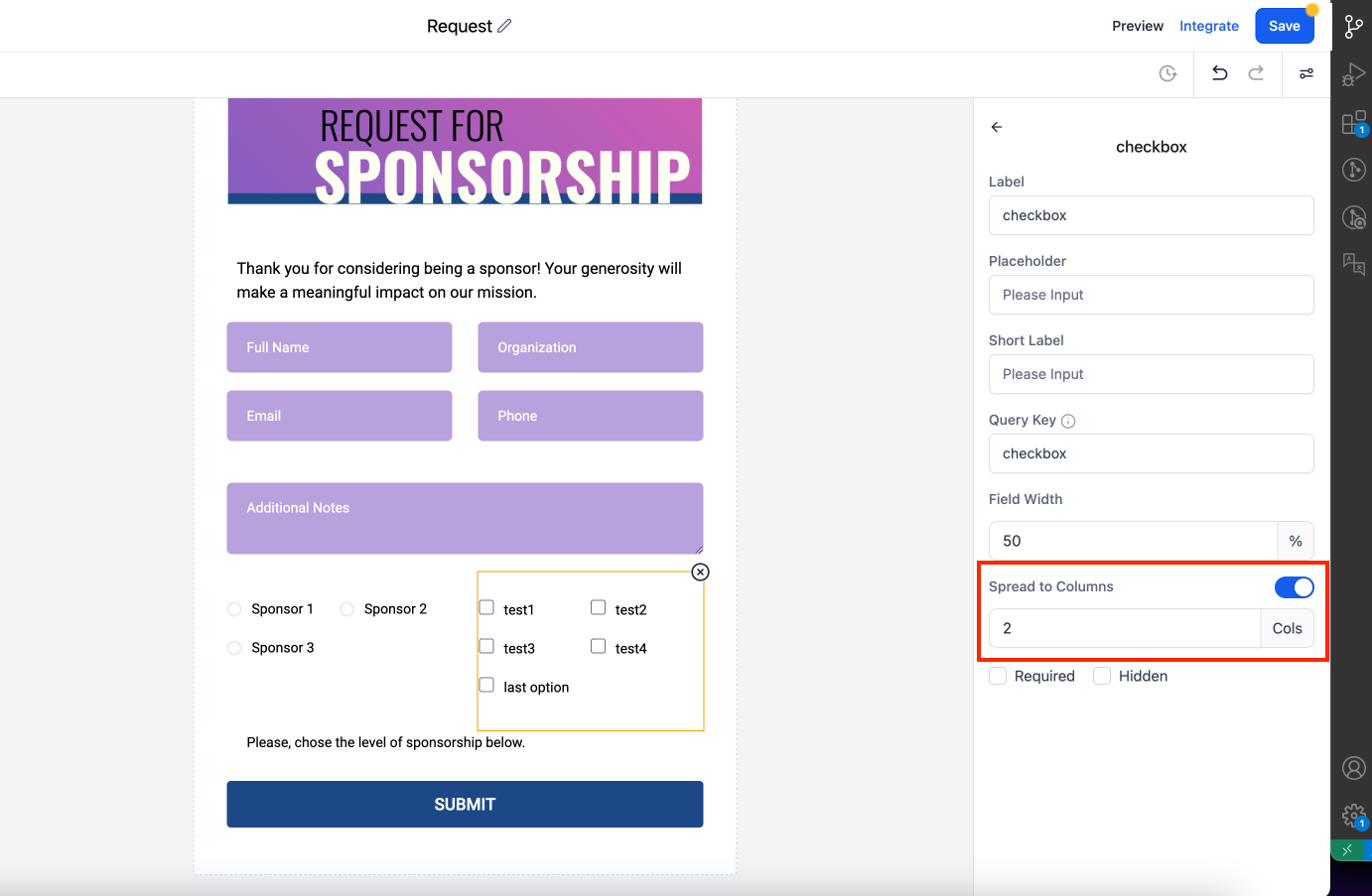

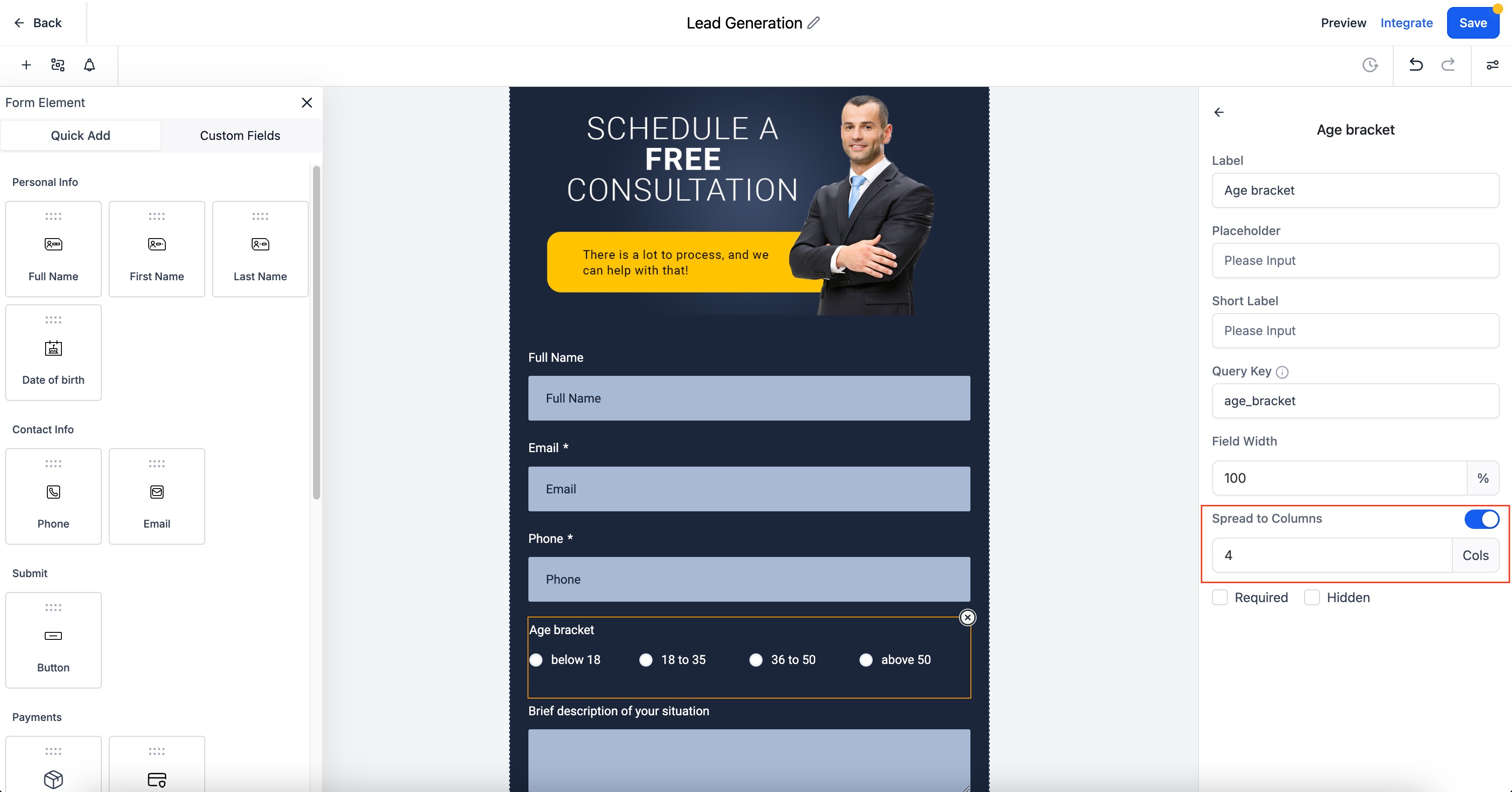
Key Features and Benefits
Improved Styling
Distribute radio options and checkboxes into columns to create visually appealing, well-organized forms that match the polished look of your practice.
Better Patient Experience
Spreading options across columns improves the clarity and usability of your forms, making it easier for patients to navigate the choices and select the options that apply to them.
Column Limits
The number of columns you can set depends on the field's layout style. Keep these limits in mind when configuring a field.
In Single Column, the maximum number of columns is 5.
In Two Column, the maximum number of columns is 2.
In Single Line Column, the maximum number of columns is 5.
Note: This feature does not affect older forms. It applies only to the fields where you enable it.
Frequently Asked Questions
Which field types support the Spread to Column option? The option is available for radio buttons, radio images, and checkboxes in both forms and surveys.
Where do I find the Spread to Column setting? Click the field inside your Form or Survey Builder, then look in the right-hand settings panel to enable the option.
How many columns can I use? It depends on the layout style. Single Column and Single Line Column allow up to 5 columns, while Two Column allows up to 2 columns.
Will this change my existing forms? No. The feature does not affect older forms. It only applies to the fields where you turn it on.
Can I use different column counts for different questions? Yes. Spread to Column is set per field, so each radio, image, or checkbox field can have its own column layout.
Does spreading options into columns change how responses are collected? No. The layout only affects how options appear to patients. The choices and the data you collect stay the same.