Use rating scales, multi-select filters, and write-in "Other" answers to capture richer, more flexible feedback in your Aesthetix CRM forms and surveys.
Standard radio buttons and checkboxes cover most intake and feedback needs, but some questions call for more nuance. This guide covers three special field options in Aesthetix CRM forms, surveys, and quizzes: the Rating element for capturing sentiment with visual icons, multi-select filtering for triggers, and the "Other" write-in option for radio-button questions. Together, these give your practice more flexible ways to collect and act on patient feedback.
The Rating element is a customizable field that lets you capture patient feedback through visually intuitive icons. Add it to a form, survey, or quiz so respondents can rate an experience or treatment using icons such as stars, hearts, or thumbs-up. This visual approach makes it simple for patients to share feedback and helps your practice gather actionable insights at a glance.
You can tailor the icon type, the number of steps in the scale, the labels, the color, and the storage format. All collected ratings integrate into your CRM, automations, and reporting tools.
Consistent feedback collection: Use the same rating system across touchpoints for standardized results.
Flexible icon choices: Choose from icons like stars, hearts, thumbs-up, flags, or light bulbs.
Customizable rating range: Define scale length (1 to 10) and set labels such as "Poor" to "Excellent."
Versatile data storage: Save values as absolute numbers, percentages, or fractions for easy analysis.
CRM integration: Map ratings to custom fields for use in automations and patient records.
Setting up the Rating element in your form, survey, or quiz is straightforward and ensures you capture actionable feedback efficiently.
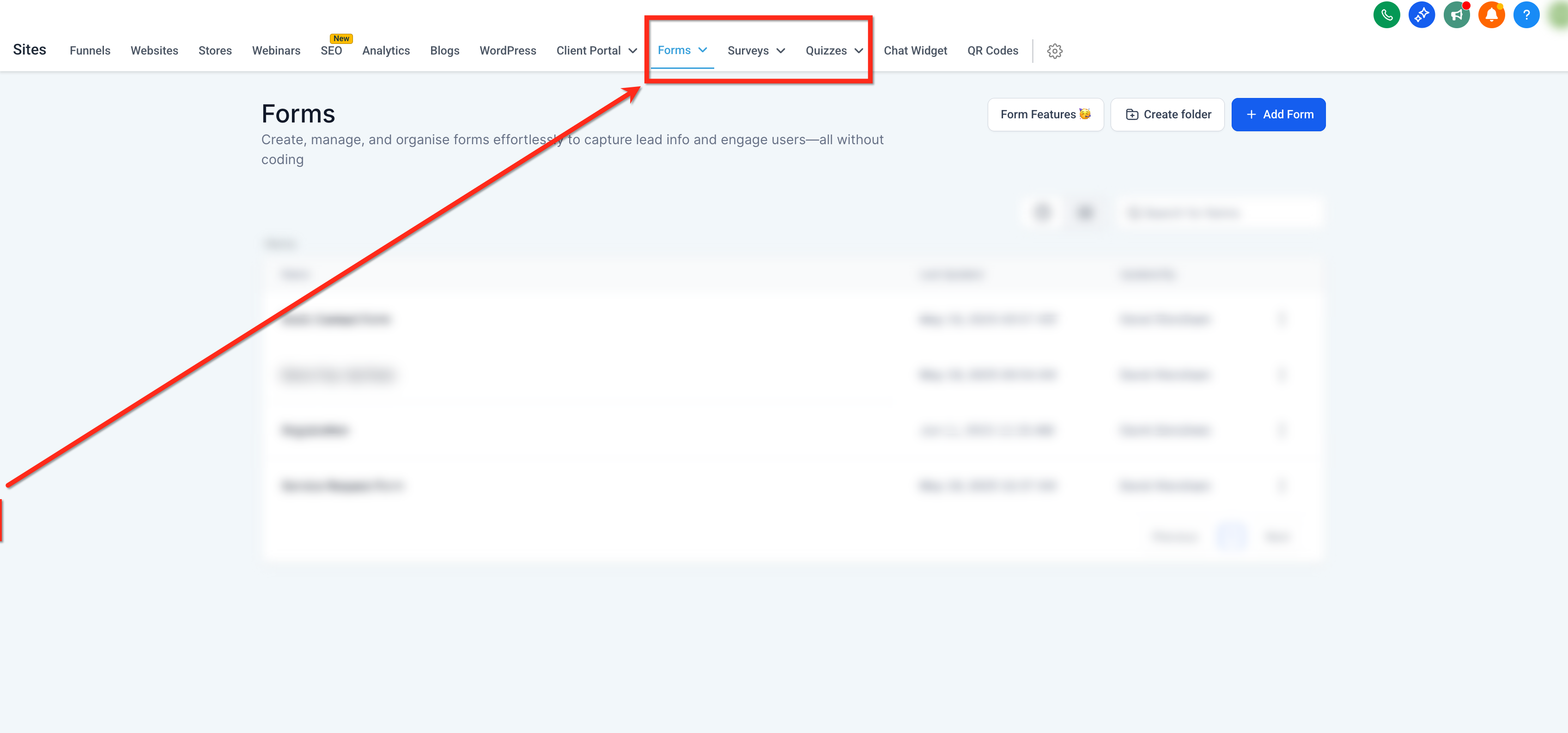
Step 1: Navigate to the form, survey, or quiz builder.
From your dashboard, click Web Tools, then choose Forms, Surveys, or Quizzes.
You can create a new form, quiz, or survey or select an existing one to edit.
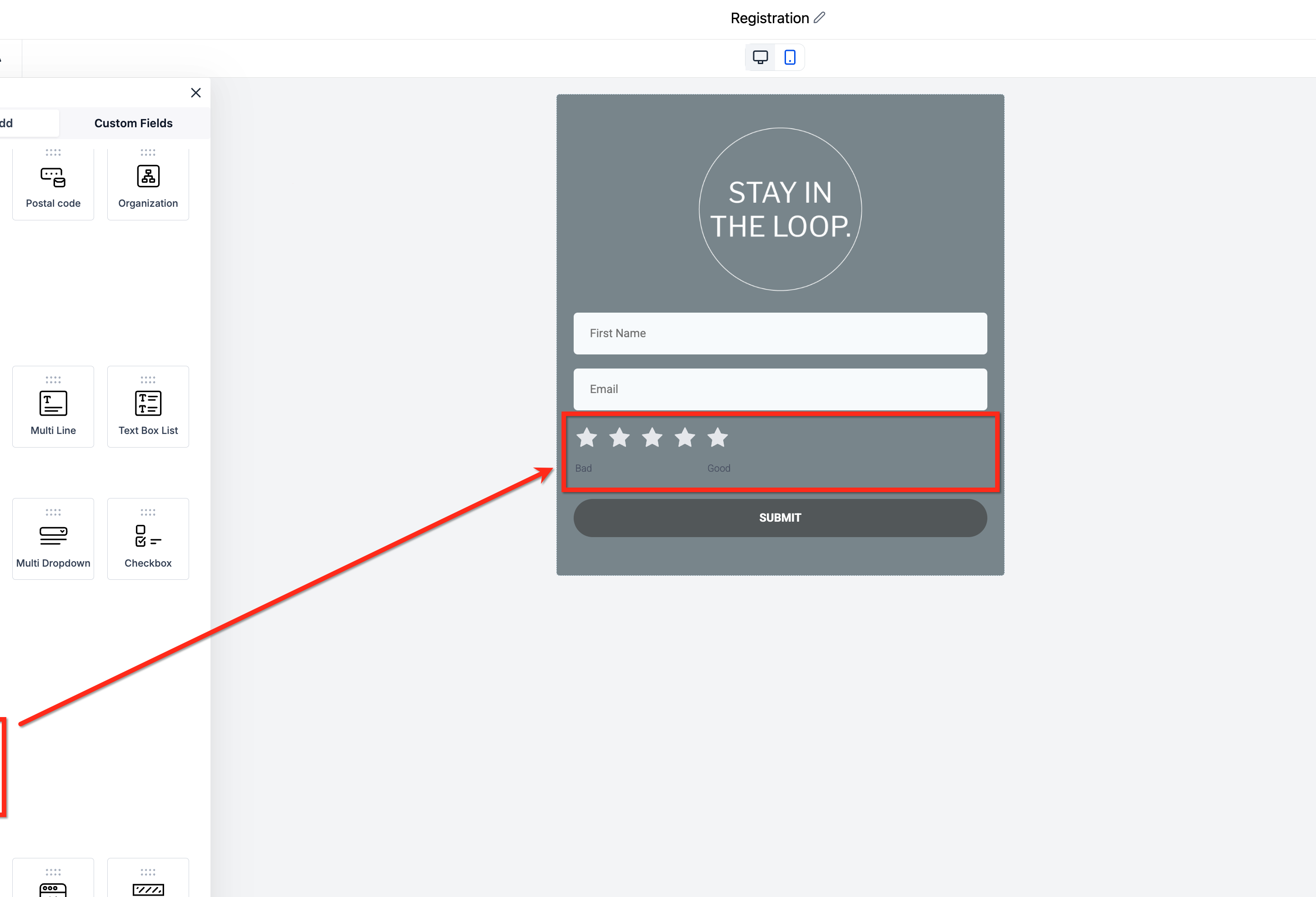
Step 2: Drag the Rating element into your desired location.
Click the Add Form Element button (the plus icon at the top left).
Scroll down to locate the Rating element.
Drag the Rating element from the builder's panel into place.
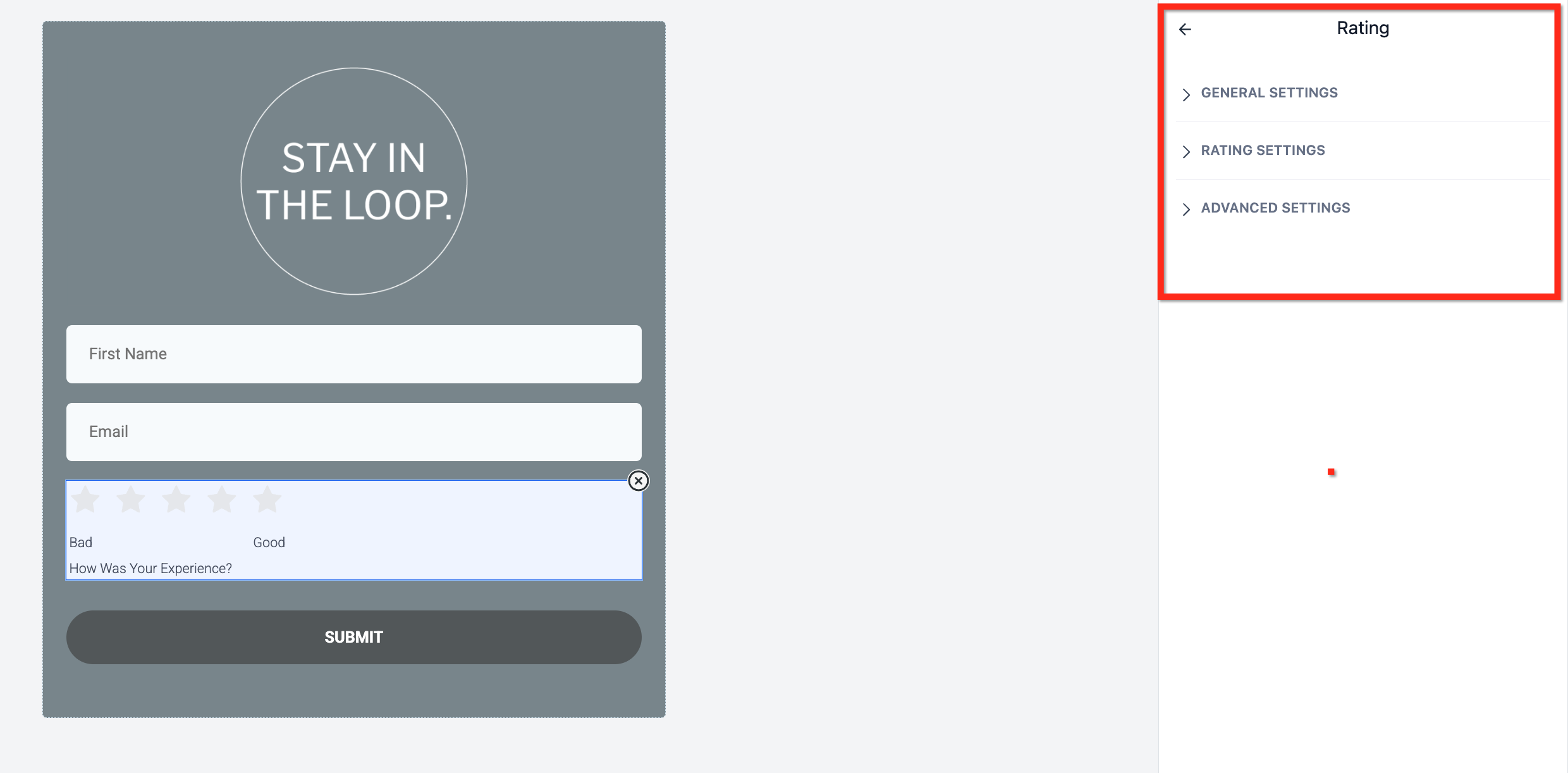
Step 3: Configure the Rating element.
After placing the element, click on it to open its settings on the right side of the screen. Configuration options are grouped into three dropdown sections:
General Settings: Set the label and width, and mark it required.
Rating Settings: Choose your icon type, alignment, number of rating steps, labels, and data storage type.
Advanced Settings: Map data to a custom field.
For a full breakdown of every customization option, see Rating Element Configuration Options below.
Step 4: Preview the element.
Click Preview to test the form. Hovering over the rating icons highlights them in your selected color, providing immediate visual feedback.
After placing the Rating element, click on it to access three dropdown menus. These control the element's appearance, behavior, and data handling.
General Settings
Label: Text shown to patients (for example, "Rate your experience").
Short Label: Internal field name.
Field Width: Set the width (for example, 100% or 50%).
Required: Toggle on to make this field mandatory.
Rating Settings
Icon Type: Select stars, hearts, thumbs-up, flags, or lightbulbs.
Icon Alignment: Choose left, center, or right.
Count: Set from 1 to 10 options.
Lowest & Highest Labels: Customize the lowest and highest labels (for example, "Poor" to "Excellent").
Data Storage Options: Control how data is saved. This can impact your reporting and automation strategies.
Absolute Value: Stores the raw rating (for example, 4).
Percentage: Converts the rating to a percentage (for example, 80%).
Fraction: Stores the rating as a fraction (for example, 4/5).
Icon Selected State: The color icons turn when selected.
Icon Unselected State: The color icons are when not selected.
Advanced Settings
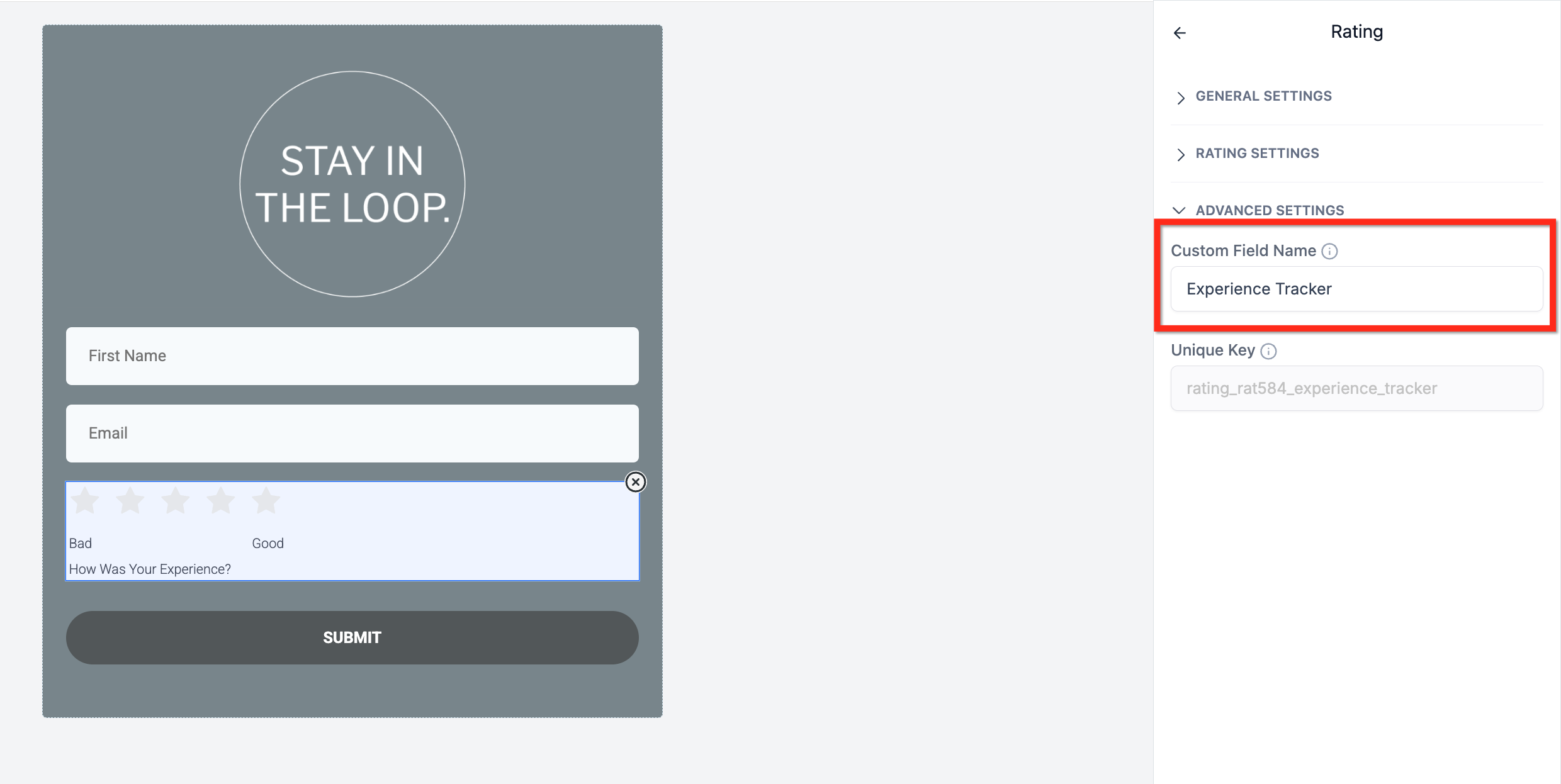
Custom Field Name: Assign a custom field for tracking and use in automations. Integrating ratings into your CRM enables powerful automation and segmentation.
For a full breakdown of custom fields for the Rating element, see Custom Field Mapping below.
Mapping the Rating element to a custom field stores patient feedback directly in the contact record, making it actionable across your CRM.
Assign the rating to a custom field to capture responses at the individual patient level.
Use the stored rating to trigger automations, apply conditional logic, or personalize follow-ups.
Ratings stored in custom fields can also be used for list segmentation and performance tracking.
Access and analyze rating submissions for full context.
View ratings in the Submissions table.
See individual ratings on the patient's contact record.
Export ratings as part of PDF exports. In PDF exports, all rating activity is logged in the contact timeline for comprehensive tracking.
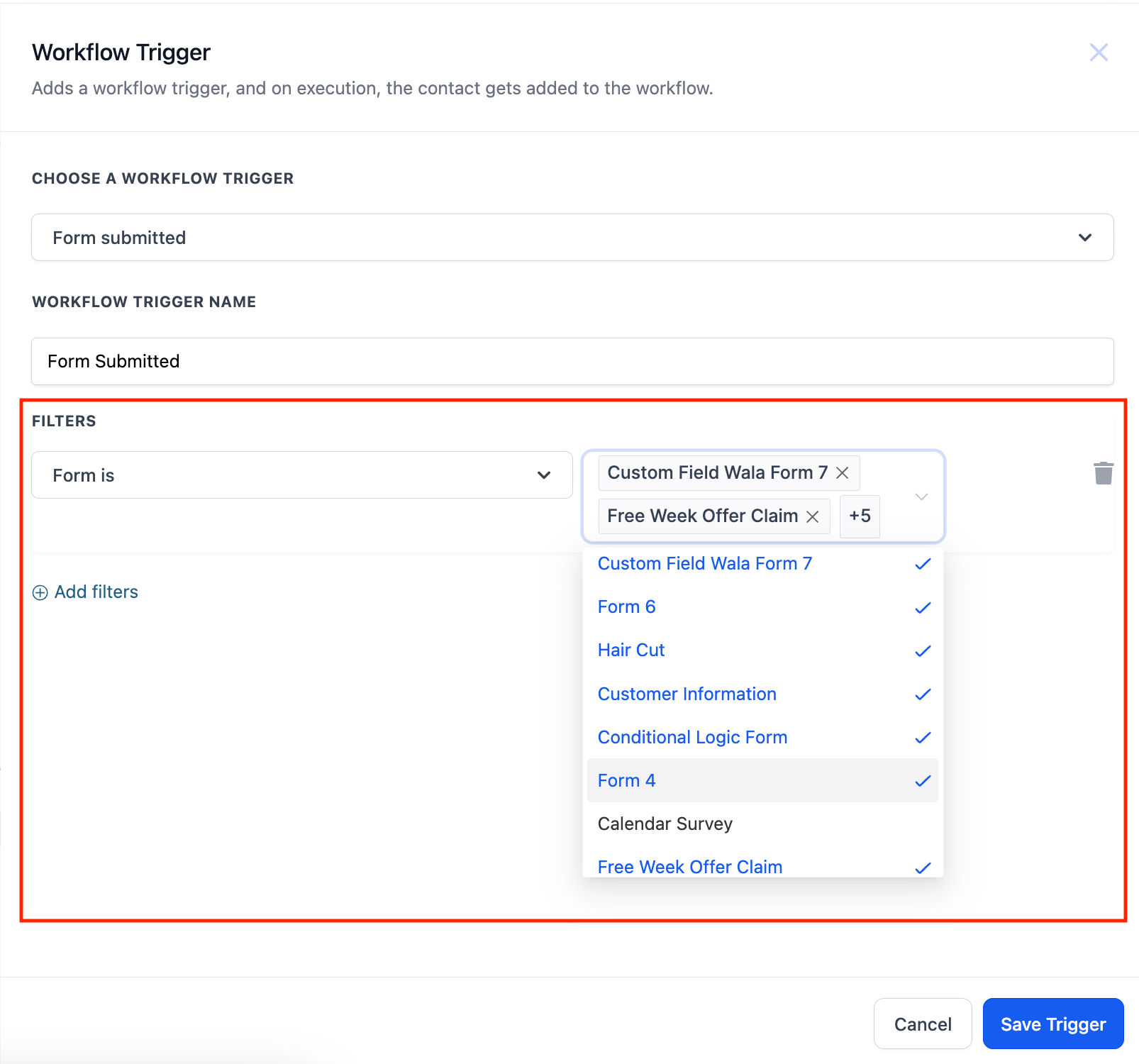
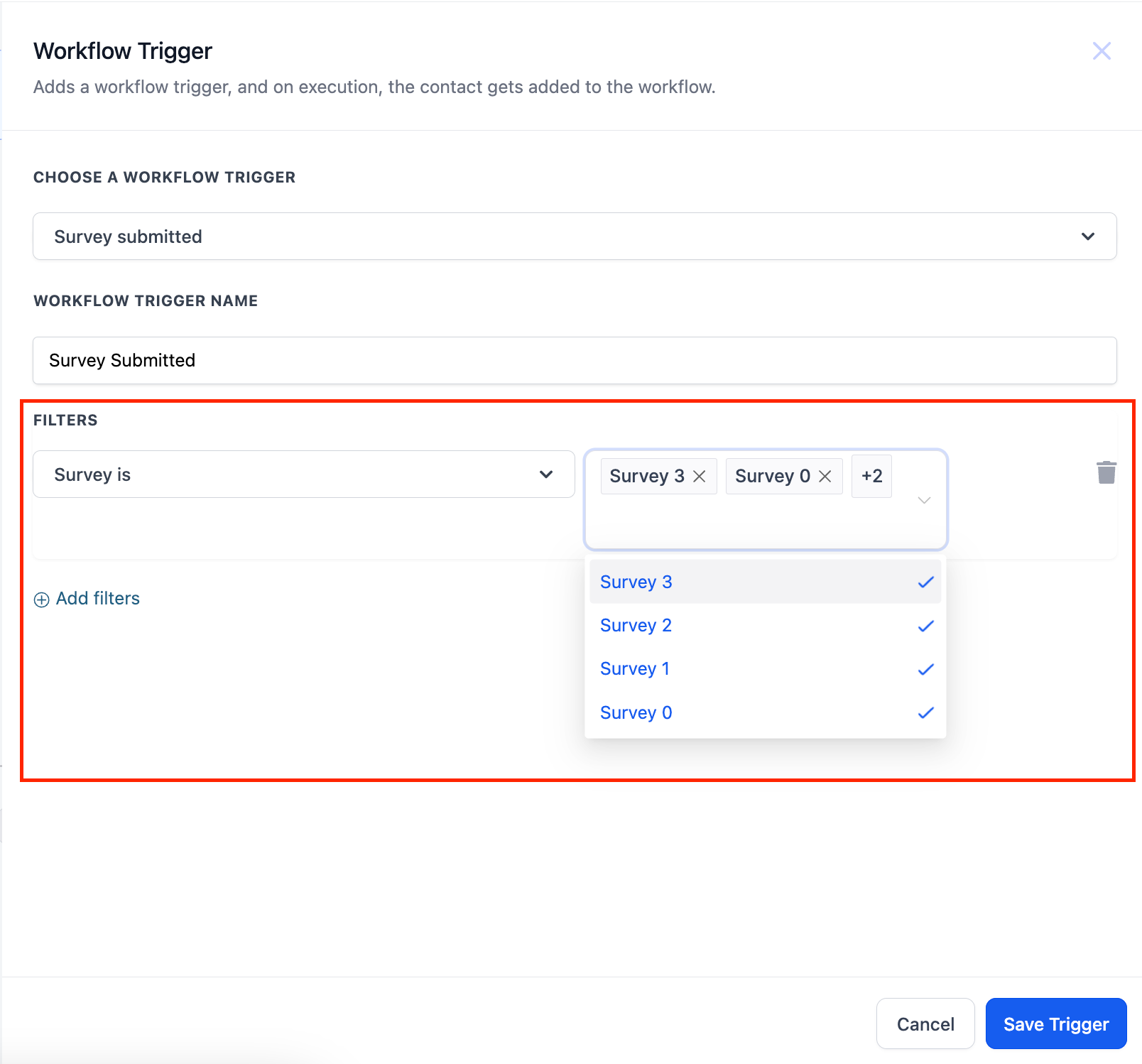
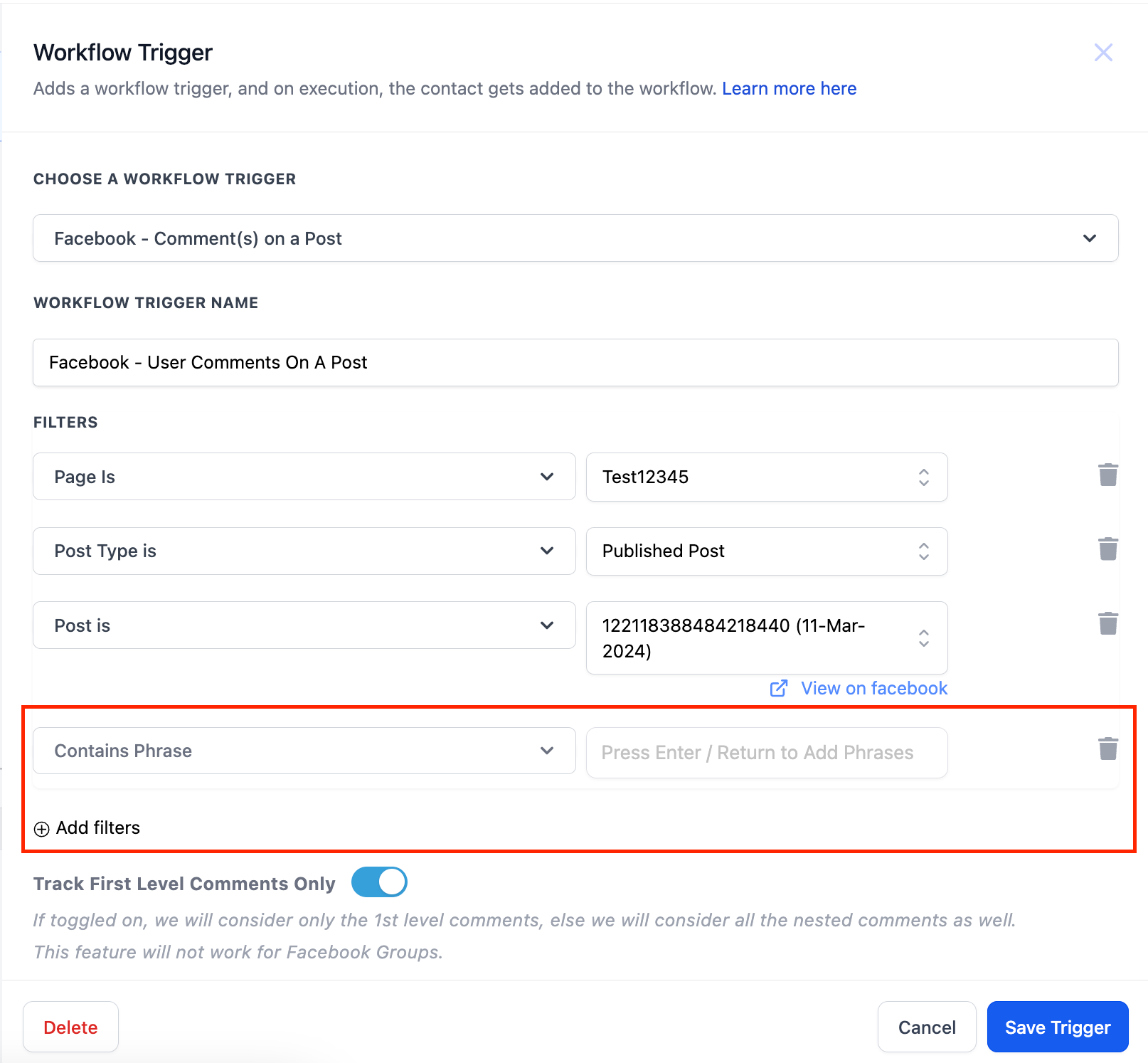
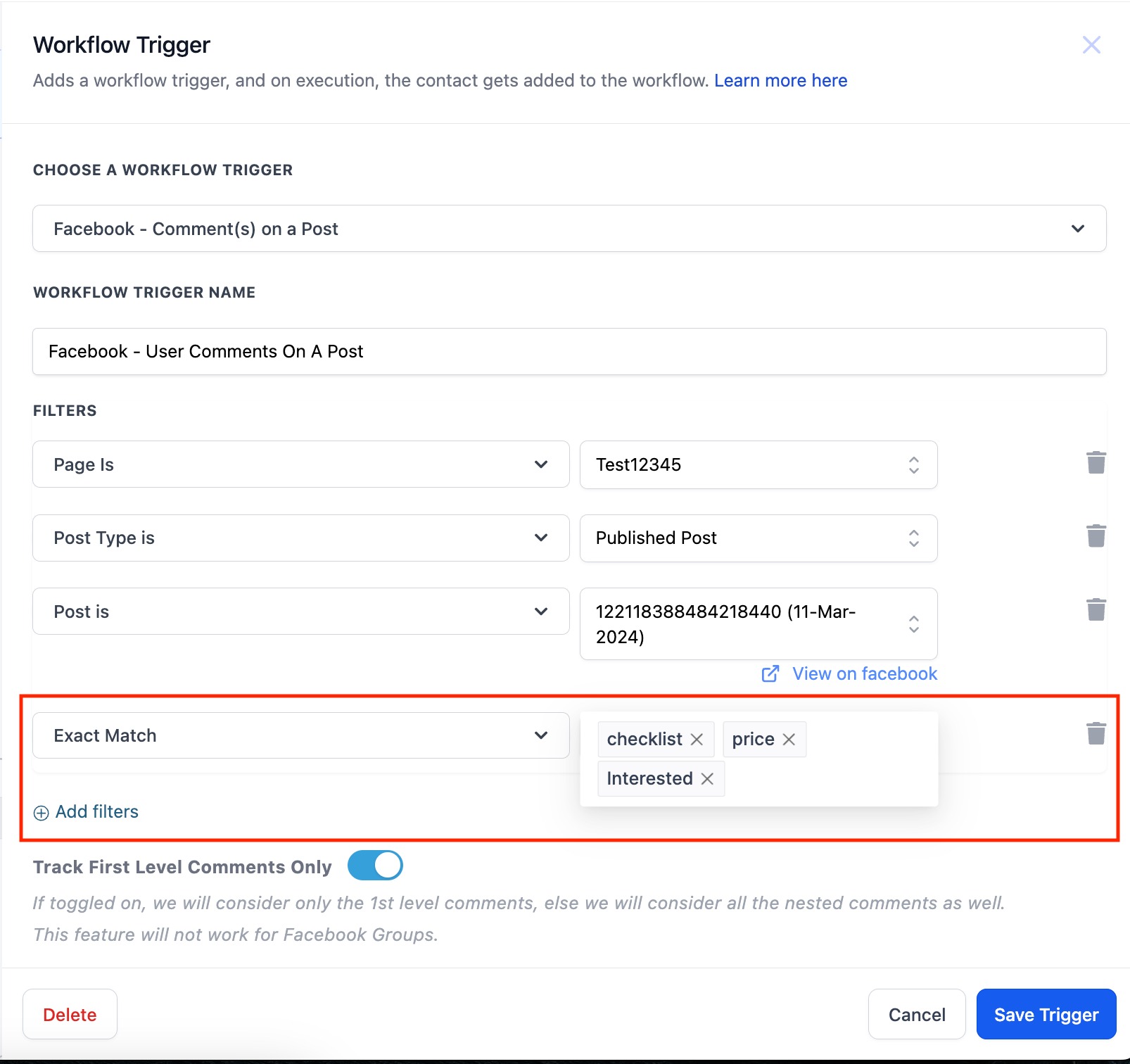
Multi-select lets you choose more than one option when configuring form, survey, "Contains Phrase," and "Exact Match" filters in your workflow triggers. Previously, users could not select the same filter more than once, so they had to build multiple separate triggers to cover several options.
You can now select multiple options in Forms, Surveys, Contains Phrase, and Exact Match fields.
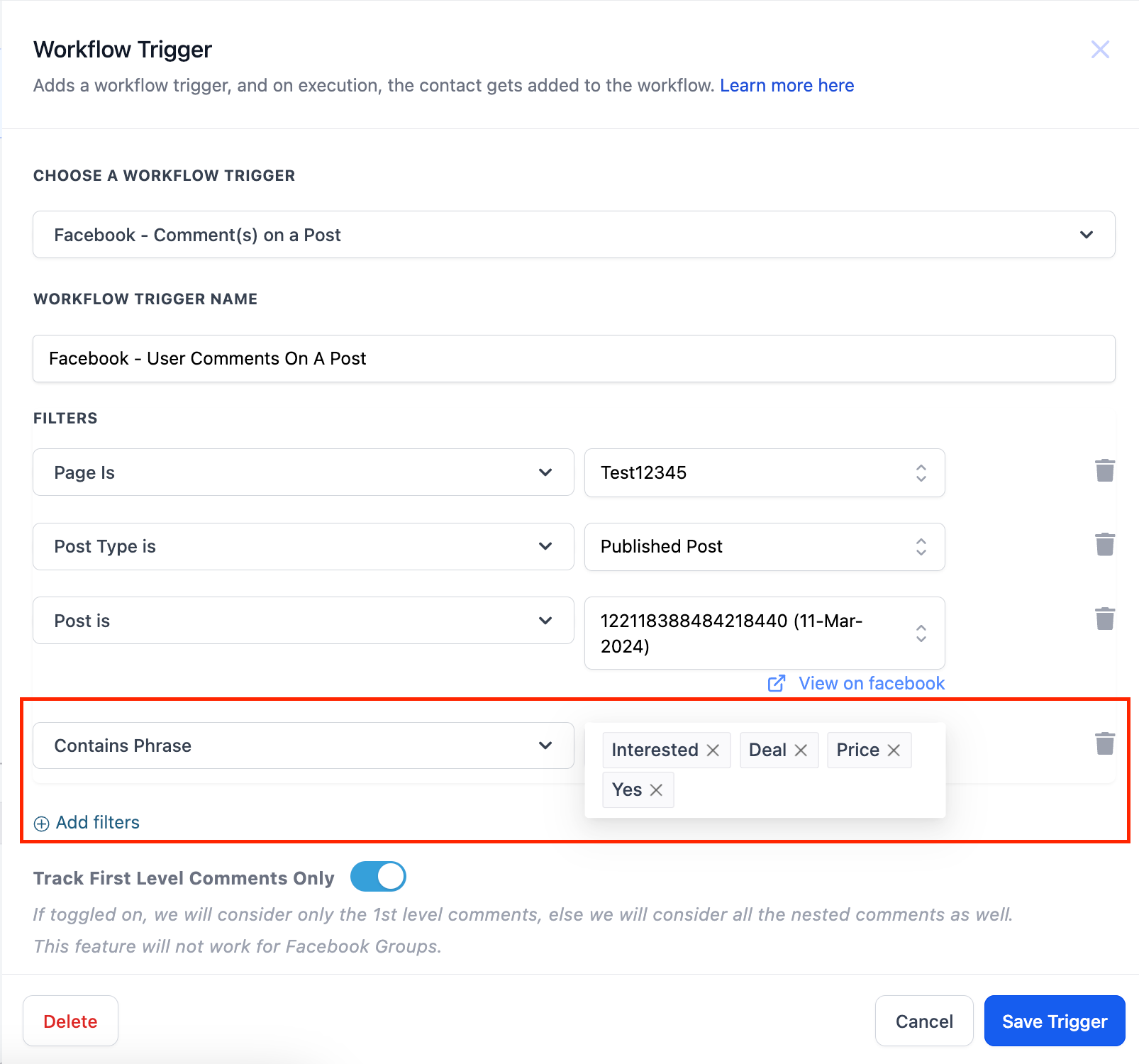
This works as an "Or" condition. For example, if a trigger's Contains Phrase field has five options, the trigger fires if the contact matches any one of those phrases.
Forms & Surveys: In the trigger, select multiple options by clicking each one from the dropdown.
Contains Phrase & Exact Match: In the trigger, add multiple options by pressing Enter or Return after typing each entry.
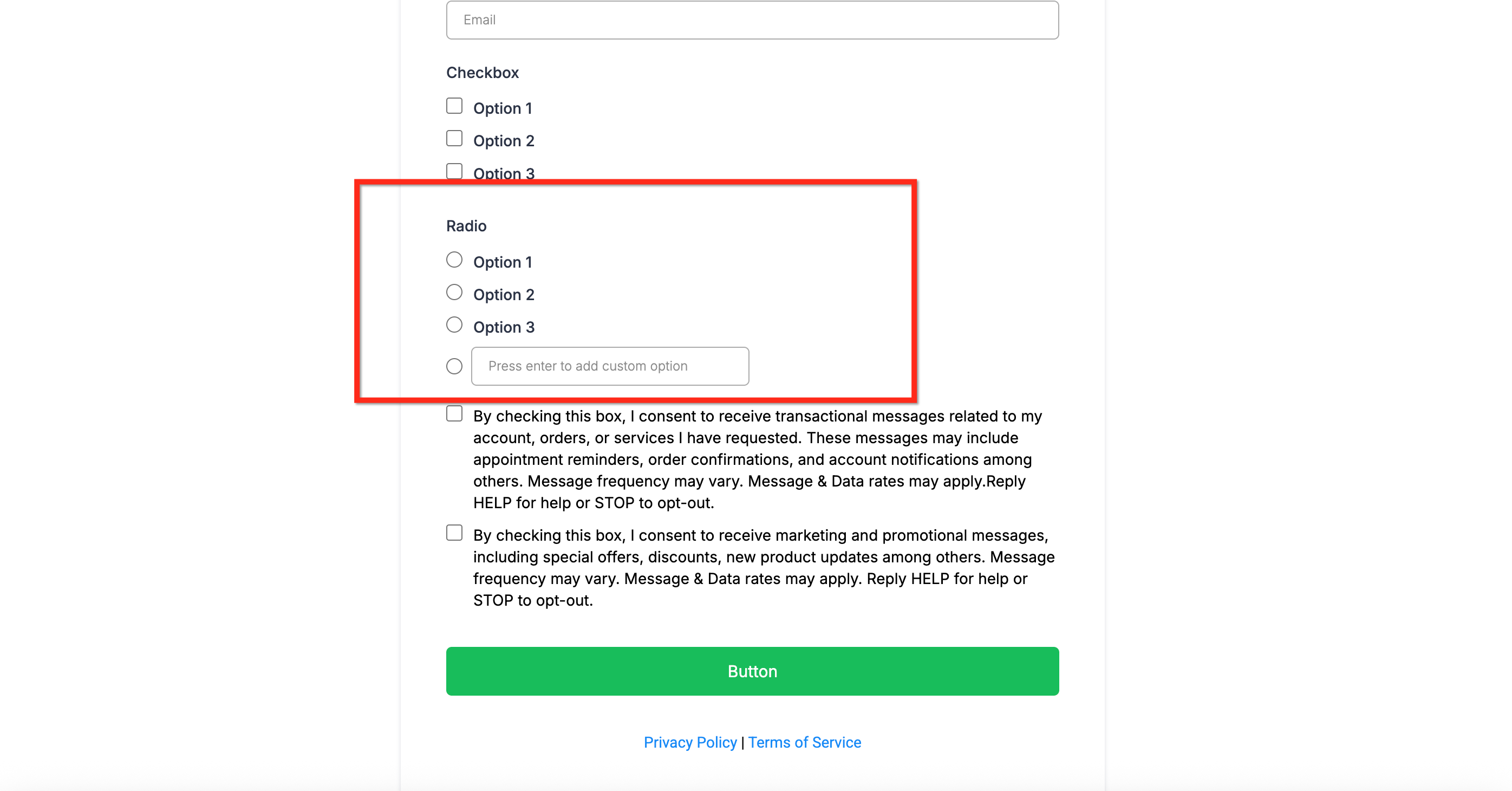
The "Other" option adds a write-in field beneath any radio-button question, letting patients share an answer that isn't listed. When enabled, their custom text is stored alongside the standard choices in the form or survey submission. This adds flexibility, ensuring you capture more personalized and insightful responses.
More flexibility: Collect richer, more individualized responses that go beyond standard choices.
Better data insights: Capture unique perspectives and feedback that predefined options might miss.
Effortless tracking: Custom responses are stored in submission reports for easy access and review.
Better patient experience: A visible text box signals that you value every voice, even out-of-the-box answers.
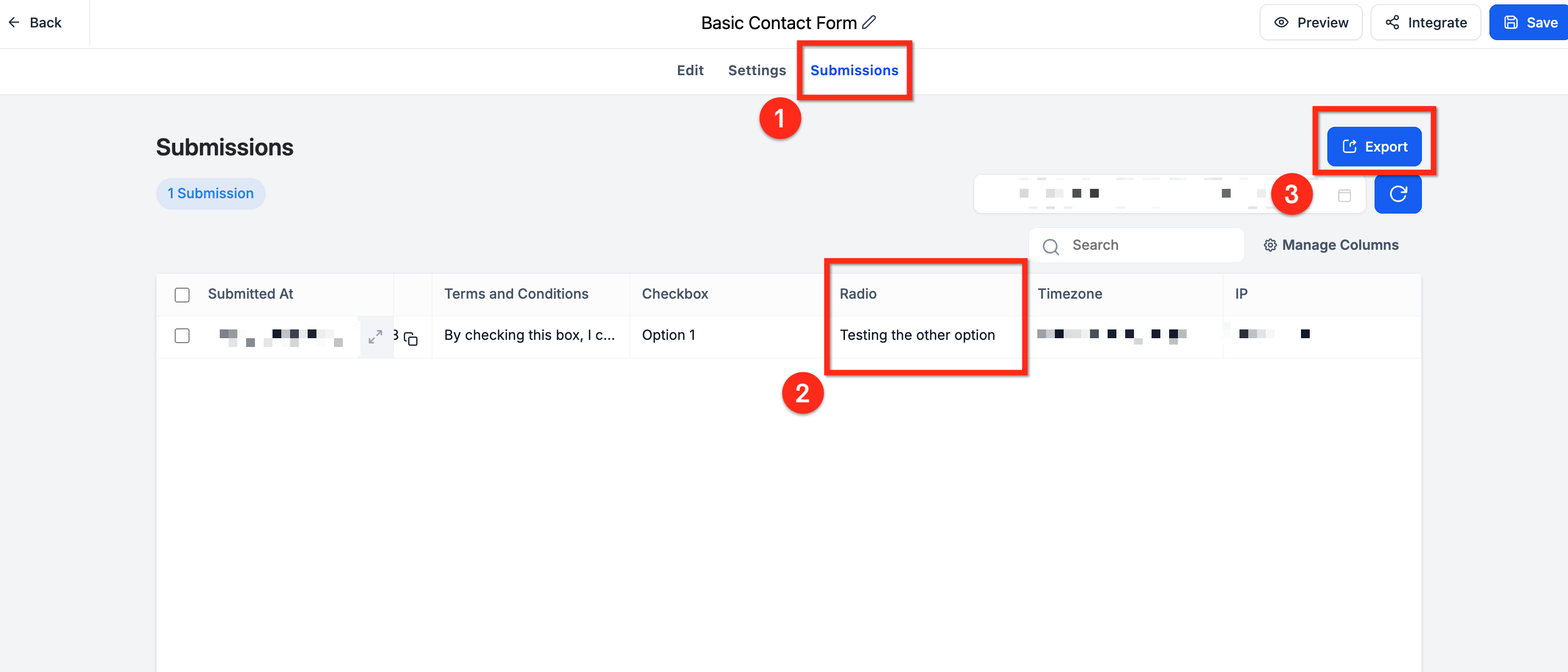
Navigate to Forms › Submissions (or Surveys › Submissions) for the asset you edited.
The write-in answer appears in the same column you named for the radio field.
Exporting submissions to CSV includes the custom text.
Unlocking the feature is a single-toggle action built right into the form builder. Follow these steps to add it to your forms and surveys.
Step 1: Navigate to the form or survey.
Using the left-side navigation bar, select Web Tools.
Click Forms or Surveys in the top navigation ribbon.
Next to the desired form or survey, click the 3 dots icon, then select Edit.
Step 2: Add a radio button.
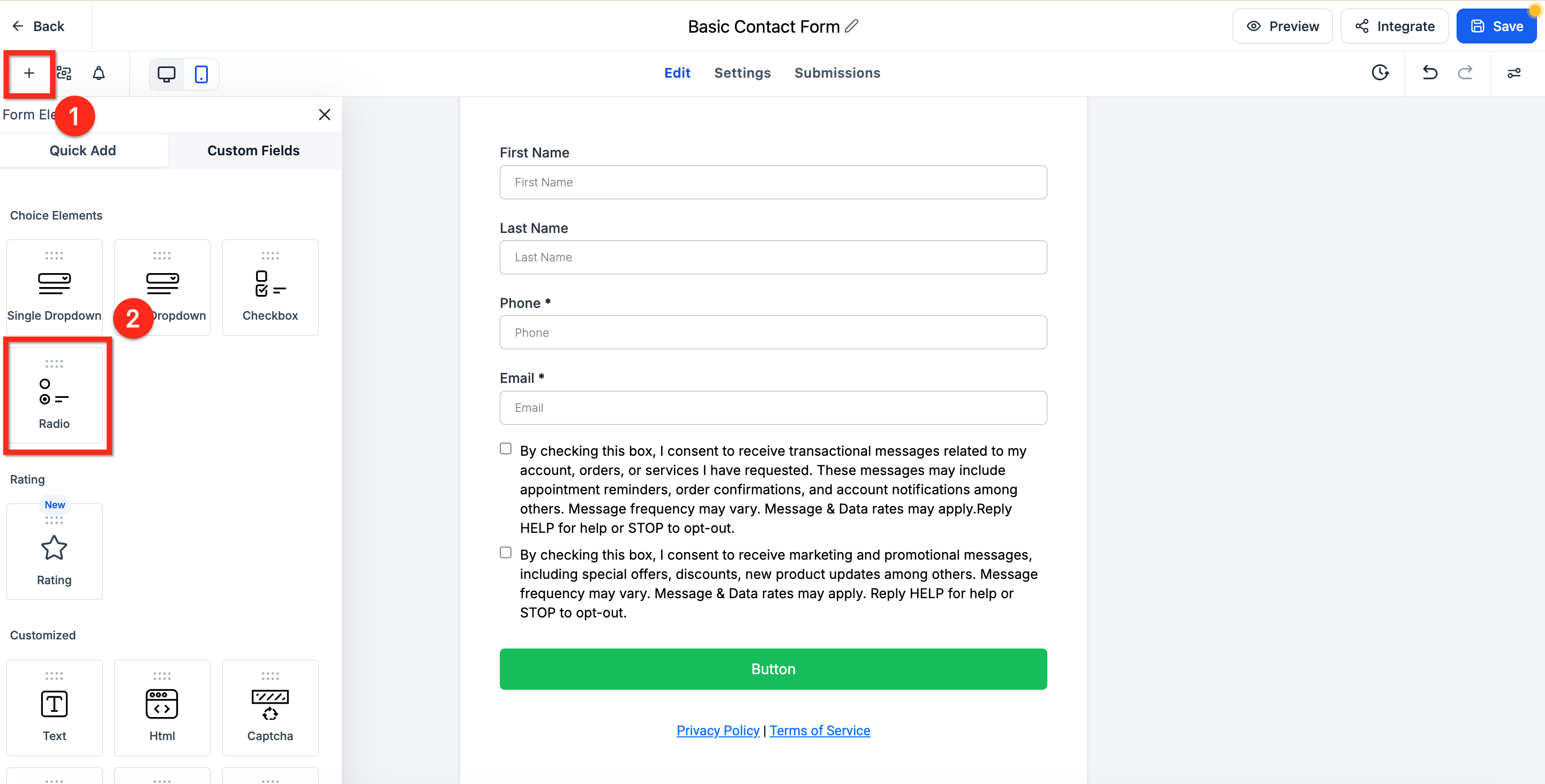
Open the Element panel by clicking the plus (+) icon in the upper-right corner.
Scroll down to the Radio element.
Drag the Radio element into your form or survey.
Step 3: Open Options.
Click on the Radio element to open the settings panel on the right side of the screen.
Select the Options tab at the top of this panel.
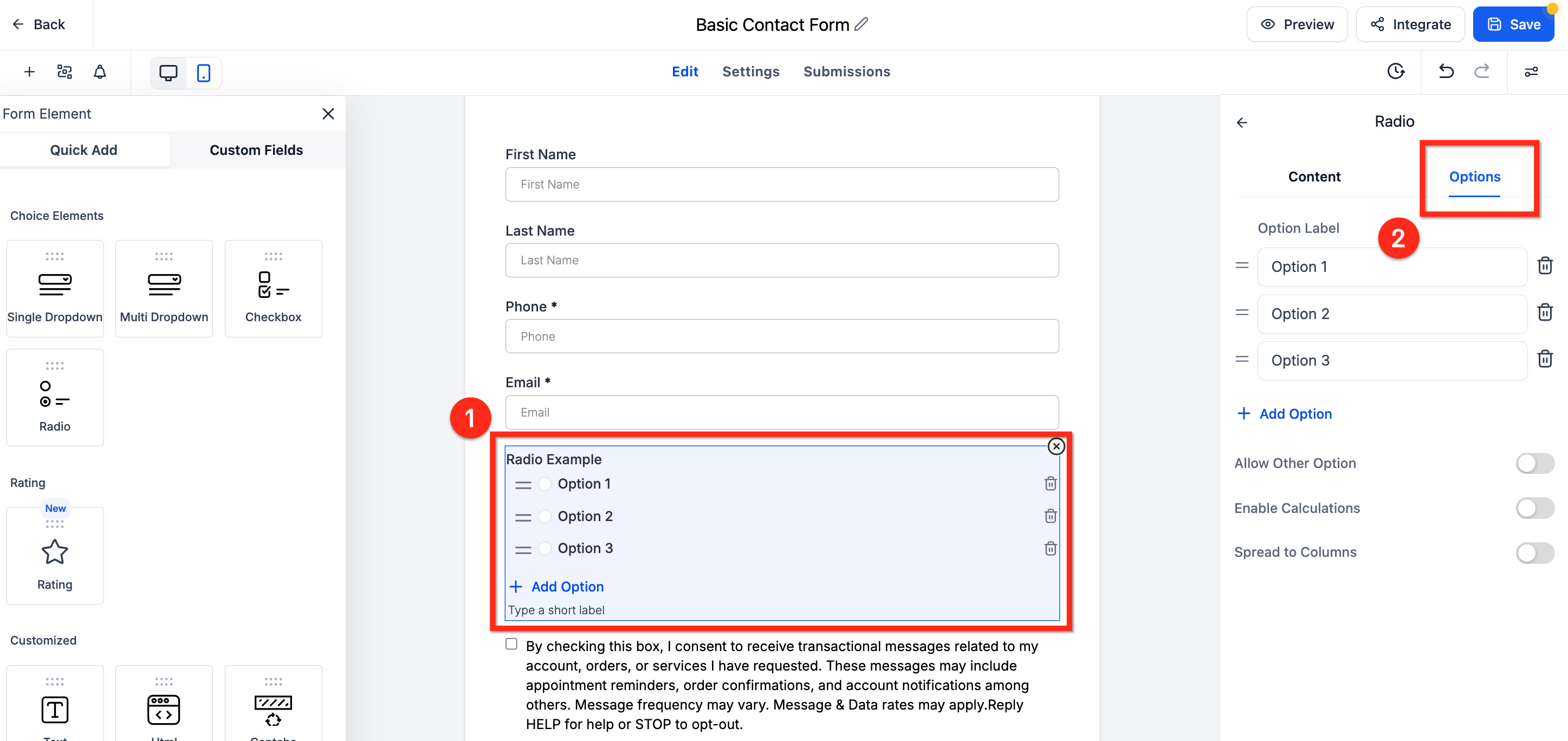
Step 4: Allow Other Options.
Turn on the Allow Other Options toggle to activate the "Other" answer option.
The "Other" option does not show in the builder, but it appears in the preview.
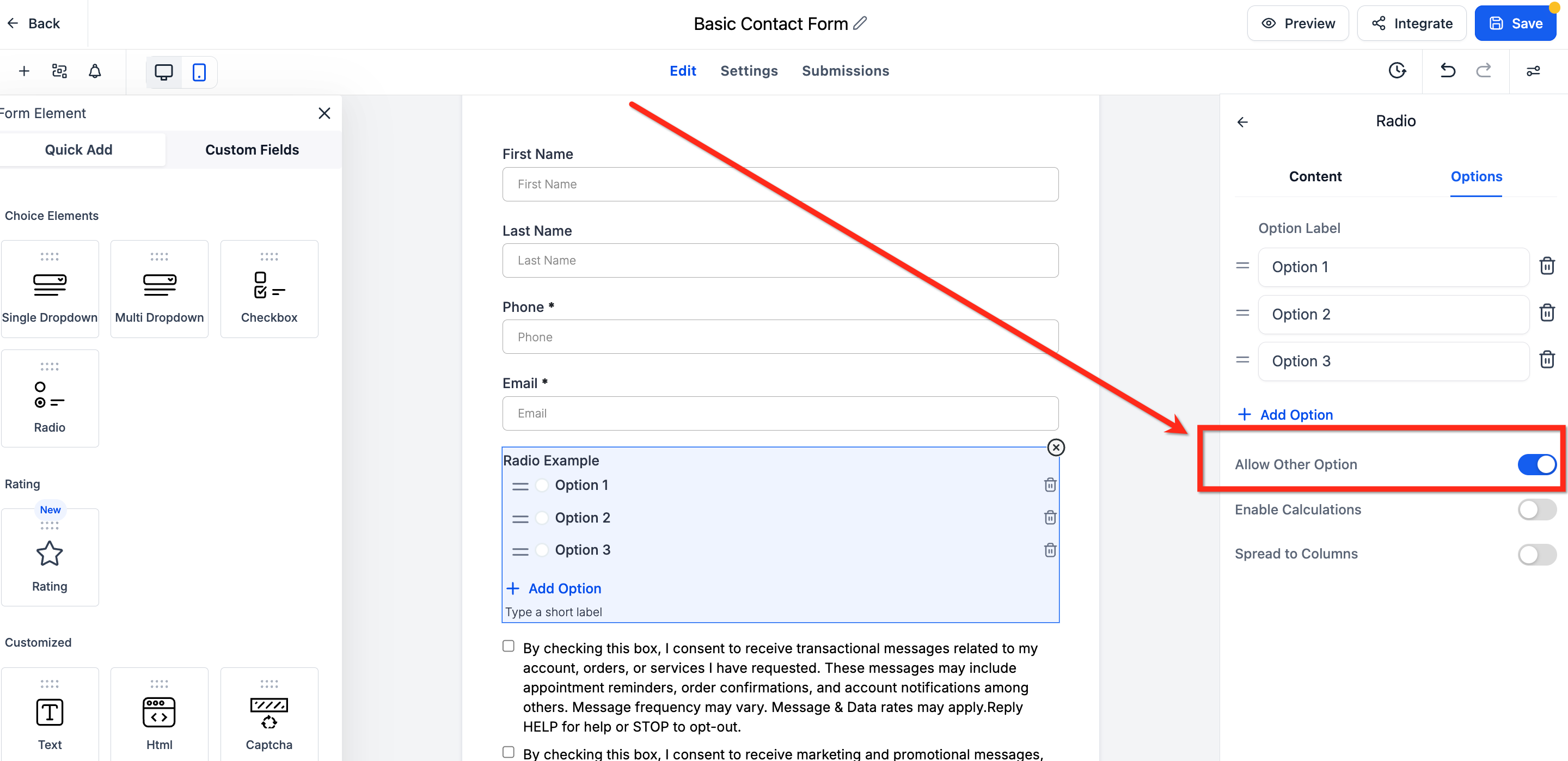
Note: The "Other" write-in option is currently available for radio-button elements only, not for dropdown or checkbox fields.
Q: Can I use different rating icons for different forms or surveys?
Yes. You can select unique icons for each Rating element you add to a form, survey, or quiz.
Q: Is the Rating element mobile-friendly?
Yes. The Rating element is fully responsive and works smoothly on both desktop and mobile devices.
Q: Can I map a rating to an existing custom field?
Yes. You can map the Rating element to any compatible custom field in your CRM for seamless data integration.
Q: Can I use the rating value in automations?
Yes. Once mapped to a custom field, the rating value can be used as a trigger or condition in your automation workflows.
Q: What happens if I change the rating scale after responses have been collected?
Changing the scale may affect how previous responses are interpreted. It is best to finalize your configuration before publishing.
Q: Can I enable the "Other" option for dropdown or checkbox fields?
Currently, the "Other" option is available for radio-button elements only.
Q: Can I disable the "Other" option after enabling it?
Yes. You can remove the "Other" option by turning off the toggle in the form editor.
Q: Is there a character limit for custom "Other" responses?
No. There is no set character limit for custom write-in responses.
Q: Does the "Other" option work inside funnels or websites?
Yes. Forms embedded in funnels, websites, or externally via the embed code can all use the "Other" option.
