Enable Address Auto-Complete on your forms and surveys so patients fill in accurate address details faster with real-time suggestions.
Address Auto-Complete turns the standard Address field in your forms and surveys into a smart, predictive search bar. As a patient types, real-time suggestions appear and automatically fill in the Street, City, State, Country, and Postal Code fields, keeping your data fast, accurate, and consistent. It is free and unlimited on every Aesthetix CRM account.
Accurate address data matters for your workflows, segmentation, reporting, and any delivery-based actions. Auto-Complete eliminates typing errors, guarantees consistent formatting, and speeds up form completion, which improves both the patient experience and the reliability of your data.
Address Auto-Complete uses an integrated global address database to surface relevant suggestions as a patient types, making form submission faster and error-free.
As a patient types into the Address field, Aesthetix CRM provides live predictive suggestions based on real-world address data.
When the patient selects an address from the dropdown, all related fields (Street, City, State, Country, and Postal Code) fill in automatically. This ensures consistent formatting and eliminates manual data entry errors.
The Address Auto-Complete feature strengthens every form submission by ensuring contact data is validated, consistent, and properly formatted. This reduces downstream corrections and increases patient satisfaction.
Free and unlimited: Included on every Aesthetix CRM account with no usage limits.
Improved data accuracy: Ensures consistent, validated address entries.
Faster submissions: Reduces typing effort for patients and leads.
Higher conversion rates: A frictionless experience leads to more completed forms.
Better data for reporting: Standardized address formats improve automation accuracy.
Navigate to Web Tools → Forms (or Surveys) and open the builder for the form where you want to use Address Auto-Complete.
In the Form Elements panel, drag the Address field into your form layout. The Address element is marked as Updated, indicating that it supports Auto-Complete functionality.
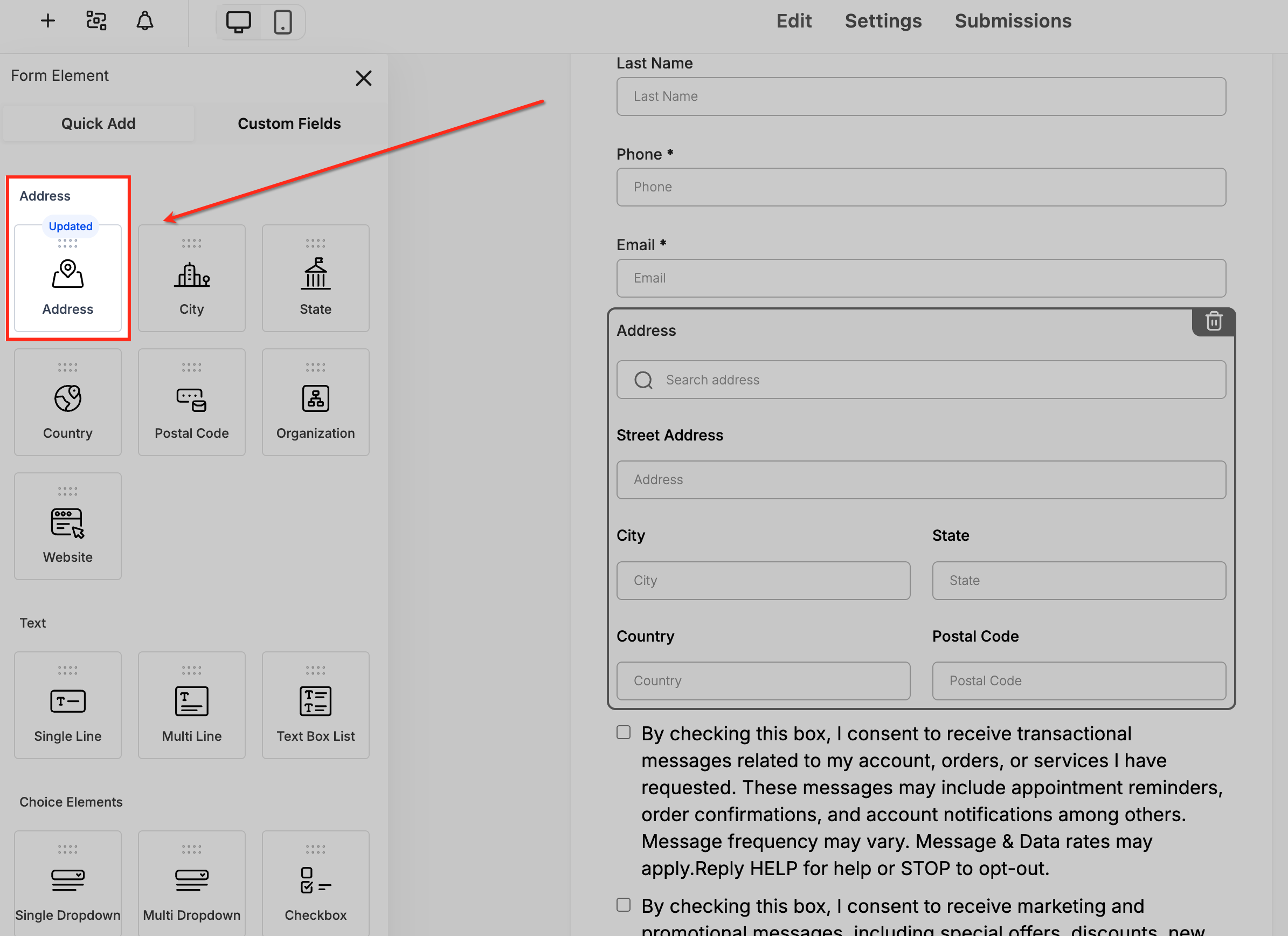
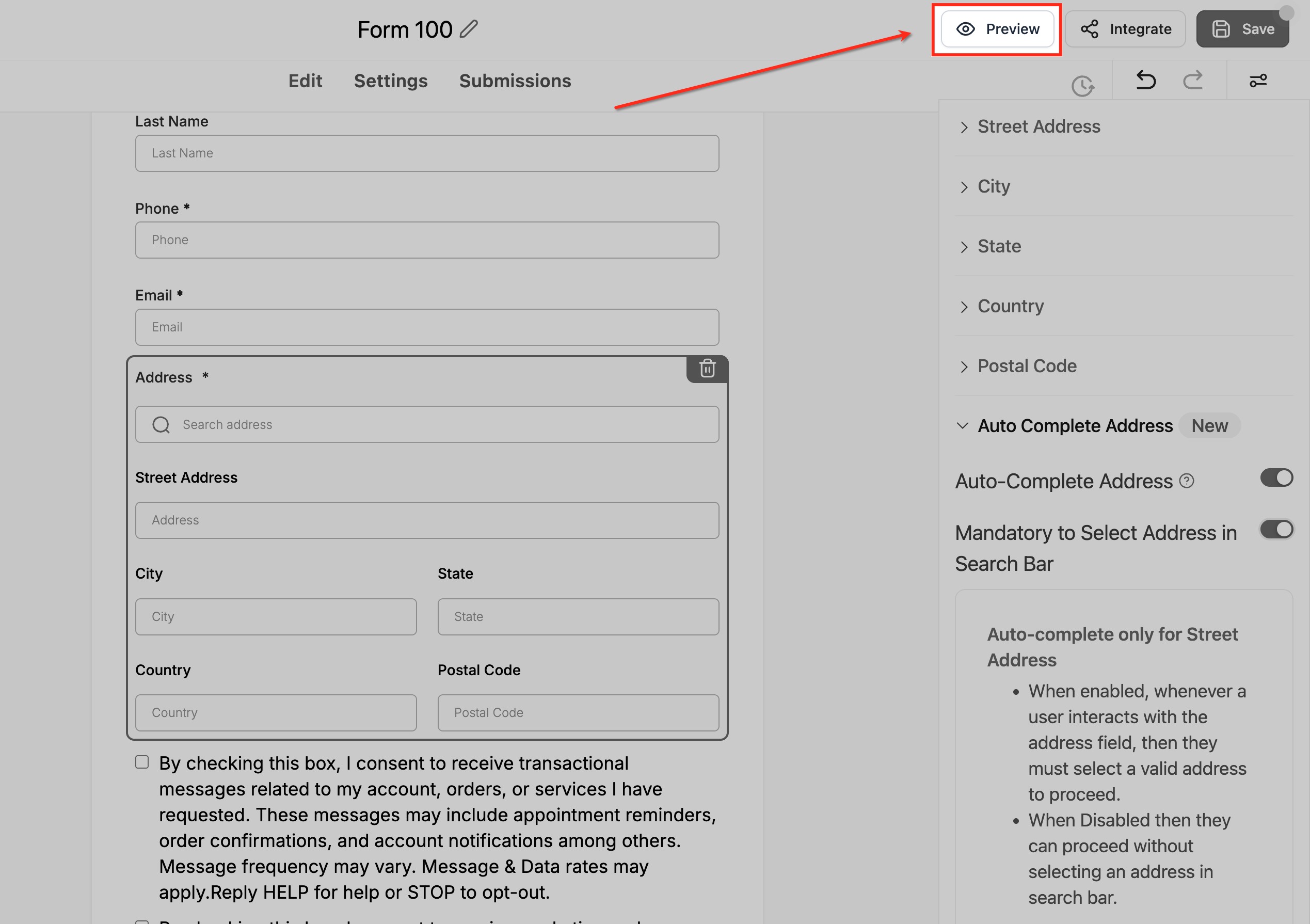
After adding the Address field, click on it to open the settings panel on the right side of the screen.
This panel lets you customize address behavior, enable auto-complete, and control whether patients must select a verified address.
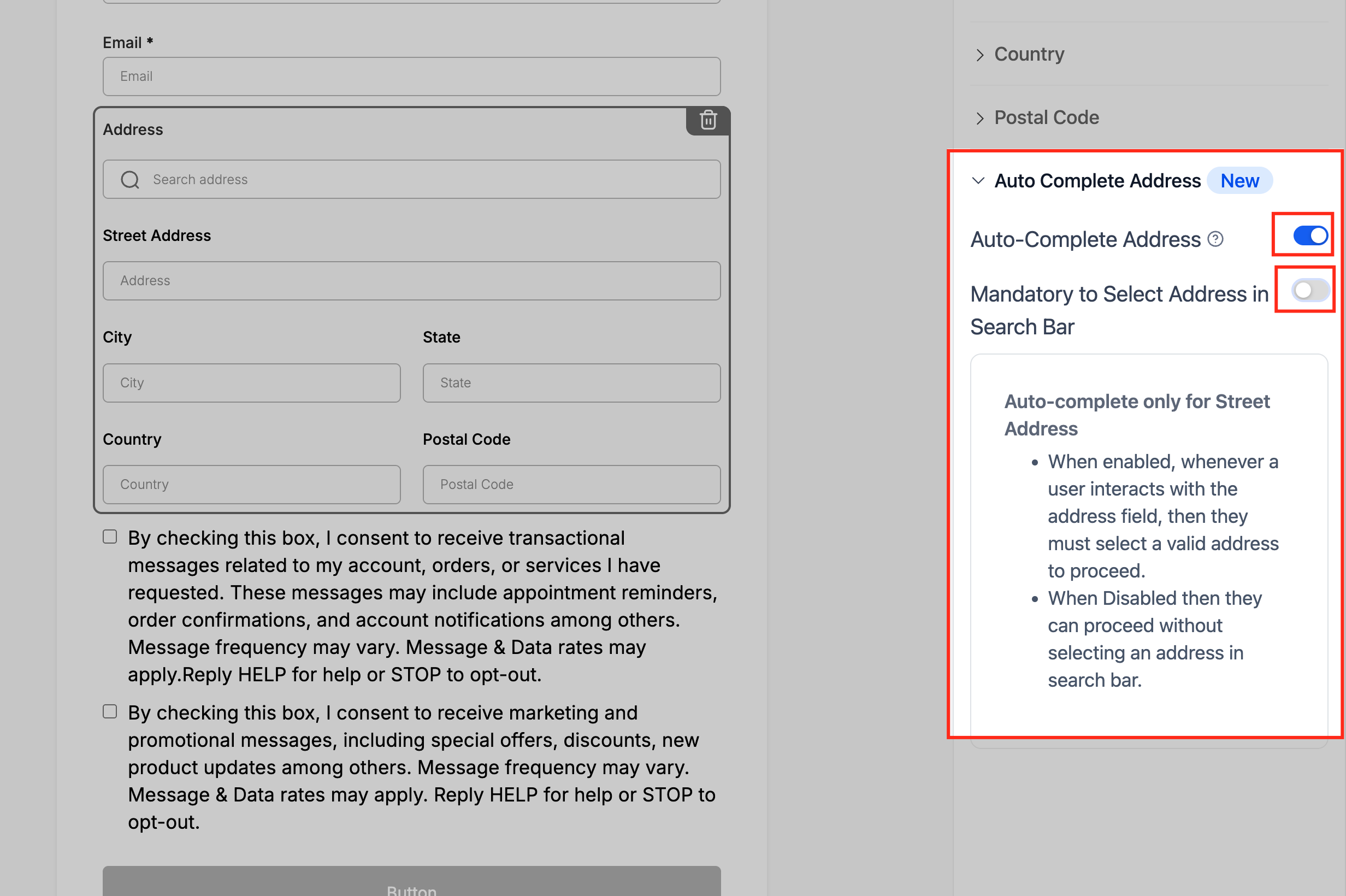
In the settings panel, locate the toggle labeled Auto-Complete Address and switch it ON.
Once activated, this setting transforms the standard address input into a smart search bar that suggests accurate addresses as patients type.
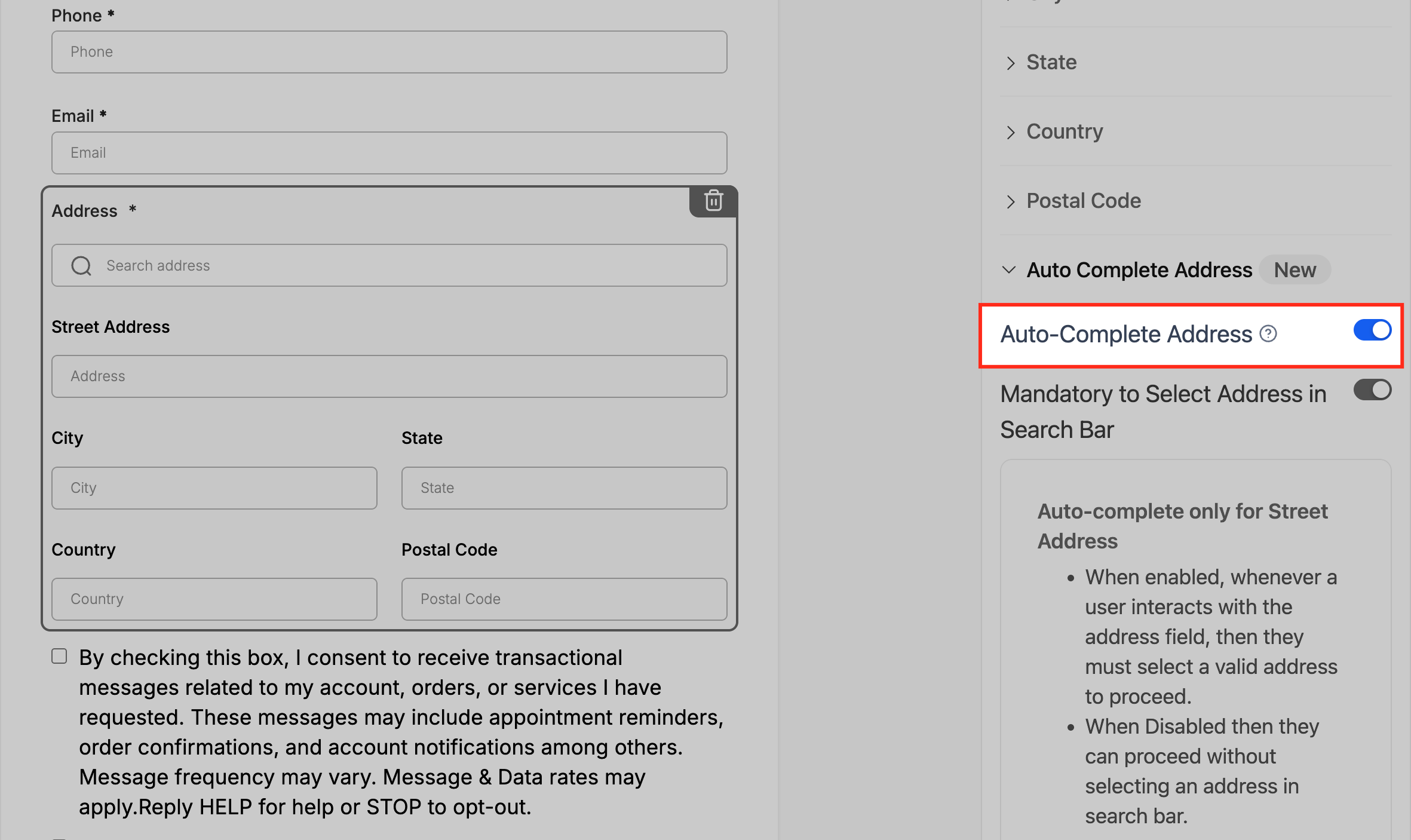
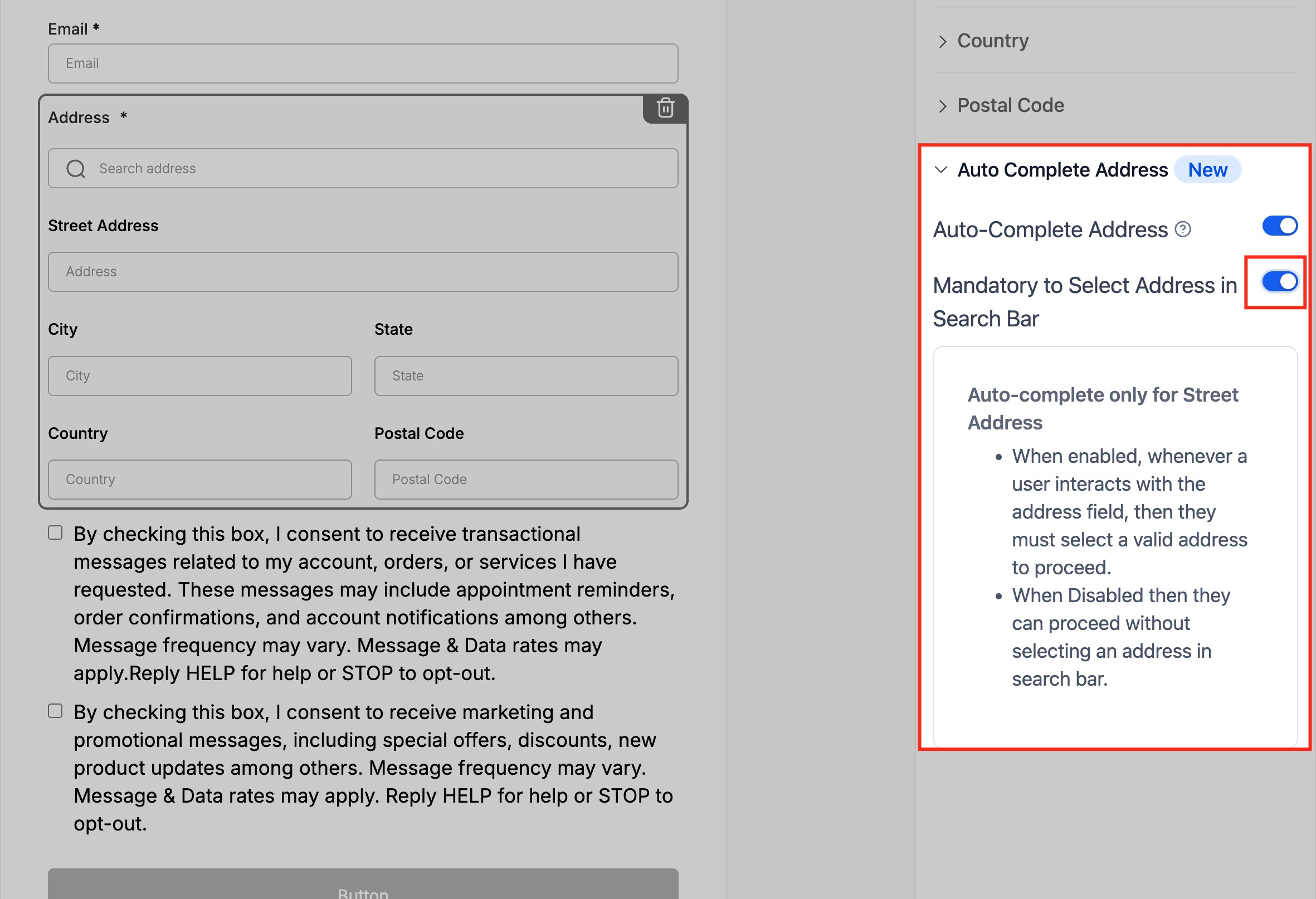
If you want to ensure that patients only submit validated addresses, toggle Mandatory to Select Address in Search Bar to ON.
When enabled, patients must pick one of the suggested addresses before they can submit the form. If left OFF, they can enter an address manually.
Click Preview at the top right of the form builder to see how the Address field appears in the live form.
The Address field will now display a search bar, allowing patients to begin typing and instantly view address suggestions.
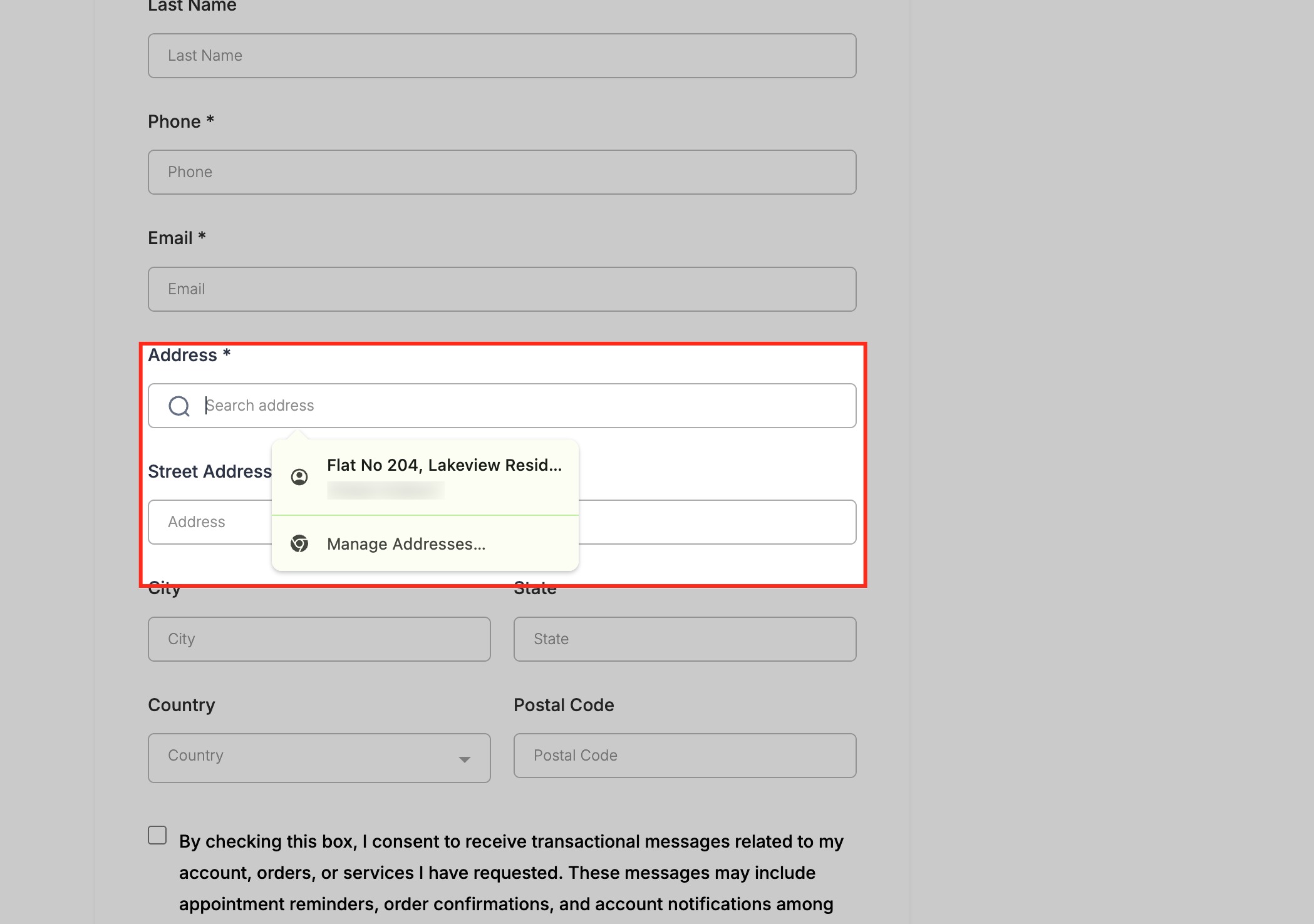
In the preview, type a few characters (such as part of a street name) into the Address field.
Predictive suggestions appear below the search bar. Selecting one automatically populates the Street, City, State, Country, and Postal Code fields.
After confirming that Auto-Complete works as expected, click Save to apply your changes.
Once published, every visitor who fills out the form will experience fast, accurate address entry powered by built-in Auto-Complete.
Is Address Auto-Complete a paid feature?
No. It is completely free and unlimited on every Aesthetix CRM account.
Can I still allow patients to manually type their address?
Yes. You can disable the Auto-Complete toggle if manual entry is preferred.
Does Address Auto-Complete work globally?
Yes. It supports most countries and postal formats worldwide.
Will my existing forms automatically get Auto-Complete enabled?
No. You will need to open each form or survey and enable the toggle manually.
What happens if a patient does not select a suggested address?
If the "Mandatory to Select Address in Search Bar" toggle is ON, patients must pick a suggestion to submit the form. If it is OFF, they can type freely.
Does Auto-Complete overwrite existing contact data?
No. Submissions follow your usual contact update rules and field mapping preferences.
