Edit form labels, questions, options, and text directly on the builder canvas with the Inline Editor for faster, more intuitive form creation.
The Inline Editor lets you make real-time text changes directly inside the form builder preview. With no need to open side panels, editing labels, questions, and options is faster, easier, and more intuitive. This makes building intake forms, consultation requests, and patient surveys for your practice quicker than ever.
The Inline Editor lets you directly click and edit text fields, labels, and options inside your form, survey, or quiz, right from the live preview. Instead of navigating to the settings panel for each element, simply click on the text you want to change, type your edits, and see updates instantly.
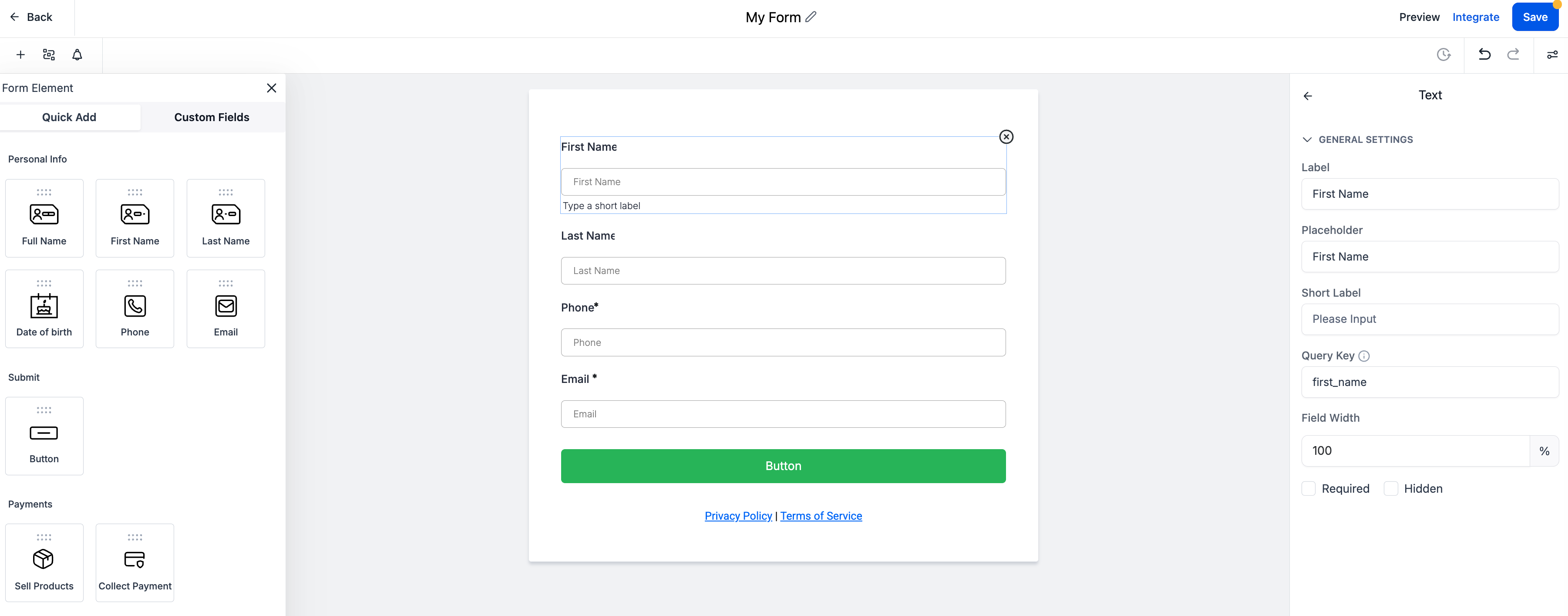
Inline editing removes unnecessary steps and gives you a more intuitive editing experience.
Click and edit instantly without opening the settings panel.
Preview your changes live in real time inside the builder.
Save time editing common elements like placeholders, button labels, and multiple-choice options.
Edit forms, surveys, and quizzes with the same streamlined workflow.
Reduce friction and speed up form creation, especially for teams making frequent updates.
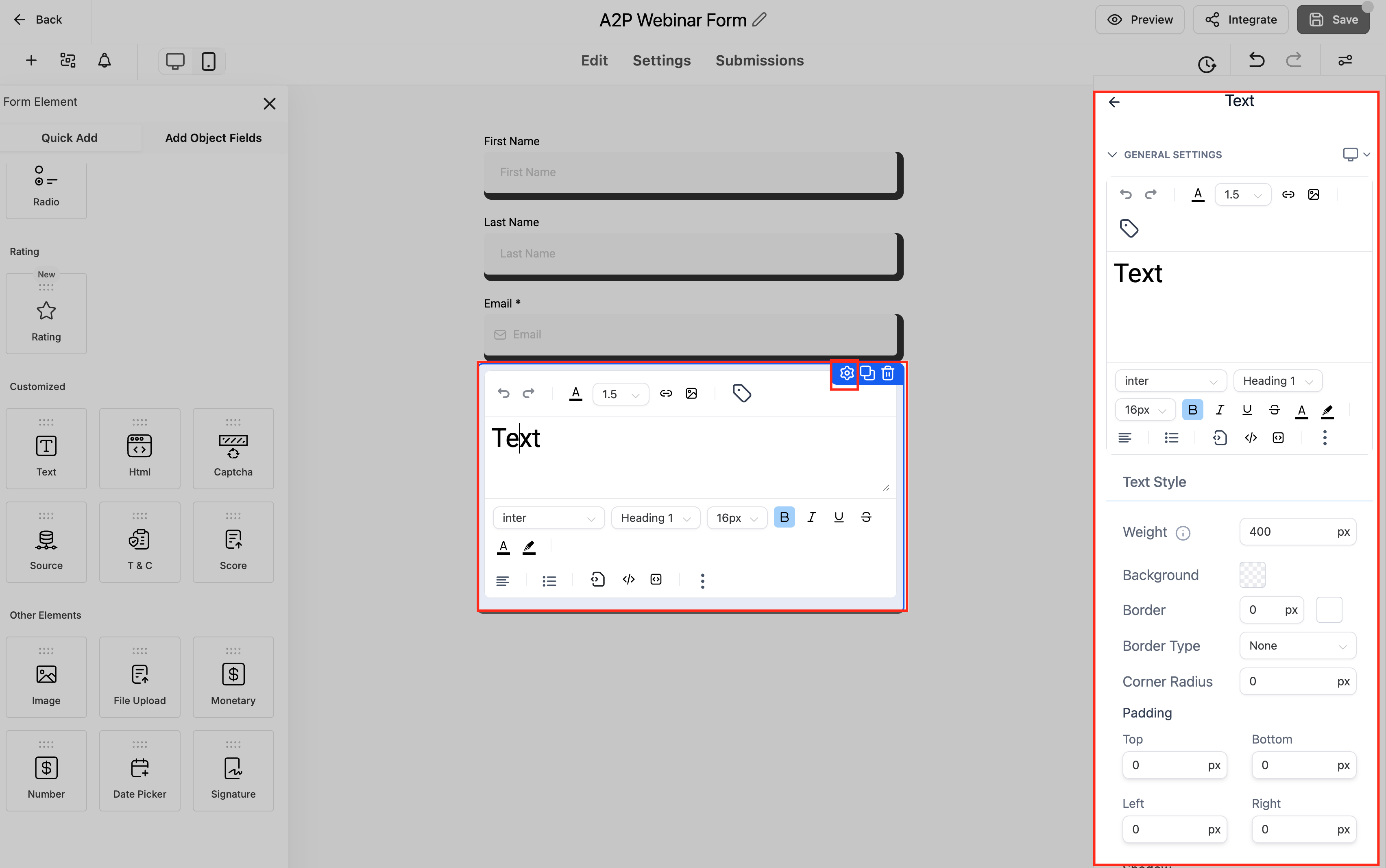
Richer formatting improves readability and brand consistency for your practice without custom code. Apply emphasis and sizing directly where you type, then preview instantly.
Text and Headings: bold, italic, underline, font size, and color.
Terms & Conditions: edit with the same inline editor, including placeholder text.
Select a Text, Heading, or Terms & Conditions element in the builder.
Click into the content to reveal the inline editor toolbar.
Apply formatting (for example, bold, size, or color), then review the preview.
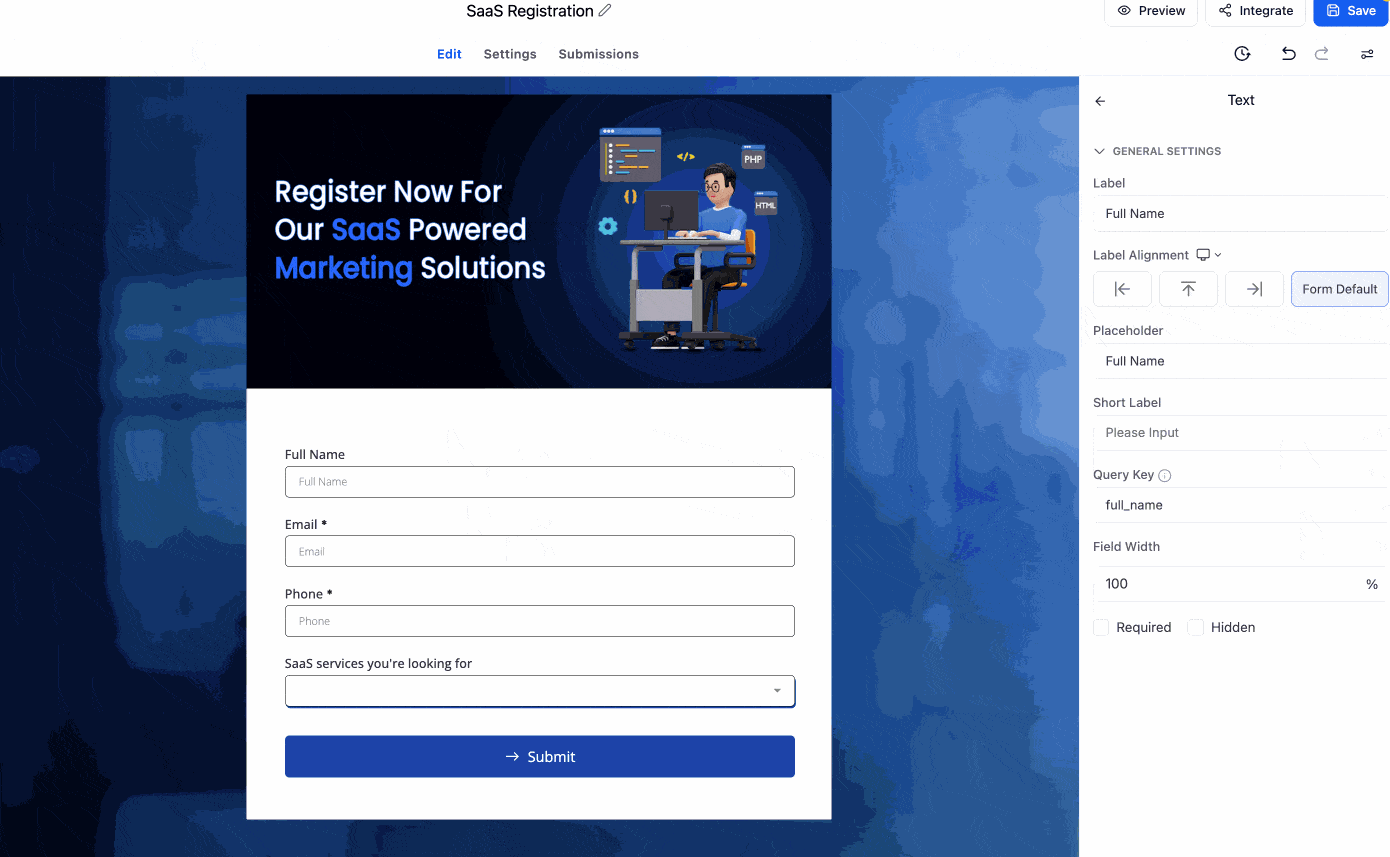
Tailoring copy for small screens boosts clarity and helps more patients complete your forms. Use shorter headlines or alternate placeholders that fit limited space.
Use the device toggle to switch to Mobile, then edit the mobile text.
Desktop and mobile content are managed separately to avoid overwriting.
If the mobile text is empty, that element behavior may vary, so review the mobile preview after editing.
Make changes directly in the builder using a simple click-and-type workflow that updates instantly.
Navigate to your form via Web Tools > Forms (or Surveys/Quizzes if applicable), and open the builder.
Find the label, placeholder, dropdown option, radio button, or button text you want to update, then simply click on the text.
Start typing to replace the text. Your changes appear immediately within the preview.
Repeat the process for any other elements. You can edit labels, multiple-choice answers, call-to-action buttons, and more.
Once all updates are complete, click Save to lock in your changes, then Publish when you are ready to share the form.
Inline editing is available across all core form and survey elements, giving you flexibility no matter the content type.
Text Fields: edit field labels and placeholder text directly.
Dropdowns: click and type to change dropdown options.
Checkboxes and Radio Buttons: update choice labels in place.
Buttons: click to edit call-to-action button text.
Header Text and Paragraphs: make quick copy changes without opening the settings sidebar.
Note: You can place the cursor anywhere inside a text element to edit inline, and the Arrow, Home, and End keys are supported for navigation.
Is inline editing available on all form types?
Yes. Inline editing works across forms, surveys, and quizzes.
What can I edit inline?
You can edit field labels, placeholder text, button labels, dropdown items, checkbox and radio options, and more.
Can I still use the settings panel?
Absolutely. The settings panel is still available for advanced configuration. Inline editing is an additional option for faster updates.
Do I need to enable anything to use inline editing?
No setup is required. Inline editing is available by default for all users.
Will my changes be saved automatically?
Changes appear in real time, but you still need to click Save to commit your updates.
Can I format text differently on mobile than on desktop?
Yes. Use the device toggle to switch to mobile and edit that content separately, so your desktop and mobile text never overwrite each other.
