Create lead capture, intake, and consent forms with the drag-and-drop Form Builder: add fields, style, add logic, then save and share.
The Form Builder in Aesthetix CRM is a drag-and-drop tool that lets you create lead capture forms, intake questionnaires, consent forms, and more, without any coding. Forms automatically create or update contact records when submitted, making them one of the most important tools in your CRM workflow.
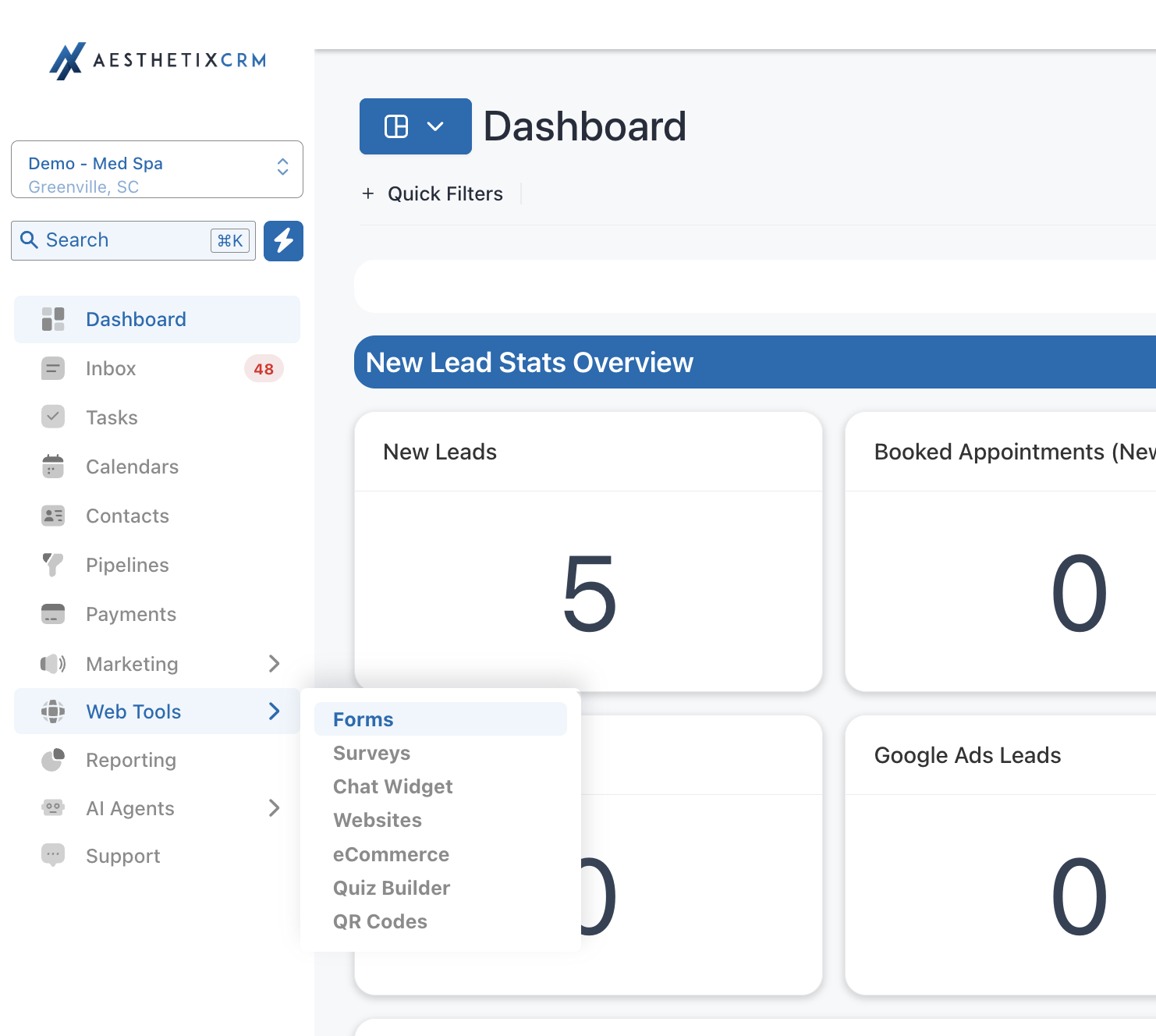
From the left-hand navigation menu, click Web Tools.
Click Forms.
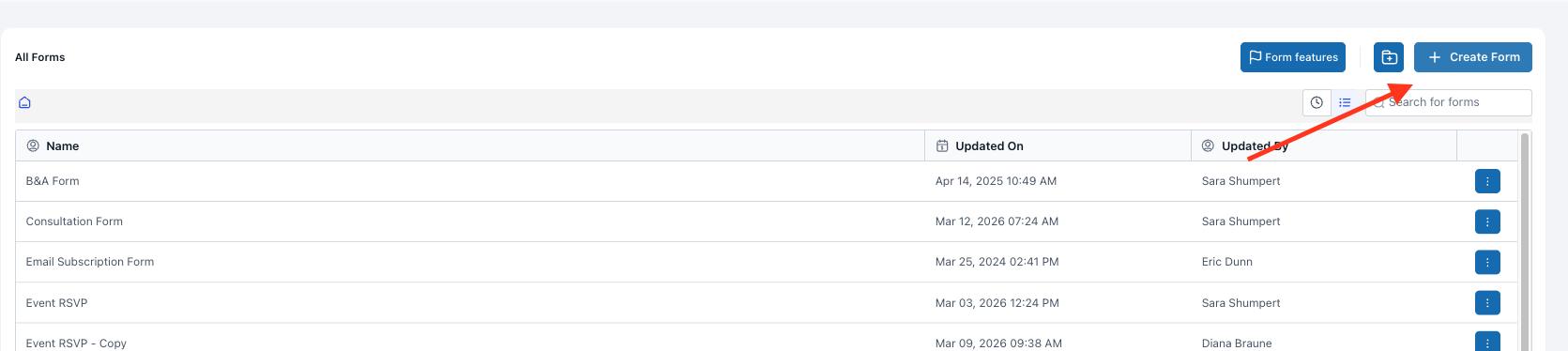
You will see a list of all existing forms in your account, along with any folders you have created.
To create a new form, click the + Add Form button in the top-right corner.
To edit an existing form, click on it in the list to open the builder.
Tip: You can also access the Form Builder directly from inside a Funnel or Website page. When a form element is placed on a page, click the Edit Form button in the right-side panel to open the builder in a pop-up without leaving the page editor.
The forms list gives you everything you need to find and organize your forms:
Search Forms by Name: If your list of forms is extensive, enter a form's name in the search bar to pinpoint it.
Name: The name of each form is shown here.
Last Updated: The date and time each form was last modified.
Updated By: The name of the last user who updated each form.
Click the three dots next to any form for more options:
Edit: Open an existing form to make modifications.
Duplicate: Create a copy of a form.
Share: Share a form from this location or another within your CRM.
Move To Folder: Move a form into a specific folder.
Delete: Remove a form from your list.
The Form Folder section arranges all of your folders and shows the name of each. Click a folder name to view the forms inside it, the date and time each was last updated, and the user who made the most recent update. Within a folder, use the more-options menu on any form to Edit or Delete it.
To create a new folder, click the Create Folder button, give the folder an appropriate name, and click Confirm to save. Folders make it easy to keep your forms organized, especially when you manage multiple campaigns or locations.
When you click + Add Form, you can start with a blank form or select from a pre-built template.
Start from Scratch: Begin with a blank canvas and build the form field by field.
Choose from Template: Start with a common layout already configured. Available template categories include Application, Contact, Donation, Order, Registration, Request, and Subscribe.
Templates give you a head start with common field layouts. Once selected, every element can be fully customized.
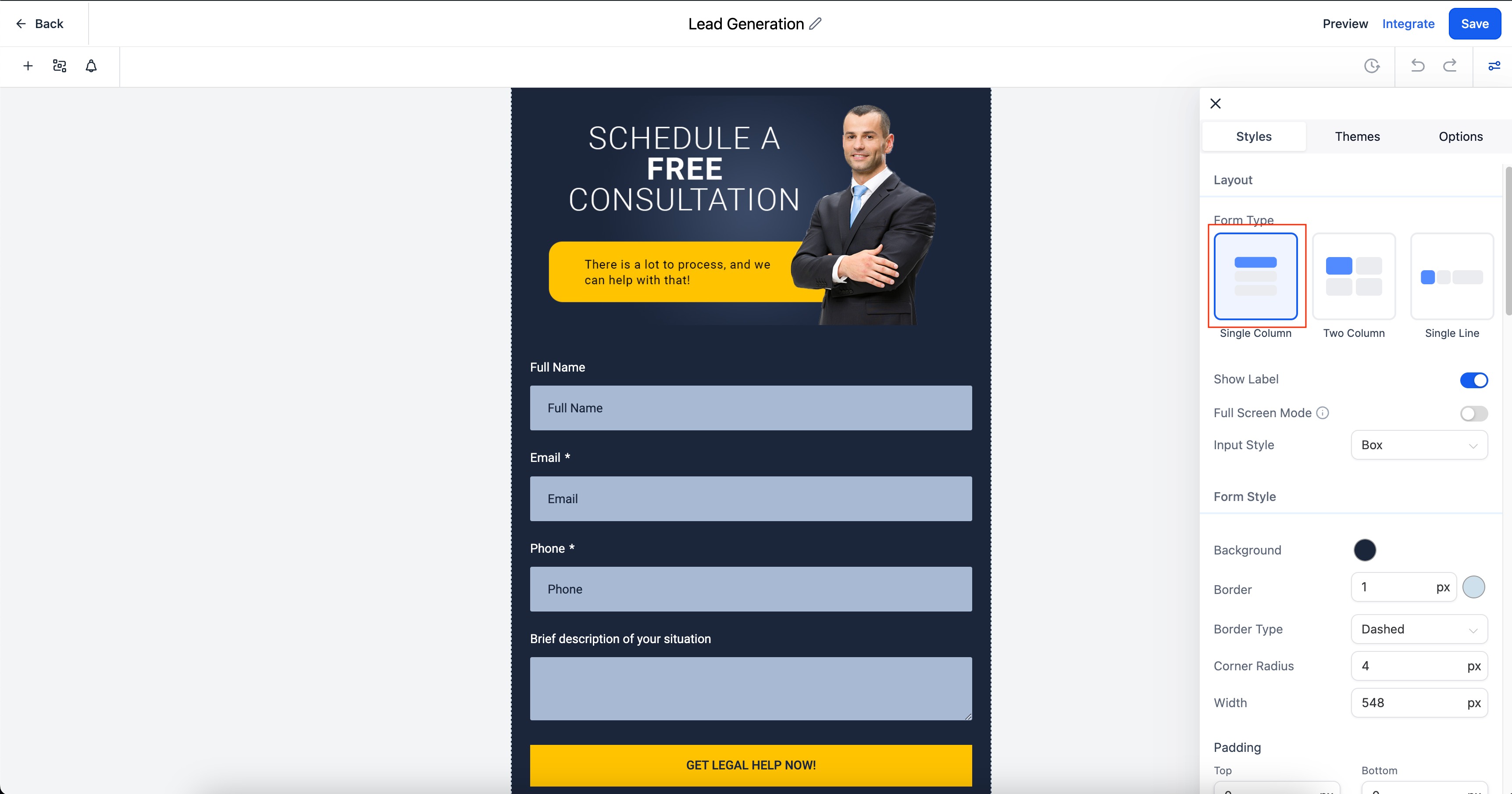
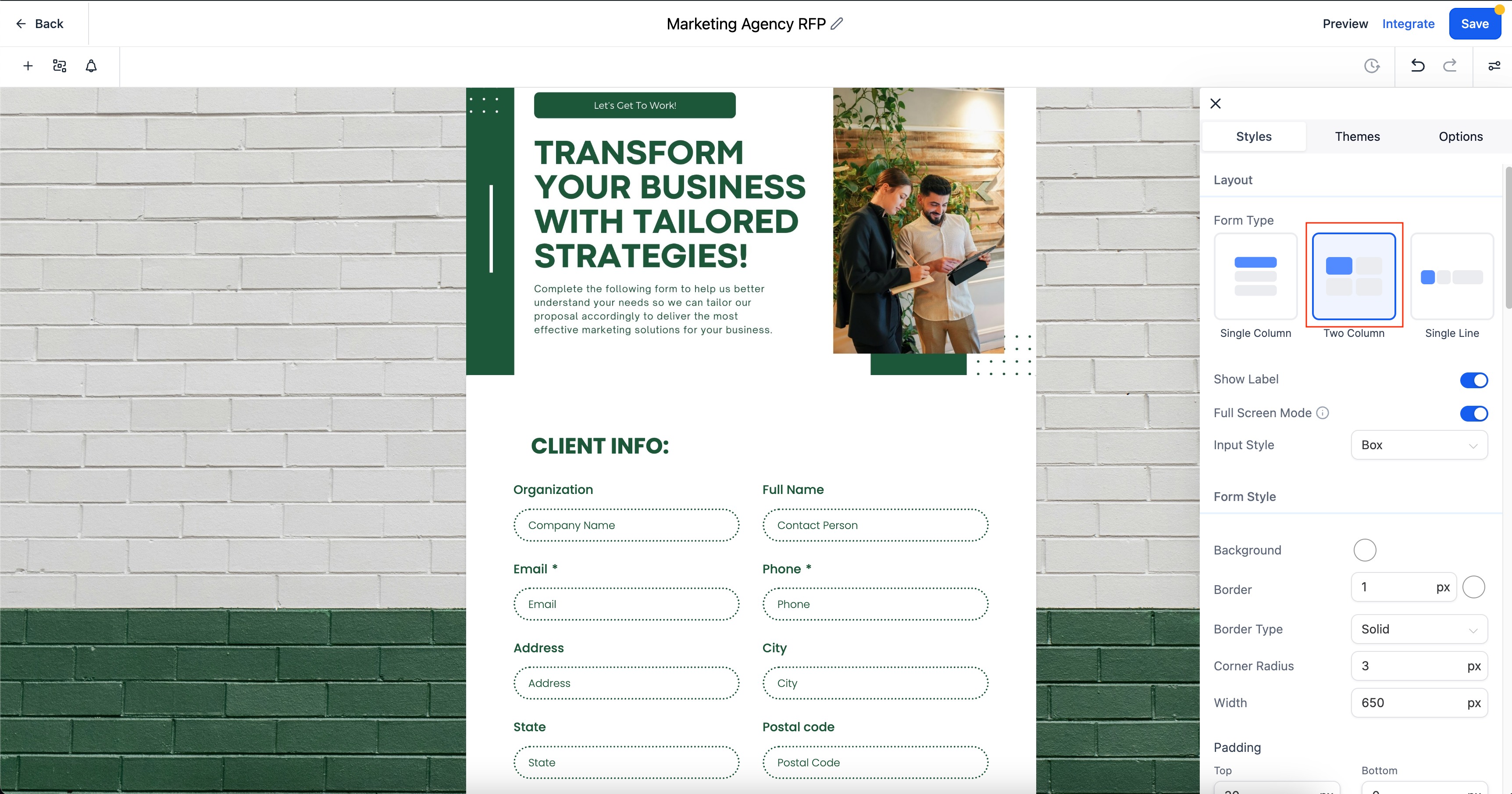
Aesthetix CRM offers three layout styles:
Single Column: The classic layout. All fields are stacked vertically, one below the other. Best for longer forms.
Two Column: Fields are placed side-by-side for a compact, balanced layout. Ideal for shorter forms on wider pages.
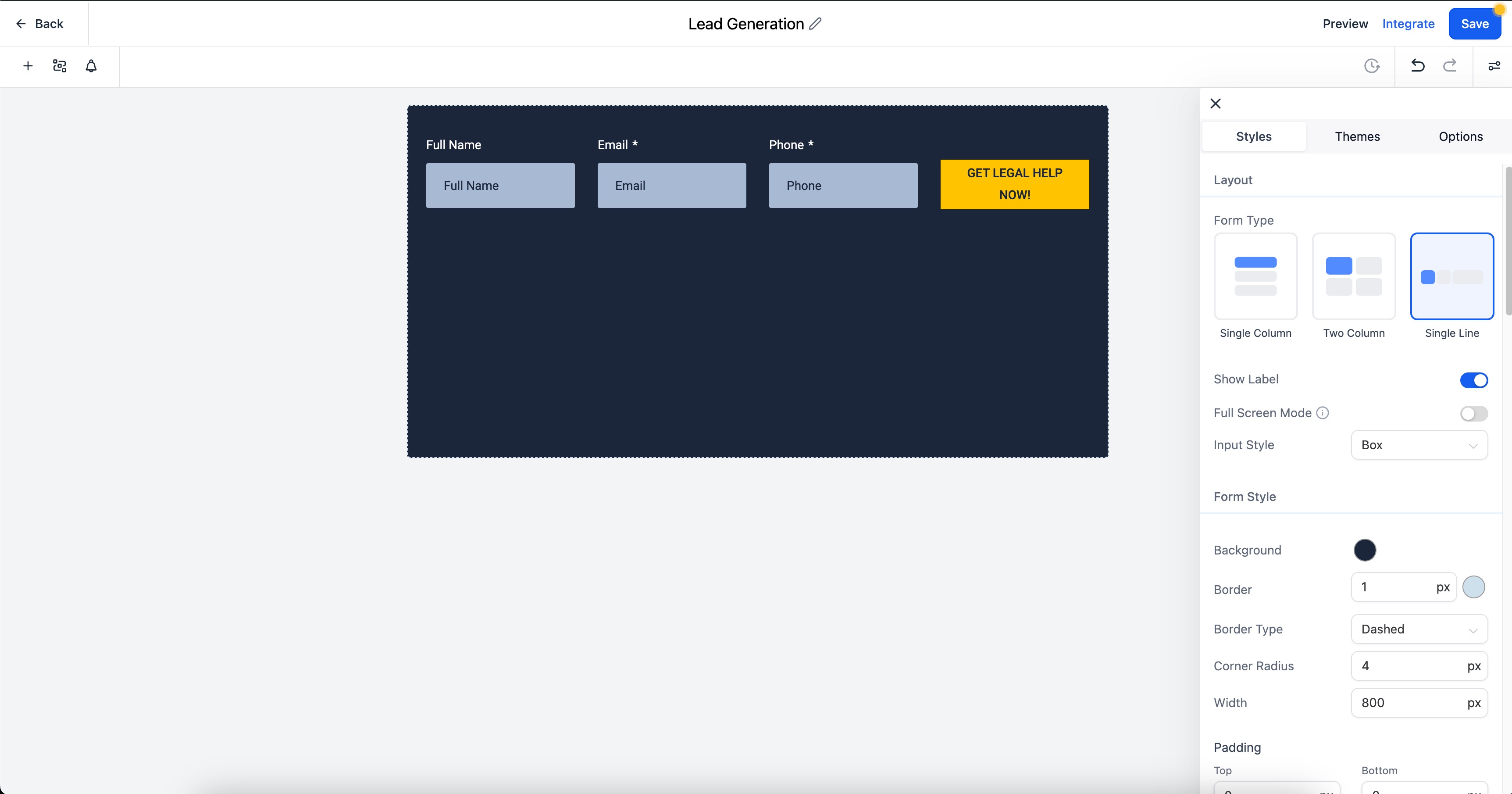
Single Line: Up to 5 fields displayed in a single horizontal row. Great for simple newsletter or inquiry forms.
You can also set Field Width as a percentage of the available form width, giving you precise control over how each field scales across screen sizes for a responsive design.
Note: When you open an older form in the builder, it automatically selects the One Column or Two Column layout based on whether its previous inline-form setting was on or off. Older forms still work in Preview and respect their original inline settings. Single Line forms are currently limited to 5 fields.
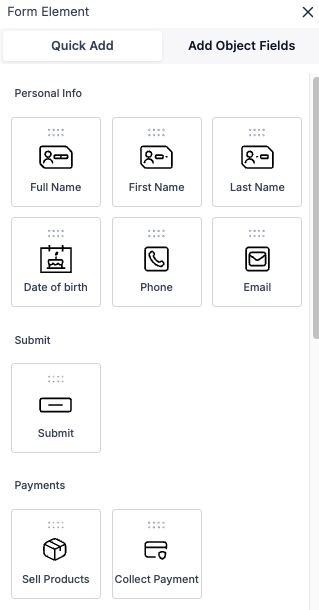
Drag and drop any of the following into your form:
First Name, Last Name, Full Name
Email, Phone
Date Picker, Address
Single Line Text, Multi Line Text
Number, Dropdown (Single or Multi-Select), Radio Select, Checkbox
File Upload, Signature
Terms & Conditions
Payment
Text, HTML, and Image content blocks
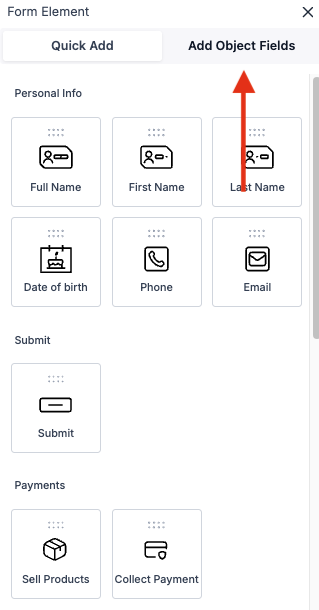
Custom Fields in Aesthetix CRM are managed under Object Fields in your form settings. These fields are tied to specific contact properties and can be added directly to any form.
To add a custom field, drag it from the custom fields panel into the form builder. The Quick Add feature lets you do this without navigating away. When configuring custom fields, you can set the field name and unique key, and customize dropdown, radio, or checkbox options.
Note: If a custom field name contains the word "score," the system automatically treats it as a numeric scoring element. This behavior applies across forms, surveys, and quizzes.
Treatment of Interest is the single most critical custom field in Aesthetix CRM. It tells your workflows, pipelines, and automations exactly what a patient is interested in, driving the right follow-up, routing, and nurture sequences from the moment a form is submitted.
Any form where a patient could be interested in more than one treatment must include the Treatment of Interest field, and it must be set to required. This ensures no lead enters your system without proper treatment attribution.
Best practices for the Treatment of Interest field:
Always set it as required on multi-treatment forms.
Use a single-select dropdown or checkbox field type so patients can select everything that applies to them.
Place it early in the form, ideally within the first few visible fields, so it captures intent even if the patient does not complete the rest of the form.
Confirm that your lead capture workflows are filtering or branching on this field so the right automation fires for each treatment.
The Inline Editor lets you click directly on any label, placeholder, or button text in the form preview and edit it immediately, with no side panel required. Changes appear in real time.
Inline editing supports bold, italic, underline, font size, and color formatting. Use the device toggle to switch between Desktop and Mobile views: text for each is managed separately, so you can write shorter labels for small screens without affecting the desktop layout.
The Spread to Column option lets you expand a field to span across multiple columns in a two-column layout, giving you even more structural flexibility.
Themes are ready-made design presets that apply a cohesive look to your entire form in one click.
Open your form in the builder.
Click Styles & Options (top-right) to open the right sidebar.
Select the Themes tab and choose your preferred theme.
After applying a theme, go to Styles > Colors & Backgrounds to adjust background color and image, text and input field colors, and input border colors.
Tip: If your selected theme has a default background image and you want to upload your own, you must delete the existing image first. The upload button stays inactive until it is removed.
Button Themes give you curated presets for your submit button: Filled, Border, and Text Only styles. After selecting a preset, use the Button Styling Panel to fine-tune colors, typography, padding, border radius, and shadow.
For advanced styling, Aesthetix CRM supports adding Custom CSS directly to forms. See the Custom CSS for Forms guide for details.
Conditional Logic creates dynamic, intelligent forms that show or hide fields, redirect patients, display custom messages, or disqualify leads, all based on how a contact answers.
To set up conditional logic:
Inside the form builder, click Conditional Logic in the top bar.
Click Add New Condition.
Choose an action type (see below).
Build your rule using the 3-step flow: Select Field, then Select Field State, then Provide a Value.
Add additional conditions using AND or OR connectors as needed.
Define the result of the action, then click Save.
Available actions:
Redirect to URL: Sends the contact to a specific webpage after submission.
Display Custom Message: Shows a personalized message based on how the contact answered.
Disqualify Lead: Automatically stops submission and rejects the contact when conditions are met.
Show / Hide Fields: Dynamically reveals or hides specific fields based on prior answers.
Note: Rules execute in top-down order. For Redirect, Message, and Disqualify actions, the first matching rule wins. For Show/Hide, later rules override earlier ones.
Conditional Logic supports all personal info fields (First Name, Last Name, Email, Phone), input fields (Single Line, Multi Line, Number, Monetary, Score, Date Picker), choice fields (Dropdown Single & Multi, Radio, Checkbox), and special fields (Terms & Conditions, File Upload, Signature, Payment, Text, HTML, Image).
Note: Calendar fields are not yet supported in Conditional Logic.
SMS Verification: Sends a one-time code to the contact's phone before the form can be submitted. Ideal for high-value leads and intake forms where data accuracy is critical.
Email Validation: Checks that an email address is properly formatted and belongs to a real domain before submission. Reduces junk submissions and protects your sender reputation.
Address Auto-Complete: Uses address lookup to suggest valid addresses as the contact types, improving data accuracy for address fields.
GDPR Consent Checkboxes: Adds custom opt-in checkboxes for marketing consent. Consent status is stored on the contact record, which is important for practices treating international patients or maintaining clear compliance records.
By default, a form accepts submissions as soon as it is published and has no expiration. If a form should only be live for a specific window, such as a limited-time promotion, an event registration, or a seasonal intake period, you can schedule exactly when it opens and closes, and control what visitors see outside that window.
Scheduling stays off until you turn it on, so existing forms keep working exactly as before.
Open the form in the builder.
Open the Settings tab.
Enable Schedule Visibility.
Opens: Choose Right Away to start accepting responses as soon as the form is published, or Pick a Date to set a specific opening date and time.
Closes: Choose Never to leave the form open indefinitely, or Pick a Date to set a specific closing date and time after which new submissions are blocked.
Time Zone: Select the time zone that applies to both the opening and closing times.
A scheduled form moves through three states over its lifecycle: Not Open Yet, Accepting Responses, and Closed.
For each side of the window, choose what a visitor sees if they arrive too early or too late:
Show a Page: Display a custom message using the built-in content editor, useful for explaining when the form opens or that submissions have closed.
Open a Link: Redirect visitors to another URL, such as a waitlist, an alternate offer, or an event page.
Configure Before the Form Opens and After the Form Closes separately, then preview each before publishing so the messaging matches your campaign.
Note: A closing time only stops new submissions after the deadline. It does not delete or affect submissions already collected.
Common uses include event or webinar registrations that should close automatically at the deadline, flash sale and coupon forms limited to a promotion window, and forms published early with a "coming soon" message ahead of the official launch.
Aesthetix CRM supports payment collection directly within forms, useful for consultation deposits, treatment packages, or donations.
Use the Order template when creating your form, or drag a Payment element into any existing form.
Connect your payment processor in your account's payment settings.
Configure your products or a custom amount within the Payment element.
Optionally, add Order Bumps: additional product offers shown at checkout within the form.
Note: Payment collection requires a connected payment processor. Contact your Aesthetix CRM account team if your payment integration needs to be set up.
Once your form edits are complete, click the Save button in the top-right corner. Before publishing, preview the form and test it on mobile using the device toggle in the Inline Editor to confirm labels, spacing, and required fields all behave as expected.
You can build and edit forms without leaving your funnel or website workflow. A pop-up Form Builder overlays the page editor so you can make changes, style, and save in one view, without switching tabs or losing your place.
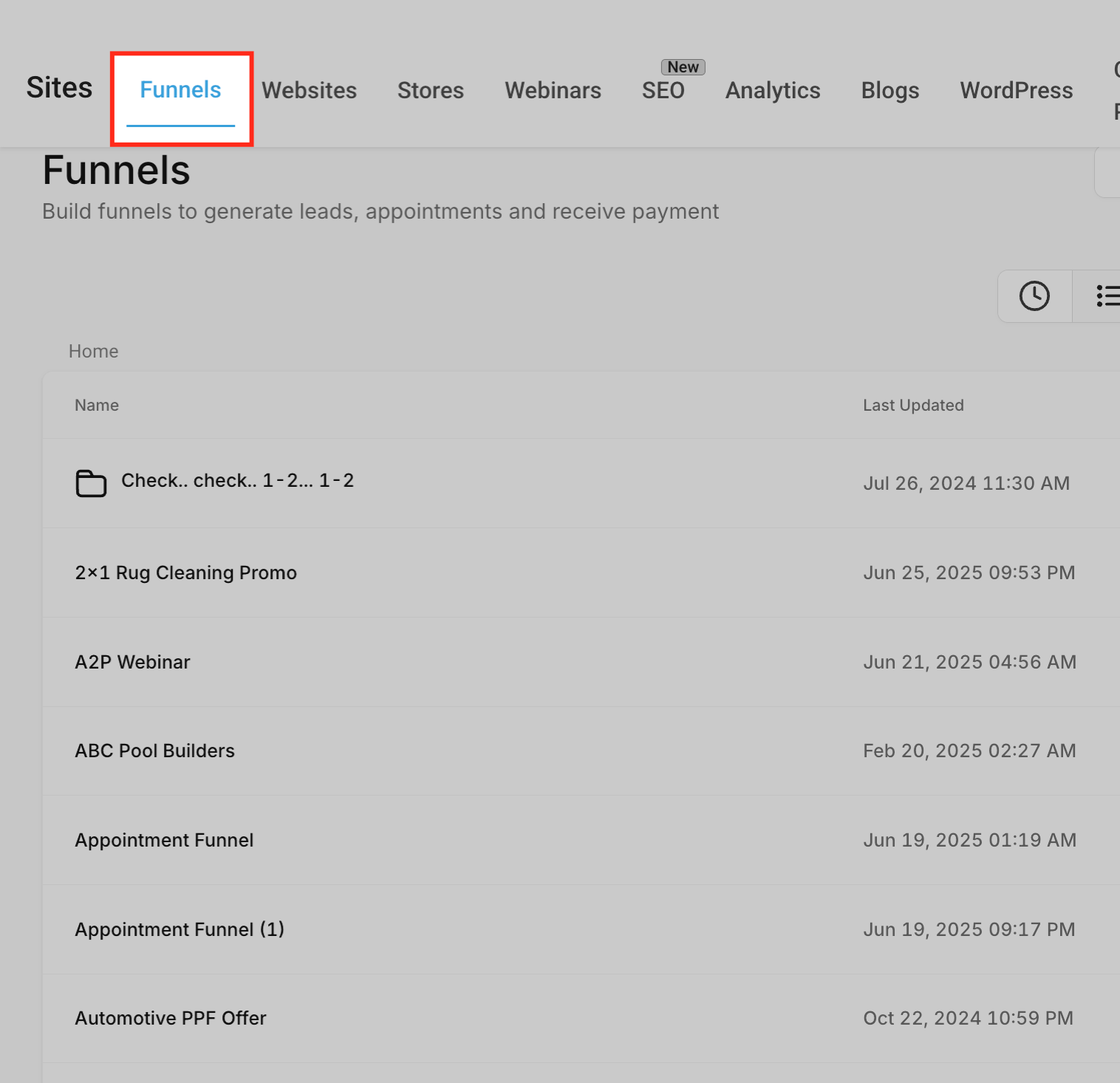
From the left-hand menu, click Web Tools and then select the Funnels tab. This opens your list of funnels where you can manage or create pages that contain form elements.
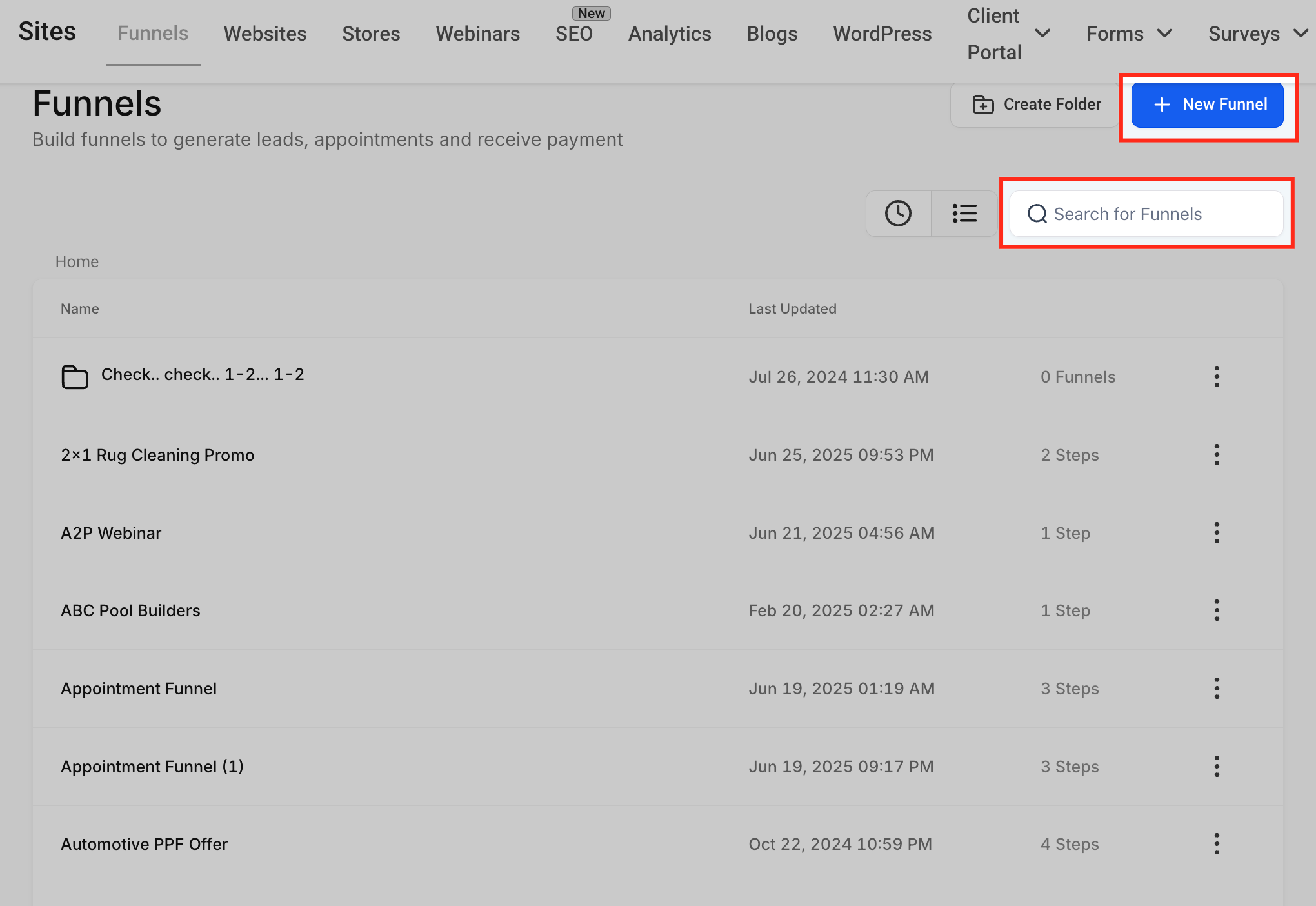
Use the Search for Funnels bar to locate an existing funnel, or click + New Funnel to create a new one. This takes you into the funnel workspace where you can edit pages and add form elements.
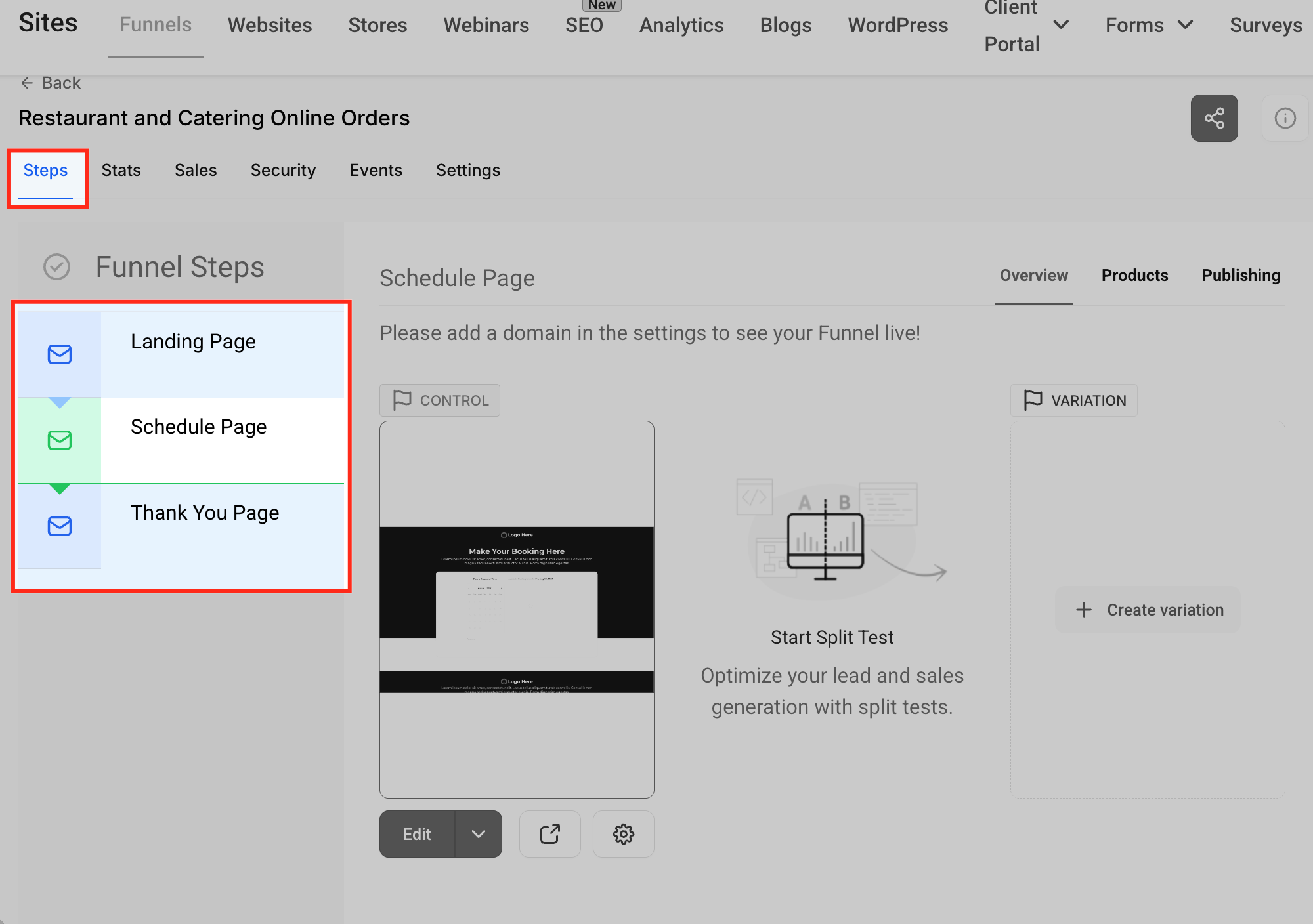
Click the Steps tab to view all steps within the selected funnel, then choose the specific step where you want to add or edit a form.
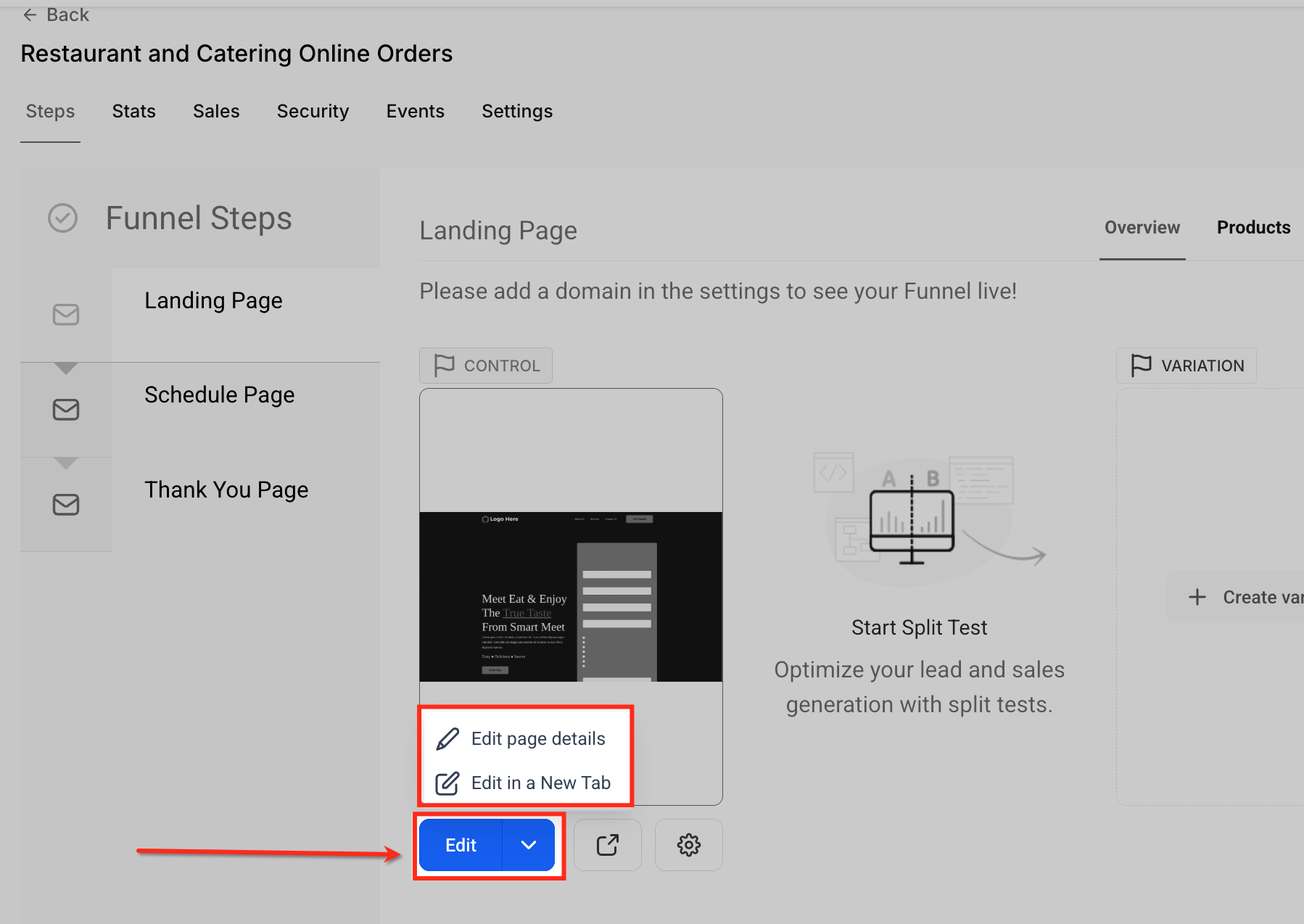
Click the Edit button below the funnel step preview to start editing the page. Choose Edit page details to update basic settings, or Edit in a New Tab to open the Page Builder in a separate tab for full-page editing.
Click the + icon in the top toolbar to open the sidebar, then select Elements. Scroll to the Form section and drag the Form element onto your page.
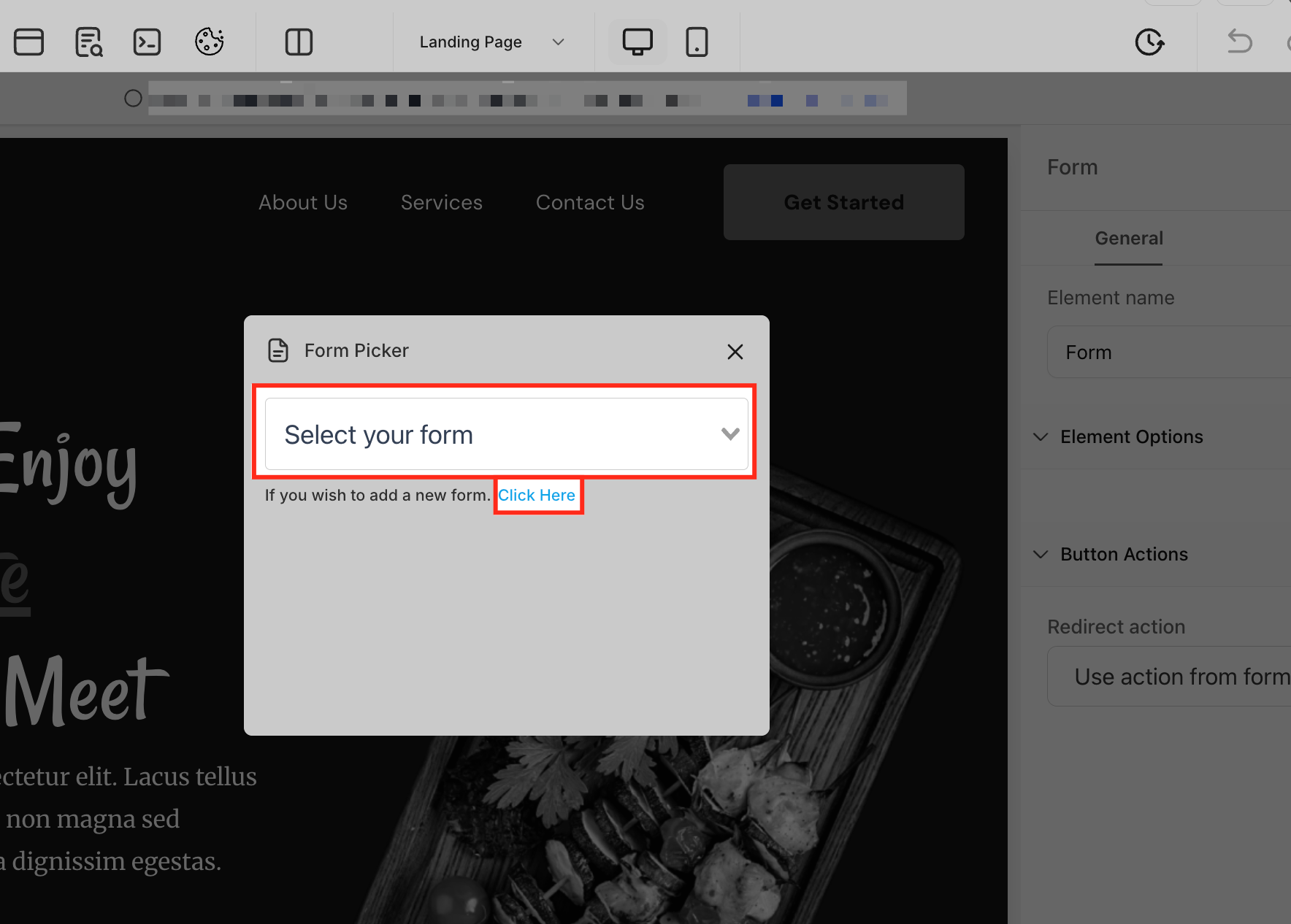
When the Form Picker appears, use the dropdown to select from your existing forms. To create a new form, click the Click Here link, which opens the Forms section where you can build and save a new form.
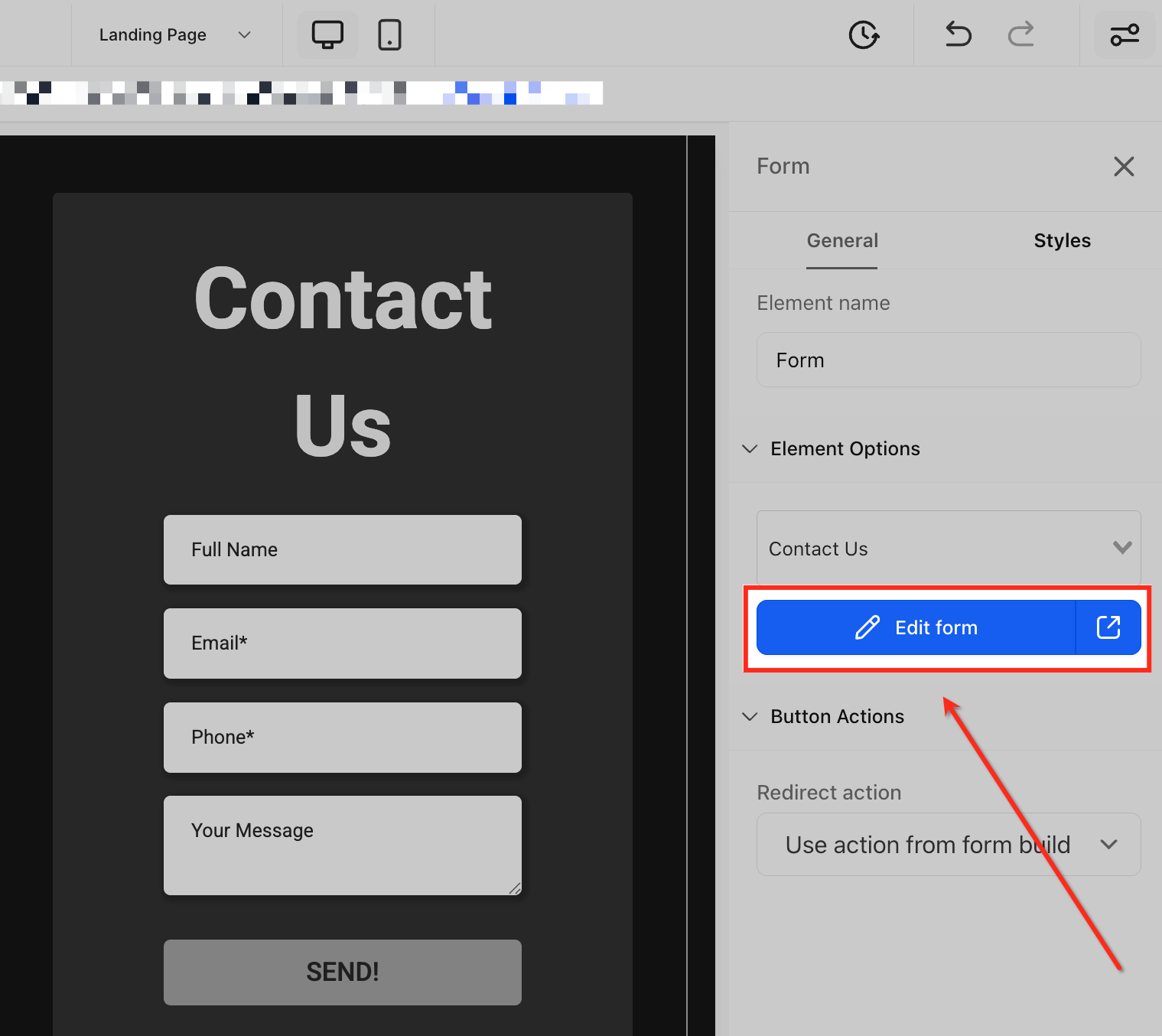
Once you have selected a form, click the Edit Form button in the right-side panel. This opens a large pop-up window right within the page editor, letting you customize fields, styles, and settings without navigating away.
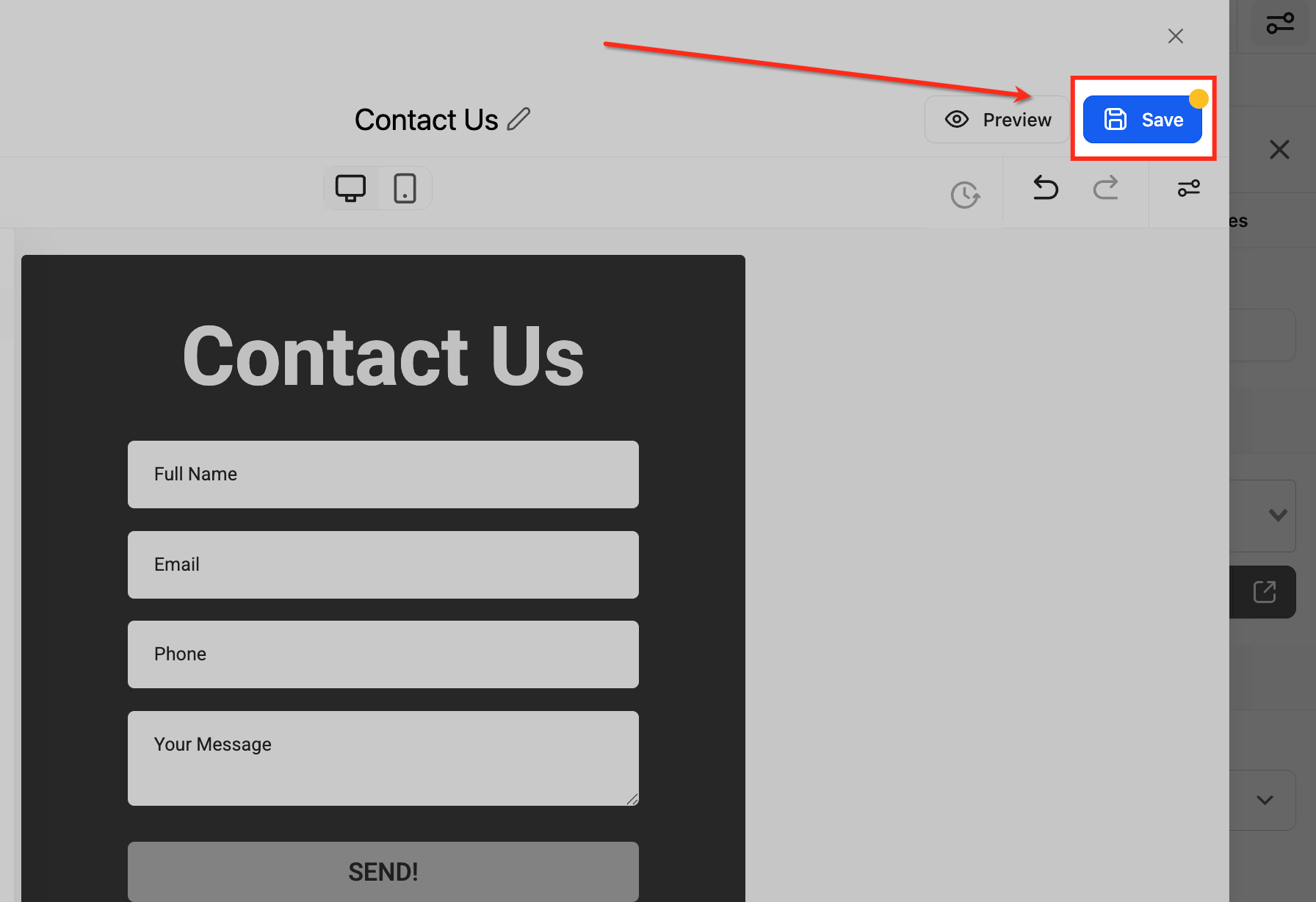
With the form builder open in the pop-up, use the Quick Add and Custom Fields panels to configure your form:
Quick Add: Instantly drag common fields like Full Name, Email, and Phone into your form.
Add Object Fields: Add custom input types that match your lead capture strategy, ideal for gathering personalized or campaign-specific data.
Your page stays in the background so you keep your design context while making precise updates.
Once your edits are complete, click the Save button in the top-right corner of the pop-up. Your updates apply instantly and the modal closes, returning you to your exact spot in the editor with no page reloads or tab switching.
The three layout options give you flexibility to match each form to its purpose. Single Column suits longer forms, Two Column creates a balanced compact structure, and Single Line packs up to 5 fields into one horizontal row. The Field Width percentage setting lets you size each field for a tailored, responsive design.

Once your form is built and saved, you have several options for getting it in front of patients.
Go to Web Tools > Forms from the left-hand navigation.
Locate your form in the list and click on it to open it in the builder.
In the top toolbar, click the Integrate button (sometimes shown as < > Integrate or an embed/share icon).
A panel appears with your embed options: - Inline Embed: Pastes the form directly into a webpage so it renders as part of the page content.
Tip: If you are embedding on a third-party website (WordPress, Wix, Squarespace, etc.), paste the embed code into an HTML block or custom code widget on the page. Most website builders have a dedicated block for this.
Funnel or Website Page: Drop the Form element directly onto any page in the Aesthetix CRM site or funnel builder. No embed code needed, the form links automatically.
Standalone Link: In the same Integrate panel, you will find a direct URL for the form. Copy and share this link via email, SMS, or anywhere else, no website required.
Email Campaigns: Forms can be embedded inline within email campaigns sent from Aesthetix CRM.
Go to Web Tools from the left-hand navigation.
Click Forms, then select the Submissions tab.
Use the search and filter tools to find specific submissions.
Click any individual submission to view the full response details.
Note: If your form uses Custom Fields, those values also appear on the contact's record. Navigate to Contacts > [Contact Name] to view all data associated with that person.
Form submissions can be exported to Google Sheets for reporting or sharing with team members. Set up the export connection from within the form's settings area.
The Analytics tab inside the form builder shows submission volume and conversion performance over time, helping you identify which forms are performing well and which may need optimization.
Treatment of Interest is required on multi-treatment forms. This is the most important field in the system: never leave it off a form where more than one treatment may be relevant.
Keep intake forms concise. Patients complete shorter forms more often. Use conditional logic to only show additional questions when relevant.
Always include a consent checkbox on intake and marketing forms to maintain clear records for compliance purposes.
Use Email Validation and SMS Verification on high-value forms (consultations, VIP events) to ensure data quality.
Test every form on mobile before publishing. Use the device toggle in the Inline Editor to preview and optimize the mobile experience.
Name your forms clearly and descriptively, especially if you manage multiple campaigns or locations.
Use Schedule Availability for time-sensitive campaigns, such as event registrations or flash promotions, so the form opens and closes automatically without manual cleanup.
All follow-up and notifications are handled through your lead capture workflows, not the form itself. Make sure every form has a corresponding workflow trigger set up so no lead falls through the cracks.
Do I need to know how to code to build a form?
No. The Form Builder is fully drag-and-drop. You add, arrange, and configure fields visually, and no coding is required.
What is the Treatment of Interest field and why does it matter?
Treatment of Interest is the most important custom field in Aesthetix CRM. It tells your workflows, pipelines, and automations what a patient is interested in. Any form where a patient could want more than one treatment must include it, set to required, so every lead is properly attributed.
Can I edit a form without leaving my funnel or website page?
Yes. When a form element is placed on a page, click Edit Form in the right-side panel to open the Form Builder in a large pop-up. You can customize fields, styles, and settings, then save and return to your exact spot with no page reload.
What happens if I close the pop-up form builder without saving?
Any unsaved changes will be lost. Always click Save in the top-right corner before closing the pop-up.
Will editing a form affect my existing funnels or pages?
No. Your forms and pages remain linked and unchanged. Editing only updates the form content itself; it does not break the connection to any page where the form is used.
Can I collect payments through a form?
Yes. Use the Order template or drag a Payment element into any form, connect a payment processor in your account settings, and configure products or a custom amount. This is useful for consultation deposits and treatment packages.
How do I see who submitted a form?
Go to Web Tools > Forms > Submissions, then use the search and filter tools to find and open individual submissions. If the form uses Custom Fields, those values also appear on the patient's contact record.
Why isn't the background image upload button working?
If your selected theme has a default background image, the upload button stays inactive until you delete the existing image. Remove it first, then upload your own.
Can I set a form to open or close automatically on a schedule?
Yes. Enable Schedule Visibility in the form's Settings tab, then set an opening time (Right Away or a specific date), a closing time (Never or a specific date), and a time zone. You can also show a custom page or redirect visitors to a link before the form opens and after it closes. Existing forms are unaffected unless you turn Schedule Visibility on.
Does closing a form delete the submissions it already collected?
No. A scheduled closing time only stops new submissions after the deadline. It has no effect on submissions collected before the form closed.
