The QR Code element renders a scannable code linked to any supported destination URL, for example, a booking page, calendar, form, survey, payment link, or external URL. Visitors scan it with their phone camera (or click it) to go there instantly. You can select an existing QR code from your library or create and edit one inline without leaving the builder.
Inline creation/editing – Create a new QR code or edit the selected one directly from the builder.
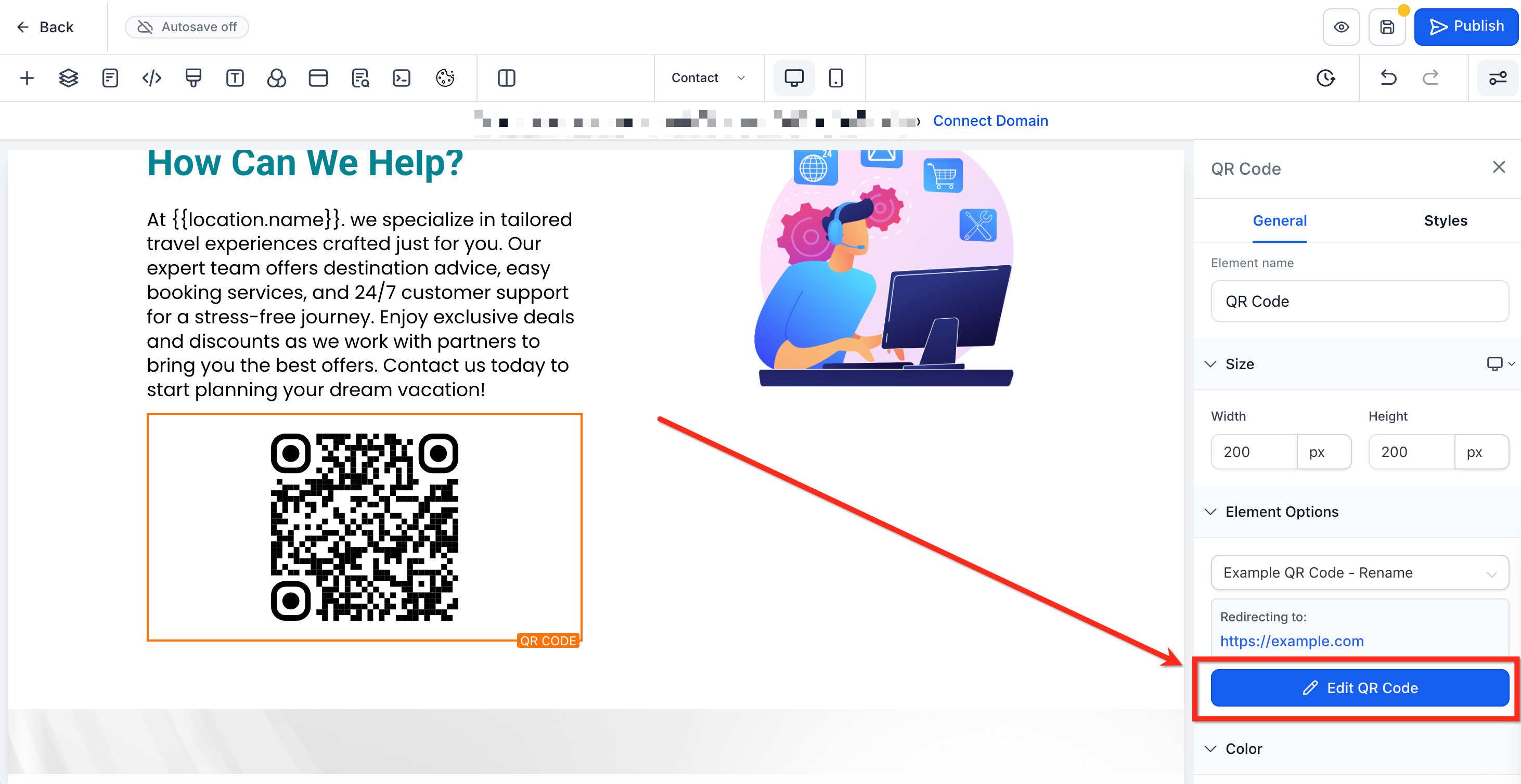
Clear destination – See the URL the QR code will open, so you can confirm it's correct before publishing.
Deleted detection – If the previously selected QR code was removed from your library, you're prompted to pick or create a new one.
Cross-location awareness – Labels flag QR codes that belong to a different location, preventing confusion.
On-canvas control – Resize and position the element to fit your layout for desktop and mobile.
Follow these steps to place a working QR code on your page, confirm the destination, and publish with confidence.
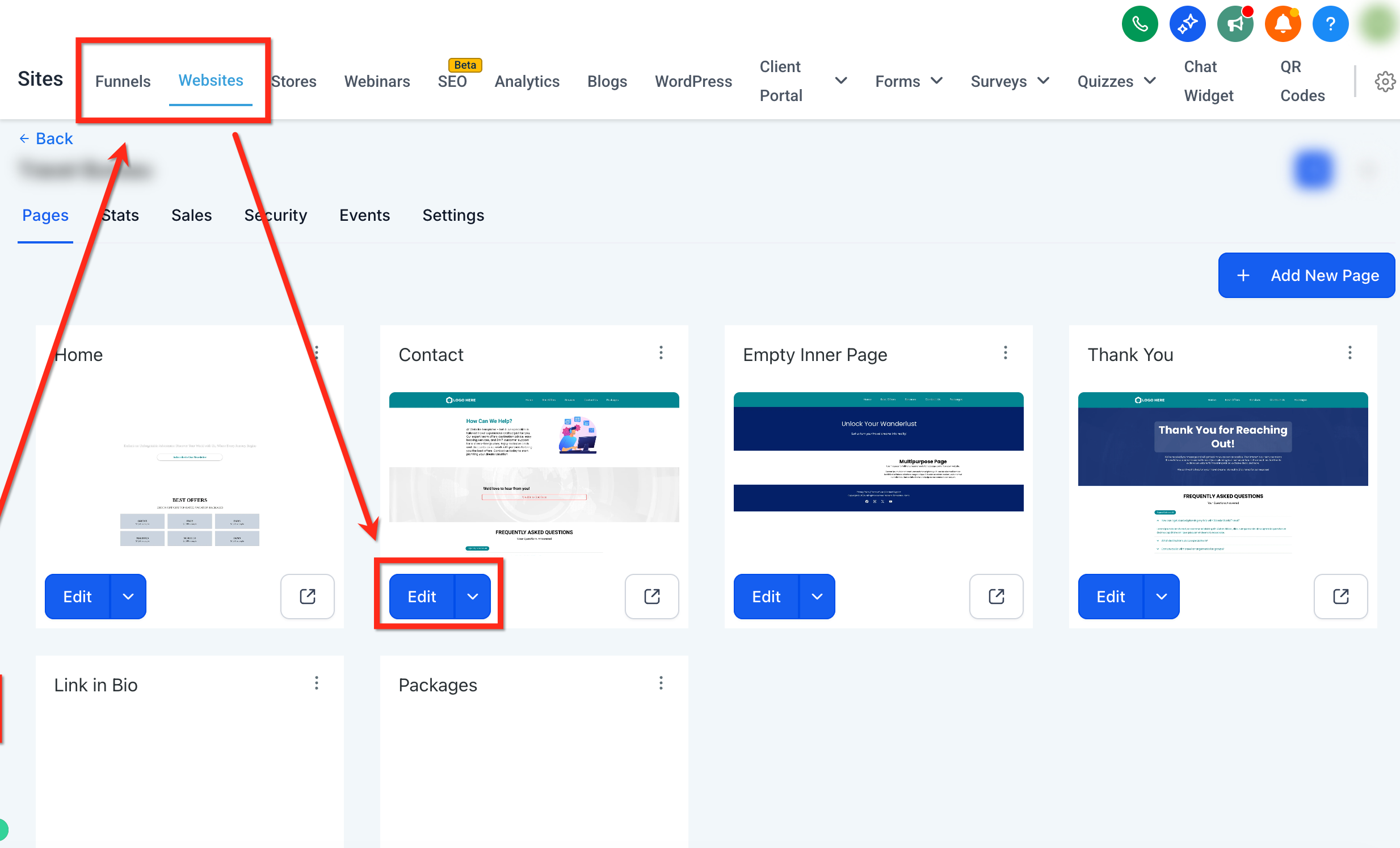
Step 1: Navigate to your page
Open your Websites (or Funnels) and choose the page to edit.
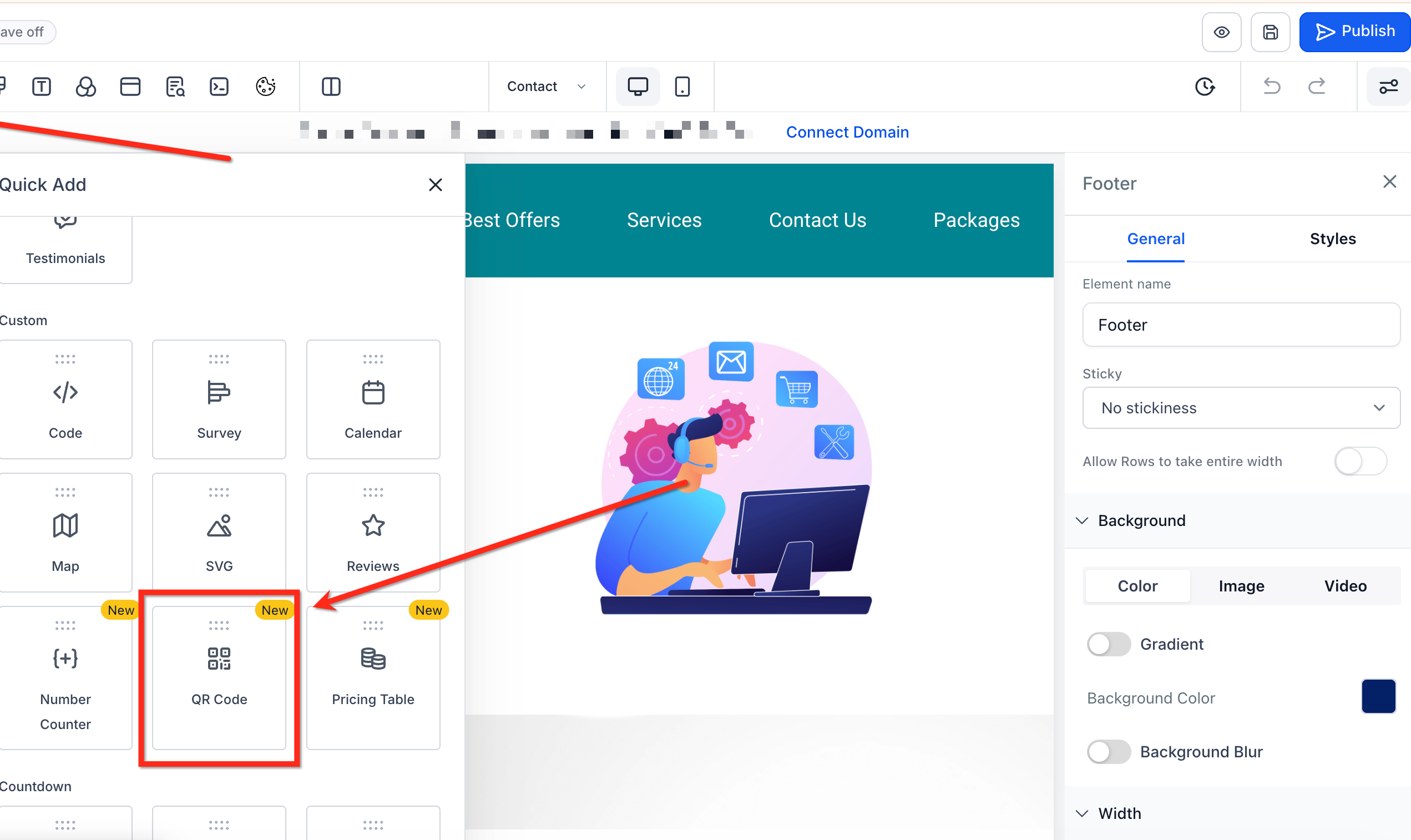
Step 2: Add the QR Code element
Click the + (add elements) icon to open the elements section.
Scroll down to QR Code and drag the element into the page.
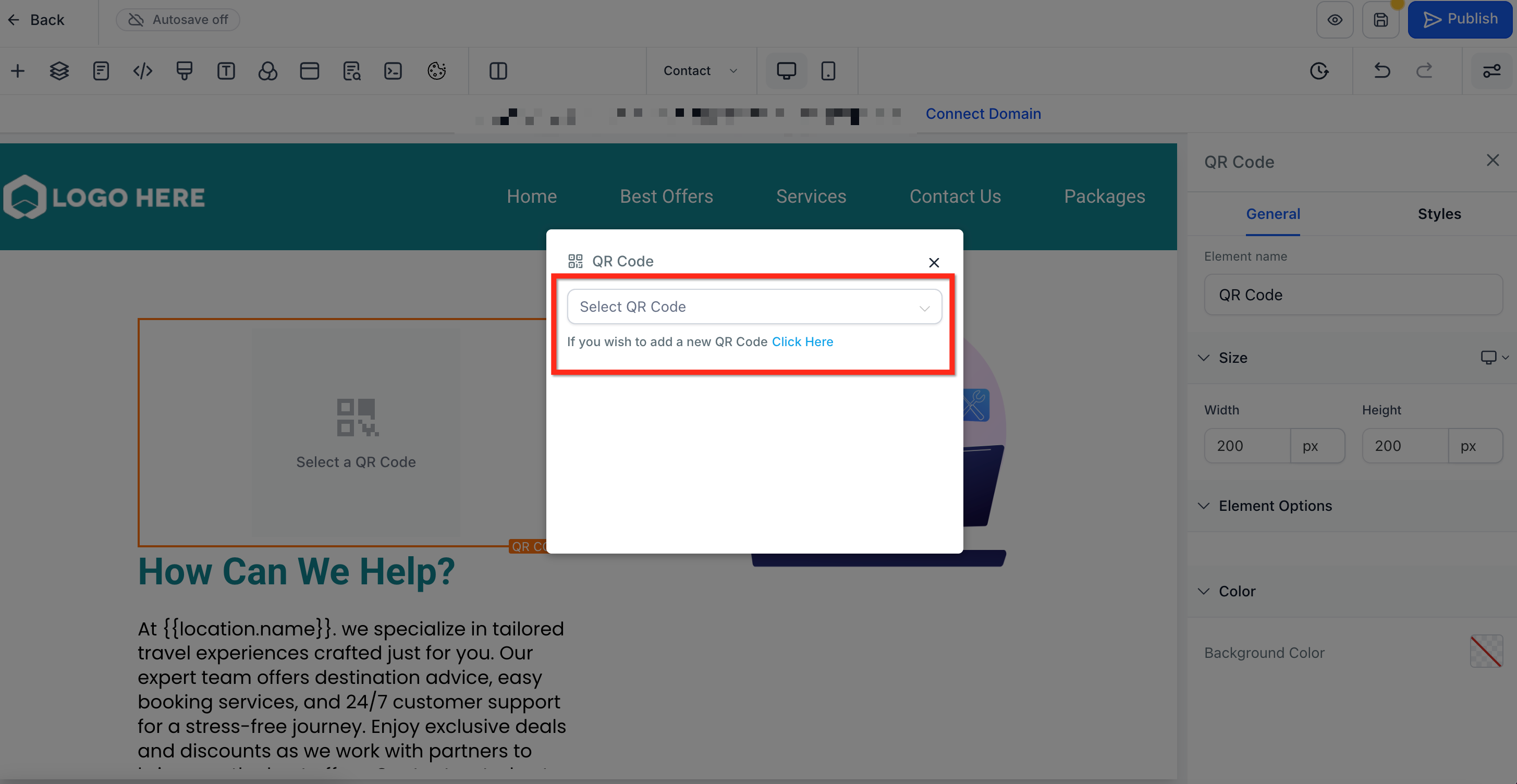
Step 3: Select a QR code
Use the drop-down to select the QR code you would like to add.
To create a new QR code, click the text below the drop-down. This opens the QR Code builder.
Step 4: Edit the QR code
To edit the QR code after the element has been added, select the element, then click the blue Edit QR Code button.
For high volume campaigns like event badges, discount coupons, or product packaging, you don't need to add the QR Code element to a page for each one individually. Open Web Tools > QR Codes and use Bulk QR Code Creation to generate an entire batch at once from a CSV file.
In the left sidebar, go to Web Tools > QR Codes.
Click Create Bulk QR Codes.
Download the sample CSV template and fill in a Name and URL column for each code you need. Don't add extra columns, blank rows, or blank header cells.
Upload the completed CSV. Aesthetix CRM validates each row and flags problems, such as a missing header or a URL that doesn't start with http:// or https://, before generating anything.
Optionally choose an existing folder so the batch stays organized (create the folder first; only existing folders appear in the dropdown). If you skip this, the codes are stored in the root folder.
Watch the progress counter while the batch processes, then download the finished set as PNG, SVG, or PDF files.
After creation, you can move any QR code into, out of, or between folders from its three-dot menu.
You can also build one QR code at a time from Web Tools > QR Codes (open Create QR Code or + Create New) without adding it to a page first, which is useful when you want to test a code, download it for print, or use it somewhere outside the builder.
Give the code a name and choose what it should do when scanned. Supported destinations include a website, funnel, form, survey, quiz, payment link, review link, call, SMS, email, or WhatsApp. QR codes use a dynamic URL, so you can change the destination at any time without generating a new image or reprinting materials that are already in circulation.
Customize the look to match your practice's branding before downloading:
QR shape: square, rounded square, or circle
Background color
Dot color and dot style (classic, square, or rounded)
Marker border and center color and shape
You can test the code from inside the builder before saving, then export it as a PNG, SVG, or PDF, and edit, delete, or move it into a folder at any time.
Can I generate more than one QR code at a time?
Yes. Use Bulk QR Code Creation under Web Tools > QR Codes to upload a CSV with a Name and URL column and generate an entire batch at once, ideal for event badges, coupons, or product packaging.
What file formats can I download a QR code in?
QR codes can be exported as PNG, SVG, or PDF, whether created individually or in bulk.
Can I change where a QR code goes after it's already been printed?
Yes. QR codes use a dynamic URL, so you can update the destination at any time from the library without generating a new code or reprinting existing materials.
What can a QR code link to besides a website URL?
A funnel, form, survey, quiz, payment link, review link, a call, SMS, email, or WhatsApp, in addition to any website.
Can I organize my QR codes into folders?
Yes. Assign a folder when you create a QR code, individually or in bulk, or move it into, out of, or between folders later from its three-dot menu.
Can I change how a QR code looks?
Yes. In the QR Code builder you can choose the shape (square, rounded square, or circle), background color, dot color and style, and the marker border and center color.
