Aesthetix AI helps you create complete, SEO-friendly blog posts without leaving Aesthetix CRM. You can brainstorm topics, generate outlines, and produce long-form drafts through a simple conversational prompt, then move your content into Blogs for formatting, SEO, and publishing. This keeps your entire content workflow in one place, so your practice can publish consistently without switching between separate writing tools.
There are two ways to generate blog content with AI: an assistant-style AI workspace where you draft posts conversationally, and Blog Post AI built right into the Blog Editor for in-place drafting and refinement. Many teams use the AI workspace to get a strong first draft, then Blog Post AI to fine-tune and polish.
Note: Never enter protected health information (PHI), such as patient names, treatment records, or any identifiable patient details, into AI features. Keep prompts focused on general topics, services, and marketing content.
AI-assisted blog generation removes friction from long-form content creation so your practice can publish more consistently without sacrificing quality.
Faster content creation: Move from idea to full draft in a single prompt, without manually building outlines or paragraphs.
Everything in one place: Keep your blog workflow inside Aesthetix CRM instead of juggling multiple writing apps and copy-paste steps.
SEO-friendly structure by default: AI suggests titles, headings, and formatting that map well to how Blogs and search engines interpret content.
Improved topical relevance with web context: For current or trending topics, AI can pull in recent information so your blogs don't feel outdated.
Multi-language and localization: Generate content in multiple languages to support different audiences from the same workspace.
Stronger content consistency: Starting from a clear, structured draft makes it easier to maintain tone, depth, and angle across your blog library.
The AI workspace turns a simple topic or prompt into a complete, logically organized blog article. It's ideal for getting a high-quality first draft you can refine, rather than writing from a blank page.
When you ask the AI to "write a blog post about…" or "draft a 1,500-word article on…", it can:
Suggest blog titles
Multiple title options to match different angles (how-to, listicle, thought leadership, and more).
Variations that emphasize keywords, outcomes, or target audiences.
Generate structured headings and subheadings
A main title plus sections that mirror how blog editors typically structure posts.
Logical progression from introduction to body sections to a conclusion or call to action.
Apply SEO-friendly formatting
Short paragraphs, skimmable subheadings, and bullet or numbered lists where they improve readability.
Optional keyword-focused headings based on your prompt.
Write long-form paragraphs
Multi-paragraph sections that go beyond surface-level explanations.
The ability to request a specific length (for example, "~1500 words" or "brief 600-word article").
Produce blog-ready draft output
Content organized so you can move it into a Blog Post editor with minimal cleanup.
The AI can search the web in real time to gather the latest information before generating content, retrieving relevant sources and recent updates. This helps blogs feel current, specific, and credible, especially for fast-changing topics.
Web context can:
Improve topic relevance: align explanations with up-to-date terminology, trends, and best practices, and reduce obviously outdated examples.
Increase content depth: bring in relevant statistics, frameworks, or examples so long-form sections feel researched rather than generic.
Boost accuracy for trending topics: useful for blogs about recent events, treatments, or platform updates. Ask for "recent trends in…" or "latest best practices for…" and have the draft reflect that recency.
Enhance overall quality: produce more grounded, context-aware drafts you can fact-check and adapt to your brand voice.
Note: Web context doesn't replace human editorial review. Always scan the draft, verify key facts, and add your own insights or examples before publishing.
Multi-language support lets you generate and localize blog content for different audiences using the same workflow. This is especially useful if your practice serves multiple communities or maintains localized pages.
The AI can:
Generate full posts directly in another language: prompt in English and ask, for example, "Generate this blog in Spanish," or prompt entirely in the target language.
Localize tone and examples: adjust phrasing, cultural references, and calls to action to feel natural to local audiences (based on your prompt instructions).
Support translation workflows: translate an existing English draft into another language while preserving structure and intent, and align multiple language versions around the same outline.
Even with strong AI translation, plan to have a native or fluent speaker review high-stakes content to confirm nuance, local terminology, and compliance.
Reference inputs help the AI produce more contextual, on-brand drafts. You can provide URLs and images purely as context when drafting content, so the output better matches your real-world assets and positioning.
You can:
Provide URLs for contextual reference
Service pages, documentation, or feature landing pages.
Previous blogs you want to emulate or update.
Outside articles you want summarized or contrasted.
Attach or reference images
Logos, treatment photos, diagrams, or campaign imagery.
Visuals that help the AI infer your style or use case.
The AI then uses this context to align terminology with your site, suggest where images could be inserted, and better match the level of sophistication your audience expects.
Note: URLs and images are used as input context, not automatically embedded in your blog content. You still control which links and images actually appear when you format the article in Blogs.
Blog Post AI is the built-in writing assistant inside the Blog Editor. It helps you generate, refine, and publish SEO-friendly content in one place, and it can search the web in real time to gather the latest information before generating content.
Blog Post AI enables you to generate posts from a topic, create long-form or custom content from your own prompt, automatically generate images, get SEO-personalized titles, descriptions, and keywords, edit or regenerate any part of your blog, and publish or save drafts instantly.
You can choose between two modes depending on how much control you want.
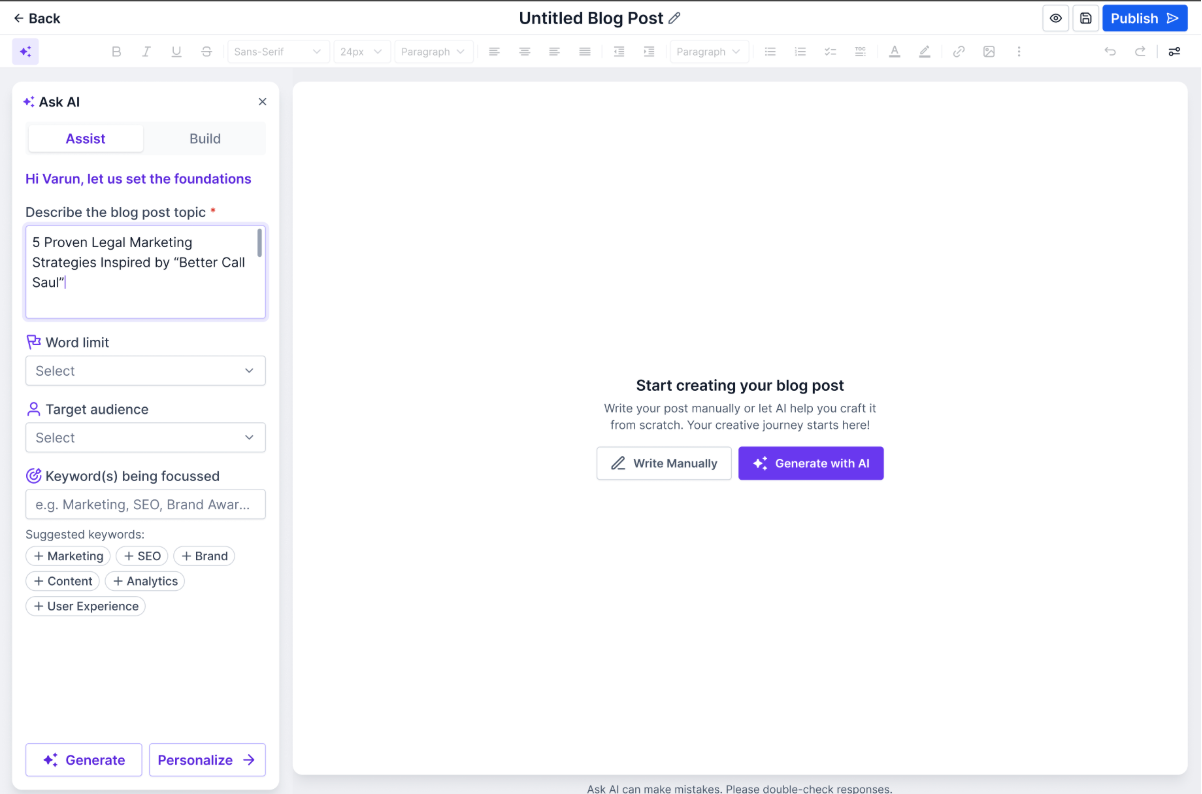
Use Assist Mode when you want the AI to create a full blog from a simple topic. This is useful when you already know the subject but want help with structure, SEO direction, and drafting.
How it works: Enter your topic and preferences (word count, target audience, keywords) and the AI generates a blog draft designed for readability and SEO. This includes a complete outline, headings and subheadings, SEO metadata (title, description, keywords), and relevant AI-generated images.
Best for:
First drafts from a simple topic idea
SEO-focused content
Faster content creation with minimal prompting
Producing blogs at scale
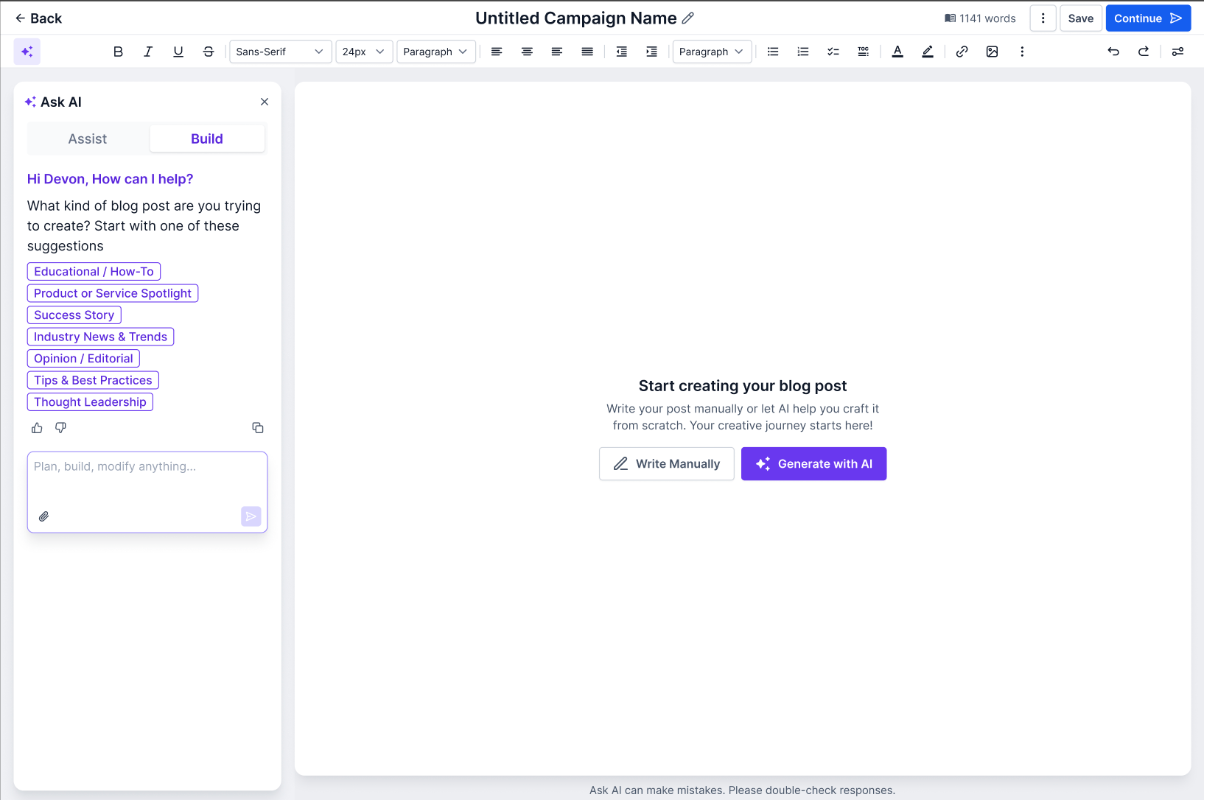
Build Mode is for advanced users who want long-form or highly personalized outputs. By allowing you to enter a custom prompt, Build Mode gives you more control over content direction, tone, structure, or creative style.
How it works: Write any custom prompt, such as the examples below, and the AI will create a tailored blog:
"Write a 1,500-word guide on choosing the right facial treatment for beginners."
"Create a blog about the benefits of hydration for skin health with research-backed points."
Best for:
Niche topics
Technical or expert-level subjects
Advanced marketers
Writers needing creative control
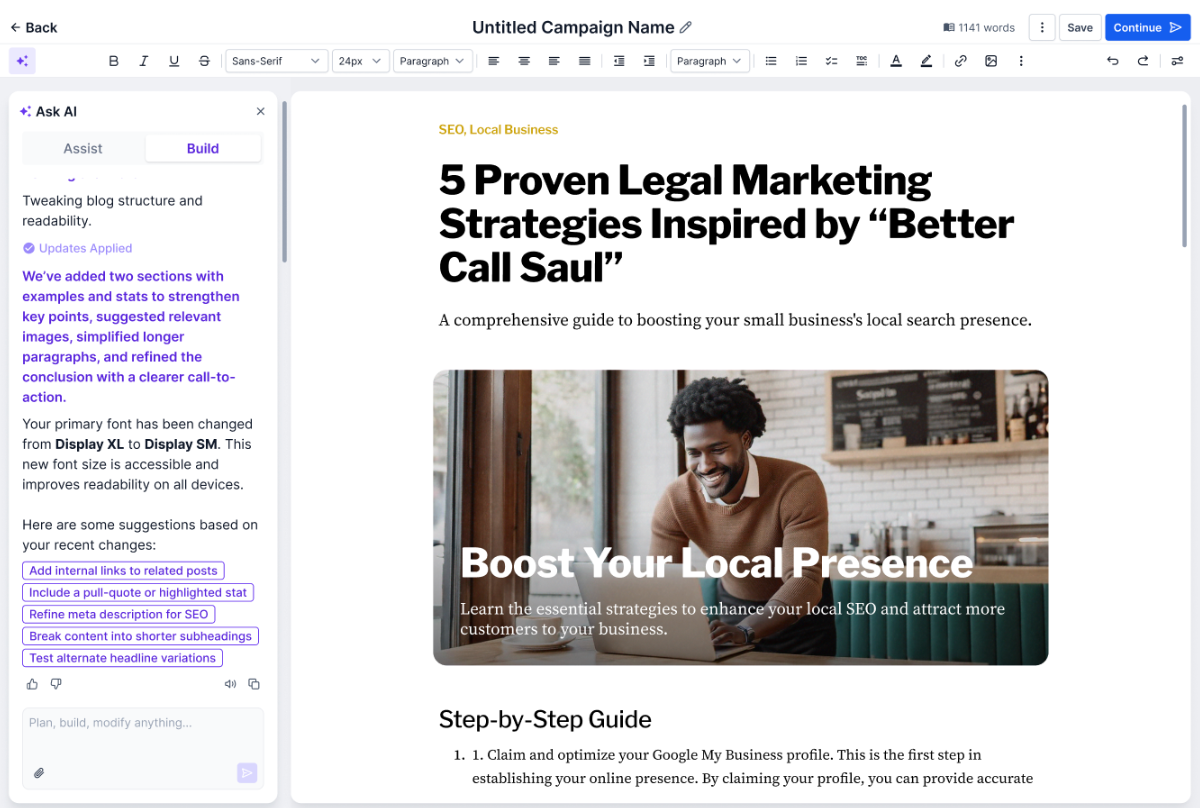
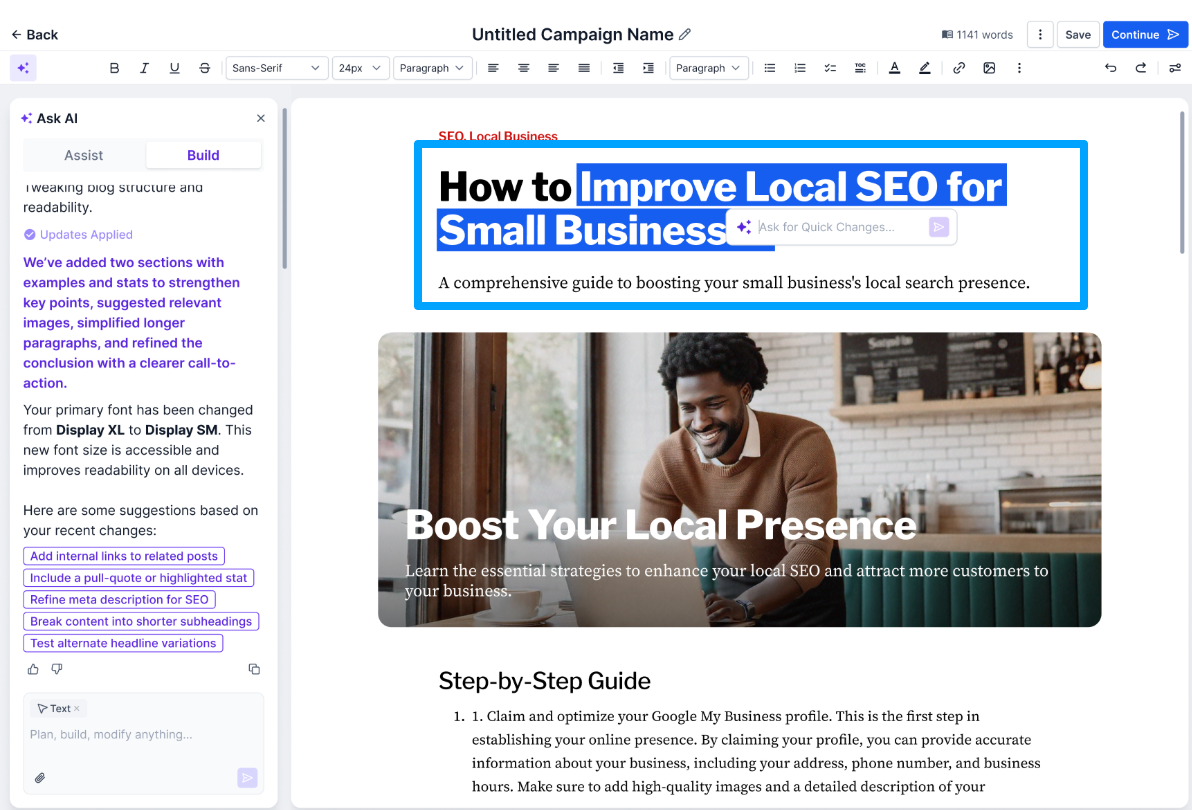
After generating content, you can refine your post without leaving the editor. Inside the editor, you can:
Regenerate paragraphs
Improve tone, clarity, or length
Replace or regenerate AI images
Delete unused sections
Apply SEO enhancement suggestions
Everything happens in one place, no copying or switching tabs.
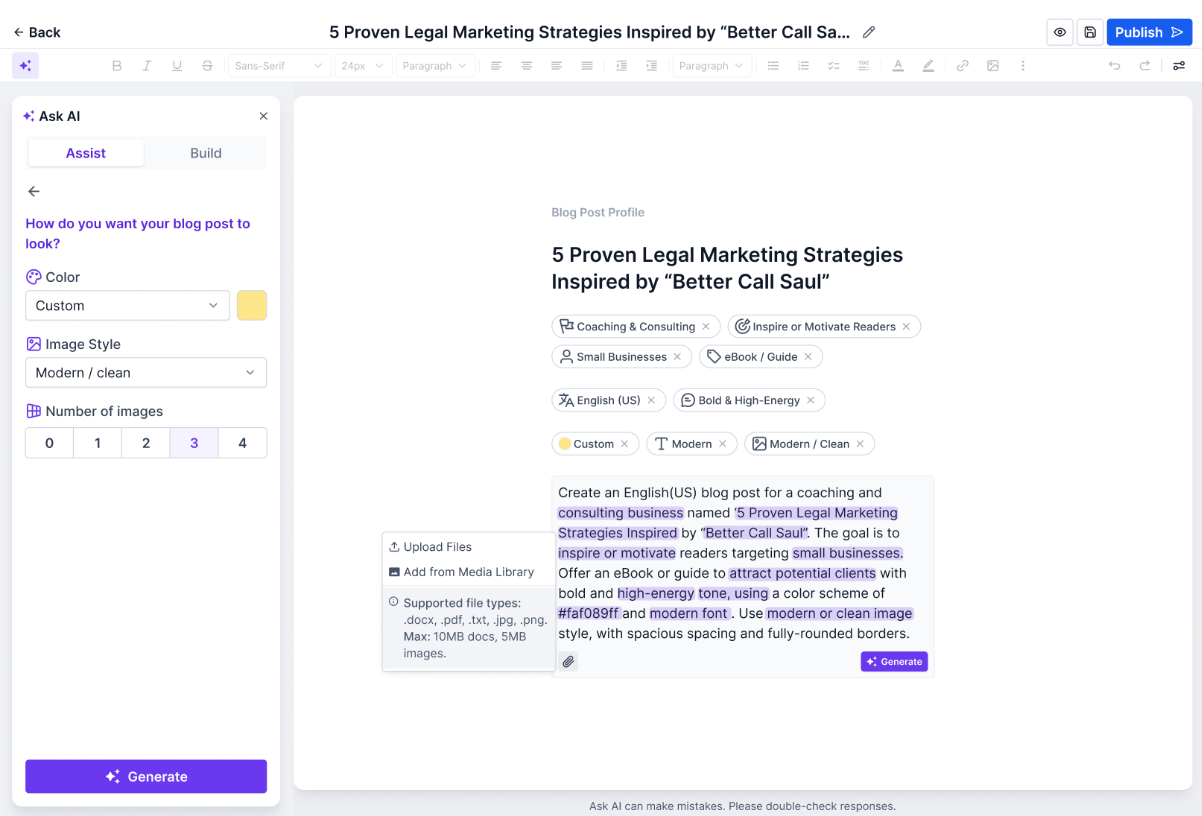
Blog Post AI supports multi-language content generation and translation directly inside the editor, making it easier to publish content for different audiences.
Under Assist mode, select Personalize.
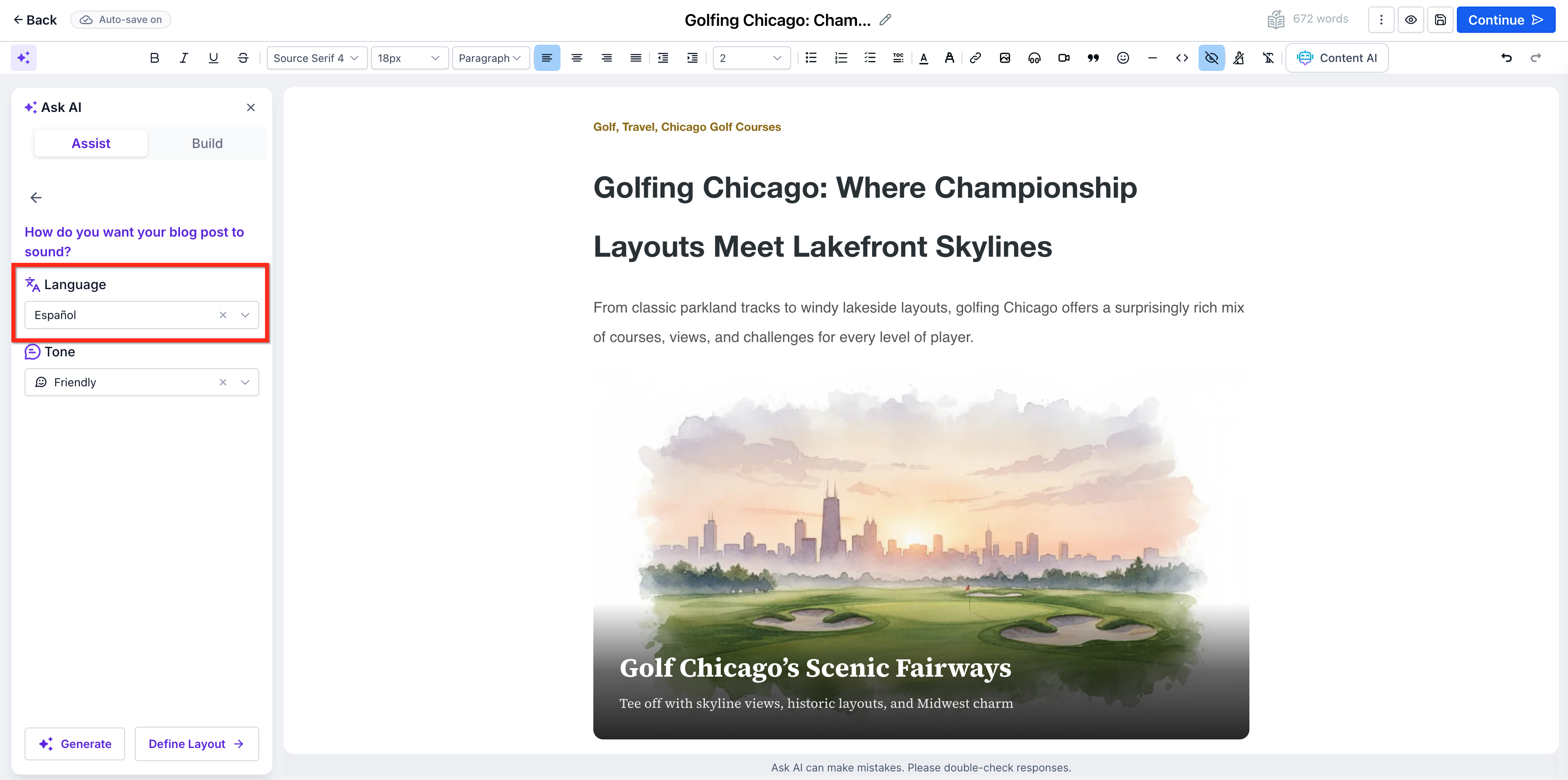
Use the drop-down to select the desired language. You can also change the tone of the writing from this page.
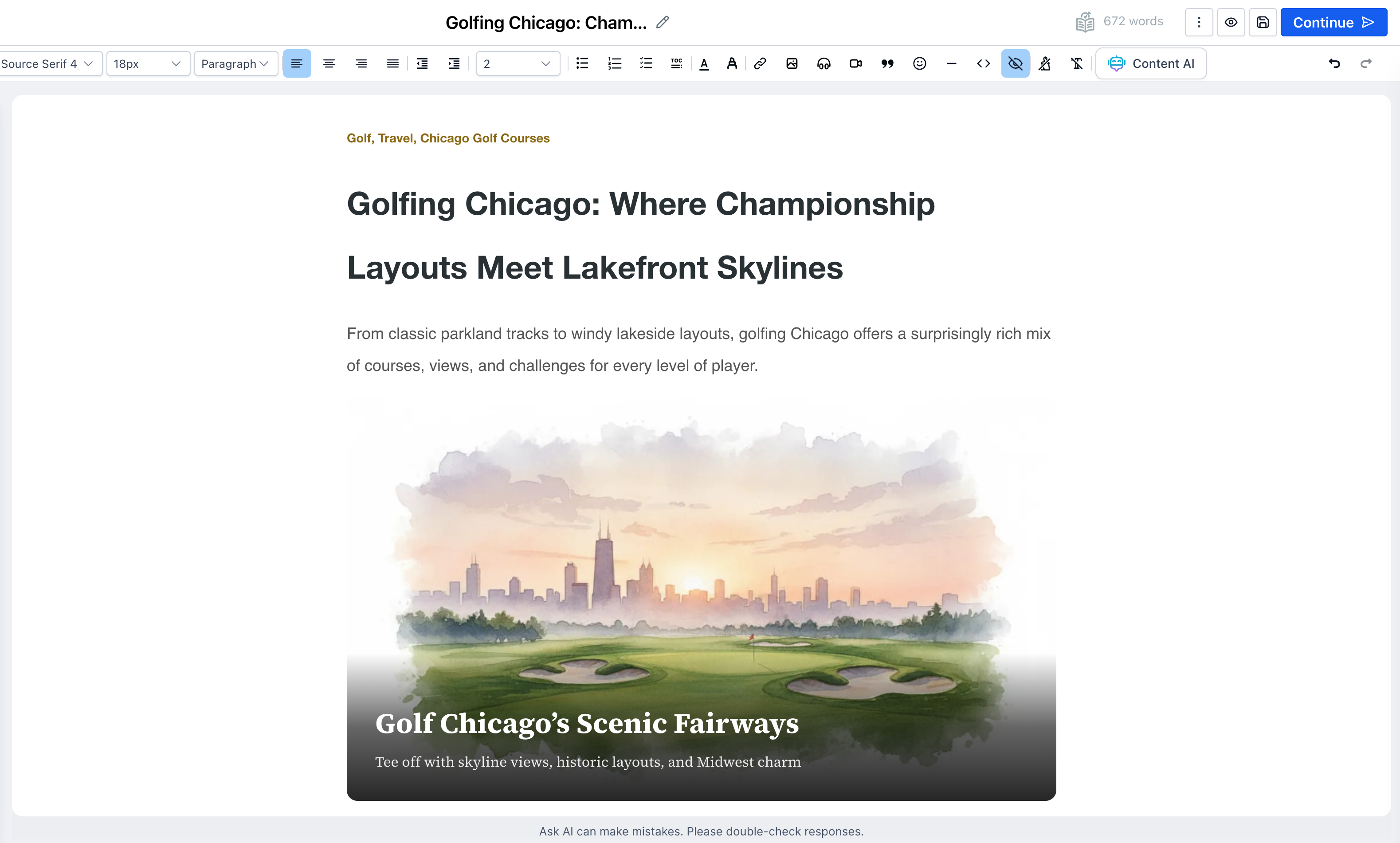
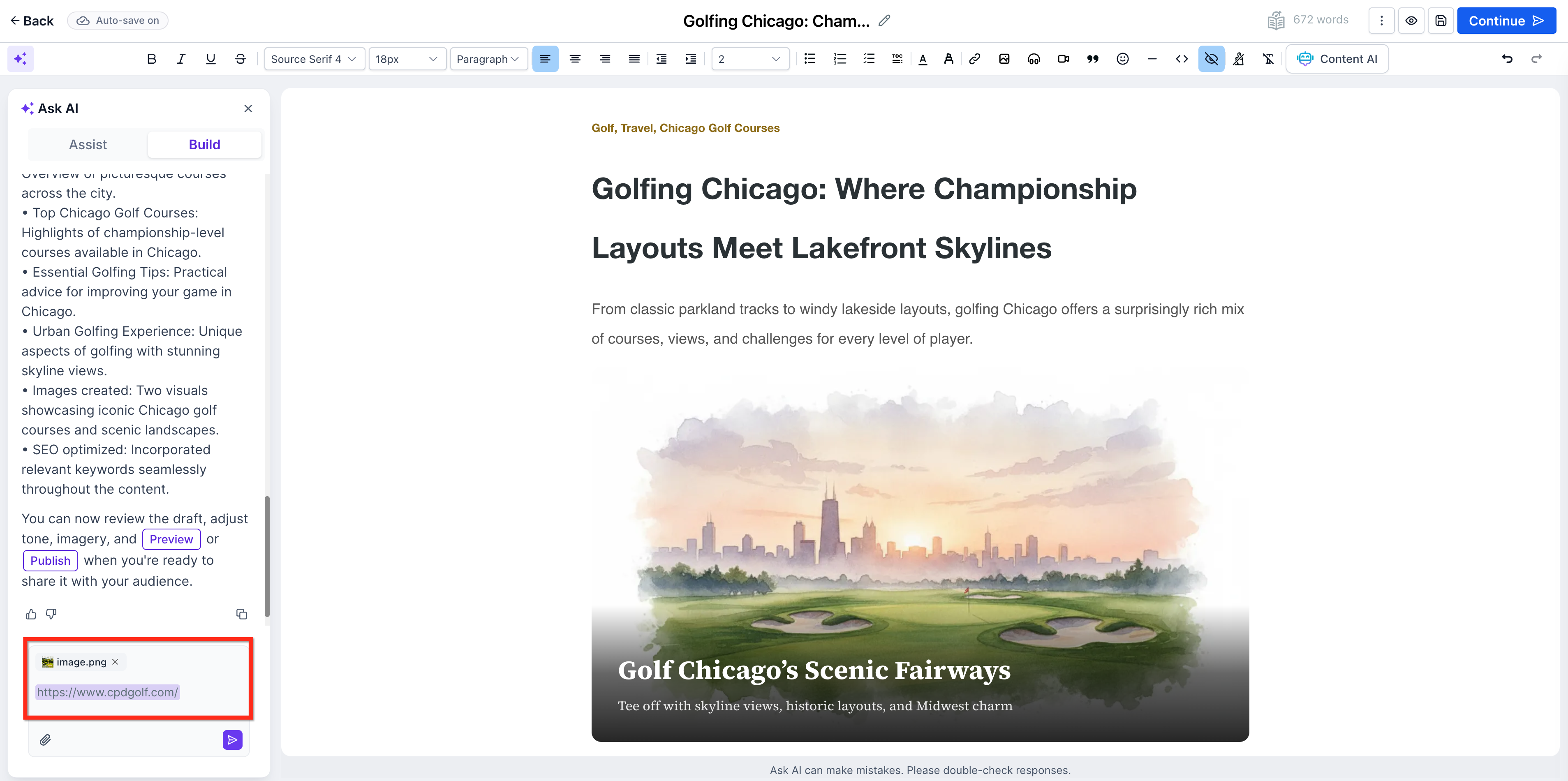
Reference inputs help Blog Post AI produce more contextual, relevant output. Supplying a source URL or an image can improve alignment when you want the generated content to follow a specific source, campaign, topic, or visual direction.
Blog Post AI can use reference URLs as contextual inputs during content generation, and image inputs when generating blog sections or related content.
Go to Web Tools → Websites → Blogs.
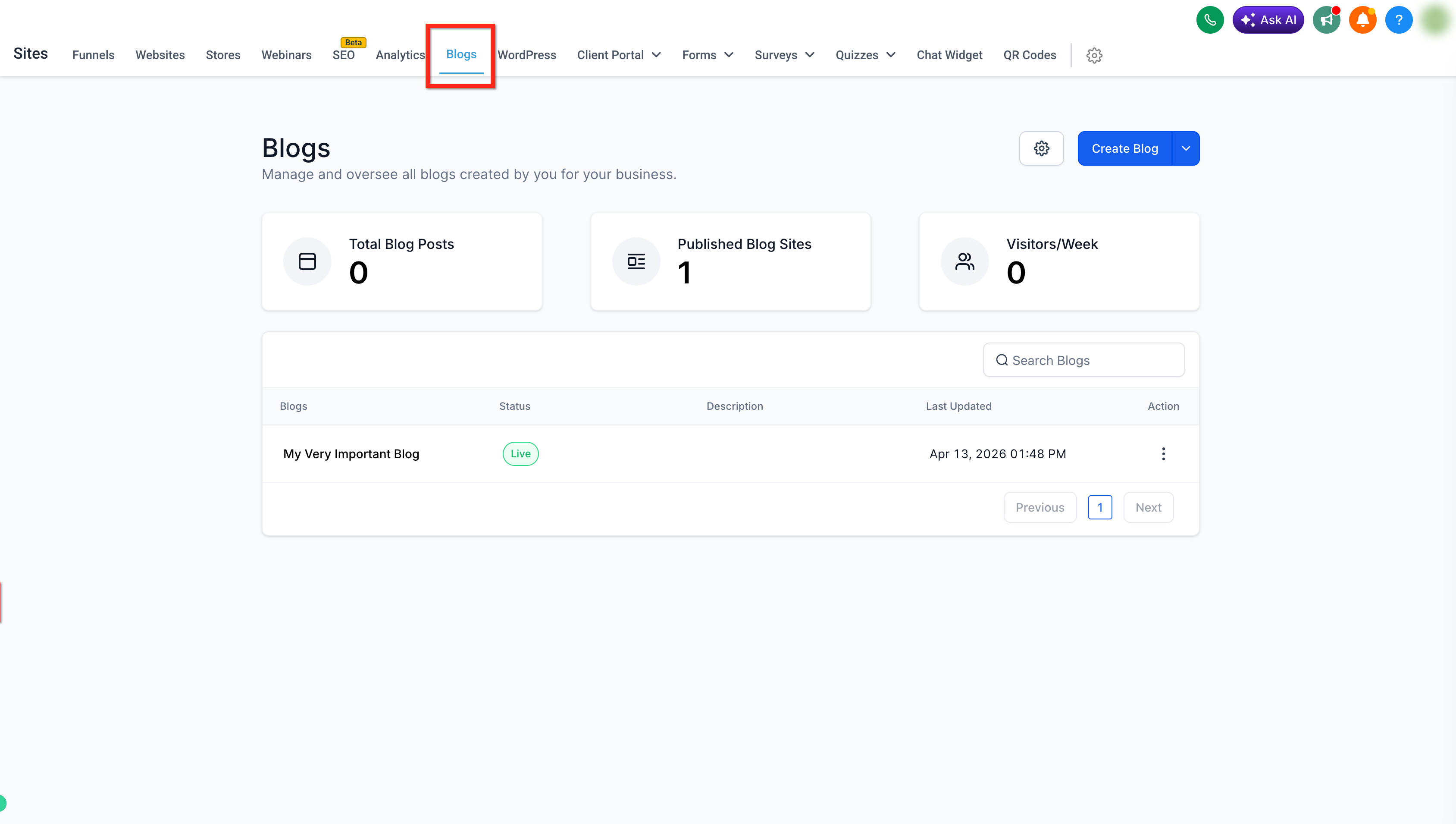
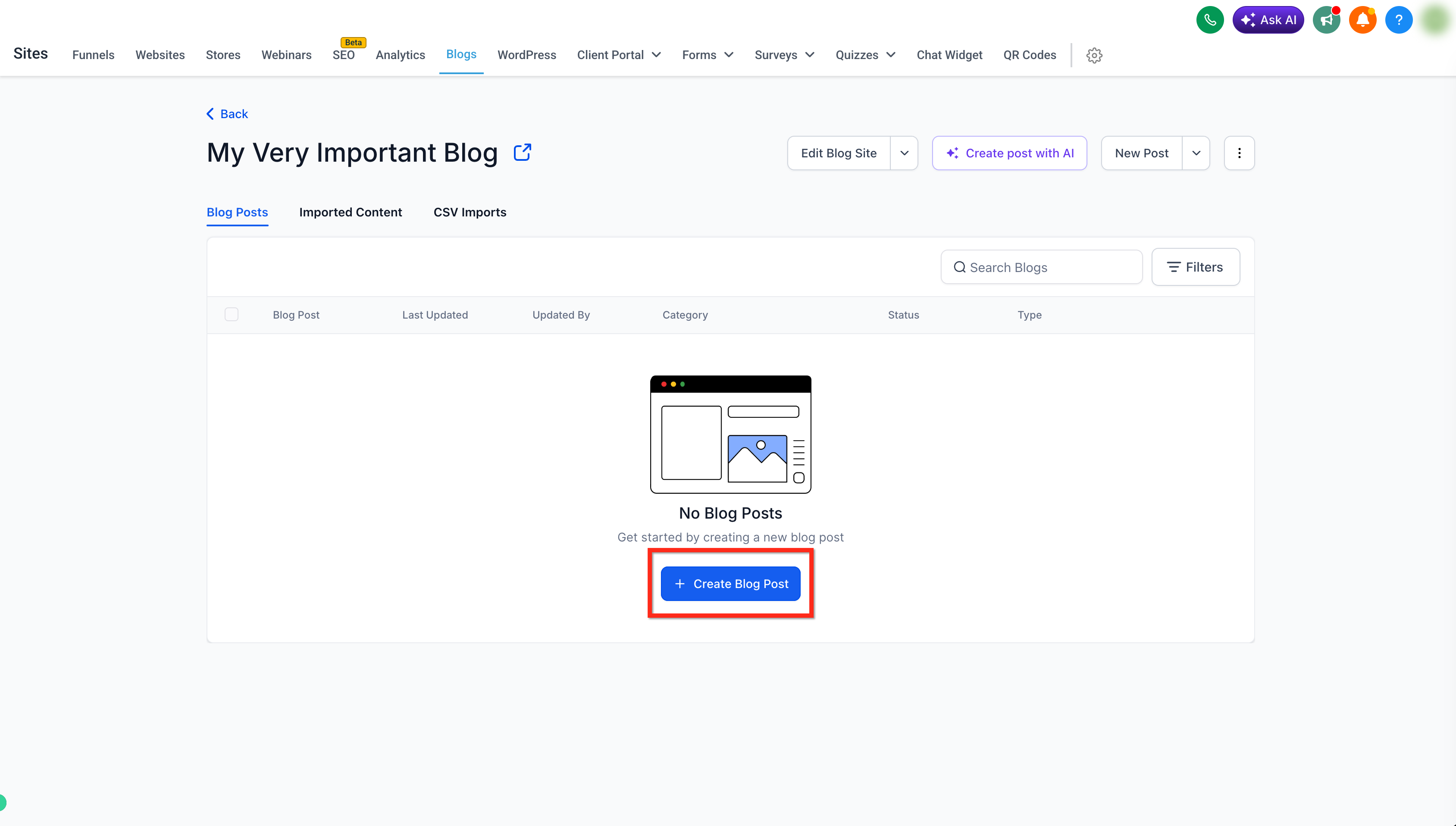
Open your blog and create a new blog post or open an existing draft.
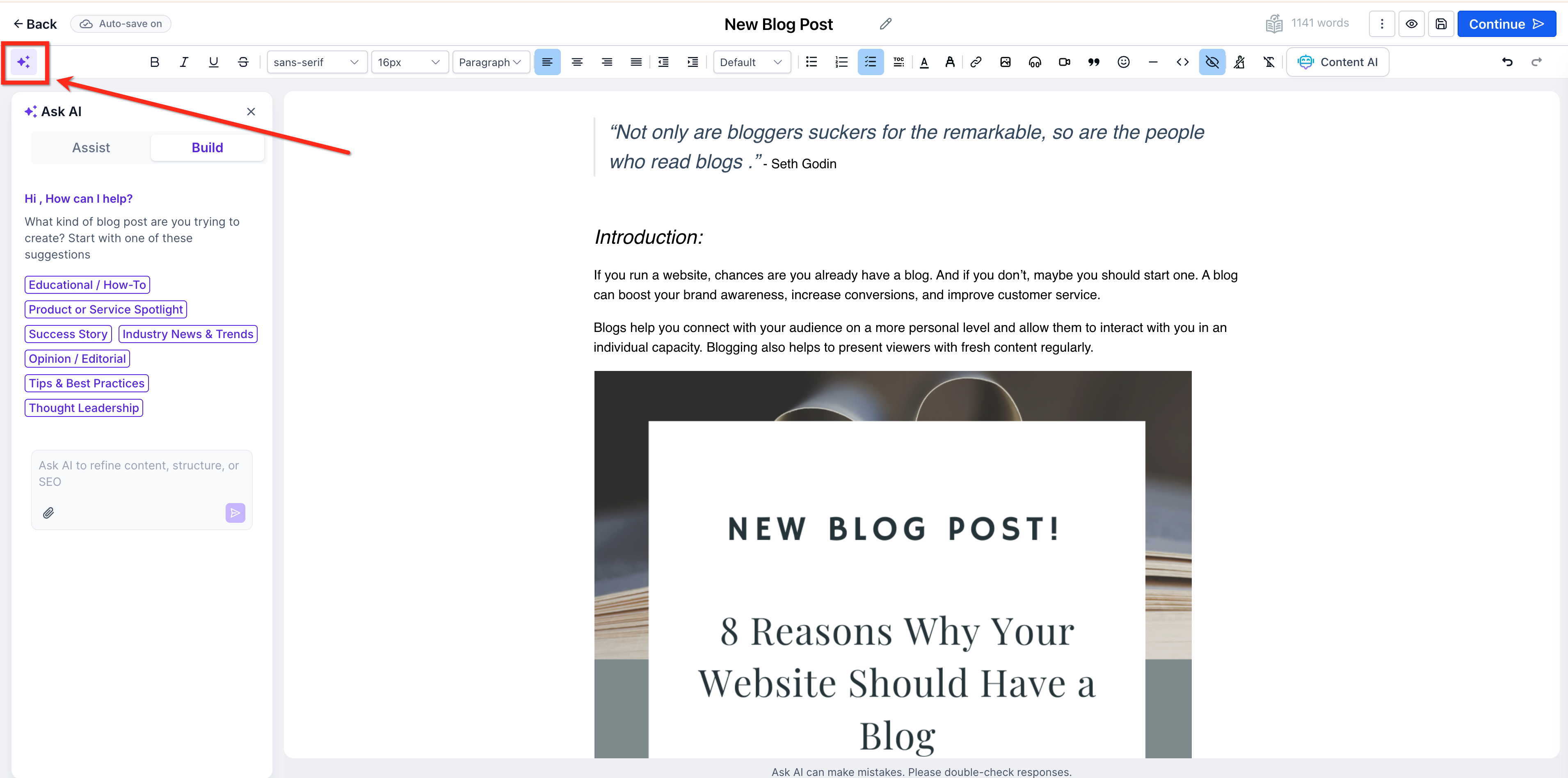
In the Blog Editor, open the AI panel.
Choose Assist (topic-based) or Build (free prompt) depending on how you want to generate content.
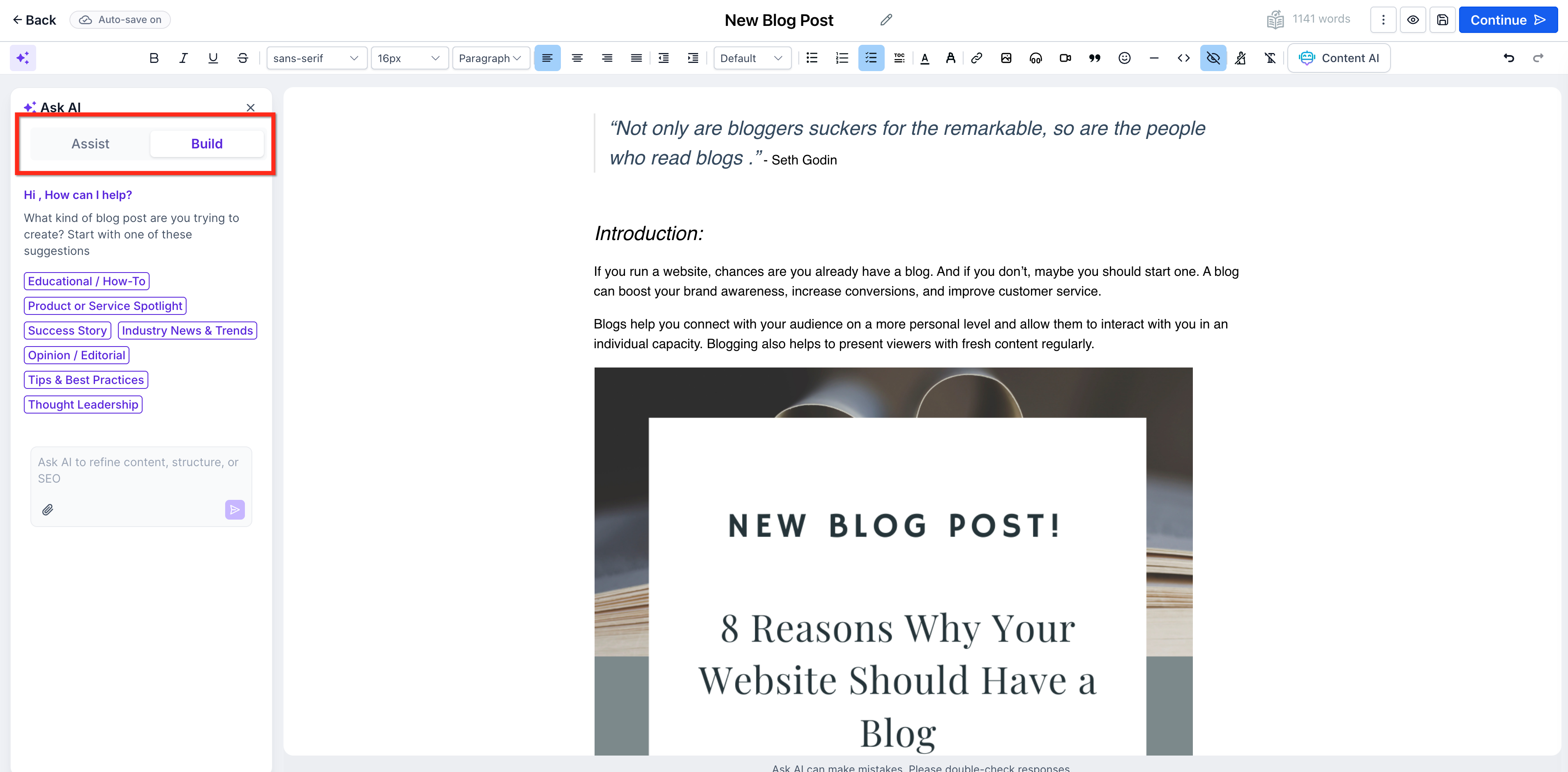
Enter your topic or prompt and click Generate.
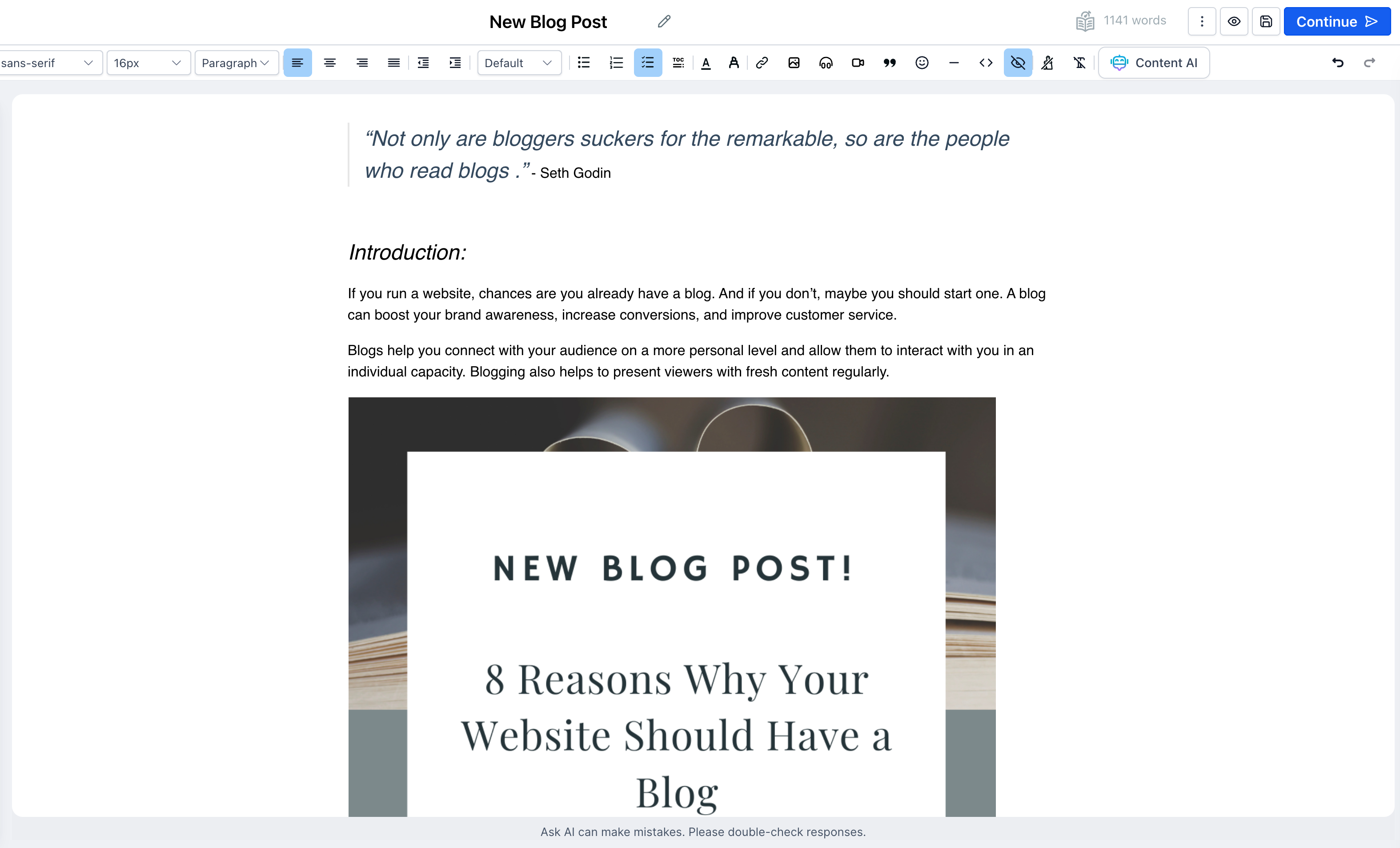
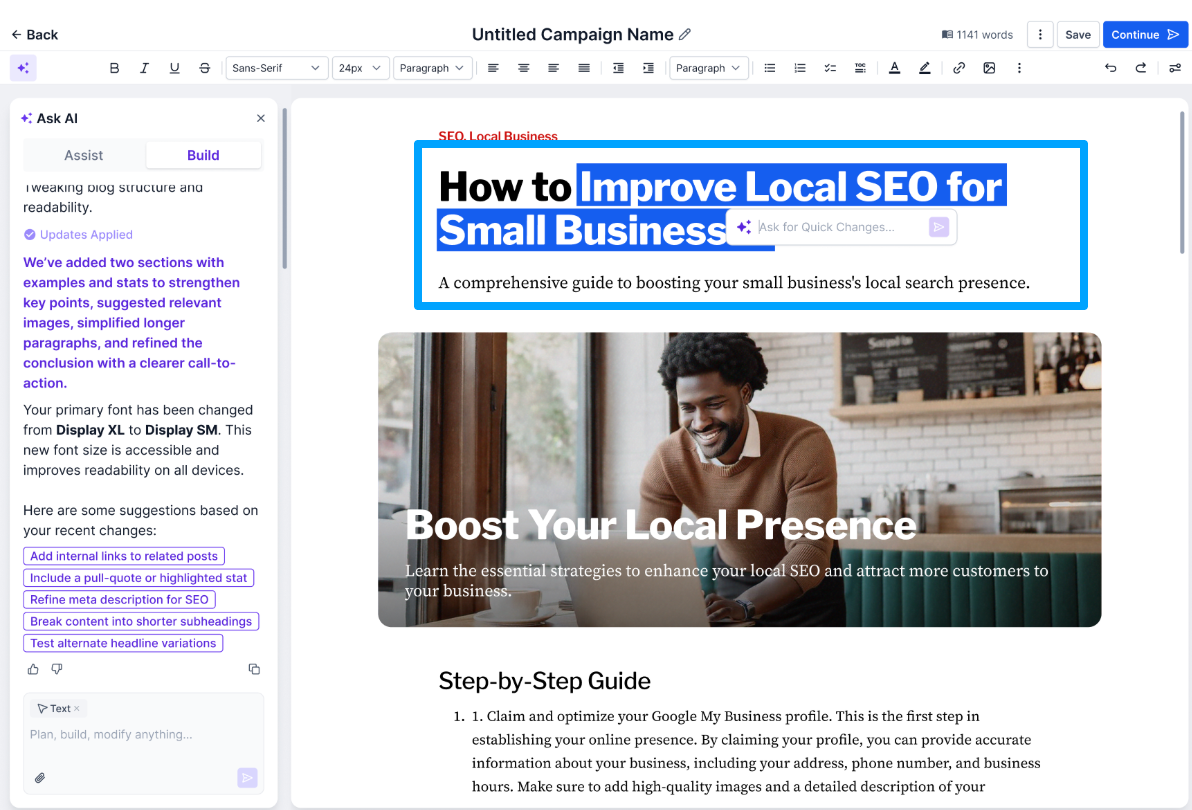
Edit and refine using the Smart Editing Tools.
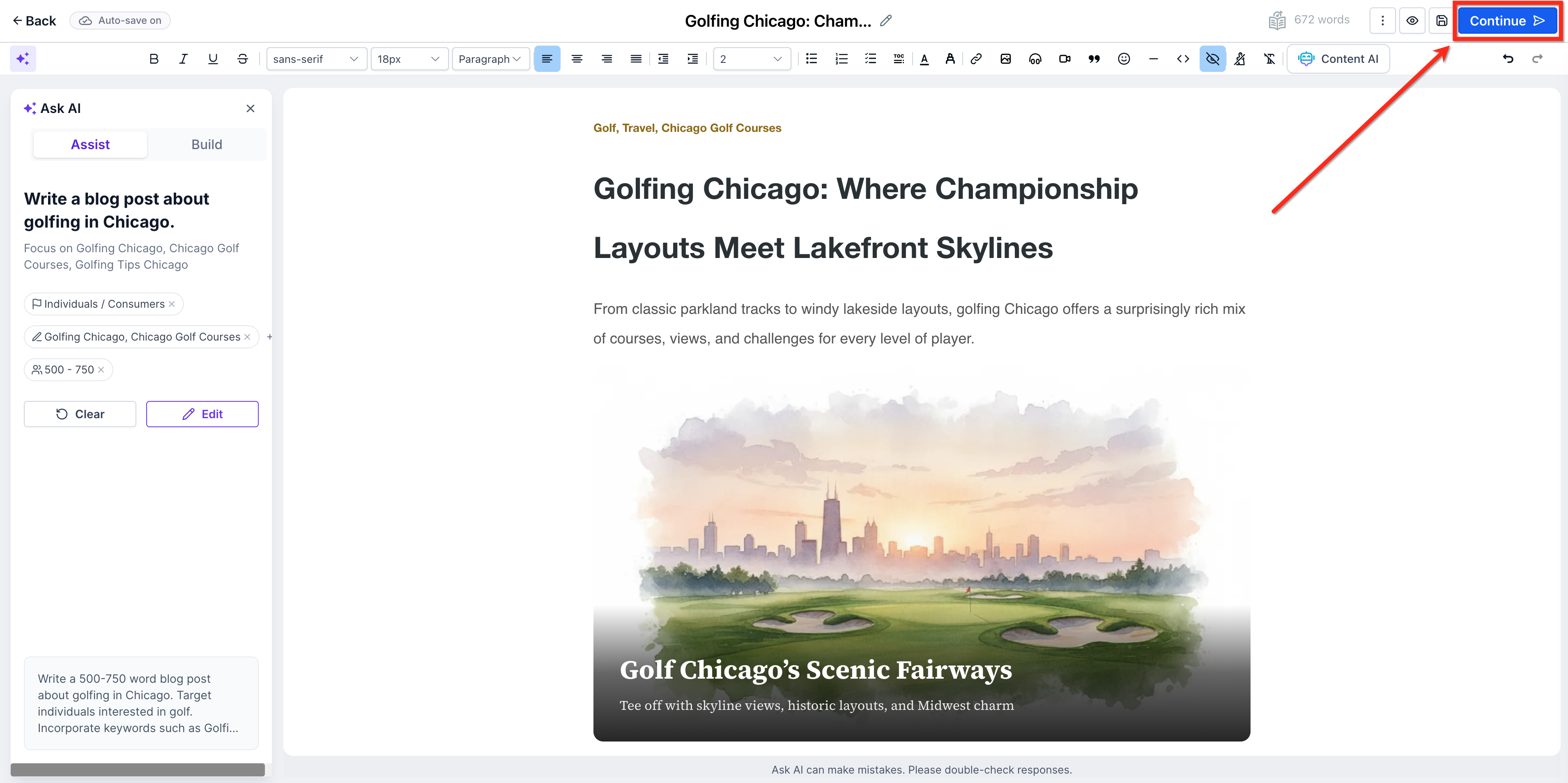
Once the draft is complete, click Continue.
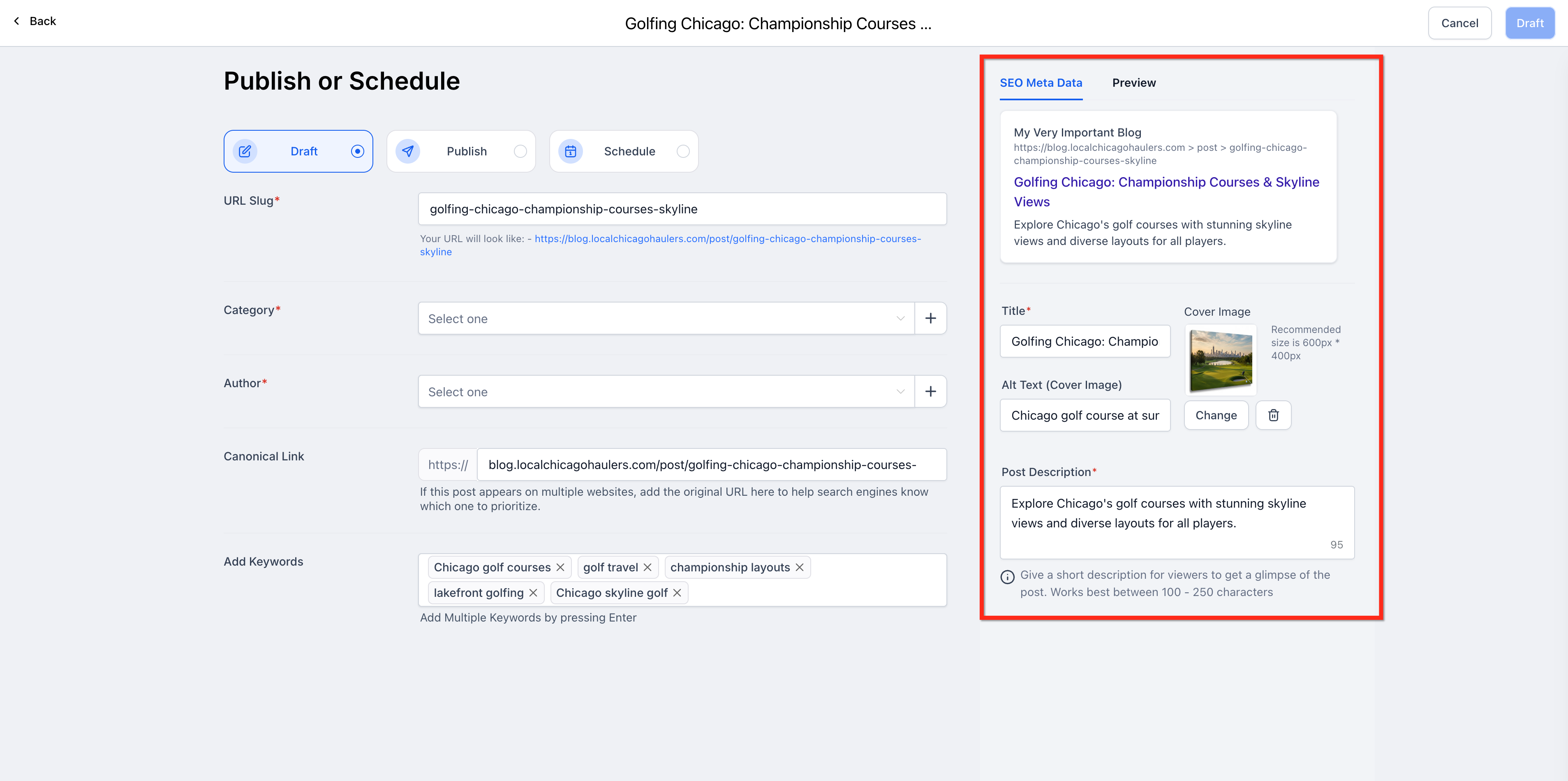
Review the SEO information generated by the AI. Make any needed updates.
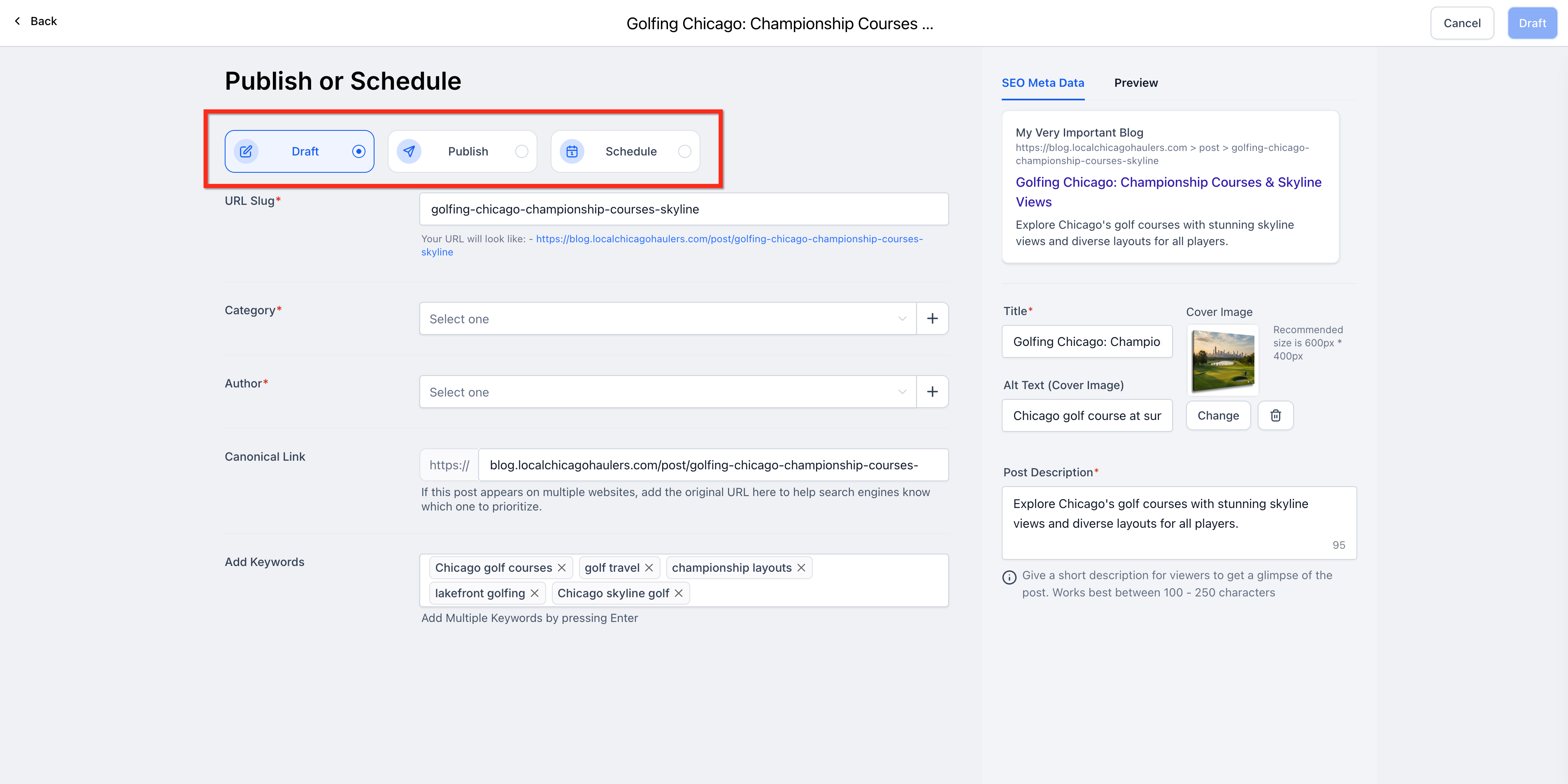
Select Draft, Publish, or Schedule, then click the button in the top-right corner to apply.
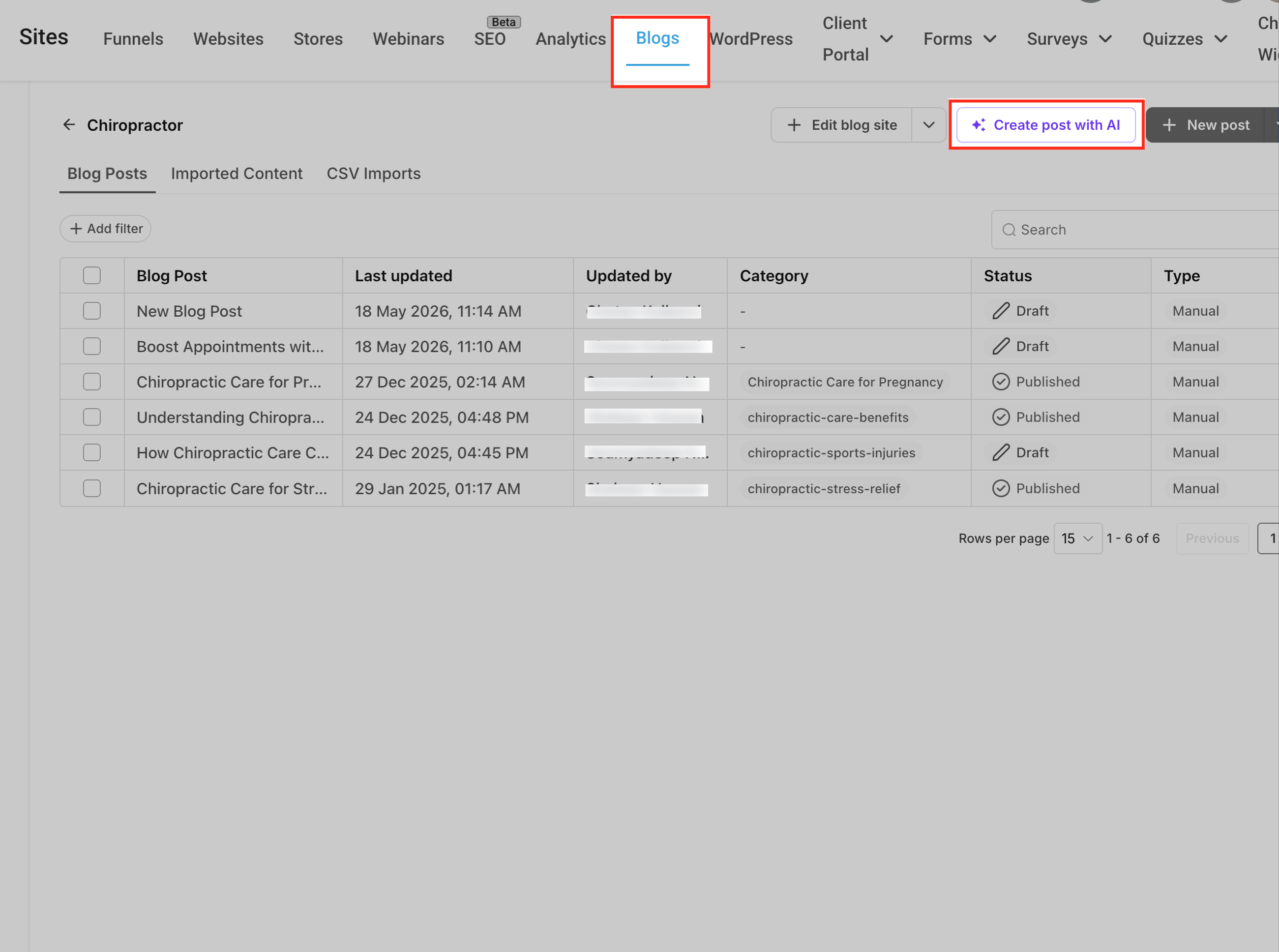
Prefer to draft conversationally before touching the editor? Use the AI workspace to build a first draft, then move it into Blogs.
Open the AI workspace and start a new chat. Open the AI assistant from your navigation, or go to Web Tools → Websites → Blogs. Start a fresh conversation dedicated to your blog draft.
Provide a clear blog prompt (topic plus instructions). Give the AI enough context to generate a high-quality, on-brand draft. For example: "Write a 1,500-word blog post for med spa clients on 'How to prepare for your first injectable appointment.' Audience: first-time patients. Tone: warm but professional. Include headings, subheadings, and a conclusion with a call to action."
Helpful details to include:
Target audience and knowledge level
Desired length (approximate word count, or short/medium/long)
Tone and brand style
Primary SEO keyword(s) or phrases
Any offers, services, or calls to action the post should promote
(Optional) Add URLs and images for richer context. Paste URLs such as service pages, existing blogs, or reference articles, and add or reference images that capture your brand. Then clarify how they should be used, for example: "Use this URL as background on our services and ensure the blog aligns with this positioning," or "Use this photo as the main image and reference it when explaining the treatment."
Generate and review the blog draft. Submit your prompt and wait for the AI to produce title suggestions, structured headings, long-form body content, and optional lists or summaries. If the first result isn't quite right, ask for revisions ("shorten this section," "make the intro more story-driven") or request alternative angles ("focus more on results," "rewrite for first-time patients").
Move the draft into Blogs for formatting and publishing. Copy the final draft, then go to Web Tools → Websites → Blogs > [Your Blog] > New Post** and paste the content into the Blog Post editor. Use the Blog Post tools to add images, embeds, and internal links; configure SEO fields (slug, title, description, canonical URL, keywords); and preview, schedule, or publish. For further editor-side refinement, use Blog Post AI to optimize sections, translate content, or apply URL and image referencing from within the editor.
The blog-ready draft is intentionally flexible. You can use it as a complete first draft or break it into sections to refine with Blog Post AI.
Copy the draft into your Blogs workflow: navigate to Web Tools → Websites → Blogs, choose your blog site, create a new post, paste the output into the content area, and adjust heading levels as needed.
Refine with Blog Post AI: use Blog Post AI in the editor to expand, shorten, or rephrase individual sections, or to adjust for specific SEO keywords and internal links. Iterate with instructions like "tighten this section to 3 paragraphs" or "rewrite this intro for beginners."
Add internal links, CTAs, and metadata: insert calls to action, related-post links, and navigation. Set the slug, SEO title, meta description, cover image, and canonical URL in the Blog Post settings.
Preview and publish: use the Preview tools in Blogs to confirm layout, mobile rendering, and link behavior before going live.
Does the AI automatically create a Blog Post, or only the draft content?
The AI workspace produces a structured blog draft inside the chat. You then copy that content into the Blog Post editor (Web Tools → Websites → Blogs) to create or update an actual Blog Post, where you configure SEO, authors, categories, and publishing settings.
How is the AI workspace different from Blog Post AI in the editor?
The AI workspace focuses on conversational drafting, you can brainstorm, compare angles, and generate full posts without opening the editor. Blog Post AI runs inside the Blog Post editor and is optimized for in-place drafting, refinement, translation, and URL/image-aware tweaks. Many teams use the workspace for a strong first draft, then Blog Post AI for fine-tuning and SEO polishing.
Can I regenerate only a specific section?
Yes. Hover over any paragraph and choose Regenerate, Rewrite, or Adjust Tone.
Can I change the AI-generated images?
Yes. You can replace, regenerate, or delete images anytime.
Is SEO metadata generated automatically?
Yes. Blog Post AI creates the SEO title, meta description, and keywords, all of which can be edited manually.
Can I use both modes in the same blog?
Yes. You can start in Assist Mode, then use Build Mode prompts for additional sections.
What is the difference between Assist Mode and Build Mode?
Assist Mode generates a complete blog from a simple topic input. Build Mode gives you more control using custom prompts for specific or branded content.
Does using web context guarantee 100% factual accuracy?
No. Web context greatly improves freshness and relevance, especially around trending topics, but AI-generated content can still misinterpret or over-generalize information. Treat the draft as a research-assisted starting point and manually verify any critical facts, statistics, or claims before publishing.
How do I control length, tone, and SEO keywords in the generated blog?
Specify these details directly in your prompt (for example, target word count, tone like "authoritative but friendly," and primary keywords). You can then ask the AI to revise sections, shorten, expand, adjust tone, or emphasize a keyword, until the draft meets your needs.
Are URLs and images automatically embedded into the blog draft?
No. The AI uses URLs and images as context to shape the content (terminology, examples, structure), but you decide which links and images to embed in the final article when you format it in the Blog Post editor.
Can I generate blogs in multiple languages in the same chat?
Yes. You can create one version in English and then request localized versions by specifying the target language and audience. Treat each language draft as a starting point and have a fluent reviewer confirm nuance and compliance before publishing.
How does this feature interact with existing blog import tools?
AI blog generation complements existing blog importers (URL scraper, CSV imports). Use AI for net-new content or rewrites; use importers when migrating an existing library from another platform into Blogs, then refine posts with AI as needed.
Can the AI include tables, checklists, or diagrams in my blog content?
Yes. The AI can return structured outputs, tables, checklists, and other formatted content, that you can adapt into your blog post layout.
