
Your practice blog is a powerful way to build trust with prospective and current patients. In Aesthetix CRM, you can credit each post to a named author, organize content with categories, and spotlight your most important articles as featured hero posts. This guide walks you through each of these tools.
Note: Category, Keywords, Author, and Slug cannot be changed after a blog post has been published. Set them carefully before you publish.
Adding Authors to the Blog Builder
Every blog post can be attributed to an author, such as a provider, marketer, or content specialist on your team. Authors must be created in the blog builder first, before they can be selected on an individual blog post.
To add an author:
Go to Web Tools → Websites → Blogs > Settings** (the cog icon).
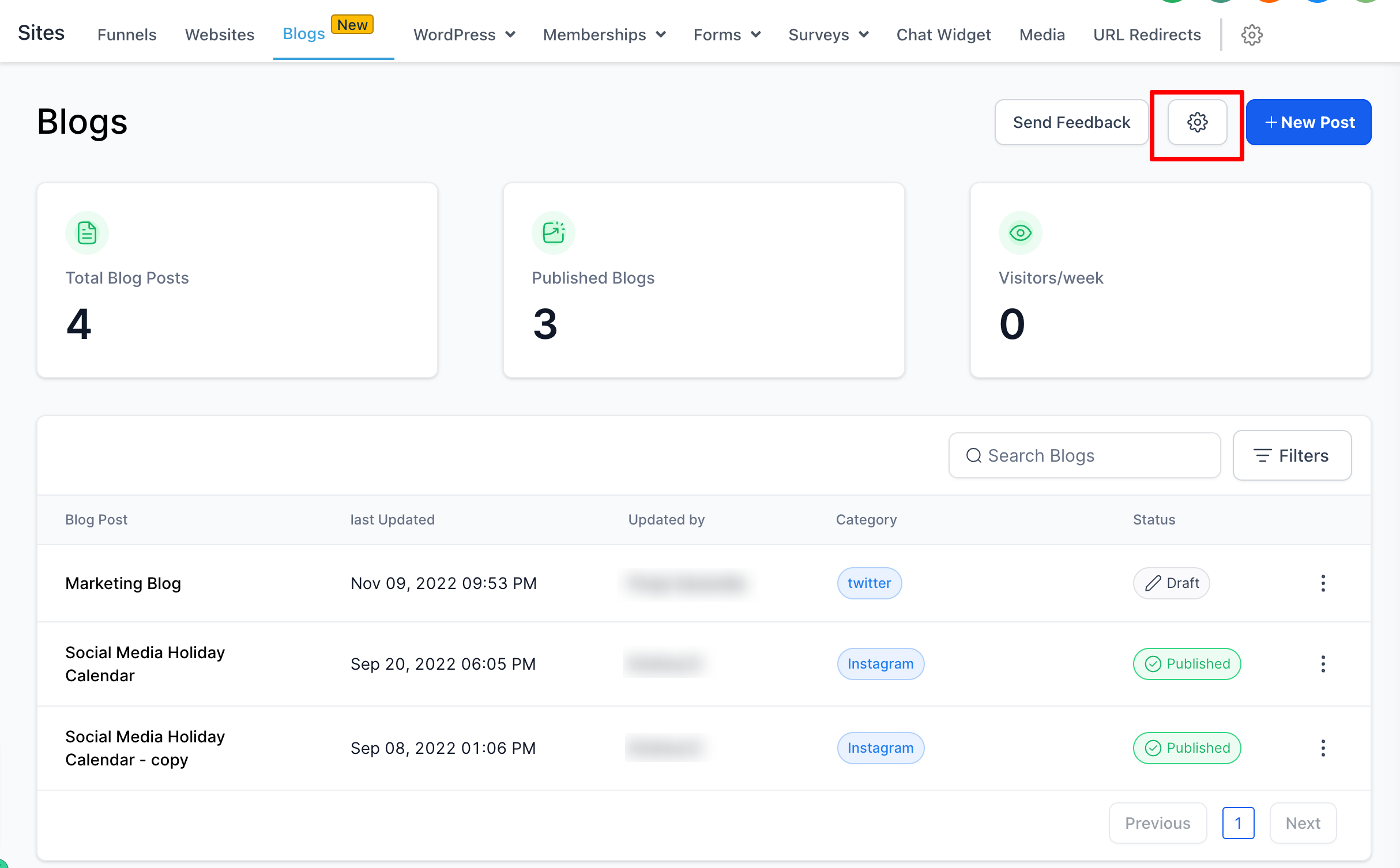
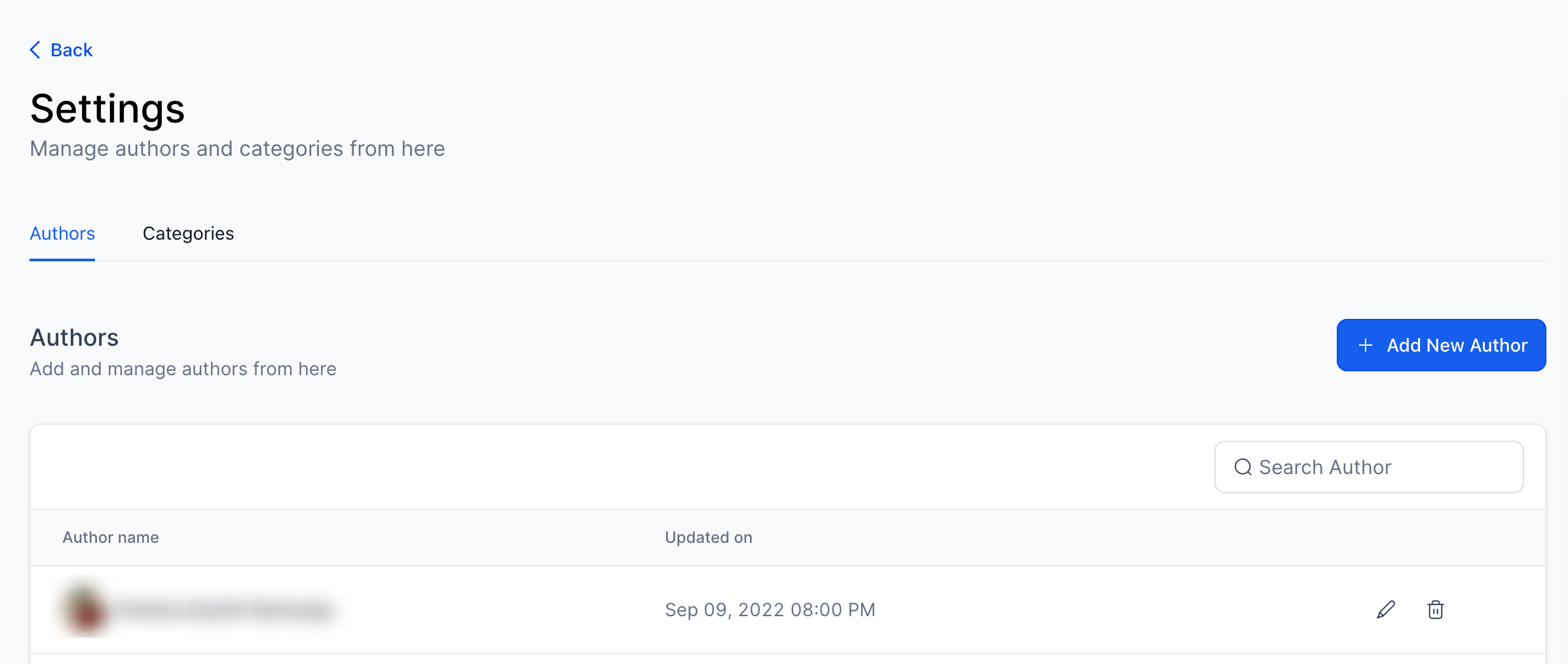
Click the Author tab on the left side, then click + Add new author.
Add your author name, photo, image alt text, social pages, and author description. When you are ready, click + Create Author.
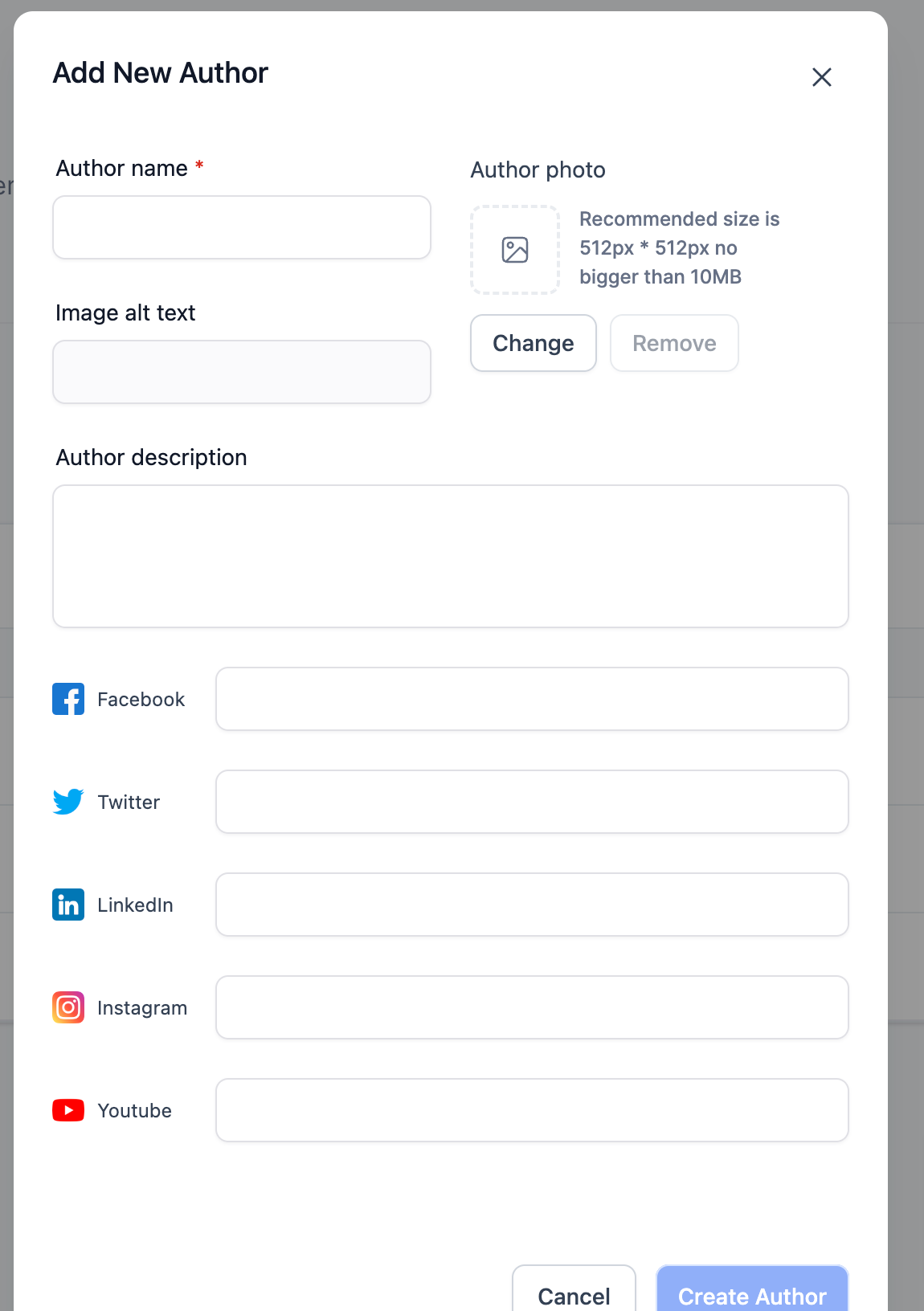
Note: The supported image size for an author photo is up to 10MB. There is no limit on how many authors you can create.
Categories, Keywords & Slugs
Categories, keywords, and slugs help organize your blog and improve how patients and search engines find your content. Because these fields, along with the author, are locked once a post goes live, decide on them before publishing:
Category groups related posts together (for example, injectables, skincare, or practice news).
Keywords support search visibility for the topics you want to rank for.
Slug is the readable URL for the post.
Adding a Hero or Featured Post
Featuring a post keeps your most important content front and center for visitors. Adding a featured post to your blog serves several strategic purposes:
Highlight important content – Ensures key posts, such as announcements, pillar content, or popular articles, stay visible to readers.
Drive more engagement – Keeps high-performing or cornerstone posts at the top, increasing visibility and interaction.
Improve SEO and read time – A frequently visited pinned post can contribute to better rankings and stronger user retention.
Promote evergreen content – Keeps timeless or frequently referenced posts easily accessible.
To add a featured post:
Navigate to Web Tools → Websites → Blogs.
In the list view of your blogs, select the blog name and click on it.
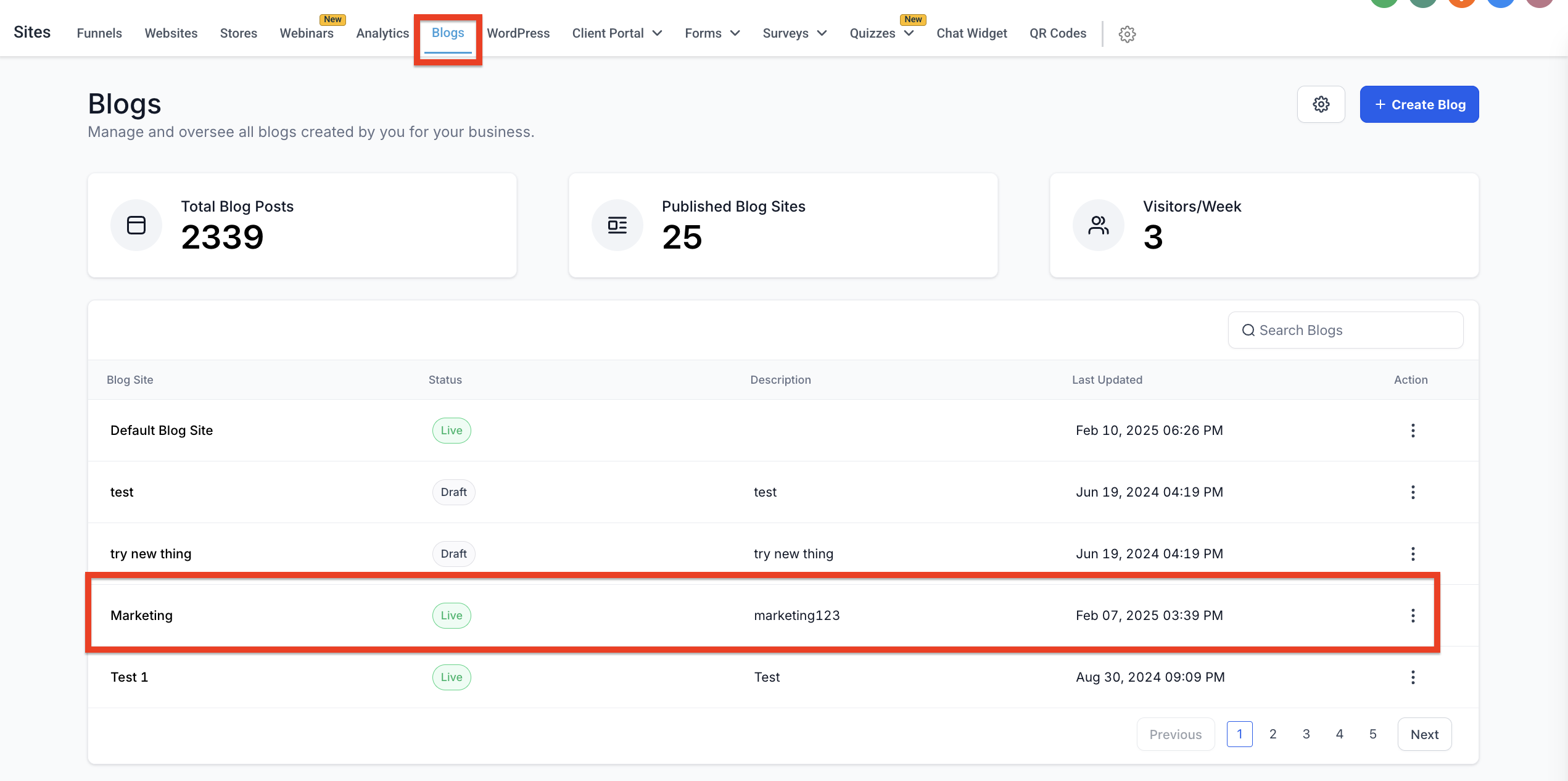
Go to the view with the option to edit the blog site.
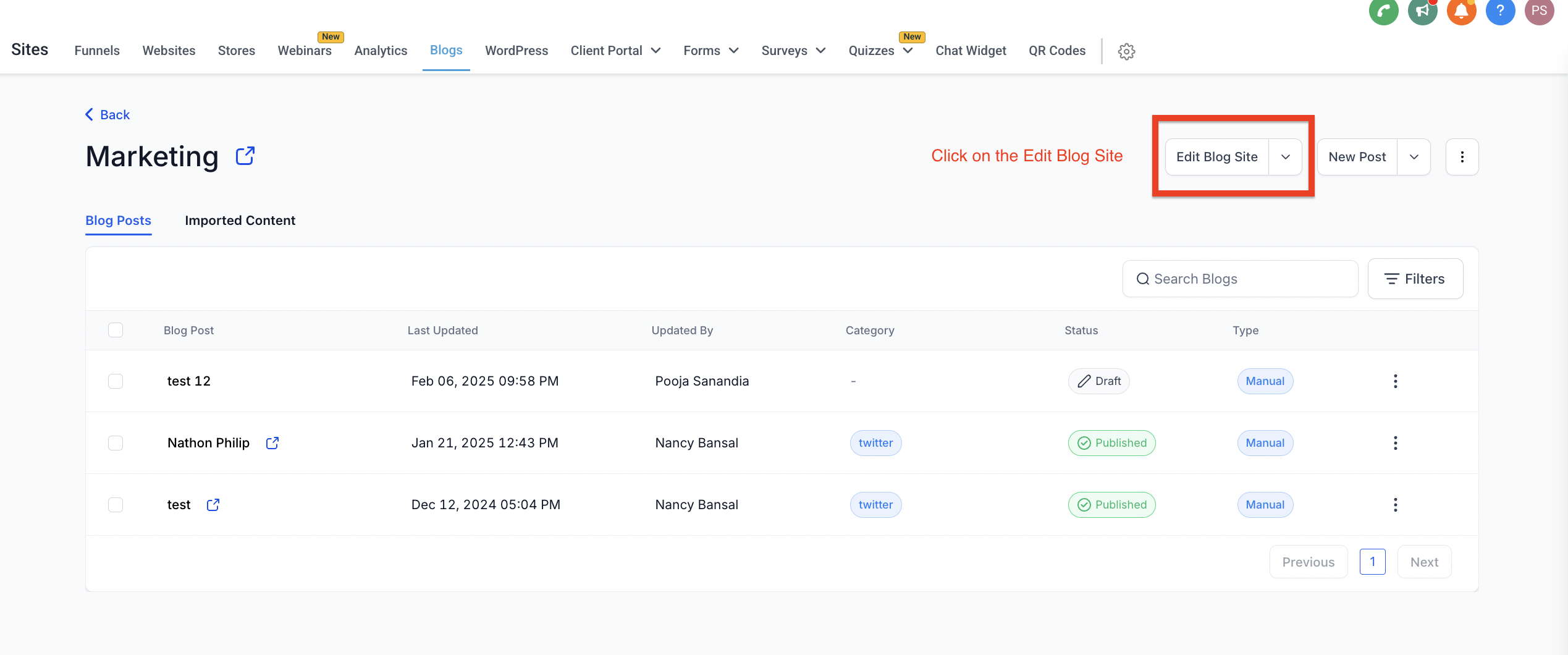
Add the Featured Post element.
Select the featured blog post you want to highlight.
Choose the layout and what you want to show in the blog featured post.
Publish the blog site.