Google Analytics 4 (GA4) is the current version of Google Analytics, giving you a more advanced, cross-device view of how people interact with your practice online. It offers cross-device tracking, machine-learning insights, and enhanced event tracking.
With Aesthetix CRM, you can connect a GA4 property using a Measurement ID and an API secret, then track events from your workflows and record pageviews across your funnels and websites. This helps you understand which pages, campaigns, and patient journeys are driving bookings.
Note: After a workflow runs, it can take 24 to 48 hours for the data to appear in your Google Analytics property.
The Google Analytics workflow action in Aesthetix CRM supports both Google Analytics 4 and Universal Analytics, so you can use either platform (or both) to track your marketing and website activity. This gives you a flexible, integrated way to analyze patient behavior and make data-driven decisions.
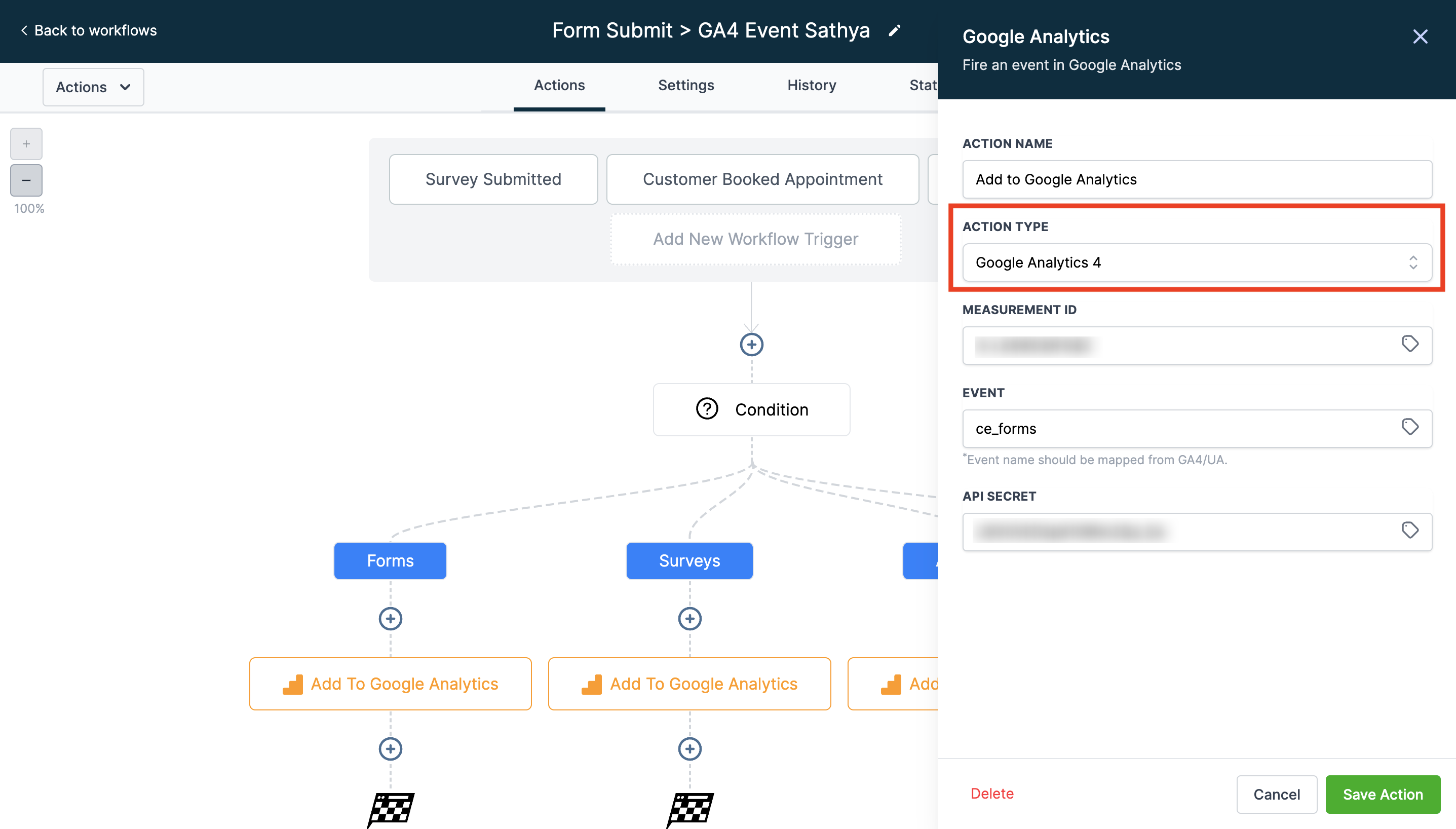
In your Google Analytics workflow, select the action Add to Google Analytics.
Under Action Type, choose Google Analytics 4 from the dropdown.
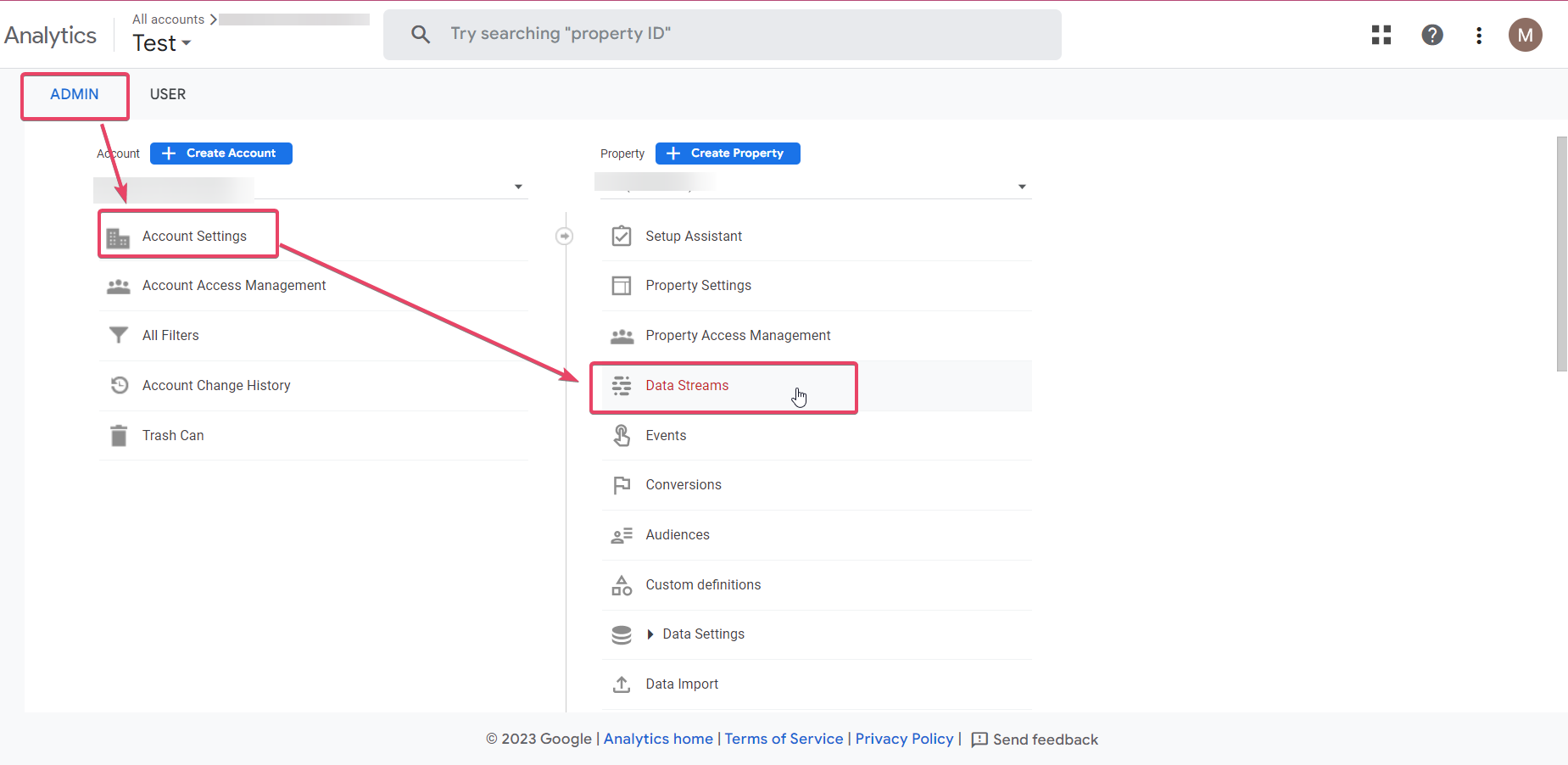
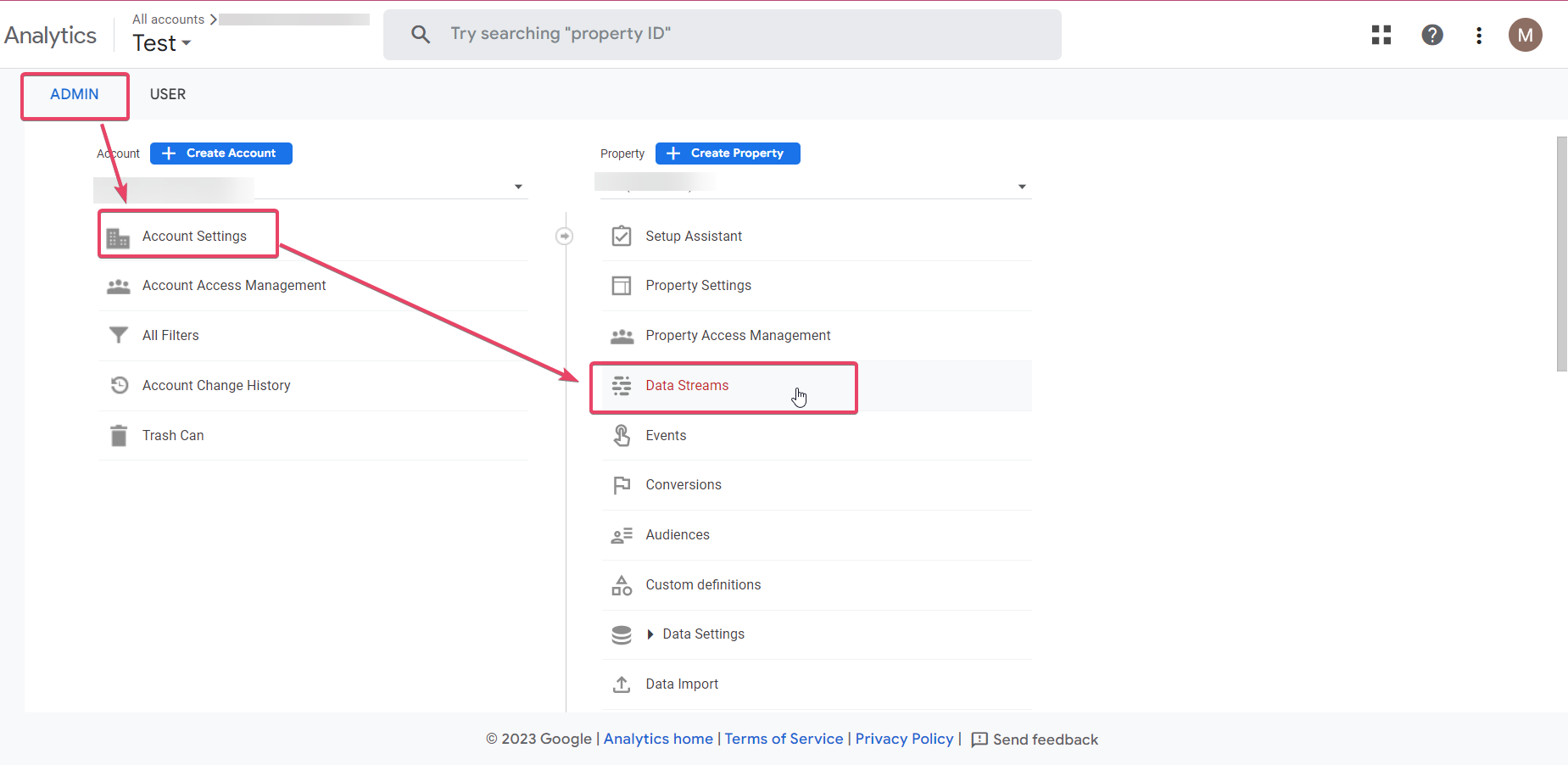
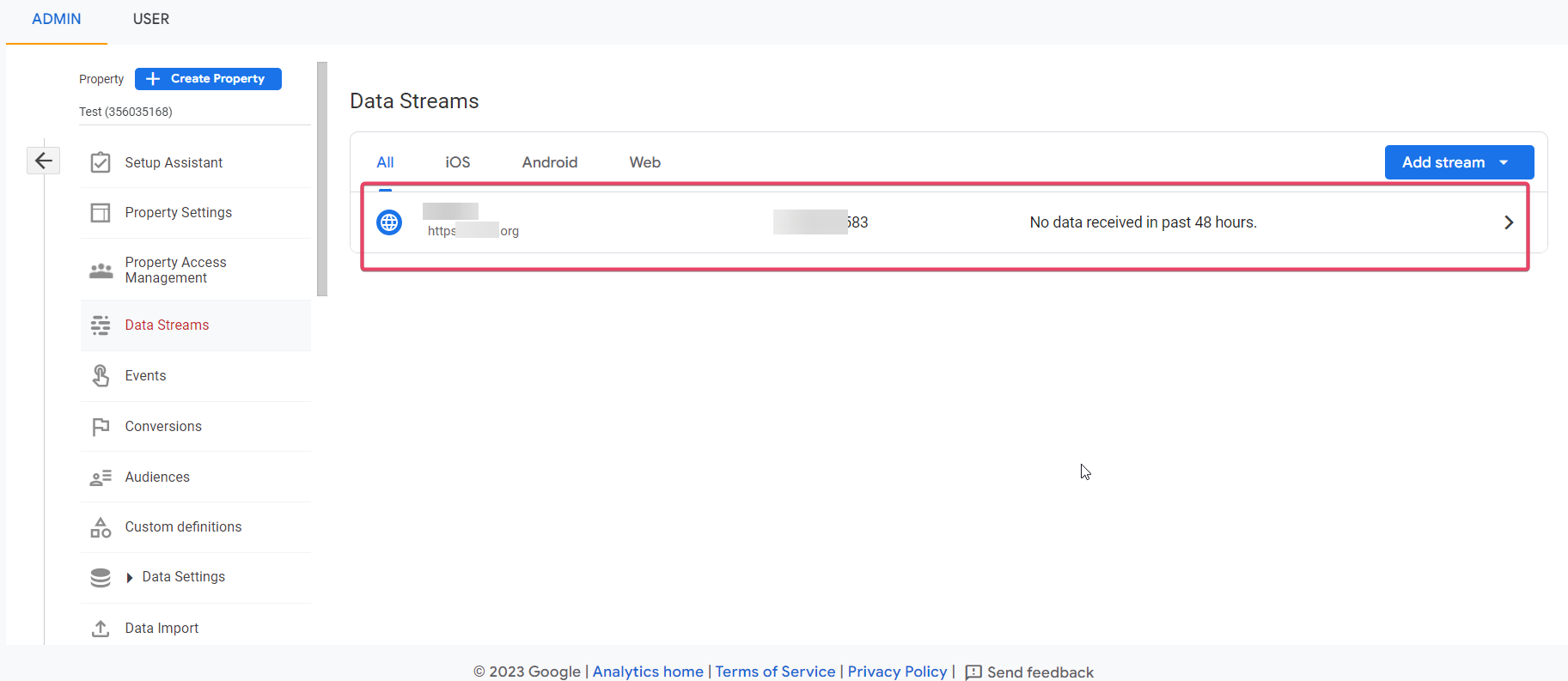
Go to your Google Analytics account and find the Measurement ID under Admin ➝ Account Settings ➝ Data Stream ➝ Select the Data Stream.
Note: If you don't have GA4 set up yet, see Google's guide on how to set up Google Analytics.
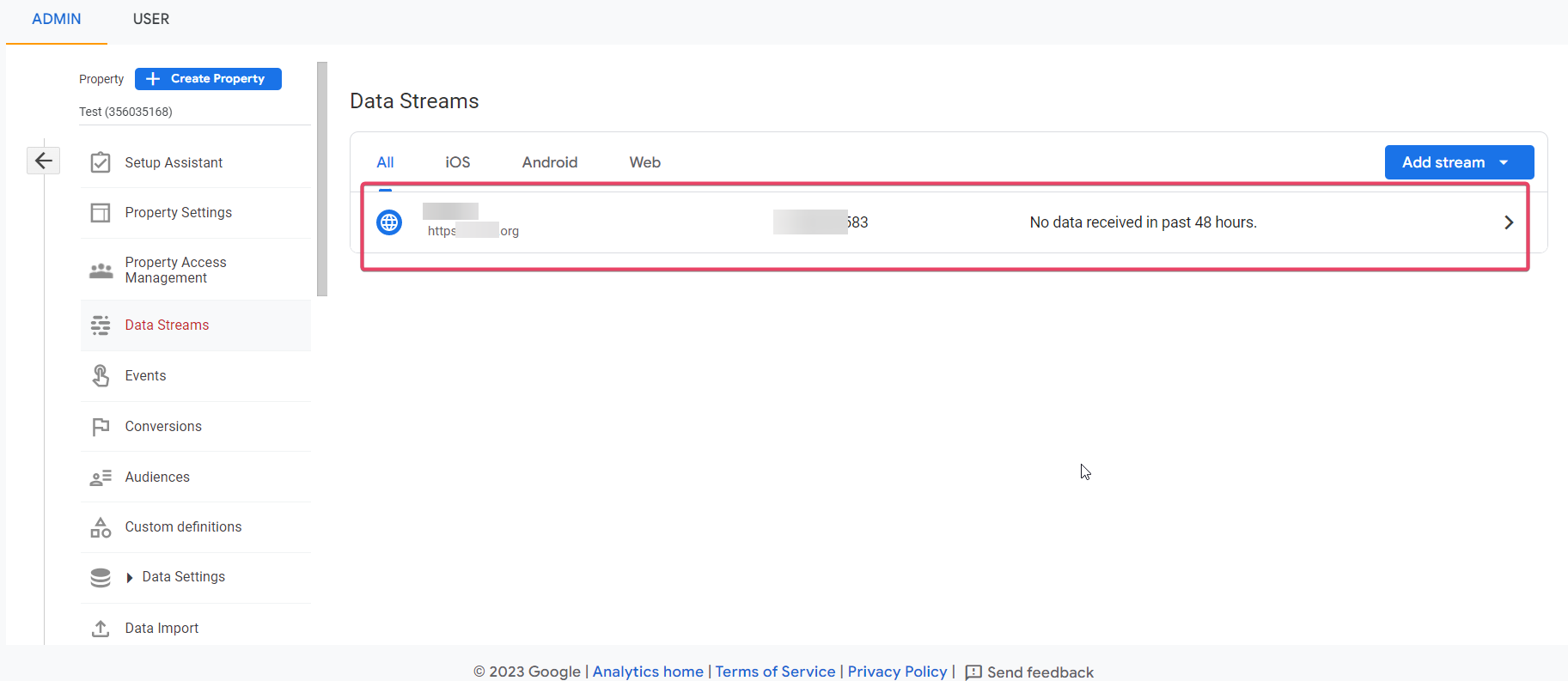
Copy the Measurement ID for the data stream you want to use:
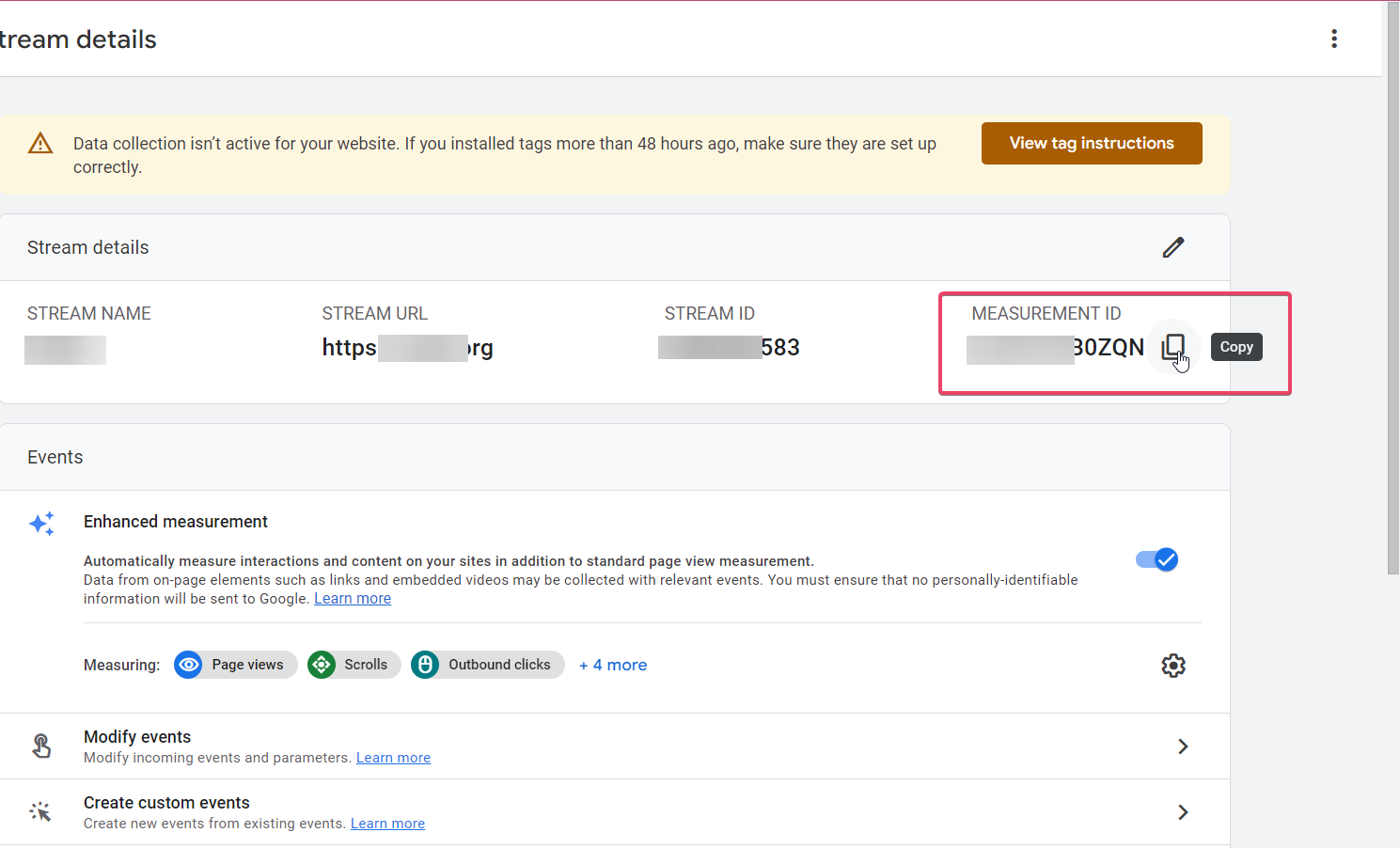
Paste the Measurement ID into the Measurement ID field of the Google Analytics action in your workflow.
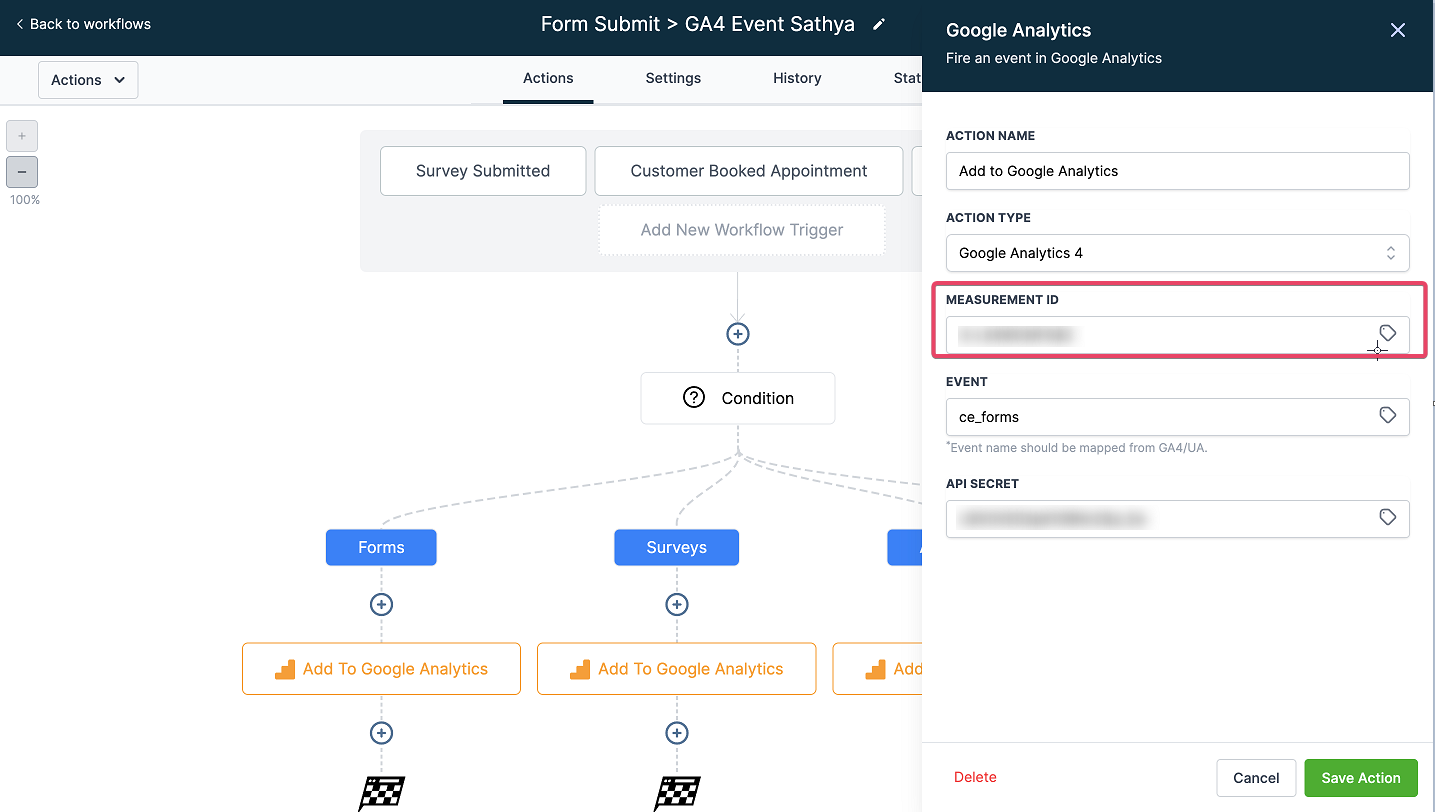
Add the event name you want to track. This event name will appear in your Google Analytics dashboard alongside your other standard events. See Google's event naming rules for guidance.
The Add to Google Analytics action also supports an optional Event Value field:
Use Event Value to send a numeric value with the event (for example, revenue, order total, or a score).
In the action UI, this may appear as event.value. You can populate it with a static number or a dynamic value from the workflow.
Event Value is optional. If you don't need to send a numeric value, you can leave it blank.
Add the API secret by navigating in your Google Analytics account to Admin ➝ Account Settings ➝ Data Stream ➝ Select the Data Stream ➝ Measurement Protocol API secrets.
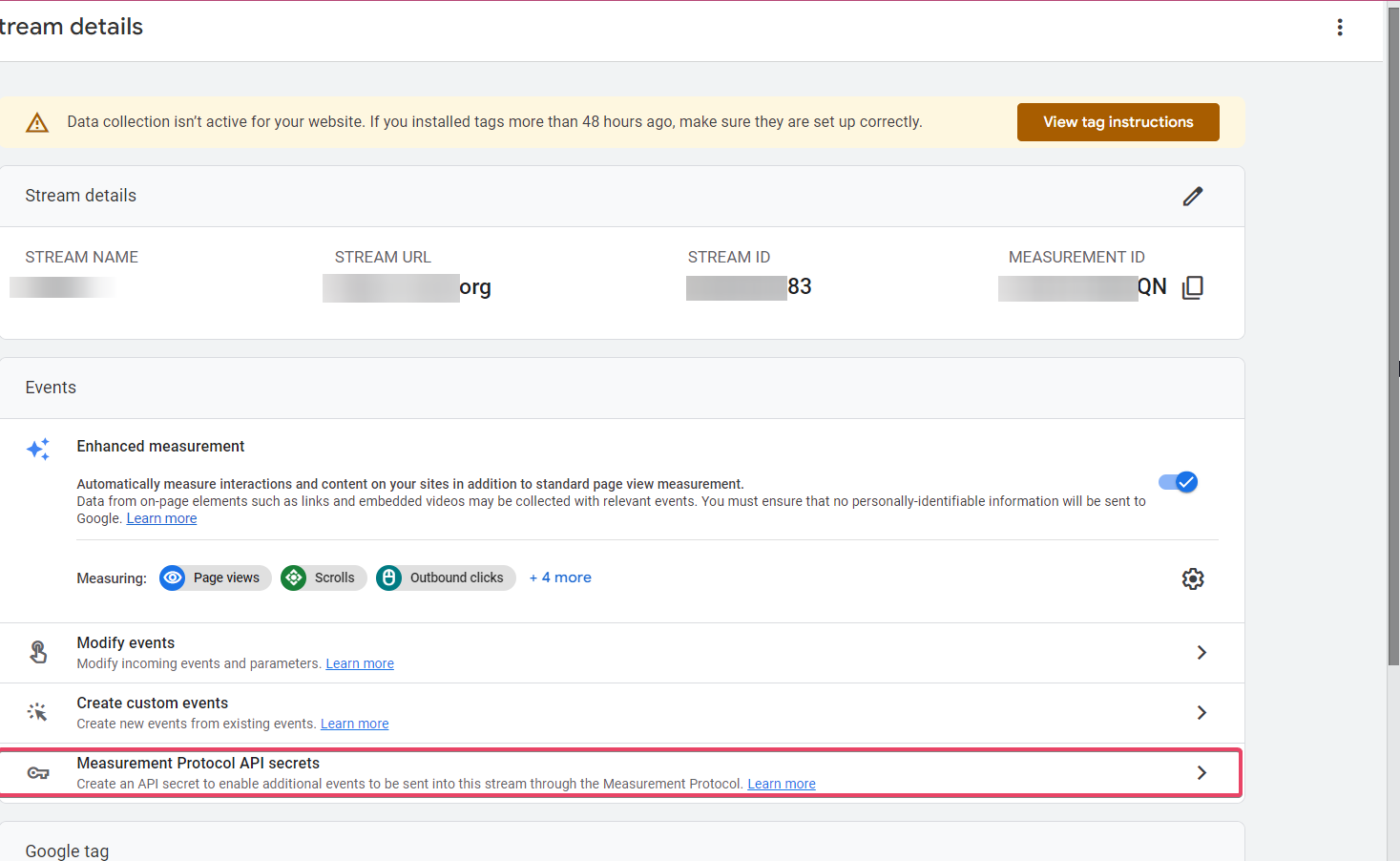
Note: Before you can create an API secret, you'll need to acknowledge that you've read and understood Google's privacy disclosures regarding the collection of user data.
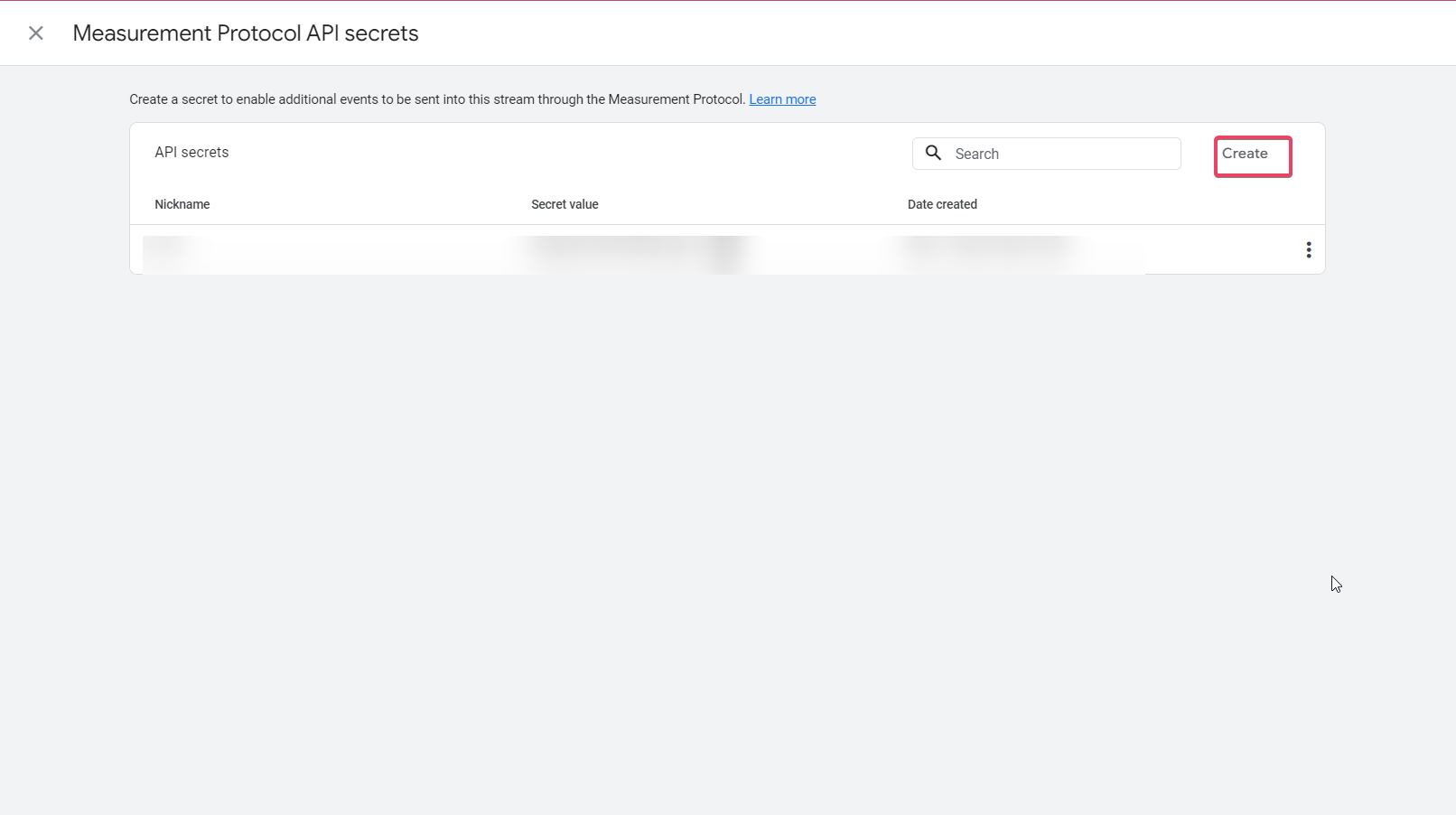
Then click Create if no API secret has been created yet.
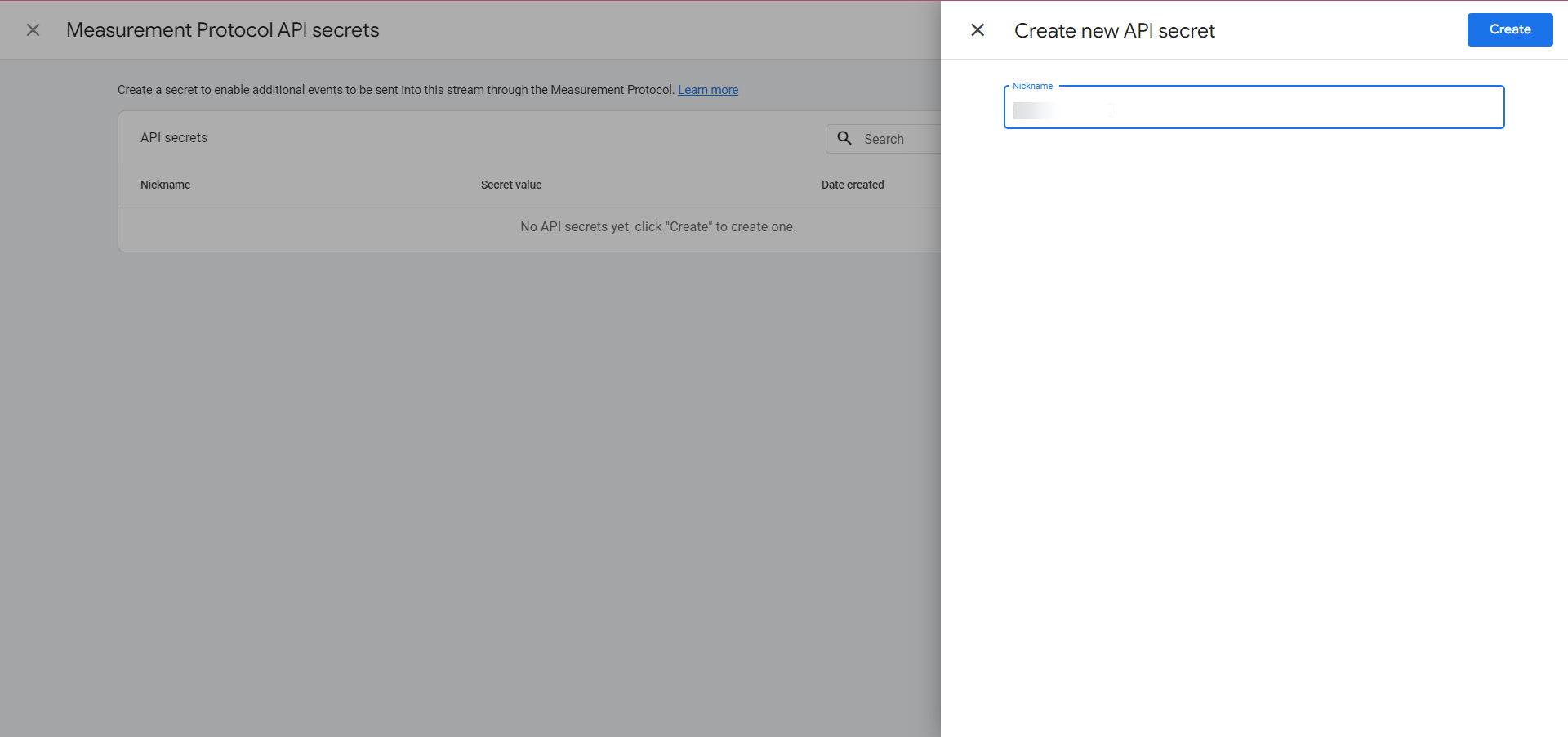
Name your API secret and click Create. A Secret Value is generated automatically.
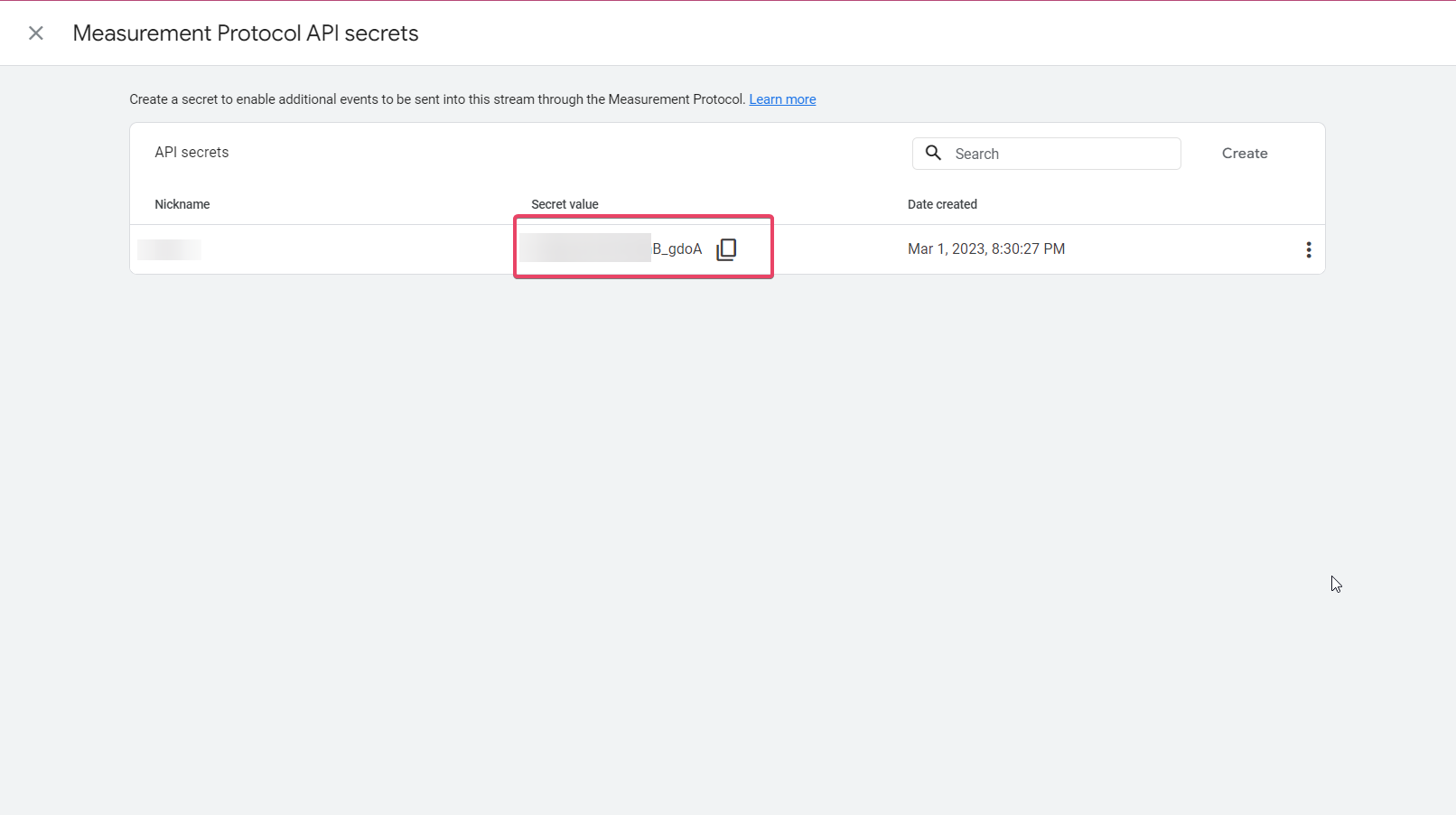
Copy the Secret Value and paste it into the API Secret field of the Google Analytics action in your workflow.
Note: Make sure there are no spaces before or after the value when you paste your API secret into the workflow field, or the Google Analytics action will fail.

Save the action, then save the workflow. Publish it when you're ready to use it.
This section walks you through setting up GA4 to record pageviews for your funnels and websites. We'll assume you have some basic familiarity with Google Analytics; if not, we recommend Google's beginner's guide to Google Analytics.
Sign in to your Google Analytics account.
Open your Admin settings.
Click Create Property and add a name for the property.
In the left menu, go to Data Stream.
Select the Web option and enter the URL of the funnel or website you'd like to track. Once you've added the stream URL and named your stream, click Create Stream.
Add the script (gtag.js) provided by Google to your funnel or website's <head> tracking code, or follow the Google Tag Manager instructions below.
<head>Copy the Google Site Tag (gtag.js) snippet from your data stream and paste it into the <head> tracking code of your funnel or website. Once it's in place, GA4 will begin recording pageviews for that page.
