Order forms turn a funnel step into a checkout, so you can sell treatment packages, collect deposits, enroll members, and offer add-ons right on the page. Aesthetix CRM gives you two layouts: a one-step order form that puts everything on a single screen, and a two-step order form that splits contact details and payment across two lightweight screens. This guide covers both, plus shopping-cart mode for selling multiple items and quantities.
Before you build, attach your products to the funnel step (below). For payment provider setup, see the Payments collection. To create and manage your catalog of products and prices, see the E-commerce collection.
One-step order form places all checkout fields, contact, optional shipping, product selection, and payment, on a single screen. It's ideal for low-friction offers, returning clients, and mobile-first flows where fewer taps matter. It removes navigation but increases on-page density, so keep only essential fields and use clear labels.
Two-step order form splits checkout into two short screens. Step 1 captures contact and shipping details; Step 2 collects payment and finalizes the order. Separating these steps can reduce form fatigue and improve conversions.
Both layouts support one-time and recurring (subscription) prices, flexible show/hide and required/optional fields, cart mode with quantity limits, order bumps, and coupon codes.
Speed to purchase: The one-step layout consolidates checkout into one page, reducing clicks.
Conversion optimization: The two-step layout breaks checkout into two short steps to reduce form fatigue.
All details visible: Buyers can confirm products, totals, and payment at a glance.
Flexible fields: Customize which fields are shown or hidden and required or optional to match your needs.
Cart mode: Cart mode and quantity limits let buyers select exactly what they need while keeping totals clear.
Revenue boosters: Order bump support makes it easy to offer complementary items at checkout.
Clear configuration: Step-specific labels, headers, and buttons keep messaging on-brand and easy to follow.
Products must be attached to the funnel step before an order form can display and charge for them. Follow these steps to make your products and prices available in the form.
Note: Create your products before starting this process. See the E-commerce collection to learn more about creating products.
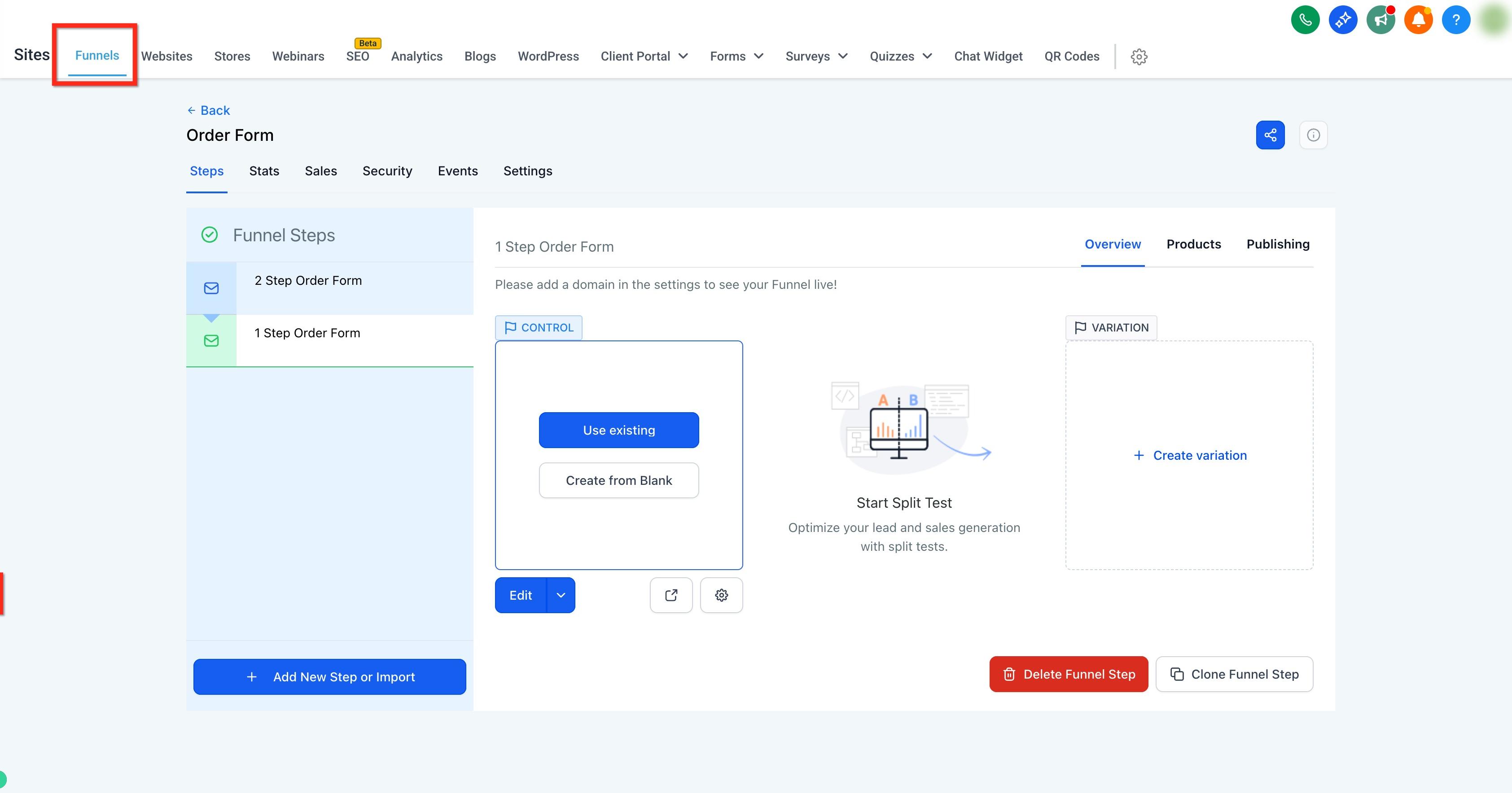
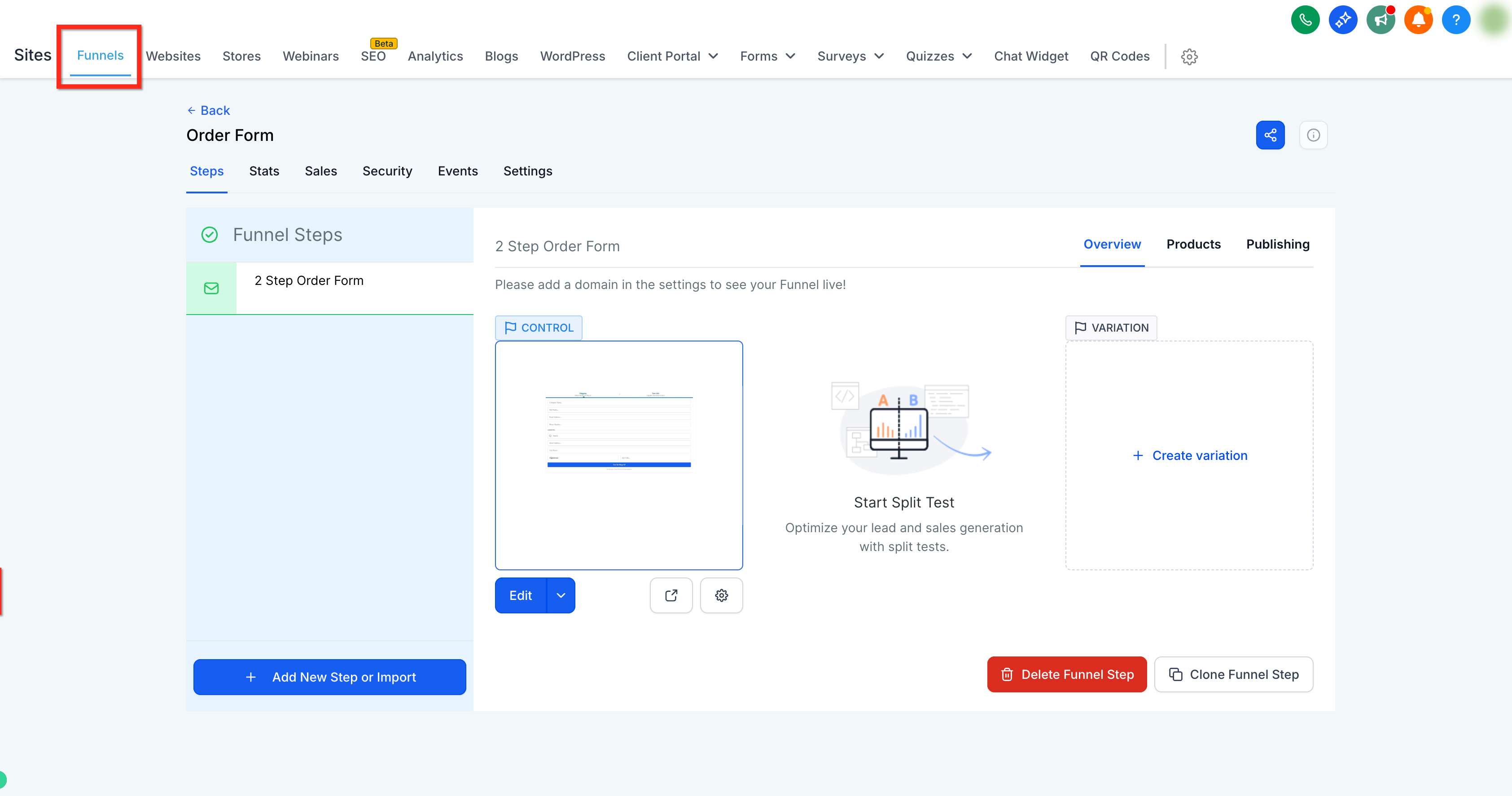
Go to Web Tools in the left navigation, open your funnel, and select the funnel step you want to use.
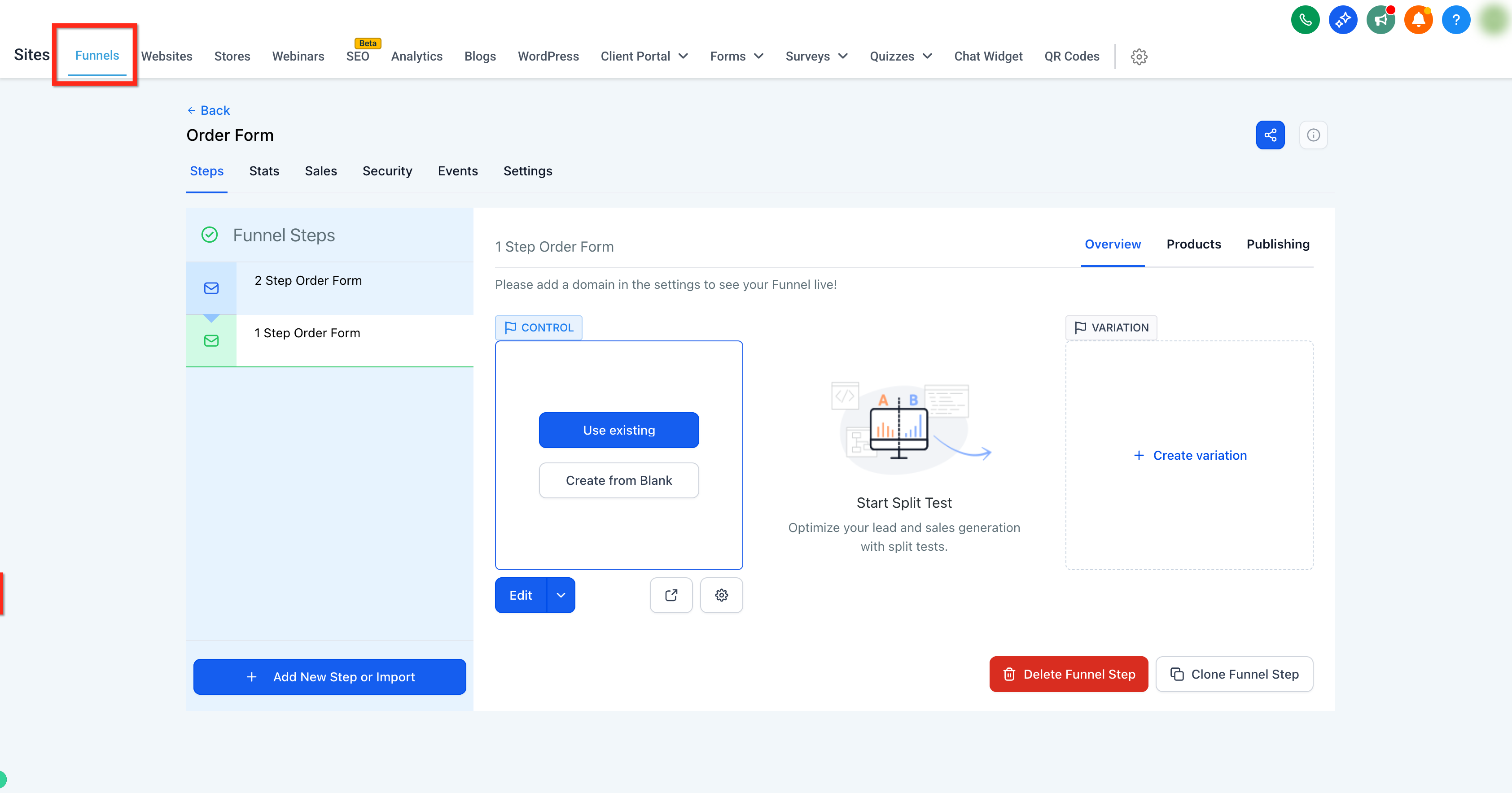
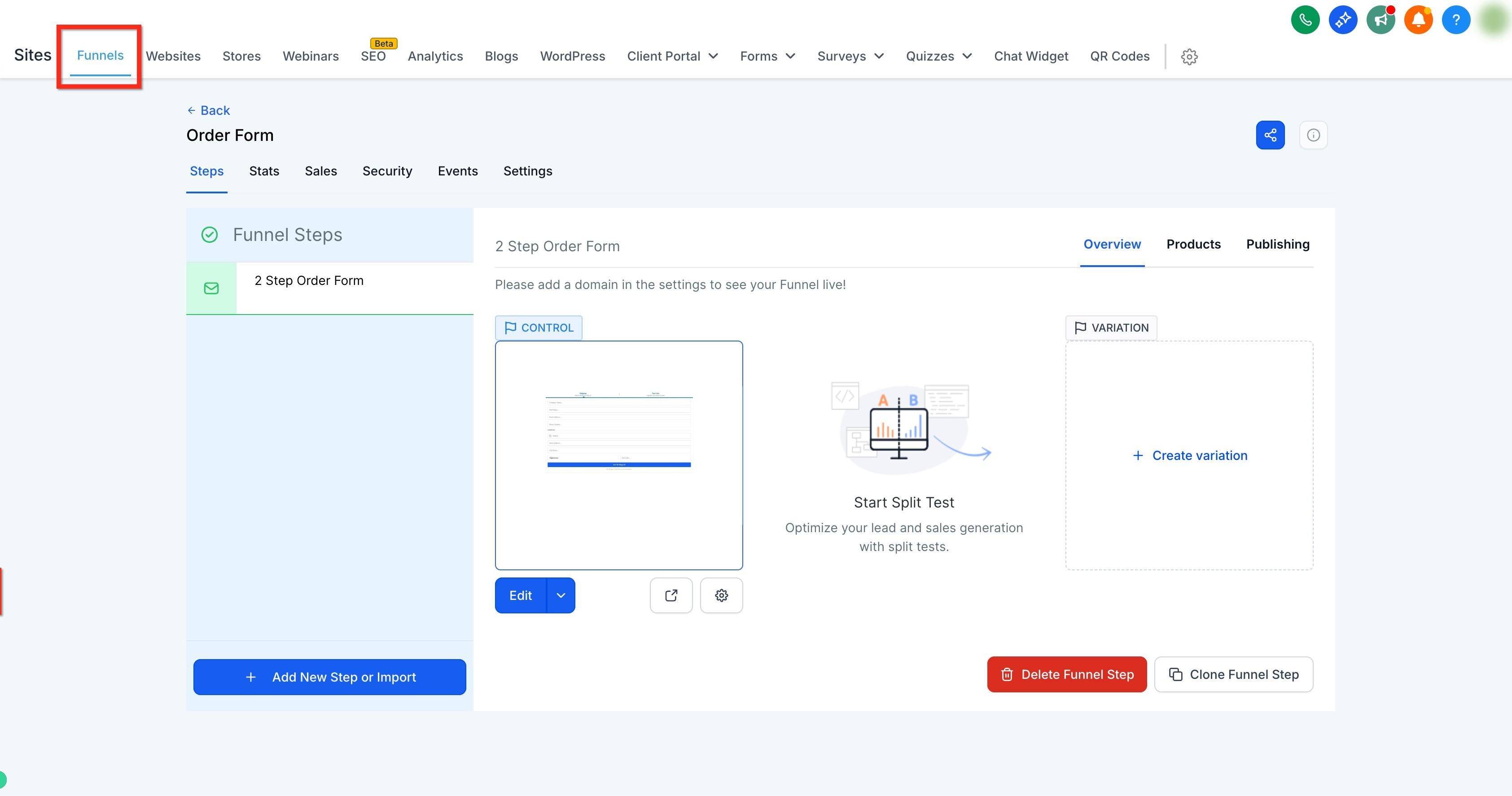
Open the Products tab on the right. Click + Add Product.
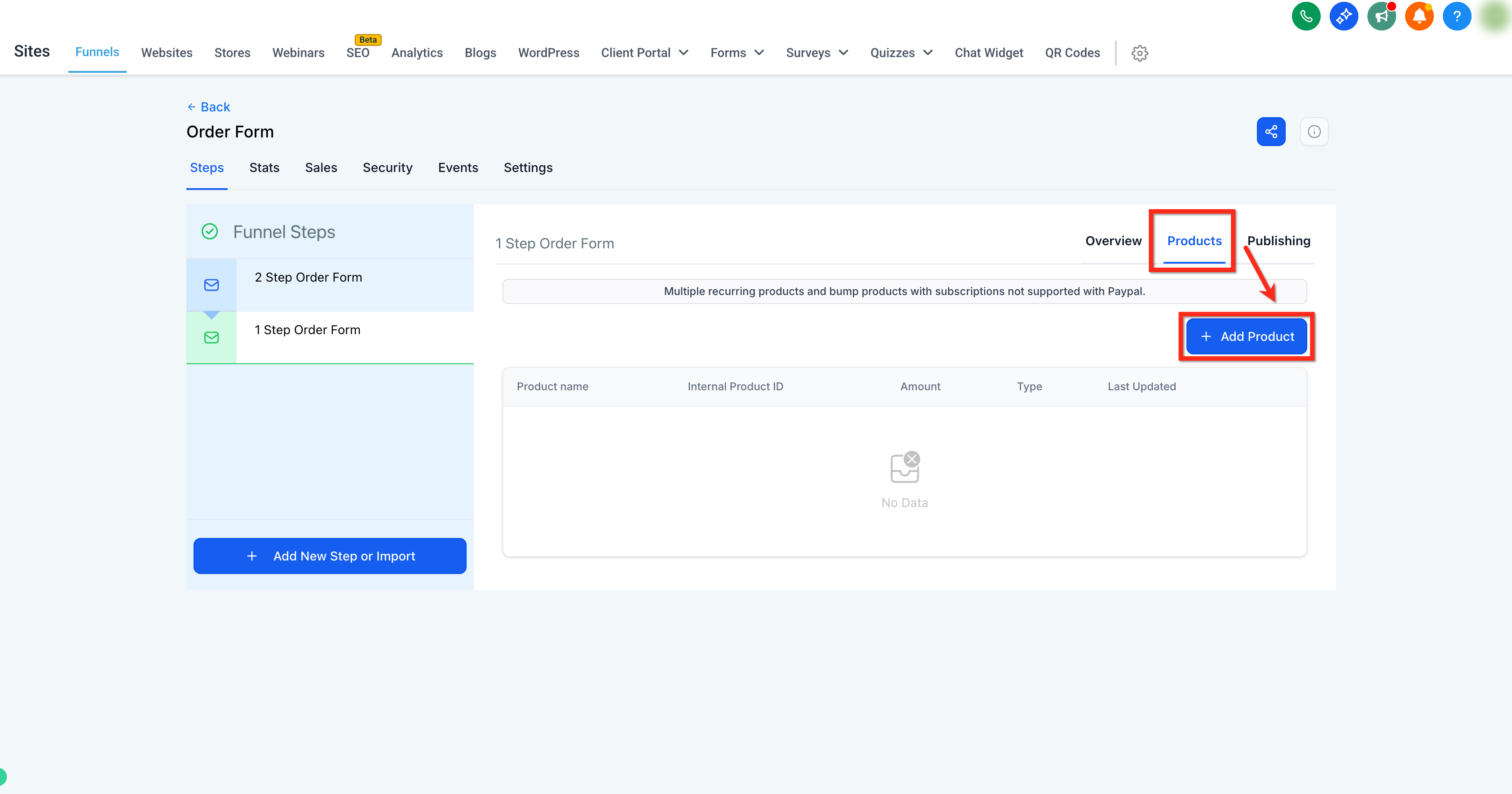
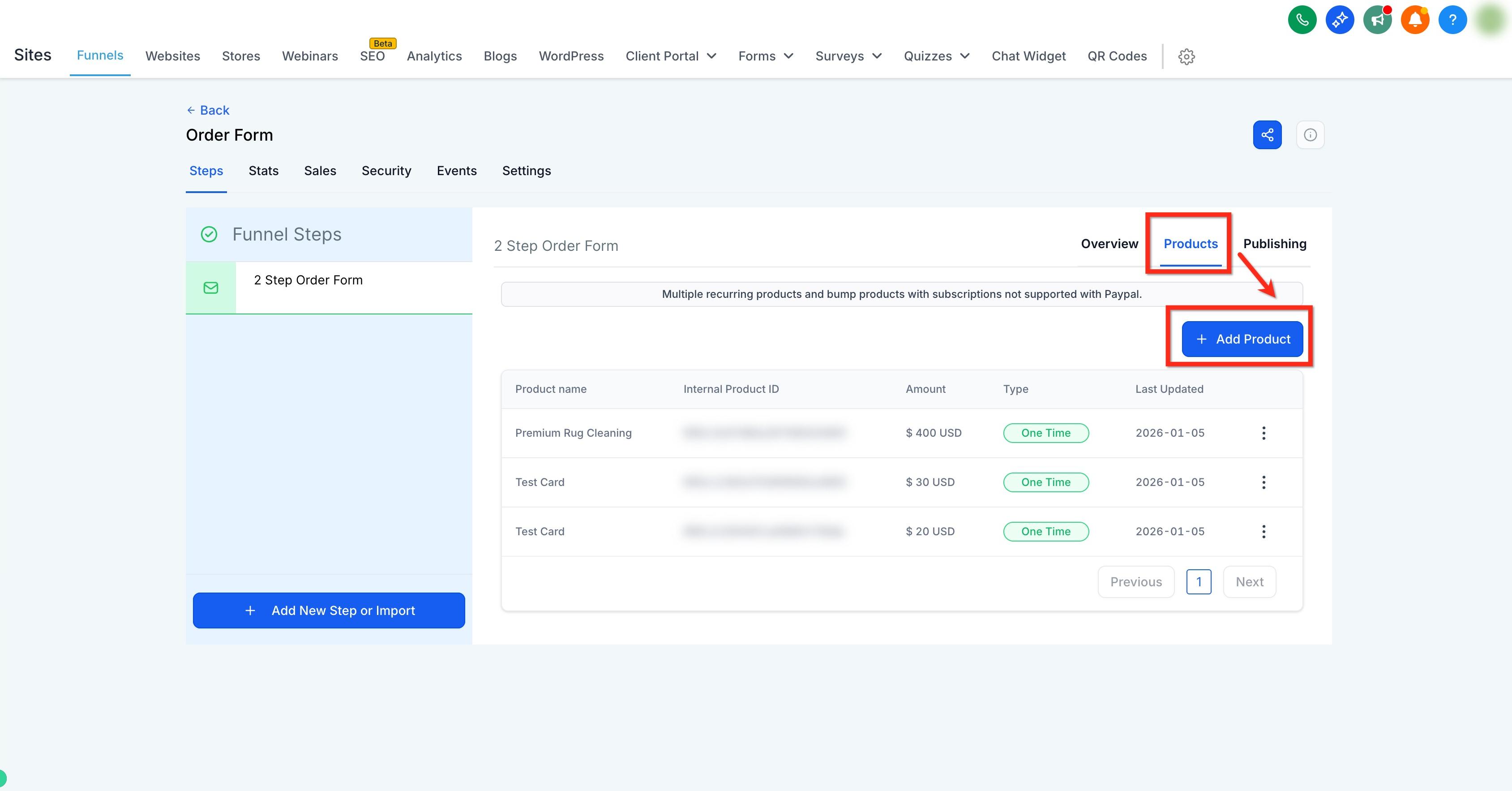
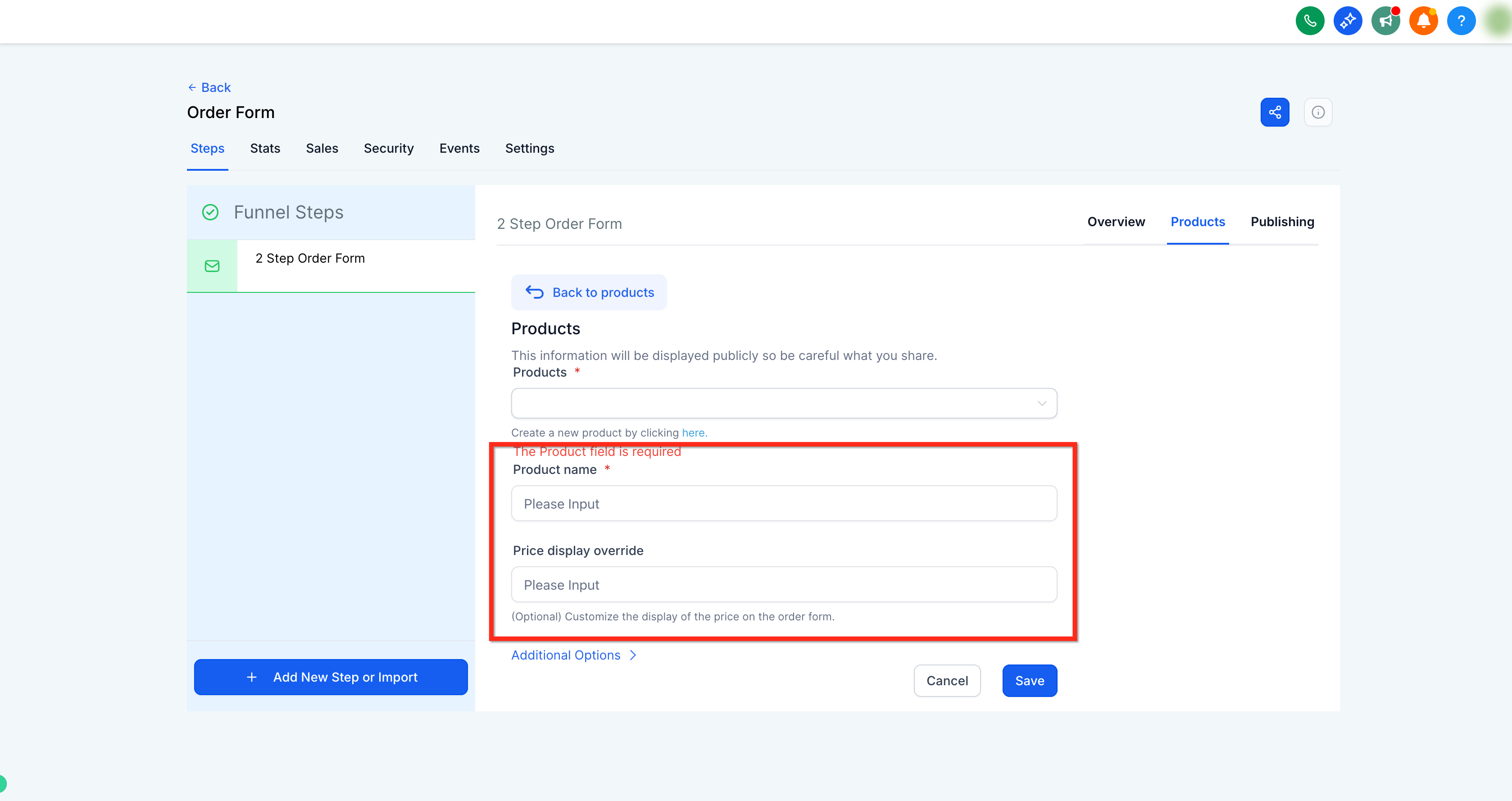
Use the Product dropdown to select the item you want to sell, or click the inline text link to create a new product.
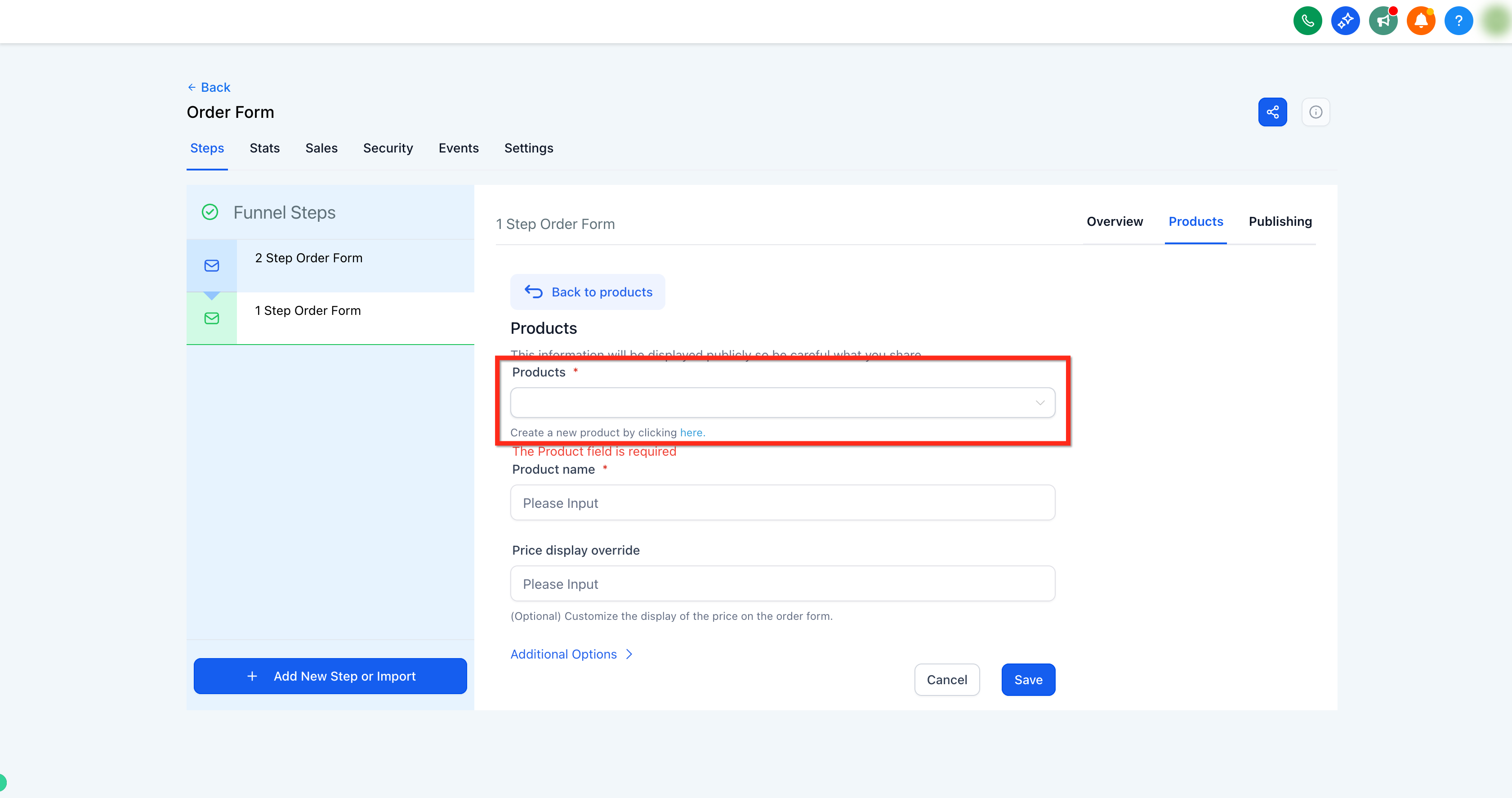
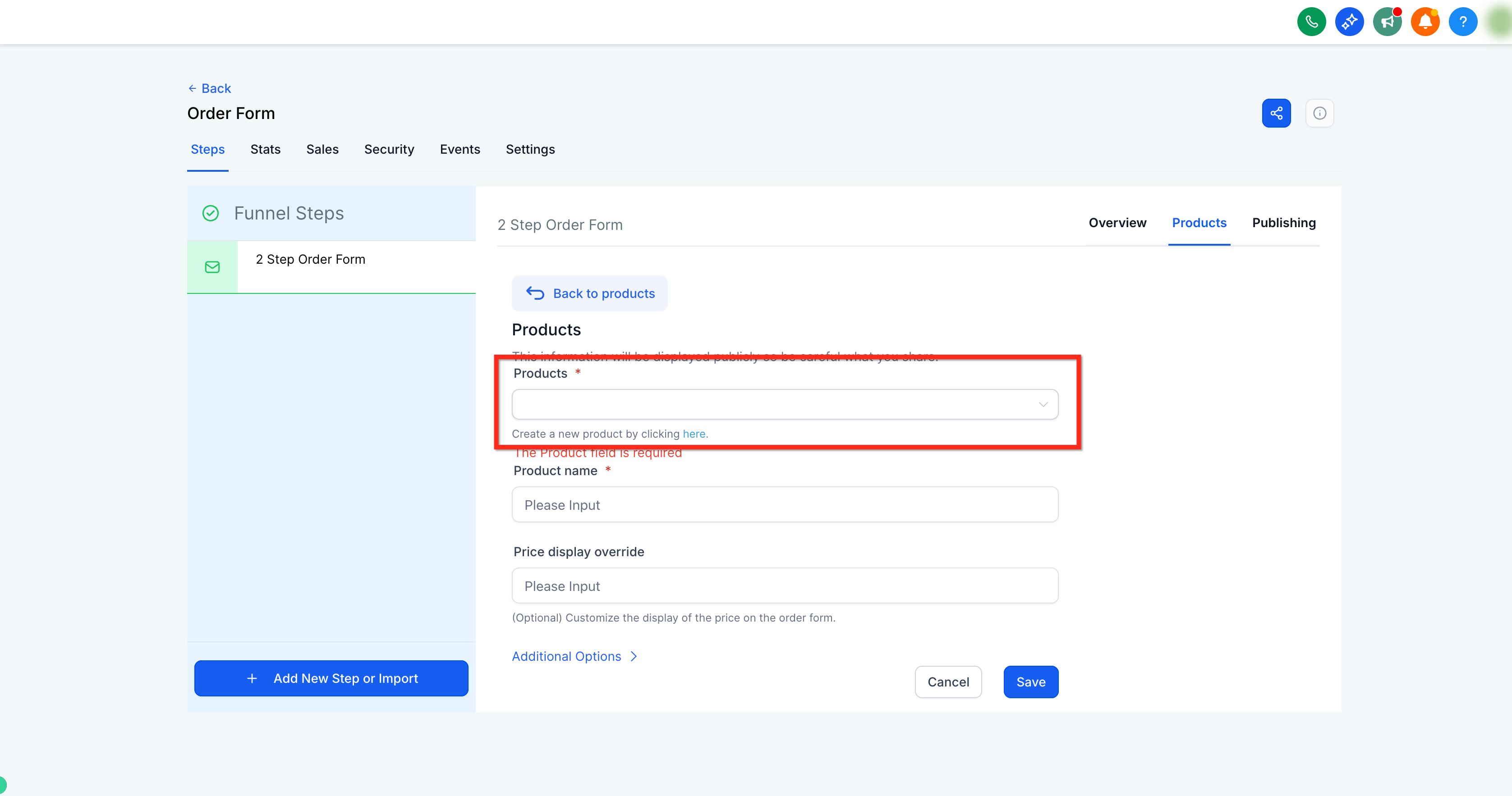
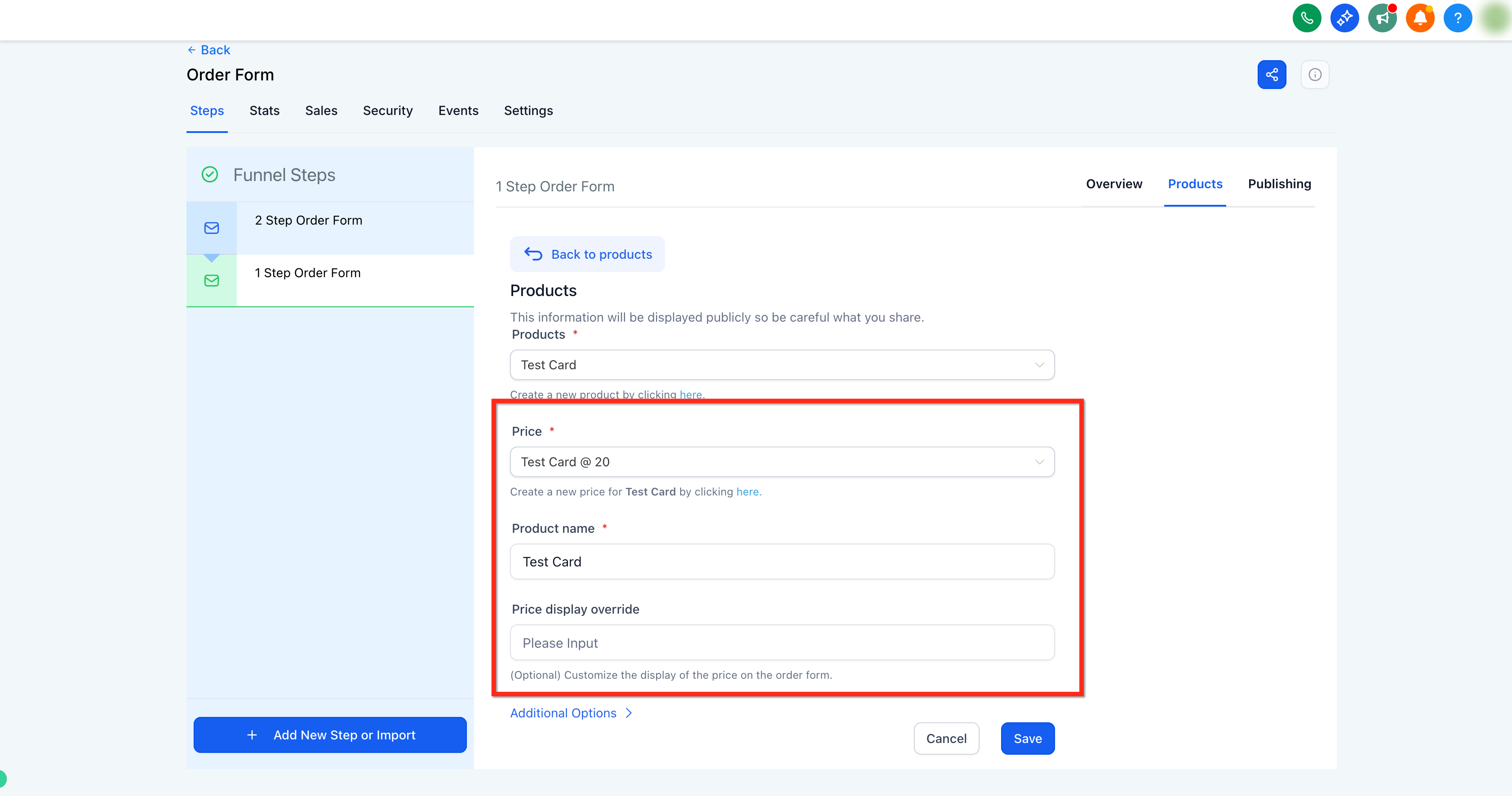
Under Price, choose an existing price or click the inline text link to create a new price. You can optionally use Product Name Override to control how the name appears on the order form, or Price Display Override to customize how the price is shown.
Click Additional options to configure how the product can be purchased:
Enable Allow multiple quantity to let customers purchase more than one unit of the product.
Use Max per order to set the maximum quantity a customer can purchase in one order. You can set the limit from 1–999 units.
Choose whether the item is a Main product or Bump product.
Click Additional options to allow multiple quantity, set Max per order, and mark the item as a Main product or a Bump product.
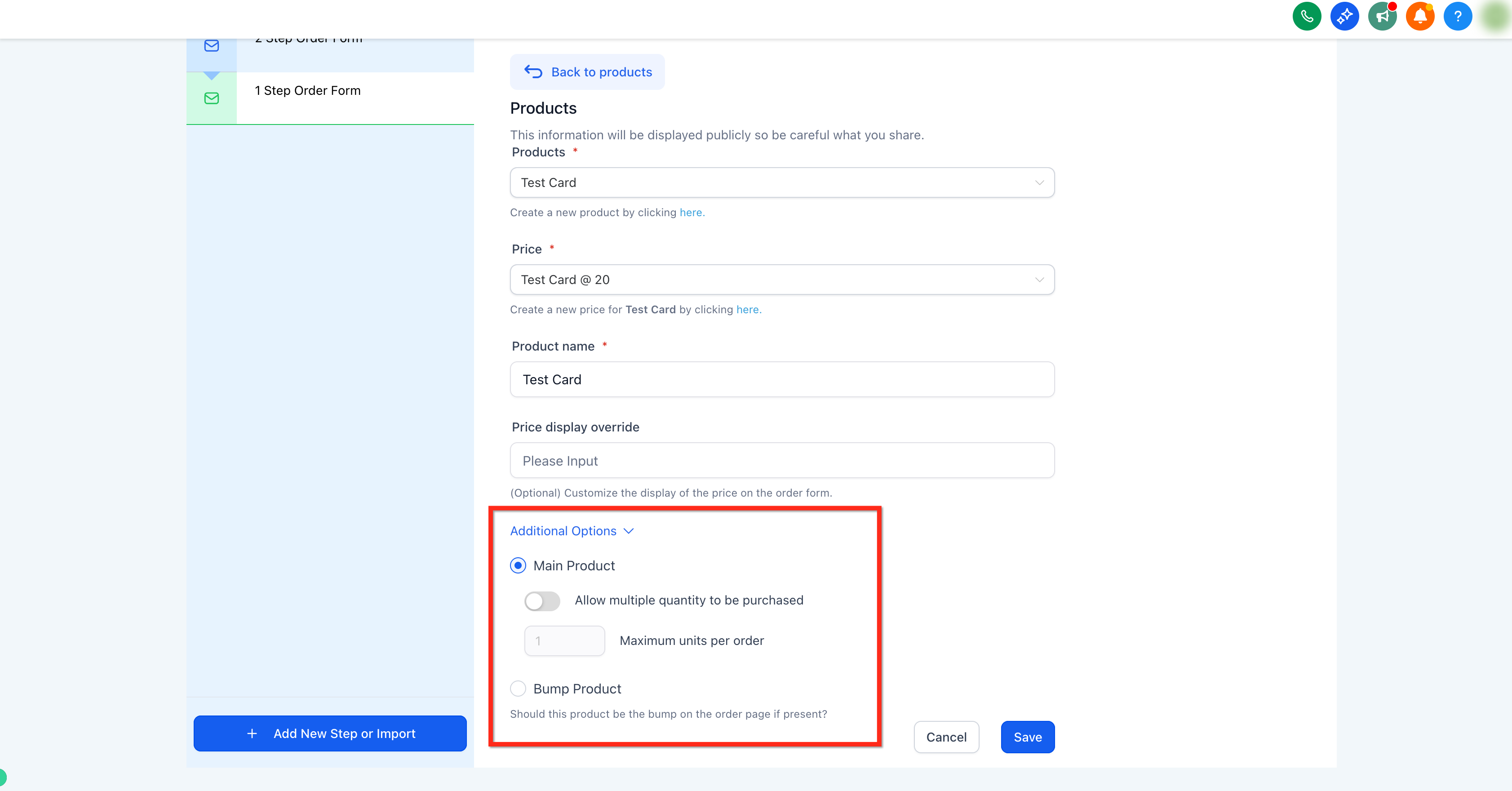
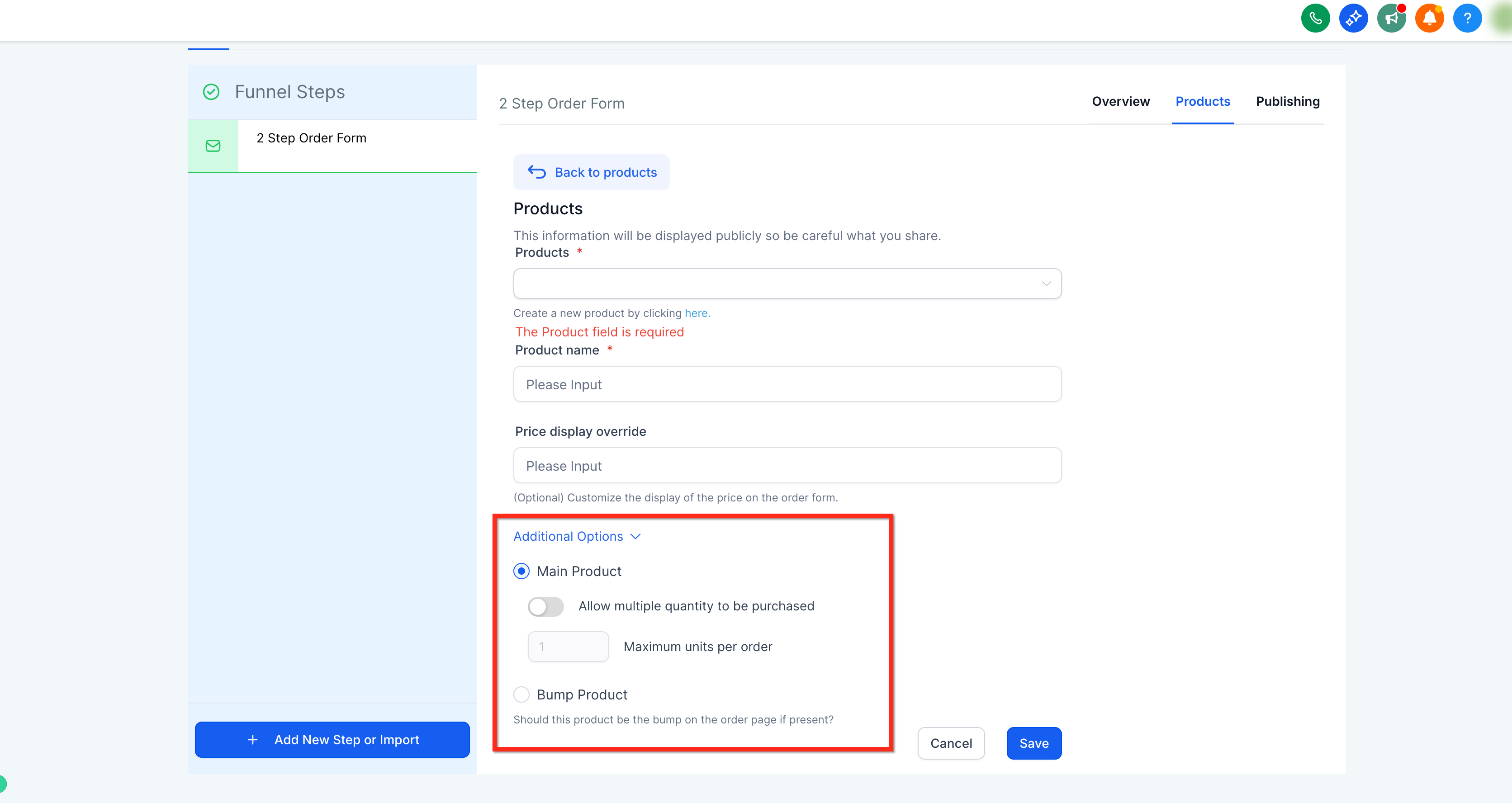
Repeat to add as many products as you need.
After products are attached to the step, follow these steps to add and configure the one-step order form element.
Go to Marketing → Landing Page Builder, open your funnel, and select the specific step where you'll place the checkout.
Click Add Elements (+) in the top-left and, under Order elements, select the One Step Order element. Drag this element into your design.
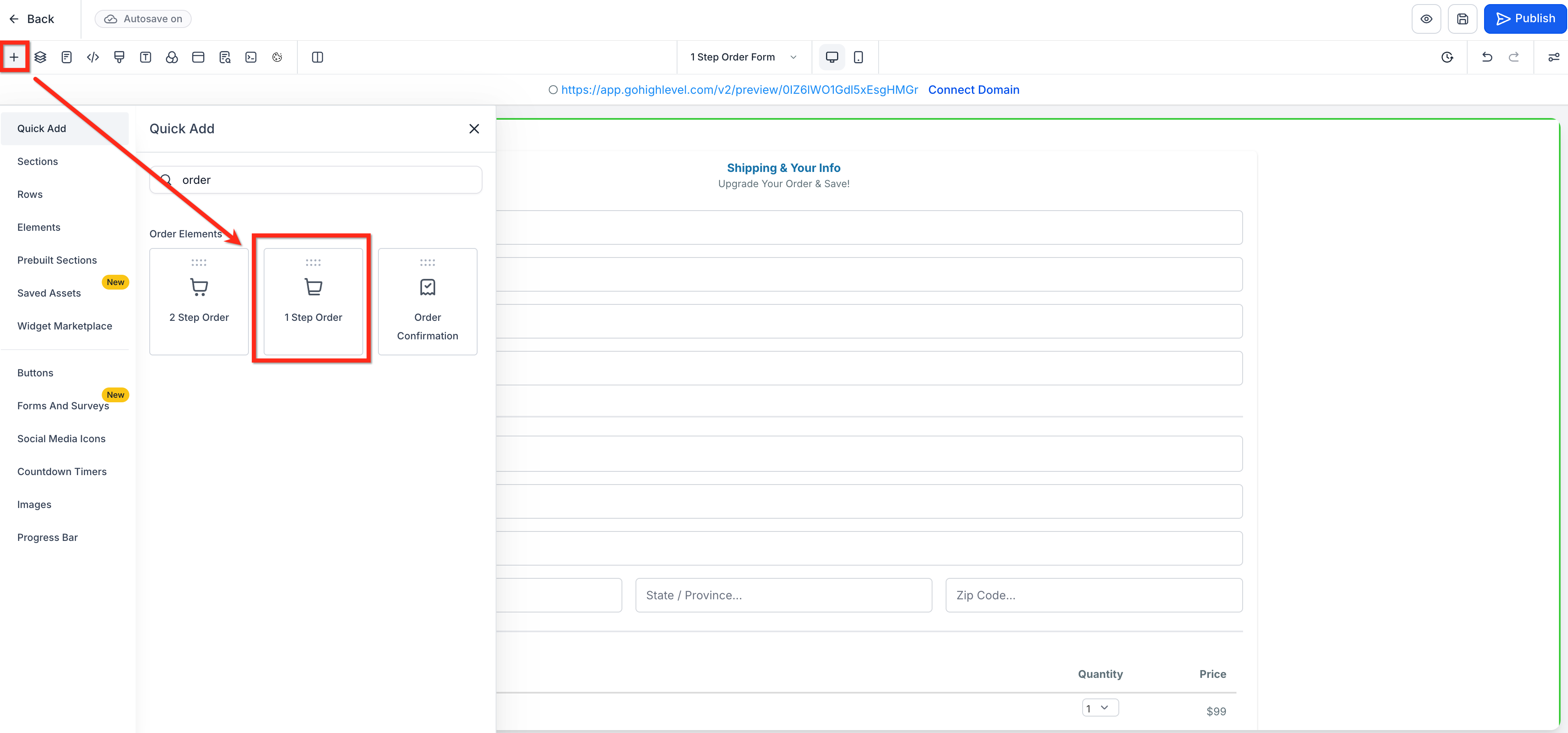
In the element settings, open Form options. Here you can configure all fields included in the form, such as company name, shipping, and price.
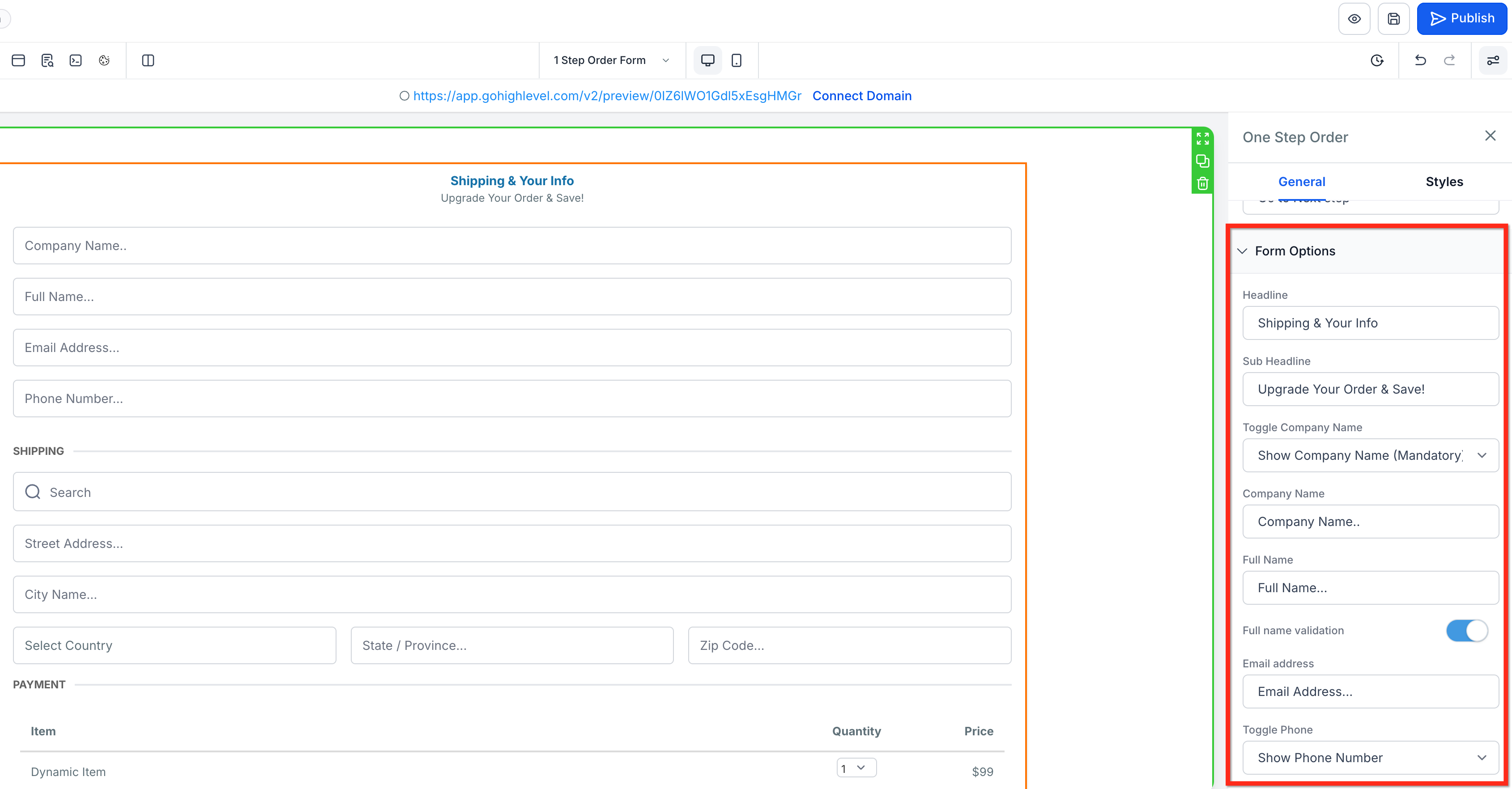
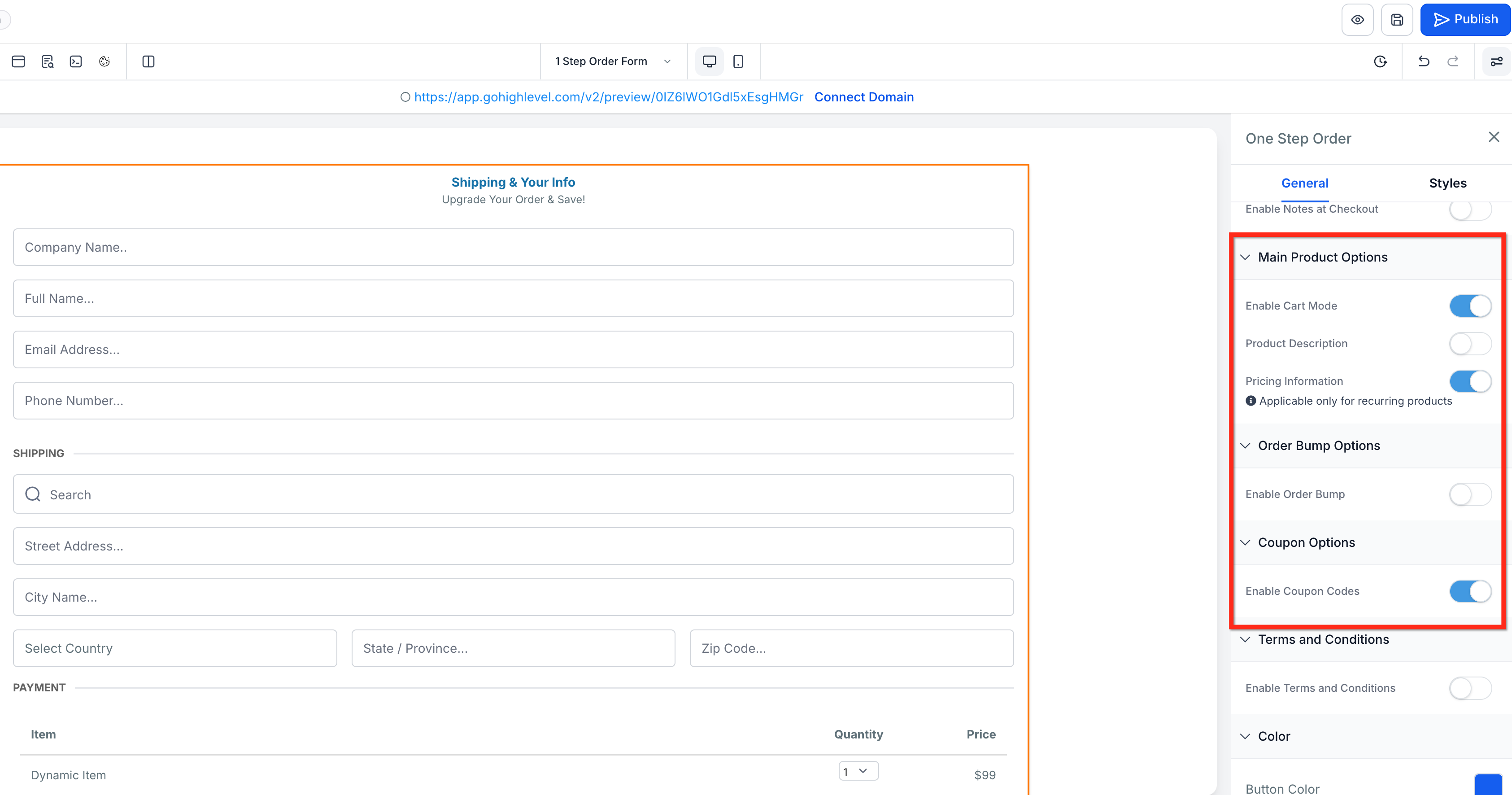
Use the additional settings to control how products are presented, whether you offer add-ons, and if buyers can apply discounts:
Toggle Enable cart mode (when available for your funnel version). See "Shopping Cart Mode" below.
Choose whether to show Product description and Price.
Enable and configure an Order Bump to offer a complementary item at checkout.
Enable Coupon Codes.
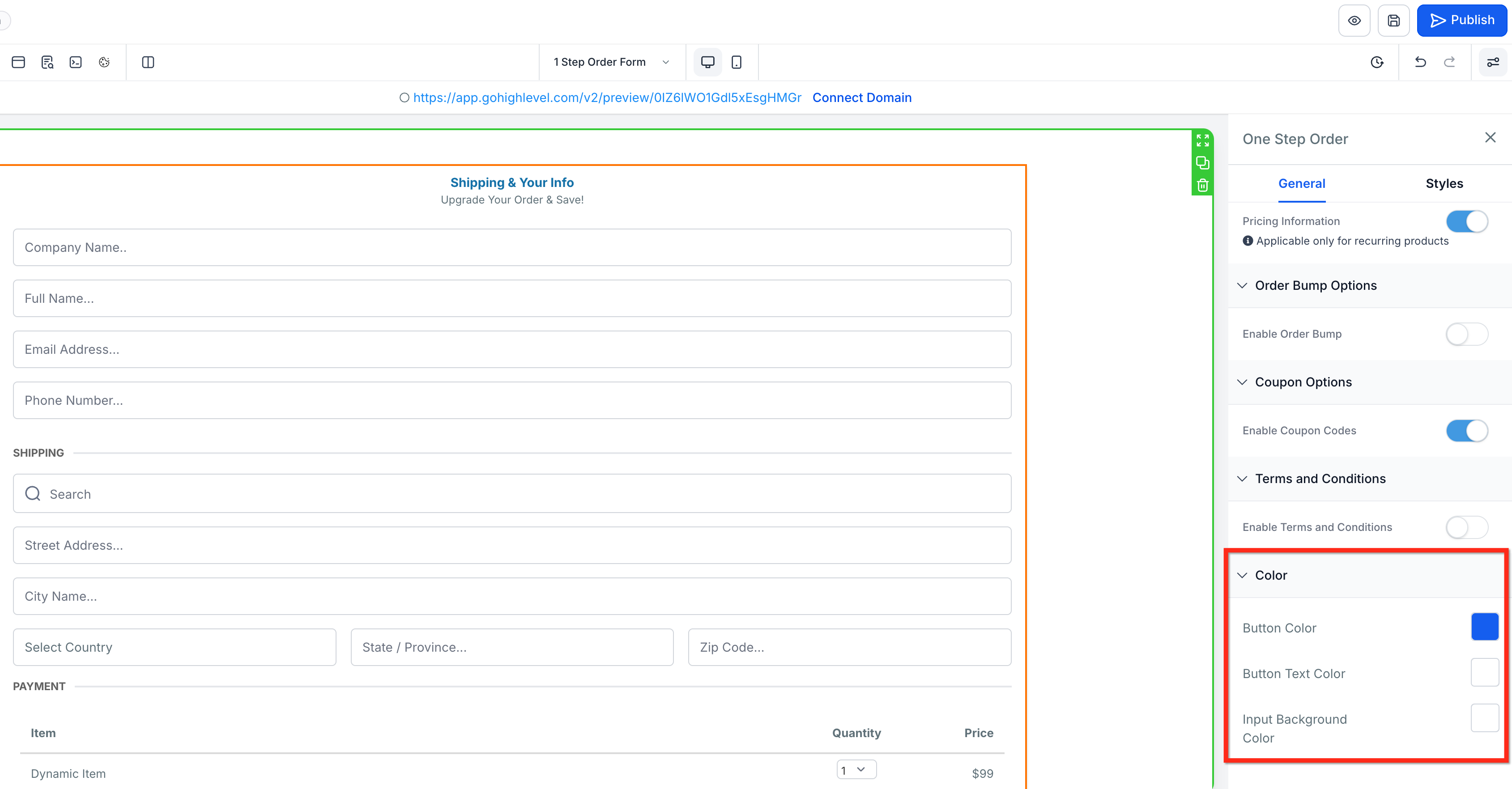
In the element settings, adjust the Button, Text, and Background Colors to match your brand.
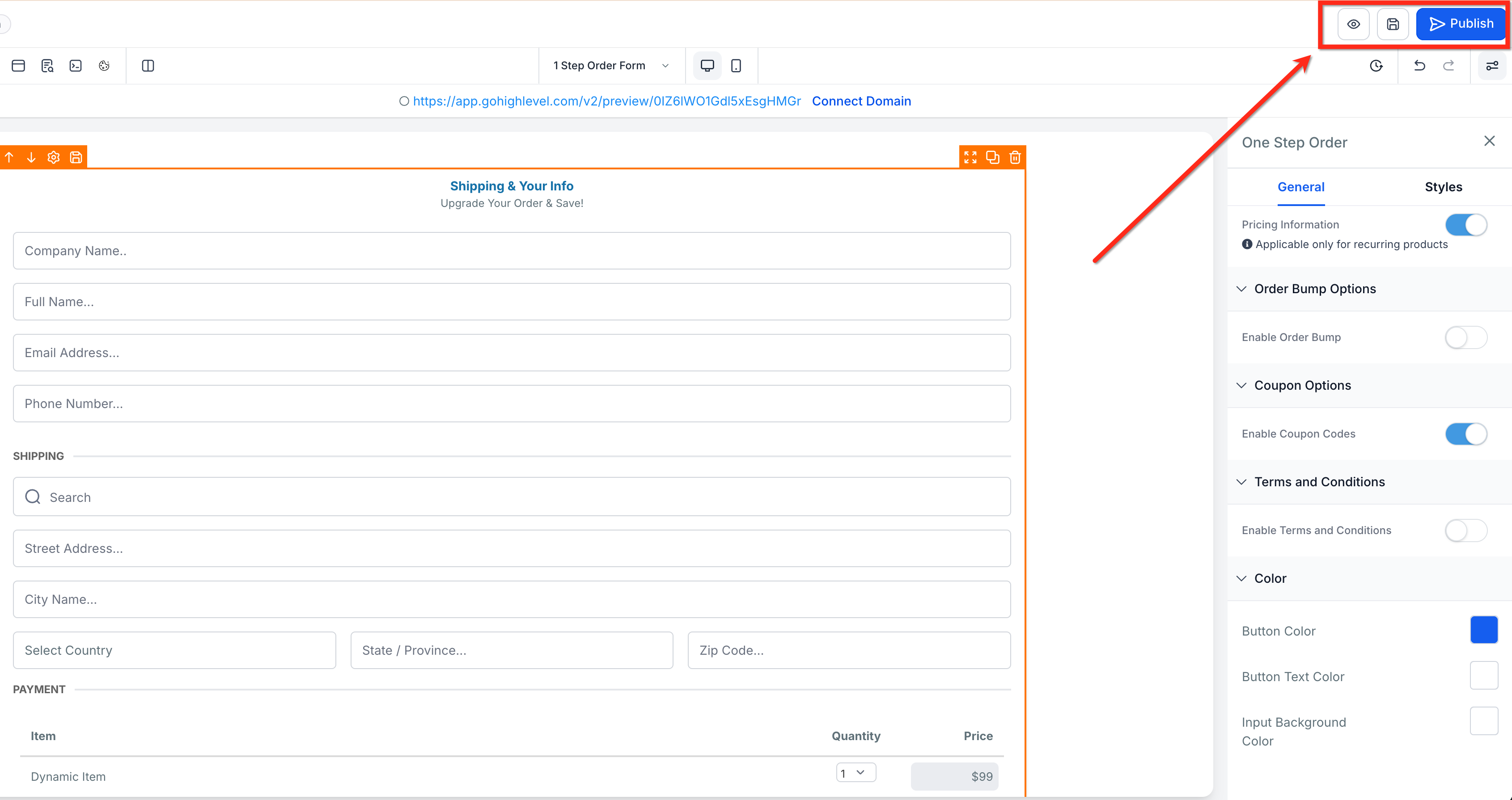
Before publishing your funnel, click Preview in the upper-right corner to test your order form. Once verified, click the blue Publish button.
After products are attached to the step, follow these steps to add and configure the two-step order form element.
Go to Marketing → Landing Page Builder, open your funnel, and select the specific step where you'll place the checkout.
Click Add Elements (+) in the top-left and, under Order elements, select the Two-Step Order element. Drag this element into your design.
Step 1 captures contact information and shipping details. In the element settings, open Form options and select Step 1. Here you can configure:
Headline and sub-headline
Company name: hidden, optional, or required
Placeholders and display names for visible fields
Phone: required, optional, or hidden
Shipping: toggle on or off
Button text for progressing to Step 2
Step 2 takes payment information and finalizes the purchase. In the element settings, open Form options and select Step 2. Here you can edit the labels, headers, and button text for payment and confirmation.
Use the additional settings to control how products are presented, whether you offer add-ons, and if buyers can apply discounts:
Toggle Enable cart mode (when available for your funnel version). See "Shopping Cart Mode" below.
Choose whether to show Product description and Pricing information.
Enable and configure an Order Bump to offer a complementary item at checkout.
Enable Coupon Codes.
In the element settings, adjust the Button, Text, and Background Colors to match your brand.
Before publishing your funnel, click Preview in the upper-right corner to test your order form. Once verified, click the blue Publish button.
Shopping cart mode lets clients select multiple items, and multiple quantities of each item, before entering their payment details to complete the purchase. This is useful when you sell bundles, retail products, or a menu of services from a single page.
Note: Cart mode is available on the latest funnel version. If your step is on an older version, consider migrating it to access cart mode and the latest settings.
What cart mode changes on the order form:
Multiple quantities of any item can be purchased in a single order.
Multiple items can be purchased from one order form, along with multiple quantities, in a single order.
Product descriptions can be enabled or disabled from the funnel builder.
The order form can be switched between multiple-item and single-item purchases from the funnel builder (multi-product select).
Maximum quantity per order can be set between 1 and 999 on the funnel product page.
Head into the funnel builder, add an Order Form element, and click to highlight it (orange box). In the settings menu on the left, click the Advanced tab, scroll down to Main Product Options, and enable Cart Mode.
Note: To see products in your live funnel, you must first add them to the funnel step (see Products Setup above).
When you sell a subscription (recurring) product, the payment can be split into a setup fee, trial period, and recurring payments. The product description explains that price breakdown, along with any trial days. This text is auto-populated when the Product Description option is turned on.
To disable it, highlight the Order Form element, open the Advanced tab, scroll to Main Product Options, and turn Product Description off. One-time products do not have a product description.
You can create a new product and enable multiple quantities, or edit an existing one:
Click the specific funnel step where the order form is present, then open the Products tab.
Click Edit on any product you want to enable for multiple quantities.
Expand Additional options and toggle Allow multiple quantities to be purchased on.
Set Maximum units per order (up to 999) and click Save.
The selected quantity populates in the order form on the live funnel. If a buyer selects a quantity greater than 10, they can type in the exact quantity.
At the funnel step level: Quantity shows the total quantity of all products purchased on this funnel step.
At the product level: When viewing stats for a specific product, Quantity shows the total quantity of that product sold on the step.
Average Cart Value: The average purchase value of all orders placed on the funnel, calculated as Total Amount / Total Orders.
Q: Why don't my products appear in the order form?
Make sure the products, and at least one price, are added in the Products tab for the same funnel step.
Q: How do I let clients buy multiple quantities?
In Products → Additional options, enable Allow multiple quantity and set Max per order.
Q: Does the order form support subscriptions and one-time products?
Yes. The order form reflects the price you attach to the product (one-time or recurring).
Q: Can I sell multiple quantities of bump products?
No, this is not supported at this time.
Q: Does PayPal support multiple quantities?
PayPal supports multiple quantities of single-payment items and single-quantity recurring-payment items. It does not support multiple quantities of recurring-payment items.
Q: What changes on the order confirmation page and order summary?
Both now include a quantity column. For existing products and order forms, the quantity shows as 1 until multiple quantities are enabled.
Q: How does cart mode affect the Orders and Transactions tabs?
Orders show your main product and bump product (with quantity) as one order, and an upsell, if any, as a separate order. Opening any order also shows the quantity purchased in the order details.
Q: Can I add a platform or processing fee to all orders?
Yes. Processing or platform fees can be added under your payments settings. See the Payments collection to learn more.
