Aesthetix CRM automatically protects your work while you build. Auto-Save captures your changes in real time, Version History lets you review and restore earlier versions, and Audit Logs give you a clear trail of who changed what across your Funnels, Websites, Webinars, and Stores. Together, these tools make editing more reliable and keep your team accountable.
As you edit, your changes are saved for you automatically, so you never have to worry about losing progress on a landing page or booking funnel.
Real-Time Auto-Save: Changes are saved automatically as you make them. There's no need to click "Save" manually.
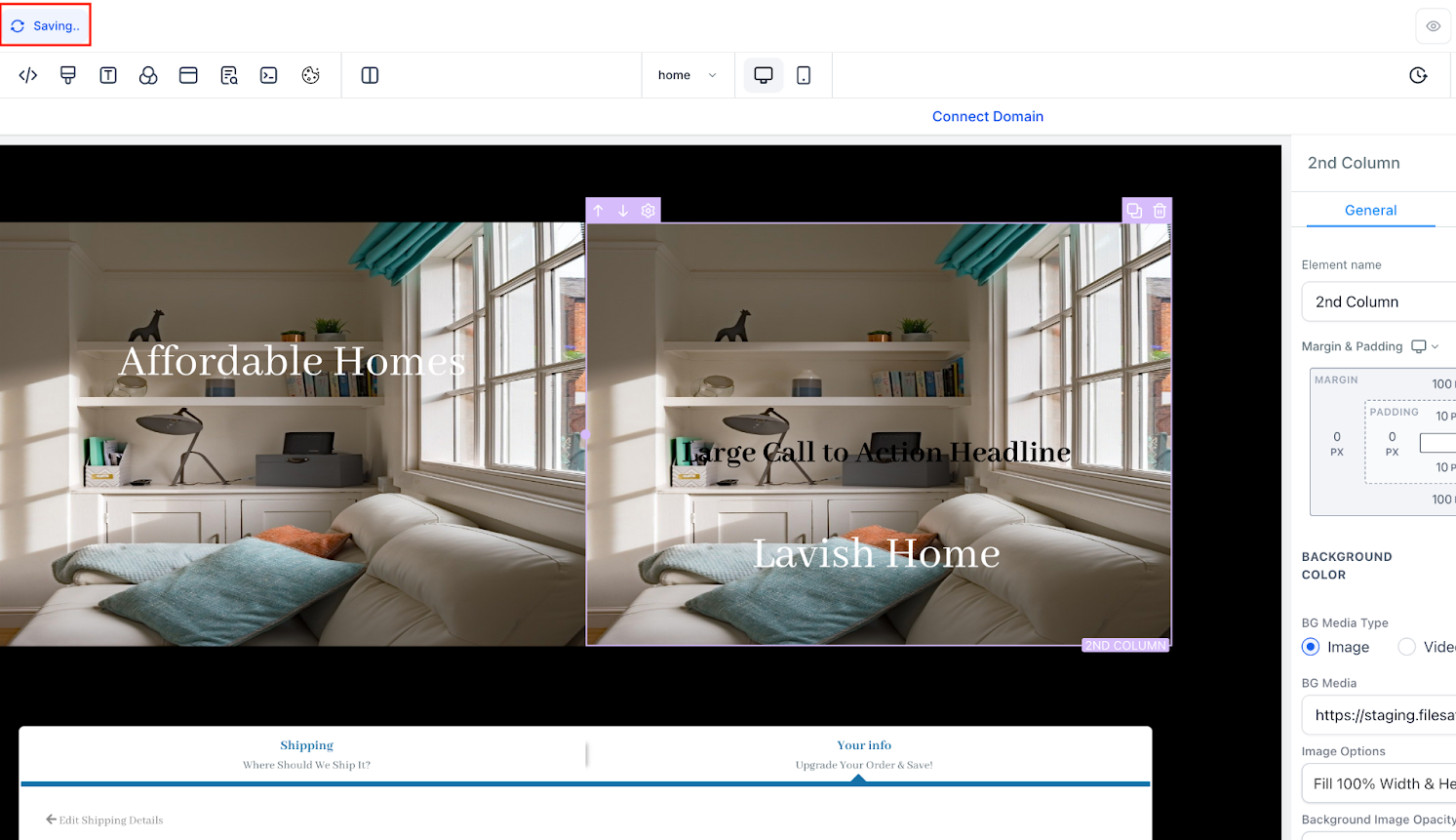
Visual Indicators: You'll see indicators such as "Saving..." and "Auto Saved" to confirm your progress is being captured.
Manual Save Still Available: If you prefer to save manually, the "Save" button remains available for full control.
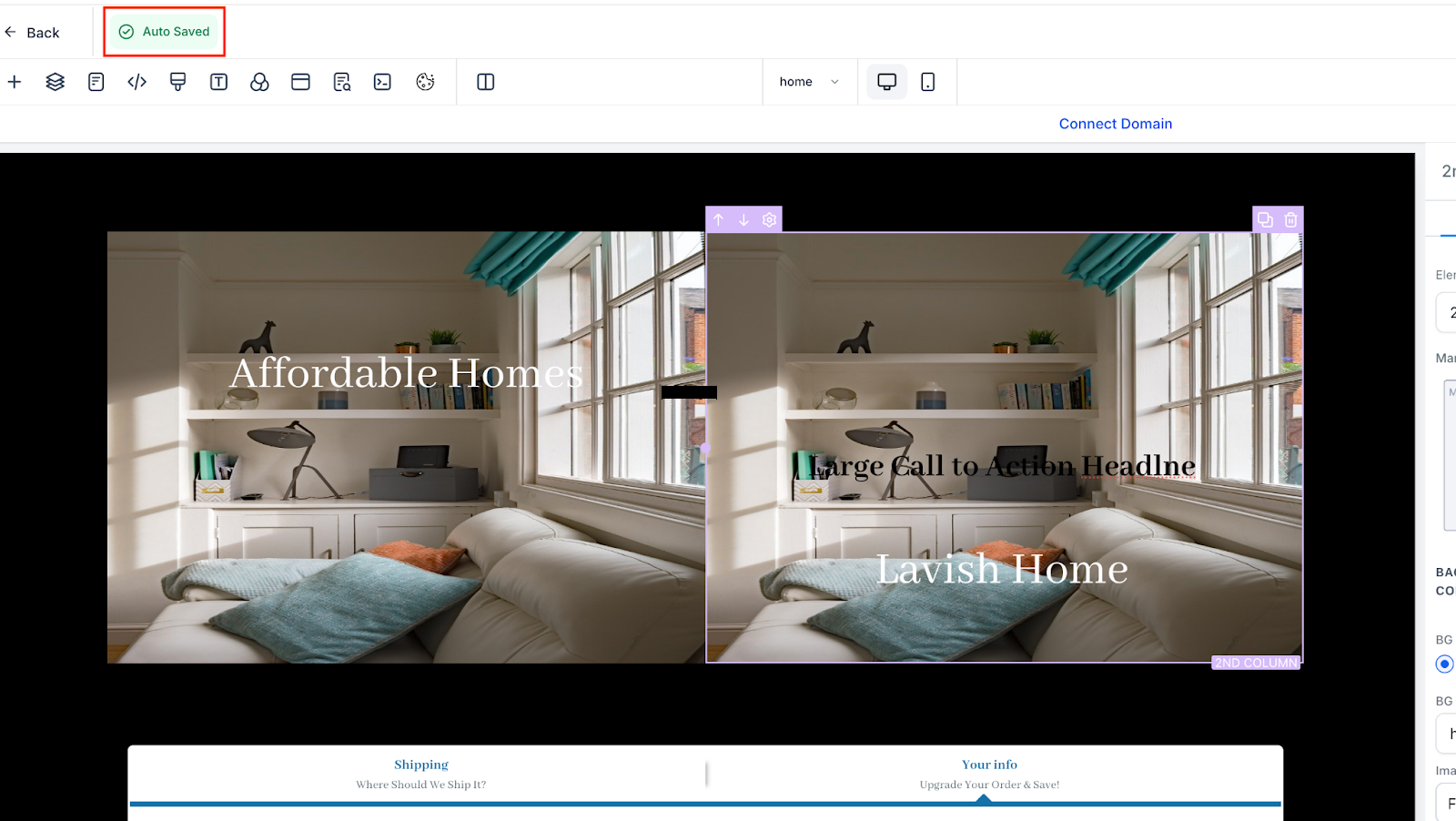
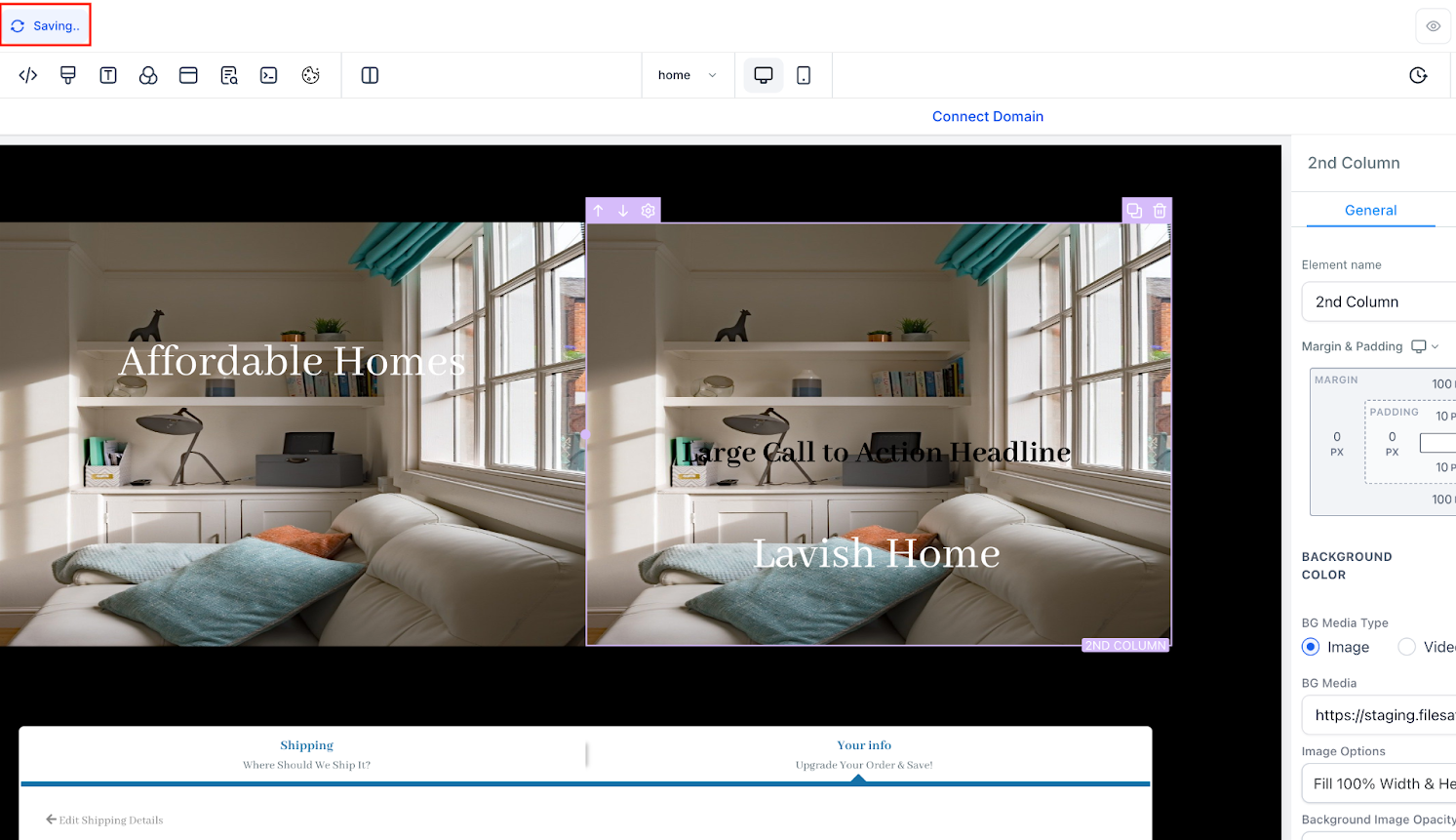
Note: Auto-Save is triggered automatically whenever changes are detected. It helps reduce the risk of losing work due to a browser crash or an accidentally closed tab, and it's optimized to keep editing smooth even on complex, content-heavy pages.
Version History lets you review and restore previous versions of your content. It's useful for undoing changes, reverting to an earlier design, or tracking your progress over time.
Time-Stamped Versions: Each version is labeled with the date and time it was saved for easy reference.
Auto-Save Timing: A new version is saved every 10 minutes, but only if changes were made during that time.
Version Limit: Up to 50 versions (auto and manual combined) are stored for each item. The oldest versions are removed once this limit is reached.
Global Section Alert: When editing a Global Section, a popup appears to let you know the changes will apply across every instance where that section is used.
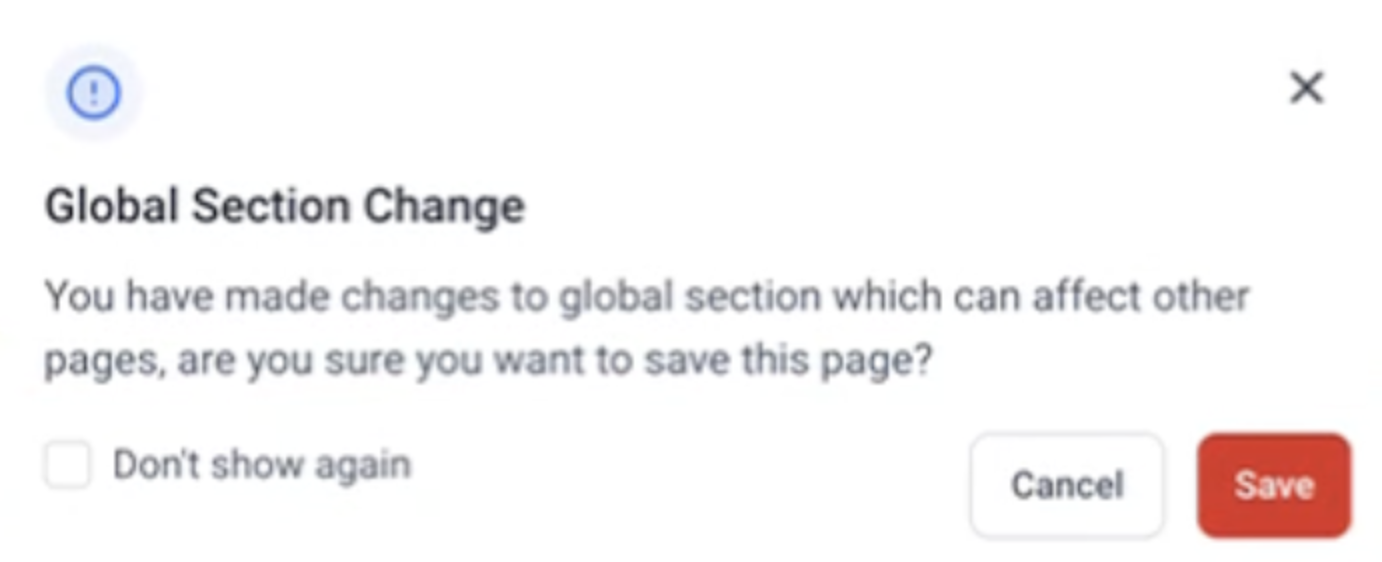
Click the Clock icon in the upper-right corner of the editor. This opens the Version History module.
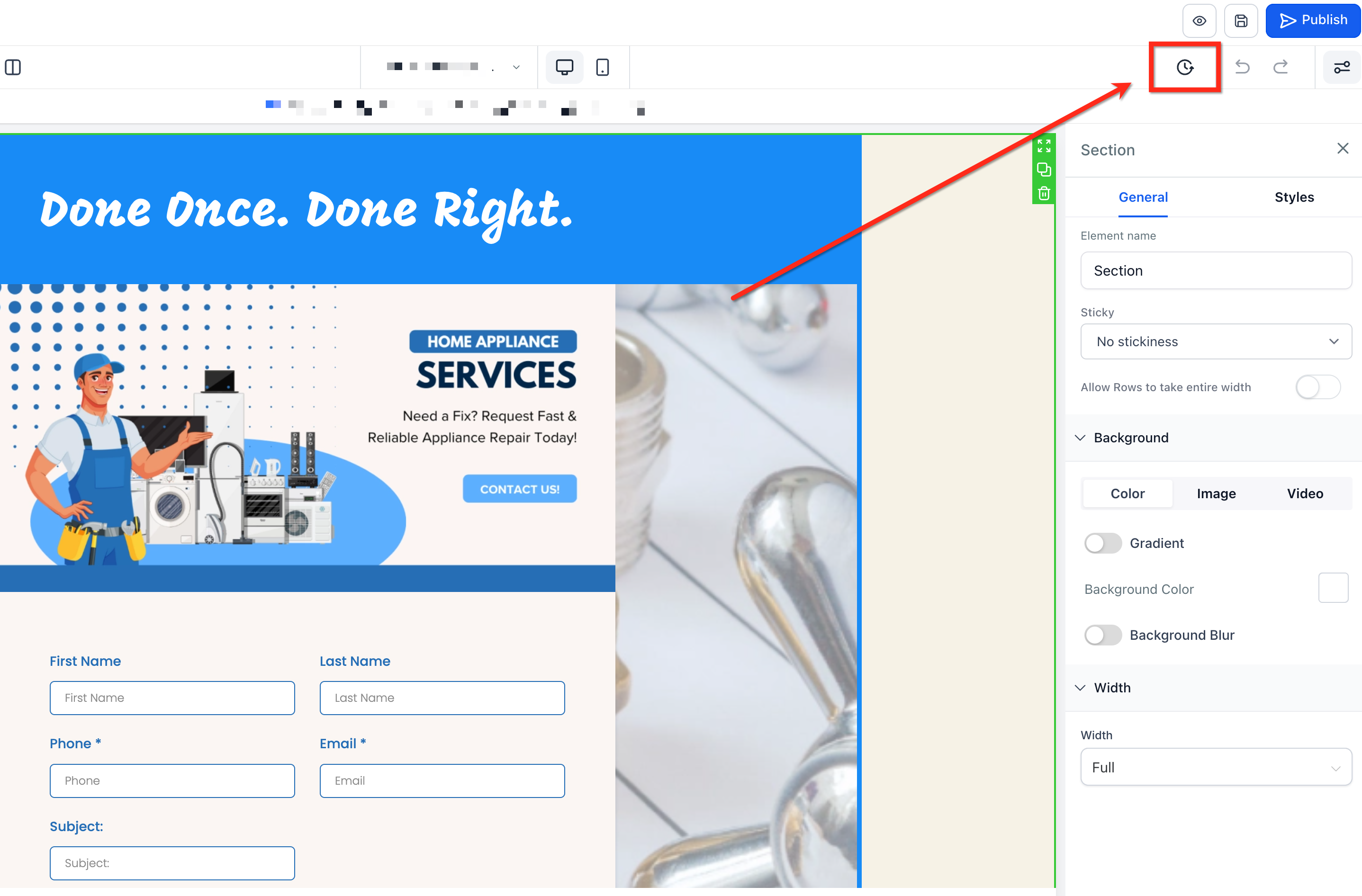
All available previous versions are shown on the left. Click a version to preview it.
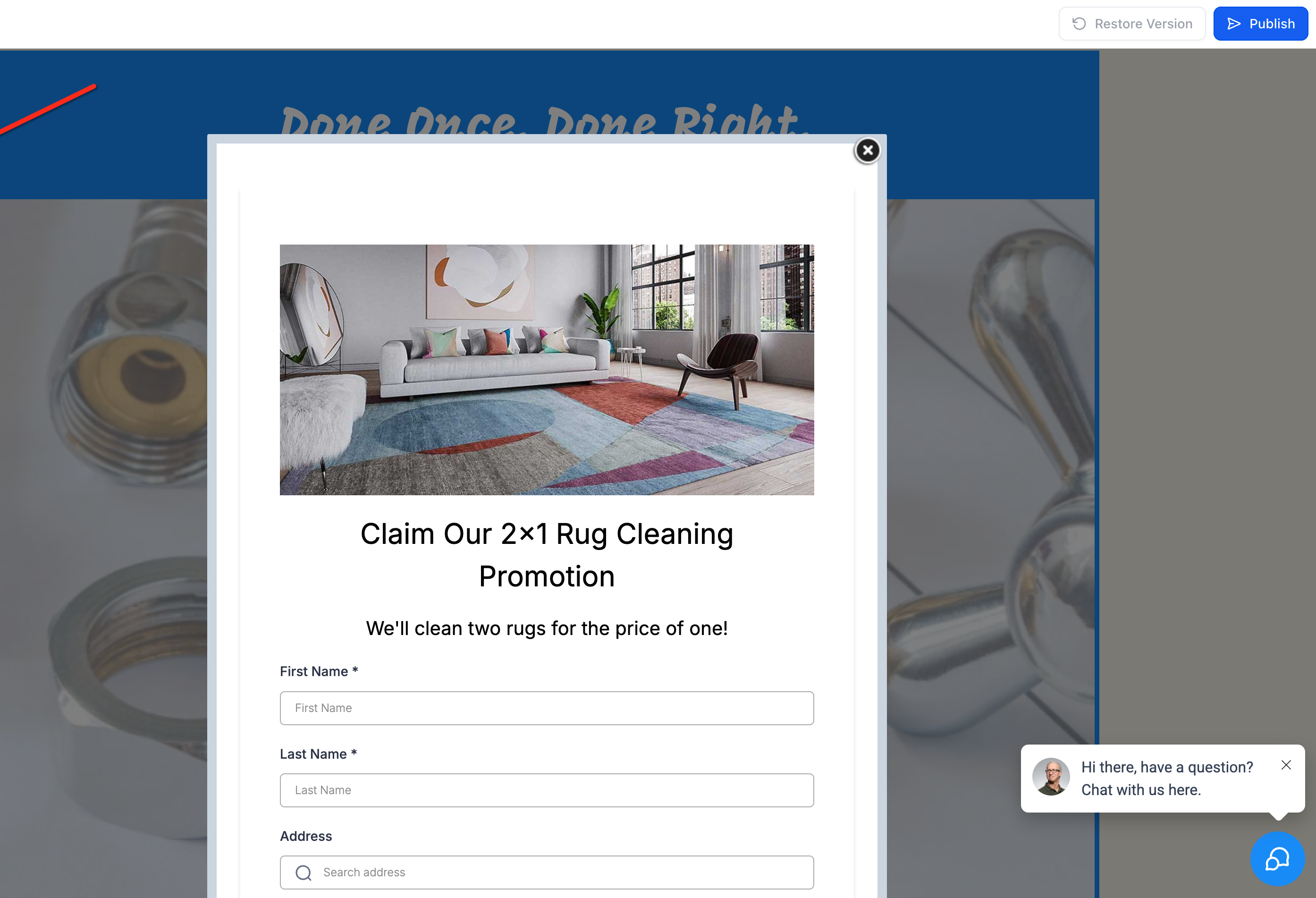
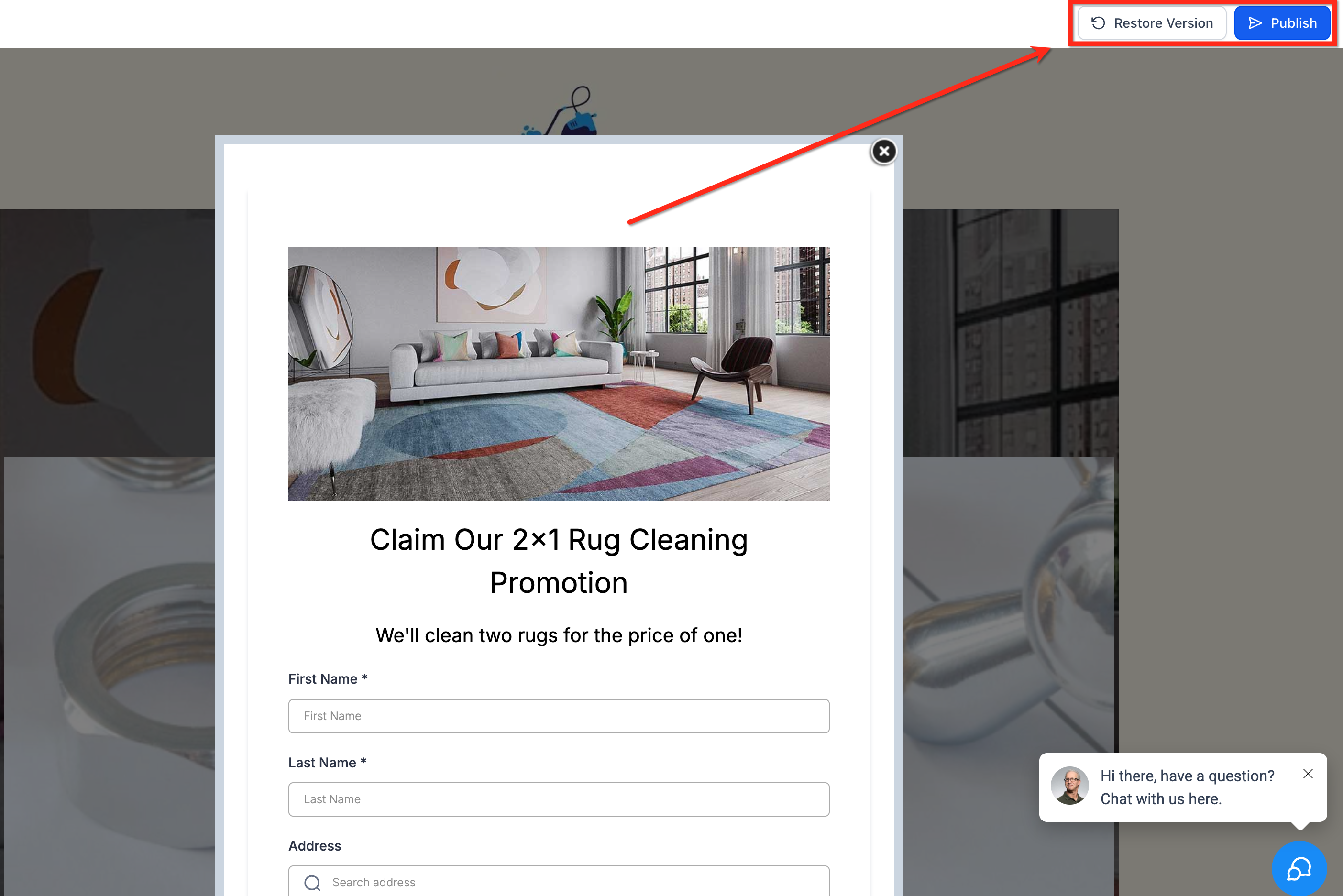
To publish or restore a previous version, select the version you want, then use the Publish and Restore Version buttons in the top-right corner.
Auto-Save and Version History are supported across:
Funnels – All steps, elements, and sections
Websites – All pages and components
Blogs
Webinars
E-Commerce
Audit Logs capture a history of user actions across your Aesthetix CRM assets. This gives you a full trail of changes, who did what, when, and where, making it easier to troubleshoot issues, refine your workflows, and maintain compliance for your practice.
Get full transparency into edits and deletions
Improve team accountability by tracking who made changes
Troubleshoot errors by reviewing specific action history
Support compliance for regulated practices
Isolate issues using filters by module or action type
Retain logs securely for 60 days
Audit Logs live in the Settings area of your account and are organized by module. Each module keeps its own audit trail and filters, so you can track actions independently across Funnels, Websites, Webinars, and Stores.
Navigate to Settings > Audit Logs from your left-hand menu.
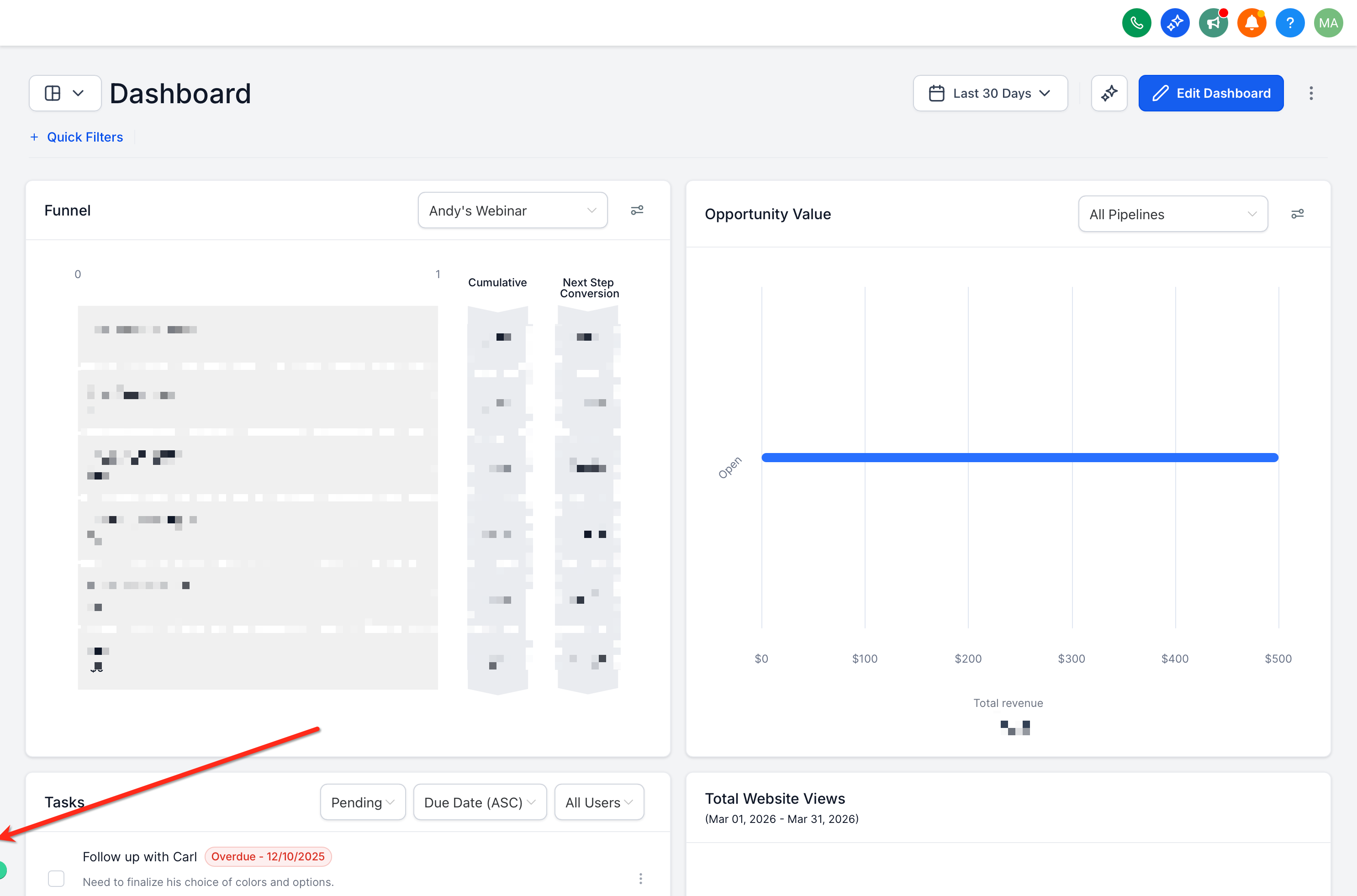
Use the tabbed navigation or icons to switch between modules:
Funnels
Websites
Webinars
Stores (eCommerce)
Review the logs listed for the selected module.
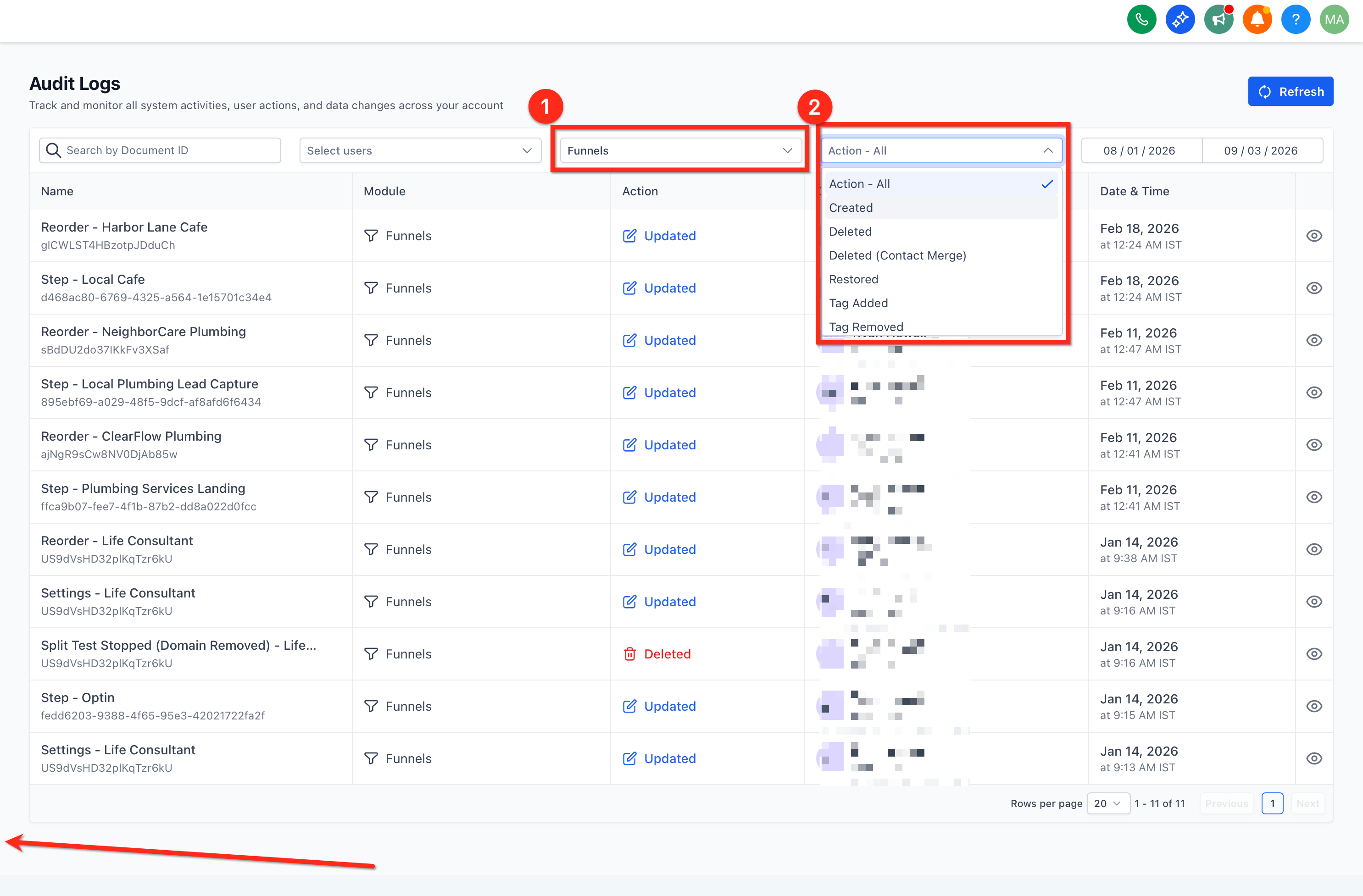
Each module maintains its own set of logs and filters, so you can focus on the specific asset you're working with.
Funnels: Logs funnel settings changes, step edits, split tests, and deletions.
Websites: Tracks updates to pages, structures, and content.
Webinars: Captures scheduling, edits, and configuration updates.
Stores: Records eCommerce changes like store configuration and product management.
This modular approach keeps the audit data relevant and easy to interpret for each asset type.
Aesthetix CRM currently tracks the following types of actions across supported modules:
Folder Delete
Move to Folder
Funnel Delete
Funnel Settings Change
Funnel Settings Change (with domain removed)
Step Edit
Step Reorder
Step Delete
Step Restore Variation
Step Delete Variation
Step Choose Split Test Winner
Stats Reset
Page Edit
These logs include timestamps, user IDs, and action types so you can reconstruct exactly what happened and when.
Audit Logs record a Deleted entry when key saved Page Builder assets are removed in Funnels, Websites, Stores, or Webinars.
Assets covered:
Section Templates
Global Sections
Universal Sections
Element Templates
Universal Element Templates
What the log includes:
Asset name
Asset ID
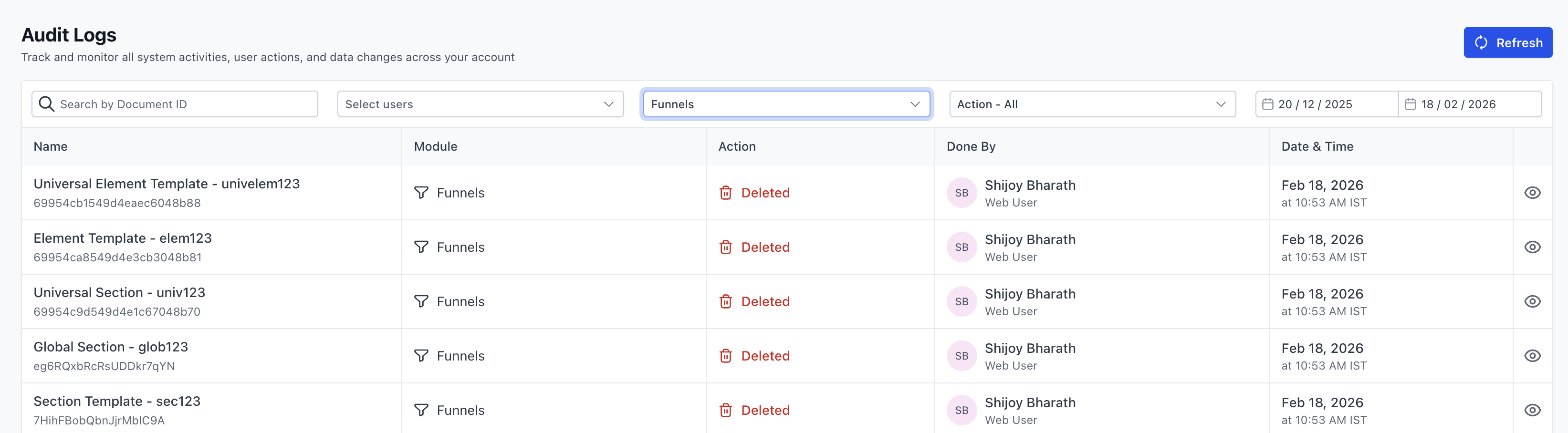
Audit Logs include filters that make it easy to locate specific events or actions. Each module has independent filtering options.
You can filter logs by:
Module – Funnels, Websites, Webinars, or Stores
Action Type – e.g., Deleted, Updated, Created
Date/Time Range – View actions within a specific period (limited to the last 60 days)
Tips for navigation:
Use action filters to locate deletions, edits, or structural changes
Use date ranges to isolate events related to a campaign launch
Quickly switch between modules using the tabs or icons at the top of the interface
Audit Logs are retained for a rolling 60-day period. After that, records are permanently deleted and cannot be recovered.
Note: Logs older than 60 days are not retrievable. For long-term compliance needs, export or record key actions before they expire, and set up an internal review process to capture logs regularly.
Can I export audit logs?
Yes. You can export Audit Logs to CSV using the Export option on the Audit Logs page.
How long are logs stored?
Logs are retained for 60 days and then automatically purged from the system.
Can I search logs by user?
Yes. Username-based filtering is available, click Select Users from the filters banner at the top.
Do deleted funnels or steps show up in the audit logs?
Yes. Deletion events are recorded, including funnel and step deletions.
