Once a funnel is built in Aesthetix CRM, you can keep refining it, reuse it across your practice, and pull in pages you already have elsewhere. This guide walks you through editing existing funnels, cloning a whole funnel or a single page, and importing or converting funnels, including migrating pages from another funnel builder.
To make changes to a funnel you have already created, open Marketing → Landing Page Builder, select Funnels, and click the funnel you want to work on. From there you can rename the funnel, edit individual steps, adjust the design and content of each page, and update its settings.
Any edits you make apply only to that funnel. If you want to reuse a funnel or page elsewhere without changing the original, use cloning or importing instead.
Cloning creates a copy of a funnel (or a single page within it) so you can reuse your work without rebuilding it from scratch. You can clone into one or more locations at a time.
Step 1: In your funnel list view, click the three dots next to the funnel and select Clone.
Step 2: Give the cloned funnel a name and select the location (up to three locations).
Step 3: Click Clone Funnel.
You can also clone an individual step or page from a funnel rather than the entire funnel. Open the funnel, choose the step or page you want to copy, and clone it into the location(s) you want. This is useful when you only need one high-performing page, such as a consultation opt-in or thank-you page, in another funnel.
If someone shares a funnel or website template with you through a share link, you can import it directly into your account.
Step 1: Make sure you are logged into your account before clicking the share link.
Step 2: Open a new tab and either click the link or copy and paste it into your browser.
Step 3: Select the location(s) you want to add the template to (up to three locations).
Note: Importing may take a few minutes to complete, so give it a moment before refreshing your page. Forms, surveys, and any other lead-capture elements are not transferred with an imported funnel or website and will need to be set up again.
Ever wanted to convert or import an existing website or funnel page into a new funnel or website you're building? You can do this on the fly using the import feature. To import or convert a page, you first add a new step, then import an existing funnel step or website page into it.
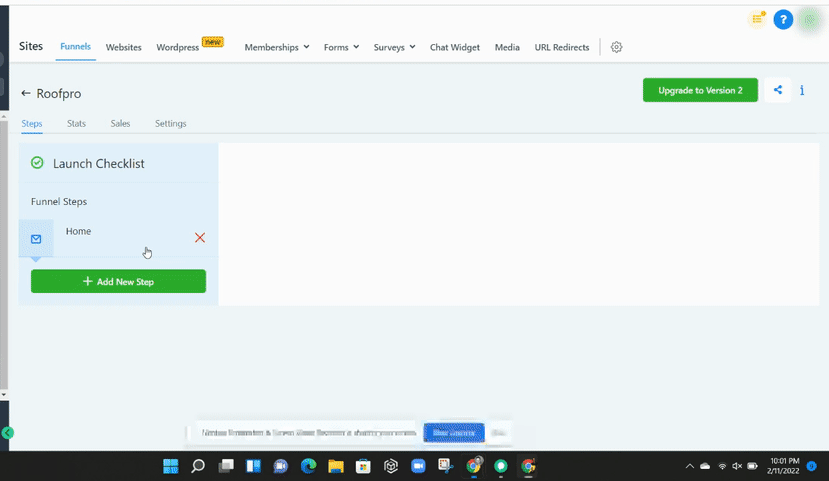
Step 1: Click the + Add New Step button to add a new page to your funnel or website.
Step 2: In the pop-up that appears, name your page and set its path.
Step 3: Click Create Funnel Step to close the pop-up.
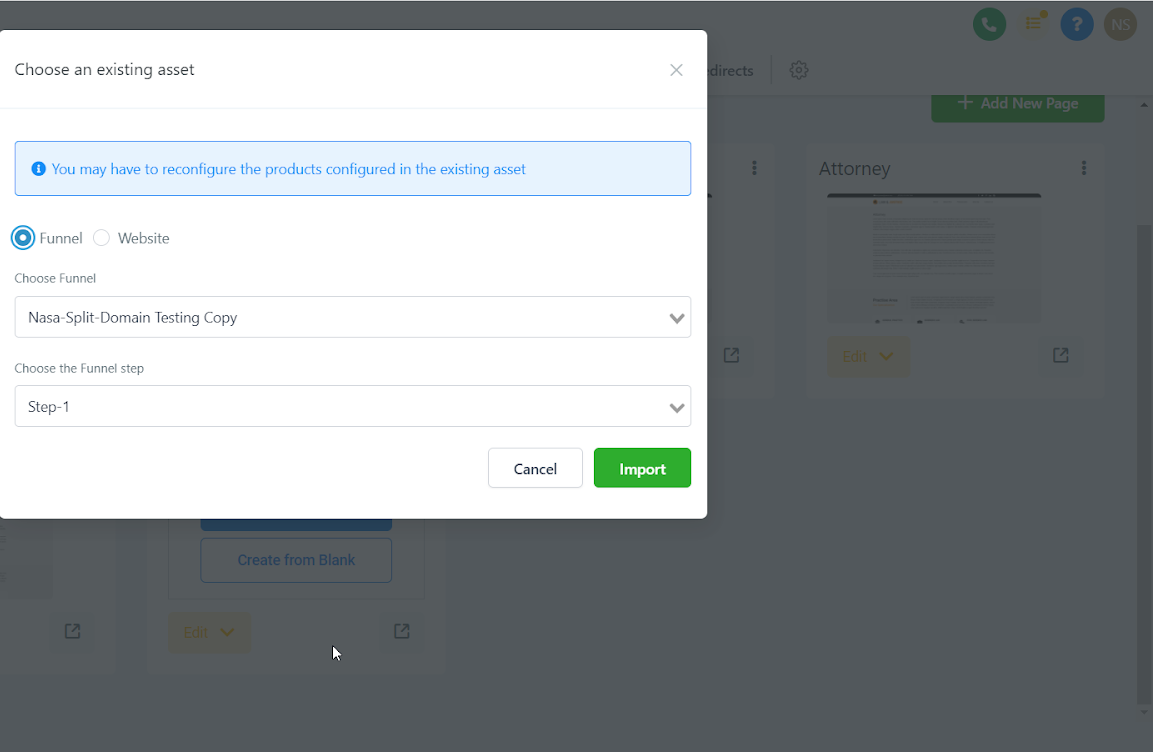
Step 4: A new window appears in the funnel preview area. Click the Import button.
Step 5: Select the page you want to import and click Import.
Note: Keep the following in mind when importing or converting a page:
To import or convert a funnel or website page, you first have to add a new step.
The import feature brings in only a single funnel step or webpage at a time.
You may only import an existing funnel step or website page from within Aesthetix CRM. It does not import from other websites or funnel providers using this method.
Changes to an imported step or page will not affect the original.
Products configured on the source page and the stats accumulated there are not imported. Products have to be configured again after the import.
You can import a control or variation step from a funnel.
If you want to run a split test on website pages, import those pages into a funnel and run the split test there. Split testing is available in funnels across all plans.
If you're moving over from another funnel builder, you can import your existing pages instead of rebuilding them from scratch. This can save significant time and effort, especially if you have many funnels or pages to transfer.
Step 1: Open Marketing → Landing Page Builder and click Funnels.
Step 2: Click New Funnel and give it a name to create the funnel.
Step 3: Click Add New Step, then add the name for the page, the path, and the live link to the page from your other builder. Mark the confirmation checkbox and click Create Funnel Step.
Note: Use the published (live) link for the page, not a shareable preview link, and import one funnel step at a time for the smoothest experience.
Note: Membership areas do not transfer through a funnel share URL. Only standard funnel pages (opt-ins, sales pages, thank-you pages, and similar) are imported. If your funnel includes a members area, you'll need to rebuild it manually using the Memberships tool in the main left-side navigation bar.
You can move pages between funnels and websites using the import feature described above. Add a new step in your target funnel or website, then import the page you want to convert.
If a share link doesn't work, reach out to our support team for help.
