Aesthetix AI helps you create professional funnel and website pages faster using AI-powered generation, guided setup, and real-time editing. Whether you want a structured starting point or full creative freedom, Aesthetix CRM gives you multiple ways to build, refine, and optimize pages inside the builder. This experience is designed to reduce setup time, improve design quality, and help you move from idea to publish with less manual work.
Note: Never enter protected health information (PHI) such as patient names, treatment details, or medical records into any AI feature. Keep prompts and page content free of patient-identifying data.
Build with AI is Aesthetix CRM's AI-powered page creation experience for building funnel and website pages from prompts, guided inputs, URLs, and images. It helps you generate layouts, copy, visuals, and page structure more quickly while still keeping builder controls available for manual refinement. This gives both beginners and experienced builders a faster way to launch polished pages for your practice without starting from scratch.
Build with AI includes multiple creation paths and editing tools so you can choose the workflow that fits your needs:
Path/Feature | Description |
|---|---|
Assist | Generate pages with guided presets and structured inputs such as business niche, goal, audience, tone, and layout preferences. |
Build | Gives you more creative freedom by letting you describe exactly what you want the AI to create. |
Chat-based editing | Update copy, sections, layout ideas, and design direction in real time while working inside the page builder. |
Ask AI + Settings side-by-side | Keeps AI assistance and builder controls close together so you can refine content and styling without constantly switching views. |
Import from a link or image | Create pages inspired by a public URL or image reference. |
SEO support | Generate page titles, descriptions, and content suggestions that support stronger page optimization. |
Build with AI is designed to help you create better pages in less time, with fewer revisions and less design guesswork. These benefits are especially useful for practices that want a faster path from idea to launch.
Faster page creation: Generate page structure, copy, visuals, and layout direction in minutes instead of building everything manually.
Guided or flexible workflows: Start with structured inputs in Assist, or use Build when you already know exactly what you want.
Easier real-time editing: Make changes through AI chat while still having traditional builder settings available nearby.
More polished results: The experience is designed to improve design quality, spacing, structure, and overall visual consistency.
Less manual cleanup: Stronger layout rules and more consistent styling help reduce broken sections and unexpected formatting issues.
Better publishing readiness: AI-assisted SEO suggestions and cleaner page generation help you prepare pages faster before launch.
Build with AI gives you two primary ways to create a page, depending on how much guidance or control you want. Choosing the right path at the start helps generate more relevant results and makes the building process smoother from the beginning. Both paths appear directly inside the Ask AI panel.
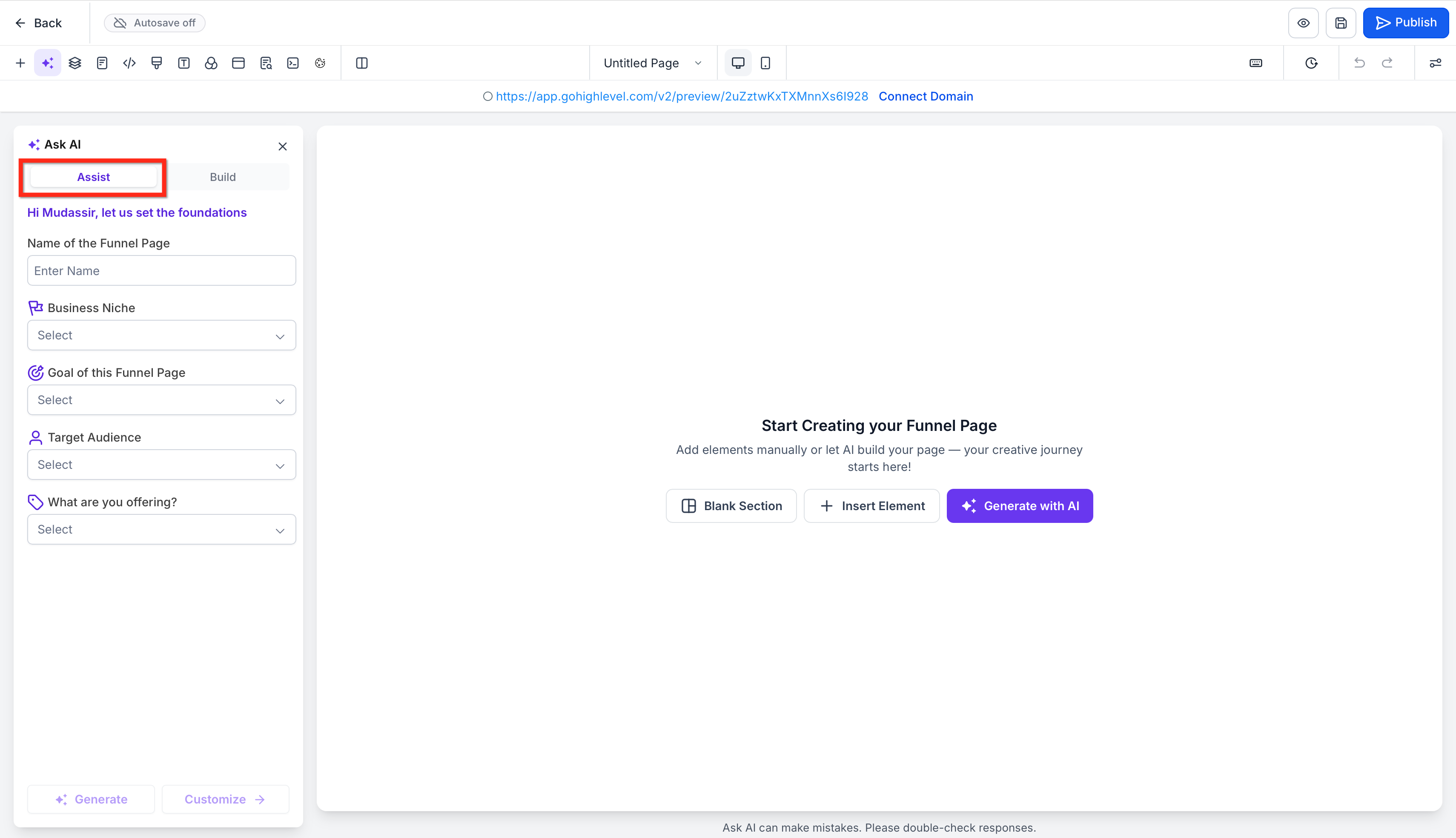
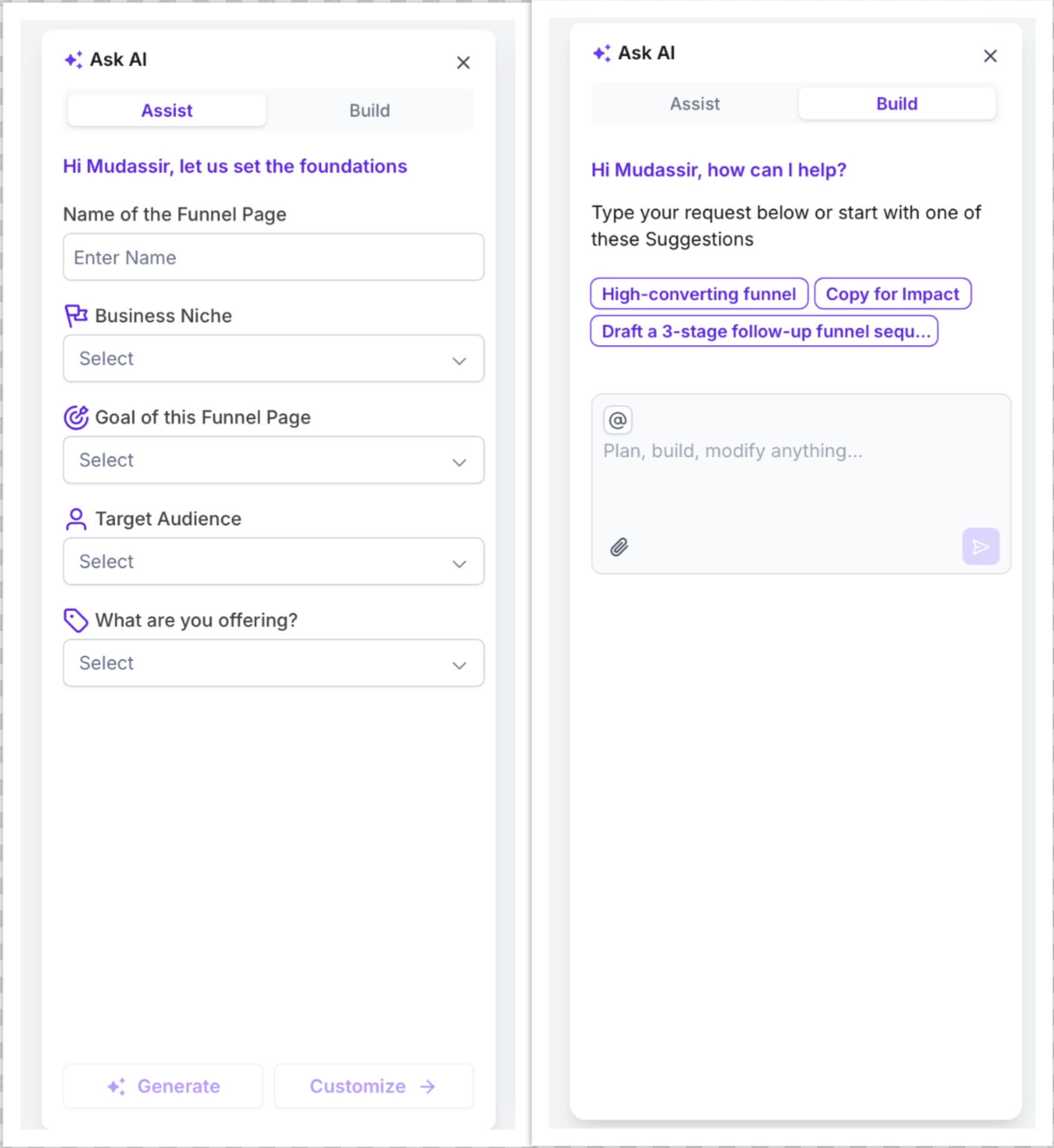
Assist is the guided path when you want help shaping the page before generation. It uses structured inputs like the page name, business niche, page goal, target audience, and offer details to create a more tailored starting point. This option is especially helpful when you want direction, want to move quickly, or are not sure how to phrase a detailed prompt yourself.
You can fill in fields such as:
Name of the page
Business niche
Goal of the page
Target audience
What is being offered
Once those details are entered, you can generate the page directly or continue customizing before generation.
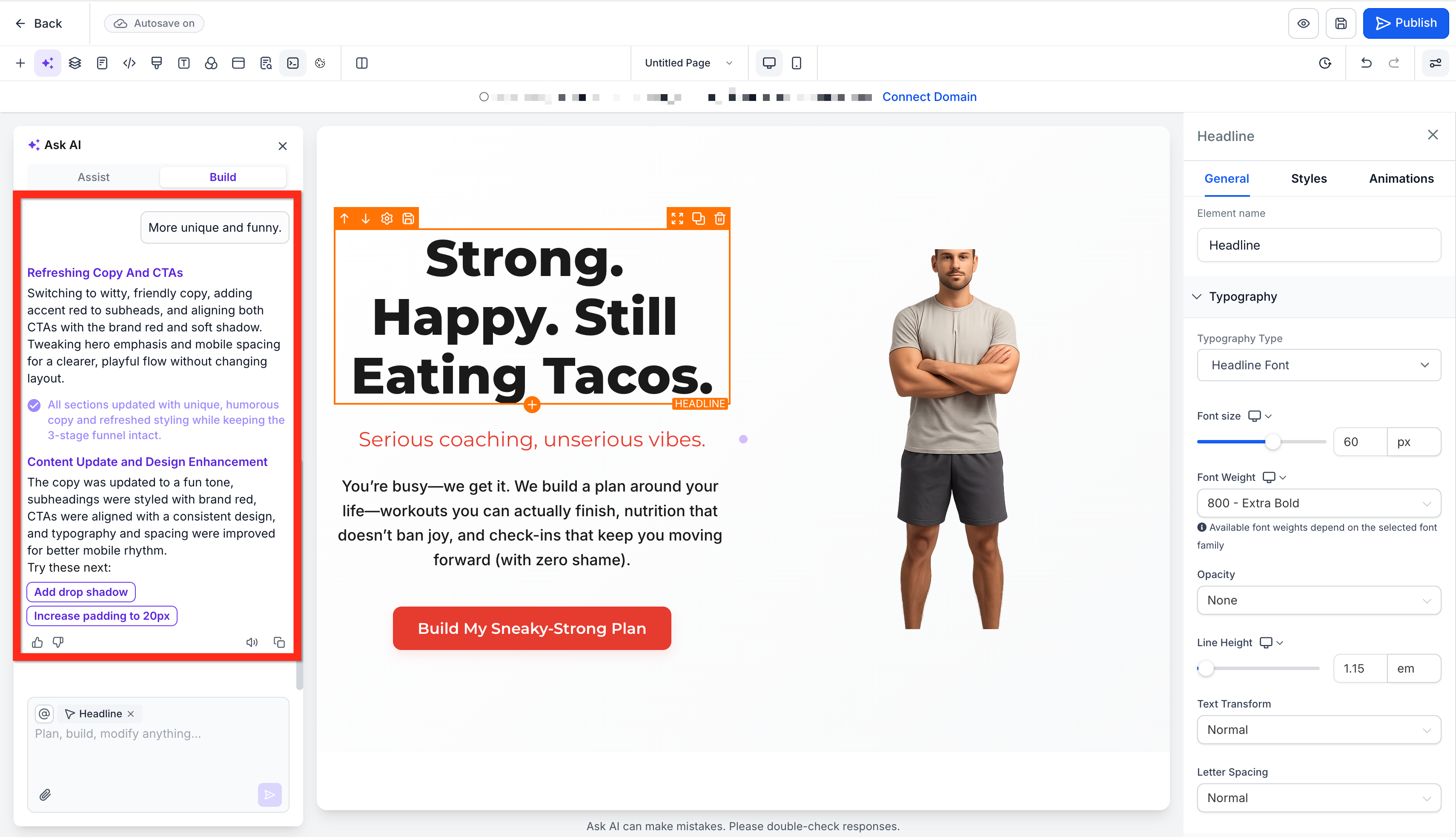
Build is the flexible path when you already have a clear vision for the page. Instead of following guided fields, you can type a direct request and ask the AI to plan, build, or modify the page based on your instructions. This is ideal when you want more creative freedom, have a specific campaign structure in mind, or want to describe copy and design direction in your own words.
Build also includes suggested prompt starters to help you move faster, such as creating a high-converting funnel or improving copy for impact.
Chat-based editing makes ongoing changes more conversational and efficient. Instead of manually digging through settings for every update, you can ask the AI to rewrite text, adjust sections, suggest design improvements, or refine messaging directly inside the builder.
The side-by-side experience combines AI assistance with traditional editing controls. That means you can:
Ask AI to improve copy
Refine layout direction
Adjust content section by section
Review and tweak styling through builder settings
Make faster decisions without interrupting your workflow
This workflow is especially useful after the first generation, when the page already exists and needs refinement rather than full recreation.
Import from a link or image helps you create pages inspired by an existing visual reference. This is useful when you want to capture a style, structure, or creative direction without starting from zero.
You can use this workflow to:
Take inspiration from a public webpage
Recreate the feel of a design direction
Build around a brand style shown in an image
Speed up ideation when you already know the look you want
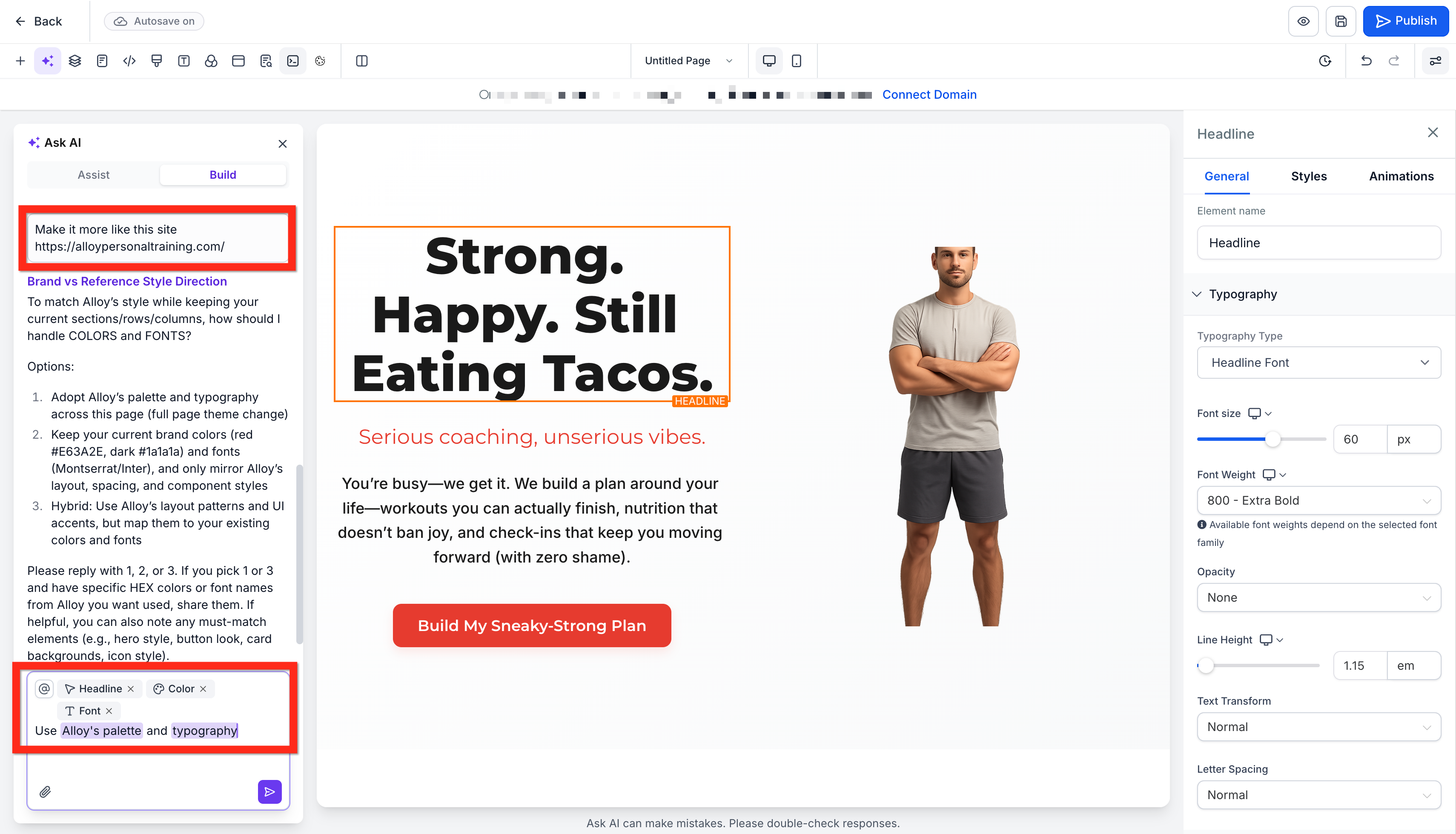
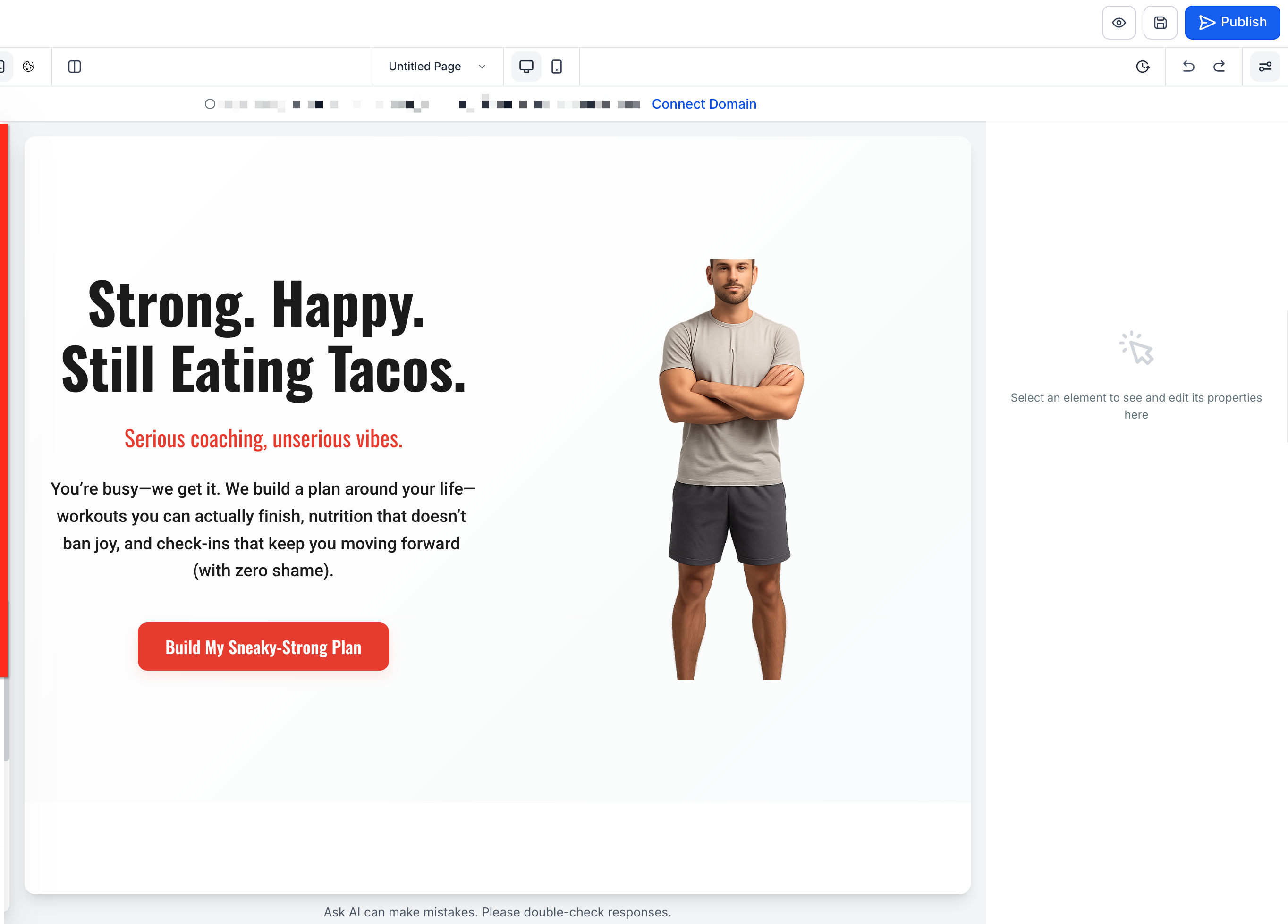
Important: Importing from a link or image gives the AI a reference for generating the page. It does not create an exact clone of the original, and it does not guarantee that every design element, layout, interaction, or piece of content will be reproduced.
Build with AI can help you move faster on SEO by generating suggested titles, descriptions, and content direction during page creation. That gives you a stronger starting point when preparing a page for search visibility.
AI-generated SEO suggestions should still be reviewed before publishing, because page goals, brand language, and search intent may require manual refinement.
Helpful follow-up tasks after AI generation:
Review the page title for clarity and relevance
Refine the meta description for search intent
Confirm headings match the page purpose
Update page copy to reflect your brand voice
Add any custom metadata needed before publishing
A strong setup process helps you get better first-generation results and reduces the need for excessive edits later. Starting with the right mode, inputs, and expectations makes the AI output more relevant and easier to refine.
Navigate to Marketing → Landing Page Builder or Websites. Click Build with AI to create a new funnel or website asset, or open an existing website or funnel.
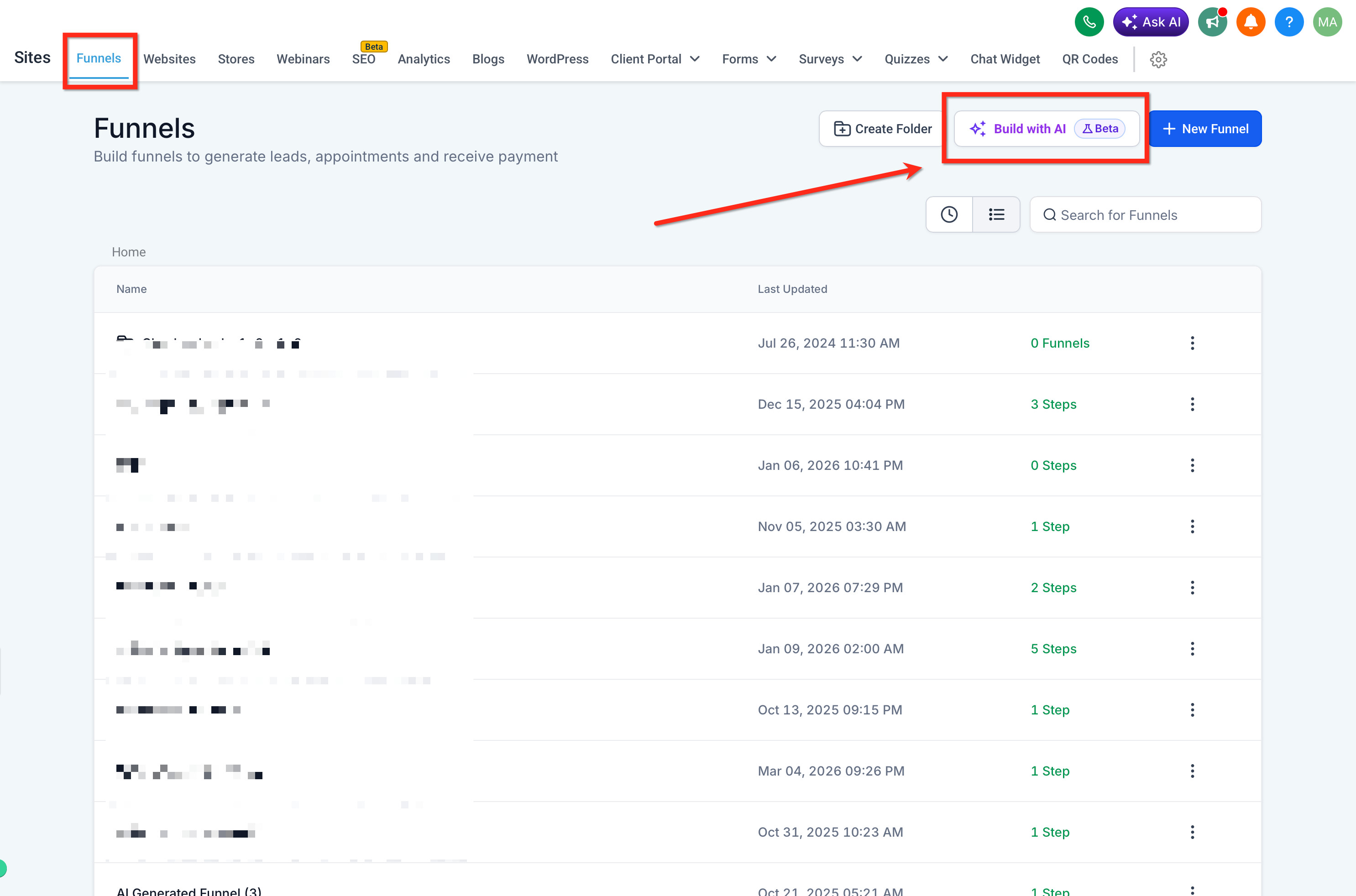
Build for direct prompt-based creation
If you choose Assist, enter your page name, business niche, page goal, target audience, and offer details. If you choose Build, enter a detailed prompt that explains the page purpose, audience, messaging, and desired style.
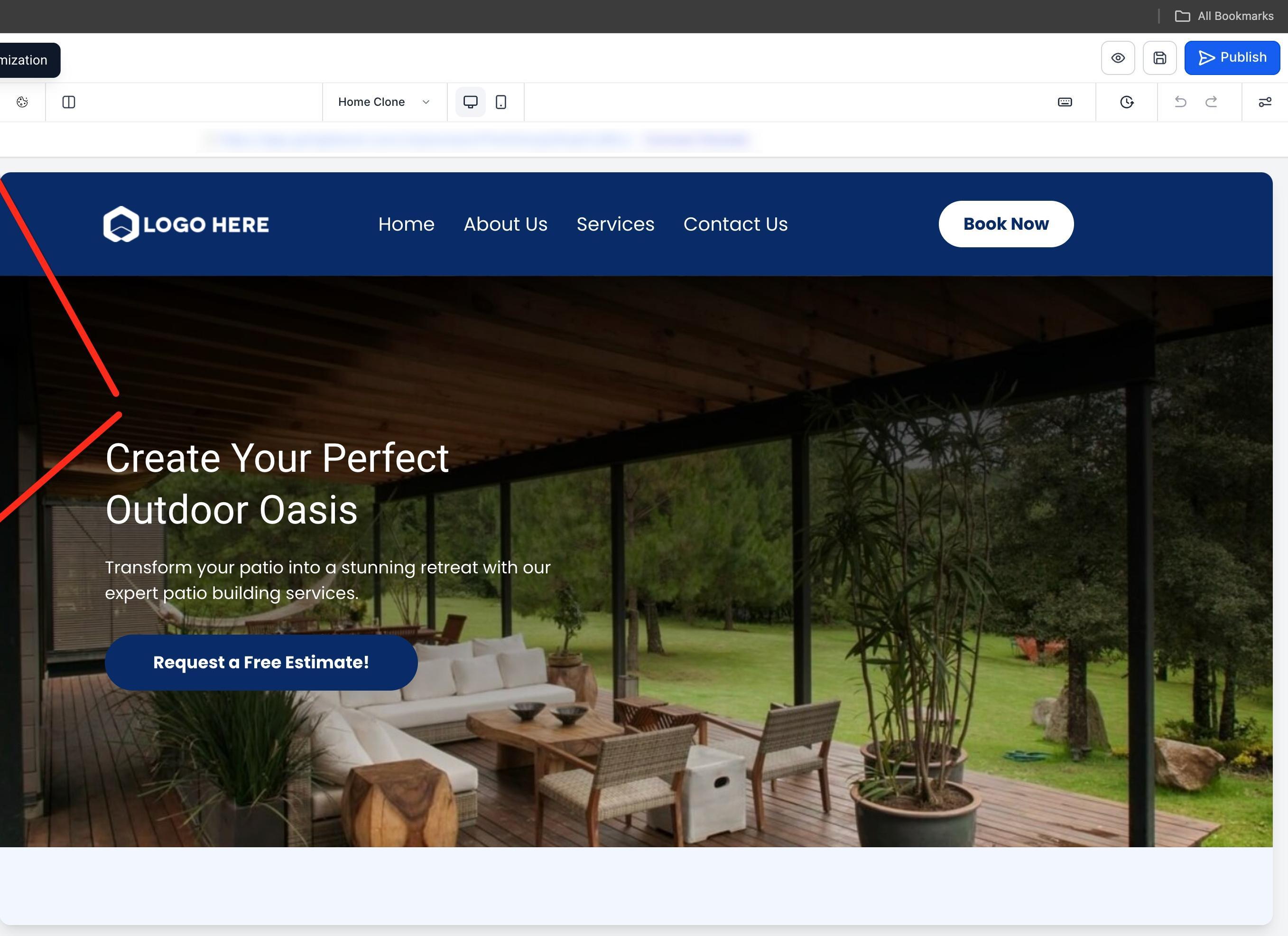
Use Ask AI chat and builder settings to refine the page. Update headlines, section order, copy tone, images, and styling until the page aligns with your brand and campaign goals.
Review the page's SEO fields, then complete any final edits before publishing.
Publish the page once your content, layout, and settings are ready.
Review AI-generated content before publishing: Check generated copy, claims, contact information, offers, links, and images for accuracy before your page goes live.
Reference-based generation is not exact cloning: A link or image gives the AI creative and structural direction, but it does not guarantee an identical reproduction of the original.
You can continue editing manually: AI-generated pages remain fully editable using the standard builder controls at any time.
Schema Markup AI helps you generate structured data for website and funnel pages directly inside the builder in minutes. Structured data helps search engines understand your page content, which can improve how your practice appears in search results.
Note: The Schema Markup Generator is a free tool.
When you open Schema Markup AI, it reads the content already on the page and identifies schema types that best match what the page contains. AI can generate one or more schemas, populate the available fields, validate the result, and save it. After generation, you can continue refining the schema through conversation by asking AI to add a schema, remove a schema, update a value, or switch to a different schema type.
Examples of refinements you can ask for:
Add FAQ schema to this page
Remove the Article schema
Change this schema from Organization to Local Business
Update the business phone number
Add a custom description
Schema Markup AI works on a page-by-page basis, so each page or funnel step can have its own schema setup. Once the schema is generated and reviewed, you still need to publish the page for the schema to go live.
Faster setup: Generate schema in minutes instead of manually selecting types and filling out fields one by one.
Smarter schema selection: AI reviews your live page content and recommends the most relevant schema types for that page.
Pre-populated fields: Available schema fields are filled in automatically based on page content, reducing manual entry.
Conversational editing: Add, change, or remove schema by chatting with AI instead of editing everything manually.
Built-in validation: AI-generated schema is validated before it is saved, helping reduce formatting issues.
Flexible access: Use Schema Markup AI whether Build with AI is enabled or disabled.
Page-level control: Customize schema for each website page or funnel step independently.
Setup starts after your page content is already in place. Because AI reads the page to determine the right schema types and values, completing your page content first helps generate more accurate schema markup.
Note: Schema is page-specific and does not carry over to other pages or funnel steps.
Go to Web Tools.
Click Funnels or Websites (whichever you want to add schema to).
Create a new funnel or website, or edit an existing one.
Click Edit on the specific website page or funnel step you want to update.
Click SEO & AI search optimization.
Click Schema Markup. Make sure the page already has content, since Schema Markup AI cannot generate schema for an empty page.
Click the + New Schema button and select the Create with AI option.
Enter a well-detailed, relevant prompt and click the Send Message button.
Wait for AI to analyze the page and generate the most relevant schema markup.
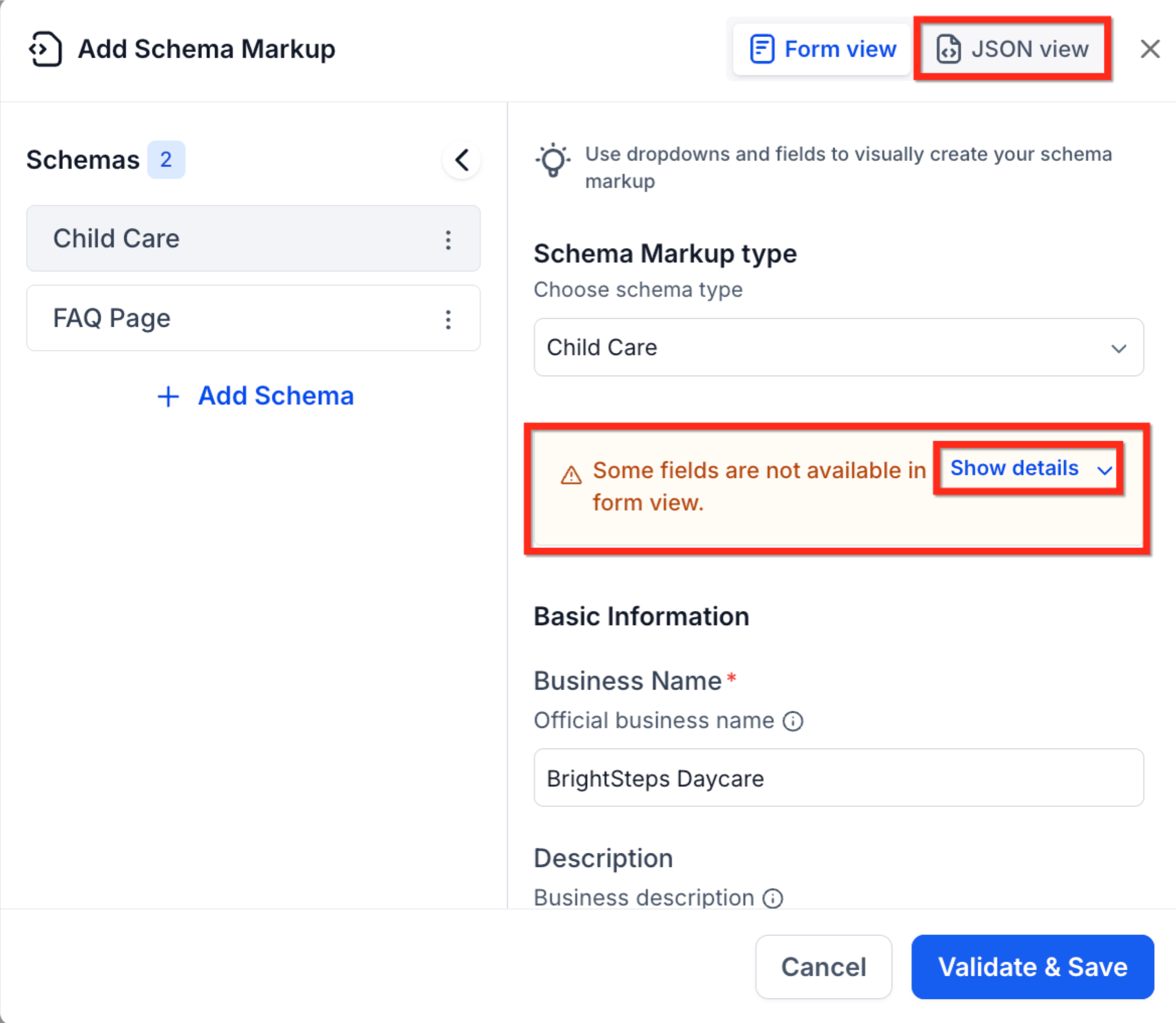
Click the View Schema Markup button and review the generated schema and any populated values in Form and JSON view.
In AI-generated schemas, Form view may not display every field. If you see a warning banner, click View details to review the hidden fields, or click JSON view to edit the full schema.
Add, modify, and delete schemas directly from the chat window.
Click Validate and Save.
Confirm the generated schema appears under Active Schemas.
Publish the page to make the schema live.
Knowing the current behavior and limitations helps you avoid setup issues and use the feature more effectively.
Schema Markup AI must be triggered manually. It is not generated automatically when a new page is created with AI.
The page must contain content before running Schema Markup AI. Empty pages return an error and no schema is generated.
Custom value field mapping, such as {{custom_values.field_name}}, is not supported in Schema Markup AI at this time.
Schema is page-specific. It does not carry over automatically to other website pages or funnel steps.
AI-generated schema is auto-saved after validation, but the page must still be published for the schema to go live.
Q: When should I use Assist instead of Build?
Use Assist when you want a guided starting point and would benefit from presets or structured inputs. Use Build when you already have a clear page concept and want to describe it directly.
Q: Can I use Build with AI to edit a page I already created, not just build a new one?
Yes. You can open an existing website or funnel and use Assist, Build, or chat-based editing to refine it further.
Q: Does importing from a link or image work the same way as cloning a funnel or website?
No. AI reference-based creation is best treated as inspiration-driven generation.
Q: Can I still manually edit the page after AI generates it?
Yes. The AI experience is meant to speed up creation, but you can continue refining the page using chat-based edits and standard builder settings.
Q: Will the AI-generated SEO content be enough on its own?
It is a strong starting point, but it should still be reviewed for accuracy, search intent, and brand voice before publishing. You can also update metadata manually.
Q: Do I need design experience to build a page with AI?
No. One of the main benefits is that it reduces design complexity by generating layouts, copy, and page structure for you.
Q: Can AI generate schema types that are not available in the manual list?
Yes. In manual setup, schema types are limited to a predefined list of the most commonly used ones for SEO, AEO (Answer Engine Optimization), and GEO (Generative Engine Optimization). With AI, there is no such limitation. AI can analyze the page content and create schema markup using any valid schema type.
Q: Do I need to publish the page after Schema Markup AI saves the schema?
Yes. The schema is saved in the builder after validation, but it only goes live after you publish the page.
Q: Can Schema Markup AI generate more than one schema for a page?
Yes. AI can generate one or more schema types depending on the content on the page.
Q: What happens if my page has no content?
Schema Markup AI will not generate schema for an empty page and will show an error.
Q: Can I remove or change a schema after AI creates it?
Yes. You can ask AI to add, remove, or modify schema, and you can review the saved schemas from the Schema Markup area.
Q: Does schema from one page apply to all pages in my website or funnel?
No. Schema is page-specific and must be managed separately for each page or funnel step.
Q: Can I still add schema manually instead of using AI?
Yes. Manual schema setup is also supported if you want direct control over schema types and field values.
