The Cookie Consent Banner lets visitors on your funnels and websites accept or decline cookies so you can support your privacy compliance program. This guide walks through setting it up, customizing its appearance and text, controlling where it displays, and managing your cookie list.
Note: Using the cookie consent tool does not guarantee compliance with any specific law. You are responsible for ensuring your website's overall compliance with applicable regulations.
The Cookie Consent Banner helps you manage visitor consent for cookies on your funnels and websites, giving patients control over their preferences while supporting your privacy program.
Open your funnel or website in the Page Builder.
Go to the page where you want to enable the banner.
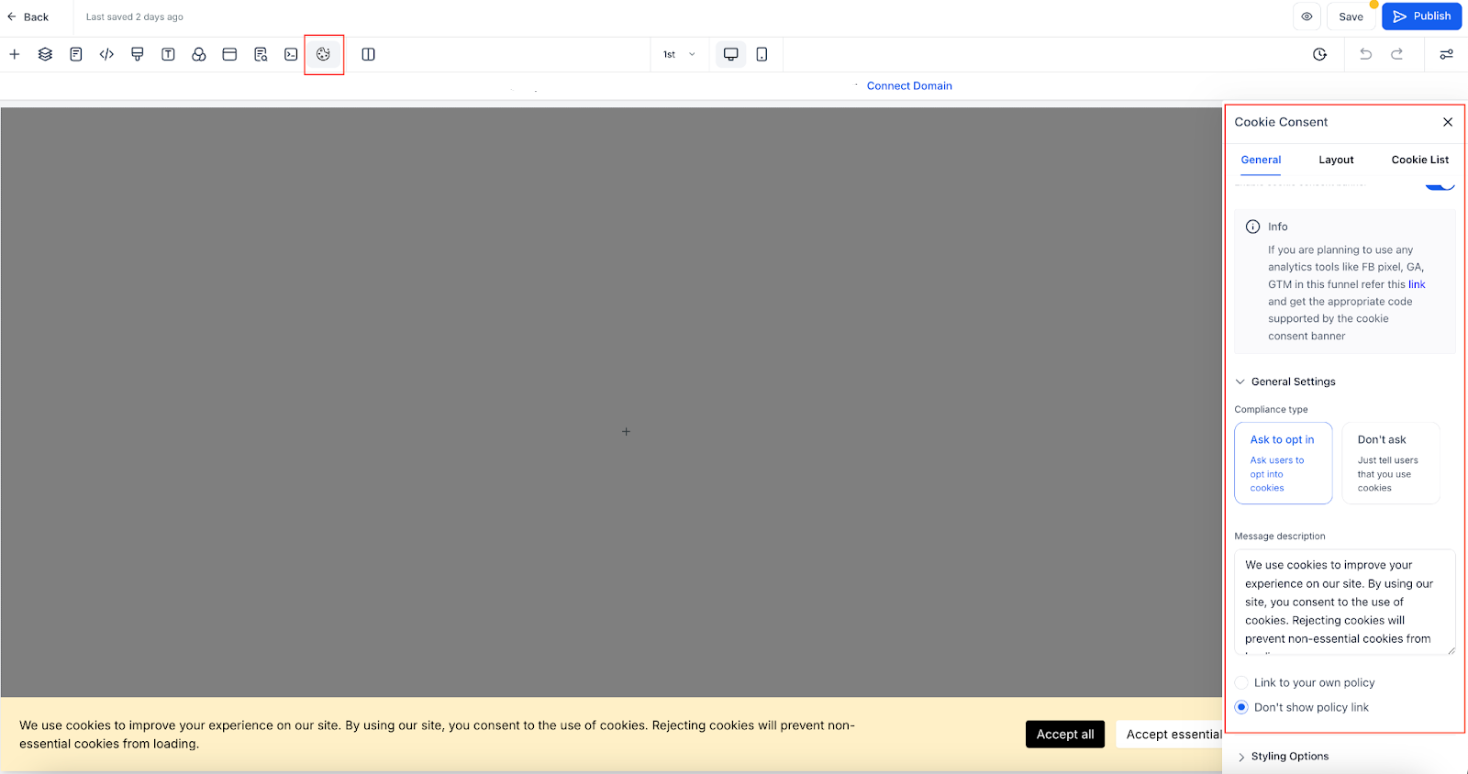
Click the Cookie Consent Banner Settings icon.
Toggle the switch to enable or disable the banner.
Accept Essential – Accepts only the necessary cookies for website functionality.
Accept All – Accepts all cookies, including tracking and analytics.
Reject – Accepts only essential cookies.
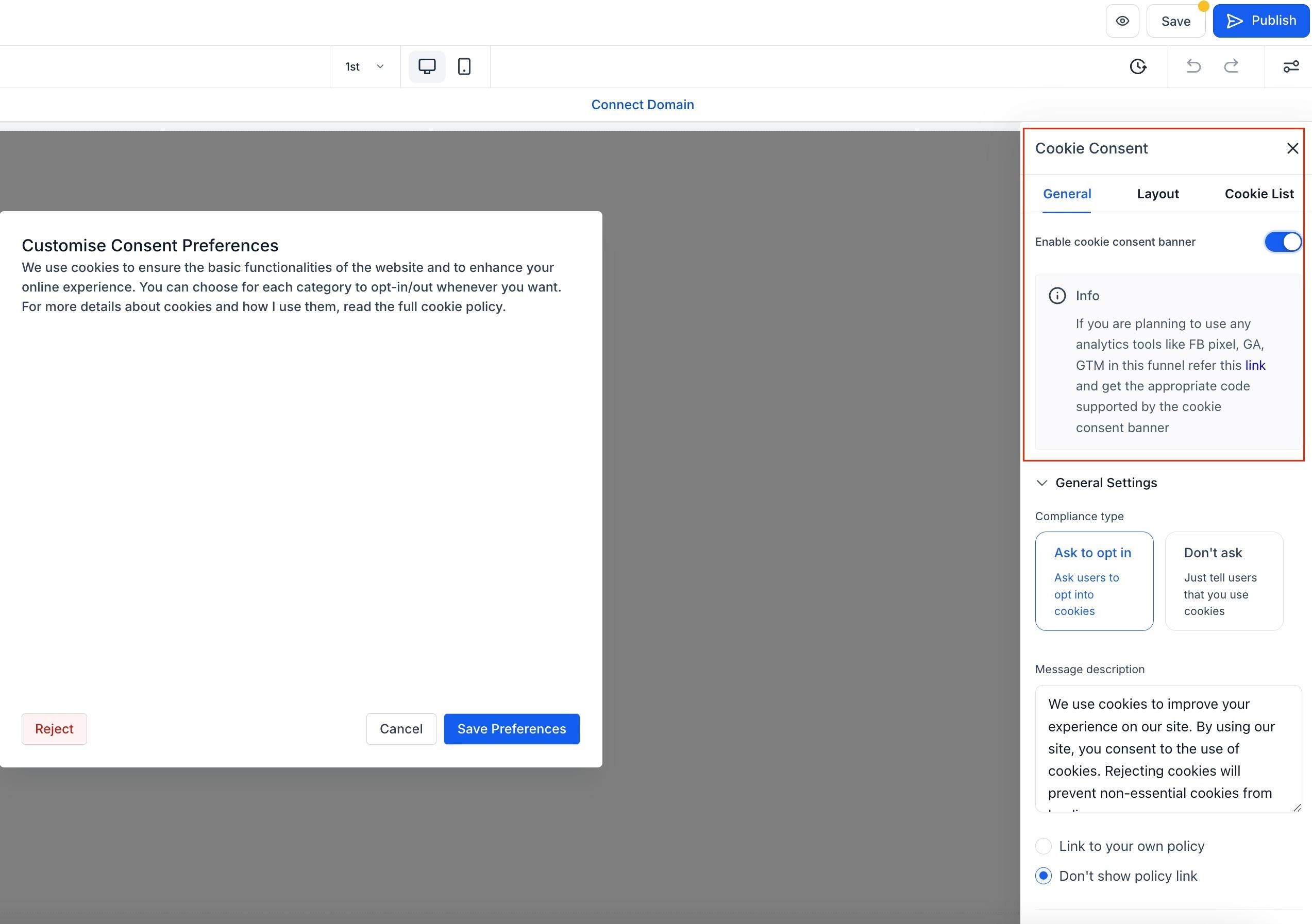
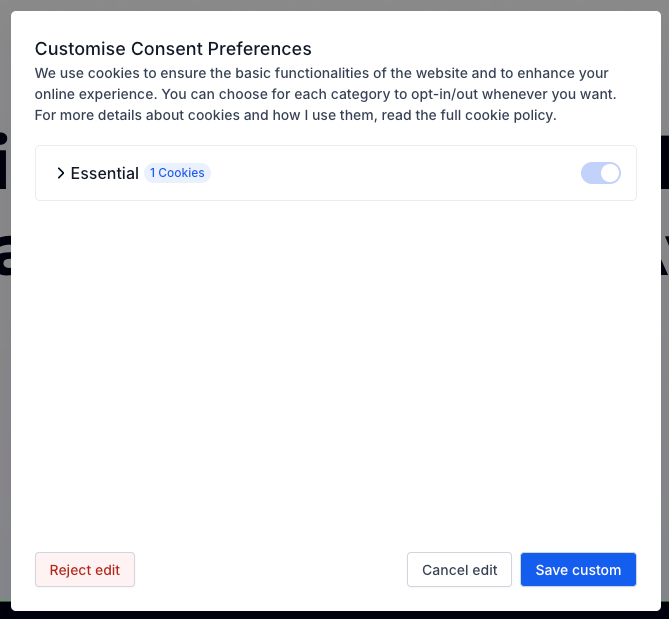
Cancel – Closes the popup and reopens the main banner.
Save Preferences – Saves the visitor's selected cookie settings.
Enable or disable the cookie list.
Choose the compliance type:
Ask to Opt-In – Displays "Accept Essential" and "Accept All" buttons.
Don't Ask – Shows only an "OK" button.
Add a message description and a link to your privacy policy.
Customize the banner's appearance: colors, fonts, text size, and more.
Consent Expiration – Set the number of days before consent needs to be re-requested.
Choose different banner display styles to match your site layout and brand.
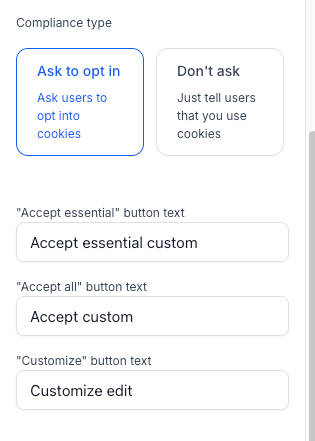
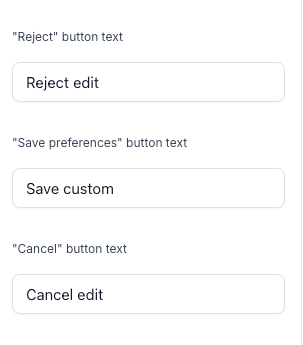
You can edit the text for all buttons in both the banner and the preferences popup to match your brand and localization needs.
Editable Banner Buttons:
Accept All
Accept Essential
Customize
OK
Editable Popup Buttons:
Reject
Save Preferences
Cancel
Note: Once you customize these labels, automatic translations (i18n) are disabled. You must manually add translations for all supported languages to ensure a consistent multilingual experience.

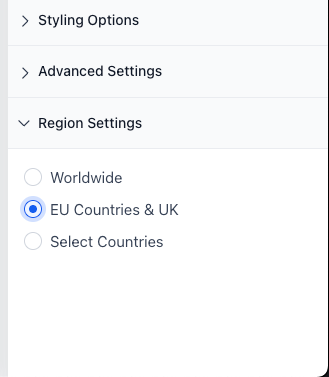
You can control where the cookie banner appears based on the visitor's location:
Worldwide – Display the banner to all visitors.
EU & UK – Display only to visitors in the European Union and United Kingdom.
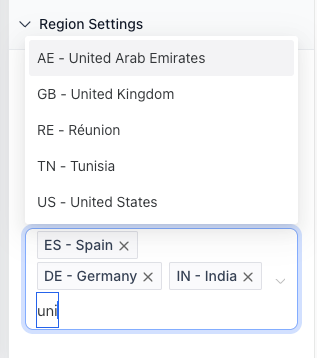
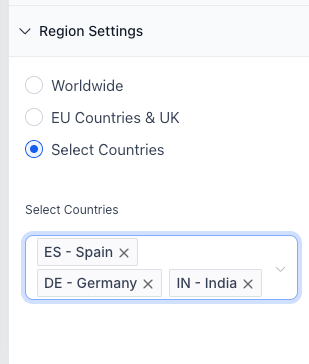
Select Countries – Manually select specific countries where the banner should appear.
Note: This helps minimize unnecessary prompts for visitors outside regulated areas, improving the experience while maintaining your compliance posture.
The Cookie List feature lets visitors enable or disable different types of cookies. When activated, visitors can select which cookies they want to allow.
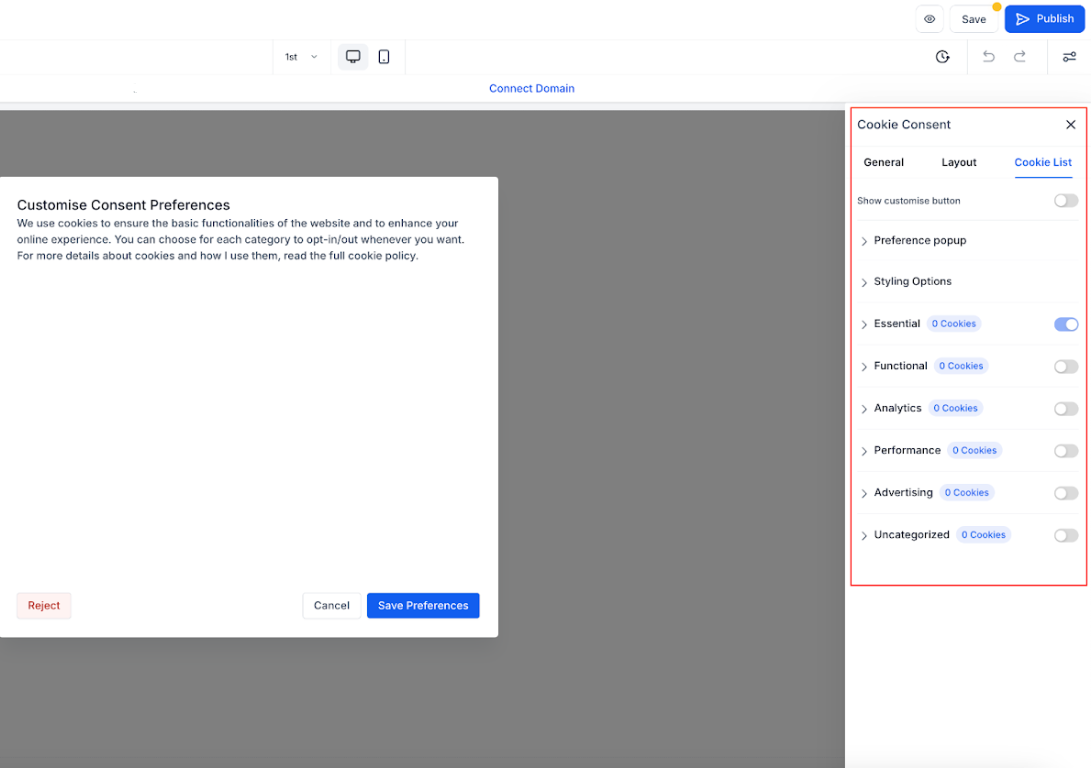
Essential – Required for website functionality (always enabled).
Functional – Supports features like social media sharing and feedback collection.
Analytics – Tracks visitor behavior (e.g., page views, bounce rates).
Performance – Helps optimize site speed and the visitor experience.
Advertising – Used for targeted ads and marketing.
Uncategorized – Any cookies not assigned to the above categories.
For each cookie, specify:
Cookie Key – Name of the cookie (supports regex patterns for multiple cookies).
Duration – How long the cookie lasts (e.g., 1 day, 30 days, 1 year).
Domain – The domain setting the cookie.
Description – Purpose of the cookie.
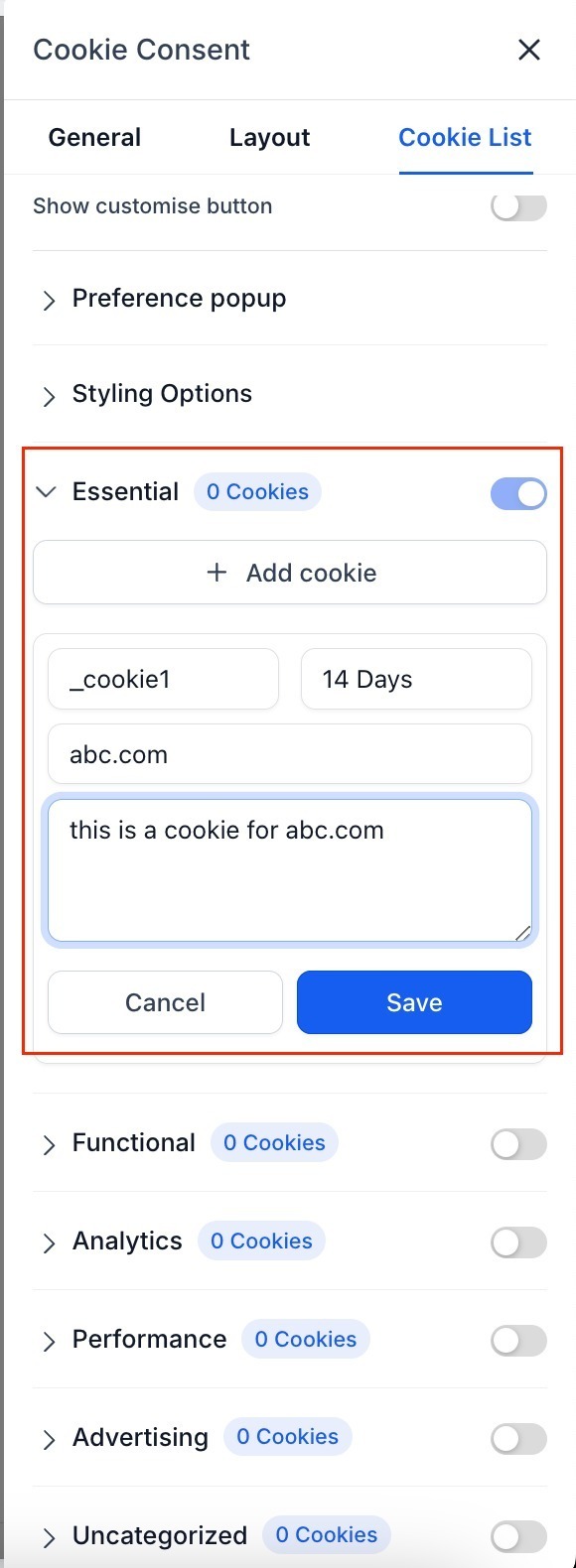
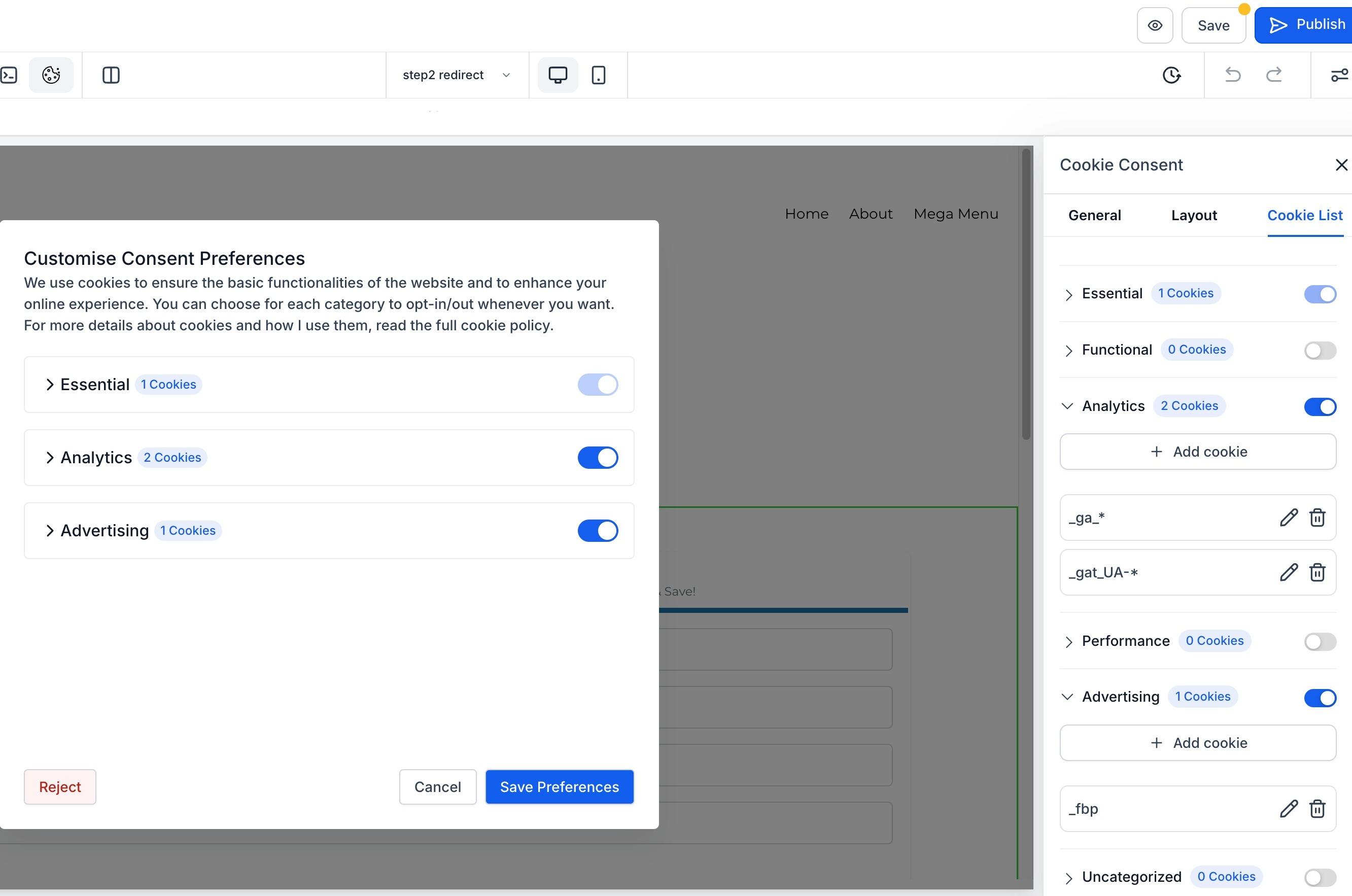
You can use regex patterns to match multiple cookies, such as:
ga-* – Matches all cookies starting with "ga-" (e.g., ga-1234, ga-3241).
_fbp – Matches Meta Pixel cookies.
_ga.* – Matches all Google Analytics cookies.
Temporarily disable the Cookie Consent Banner.
Use a free cookie-scanning tool to scan your website.
Review the detected cookies and assign them to the correct categories.
Note: Disable the banner before scanning. While enabled, it blocks non-essential cookies, which prevents a complete scan.
To ensure proper tracking, categorize cookies correctly:
Advertising – Meta Pixel (fbp, _fbc) and other ad platform cookies.
Analytics – Google Analytics (ga, _gid), Google Tag Manager, and other tracking tools.
Regularly scan your website for new cookies.
Provide clear, simple descriptions for each cookie.
Use regex patterns to organize similar cookies.
Ensure marketing tool cookies are correctly categorized.
Keep cookie expiration settings accurate and up to date.
Following these practices helps you address privacy law requirements while giving patients more control over their data.
Why do I need a Cookie Consent Banner?
It is designed to help you address compliance with privacy laws like GDPR and CCPA for websites that collect visitor data.
Can visitors change their cookie preferences later?
No, visitors cannot update their preferences later.
What happens if a visitor rejects all cookies?
Only essential cookies will be stored, while all tracking and analytics cookies will be disabled.
Can I customize the appearance of the Cookie Consent Banner?
Yes, you can adjust colors, fonts, button styles, and text descriptions in the settings.
Does the cookie consent apply to all pages in a funnel or website?
Yes, once enabled, the banner applies to all steps and pages in the funnel or website, since cookies are managed at the domain level.
Where do QR codes live outside the Page Builder?
They are stored in your QR library for the current location. You can access and manage them from the QR builder screens and from the inline editor in the element.
Do I need to republish after editing a QR code's destination?
Yes. After updating the QR code or swapping the selected QR code in the element, publish or update the page so visitors get the latest destination.
What if the QR code I previously selected was deleted?
The element will prompt you to pick another QR code or create a new one. Choose a replacement and republish.
Can I use a QR code from another location?
Cross-location QR codes are flagged for clarity. For consistency and control, create or select a QR code owned by the current location.
