Popups are one of the simplest ways to turn a browsing visitor into a booked consultation. With the Aesthetix CRM page builder, you can add a popup to any funnel step or website page and control exactly when it appears: right as a visitor lands, after a short delay, or the moment they move to leave. This guide covers both entry popups and exit-intent popups so you can capture a lead before they disappear.
Note: Entry popups and exit-intent popups both capture leads before visitors leave, they just trigger at different moments in the visit.
A well-timed popup gives you one more chance to make an offer, whether that's a free consultation, a limited-time treatment discount, or a spot on your waitlist. Here's what makes them valuable for aesthetic practices:
Reduce bounce and capture abandoning visitors: Present an offer right before someone exits so they don't leave without engaging.
Boost conversions: Turn a hesitant visitor into a consultation lead with a time-sensitive deal or special.
Grow your lead list automatically: Entry popups launch on their own, perfect for growing your email list or promoting a limited-time offer the moment a visitor lands.
Fully customizable content: Design the layout, background, and form fields to match your practice's branding.
Flexible form integration: Embed any Aesthetix CRM form to collect names, emails, phone numbers, or treatment interests.
Built into the page builder: No third-party tools needed. Popup behavior is built directly into the editor and works on both Funnels and Websites.
Follow these steps to build your popup, from creating the form to configuring when it appears.
Forms are what let you collect information from visitors in the popup. Start by creating or locating the form you want to use, for example a "Book Your Free Consultation" form that captures name, email, and phone.
Next, create the popup within a funnel or website page and add your form.
Navigate to Marketing → Landing Page Builder or Websites and select the funnel or website you want to use.
Locate the specific funnel step or page the popup will be added to, then click the blue Edit button to open it in the builder.
In the top navigation bar of the page builder, click the Popup Settings icon.
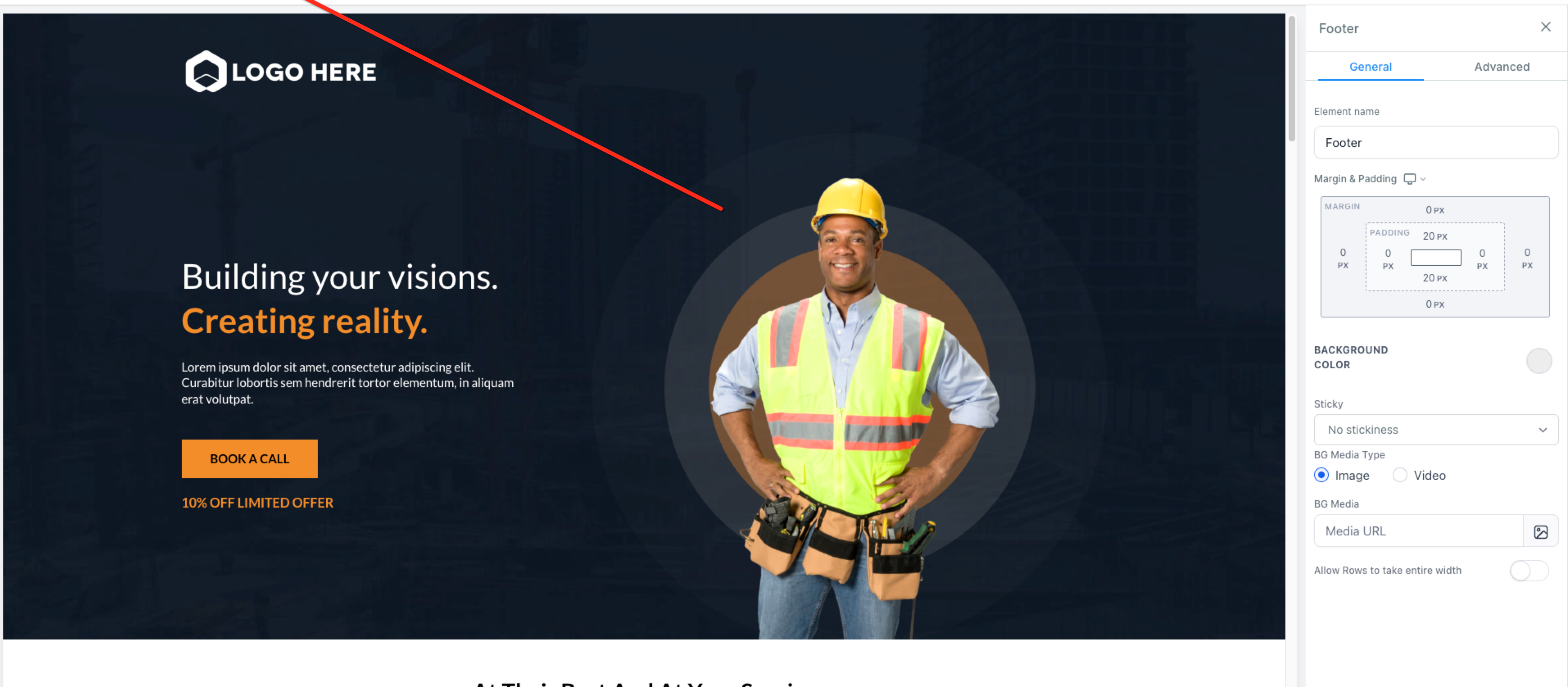
Click Add Row, then Add Element to add a Form element to the popup. Use the form picker to select your desired form.
Customize the popup design (row, column, background, and form styles) to match your branding.
(Optional) Use the sidebar dropdown to switch the selected form after adding the initial one.
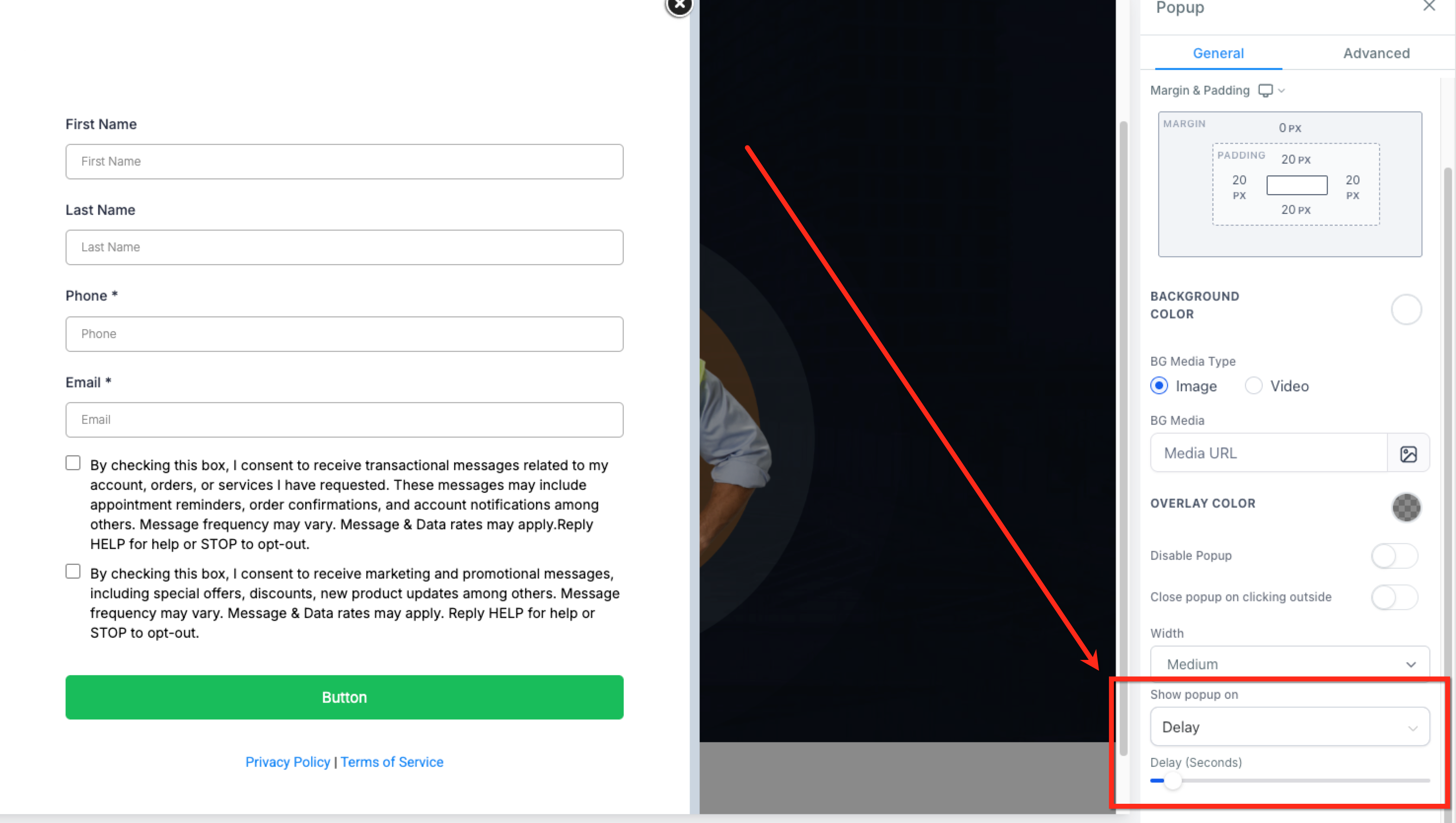
Open Popup Settings (the blue button with the gear icon at the top of the popup), then scroll in the sidebar to the Show Popup On dropdown and choose how it should trigger:
Delay: The popup appears automatically a few seconds after the page loads. Use the slider just below the dropdown to set how many seconds after page load it should appear. Great for welcoming visitors and promoting a time-sensitive offer right away.
Exit: The popup appears when a visitor moves their cursor toward the browser toolbar or close button, as if they're about to leave. Ideal for one last offer to capture a lead before they go.
None disables the popup, so avoid selecting it if you want the popup to show.
Click Save or Publish in the top-right corner of the editor to apply your popup settings.
Once saved and published, confirm the popup works as intended:
Preview the page or funnel step.
For an entry popup, wait for your delay timer and confirm it appears.
For an exit-intent popup, move your cursor toward the top of the browser (as if exiting) and confirm it appears.
Adjust styling and content as needed.
Exit-intent detection relies on mouse cursor tracking, so it only works on desktop. It does not function on mobile because touchscreens have no cursor. Delay-based entry popups, however, work on both desktop and mobile.
Q: What's the difference between an entry popup and an exit-intent popup?
An entry popup uses the Delay setting to appear automatically a few seconds after the page loads. An exit-intent popup uses the Exit setting to appear when a visitor moves their cursor toward the browser toolbar, as if they're leaving.
Q: Can I set the popup to show only once per visit or session?
No. The popup will appear each time the page loads unless the visitor stays on the same page.
Q: What happens if I choose "None" instead of "Delay" or "Exit"?
The popup won't behave as intended. "None" disables it entirely, so choose "Delay" or "Exit" depending on the behavior you want.
Q: Can I use different forms for different popups?
Yes. You can assign a different form to each popup on individual funnel steps or pages.
Q: Can I use popups on both Funnels and Websites?
Yes. The feature works identically for both, and the setup process is exactly the same.
Q: What happens if the popup is opened manually before the delay time is reached?
If the popup is triggered manually (for example, by a button click) before the delay timer finishes, the automatic popup is canceled. This prevents the same popup from appearing twice during one page view.
Q: Can I preview the popup before going live?
Yes. Use the page preview option inside the builder to test behavior before publishing.
Q: Does the popup styling match my site?
Yes. You can fully customize the popup's row, column, background, and form styles to match your practice's branding.
