Two Page Builder elements help your practice build credibility and connect with patients: the Social Icons element links visitors straight to your Instagram, Facebook, and other profiles, while the Testimonials element showcases real patient reviews as polished social proof. This article explains how to add and customize both.
The Social Icons element embeds platform-specific social media icons directly into your website or funnel pages. These icons link to your practice's social accounts, helping increase visibility and engagement. There's no need to write custom code or build a social bar by hand.
Increased engagement: Easily direct visitors to your social profiles.
Professional branding: Maintain a unified brand presence across platforms.
Drag-and-drop simplicity: Add icons without any code.
Flexible layouts: Choose icon-only, text-only, or a combined display.
In the Page Builder, click + Add Element.
Locate the Social Icons element (under the "Social" category).
Drag it into the desired section.
You can fully control how your social icons appear and behave:
Rearrange icons: Drag and drop icons using the "3 lines" handle to adjust their order.
Edit links: Click the "pencil" icon to change the URL for each icon (for example, link to your practice's Facebook or Instagram profile).
Delete icons: Use the "trash" icon to remove any icon you don't need.
Add more icons: Click + Add Social to add icons for more platforms or restore ones you've deleted.
Change display type: Choose how each icon is shown (Icon Only, Text Only, or Icon & Text).
Adjust alignment: Align your icons to the left, center, or right.
Set icon size: Customize the width and height of the icons in pixels to best fit your layout.
Note: Icons are not pre-linked to your accounts. You must add each profile URL manually by clicking the pencil icon next to an icon and entering the correct link to your practice's Instagram, Facebook, or other page.
The Social Icons element supports the following platforms:
X
YouTube
TikTok
Google Plus
Website
Do the icons adjust for mobile?
Yes. Icons are responsive, and you can use the size and alignment settings to optimize how they display on mobile.
Are the icons automatically linked to my profiles?
No. The icons are not pre-linked to your social accounts. Add your profile URLs manually by clicking the pencil icon next to each icon and entering the correct link.
The Testimonials element lets you display patient feedback directly within your website or funnel pages. It offers flexible layout styles, card formatting, and content customization, helping your practice build trust by showcasing real experiences from happy patients.
The Testimonials element is designed for manually entered feedback, giving you full control over the content, order, and appearance of each testimonial. It's ideal for curated quotes, in-depth patient stories, or brand-specific messaging.
Increase social proof: Build trust by showcasing real patient outcomes.
Save time: Prebuilt layouts and styles reduce design time.
Stay on-brand: Reinforce your practice's identity with custom fonts, colors, and styling.
Keep it clean and clear: Let visitors expand long testimonials with a simple "Read More" link.
Enhance readability and impact: Adjust font size, card shapes, and rating icons to make testimonials easy to scan.
Fine-tune how testimonials appear using styling, layout, and content display controls. The configuration panel is divided into three areas: Testimonial Settings, Layout Options, and Card Style Options.
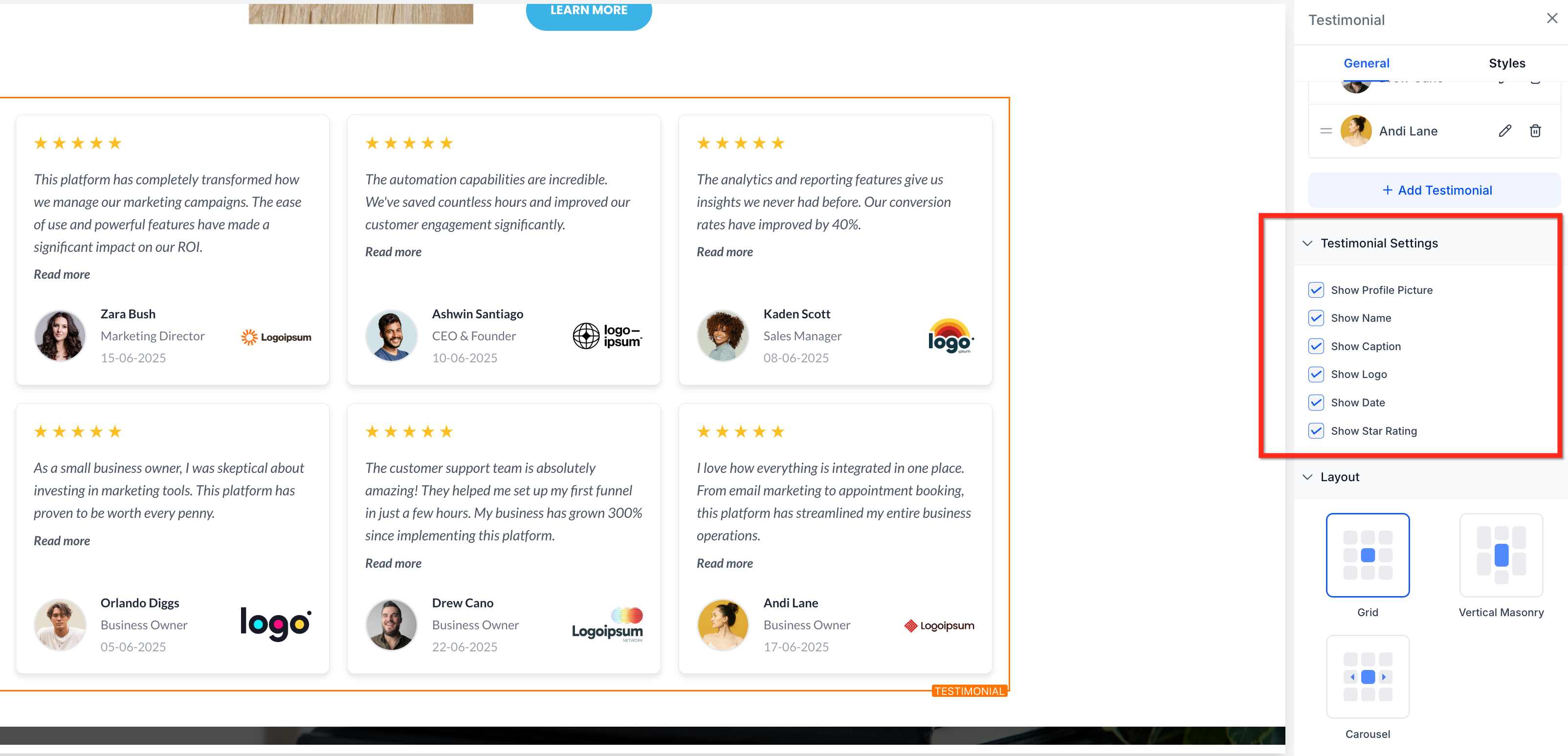
Control what information is visible so each testimonial emphasizes what matters most:
Show Profile Picture: Toggle on or off to display patient images.
Show Name, Caption, Date: Display or hide details of the testimonial author.
Show Logo: Add branding to testimonials with a logo display.
Show Star Rating: Toggle the visual 1–5 star rating on or off.
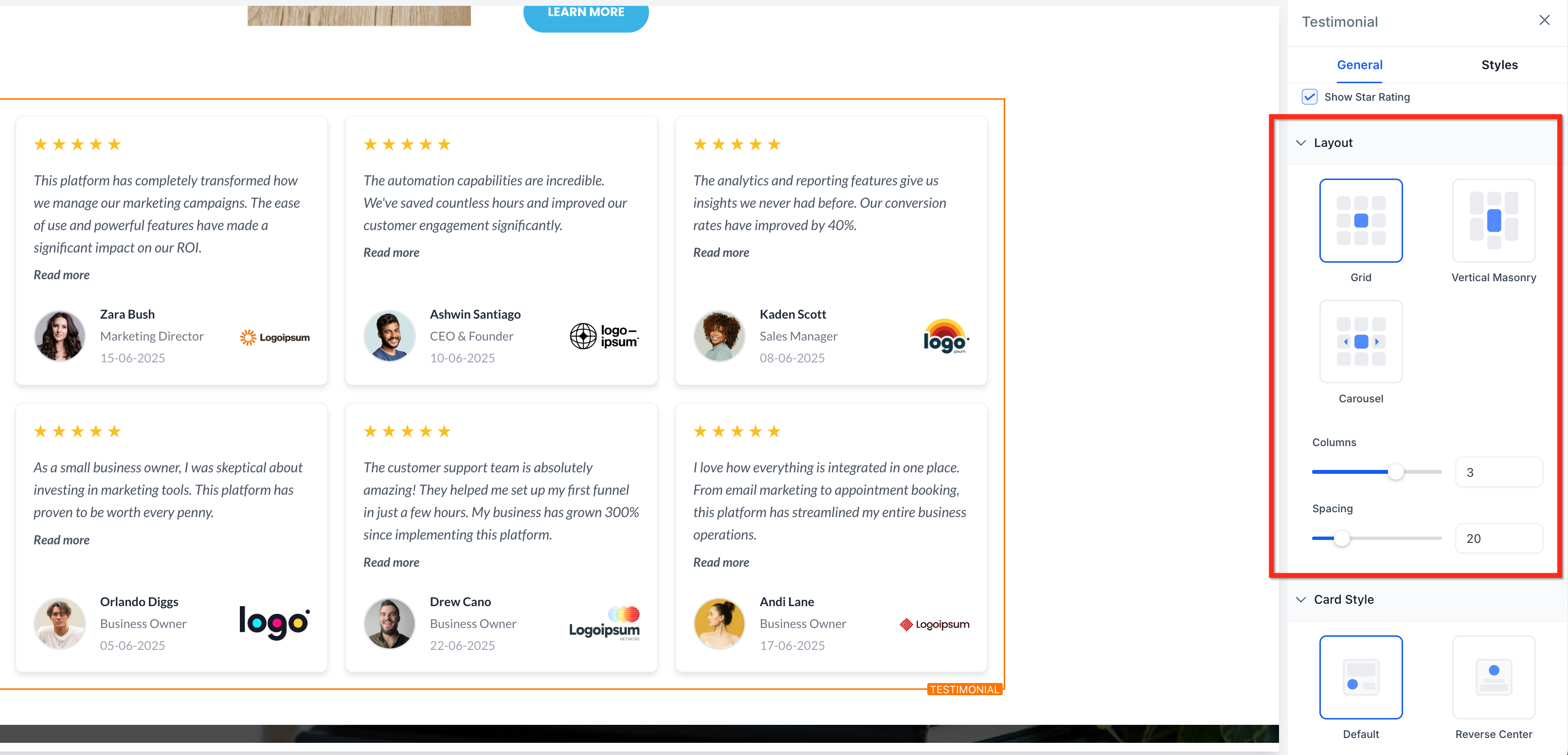
Determine how testimonials are arranged to best complement your content. Choose from three layouts:
Grid: Uniform layout that aligns testimonials in a structured block.
Vertical Masonry: Staggered display based on content height.
Carousel: Interactive slider for rotating testimonials.
You can also adjust the number of Columns (0–4) and the Spacing between cards using sliders.
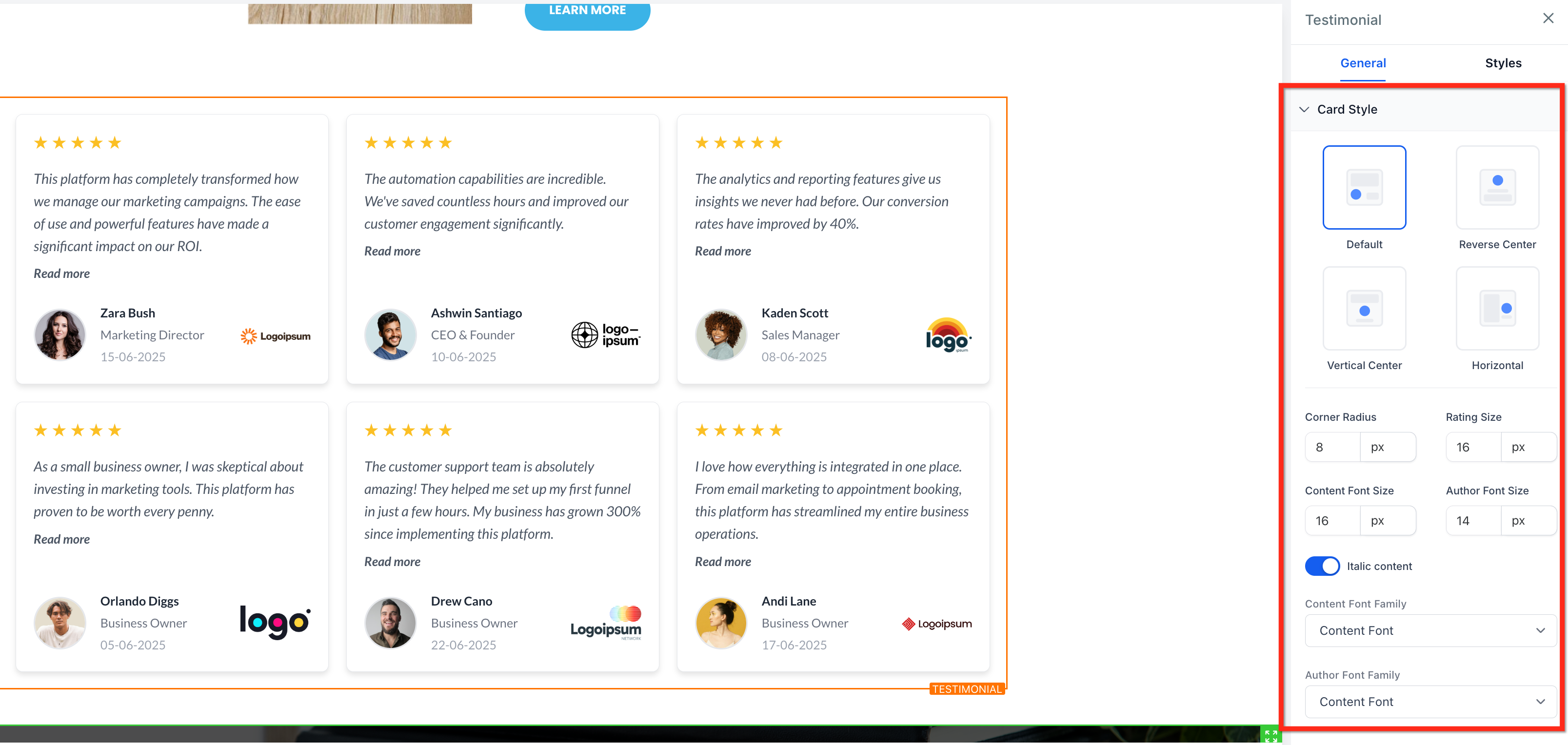
Select from clean card templates and tailor typography and color to match your brand. Choose from four card styles:
Default: Content above with profile/image below.
Reverse Center: Image centered above text.
Vertical Center: Image centered below text.
Horizontal: Side-by-side profile and testimonial layout.
You can also adjust additional styling:
Adjust the corner radius for rounded card borders.
Modify font style and size for the content and author text.
Customize colors for the background, card, name, caption, content, rating, date, and "Read More" links.
Follow these steps to add and configure the Testimonials element.
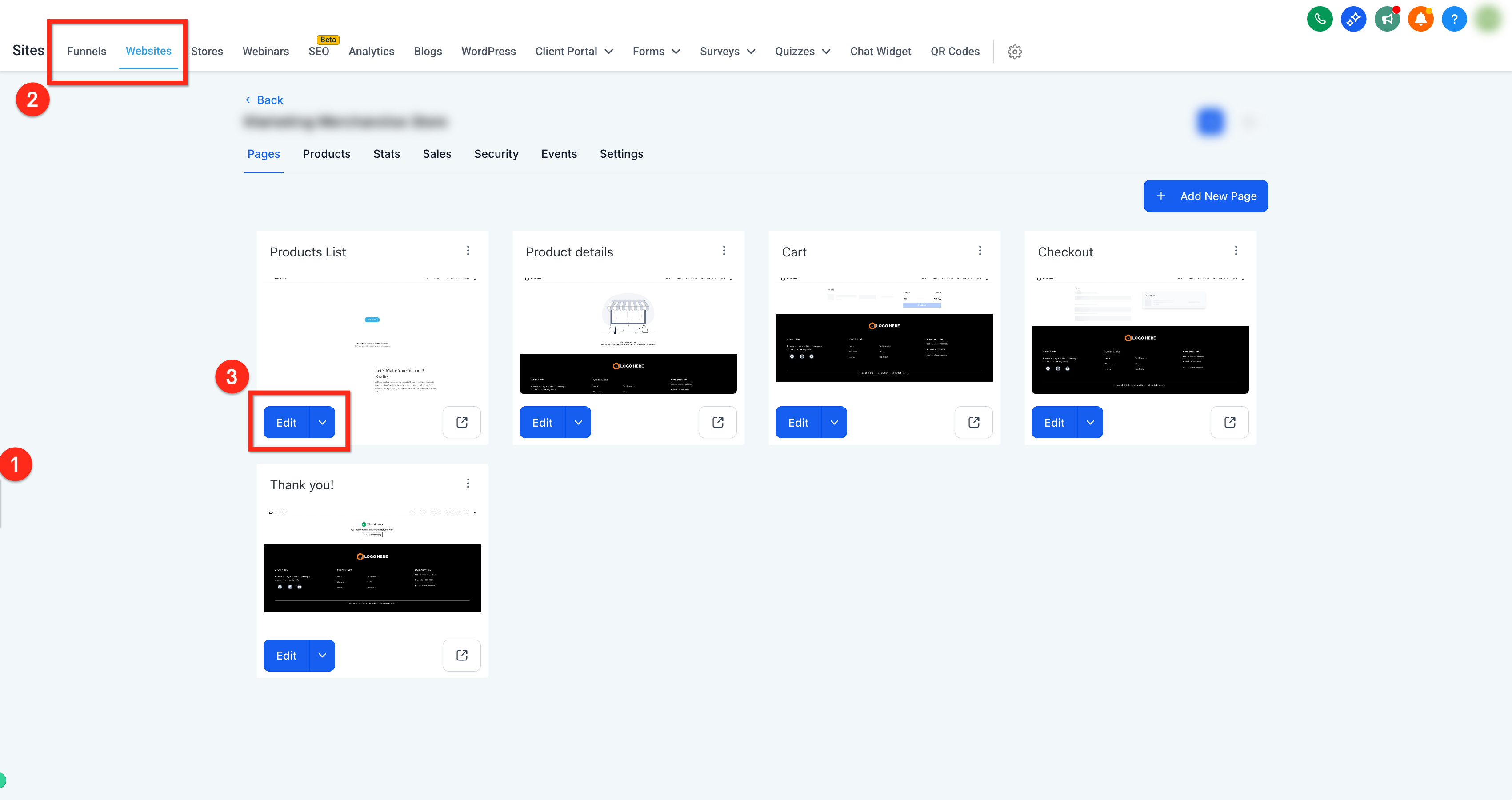
In the left-hand menu, click Web Tools.
Using the top navigation ribbon, select either the Funnels or Websites tab.
Open your chosen funnel or website and click the blue Edit button to launch the page editor.
Click the Add Elements (+) button in the upper-left corner.
Drag and drop the Testimonials element into your page layout.
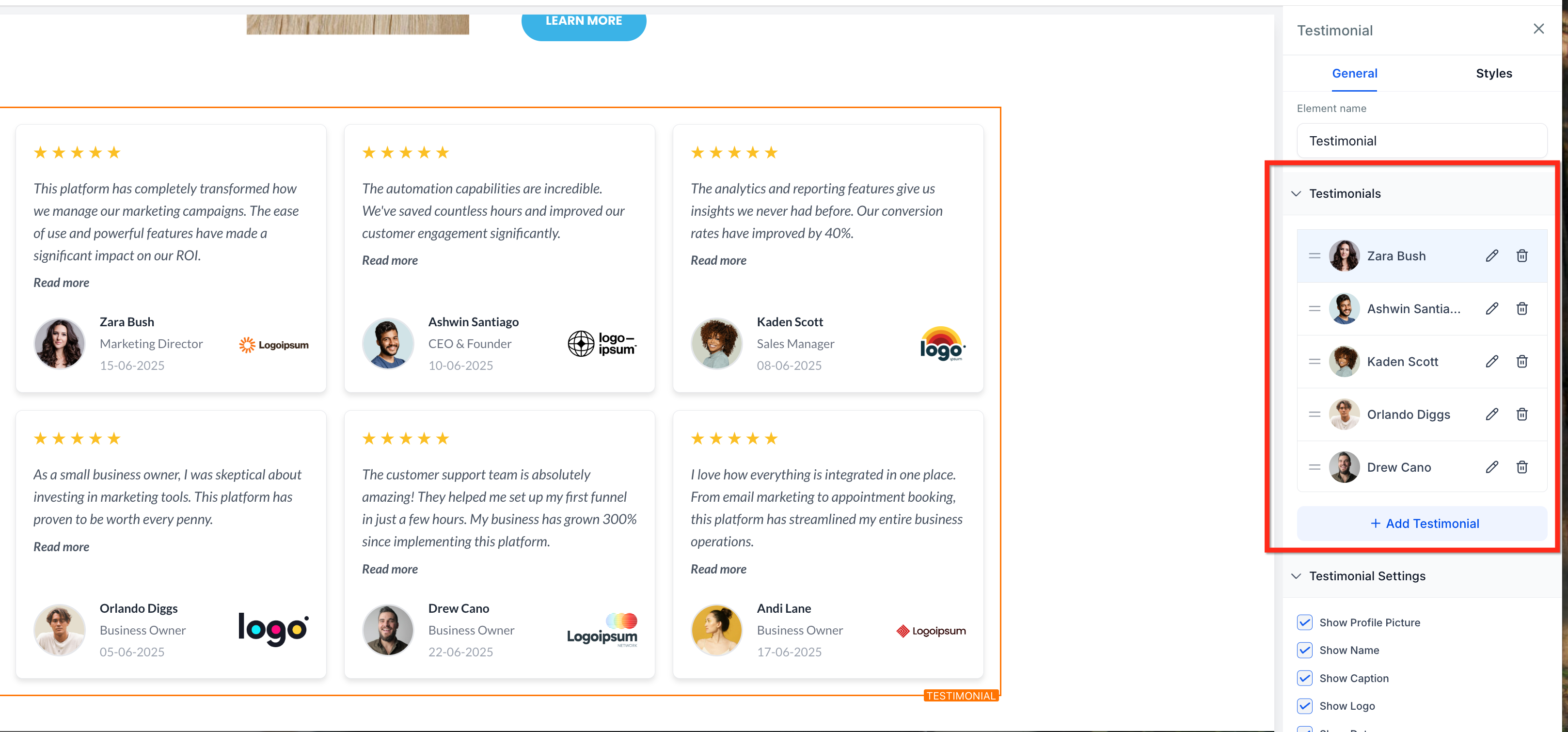
Click into the Testimonials element to open the configuration panel.
Drag the handle (two-line icon) to reorder testimonials.
Click + Add Testimonial to create new entries.
Use the pencil icon to edit and the trash icon to delete a testimonial.
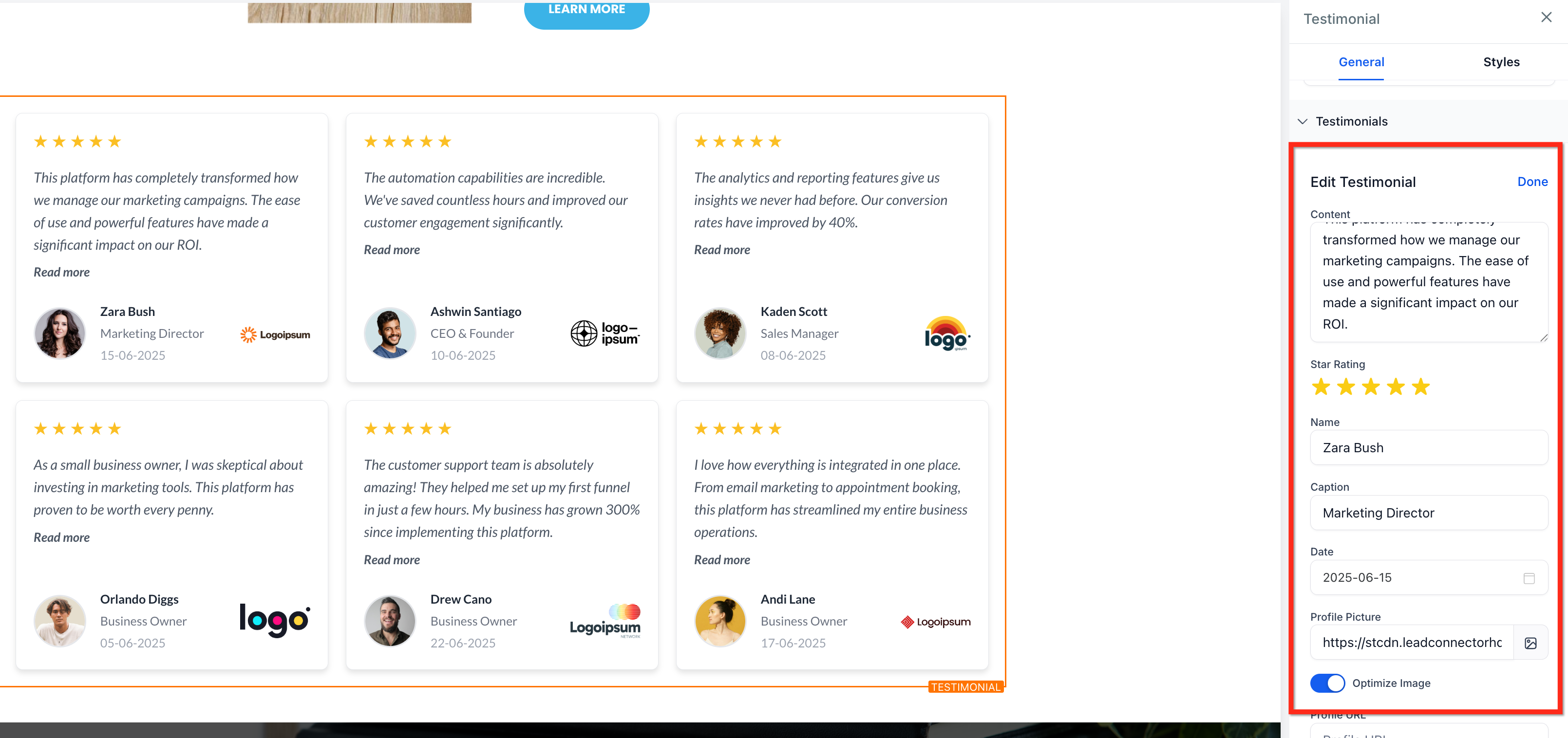
Use the pencil icon to open the testimonial editor.
Edit fields such as name, caption, date, star rating, profile photo, profile URL, business URL, and logo.
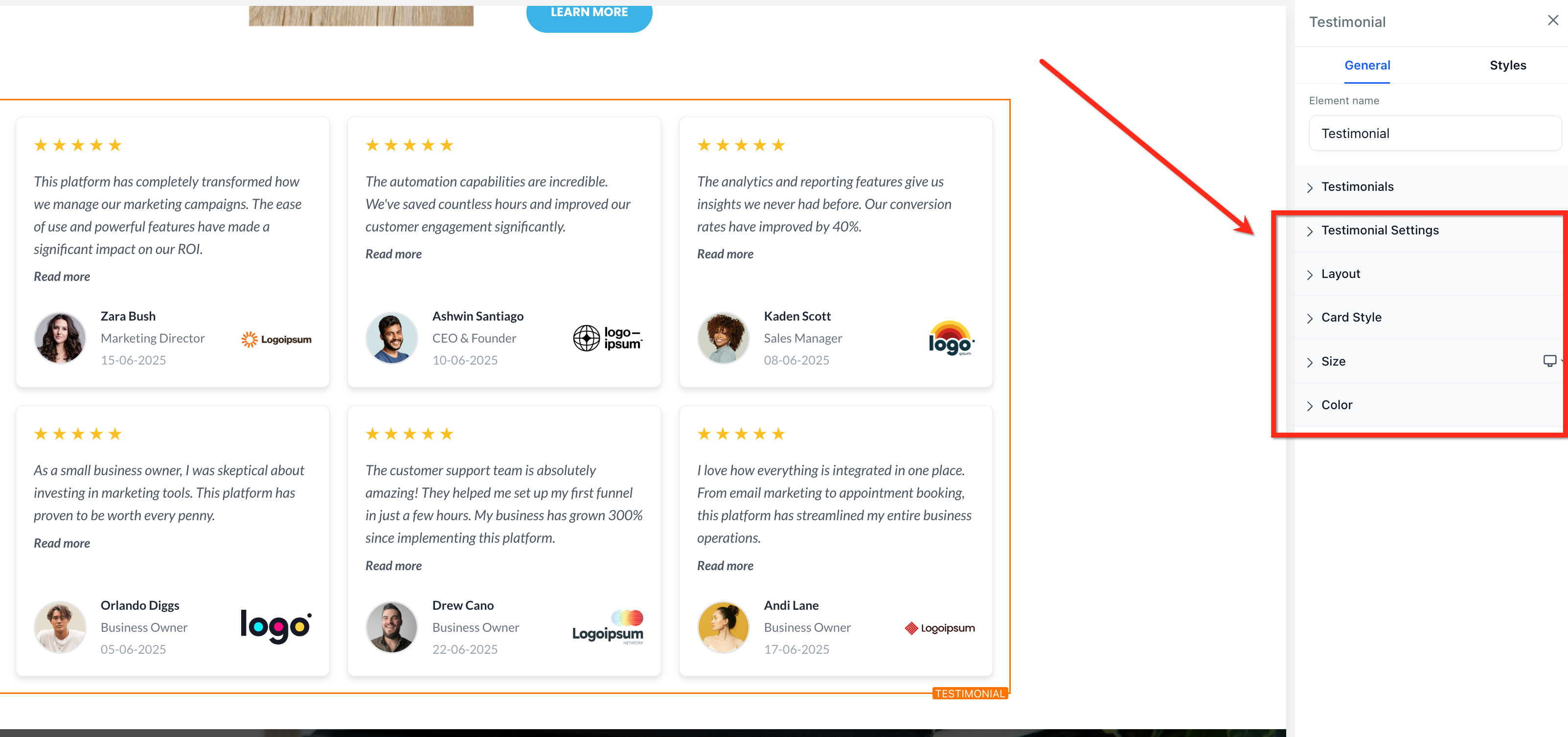
Use Testimonial Settings to choose which elements to display, such as profile pictures, names, dates, logos, and star ratings.
Select a layout in Layout Options to arrange testimonials as a grid, carousel, or masonry display, and control column and spacing settings.
Choose a card style in Card Style Options, then personalize fonts, borders, and other styling.
Refine the design using the Size and Color Options to match your practice's aesthetic with custom fonts, colors, and sizing.
Can I pull testimonials from Google or Facebook reviews?
No. This element supports only manually added testimonials.
Does the Testimonials element support dynamic content?
No. This is a static content block. You add and update testimonials manually.
Is there a way to truncate long testimonials with a "Read More" link?
Yes. Long testimonials automatically shorten with an optional "Read More" expansion.
Can I reorder the testimonials?
Yes. Use the drag handle to change the testimonial order.
Are there character limits on testimonial content?
There are no fixed limits, but long entries are truncated and made expandable using the "Read More" link.
