The Page Builder gives you two dynamic ways to display multiple images: the Image Slider element for rotating photos and the Logo Showcase element for scrolling brand, partner, or certification logos. Both add movement and visual interest to your pages, helping you capture attention and build trust with prospective patients. This guide walks you through adding, populating, and customizing each one.
The Image Slider lets you embed an interactive, rotating set of images directly into any page or funnel. It's ideal for showcasing before-and-after galleries, treatment highlights, facility photos, or promotions, with rich options for transitions, animation, arrows, and pagination.
Elevated experience: Rotating images add interactivity and visual appeal that captivate visitors.
More engagement: Dynamic sliders encourage visitors to linger and interact with your content.
Full design control: Build and tailor sliders directly in the builder, with complete control over look and behavior.
Responsive by design: Sliders adapt automatically, looking great on desktop and mobile.
In the builder, choose the section or page where you want the slider to appear.
Drag and drop the Image Slider element into place.
Personalize the slider by adjusting transition effects, pagination styles, autoplay settings, and more.
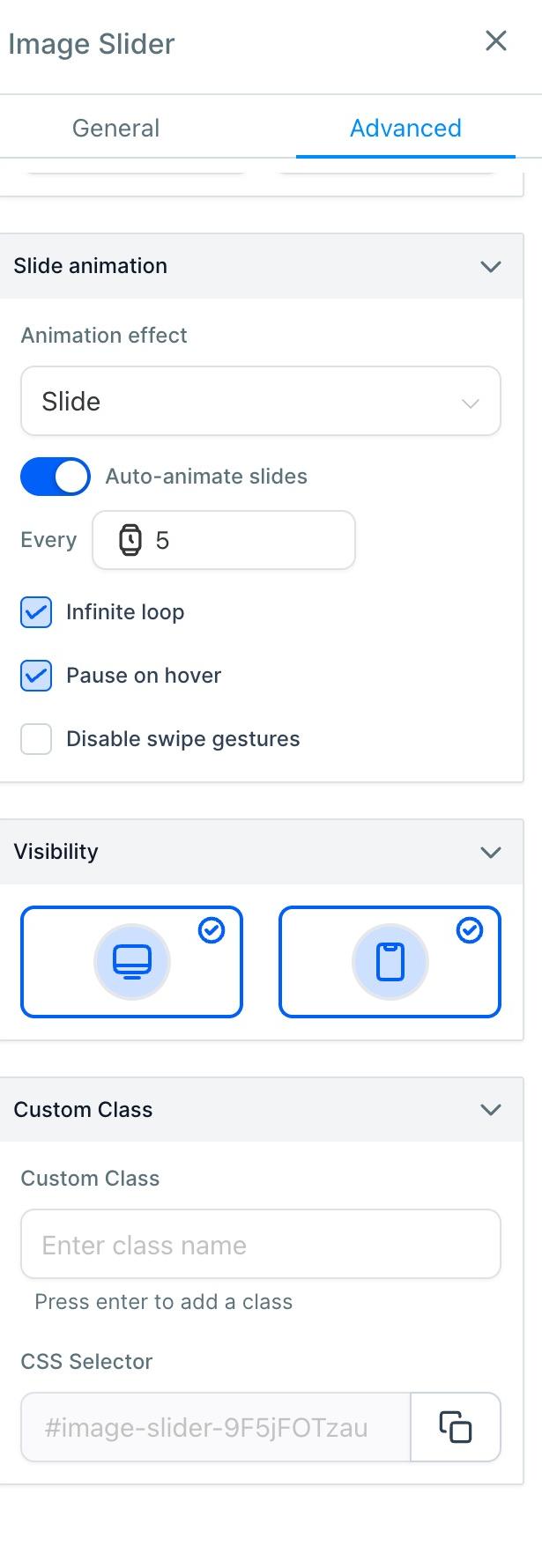
Add your images from the Media Library. For best results, use images with a 16:9 aspect ratio, such as 1600x900 px or 1920x1080 px. This keeps your slider sharp and consistent across every screen size.
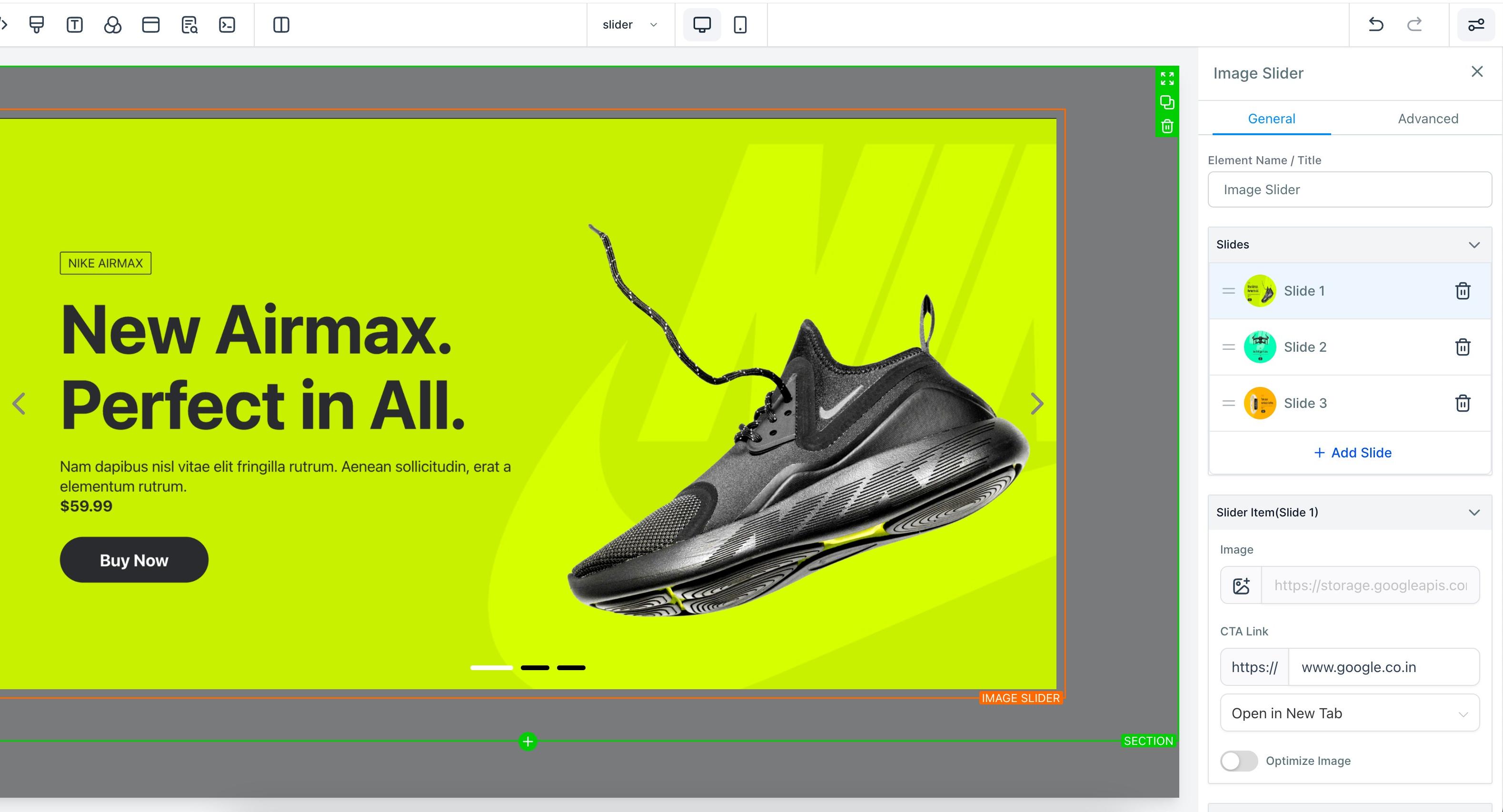
Save your changes, and the image slider will appear live on your website or funnel.
Note: In the general options you can also resize your images and set a URL redirect for each slide, so clicking an image sends visitors to a specific page. You can choose to open that link in the current tab or a new tab.
Q: What is the Image Slider element?
It lets you embed an interactive, rotating set of images into your pages and funnels, with a range of customization options for a captivating visual experience.
Q: How do I add an image slider?
In the builder, go to the section or page you want, drag and drop the Image Slider element, customize it as needed, add your images, and save.
Q: How many slides can I add?
You can add as many slides as you want. A common practice is to use 3–5 slides.
Q: What happens if a visitor clicks a slide?
You can set a URL redirect for each image from the general options, and choose whether the link opens in the current tab or a new tab.
Q: Can I resize the images in the slider?
Yes. In the general options you can resize the images in your slider.
Q: Will the slider work on mobile?
Yes. The element is responsive and looks great on both desktop and mobile devices.
Q: Can I add a button to the slider?
You can build the button into the image itself. Because clicking the image redirects to a specific page, it works just like a button would.
The Logo Showcase is a dynamic element that displays multiple logos in either a continuously scrolling ticker or a sleek carousel. It's perfect for building trust through visual branding, showcasing partner practices, insurance carriers, awards, certifications, or featured brands.
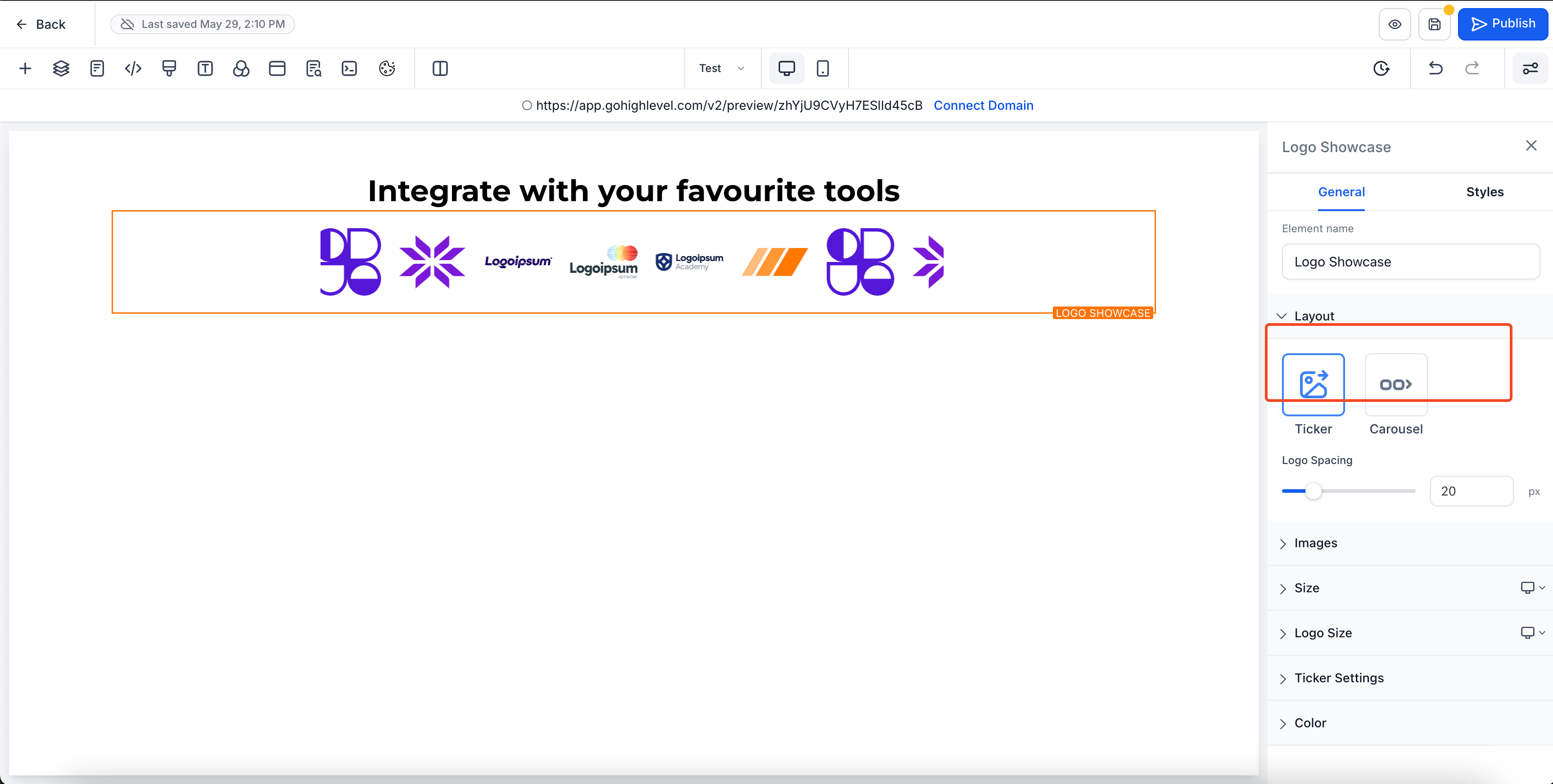
Showcasing logos builds trust and reinforces your credibility. Highlights of this element include:
Two distinct display styles: Ticker and Carousel
Auto-animation and infinite-loop options for continuous movement
Custom logo spacing and layout control
Touch-optimized swipe support for mobile
Simple drag-and-drop logo management
Custom alt text for SEO and accessibility
Open your page in the Page Builder.
Drag the Logo Showcase element onto your page.
Choose your preferred mode: Ticker or Carousel.
Upload your logos through the image interface.
Customize the logo layout and animation settings.
Preview and adjust until you're satisfied.
Ideal for high-volume logo visibility in a compact space, ticker mode scrolls logos horizontally in a continuous loop.
Smooth, endless scrolling for constant movement
Great for displaying many logos in limited space
Settings include:
Scroll Speed (1–10)
Smooth Scroll toggle
Pause on Hover option

Best for spotlighting premium partners or a curated selection, carousel mode presents logos slide by slide with full interactivity.
Supports up to 8 logos per slide
Navigation via arrow buttons, pagination dots, and swipe gestures
Settings include:
Logos per Slide
Auto-Animation & Interval Timing
Infinite Loop
Pause on Hover
Animation Style (Slide or Fade)

Fine-tune everything from layout to transitions with intuitive settings:
Adjust spacing between logos (0–100px)
Rearrange logos via drag-and-drop
Enable smooth transitions and control their timing
Add custom alt text to each logo for accessibility
Note: All uploaded logos and settings are retained when you switch between Ticker and Carousel modes, so you can experiment freely without starting over.
Q: Can I switch between Ticker and Carousel without losing logos?
Yes. All uploaded logos and settings are retained when you switch modes.
Q: What is the maximum number of logos supported?
There's no hard limit, but performance may vary with very high numbers of logos.
Q: Can I use external links for logos?
Currently, logos must be uploaded directly.
Add logos to your homepage, an accreditations page, or a trust section.
Pair the showcase with testimonial elements for even greater impact.
Explore the animation settings to enhance engagement.
