The Page Builder lets you save a section once and reuse it anywhere, so you never have to rebuild the same hero banner, promotion block, or footer twice. You can also link a saved section so that editing it in one place updates it everywhere it appears, which is perfect for shared elements like headers and footers.
This guide covers the three ways to save a section, how to insert saved sections into other pages, and how to find them quickly with search.
When you save a section, you choose how it should behave when reused. Aesthetix CRM offers three types:
Template: Saves as a static, reusable copy. You can drop it onto any page and customize each instance independently. Editing one copy never affects the others.
Global: Saves at the funnel or website level. Any edit syncs across every instance of that section within the same funnel or website.
Universal: Saves at the account level. Any edit syncs across every instance everywhere in your account, across funnels, websites, webinars, and your online store.
This system keeps your branding consistent, saves time, and makes it clear how updates will spread.
Note: Universal sections update automatically across every instance in your account. Global sections update only within the current funnel or website. Templates never sync, they are simply reusable starting points.
Centralized updates: Universal sections push a single change everywhere it appears, so a phone number or promotion only has to be updated once.
Flexible reuse: Pick Template, Global, or Universal based on whether you want content to stay in sync or to be customized page by page.
Visual selection: Automatic thumbnails and clear labels make it easy to preview and pick the right saved section.
Safe cloning: Cloned sections get a new unique ID, so edits to a copy never affect the original.
Reliable syncing: Saved sections sync quickly and reliably.
No personal data stored: Only the layout is saved, so no contact or patient information is ever stored in a section.
Follow these steps to save a section for reuse.
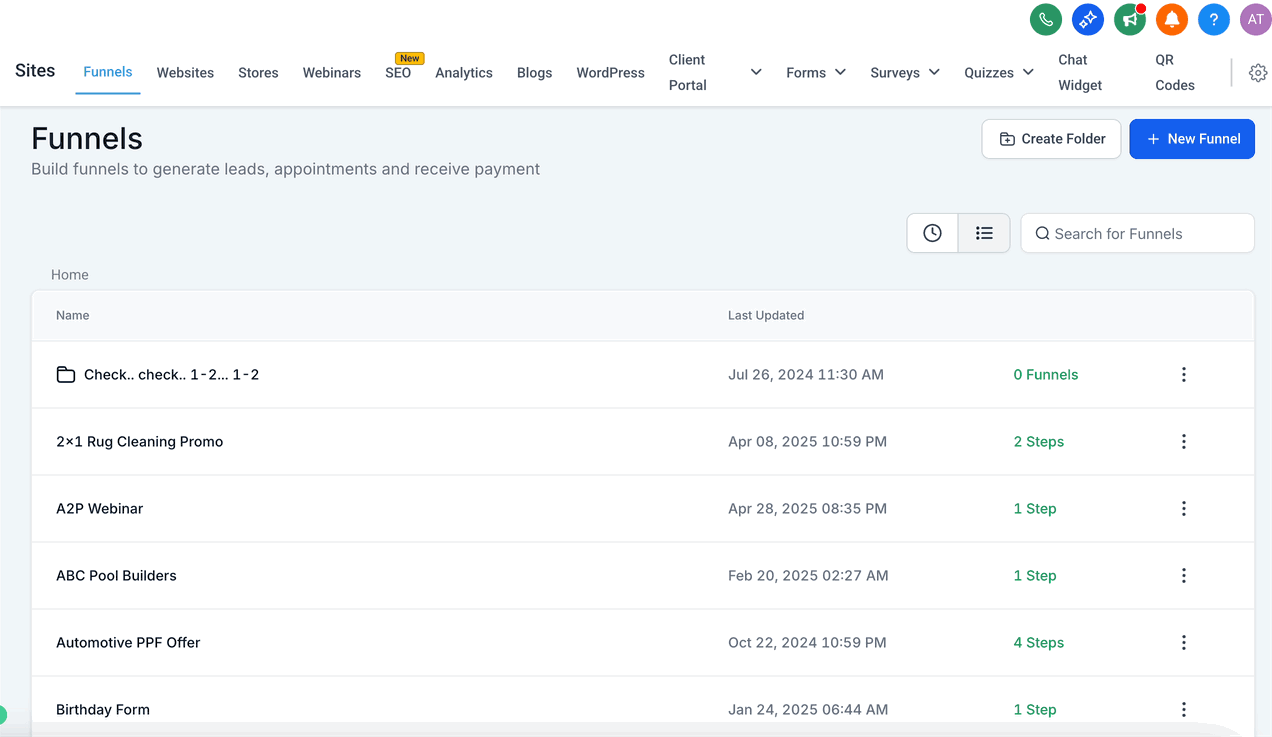
Open your funnel, website, webinar, or online store page and launch the page editor.
Choose the section you want to save for reuse.
Click the Save Section option. A save window appears.
Select how you want the section to behave:
Universal: Syncs updates across all assets in your account.
Global: Syncs updates only within the current funnel or website.
Template: Creates a static, reusable section that does not sync when edited elsewhere.
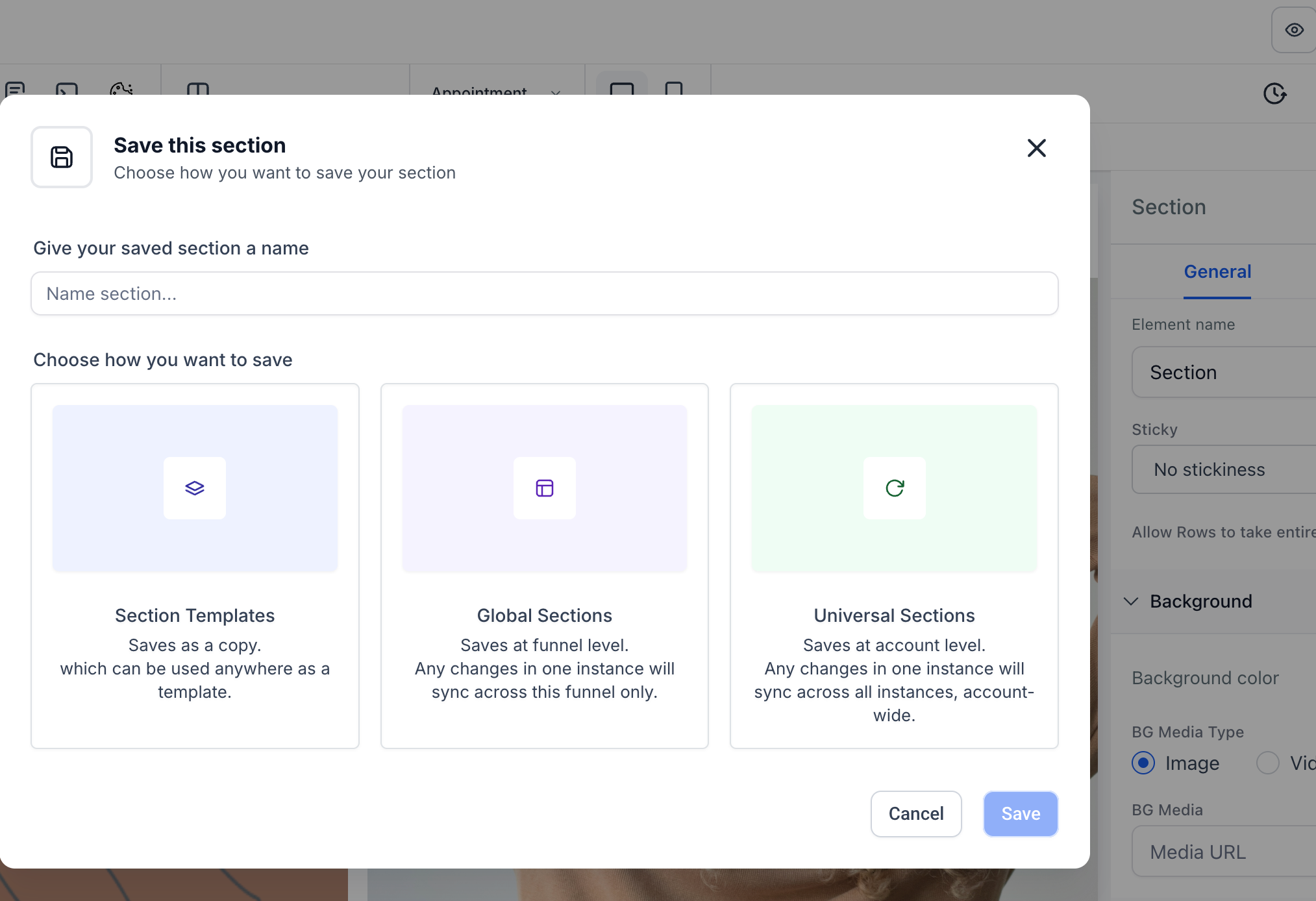
Name your section so it is easy to find later, then save.
Note: Once a section is saved as Template, Global, or Universal, its type cannot be changed. If you need a different type later, clone the section and save the clone under the type you want.
When editing another page, use the Add Section option to browse and insert your saved Template, Global, or Universal sections.
Global sections are managed inside the Page Builder when adding a section to a page.
Open the Page Builder for a page or funnel step.
Click Add Elements in the left sidebar.
Select Saved Sections.
Open Global Sections.
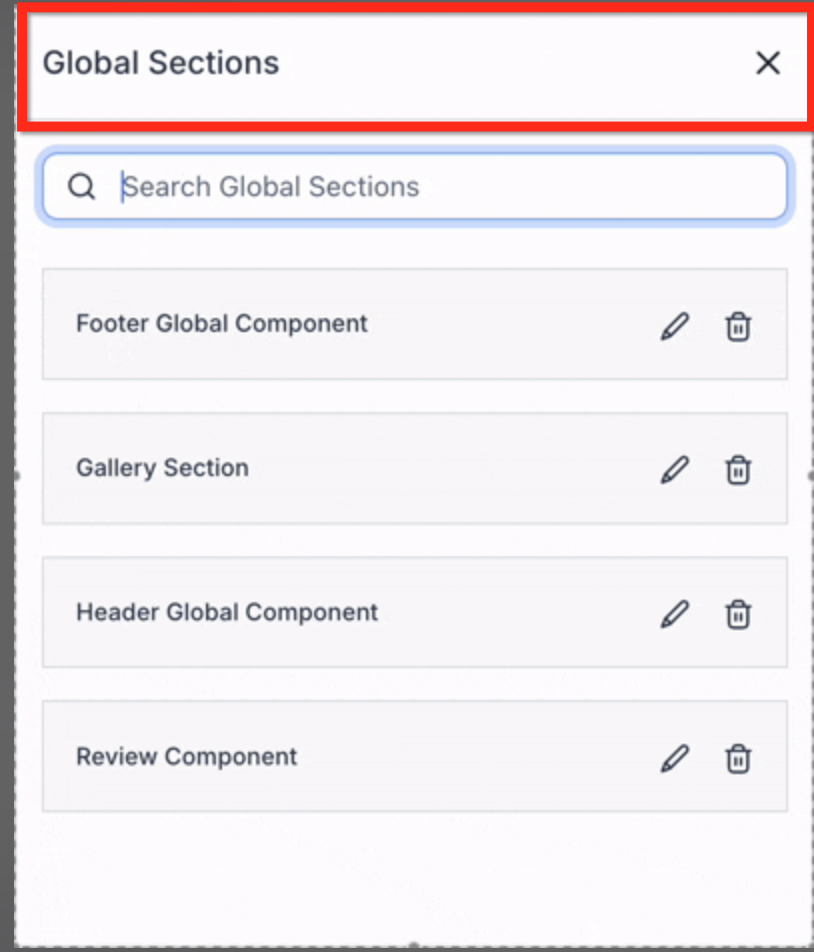
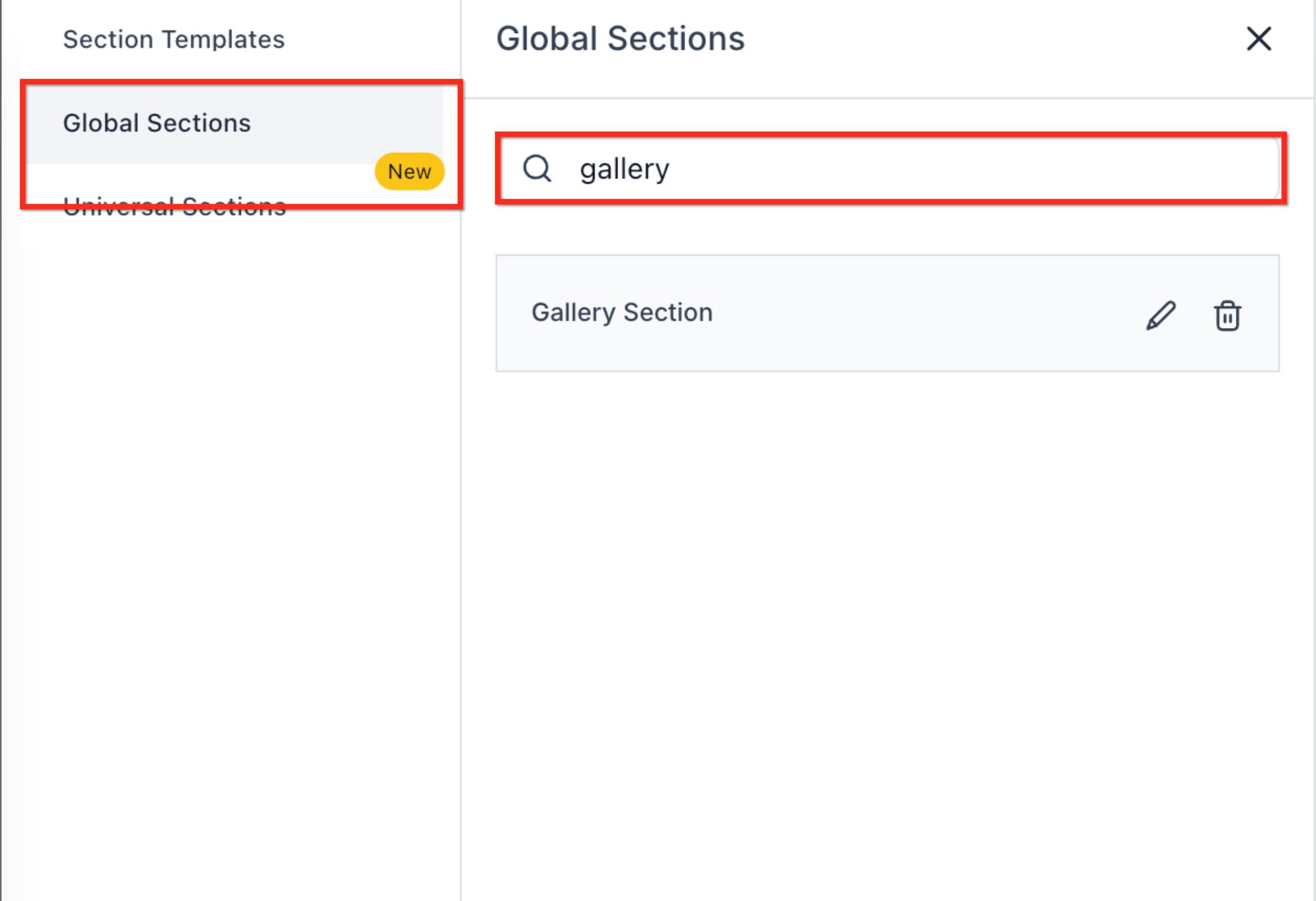
A search field at the top of the Global Sections panel helps you quickly find sections you have already created, which is a real time-saver once your library grows.
Search by full or partial section name
Results update in real time as you type
Only global sections are searched (local sections are not included)
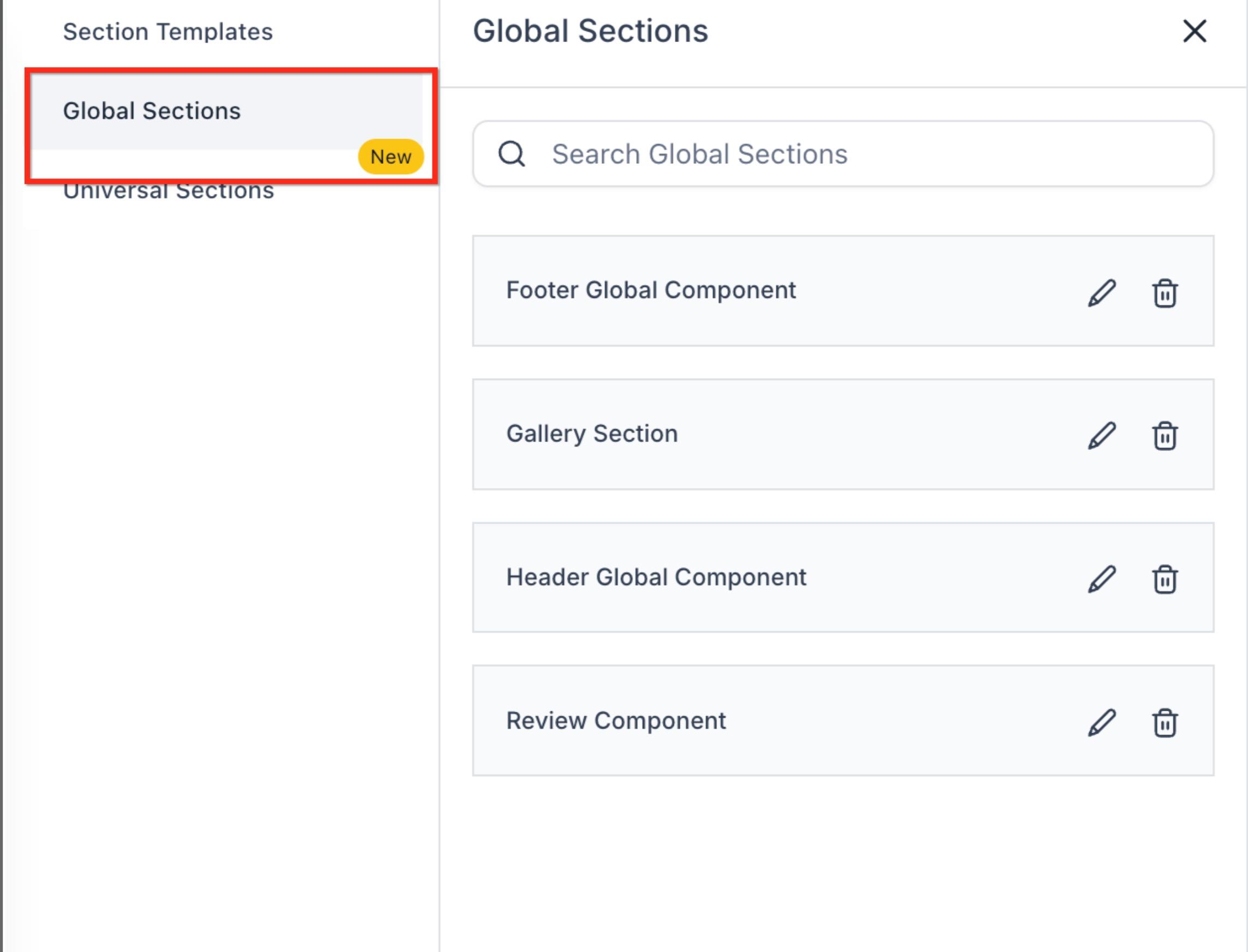
When you enter text into the search field, only global sections that match are displayed. This is especially useful for locating shared components like headers, footers, or gallery blocks in a large library.
Plan the section type before saving, since it cannot be changed later.
Use Universal sections for content that must stay consistent everywhere, such as headers and footers.
Use Global sections for content unique to a specific funnel or website.
Use Templates for reusable blocks that may need customization in each instance.
To change a section's type, clone it and save the clone under the type you want.
Can I change the type of a section after saving it?
No. Once saved as Template, Global, or Universal, the type cannot be changed. Clone the section and save it under a new type if needed.
Can I restore an older version of a Global or Universal section?
No. Saved sections do not have version history. Once edited, previous versions cannot be restored.
Why does an older page version still show the latest section changes?
Global and Universal sections always display the latest saved version. Restoring an older version of a page does not restore an older version of the section.
Will edits to a Universal section update everywhere?
Yes. Changes sync across all funnels, websites, blogs, webinars, and stores in your account.
What is the difference between Global and Universal sections?
Universal sections sync across your entire account. Global sections sync only within the funnel or website where they were created.
What happens if I clone a section?
Cloning a saved section creates a new unique ID, so the clone no longer syncs with the original.
What happens if I clone a page that contains Global or Universal sections?
The same section IDs carry over, so edits will still sync everywhere unless you clone the section itself.
Can I search by partial names?
Yes. Global section search supports both full and partial names, with results updating in real time as you type.
Note: For reusable individual elements rather than whole sections, see the "Save & Reuse Element Templates" guide.
