The Opportunities section in Aesthetix CRM gives you powerful tools to control how you view, sort, and filter deals across your pipelines. Whether you prefer the visual board layout or a detailed list, you can switch views instantly, sort by the fields that matter, and apply filters to surface exactly the opportunities you need. This guide walks through switching between board and list views, sorting, customizing your columns, and filtering opportunities by pipeline, stage, status, owner, value, date, custom fields, and more.
Filtering narrows the list or board of opportunities to only those that match the conditions you choose. By combining fields (like Owner, Status, or Date) with operators (such as is, is not, or greater than), your team can focus on the most relevant deals, speed up reviews, and reduce noise while managing your pipeline.
Faster reviews: Quickly isolate deals by owner, stage movement, or recent activity.
Better prioritization: Focus on Open or recently updated opportunities to plan outreach.
Higher accuracy: Use operators (equals, not equals, empty, not empty) to avoid missed edge cases.
Deeper insights: Slice by value, source, and custom fields to analyze pipeline quality.
Cleaner workflows: Save time switching views by dialing in exactly what you need to see.
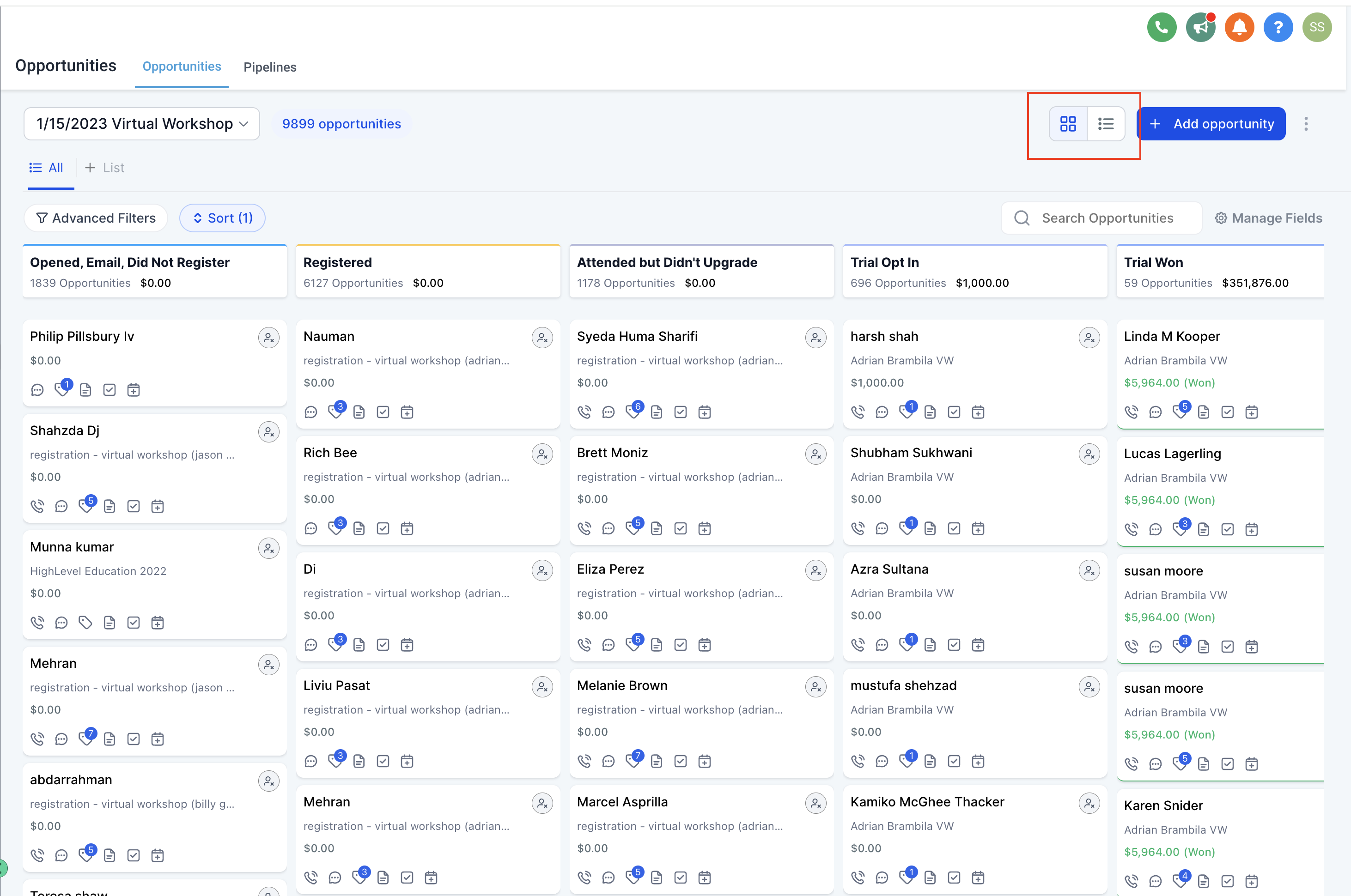
The Board View displays your opportunities as cards organized into pipeline stage columns, giving you a visual, drag-and-drop layout. The List View transforms how you interact with your opportunities by providing a detailed, streamlined, tabular layout you can customize and sort.
Step 1: Go to Opportunities. Navigate to the Opportunities section from the left sidebar.
Step 2: Toggle to List View. Switch to the List View using the toggle at the top right of the Opportunities screen. You can toggle back to Board View the same way at any time.
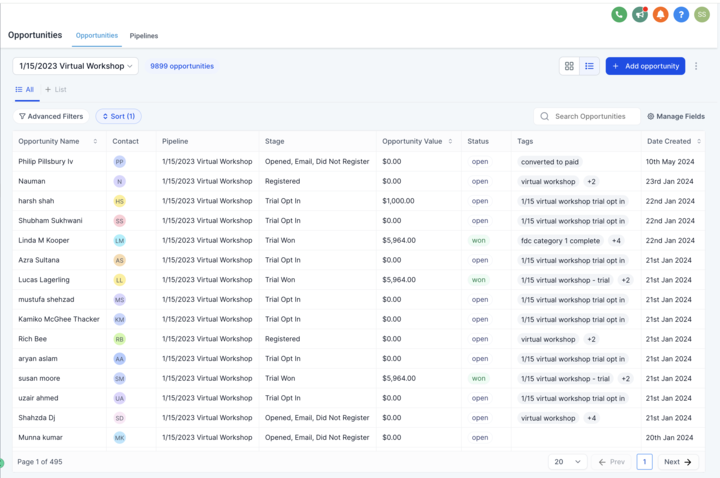
When you switch to List View, all your opportunities appear organized in a clear, tabular format. This makes it easier to scan through your records and find the information you need quickly.
Every opportunity lives inside a pipeline. You can create multiple opportunity pipelines to suit your specific needs and switch between them easily.
Step 1: Open Pipelines. From the Opportunities section, open the Pipelines area.
Step 2: Select a pipeline. Choose the pipeline you want to review from the available options. You can move opportunities to a different pipeline by selecting a new pipeline here.
Step 1: Use the search bar. Click the Search opportunity bar and enter the contact's name to quickly locate a specific opportunity. Robust search is available in both List and Board views.
Sorting lets you prioritize records based on the fields that matter most to your practice.
Step 1: Sort by date or value from the board. In Board View, use the sort control to sort opportunities by Date Added or Deal Value.
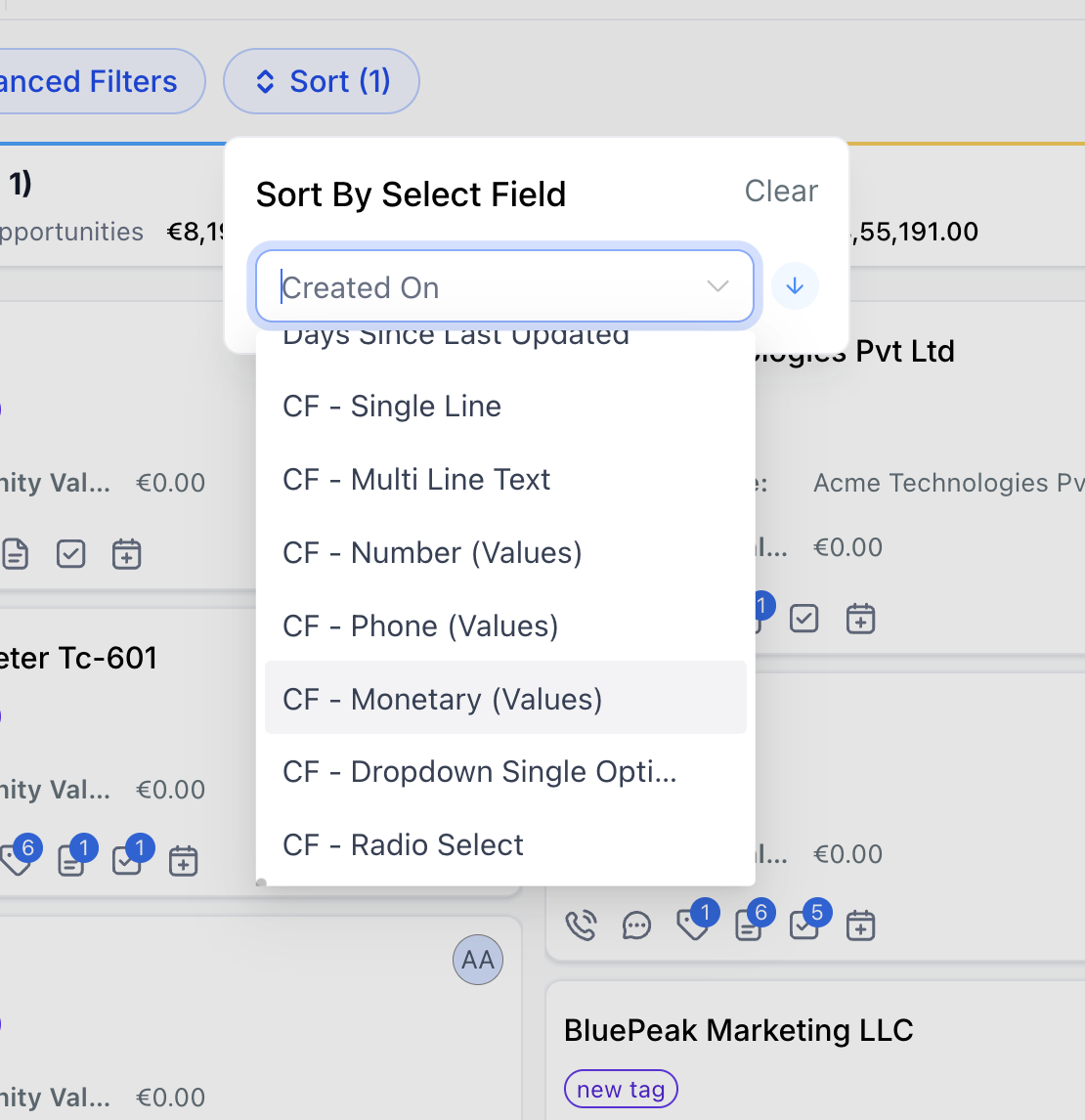
Step 2: Sort in List View. In List View, click Sort, select the field you want to sort by (default fields or supported custom fields), then choose Ascending or Descending.
Supported custom field types for sorting:
Single Line
Multi Line Text
Dropdown (Single Select)
Radio Select
Number
Monetary
Phone
Date
Choose which fields you want to display in your List View so you can focus on the information that matters most to you.
Step 1: Open the column options. From List View, open the option to customize which fields are displayed. You can also access this from the "more options/actions" menu, where Additional info lets you customize the display of opportunities in the list by selecting which options you'd like to view.
Step 2: Select, resize, and rearrange fields. Choose which fields to show, then resize and rearrange the columns to fit your workflow.
One of the fields available for List View is Primary Contact Notes, which surfaces notes from an opportunity's primary contact directly in the list. Open Customize Columns and enable Primary Contact Notes to display it. Like other supported List View columns, you can resize and sort this column and include it in your saved views, and it updates automatically whenever a new note is added to the primary contact.
List View has full feature parity with Board View. All the powerful features you use in the board are available in the list too, including advanced filters and robust search.
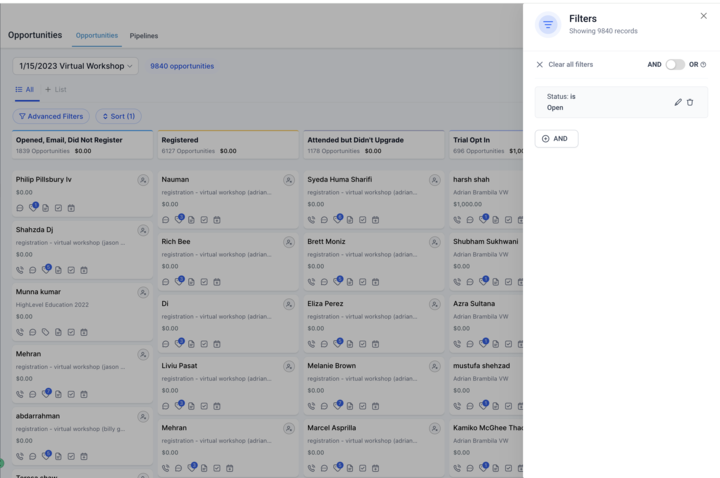
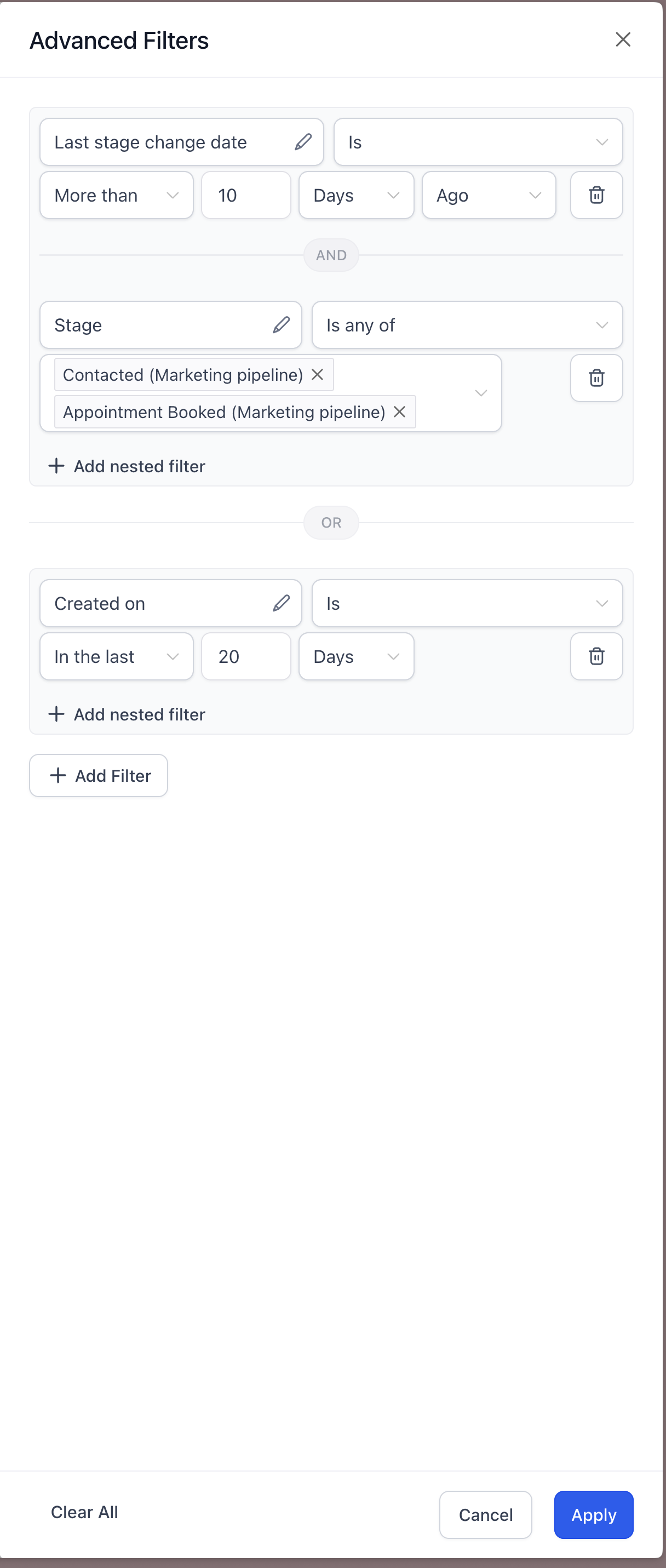
Logical operators determine how multiple conditions work together. Two types of filter conditional logic are possible: AND and OR. Choose the logic that mirrors your question (narrow vs. broad).
AND — Every condition must be met for each opportunity.
OR — At least one condition must be met for each opportunity.
These filter conditions can be changed using the toggle at the top right of the filter sidebar.
Combine Owner = Person A AND Status = Open to focus a rep's active deals.
Combine Status = Won OR Status = Lost to review closed outcomes only.
Note: Click Add nested filter to add an AND condition. Click Add Filter to add an OR condition.
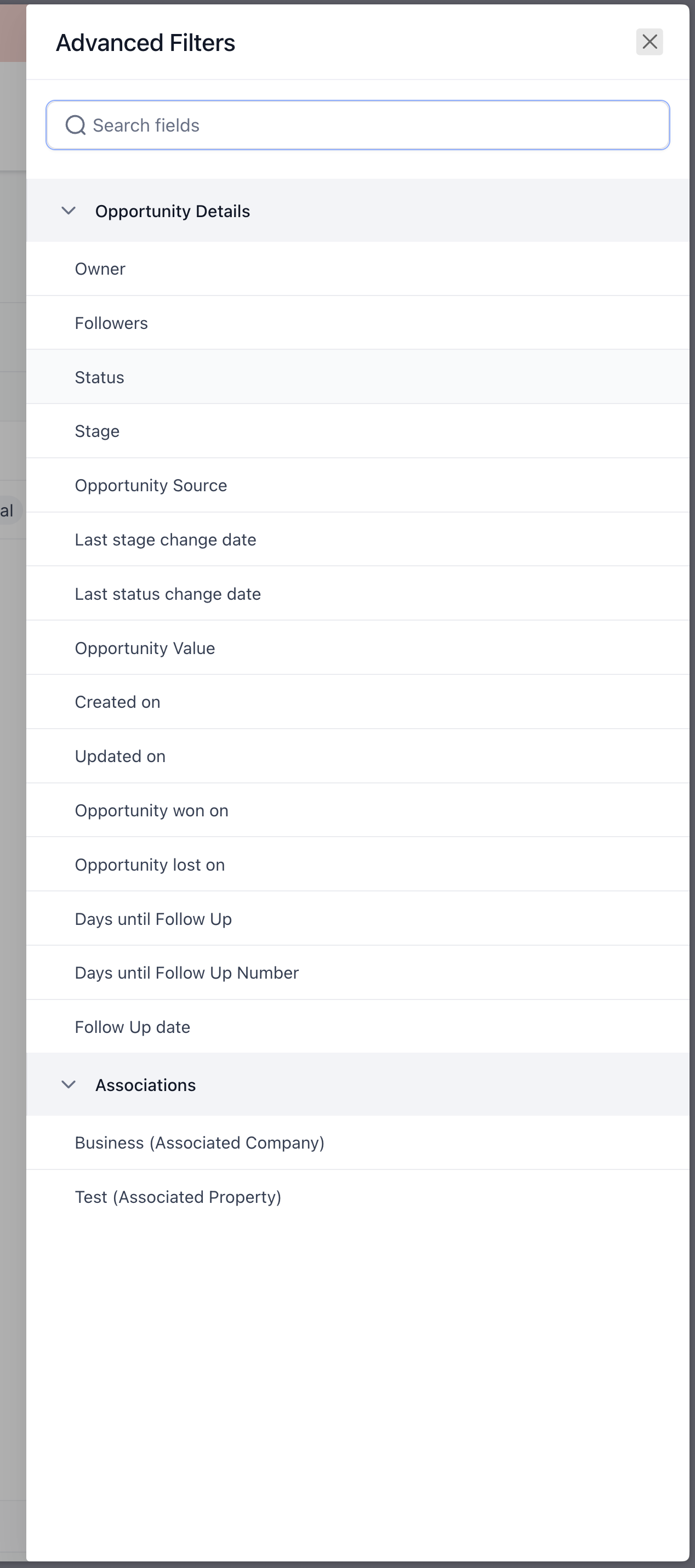
Standard filters cover the most common fields and actions. Use them to sort by responsibility, progress, value, and activity recency.
Owner: Select one or more owners, or use me to dynamically match the logged-in viewer.
Followers: Select one or more followers, or use me to dynamically match the logged-in viewer.
Status: Open, Won, Lost, Abandoned.
Opportunity Source: is, is not, is empty, is not empty (enter value as needed).
Campaign Type: Search and select a campaign type if used. Filtering by the campaign an opportunity originated from gives you insight into the success of your marketing campaigns and can inform future decisions.
Opportunity Value: equal to, not equal to, less than, greater than, is empty, is not empty (enter numeric value).
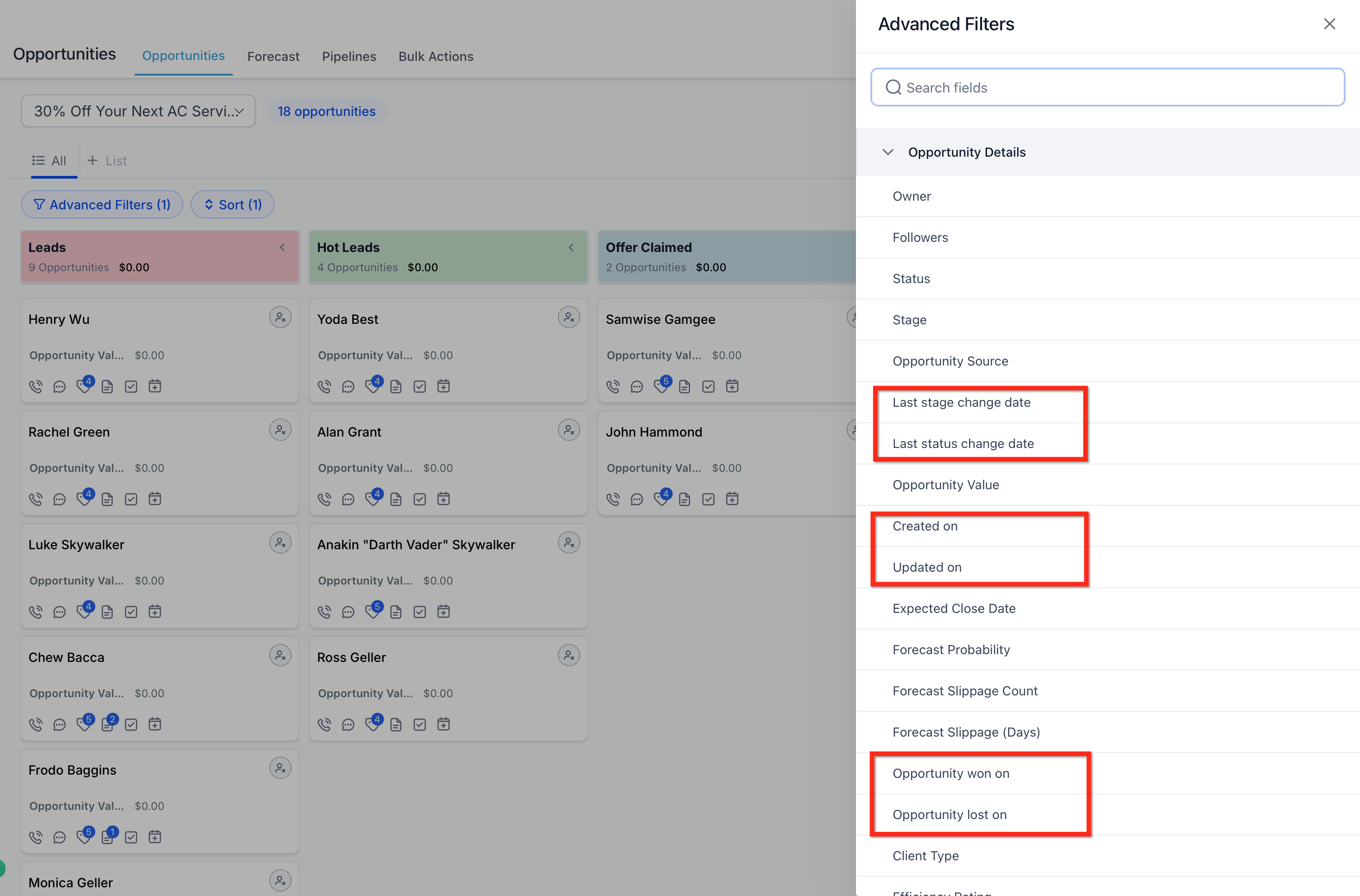
Date filters help you track recent changes and outcomes. Presets speed up selection and keep reports consistent.
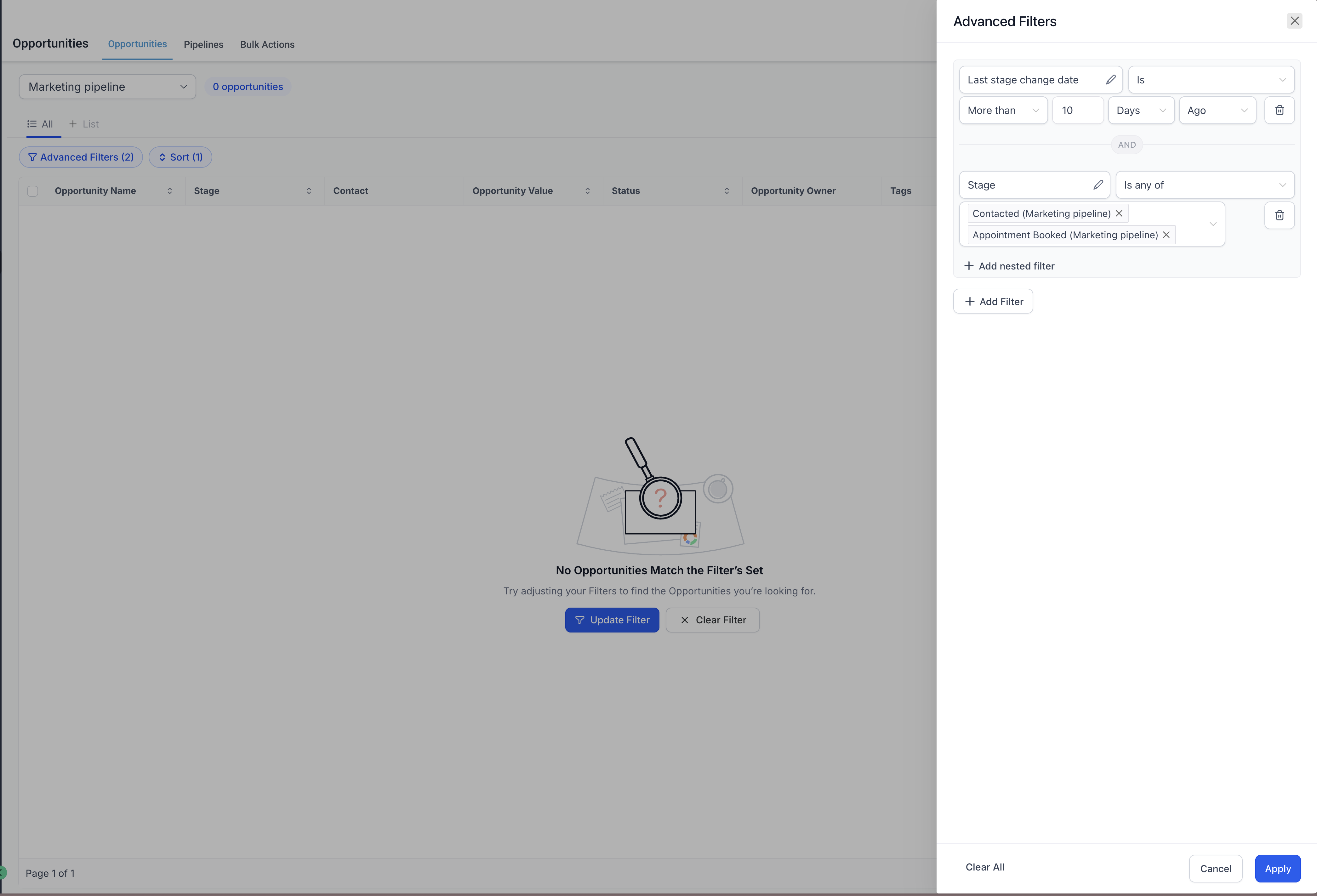
Last Stage Change Date: Is, Is Not, Yesterday, Today, This Week, Last Week, Last 7 Days, Last 30 Days, This Month, Last Month, This Year, Last Year, Custom, In the Next, In the Last, Less Than, More Than.
Last Status Change Date: Same presets as above.
Created On / Updated On: Same presets as above.
Opportunity Won On / Opportunity Lost On: Same presets as above.
Some date operators support relative time values. For example, you can set a condition like "In the next 10 days" or "In the last 2 weeks," or use a fixed date when needed.
Organization-specific fields power advanced segmentation. Any Opportunity Custom Field you add becomes available in filters with operators that match its data type.
Examples: Client Type (is / is not buyer, seller, etc.), Efficiency Rating (=, ≠, <, >, empty / not empty), text or list fields, Tags (difficulty / type), and Time Tracked.
Tip: Ensure field types are correct (number vs. text) so the right operators appear.
Note: By default, a pipeline shows only the "Open" opportunities. If you are unable to find an opportunity, make sure the correct filters and search are applied to the list.
Step 1: Go to Opportunities. Open the Opportunities section from the left sidebar.
Step 2: Select the pipeline. Choose the pipeline you want to review.
Step 3: Open the Advanced Filter. Click Advanced Filter (the funnel icon) beneath the Status area.
Step 4: Choose your filters. Set your filters as needed:
Filter | Options / Fields |
|---|---|
Owner & Followers | Owner, Followers (supports dynamic value: me) |
Status | Open, Won, Lost, Abandoned |
Opportunity Source | is, is not, is empty, is not empty |
Campaign Type | Campaign Type |
Date filters | Last Stage Change Date, Last Status Change Date, Created On, Updated On, Opportunity Won On, Opportunity Lost On (Presets: Yesterday, Today, This Week, Last Week, Last 7 Days, Last 30 Days, This Month, Last Month, This Year, Last Year, Custom) |
Opportunity Value | equal to, less than, greater than, not equal to, is empty, is not empty |
Custom fields | Client Type, Efficiency Rating, and other custom fields, Tags |
Time Tracked | Time Tracked |
Step 5: Apply the filters. Apply the filters to see your results.
From the "more options/actions" menu, the Export option lets you easily download the data for all opportunities created within the pipeline. You can export directly from the List View along with sorting and filtering.
From the Opportunities section, click Opportunity (or the New Opportunity button) to create a new opportunity in the selected pipeline.
Can I combine multiple filters?
Yes. Add multiple conditions and choose AND or OR logic to narrow or broaden results.
What's the difference between Last Stage Change and Last Status Change?
Stage tracks movement between pipeline stages; Status tracks the lifecycle outcome (Open, Won, Lost, Abandoned).
Which operators are available for value or numeric fields?
Equal to, not equal to, less than, greater than, is empty, and is not empty.
Can I filter by deals I recently won or lost?
Yes. Use Opportunity Won On or Opportunity Lost On and pick a date preset or custom range.
Do I get the same features in List View as in Board View?
Yes. List View has full feature parity with Board View, including advanced filters, robust search, sorting, and exporting.
Can I see a contact's notes directly from the Opportunities list?
Yes. Enable the Primary Contact Notes column from the column customization options in List View. It shows notes from an opportunity's primary contact, can be resized, sorted, and saved in your views, and updates automatically whenever a new note is added.
Why can't I find an opportunity I know exists?
By default, pipelines show only Open opportunities. Check that the correct filters, status, and search terms are applied to the list.
