Audit Logs are the source of truth for who did what, and when, across your Aesthetix CRM account. They provide a time-stamped record of important account activity — with user, module, and action context — so admins and power users can review changes, maintain accountability, troubleshoot issues, and support compliance reviews. Details open in a right-side drawer so you stay in context while you investigate, and you can move through entries with your keyboard. Audit Logs are retained for 60 days, and you can export filtered history to a CSV file for long-term recordkeeping. This guide explains what Audit Logs record, where to access them, how filters work, and how to export them.
Audit Logs capture a history of user actions within your Aesthetix CRM account. Every change — whether user-initiated or system-generated — is logged with a time-stamped entry, giving you a full trail of who did what, when, and where. This makes it easier to troubleshoot changes, improve workflows, and maintain compliance.
Audit Logs span many areas of the platform, including Users, Accounts, Contacts, Opportunities, Custom Objects, and module-specific assets. The interface delivers these insights in a clean, fast workflow so you can review details without leaving the main table.
Enhanced visibility and accountability: Track all changes made to users, accounts, and settings to maintain a clear record of modifications.
Faster issue resolution: Quickly identify and troubleshoot unexpected changes, saving time and effort.
Improved security and compliance: Monitor user actions to prevent unauthorized modifications and ensure adherence to policies.
Efficient user management: Keep track of user activity, including account creations, edits, and deletions, for better team oversight.
Drawer view: Details open in a right-side panel so you never lose your table position.
Keyboard navigation: Use the left and right arrow keys to move through entries quickly while keeping the drawer open.
The right-side drawer keeps you in context while you investigate changes. Once the drawer is open, you can use the keyboard to move through records without closing the panel — perfect for scanning long audit trails quickly and accurately.
Open details in place: Click any row to open the right-side drawer with field-level before/after values, user, and timestamp — no page reloads and no lost scroll position.
Navigate with arrow keys: With the drawer open, press the left and right arrow keys to jump to the previous or next audit record; the drawer updates in place so you maintain focus.
Work faster, click less: Keep your hands on the keyboard to minimize misclicks and speed up reviews during long investigation sessions.
Stay in control: Close the drawer with the X icon or the Esc key, and you'll return to the exact spot in the table.
Audit Logs live in the Settings area of your account. Open Audit Logs in the context you need to review.
Step 1: Go to Settings → Audit Logs. From the left sidebar, open Settings, then choose Audit Logs.
Step 2: Open a log entry. From the Audit Logs list, click the Preview (eye) button or anywhere in the row to open the details drawer for that log.
Step 3: Cycle through entries. Use the left and right arrow keys on your keyboard to move through entries while keeping the drawer open.
Step 4: Apply filters to narrow results. Use the filters described below to isolate the events you care about.
Each filter focuses the results so you can quickly isolate the most relevant events.
User: Select a specific team member to view only the actions they performed. Ideal for monitoring individual contributions and investigating suspected edits.
Module: Choose the affected area of the platform (for example, Users, Accounts, Contacts, Opportunities, Custom Objects, and more) to focus on events from that system.
Action Type: Limit results to a type of change such as Create, Update, or Delete. Useful for spotting critical changes quickly.
Time Range: Constrain results to a defined window (for example, today, the last 7 days, or up to 60 days) to match when the change occurred.
Tips for faster reviews:
Apply a date range first, then narrow by Action or Module.
Open the first row and use the left and right arrow keys to step through results while the drawer stays open.
Use Action filters to locate deletions, edits, or structural changes, and date ranges to isolate events around a specific launch or project.
You can export filtered Audit Logs to a CSV file for compliance reviews, investigations, and internal reporting. Exports use the same filters available in Audit Logs, run in the background so you can keep working, and stay available to download for 30 days. Because in-app Audit Logs are retained for 60 days, exporting on a regular cadence helps you preserve important historical data outside the app.
Key details:
Downloadable records: Export filtered audit history to CSV so your team can store, review, and reference activity outside the platform.
Background processing: Exports run asynchronously, so you can continue working while the file is being prepared.
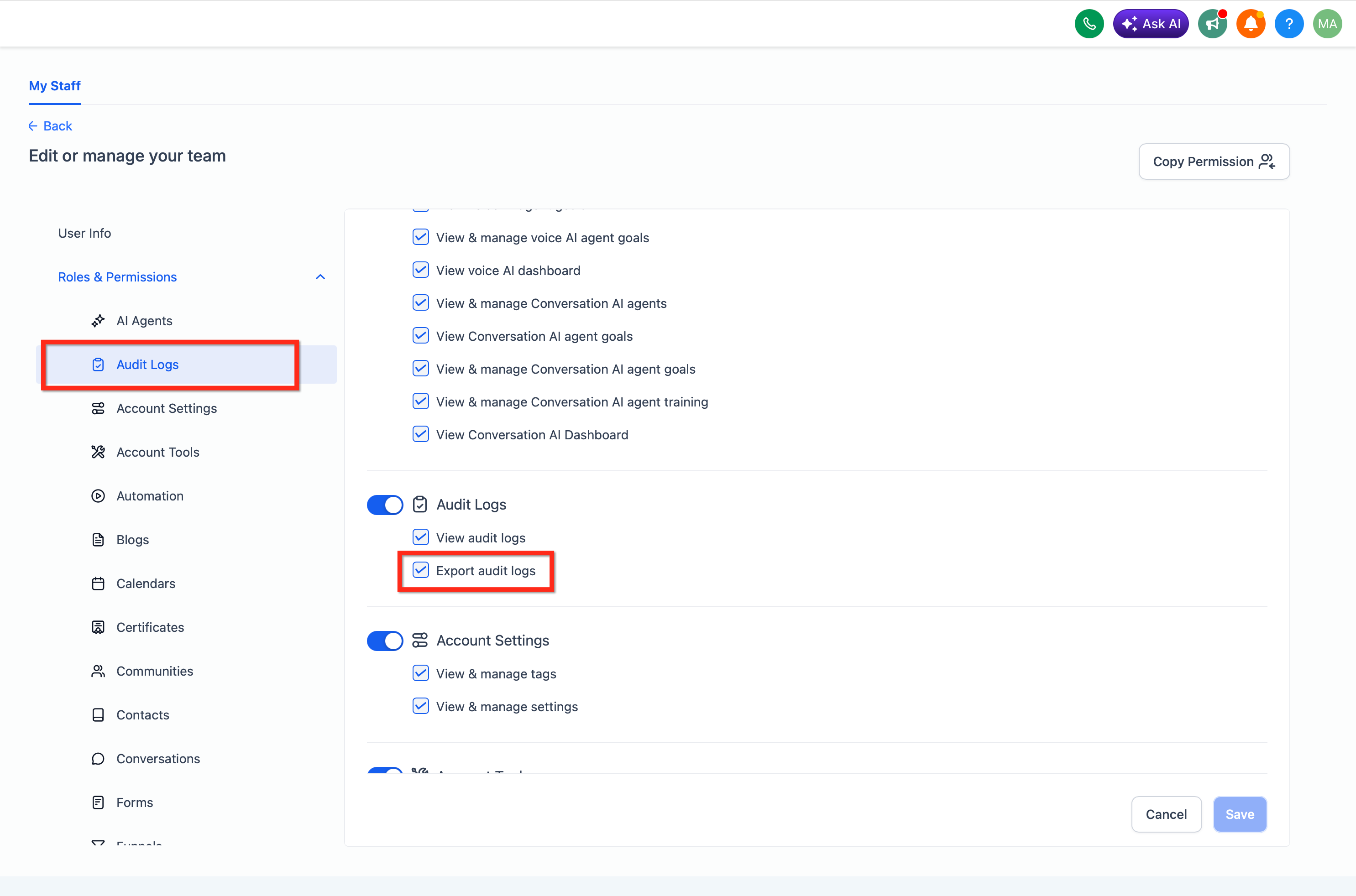
Controlled access: Limit who can export sensitive audit history with the dedicated export permission.
Clear limits and retention: Each export supports up to 500,000 records, and completed files remain available to download for 30 days. After 30 days, the file is no longer available and a new export must be requested.
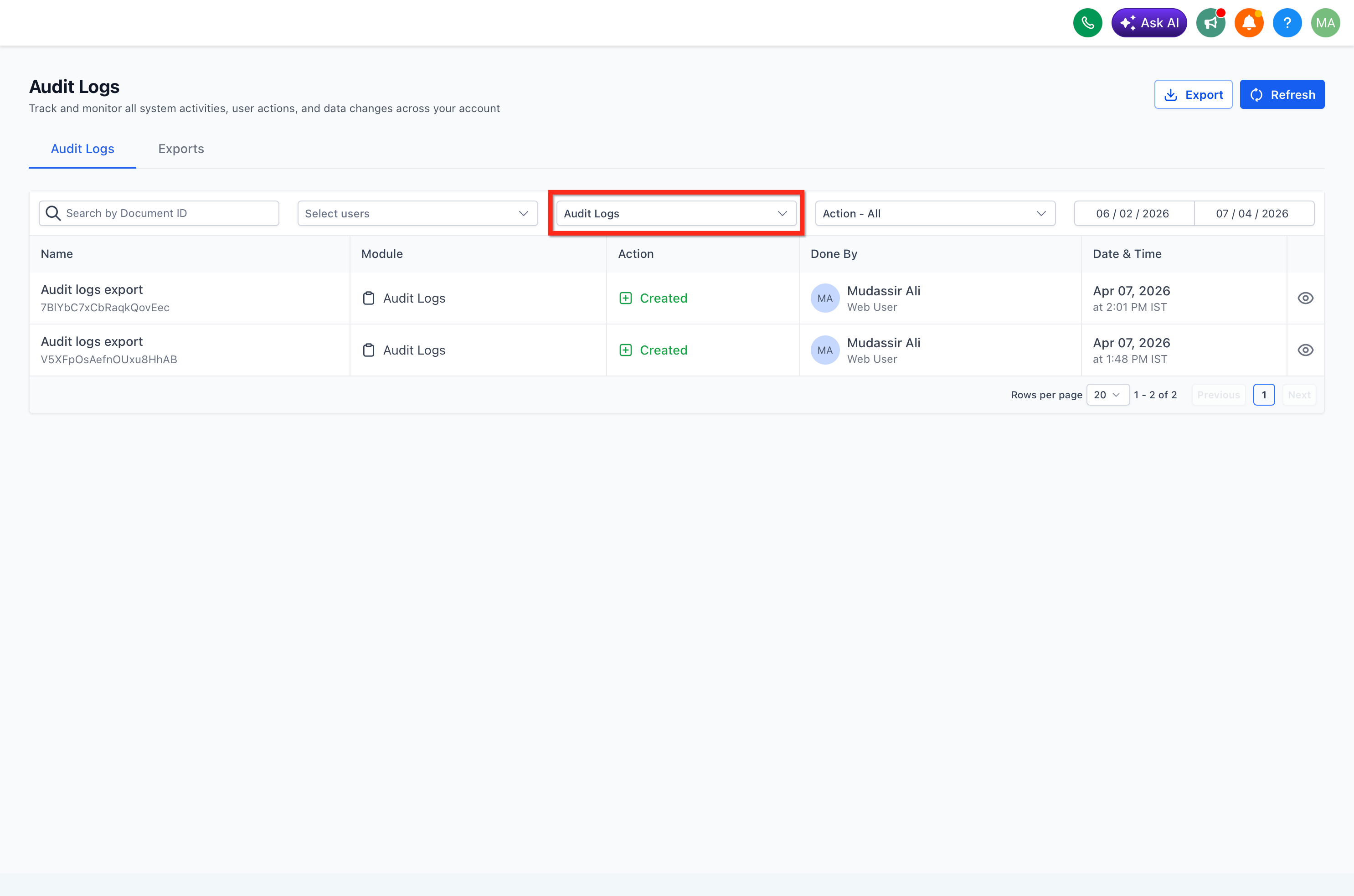
Traceable export activity: Export requests and file downloads are also recorded in Audit Logs, helping reinforce accountability.
Access to downloadable audit history should be limited to trusted users, because exported files may contain sensitive operational data. A user may be able to view Audit Logs without being allowed to export them, so grant export access only to users who need downloadable audit data for reporting, compliance, or investigations.
To review roles and permissions, go to Settings → Team (or Settings → My Staff) and open the user profile.
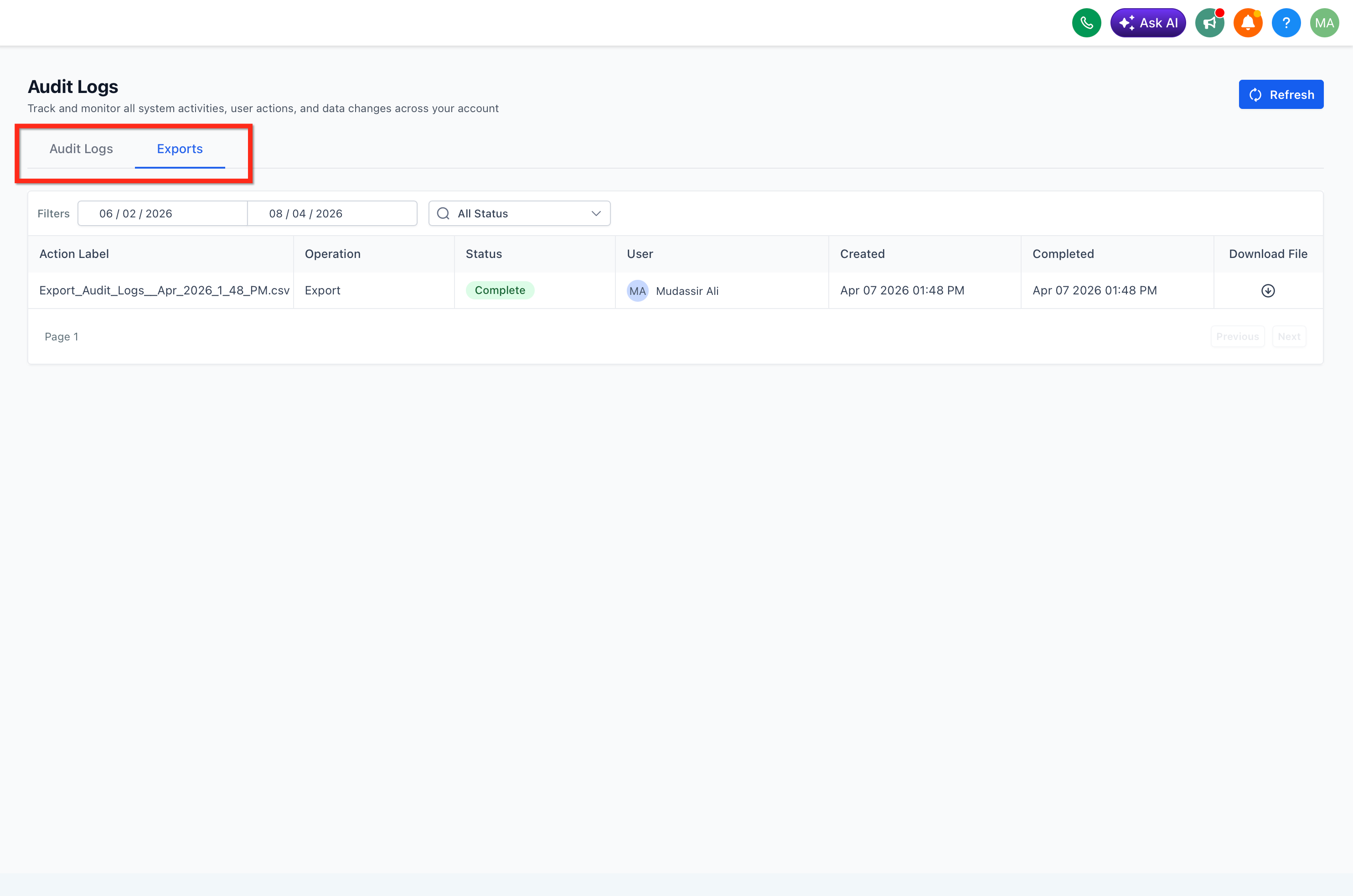
When export is enabled, the Audit Logs page includes two tabs:
The existing Audit Logs tab for viewing and filtering activity
A new Exports tab for tracking export jobs
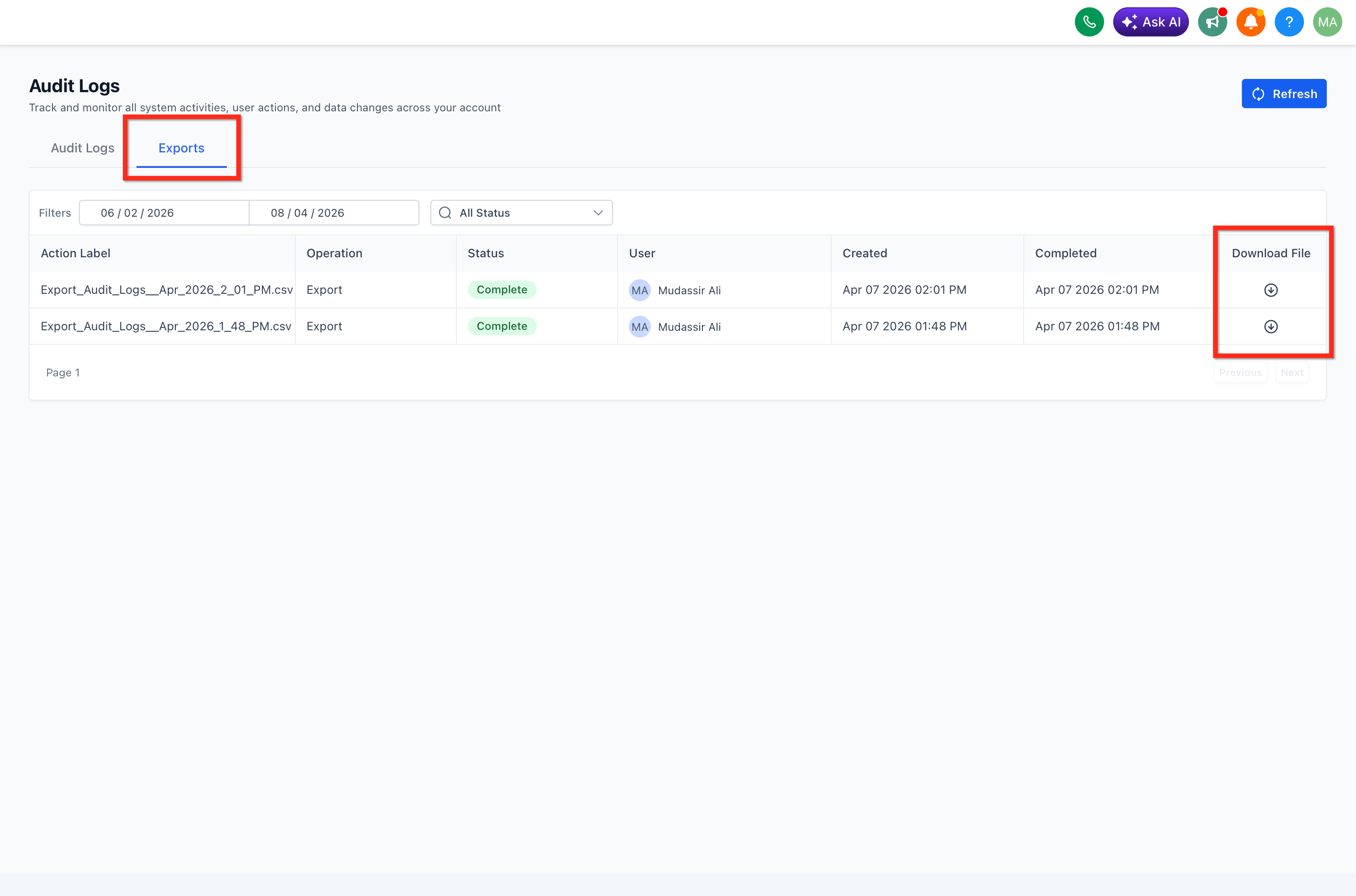
The Exports tab gives you a central place to track export activity after a request is submitted, making it easier to monitor progress, avoid duplicate requests, and download finished files once they are ready. Export requests and download activity are also logged under Audit Logs for additional traceability.
Step 1: Apply filters and export. Go to Settings → Audit Logs and stay on the Audit Logs tab. Apply the filters you want to use, then click Export.
Step 2: Track and download. Open the Exports tab, monitor the export status, and download the file when it is complete.
Step 3: Review export activity. In Audit Logs, filter Module → Audit Logs to review export-related actions and see when exports were requested or downloaded.
In addition to account-wide activity, many areas of the platform maintain their own audit trails that you can filter to from the Module dropdown.
Custom Objects: Audit Logs capture when a custom object is created or updated, when individual custom object records are created, updated, or deleted, and when associations between two custom objects (or between a custom object and a contact) are created, updated, or deleted. Use the Module dropdown to filter for Objects, Custom Objects, or Associations.
Funnels, Websites, Webinars, and Stores: Each of these modules tracks its own changes — funnel and step edits, split tests, page edits, content and structure updates, webinar configuration, and store and product changes — along with deletions of saved Page Builder assets. Open Audit Logs and filter by the relevant module to review those entries.
Listings: Entity History provides a detailed audit trail for each listing record, capturing user ID, timestamp, entity ID, and before-and-after data for every change. Filter the Module dropdown to Listings, then click an entry to view its full update timeline.
Other assets: Module-specific audit trails are available across additional areas of the platform. Open Settings → Audit Logs and use the Module filter to focus on the asset type you're reviewing.
Who can access Audit Logs, and where do I find them?
Audit Logs are available to admins under Settings → Audit Logs. Visibility depends on your roles and permissions — contact an account admin if you can't access them.
Who can export Audit Logs to CSV?
Only users with the export permission can create and download exports.
Do exports include all audit records automatically?
No. Exports use the filters applied in Audit Logs at the time the export is requested.
How many records can one export include?
Each export supports up to 500,000 records. If the result is too large, narrow your filters and try again.
How long can I download the CSV file?
Completed files remain available for 30 days after they are generated.
How long are Audit Logs stored?
Audit Log entries are retained for 60 days and then automatically purged. Plan to capture needed evidence within that window.
Can I see whether an export was requested or downloaded?
Yes. Export requests and download actions are also recorded in Audit Logs.
What's the fastest way to review lots of entries?
Apply a date range first, then narrow by Action or Module. Open the first row and use the left and right arrow keys to step through results while the drawer stays open.
How do I quickly find deleted items (for example, Opportunities)?
Filter Action = Deleted and the relevant Module (for example, Opportunity). Open an entry to access restore options where supported.
Why do timestamps look different across teams or devices?
Time zone differences can cause mismatches. Verify your device time zone and your account locale.
Does the detail drawer show the same fields for every kind of change?
No. The drawer always shows the user, timestamp, and module, but the field-level before/after values shown depend on what was changed, so a Contact update, a Custom Field edit, and a Calendar Event change each surface the details relevant to that record type.
