Domain Transfer-In lets you move a domain registered at another registrar (such as GoDaddy, Namecheap, IONOS, or Cloudflare Registrar) into Aesthetix CRM. Once transferred, you can manage registration, renewals, DNS, billing, security, and product connections (email, sites, client portals) all from one place — no more jumping between providers.
The Domains page acts as your centralized dashboard for all domain activity, improving visibility and control. When you initiate a transfer, Aesthetix CRM guides you through a step-by-step process that automatically checks eligibility, lets you import or review DNS records, and finalizes the move securely using an authorization (EPP) code. Once complete, the transferred domain integrates instantly with your websites, funnels, client portals, and email systems inside Aesthetix CRM.
Note: Domain transfer-in may not be enabled on all accounts. If you do not see the option for domain transfer, please contact support to have it enabled.
Centralized control: Manage domains, DNS, billing, and renewals alongside your websites, funnels, and email tools.
Security and flexibility: Full DNS access within Aesthetix CRM — no external registrar logins needed for ongoing management.
No lost term: Your existing remaining term carries over, and one year is added at transfer (some TLD exceptions may apply).
Transparent pricing: Fixed, upfront transfer fees for clarity.
Smooth integrations: Instantly connect transferred domains to your Aesthetix CRM products.
Better continuity: Fewer renewal surprises, smoother troubleshooting, and better retention for your business.
Enter Domain — tell us the domain you want to transfer.
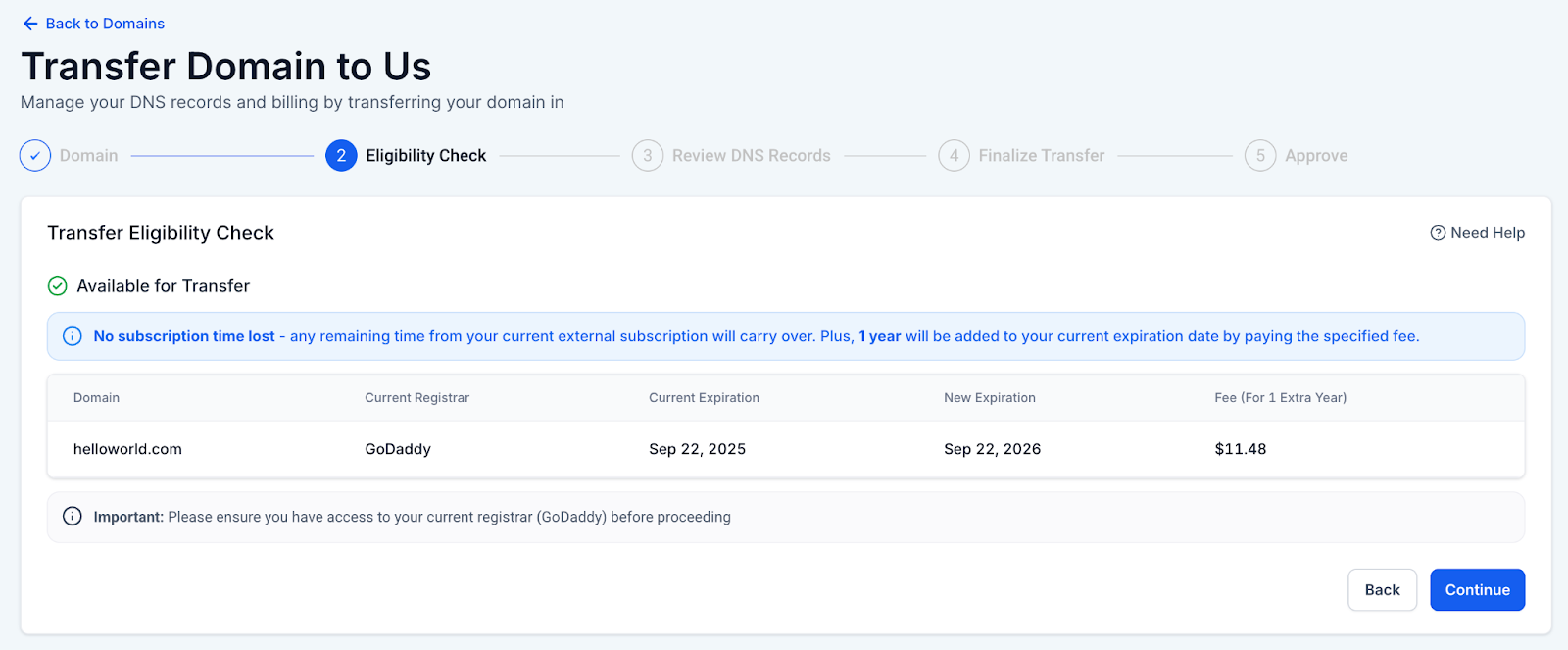
Eligibility Check — confirm it can be transferred.
Review DNS Records — upload or scan and verify all DNS settings.
Finalize Transfer — unlock the domain, get the authorization (EPP) code, and pay.
Approve at Your Current Registrar — confirm the transfer to complete it.
Timeframe: Most transfers complete in 1–5 days after you approve them at your current registrar.
Before you start, confirm that your domain meets industry requirements and is ready to transfer:
The domain is older than 60 days and was not registered or transferred recently (an ICANN rule).
You can sign in to the current registrar account for the domain.
The domain is unlocked at your current registrar.
WHOIS privacy protection is turned off.
DNSSEC, if enabled, is disabled.
You can obtain the authorization (EPP) code from your registrar.
Your contact email is correct in WHOIS, since transfer approval emails are sent there.
Your Aesthetix CRM wallet has sufficient funds for the transfer.
You have access to your DNS provider (which may be different from your registrar).
We recommend saving a copy of your current DNS settings.
Important: Your registrar owns the domain record; your DNS provider hosts your DNS records. If you changed nameservers in the past (for example, to point to Cloudflare), your DNS provider is wherever those nameservers point — not necessarily the registrar.
Step 1: Open the Transfer flow. In Aesthetix CRM, go to Settings > Domains. If the domain already exists as an external domain, click Transfer-In. To transfer a new domain, click the Transfer-In Domain (or Purchase/Transfer Domain) button.
Step 2: Enter the domain. In the Transfer a Domain flow, type the domain you want to transfer (for example, example.com) and click Continue.
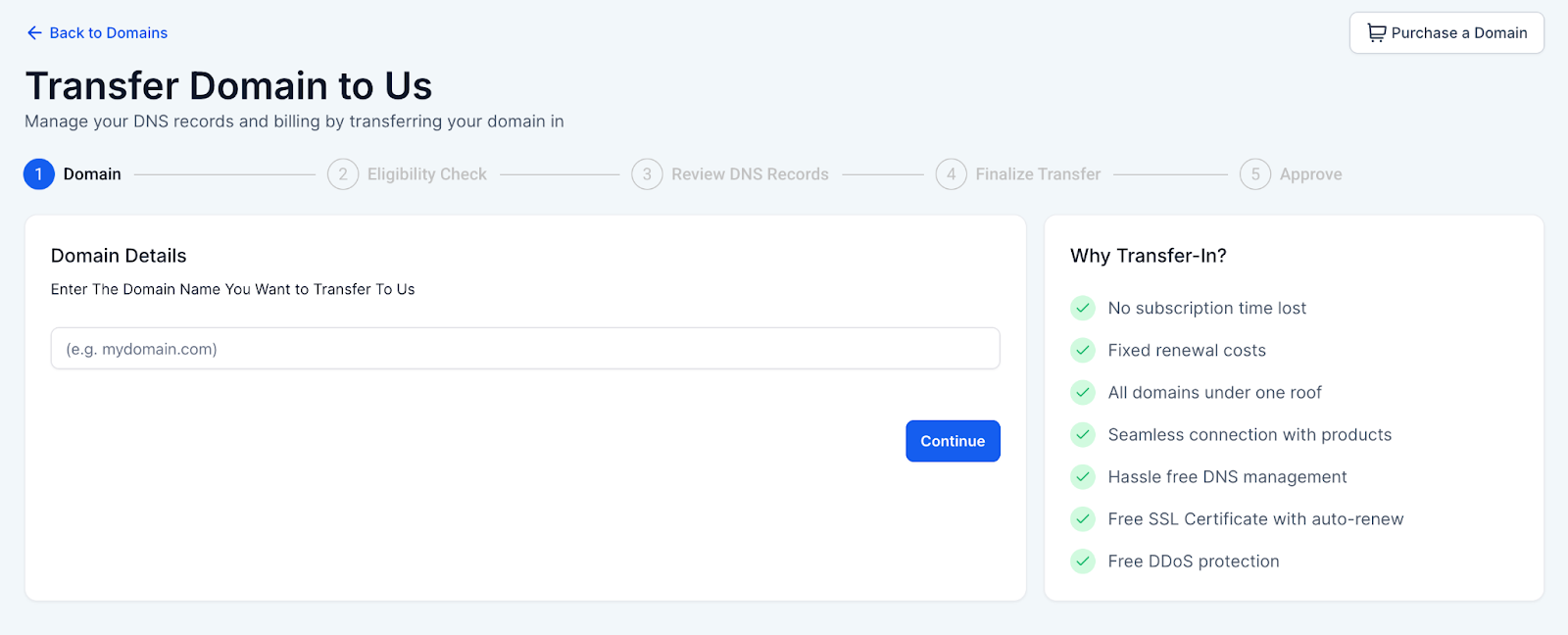
Aesthetix CRM automatically verifies whether your domain qualifies to be transferred, evaluating both registrar-level rules and technical readiness.
Step 1: Review the eligibility results. If the domain is eligible, you'll see:
Domain name and current registrar
Current expiration and new expiration (transfers extend the term by 1 year)
The applicable transfer fee (applied toward extending the expiration date)
Step 2: Confirm registrar access. Make sure you have access to your current registrar before proceeding.
A domain is not eligible if:
The current registrar or TLD isn't supported.
It was purchased here originally.
It was registered or transferred within the last 60 days.
Its EPP status blocks transfer (for example, pendingDelete, redemptionPeriod, or serverHold).
The transfer would exceed the maximum allowed term.
Other policy conflicts are found during the checks.
For ineligible domains, the Continue button is disabled and a message explains why the domain cannot be transferred at this time.
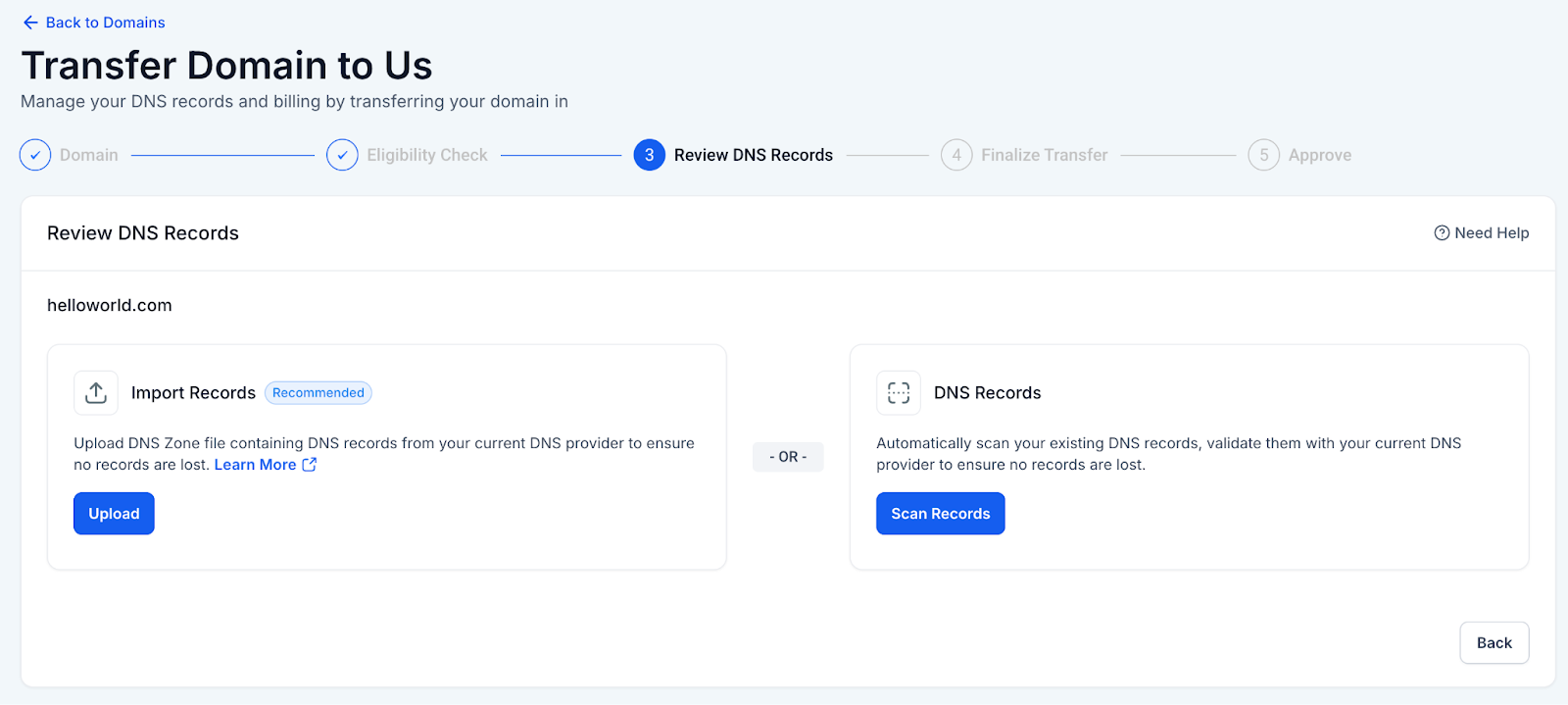
Transferring a domain does not automatically migrate your DNS records. Before transferring (for example, from GoDaddy or Namecheap), review and replicate all DNS records from your current provider. This ensures your website, email, and integrations keep working and prevents downtime.
Note: Your registrar and DNS provider can be different if you've changed the nameservers where you bought your domain. For example, if you bought your domain on GoDaddy but pointed it to Cloudflare by updating the nameservers, then Cloudflare now manages your DNS. In that case, you'll need to log in to Cloudflare to access your DNS records (zone file).
You have two ways to retrieve your DNS records.
This method is best for a complete, loss-free import. The zone file contains all of your domain's DNS entries, including A, AAAA, CNAME, TXT, MX, SRV, CAA, and other record types.
Step 1: Sign in to your DNS provider. Log in to your current DNS provider, or to wherever you purchased your domain originally (this could be the registrar or another host such as Cloudflare if you changed nameservers).
Step 2: Open DNS settings. Go to the DNS settings for the domain you want to transfer.
Step 3: Export the zone file. Locate the option to export the DNS zone/records file and download it.
Step 4: Upload the file. Upload the zone file in the Aesthetix CRM DNS review step.
Tip: If you can't find an export option, contact your provider's support and ask for a zone file export for your domain. Registrar-specific notes:
GoDaddy: Supports downloading zone files.
Cloudflare: Supports exporting zone files.
Namecheap: Does not currently offer a downloadable zone file, so you may need to recreate the records manually or contact their support to access them.
IONOS: Use Domain Exports, Cloud DNS, or the API.
This method is fast and requires no prior setup — Aesthetix CRM scans your live DNS automatically. However, some records may be missed (for example, internal/hidden records or special provider types).
Always cross-check the scan results against your DNS provider's records.
Add any missing A, AAAA, CNAME, MX, TXT, SRV, or CAA records manually.
Note: Your registrar and DNS provider can be different if you've updated the nameserver records at your registrar. For example, if you purchased your domain from GoDaddy but pointed it to Cloudflare by changing the nameservers, then Cloudflare is your DNS provider, and you'll need to log in to Cloudflare to view and compare your DNS records.
Once your records are retrieved, review them in the DNS table. You can:
View all entries in a table, grouped by record type (for example, A, AAAA, CNAME, TXT, MX).
Add new records by clicking Add Record.
Edit or delete individual records as needed.
Search records by any field (name, type, or value).
After reviewing, check the confirmation box and click Continue.
Warning: Missing or incorrect DNS records can cause website downtime and email delivery issues. Manually cross-check the records against your DNS host or registrar and add any that weren't captured before proceeding.
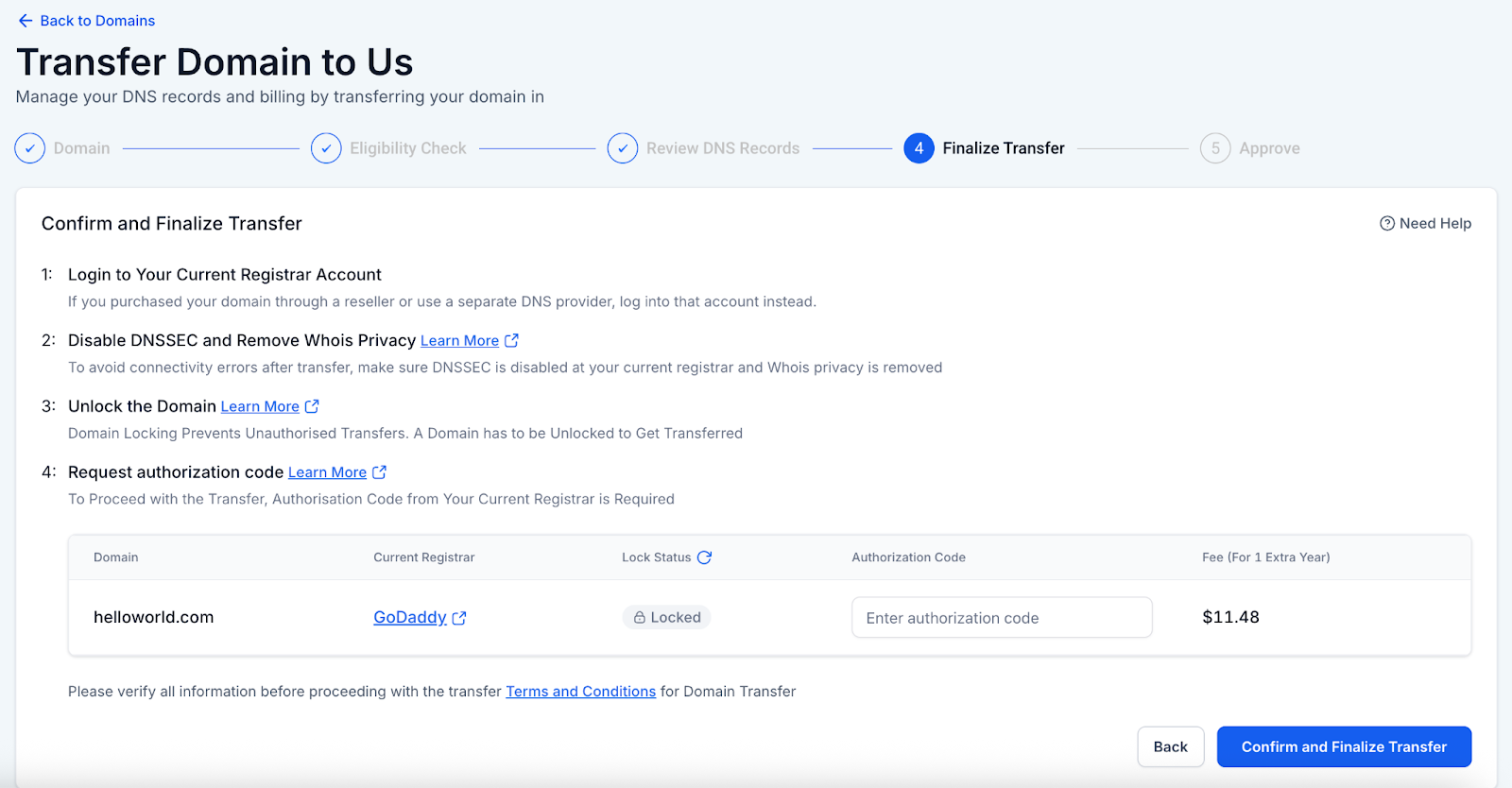
In this step you complete the authorization and payment to move your domain from your current registrar (such as GoDaddy, Namecheap, or IONOS) into Aesthetix CRM. Completing it correctly ensures your domain and related services continue working smoothly after the transfer.
Before initiating the transfer, disable DNSSEC and remove WHOIS privacy protection at your current registrar. The exact steps vary by registrar, but in general:
Step 1: Sign in to your current registrar.
Step 2: Open DNS or Domain settings.
Step 3: Disable DNSSEC.
Step 4: Turn off WHOIS/Privacy protection.
Step 5: Save your changes.
Registrar-specific guidance:
GoDaddy: Disable DNSSEC and remove WHOIS privacy from your domain settings. It may take a few minutes for the DNSSEC record to be fully removed; GoDaddy shows a confirmation once the setting is updated.
Namecheap: Disable DNSSEC and remove WHOIS privacy from your domain settings.
IONOS: Disable DNSSEC and remove WHOIS privacy (Domain Guard) from your domain settings.
Note: DNSSEC removal can take a few minutes to propagate.
Before transferring, the domain must be unlocked, and you'll need an authorization code (also called an EPP, Transfer, or AuthInfo code) from your current registrar. The exact steps vary, but in general:
Step 1: Sign in to your current registrar (for example, GoDaddy, Namecheap, or IONOS).
Step 2: Open Domain Management or your domain settings section.
Step 3: Disable the domain lock (also called Registrar Lock) to unlock the domain.
Step 4: Locate and copy the authorization code. Look for the option to get the authorization code (labeled EPP code, Transfer Code, or AuthInfo). Some registrars display it on screen; others email it to the registrant address.
Registrar-specific guidance:
GoDaddy: Follow GoDaddy's instructions for transferring a domain away.
Namecheap: Make sure WhoisGuard is disabled before requesting the auth code, then follow Namecheap's transfer-out instructions.
IONOS: Follow IONOS's instructions for transferring a domain away.
Step 1: Confirm and finalize. Back in Aesthetix CRM, click Confirm and Finalize Transfer. Aesthetix CRM will:
Validate the unlock status, auth code, and any registry-level statuses.
If the domain is valid for transfer, charge your wallet for the transfer fee (which applies toward the 1-year extension).
Submit the transfer request.
After you submit the request, the transfer stays in a pending state until you approve it at your current registrar. Approval protects against unauthorized changes — registrars require explicit confirmation before releasing a domain.
How to approve:
Email approval: Click the approval link sent by your registrar.
Dashboard approval: Approve from your registrar's transfer center.
Registrar-specific guidance:
GoDaddy: Approve by email link or from the GoDaddy dashboard.
Namecheap: Approve the transfer out from your Namecheap dashboard.
IONOS: Sign in to IONOS, go to Domains & SSL, click the domain you're transferring, look for a Pending Transfer prompt (or follow the emailed instructions), and approve the transfer when prompted.
If you take no action: Many registrars auto-approve after 5–7 days, depending on their policy. Approving immediately usually speeds things up.
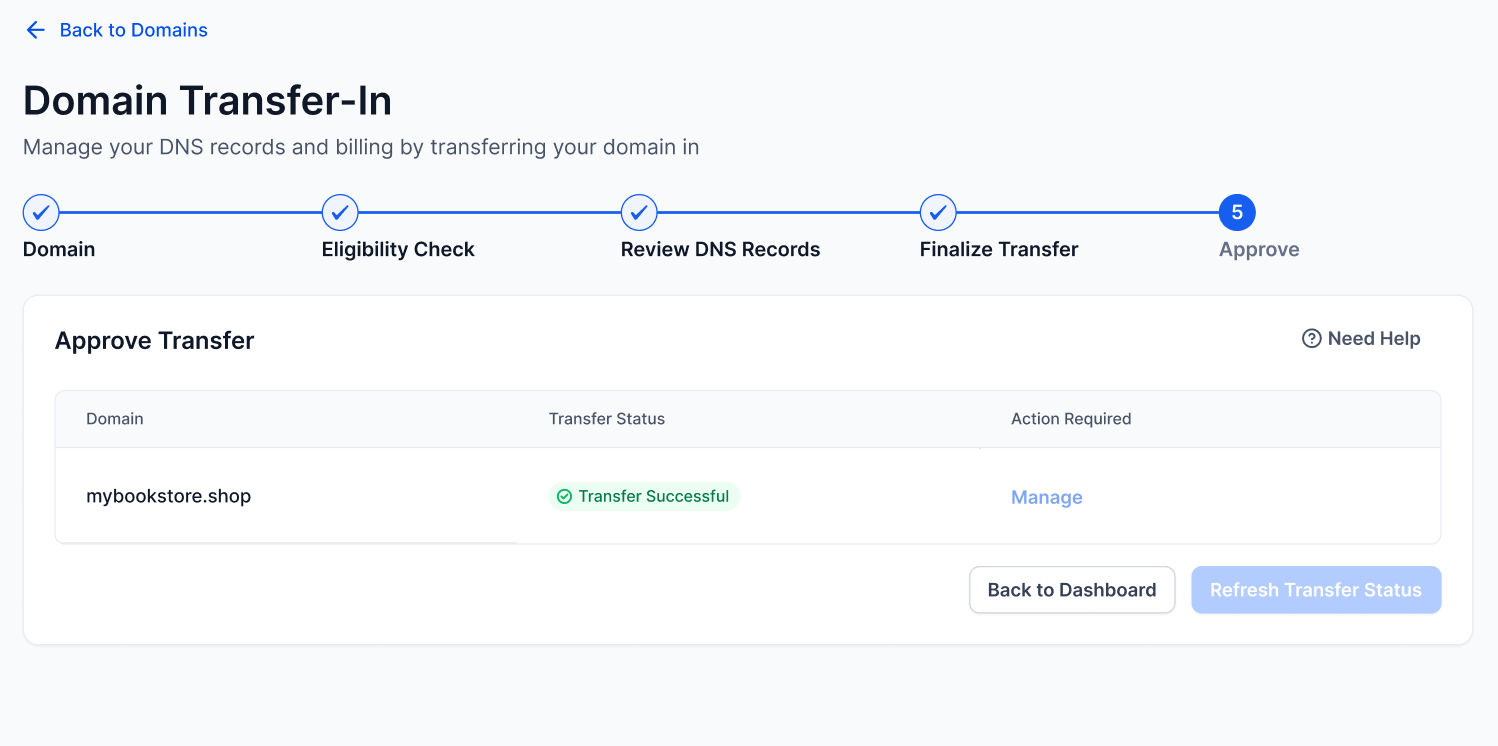
Once the transfer is approved:
The domain moves under our registrar partner (Cloudflare).
It appears under Internal Domains in your account.
You can manage DNS, SSL, renewals, and billing right inside Aesthetix CRM.
The Manage button becomes active so you can take further actions.
Verify DNS records: Make sure your domain points correctly to your sites, funnels, or email.
Reconnect products: Email sending domains, website/funnel domains, and client portal or white-label login domains.
Set up auto-renew (recommended).
I can't unlock my domain: Look under Security or Transfer settings, or contact your registrar's support. Some registrars hide this setting.
Wrong or invalid EPP code: Request a fresh code from your registrar and make sure the domain is unlocked.
Transfer email not received: Verify your WHOIS contact email and check spam/junk folders.
Domain locked: Ensure the registrar lock is fully removed.
Transfer rejected: Possible causes include canceling it yourself, the 60-day lock being enforced, or not approving in time. The status shows Rejected, and the Transfer to Us button reappears so you can retry.
Transfer takes longer than 7 days: Some registrars delay releases; check the status in your current registrar's panel.
Downtime after transfer: This is most often due to missing or mismatched DNS records. Compare the Aesthetix CRM DNS table against your DNS provider's records and fix any differences.
Wix DNS has limitations, including the inability to add custom DNS records like multiple MX records for subdomains. If you purchased your domain through Wix and need more advanced DNS management, you'll need to transfer your domain to a different DNS provider. We recommend GoDaddy, a reliable and widely-used DNS provider. Because Wix transfers require hands-on coordination, the Aesthetix CRM team manages this process with you.
Step 1: Grant us maximum admin access on Wix. Ensure that Aesthetix CRM has full administrative access to your Wix account so we can manage and access your domain settings.
Step 2: Create a GoDaddy account. Visit GoDaddy.com, create an account, and add a payment method.
Step 3: Share delegate access. Grant delegate access to Aesthetix CRM with full permissions, including the ability to make purchases. Use the email [email protected].
Step 4: Initiate the DNS transfer. The DNS transfer process from Wix to GoDaddy can take up to seven days. During this time, we manage the transition and keep you updated on progress. Please prioritize this task to minimize any potential downtime.
Step 5: Manage minor website downtime. Once the DNS has been successfully transferred, there may be a brief period of downtime for your website. We will work with you to reconfigure your DNS settings, ensuring all your Wix DNS records are restored so your website and email function correctly.
Step 6: Set up Mailgun for email. After the transfer, we add all necessary DNS records for Mailgun, Aesthetix CRM's HIPAA-compliant email provider, to ensure your email is set up securely and efficiently.
Helpful resources for the Wix-to-GoDaddy move:
Transferring your Wix domain away from Wix (Wix Support).
Transferring a domain to GoDaddy (GoDaddy Support).
By following these steps, you'll be able to manage your domain with greater flexibility and ensure your website and email systems operate smoothly.
Will transferring cause downtime?
Not if your DNS records are verified and complete before you finalize. Always cross-check them against your current DNS provider.
My registrar and DNS provider are different — what do I do?
Sign in to your DNS provider (where your nameservers point) to export and compare your DNS records. The registrar won't have the full DNS list — it only holds the domain.
What if my nameservers are managed by someone else (for example, Cloudflare) but the domain is with GoDaddy?
Then your DNS provider is Cloudflare even though your registrar is GoDaddy. Your DNS setup stays managed at Cloudflare unless you switch nameservers after the transfer.
What if some DNS records are missing after an auto-scan?
Always manually cross-check the scanned records against your current DNS provider. Auto-scanning may miss some records. You can add, edit, or delete records before finalizing.
How long does a transfer take?
Typically 1–5 days after you approve it at your current registrar. Some domains complete faster when approved manually.
How much does transferring in a domain cost?
You'll be charged for a 1-year renewal, which is added to your existing expiration date.
What gets extended by 1 year?
The domain's expiration date (subject to maximum term rules) when the transfer completes.
Can I transfer in all domain extensions?
Most common TLDs (.com, .net, .org, and similar) are supported. Certain country-code TLDs may not be.
I don't see the option to unlock my domain. What should I do?
Some registrars hide this setting under "Security" or "Transfer Settings." If it's not visible, search their help center or contact their support.
What if my auth code is wrong?
You'll see an error. Double-check the code with your registrar and make sure the domain is also unlocked.
Can I transfer again later?
Yes. You can unlock your domain and obtain an auth code to transfer out to another registrar, but ICANN typically requires waiting 60 days after a transfer.
Click the Help icon in your account to contact support. Include your domain, current registrar, and (if relevant) your DNS provider so we can assist you faster.
