Aesthetix CRM gives you a set of data-quality controls in your Business Profile that decide how your account handles duplicate records and how it validates phone numbers and email addresses before you reach out. Used together, these settings keep your contact database clean, protect your sending reputation, and make sure your messages reach real, reachable people.
This guide covers every control in one place: your contact deduplication preferences, validating phone numbers before the first SMS, verifying email addresses before the first email, and marking emails invalid on hard bounces. All of these settings live under Settings > Business Profile.
⚠️ Critical: Aesthetix CRM does not allow duplicate contacts or duplicate opportunities. The Allow Duplicate Contact and Allow Duplicate Opportunity settings must stay OFF at all times. Never turn them on — doing so breaks your EMR integration and creates serious data issues that are costly to fix. Your account is configured for a single, unified record per person, and it must stay that way.
Every control in this guide is found in the same place, so the first steps are always the same.
Step 1: Open Settings. From the dashboard, click Settings in the lower-left corner. This opens your Business Profile settings, shown as the top option on the secondary left-side navigation bar.
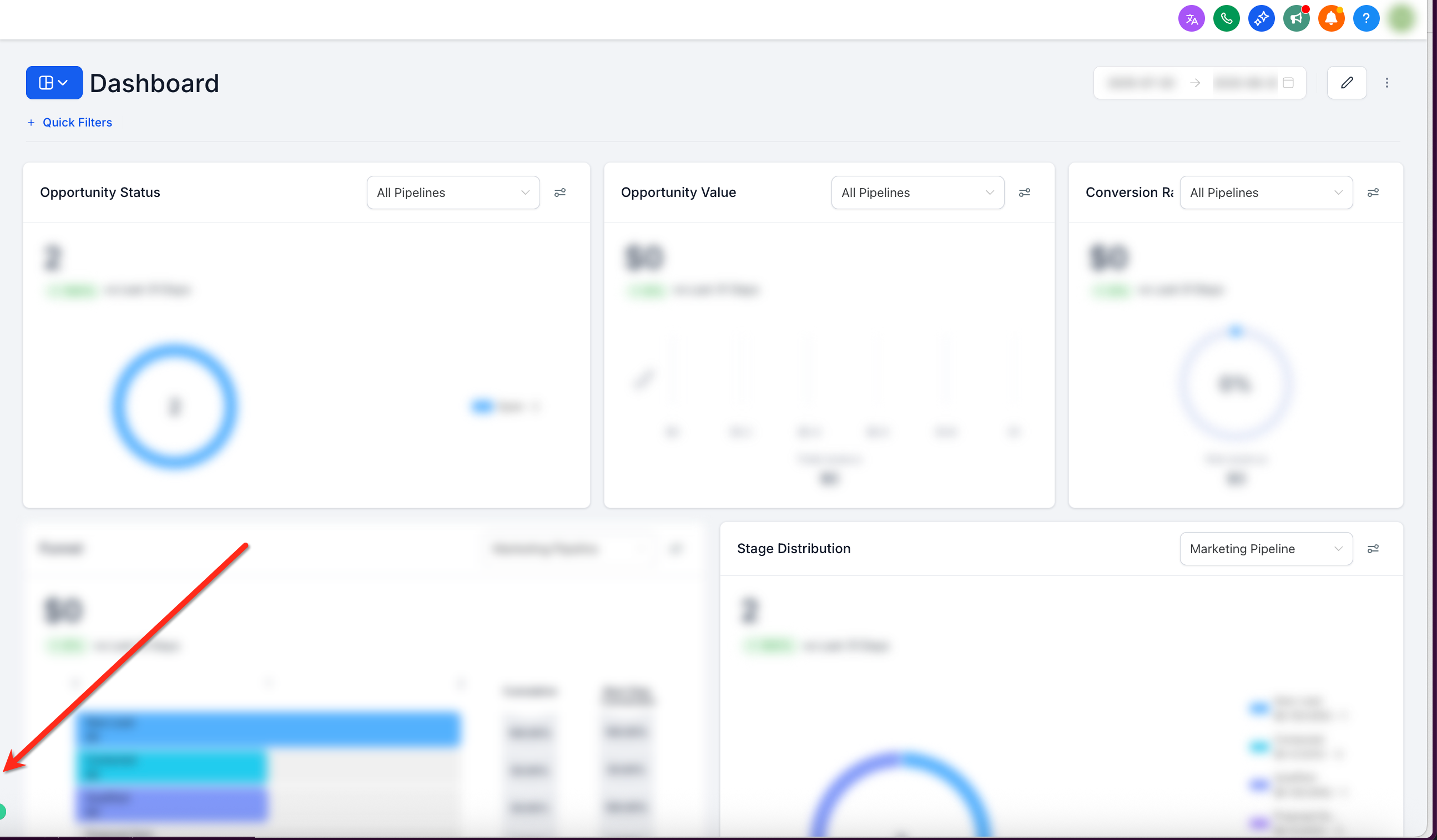
Step 2: Open Business Profile. Confirm you are on the Business Profile page. Depending on the setting you want to change, you will work in either the Contact Deduplication Preferences panel or the General section. Changes in these panels are applied automatically — there is no separate Save button to click.
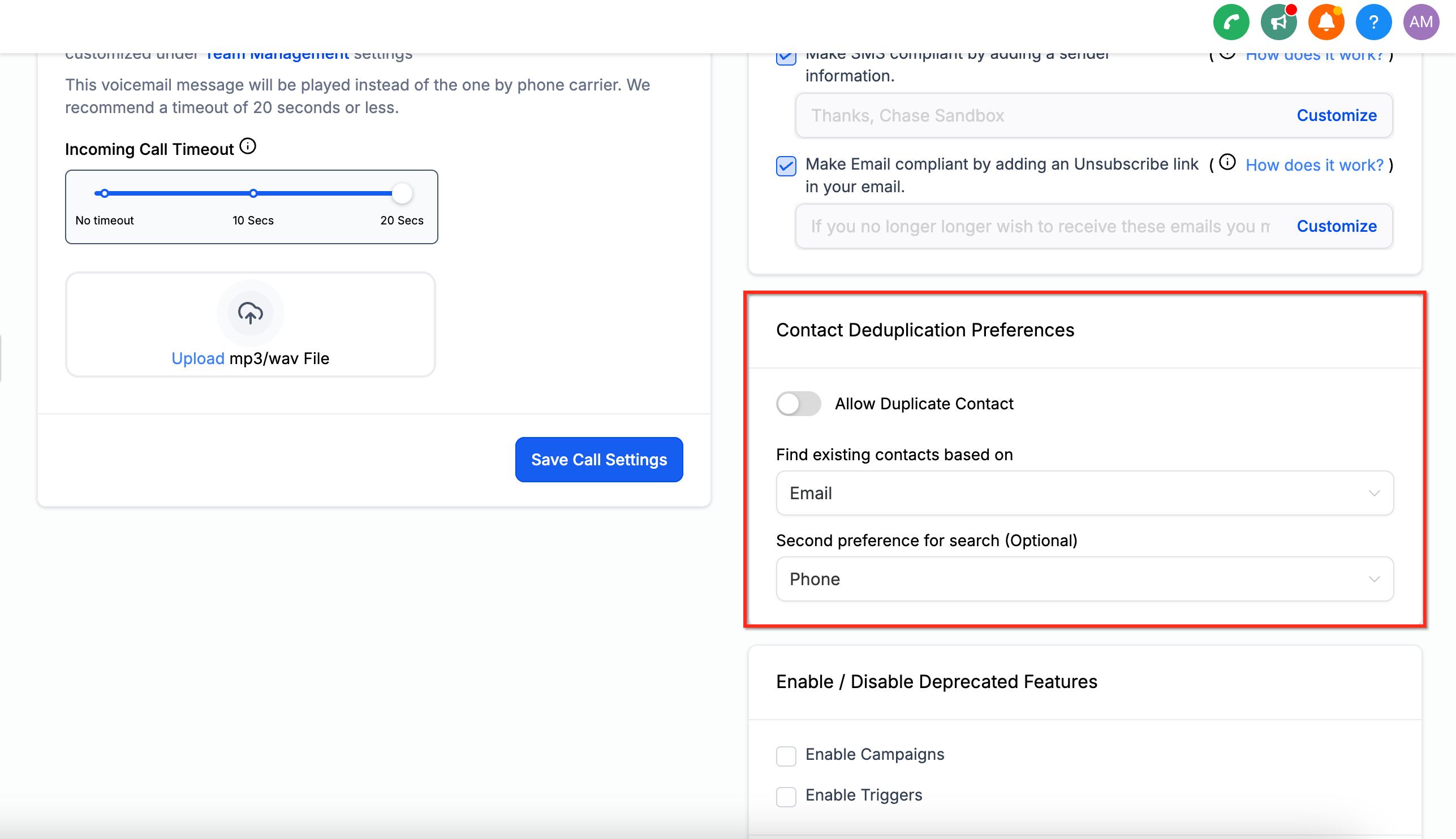
Your Contact Deduplication Preferences control how Aesthetix CRM matches an incoming submission to an existing contact so you keep exactly one record per person. In your account, Allow Duplicate Contact is — and must remain — off. With it off, Aesthetix CRM uses your chosen primary (and optional secondary) field to attach new submissions to the existing contact: incoming details update the existing record instead of creating a second one.
Do not turn on Allow Duplicate Contact. It is intentionally off so your EMR integration and reporting stay accurate. Turning it on lets the same person be created multiple times, which breaks the EMR sync and corrupts your data. Leave this setting off.
In the Contact Deduplication Preferences panel you'll see the following. You should only ever adjust the two matching fields — never the Allow Duplicate Contact toggle.
Allow Duplicate Contact. Leave this OFF. This is the required configuration for Aesthetix CRM; it must never be turned on (see the warning above).
Find Existing Contacts Based On. The primary field Aesthetix CRM uses to look up an existing contact before attaching a new submission. Available options are Email (default) or Phone. Pick the field you collect most consistently at intake.
Second Preferences for Search (Optional). A secondary matching criterion. Leave it blank to match on one field only. Example: if you set Email as the primary field and Phone as the secondary, the system matches by email first and, if no match is found, checks by phone number.
Step 1: Open Business Profile settings. From the dashboard, click Settings in the lower-left corner to open Business Profile settings.
Step 2: Find the Contact Deduplication Preferences panel. Scroll down until you see the Contact Deduplication Preferences panel on the right side of the screen. This is where all of the above configurations are made. All changes are applied automatically — there is no need to click a Save or Update button.
Because Allow Duplicate Contact stays off, Aesthetix CRM matches and merges incoming contacts automatically:
Forms, Zapier, Facebook, and Instagram. A matching email or phone updates the existing contact instead of creating a duplicate.
Facebook and Instagram conversations. When someone first appears as a Facebook or Instagram Messenger contact and later shares an email or phone number, Aesthetix CRM automatically merges the messenger contact into the matching existing record, keeping conversations and details in one unified profile.
CSV imports. CSV uploads never create duplicates regardless of any setting. The system always checks for existing records using your primary field (email or phone) and automatically merges matches, keeping your database clean.
Your pipeline also has an Allow Duplicate Opportunity setting in the General section of your Business Profile. Like Allow Duplicate Contact, it must stay off.
Do not turn on Allow Duplicate Opportunity. Keeping it off ensures each contact has a single opportunity per pipeline — which your EMR integration and reporting depend on. Turning it on creates duplicate deals and data problems.
Phone number validation verifies that a number is authentic and capable of receiving SMS before you send your first message to a new contact. Turning this on helps you maintain a valid contact list and improves the effectiveness of your messaging campaigns by preventing wasted sends to unreachable numbers.
Step 1: Open Settings. From the dashboard, click Settings.
Step 2: Open Business Profile. Click Business Profile.
Step 3: Go to the General section. Navigate to the General section.
Step 4: Enable phone number validation. Turn on the phone number validation feature so numbers are checked before the first SMS is sent to a new contact.
Email address verification attempts to confirm that an address is valid the first time you email a new contact. If the address is marked Invalid, the email is held and will not be sent until the address is verified. This keeps your list clean and improves deliverability by reducing bounces.
Note: Email verification consumes credits each time it runs. During onboarding, Aesthetix CRM verifies the email addresses on your imported contacts, so most of your existing list is already checked before you begin sending. For more on managing verified and unsubscribed addresses, see Email > Verification & Unsubscribe.
Step 1: Open Settings. From the dashboard, access the settings menu by clicking Settings.
Step 2: Open Business Profile. Select your Business Profile to update its info.
Step 3: Go to the General section. Head over to the General section.
Step 4: Enable email verification. Turn on Verify email address when first email is sent to a new contact.
An email bounce happens when a message is not delivered or is rejected by the recipient's email provider. There are two kinds:
Hard bounce: The email address does not exist.
Soft bounce: A temporary failure, such as the recipient's server being down or the mailbox being full.
Why it matters: Too many bounced emails can harm your domain reputation and cause your messages to be flagged as spam. Marking hard-bounced addresses as invalid removes them from active sending so your reputation stays healthy.
Step 1: Open Settings. From the dashboard, click Settings.
Step 2: Open Business Profile. Select Business Profile.
Step 3: Go to the General section. Navigate to the General section.
Step 4: Enable the hard-bounce setting. Turn on Mark emails as invalid due to hard bounce.
Should I ever turn on Allow Duplicate Contact or Allow Duplicate Opportunity? No — never. These settings must stay off in Aesthetix CRM. Turning either one on breaks your EMR integration and creates duplicate records that are costly to clean up. Your account is configured for one record per person, and it must stay that way.
Can duplicates be created during CSV imports? No. Duplicate contacts cannot be created during CSV imports. The system automatically merges contacts based on email or phone, regardless of any setting.
What if I find duplicate contacts in my account? Use the Merge Contacts feature to combine them into a single record (see the Contacts collection for bulk merging). Then confirm Allow Duplicate Contact is off so new duplicates aren't created.
How can I prevent duplicates from integrations? Leave Allow Duplicate Contact off — its required setting — so integrations update existing records instead of creating new ones.
Does email verification cost anything? Yes. Email verification consumes credits each time it runs. Your imported contacts are verified during onboarding, so you start with a largely pre-checked list.
What happens to an email flagged as Invalid? If an address is marked Invalid during verification, the email is held and will not send until the address is verified. Addresses that hard-bounce can also be marked invalid automatically when that setting is enabled.
