Merge fields and custom variables are placeholders you can drop into your messages so Aesthetix CRM fills them in automatically with real data for each recipient. A merge field looks like this: {{something.here}}. When the message is sent, the placeholder is replaced with the matching value from the contact, appointment, user, or account record.
You can use merge fields and custom values almost anywhere you write content in Aesthetix CRM, including:
Emails and email templates
SMS messages and SMS templates
Workflows and automations (in actions and in If/Else conditions)
Websites, funnels, and landing pages
Calendar confirmations and reminders
Invoices, receipts, and payment-related messages
Voice AI and Conversational AI prompts
This article is a comprehensive reference. The first part explains the different field types and how they behave. The second part lists the actual merge tags, grouped by category, so you (or the AI assistant) can copy the exact tag you need.
Aesthetix CRM includes several kinds of dynamic fields:
Standard Fields: Built-in, non-customizable fields like contact names, appointment times, and user details. They exist in every account and cannot be modified or deleted.
Custom Fields: User-defined fields you create for contacts or opportunities (for example, a birthday, a treatment preference, or a membership tier).
Custom Values: Reusable placeholders for static information (such as your business phone number or a standard sign-off) that you can update in one place and have reflect everywhere.
Custom Objects: User-created data structures for advanced data management beyond the standard fields.
Trigger Links: Special links that fire automated actions in workflows and campaigns when a contact clicks them.
Payment Links: Links that let customers pay for products or services directly.
Personalize communication: Automatically insert contact names, dates, and other details into emails and SMS.
Automate processes: Use merge fields in workflows to save time and reduce manual work.
Improve data consistency: Keep accurate, up-to-date information across every communication.
Simplify repetitive tasks: Reuse custom values and trigger links instead of retyping the same information.
Faster automation: Add dynamic data to workflows, campaigns, reminders, and supported AI prompts.
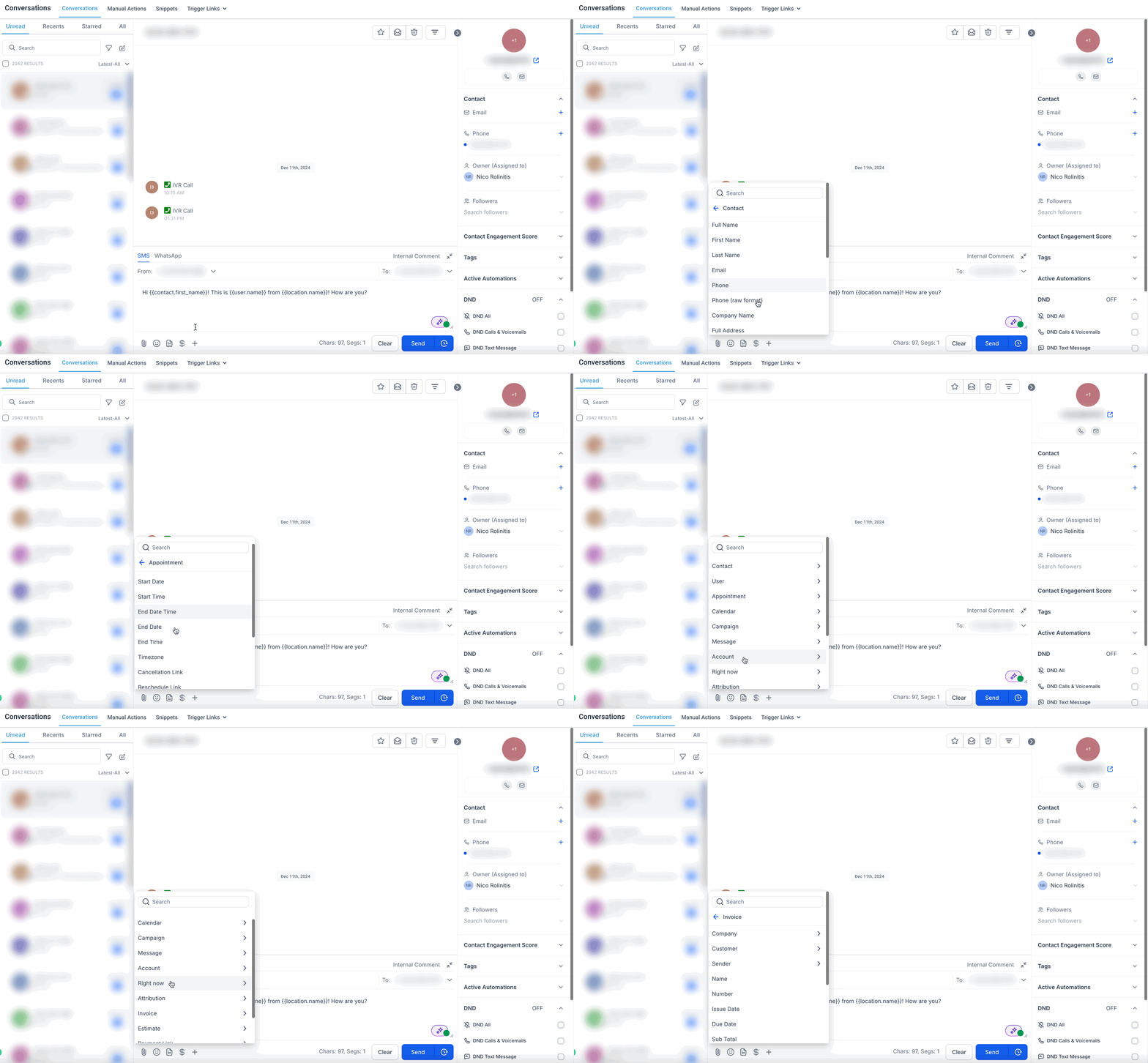
Standard Fields are predefined merge fields available by default in every account. They cover essential data points such as contact names, email addresses, phone numbers, and appointment details. They are built-in and cannot be modified or deleted. Common examples include:
Contact First Name: The first name of the contact.
Contact Email: The contact's email address.
Appointment Date and Time: The scheduled date and time of an appointment.
User Full Name: The full name of the assigned user.
Account Name: The name of your business or location.
_
_
The full list of standard merge tags is in the reference tables below.
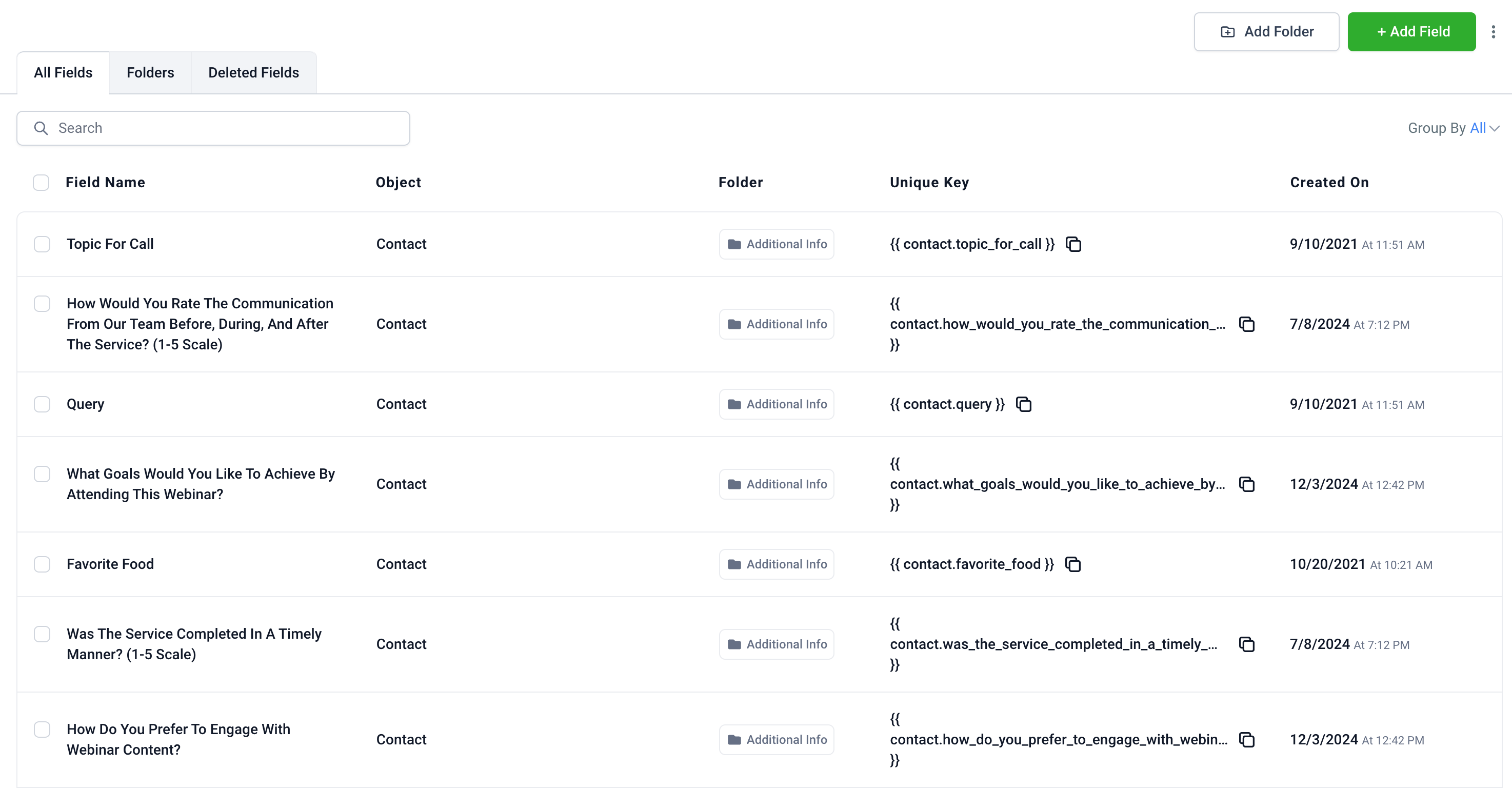
Custom Fields are user-defined data points unique to each contact or opportunity. Use them to store personalized information for detailed segmentation and communication. Common use cases:
Treatment Preferences: Track preferred communication method (email, SMS, phone call) or service interests.
Membership Details: Store membership levels (for example, Gold, Silver, Platinum) to offer tier-specific promotions.
Product/Service Interest: Track which treatments a patient is interested in for targeted follow-ups.
Event Attendance: Log registration or attendance to personalize invitations and follow-ups.
Account Manager Assignment: Store the name of the staff member handling a specific contact.
Renewal Dates: Track package or membership renewal dates for timely reminders.
Lead Source: Record where a lead came from for marketing performance tracking.
_
_
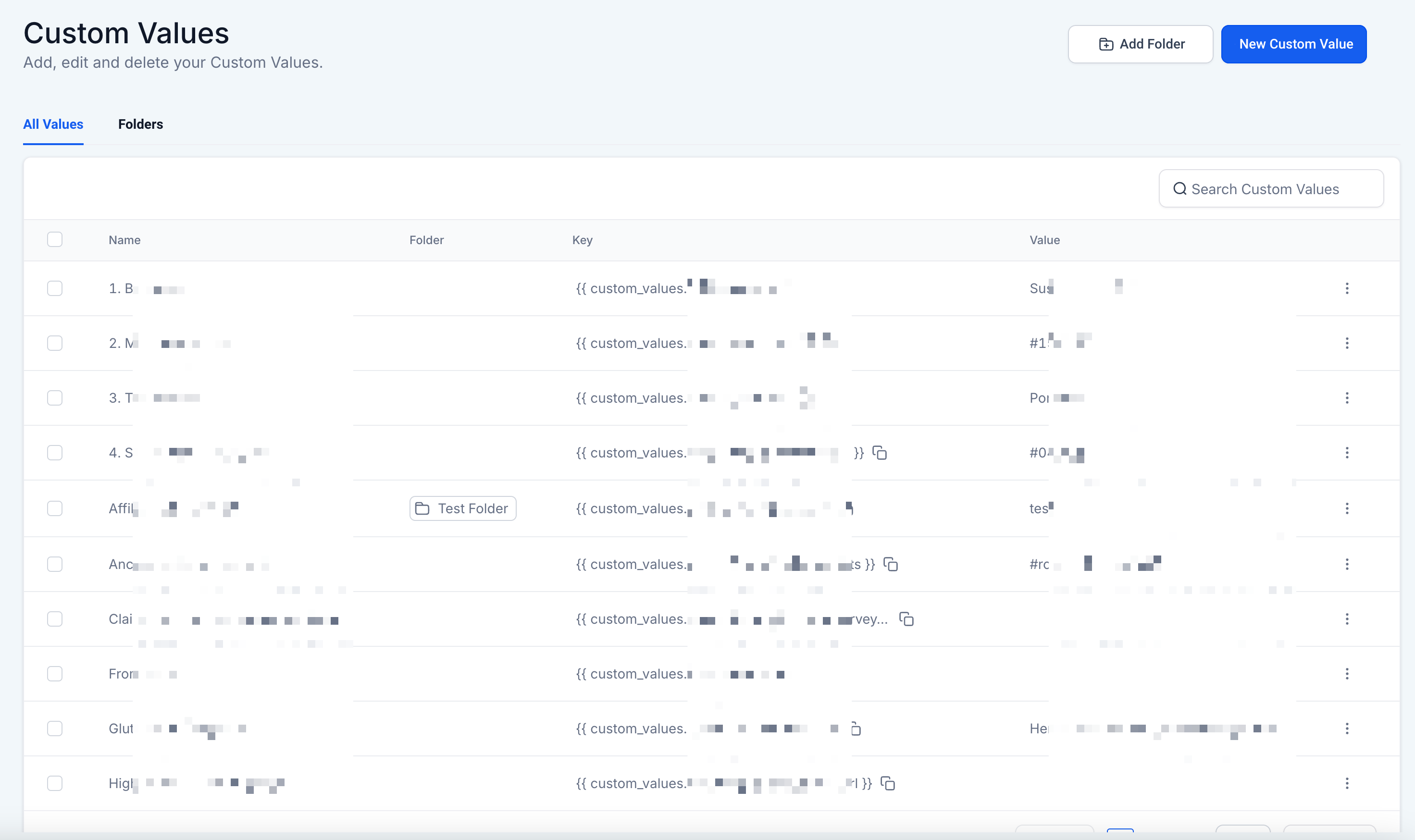
Custom Values are reusable placeholders for static information (such as business details) that ensure consistency and simplify updates across email templates, websites, funnels, workflows, and more. Update the value once and it changes everywhere it's used. Common use cases:
Business Contact Information: Insert your phone number, email, and address in email footers.
Standard Closings: Add a reusable sign-off such as "Best Regards, [Business Name]."
Website Links: Reuse frequently used URLs, such as your website or booking page.
Compliance Statements: Insert legal disclaimers or compliance statements consistently.
Brand Taglines: Add a slogan or tagline to marketing materials and campaigns.
Seasonal Greetings: Create reusable holiday greetings for newsletters and promotions.
_
_
Custom Objects let you create unique data structures beyond the standard fields. Common use cases:
Subscription/Package Plans: Track plan type, renewal date, and billing frequency.
Inventory Management: Manage product inventory, including SKUs, quantities, and supplier details.
Service Listings: Store details of services, including category, price, and features.
Vendor Details: Manage vendor information, including contracts, contacts, and payment terms.
Advanced Appointment Details: Log service type, location, and assigned staff.
_
_
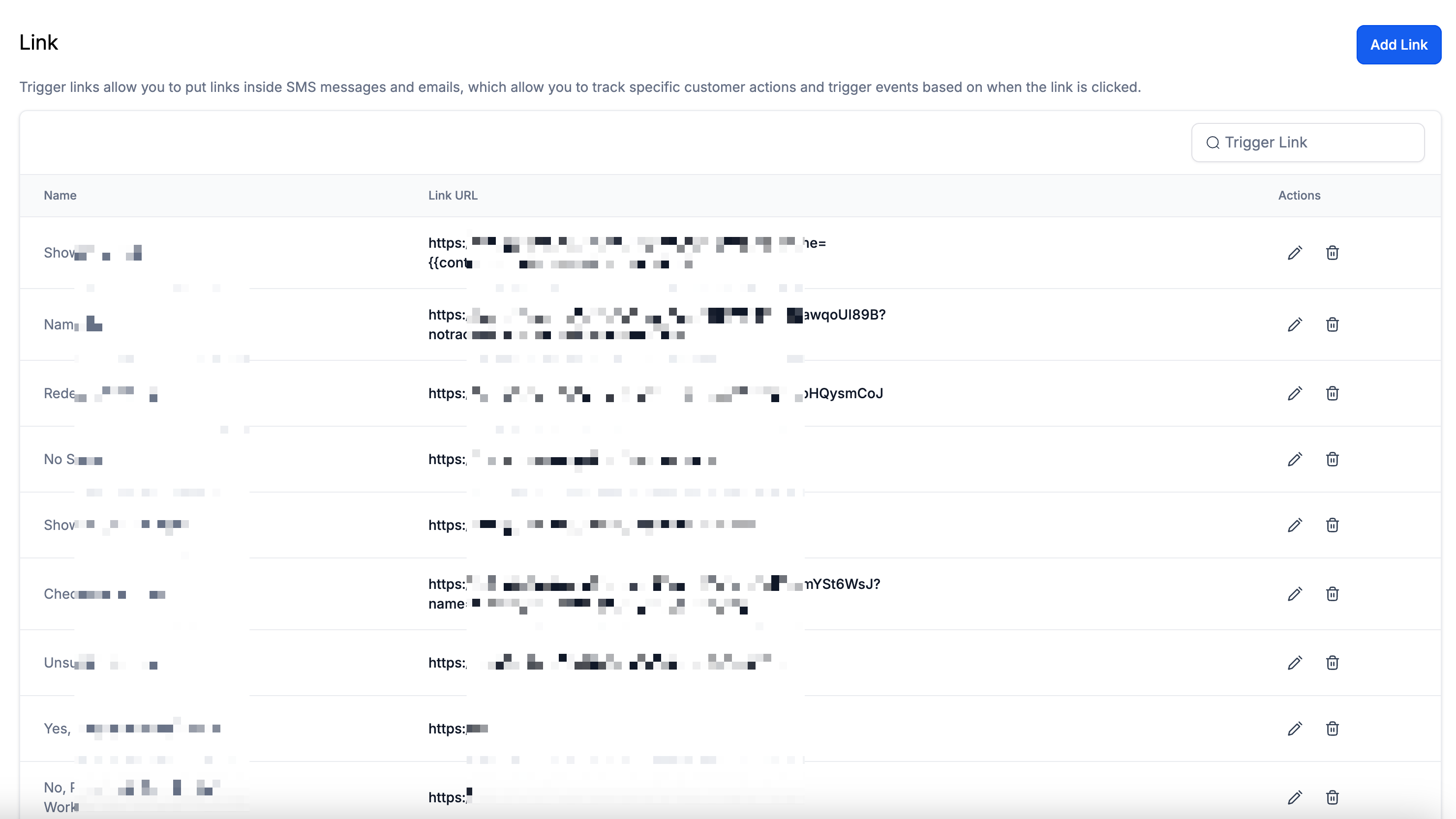
Trigger links are special links that fire specific actions in workflows and campaigns when clicked. Common use cases:
Event Registration: Send a registration link and trigger a confirmation email when clicked.
Survey Follow-Ups: Track who clicks a survey link and send an automatic thank-you.
Content Downloads: Provide links to downloadable resources and track engagement.
Upsell Opportunities: Offer a link to an upgraded service and trigger follow-ups for clickers.
Invitations: Track RSVPs by sending an invitation link and automating follow-up based on clicks.
Special Offers: Send a limited-time offer link and trigger a reminder if it isn't clicked.
_
_
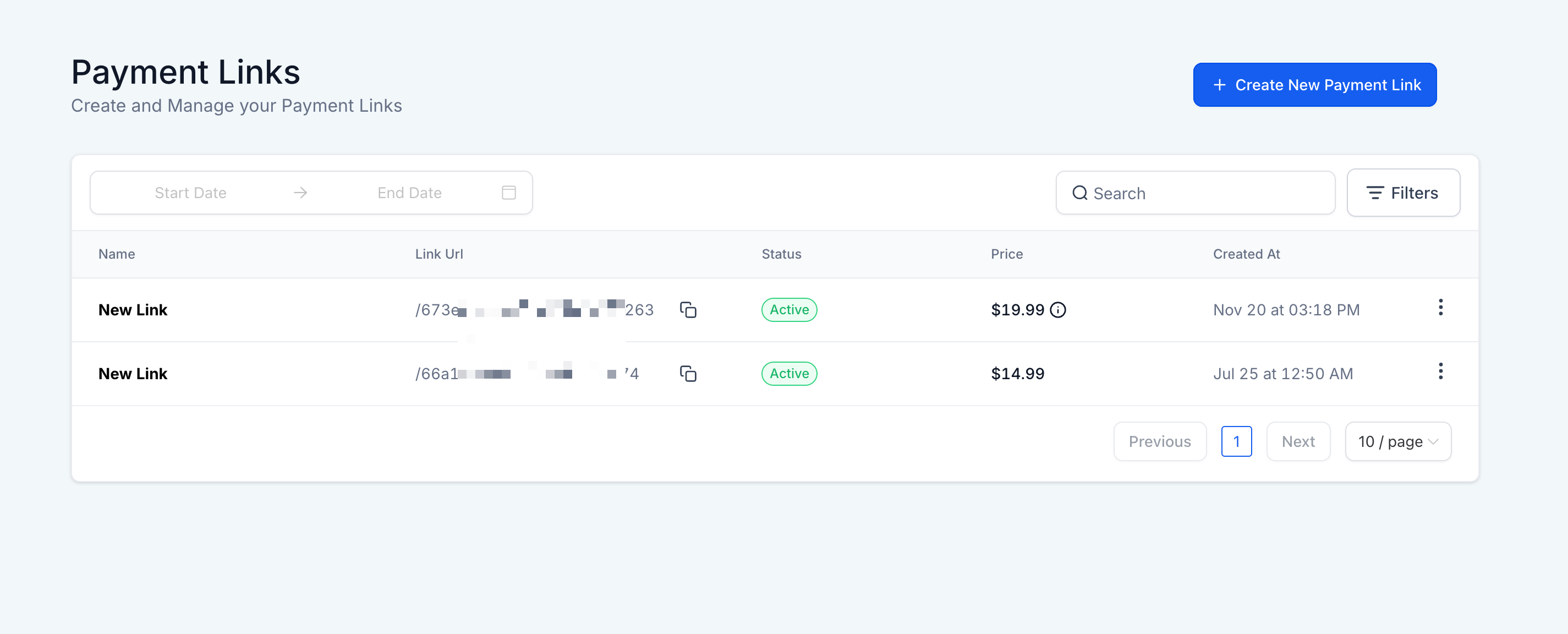
Payment links let you sell products or services by generating a link customers use to pay. Common use cases:
Event Tickets: Collect payments for workshops or events.
Subscriptions/Memberships: Generate links for recurring billing.
Product Sales: Create payment links for physical or digital products.
Deposit Collection: Collect deposits for bookings or reservations.
Donations: Generate a payment link for fundraising campaigns.
_
_
Inside workflows, the merge field and custom value picker includes built-in system fields in addition to your saved custom values. These extra fields let you build more specific automations based on engagement, attribution, note activity, and task context. They include:
Contact Engagement Score
Contact → Attribution Medium ID
Note created by (Name)
Task ID
Note: Some fields only appear when the workflow includes the correct context. For example, Task ID appears in task-related workflows, and Note created by (Name) appears in note-related workflows. Contact Engagement Score is available when Engagement Scoring is enabled in the account.
Using the picker inserts the exact token supported by the current editor and helps prevent formatting errors from a manually typed tag.
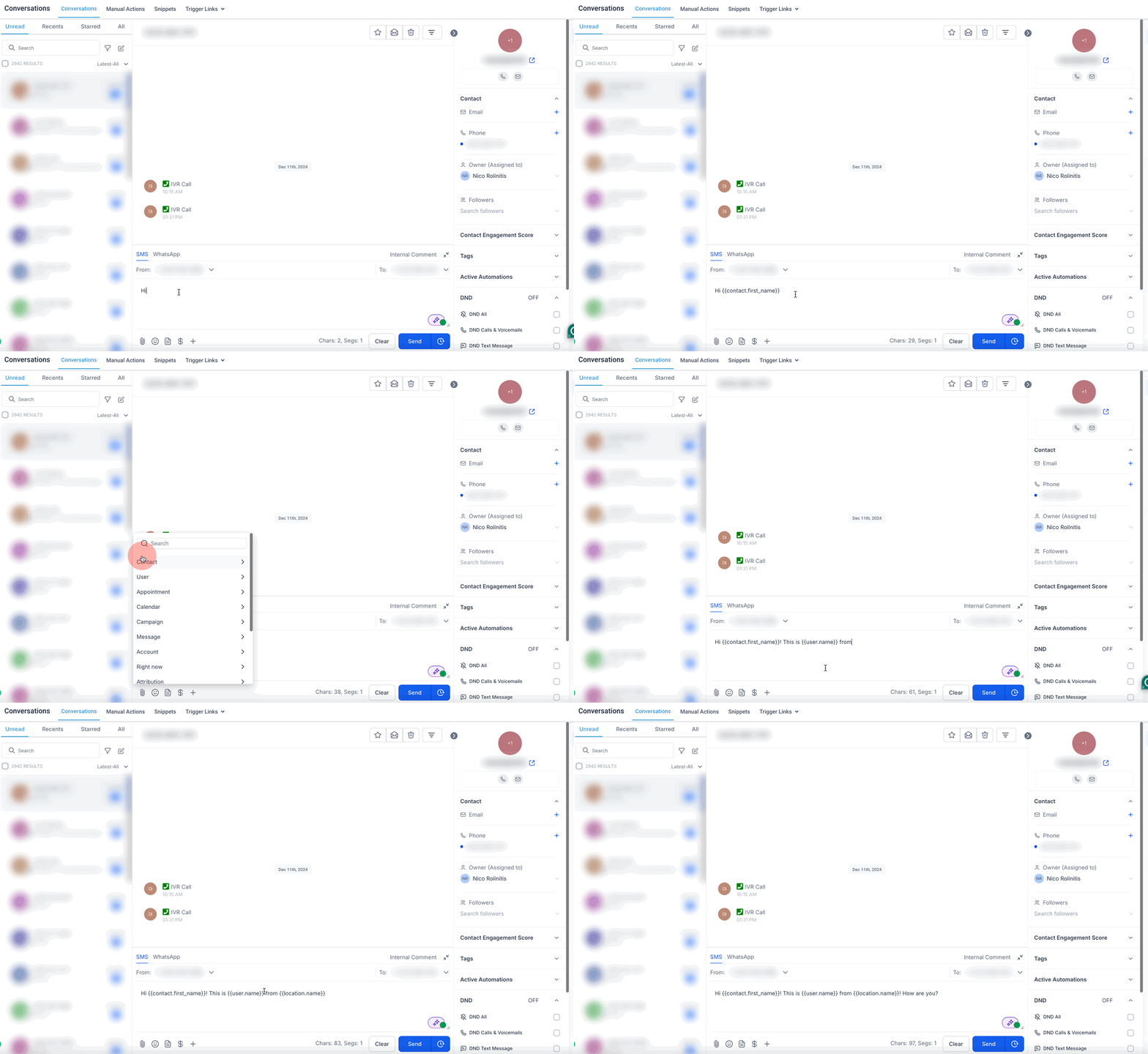
Open the supported email, message, workflow action, document, calendar setting, or AI prompt.
Place the cursor where the personalized information should appear.
Click the Merge Field, Custom Value, or { } icon.
Search for the field or open its category.
Select the field to insert its token.
Review the complete sentence around the token.
Save your changes.
Test using a record that contains the required data.
Confirm the correct value appears before publishing or activating the automation.
Best practice: Use the picker instead of manually typing or copying tokens. Available fields can vary by product, account configuration, and record context.
A merge field only resolves when the action running it has access to the matching record. A field can be valid and still show blank if that record isn't available:
Contact fields require a contact.
Appointment fields require an appointment.
Invoice fields require an invoice.
Service booking fields require a Services booking.
AI fields depend on the records available during the conversation or call.
For example, a contact-only workflow may populate {{contact.first_name}} but leave {{appointment.start_time}} blank because no appointment is available to that workflow.
In supported email areas (email templates, workflow emails, campaign emails, and bulk emails, including subject lines, preview text, and body content), you can set a fallback value directly on the tag so the email never shows an awkward blank:
Create or edit the email.
Insert or locate the merge-field tag.
Click the tag to open the Default Text editor.
Enter the text that should appear when the original value is empty.
Click Save.
Send a test using a contact whose field is blank.
Example: Hi {{contact.first_name}}, your appointment is confirmed. with fallback text there displays as Hi there, your appointment is confirmed. when the first name is missing.
Important: A fallback applies only to that specific use of the merge field. It does not update the contact record, and the same field can use different fallback text elsewhere in the email.
For areas without native fallback support, such as SMS, there is still no built-in default value: if the field has no data, the merge field is simply replaced with a blank.
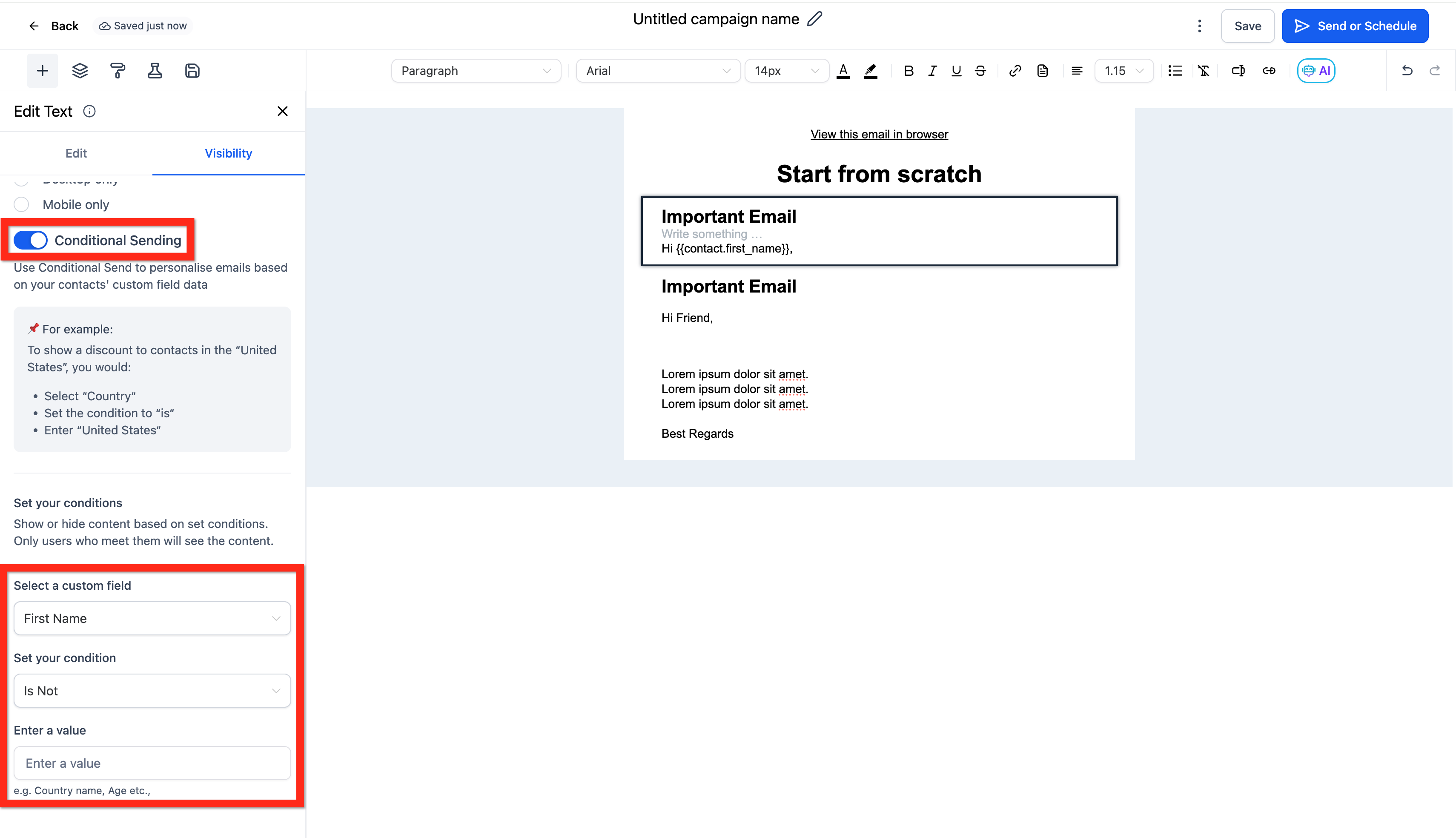
As an alternative, you can show or hide a block of content. In the email builder, use Conditional Send so a block only sends when certain conditions are met. For example, put a greeting with the merge field (Hi {{contact.first_name}},) in one block set to send when first name is not empty, and a fallback block ("Hi Friend,") set to send when first name is empty. The result behaves like a default value.
Field | Merge tag | Description |
|---|---|---|
Full Name |
| The contact's full name |
First Name |
| The contact's first name |
Last Name |
| The contact's last name |
| The contact's email address | |
Phone |
| The contact's phone number (formatted) |
Phone (raw) |
| Phone with brackets and dashes removed |
Phone for trigger links/UTM |
| Recommended format for trigger links and UTM parameters |
Company Name |
| The contact's company name |
Full Address |
| The contact's complete address |
Address Line 1 |
| Street address, line 1 |
City |
| The contact's city |
State |
| The contact's state |
Postal Code |
| The contact's postal/ZIP code |
Time Zone |
| The contact's time zone |
Date of Birth |
| The contact's date of birth |
Source |
| The source the contact came from |
Website |
| The contact's website |
Contact ID |
| The contact's unique ID |
Field | Merge tag | Description |
|---|---|---|
Name |
| Your business/location name |
Full Address |
| Your business's complete address |
Address Line 1 |
| Street address, line 1 |
City |
| Your business's city |
State |
| Your business's state |
Country |
| Your business's country |
Postal Code |
| Your business's postal/ZIP code |
| Your business email address | |
Phone |
| Your business phone number (formatted) |
Phone (raw) |
| Phone with brackets and dashes removed |
Website |
| Your business website |
Logo URL |
| URL of your business logo |
Owner First Name |
| First name of the account owner |
Owner Last Name |
| Last name of the account owner |
Owner Email |
| Email of the account owner |
Account ID |
| Your account's unique ID |
Field | Merge tag | Description |
|---|---|---|
Title |
| The appointment title |
Start Date & Time |
| Full start date and time |
Start Date |
| Start date only |
Start Time |
| Start time only |
End Date & Time |
| Full end date and time |
End Date |
| End date only |
End Time |
| End time only |
Day of the Week |
| Day of the week of the appointment |
Name of the Month |
| Month name of the appointment |
Time Zone |
| Appointment time zone |
Cancellation Link |
| Link for the contact to cancel |
Reschedule Link |
| Link for the contact to reschedule |
Meeting Location |
| Where the appointment takes place |
Notes |
| Appointment notes |
Add to Google Calendar |
| Add-to-Google-Calendar link |
Add to iCal & Outlook |
| Add-to-iCal/Outlook link |
Recurring – Repeats |
| How the recurring appointment repeats |
Recurring – Times to Repeat |
| Number of times to repeat |
Field | Merge tag | Description |
|---|---|---|
Full Name |
| Assigned user's full name |
First Name |
| Assigned user's first name |
Last Name |
| Assigned user's last name |
| Assigned user's email | |
Phone |
| Assigned user's phone (formatted) |
Phone (raw) |
| Assigned user's phone, brackets/dashes removed |
Signature |
| Assigned user's email signature |
Phone Number |
| Assigned user's outbound phone number |
Field | Merge tag | Description |
|---|---|---|
Calendar Name |
| Name of the calendar |
Campaign Event Date & Time |
| Campaign event date and time |
Campaign Event Date |
| Campaign event date |
Campaign Event Time |
| Campaign event time |
Note: Which phone-number field populates depends on how calling is set up for that user. Use the merge field picker to confirm the exact field name available in your account.
Field | Merge tag | Description |
|---|---|---|
Full Name |
| The user's full name |
First Name |
| The user's first name |
Last Name |
| The user's last name |
| The user's email address | |
Phone |
| The user's phone number (formatted) |
Phone (raw) |
| Phone with brackets and dashes removed |
Signature |
| The user's email signature |
Calendar Link |
| The user's booking/calendar link |
Phone Number |
| The user's outbound phone number |
Phone Number (raw) |
| Outbound phone number, raw format |
External Calling Number |
| The user's outbound number when calling through an external provider |
External Calling Number (raw) |
| External outbound number, raw format |
Field | Merge tag | Description |
|---|---|---|
Message Body |
| Body of the message |
Message Subject |
| Subject of the message |
These fields insert the current date or time at the moment the message is sent.
Field | Merge tag | Description |
|---|---|---|
Second |
| Current second |
Minute |
| Current minute |
Time (24h format) |
| Current hour, 24-hour format |
Time (AM/PM format) |
| Current hour, 12-hour format |
AM/PM |
| AM or PM indicator |
Day of Week (full English) |
| Current day of the week, spelled out |
Name of Month |
| Current month name |
Day |
| Current day of the month |
Month |
| Current month number |
Month (extended English) |
| Current month name in English |
Year |
| Current year |
Date (month/day/year) |
| Current date, MM/DD/YYYY |
Date (day/month/year) |
| Current date, DD/MM/YYYY |
Field | Merge tag | Description |
|---|---|---|
Session Source |
| First-touch session source |
URL |
| First-touch landing URL |
Campaign |
| First-touch campaign |
UTM Source |
| First-touch UTM source |
UTM Medium |
| First-touch UTM medium |
UTM Content |
| First-touch UTM content |
Referrer |
| First-touch referrer |
Campaign ID |
| First-touch campaign ID |
Facebook Click ID |
| First-touch Facebook click ID |
Google Click ID |
| First-touch Google click ID |
Ad Click ID (generic) |
| First-touch ad click ID, provider-neutral |
UTM Keyword |
| First-touch UTM keyword |
UTM Match Type |
| First-touch UTM match type |
Ad Group ID |
| First-touch ad group ID |
Ad ID |
| First-touch ad ID |
Field | Merge tag | Description |
|---|---|---|
Session Source |
| Latest-touch session source |
URL |
| Latest-touch landing URL |
Campaign |
| Latest-touch campaign |
UTM Source |
| Latest-touch UTM source |
UTM Medium |
| Latest-touch UTM medium |
UTM Content |
| Latest-touch UTM content |
Referrer |
| Latest-touch referrer |
Campaign ID |
| Latest-touch campaign ID |
Facebook Click ID |
| Latest-touch Facebook click ID |
Google Click ID |
| Latest-touch Google click ID |
Ad Click ID (generic) |
| Latest-touch ad click ID, provider-neutral |
UTM Campaign |
| Latest-touch UTM campaign |
UTM Keyword |
| Latest-touch UTM keyword |
UTM Match Type |
| Latest-touch UTM match type |
Ad Group ID |
| Latest-touch ad group ID |
Ad ID |
| Latest-touch ad ID |
Tip: The raw format (for example
{{contact.phone_raw}}) removes the brackets and dashes from a phone number. This is ideal when working with international phone numbers or building tel: links and UTM parameters.
These fields pull values from invoice records and are commonly used in invoices, receipts, payment confirmations, and payment reminders.
Field | Merge tag | Description |
|---|---|---|
Invoice Name |
| Name of the invoice |
Invoice Number |
| Invoice number |
Issue Date |
| Date the invoice was issued |
Due Date |
| Date payment is due |
Subtotal |
| Invoice subtotal |
Discount Amount |
| Total discount applied |
Tax Amount |
| Total tax applied |
Total Amount |
| Final invoice total |
Invoice Title |
| Title of the invoice |
Invoice Link |
| Link to view or pay the invoice |
Field | Merge tag | Description |
|---|---|---|
Company Name |
| Your business name on the invoice |
Company Phone |
| Your business phone number |
Company Address |
| Your business address |
Company City |
| Your business city |
Company State |
| Your business state |
Company Country |
| Your business country |
Company Website |
| Your business website |
Company Logo URL |
| URL of your business logo on the invoice |
Field | Merge tag | Description |
|---|---|---|
Customer Name |
| Customer's full name |
Customer First Name |
| Customer's first name |
Customer Last Name |
| Customer's last name |
Customer Phone |
| Customer's phone number |
Customer Email |
| Customer's email address |
Customer Company |
| Customer's company name |
Customer Address |
| Customer's address |
Customer City |
| Customer's city |
Customer State |
| Customer's state |
Customer Postal Code |
| Customer's postal/ZIP code |
Field | Merge tag | Description |
|---|---|---|
Sender Name |
| Name of the person who sent the invoice |
Sender Email |
| Email of the person who sent the invoice |
Field | Merge tag | Description |
|---|---|---|
Card Brand |
| Card network used for payment (for example, Visa) |
Card Last 4 |
| Last 4 digits of the card used |
These fields support course or lesson content when sending enrollment or content-related messages.
Field | Merge tag | Description |
|---|---|---|
Category Title |
| Title of the course category |
Product Title |
| Title of the course/product |
Post Title |
| Title of the lesson/post |
These fields pull details from a Services booking, including schedule, pricing, and the assigned user.
Field | Merge tag | Description |
|---|---|---|
Title |
| Booking title |
Start Time |
| Start time |
End Time |
| End time |
Start Date |
| Start date |
End Date |
| End date only |
End Time Only |
| End time only |
Day of Week |
| Day of the week |
Month (number) |
| Month number |
Month Name |
| Month name |
Time Zone |
| Booking time zone |
Total Price |
| Total price for the booking |
Meeting Location |
| Where the booking takes place |
Meeting Location Name |
| Named location or resource (for example, a chair or room) |
Reschedule Link |
| Link for the customer to reschedule |
Cancellation Link |
| Link for the customer to cancel |
Used inside a service line-item loop, such as a booking confirmation that lists each service and add-on.
Field | Merge tag | Description |
|---|---|---|
Service Name |
| Name of the service |
Service Price |
| Price of the service |
Service Duration |
| Duration of the service |
Service Start Date |
| Start date of this service |
Service Start Time |
| Start time of this service |
Service Time Zone |
| Time zone of this service |
Addon Name |
| Name of an add-on |
Addon Price |
| Price of an add-on |
Addon Duration |
| Duration of an add-on |
Addon Quantity |
| Quantity of an add-on |
Assigned User Name |
| Name of the provider assigned to this service |
Assigned User Email |
| Email of the assigned provider |
Assigned User Phone |
| Phone of the assigned provider |
Assigned User Phone (raw) |
| Assigned provider's phone, raw format |
Assigned User Signature |
| Assigned provider's email signature |
Voice AI merge fields (also called Custom Values inside Voice AI prompts) let your AI voice agent personalize phone conversations using information already available in the call context, such as contact, account, appointment, and calendar data.
Use the Custom Value picker inside the Voice AI builder when adding dynamic information to a prompt.
Field | Merge tag | Example use |
|---|---|---|
Contact First Name |
| "Hi {{contact.first_name}}, thanks for calling." |
Contact Full Name |
| "I see your name is {{contact.name}}." |
Contact Email |
| "We have your email as {{contact.email}}." |
Contact Phone |
| "Is {{contact.phone}} still the best number to reach you?" |
Account Name |
| "Thanks for calling {{location.name}}." |
Account Phone |
| "You can also reach us at {{location.phone}}." |
Account Email |
| "Our team can follow up from {{location.email}}." |
Appointment Start Time |
| "Your appointment is scheduled for {{appointment.start_time}}." |
Calendar Name |
| "This appointment is booked on the {{calendar.name}} calendar." |
Important: Available merge fields can vary based on the Voice AI prompt field, call direction, contact record, appointment context, and the data available in the account. If a value is missing from the record, the merge field may appear blank during the conversation.
Conversational AI merge fields help your AI agent personalize automated conversations using available contact and account data. These are useful when configuring prompts, goals, and supported Conversational AI actions.
Use the Custom Value picker when adding merge fields inside Conversational AI so the selected value is supported in that part of the setup.
Field | Merge tag | Example use |
|---|---|---|
Contact First Name |
| "Hi {{contact.first_name}}, how can I help today?" |
Contact Full Name |
| "Thanks, {{contact.name}}. I can help with that." |
Contact Email |
| "I have your email listed as {{contact.email}}." |
Contact Phone |
| "Is {{contact.phone}} the best number for follow-up?" |
Account Name |
| "You are chatting with {{location.name}}." |
Account Email |
| "Our team can follow up from {{location.email}}." |
Account Phone |
| "You can also contact us at {{location.phone}}." |
After adding merge fields, test the agent's response to confirm the correct values populate before turning it on for live conversations.
Important: Merge field availability can depend on the Conversational AI area being edited, the selected channel, and whether the related contact or account data exists. If a field has no saved data, the value may populate as blank.
Issue | What to Check |
|---|---|
The value is blank | Confirm the source record has data and the action has the required record context (for example, an appointment for appointment fields). |
The raw token stays visible instead of resolving | Delete it and reinsert it from the picker. Confirm the editor supports that field. |
The wrong user appears | Check the assigned user, appointment owner, or sender available to the action. |
An invoice field is blank | Confirm the message is generated from an invoice-related action and the field has saved data. |
An email fallback doesn't appear | Confirm the fallback was saved on that specific tag in a supported email area. |
A Voice AI or Conversational AI response uses the value awkwardly | Add instructions for missing values in the prompt and test again. |
What is the difference between Custom Fields and Custom Values?
Custom Fields are specific to individual contacts or opportunities, storing unique data like birthdays or preferences. Custom Values are reusable placeholders for consistent information across communications, such as business details or standard messages.
Why is my merge field not working or displaying correctly?
This is usually a missing or incorrect merge field format. Make sure you're using the correct syntax (for example, {{contact.email}}), and verify that the data for that field actually exists in the contact or user record.
Are merge fields case-sensitive?
Yes. For example, {{contact.name}} works, but {{Contact.Name}} will not.
How can I test if my merge fields are working correctly?
Send a test email or SMS to yourself, or preview the communication in the template editor. This confirms the merge fields are pulling the correct data before you send to real contacts.
What happens if a merge field doesn't have any data available?
It displays as blank. Always keep your contact and user data complete for the best results.
Can I update a Custom Value, and will it reflect across all templates?
Yes. Updating a Custom Value in settings automatically updates every template and workflow where that value is used, keeping everything consistent.
How are Standard Fields different from Custom Fields?
Standard Fields are predefined and built into the CRM. Custom Fields are user-defined and can be created to store unique data for contacts and opportunities.
How do Custom Objects differ from Custom Fields and Custom Values?
Custom Objects are advanced data structures that support more complex relationships and data management beyond what Custom Fields and Values can do.
Are there limits to how many Custom Fields or Custom Values I can create?
There is no strict limit, but it's best to manage them carefully to keep your account organized and easy to navigate.
Can I use Custom Values within websites and funnels?
Yes. Custom Values can dynamically display consistent information across your websites and funnels for stronger personalization.
How do I organize Custom Values for better management?
Organize Custom Values into folders so they're easier to manage and locate as your list grows.
Is it possible to bulk create or upload Custom Fields/Values?
Not currently. Custom Fields and Values need to be added individually.
Can I edit or delete Standard Fields?
No. Standard Fields are built-in and cannot be modified or deleted, but you can choose whether or not to use them in your templates and workflows.
Can I type a merge field manually instead of using the picker?
Yes, but using the picker is more reliable because it inserts the exact token the current editor supports and reduces typos.
What is the difference between Account fields and a company merge field on an invoice?
Account fields such as {{location.name}} pull from your Aesthetix CRM account settings. The invoice company fields ({{invoice.company.name}} and similar) pull from the business details saved on that specific invoice, which is useful when an account issues invoices under more than one business name.
Can merge fields be used in invoices and payment-related messages?
Yes. Merge fields can insert invoice numbers, totals, due dates, customer details, and payment links into invoices, receipts, and reminders.
Can Voice AI and Conversational AI agents use merge fields?
Yes, in supported prompt and message fields. Use the Custom Value picker in each builder and test the conversation before turning the agent on for live use.
