Custom values are account-wide, reusable variables that store information you use again and again across Aesthetix CRM, such as your practice name, business phone number, booking link, or office address. Instead of retyping the same details into every email, text message, funnel, or workflow, you create a custom value once and reference it everywhere as merge data. Update the value in one place and every message that uses it updates automatically.
You manage custom values from Settings > Custom Values. This guide covers what custom values are, where to find them, and how to create, edit, and delete them, plus how to set default (fallback) text for use in emails and how to use custom values to swap images in funnels and websites.
For the full list of available merge fields and how to insert custom values into your messages, see the Merge Fields and Custom Values Reference guide.
A custom value is a reusable piece of merge data that lives at the account level. Common examples include:
Practice or business name
Main phone number and support email
Booking or scheduling link
Office address and hours
Promotional offers or recurring campaign details
Because the value is stored centrally, you can drop it into emails, SMS, funnels, websites, and workflows by referencing the custom value rather than typing the literal text. When the underlying information changes, you edit the custom value once and every place that references it reflects the new value instantly.
Step 1: Open Settings from the left navigation menu.
Step 2: Select Custom Values.
Step 3: Click New Custom Value.
Step 4: Enter a unique name for your custom value (for example, "Practice Phone").
Step 5: Enter the corresponding value (for example, your actual phone number).
Step 6: Optionally, choose a folder to keep your custom values organized.
Step 7: Click Create to finish.
Your new custom value is now available to reference anywhere merge data is supported.
Step 1: Open Settings.
Step 2: Click Custom Values.
Step 3: Find the custom value you want to change and click the three dots next to it.
Step 4: Click Edit Custom Value.
Step 5: Make your changes to the name or value.
Step 6: Click Update to save your changes.
Any message, funnel, or workflow that references this custom value will automatically use the updated information.
Step 1: Open Settings.
Step 2: Click Custom Values.
Step 3: Find the custom value you want to remove and click the three dots next to it.
Step 4: Click Delete Custom Value.
Step 5: Click Confirm to complete the deletion.
Deleting a custom value cannot be undone. Before removing one, check that it is not being referenced in any active emails, funnels, websites, or workflows, since those will no longer display the value.
Default values keep personalized emails complete when contact information is missing. When you use a custom value such as the contact's first name, a missing field can create an awkward blank, for example displaying "Hi ," instead of "Hi Sarah,". A default value supplies fallback text that displays only when the related contact field is empty.
You can add default values to custom values (also commonly used as merge tags) in subject lines, preview text, and email body content across email campaigns, workflow emails, bulk emails, and email templates.
Cleaner personalization: Prevents blank spaces when contact fields such as first name, business name, or appointment details are missing.
More professional emails: Keeps subject lines, preview text, and email content polished before they reach the recipient.
Flexible messaging: Allows different default values for the same custom value in different email contexts.
Works with incomplete records: Helps you personalize emails even when some contact records are incomplete.
Better readability: Keeps messages natural and complete, so recipients do not see awkward gaps or broken sentences.
Default values only display when the contact field is missing or empty. They do not update, replace, or overwrite the contact's saved data. You can even use a different default value each time the same custom value appears, even within the same email.
For example, if the contact's first-name custom value appears twice in one email, one instance can use "there" as the fallback while another instance uses "friend".
Example 1: Missing First Name
Hey {{contact.first_name}}, we are so glad that you signed up!
Default value: "there"
Results:
If first name exists: "Hey Sarah, we are so glad that you signed up!"
If first name doesn't exist: "Hey there, we are so glad that you signed up!"
Example 2: Subject Line Personalization
Hi {{contact.first_name}}, your appointment is confirmed
Default value: "friend"
Results:
If first name exists: "Hi John, your appointment is confirmed"
If first name doesn't exist: "Hi friend, your appointment is confirmed"
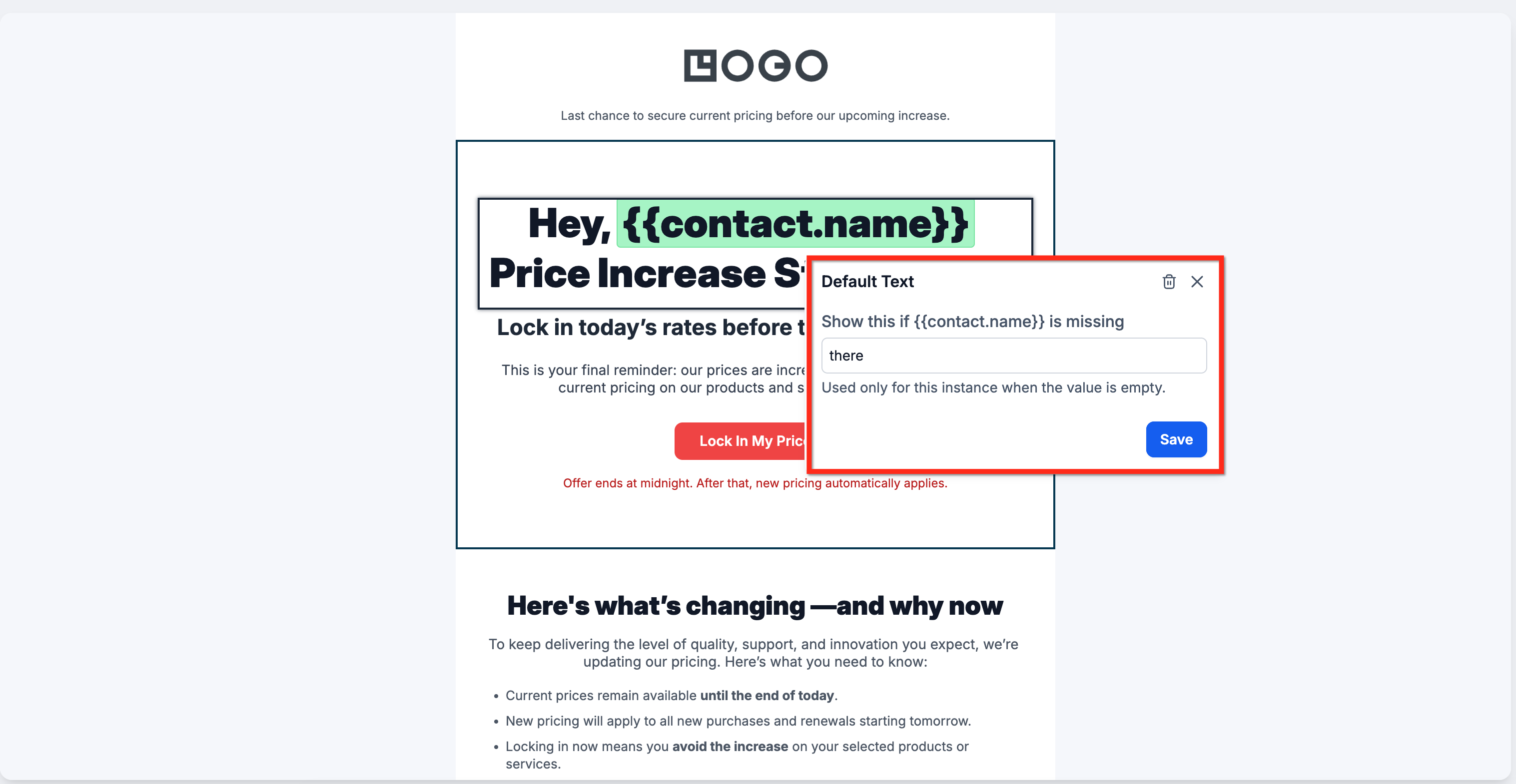
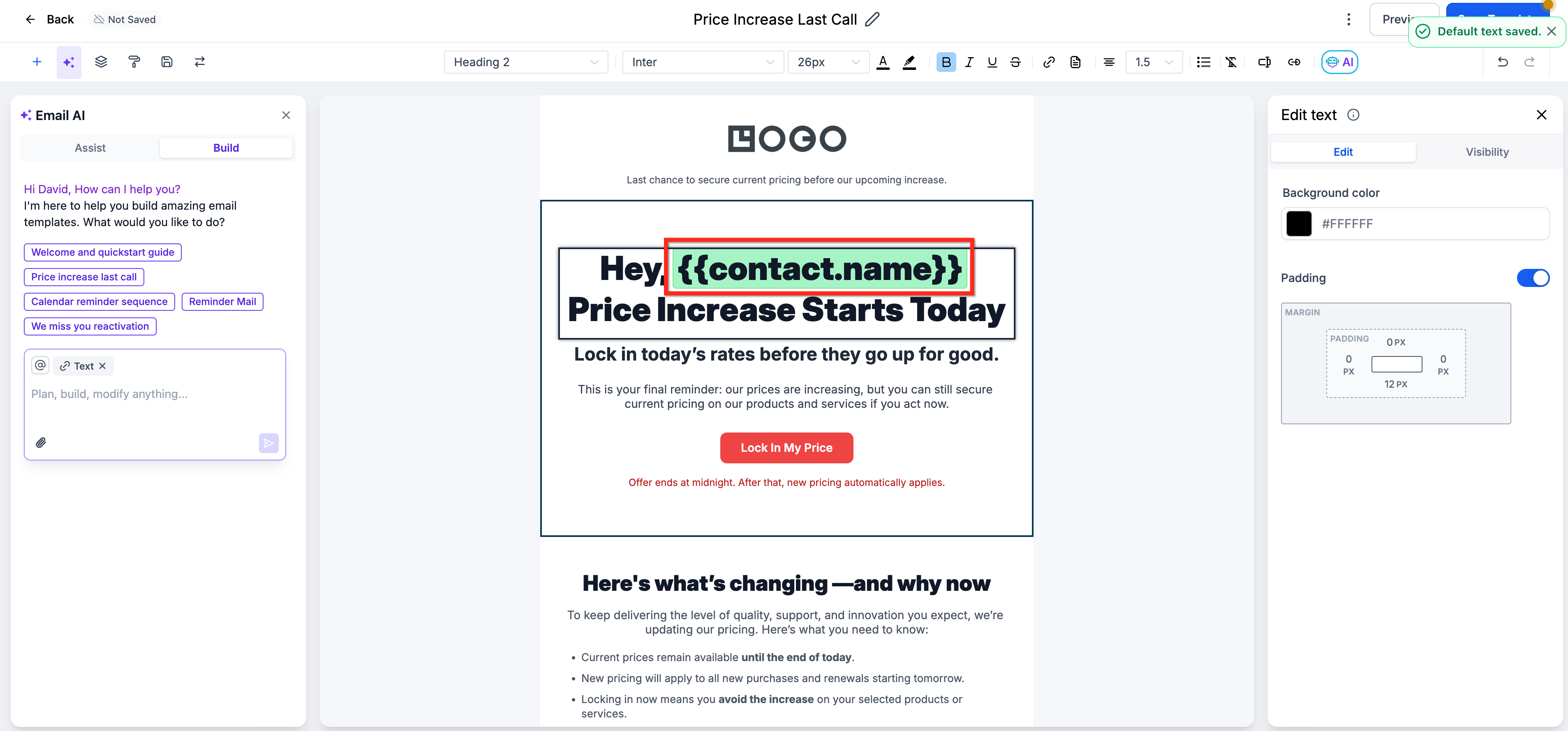
Custom value tags use visual indicators to help you identify whether a default value has been configured. These indicators make it easier to review an email before sending and confirm which personalization values have fallback text. Hovering over a configured custom value shows the default value tooltip.
Green highlighted custom value: A default value has been set.
Standard/grey custom value: No default value has been set.
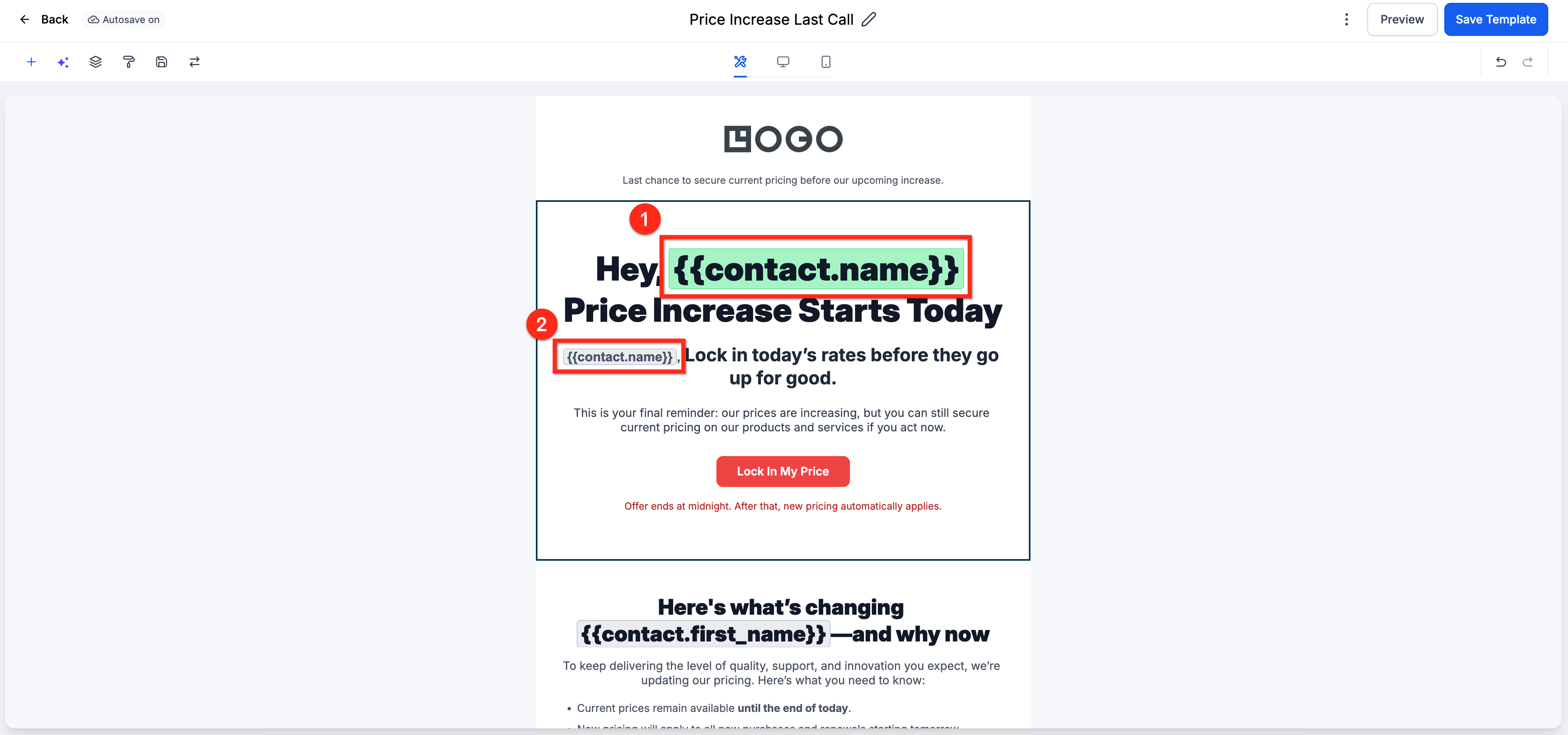
Step 1: Create or edit an email, template, workflow email, bulk email action, or campaign email. Add or locate the custom value you want to personalize, such as the contact's first name.
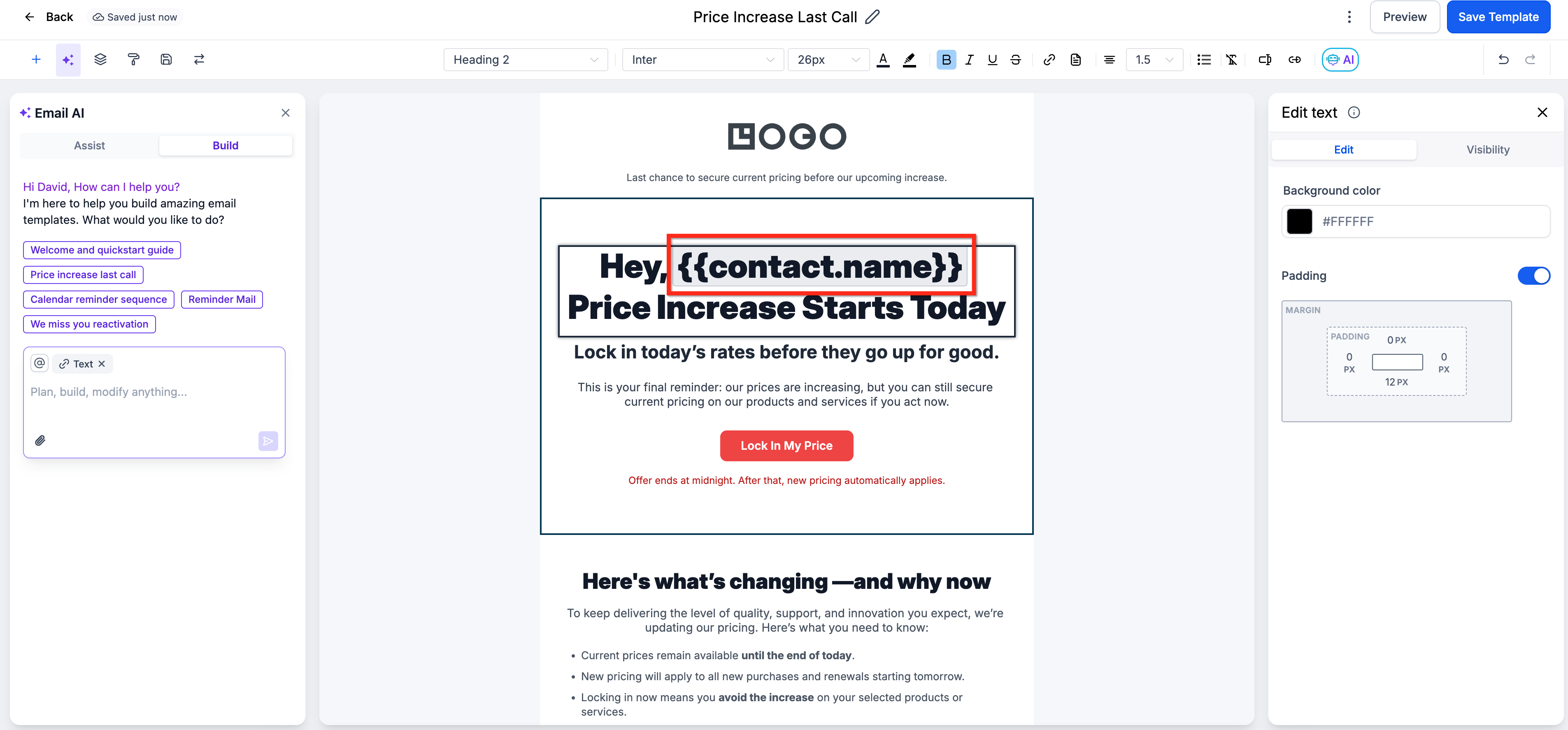
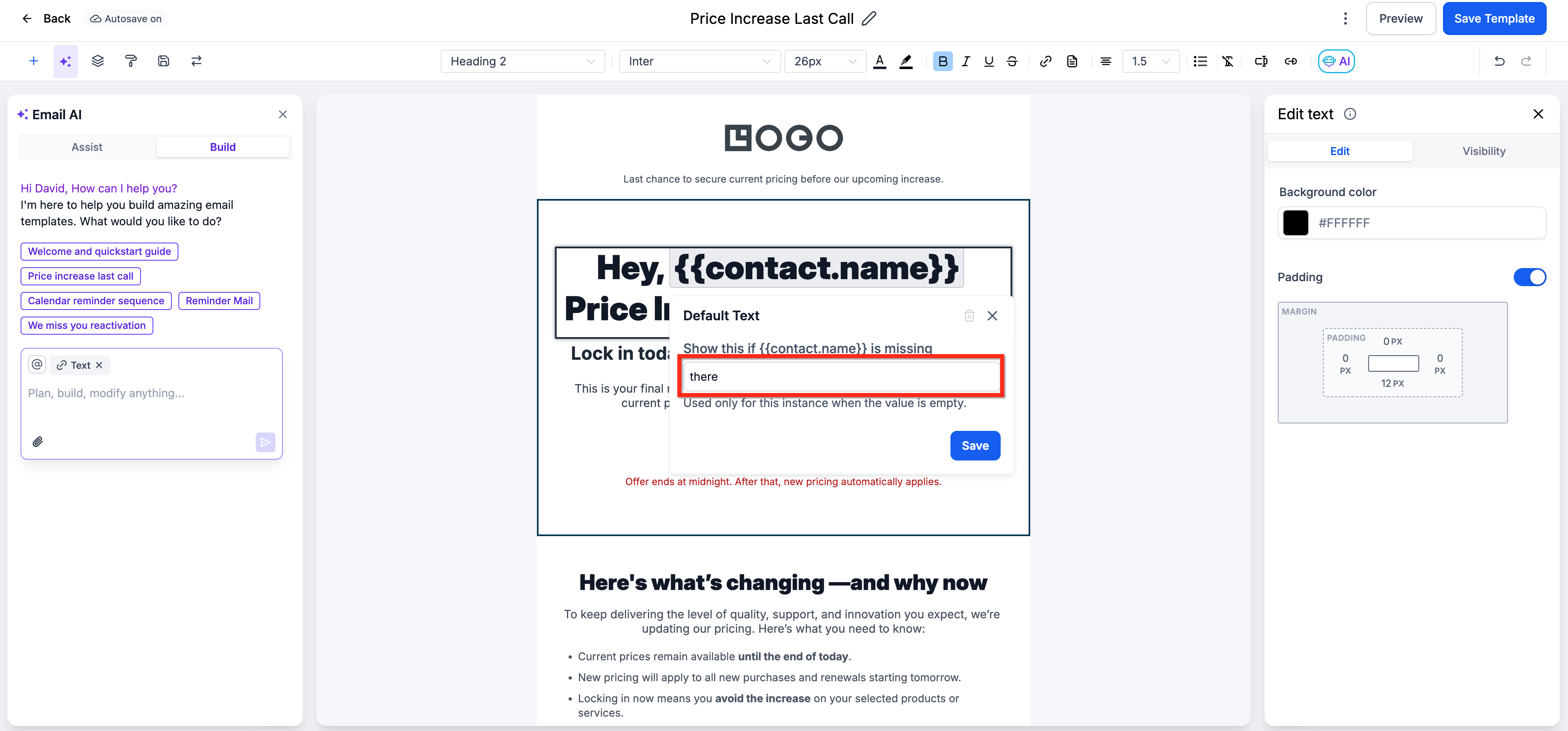
Step 2: Click on the custom value to open the Default Text Editor.
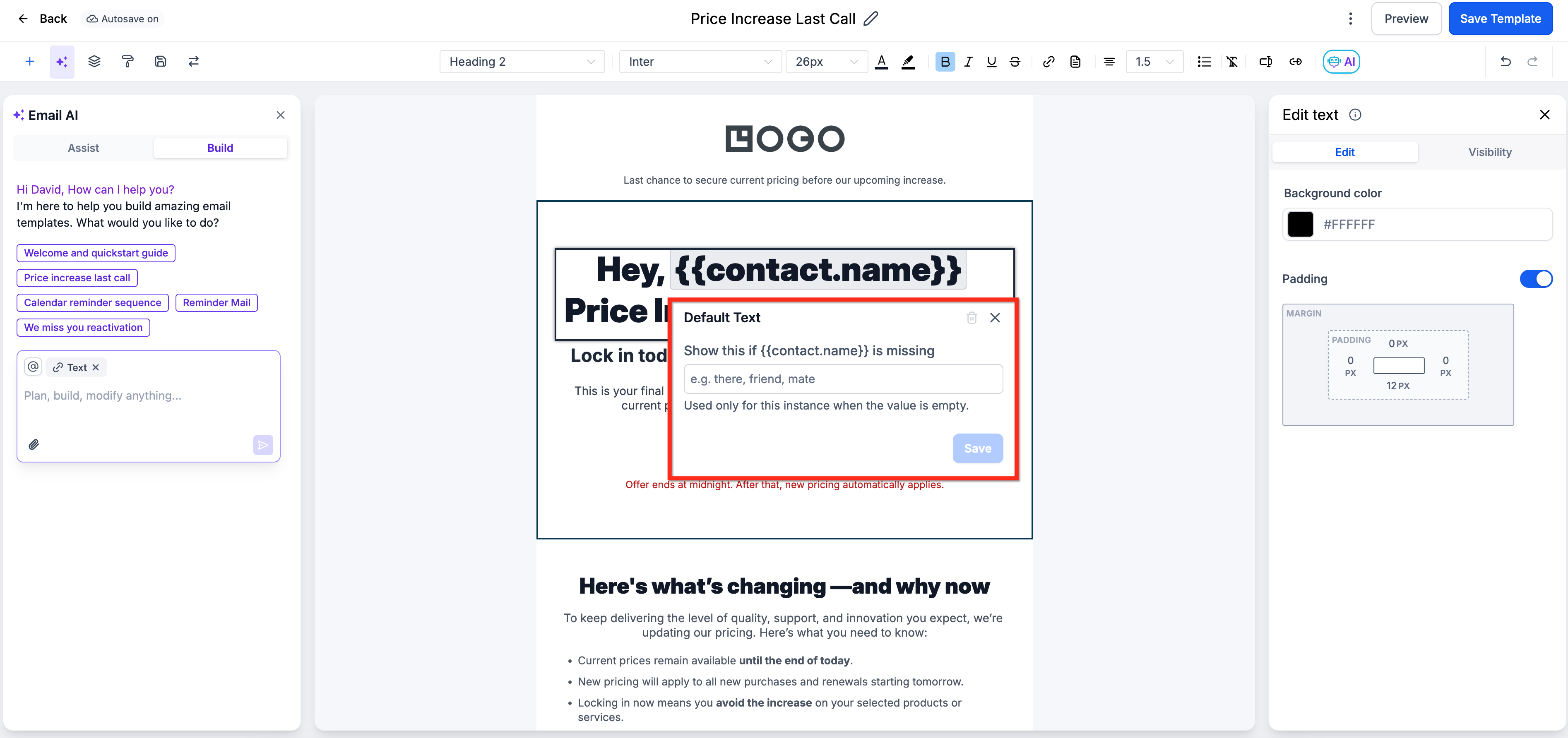
Step 3: In the Default Text Editor, enter the fallback text you want to display when the value is missing, then click Save.
Step 4: Confirm the custom value is highlighted in green, indicating that a default value has been set.
Custom values are not limited to text. You can store an image URL in a custom value and reference that custom value as the image source in funnels and websites. This lets you update an image, such as a seasonal banner, promotional graphic, or logo, in one place and have it change everywhere the custom value is used, without editing each page individually.
To use this, create a custom value whose value is the URL of your hosted image, then set that custom value as the image source in the funnel or website element. Updating the URL stored in the custom value swaps the displayed image across every page that references it.
Can I set one global default for all custom values? Not currently. Default values are configured individually for each custom value usage, giving you more flexibility based on the context of the email.
Will the default value replace existing contact information? No. If the contact field contains data, the actual contact value will always be used. The default only appears when the field is empty.
Can I use default values in subject lines and preview text? Yes. Default values can be used in subject lines, preview text, and email body content.
Where can I use default values? You can use default values in workflow emails, campaign emails, bulk actions, and email templates.
How do I know if a custom value already has a default? Custom values with no default appear as grey tags. Once a default is added, the tag turns green.
Can I edit the default value later? Yes. Simply click on the custom value tag again to reopen the edit modal and update the default value.
What happens if I do not set a default value? If the contact field is empty and no default is configured, the email may display a blank space where the custom value is used.
Can the same custom value have different defaults if used more than once in an email? Yes. Each custom value usage can have its own unique default value depending on the message and context.
Can I delete a custom value that is in use? You can, but deletion cannot be undone, and any email, funnel, website, or workflow that references it will no longer display the value. Confirm the custom value is no longer referenced before deleting it.
