When an email does not send the way you expect, Aesthetix CRM passes back the exact error it received from your email provider so you can act on it. Most email problems trace to a handful of causes: a domain that is not fully verified, a sending rate that tripped a provider limit, a tracking domain that is not resolving, a broken connection between your inbox and ACRM, or content that the provider rejected. This article walks through the issues you are most likely to hit, what causes each one, and how to fix it.
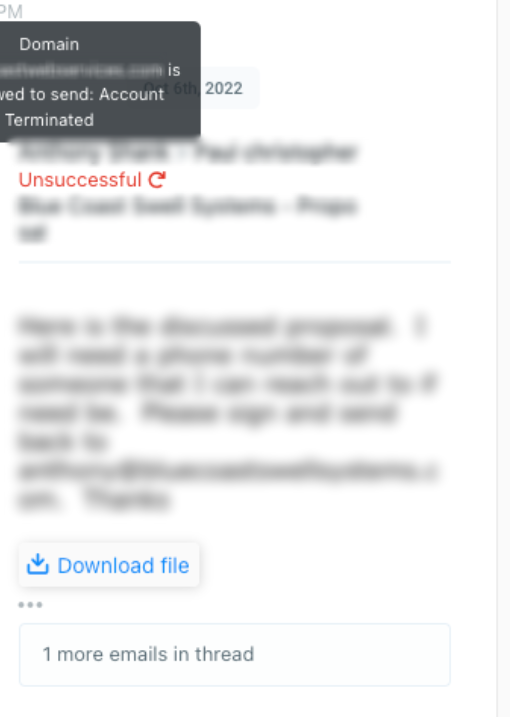
When you see a failed email in Conversations, click the red warning icon next to it to view the full error message. ACRM fetches the error directly from your provider (such as Mailgun, Gmail, Outlook, or Sendgrid), so the detail you see there tells you exactly why the message did not go out.
If an email fails to send, the first step is always to read the underlying provider error. Open the conversation, click the red warning icon on the failed message, and review the full message.
Common causes and fixes:
Domain not verified. If you see "The domain is not allowed to send," your sending domain is unverified and needs its DNS records configured. Log in to your email provider's control panel, open your domain settings, and confirm all required DNS records show a green checkmark. Sometimes a record looks verified but is not, so click Verify DNS settings again to refresh.
Account terminated or suspended. "The domain is not allowed to send: Account Terminated" means your email provider has suspended the account. Contact your provider's support to find out why and to restore sending.
Sender verification error. Errors like "Sender verify failed," "does not exist," or "no DNS/MX entries" mean the receiving server cannot confirm your sending domain. If you send from a subdomain, point its MX records to your provider and allow 24 to 48 hours to propagate. If you send from a root domain that already has mailbox MX records, add a dedicated sending subdomain instead. Only ever point a domain's MX records to one source to avoid misdirected or lost mail.
Provider-side glitch. Transient errors such as "Too old," "Temporary System Problem (421 4.3.0)," or "Internal Server Error (500)" usually clear on their own. Retry the send later. If the error persists, contact your email provider's support.
Still not received. If the send shows successful but the recipient never gets it, check the spam folder first. If the error message in Conversations is not specific enough, open a support ticket with your email provider so they can pull the delivery status for that message.
If you send through Gmail or Google Workspace and you get an error like "Our system has detected an unusual rate of unsolicited mail originating from your IP address" (often shown as 4.7.0 or 5.7.1), Google is rate-limiting or flagging your traffic as spam-like.
What to do:
Review your recent sends for anything that could look like unsolicited mail, and make sure your content follows Google's bulk sender guidelines.
If you are not sending spam, check your network for malware or misconfigured software that could be sending on your behalf.
Reduce your sending volume and send in smaller batches rather than all at once.
Confirm your email passes SPF and DKIM authentication. Several related Google errors (5.7.1 "Unauthenticated email," 5.7.26 DMARC failures) come down to missing or failing authentication records.
Google enforces several other rate limits worth knowing about:
"Receiving mail too quickly" (450 4.2.1) means the recipient's server is throttling, not you. Resend later.
"Daily sending quota exceeded" (550 5.4.5) means you hit Google's per-day cap. Reduce your daily volume or upgrade your Google Workspace edition.
"Peak SMTP relay limit exceeded" means too much volume through Google's relay in a short window. Reduce the number of emails sent.
For high-volume sending through Gmail SMTP, send in low-volume batches, or move bulk sending to a provider built for it.
Every email provider enforces limits on how fast and how much you can send, and tripping them produces temporary failures rather than permanent ones. These are not ACRM limits; they come from the provider connected to your account.
Mailgun "Too many requests" means too many emails were sent simultaneously. Contact Mailgun support to confirm your account's sending limit, and clear the error in your email service settings.
Mailgun "request limit / bytes limit / recipient limit exceeded" (429) tells you the exact limit you hit and a time to retry after. Wait until that time, then resend.
Sendgrid "temporarily deferred" (421) or "throttled" (452) means the recipient server is accepting mail too slowly for your volume. Sendgrid retries for up to 72 hours on its own; temporarily send fewer messages to that domain.
"Daily SMTP relay limit exceeded" on any provider means you have hit your plan's relay cap. Check your relay settings or upgrade your provider edition.
The fix for nearly all rate errors is the same: slow down, send in smaller batches, and spread large sends over time. If you regularly need high volume, use ACRM's native email service or a provider sized for bulk sending.
If links inside your sent emails do not open, the cause is almost always your tracking domain. When an email goes out, each link is rewritten so it routes through a tracking subdomain before reaching the final page. If that tracking domain has a DNS or SSL problem, the redirect breaks and the link will not open.
Work through these steps to fix it:
Step 1: Identify your tracking domain. Go to Settings > Email Services > Location Settings and find the domain used for email tracking (for example, email.yourdomain.com) for the location you are troubleshooting.
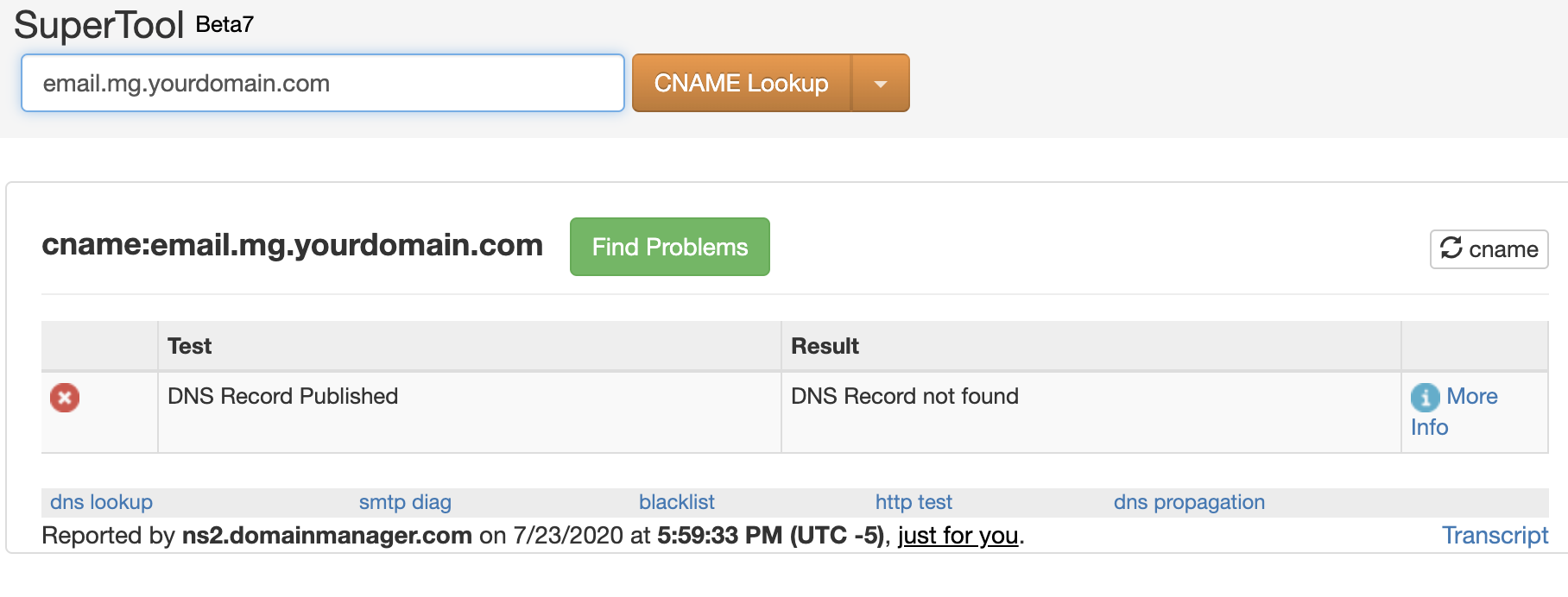
Step 2: Check your CNAME record. Use a lookup tool such as MXToolbox or WhatsMyDNS. Take your tracking subdomain and add email. in front of it. For example, if your subdomain is mg.companyname.com, look up email.mg.companyname.com; if it is replies.companyname.com, look up email.replies.companyname.com. A valid CNAME should return. If you see "DNS record not found," the CNAME is missing or incorrect.
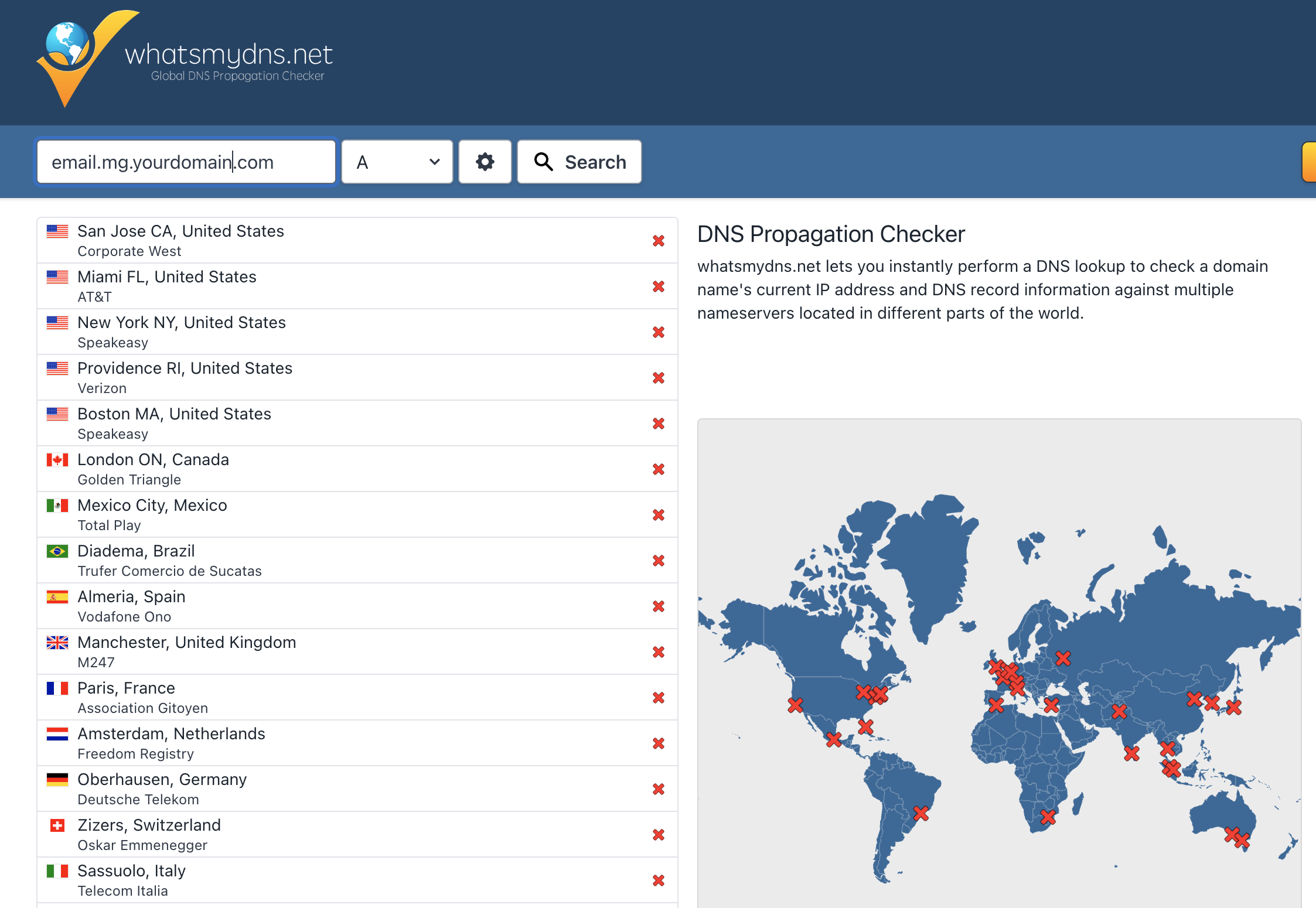
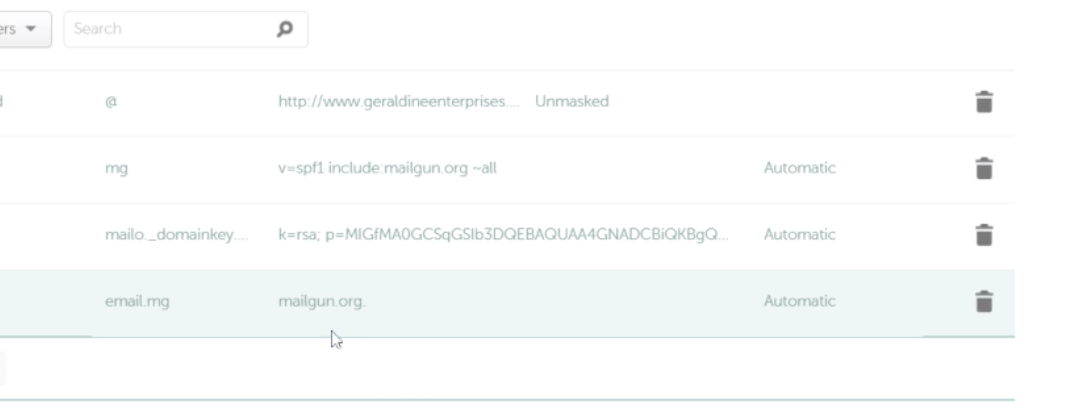
Step 3: Verify the record at your DNS provider. Log in to your DNS provider and find the CNAME record for your tracking domain. The Host field should contain only the subdomain (for example, email.mg, not the full domain), and the Value should point to your email provider's tracking host.
Step 4: Ensure HTTPS is enabled. Tracking domains must support HTTPS. In your provider settings, confirm the tracking protocol is set to HTTPS, and allow time for SSL to provision if you changed it recently.
Step 5: Test your links. Send a test email, click a link, and confirm it redirects to the correct final page.
Step 6: Contact your DNS provider if it persists. If links still fail, contact your domain or DNS provider (such as GoDaddy, Cloudflare, or Google Domains) and ask them to confirm the tracking domain's CNAME is set up correctly and resolving. Sharing screenshots of your DNS records speeds up troubleshooting.
Common pitfalls to check:
CNAME not found: the record is missing. Re-add it at your DNS provider.
Wrong CNAME value: it must point to your email provider's tracking host, not somewhere else.
Full domain in the Host field: enter only the subdomain (for example, email or email.mg).
Cloudflare proxy on: set the record to DNS Only (no proxy).
HTTPS not enabled: turn on HTTPS tracking in your provider's settings.
DNS not propagated: allow up to 24 to 48 hours after any change.
If you try to send a test email from a campaign or workflow email step and get "An error occurred, please try again," or the send email action is not firing, the problem is usually in the email content or the From field rather than your connection.
Check the following:
Broken merge fields: look for a missing closing brace } or extra opening braces {{{ in the email or SMS content.
Invalid custom values: confirm every custom value, especially ones used in links, is valid and correctly spelled.
Malformed email addresses: look for typos such as a comma where a period should be (for example, test@gmail,com).
From field not an email address: the From field must be a real email address. Change a plain name like "ABC Company" to its address, such as [email protected].
To run a clean test send from Conversations, create a test contact with a first name and your own email, open the conversation, and click Send Email. By default the sender is the logged-in user's email. If you do not receive the test, check your spam folder, then click the error icon on the message for the provider's full reason.
If you connect a Gmail account for 2-way sync and see an "insufficient permission" error, Gmail is blocking sending because the permissions ACRM needs were never fully granted or have since been revoked. This typically happens when your email password changed after setup, the connected app's access was removed in your Google account, or not all required permissions were approved when you first authorized Gmail.
To fix it:
Step 1: Reconnect 2-way sync. Clear your browser cache and cookies, go to Settings > Email > 2-Way Sync, reconnect your Gmail account, and make sure you grant every permission requested.
Step 2: Remove and reconnect. If the error continues, go to your Google Account > Security > Third-party apps with account access, remove the connected ACRM email app, then return to ACRM and reconnect Gmail for 2-way sync. This refreshes the connection and clears stale permissions.
Keep in mind: always approve all requested permissions during setup, reconnect the integration any time your email password changes, and make sure the connected Gmail account has both sending and receiving permissions.
Emails and texts bounce or fail to send when an attachment is too large for the provider. Limits depend on the provider for email and on the carrier and number type for MMS.
The ACRM email composer accepts up to 20 MB in attachments. Any file larger than that is automatically uploaded to your Media Library and sent as a clickable link instead, so your message still delivers. Beyond ACRM's composer cap, each receiving provider enforces its own limit:
Email Provider | Max Attachment Size |
|---|---|
Gmail | 25 MB |
Yahoo Mail | 25 MB |
Outlook.com | 10 MB |
Mailgun | 25 MB |
For SMS, any attachment converts the message to MMS. Supported image types are JPEG, PNG, and GIF; some carriers and devices also handle MP3, MP4, and PDF. MMS limits vary by carrier and number type, and the safest practice is to keep attachments under 500 KB for reliable delivery everywhere.
Carrier | Long Code MMS | Toll-Free MMS | Short Code MMS |
|---|---|---|---|
AT&T | 1.0 MB | 0.6 MB | 0.6 MB |
T-Mobile | 1.5 MB | 0.6 MB | 1.0 MB |
Verizon | 1.0 MB | 0.6 MB | 1.2 MB |
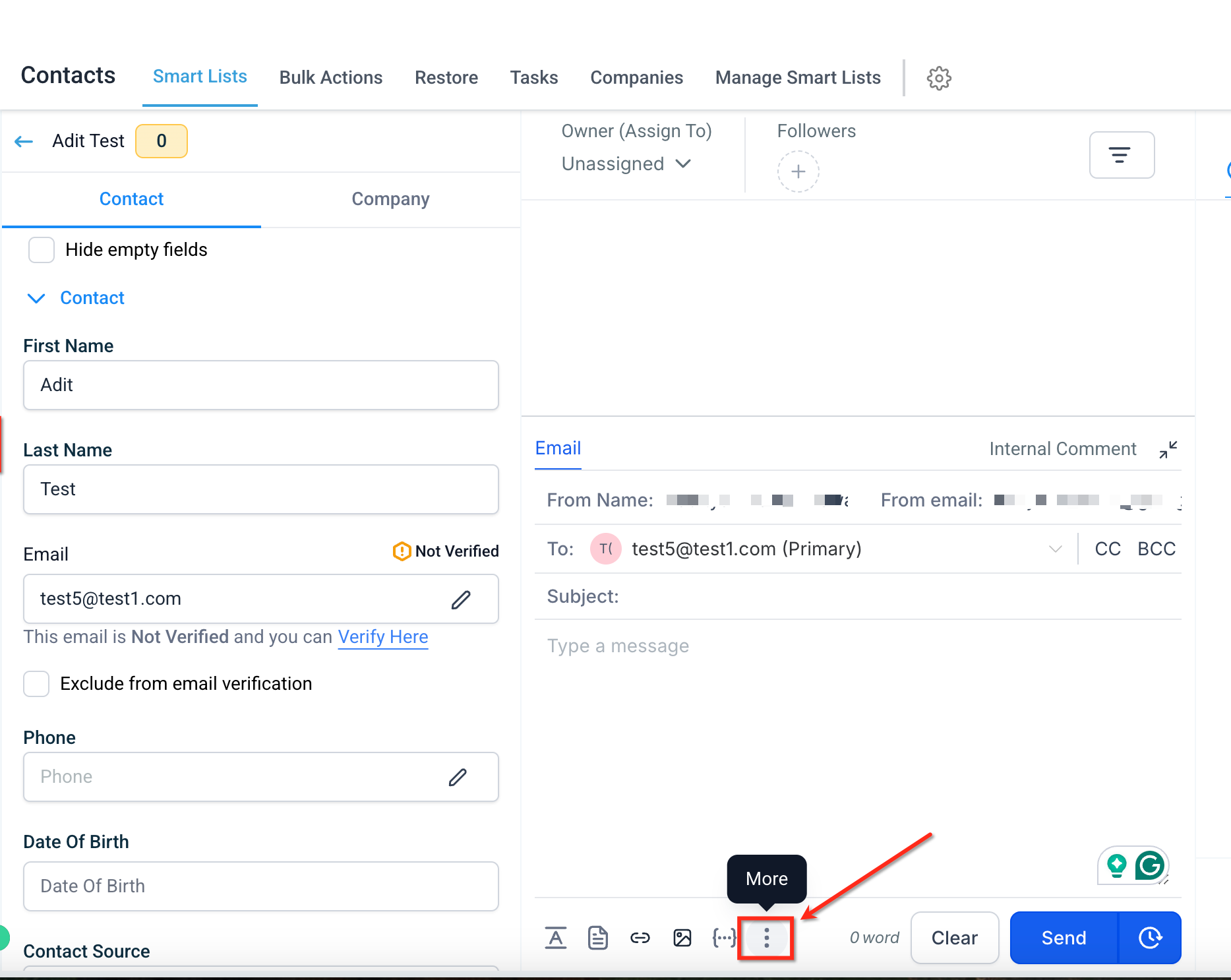
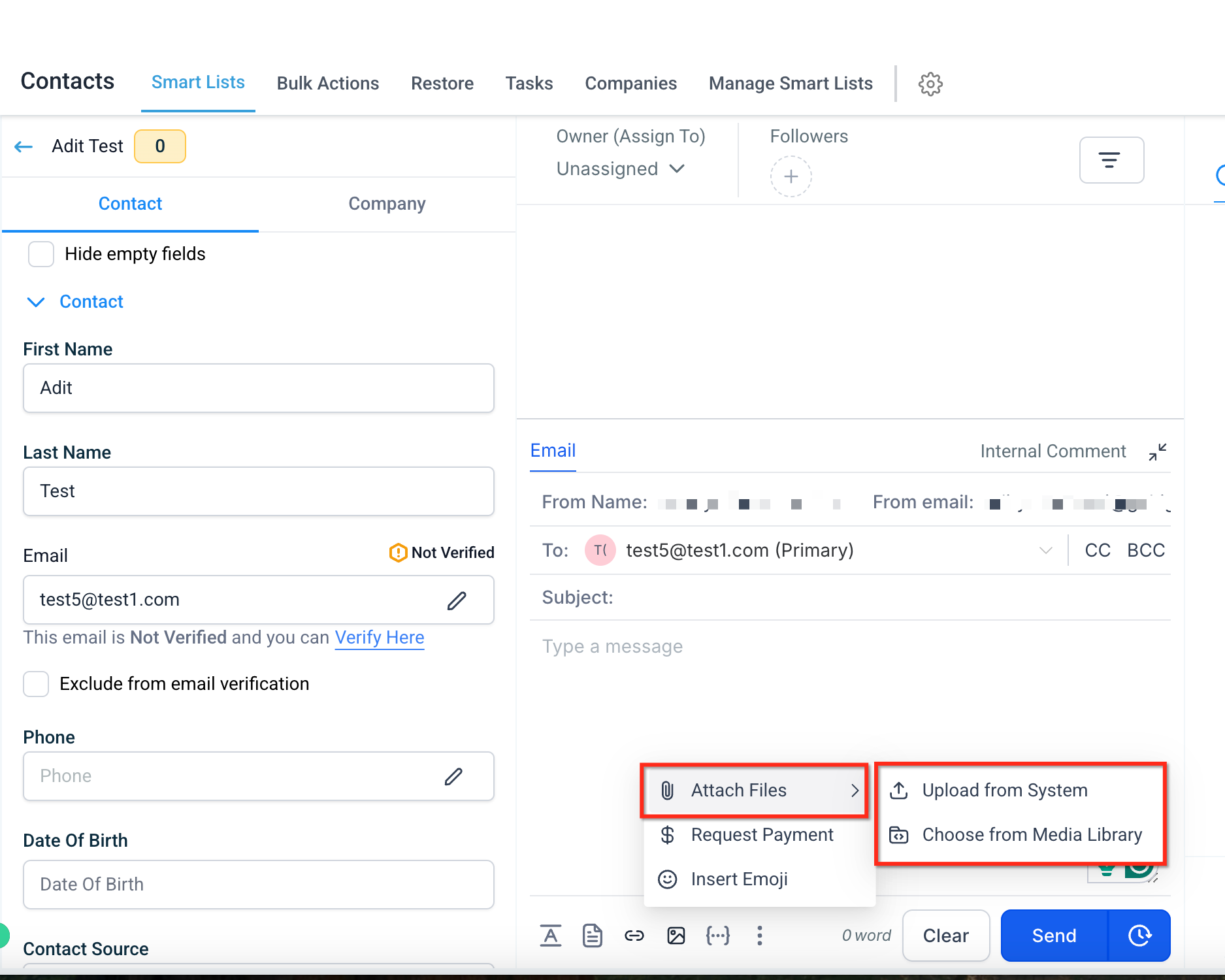
To attach a file in Conversations, open a conversation and click the three-dot icon in the message composer.
Select Attach Files, then choose Upload from System to pick a file from your device or Choose from Media Library to reuse an uploaded file.
You can also paste a file directly: copy a supported file or image, click inside the composer, and press Ctrl + V (Windows) or Cmd + V (Mac). The same size limits and automatic Media Library handling apply.

To send a file larger than the limits, upload it through the composer and let ACRM host it as a link, or add a video through the Media Library so it sends as a hosted link with an auto-generated thumbnail.
A few more provider errors come up often:
Invalid or missing recipient (550 5.1.1, 551, 553): the address does not exist or is mistyped. Check for typos and remove invalid addresses from your list.
Recipient mailbox full or over quota (452 4.2.2, 552 5.2.2): the recipient needs to clear space. Try again later or reach them another way.
Message too large (552 5.2.3, 554 5.7.1): the message exceeds the recipient's size limit. Reduce the size or send large files as Media Library links.
Authentication required (530 5.7.0, 535 5.7.1): your sending credentials are not accepted. Re-check your SMTP username and password, and if 2-Step Verification is on, use an app-specific password.
Sender identity not verified (Sendgrid 403): the From address does not match a verified Sender Identity. Verify the sender in your Sendgrid configuration.
Message blocked for content (554 5.7.0): the provider flagged the content or an attachment as a security risk. Review and adjust the content.
When an error is not in this list, click the warning icon to read the full provider message; it almost always names the specific cause. If the provider's text is unclear, open a ticket with that provider for the delivery status on the affected email.
What does the red warning icon on a failed email mean? It means the email did not send. Click it to see the exact error ACRM received from your email provider, which tells you the cause.
Why do my emails go out but never arrive? Check the recipient's spam folder first. If it is not there, the provider may have silently rejected or rate-limited the message, so click the error icon for detail or check your provider's delivery logs.
What happens to files larger than 20 MB? They are automatically uploaded to your Media Library and sent as a clickable link, so the message still delivers.
My links worked before and suddenly stopped. Why? A change to your tracking domain's DNS, CNAME, or SSL almost always causes this. Re-check the tracking domain configuration and allow time for DNS to propagate.
How do I stop hitting "unusual rate" or rate-limit errors? Slow down. Send in smaller batches, spread large sends over time, and make sure SPF and DKIM authentication pass for your domain.
Do I need to reconnect my email after changing my password? Yes. Changing your email password breaks 2-way sync. Reconnect the integration under Settings > Email and re-grant all permissions.
