Every marketing email you send needs a clear, working way for contacts to opt out. Aesthetix CRM handles this for you with a default unsubscribe link, an optional preference center where contacts choose which categories they want, and a one-click path to resubscribe. This article walks through setting up unsubscribe links, managing subscription preferences, resubscribing contacts, and growing a healthy, consent-based subscriber list. Honoring opt-outs is not optional. It is a legal requirement and the single most important factor in protecting your sender reputation and deliverability.
An unsubscribe link lets your contacts opt out of receiving future emails from your business. This is a legal requirement under email compliance laws such as the CAN-SPAM Act in the United States and GDPR in the European Union. Aesthetix CRM helps you meet these regulations by automatically including an unsubscribe link in your email footers unless you choose to disable it.
When a contact unsubscribes, they are exercising their right to opt out. As the sender, you are legally required to honor that request and stop sending them marketing email.
Unsubscribe links are more than a best practice. Most countries require marketing emails to include a clear opt-out option, and failing to include one can lead to serious financial penalties.
In the United States, the CAN-SPAM Act, enforced by the Federal Trade Commission, requires all commercial emails to include a clear way for recipients to unsubscribe.
In the European Union, the General Data Protection Regulation (GDPR), mandatory since May 2018, gives subscribers the right to have their personal data deleted on request.
Including a working unsubscribe link in every email helps you:
Respect contact consent and stay compliant with local and international laws
Protect your business from costly legal penalties
Build trust by giving recipients control over what they receive
Maintain a clean, engaged contact list
Avoid account suspension caused by non-compliant sending
Honoring opt-outs also protects deliverability. Contacts who cannot easily unsubscribe tend to mark messages as spam instead, which damages your sender reputation and pushes future emails into junk folders. A clean opt-out path keeps complaints low and your inbox placement high.
Aesthetix CRM includes an unsubscribe link in all emails by default. You can leave it on, customize it, or turn it off if you prefer to place your own link manually.
Navigate to Settings → Business Profile.
Scroll down to the General tab.
Toggle Include Unsubscribe Link on. You can personalize the text or destination of the link. The content of this message is automatically added to all emails.
If you turn off the default unsubscribe link, you must manually include the unsubscribe tag in every email to stay compliant.
If you want full control over where the unsubscribe link appears, you can insert it yourself using a built-in tag.
Open the Email Builder, either in the Inbox, a campaign, or an email template under the Marketing tab. Place your cursor where you want the link to appear and type or paste {{unsubscribe}}. You can also use the default custom value Unsubscribe Link under the Email category.
When the email is sent, the {{unsubscribe}} tag is automatically converted into a clickable link that lets the contact opt out.
If both the default footer link and a manual {{unsubscribe}} tag are enabled in the same email, two unsubscribe links will appear. This clutters the design, can lower click-through, and may confuse contacts about which link to click.
Use only one method per email:
For precise control over placement and appearance, insert the {{unsubscribe}} tag manually and disable the default footer link.
If you are fine with the link appearing in the footer, rely on the default setting and skip the manual tag.
Beta feature. Preference Management, including the granular DND and unsubscribe preference settings described in this section, is currently in beta. It is being rolled out gradually and will be widely available later in 2026. If you do not yet see these options in your account, they are on the way.
Beyond a single all-or-nothing unsubscribe, Preference Management gives contacts control over the types of marketing email they receive. Each location can create its own subscription categories, link them to campaigns, and automatically honor opt-outs at the category level. This reduces unwanted outreach, lowers spam complaints, and supports healthier deliverability.
When a contact opts out of a specific category, any future campaign assigned to that category automatically excludes them, even if they were part of the original audience.
Preference Management is a Labs feature that must be enabled at the location level before use. Note two important points:
Enabling Preference Management is irreversible. Because it introduces location-level unsubscribe controls, the change cannot be undone after activation. Enable it only when you are ready to commit.
Preference Management is supported for Aesthetix CRM email only and is not compatible with third-party SMTP providers. If you switch to an outside SMTP provider, saved preferences are retained but the preference module is no longer accessible.
Preference Types are the subscription categories that label your email programs, such as Newsletters, Promotions, or Event Updates. Create as many as your program needs.
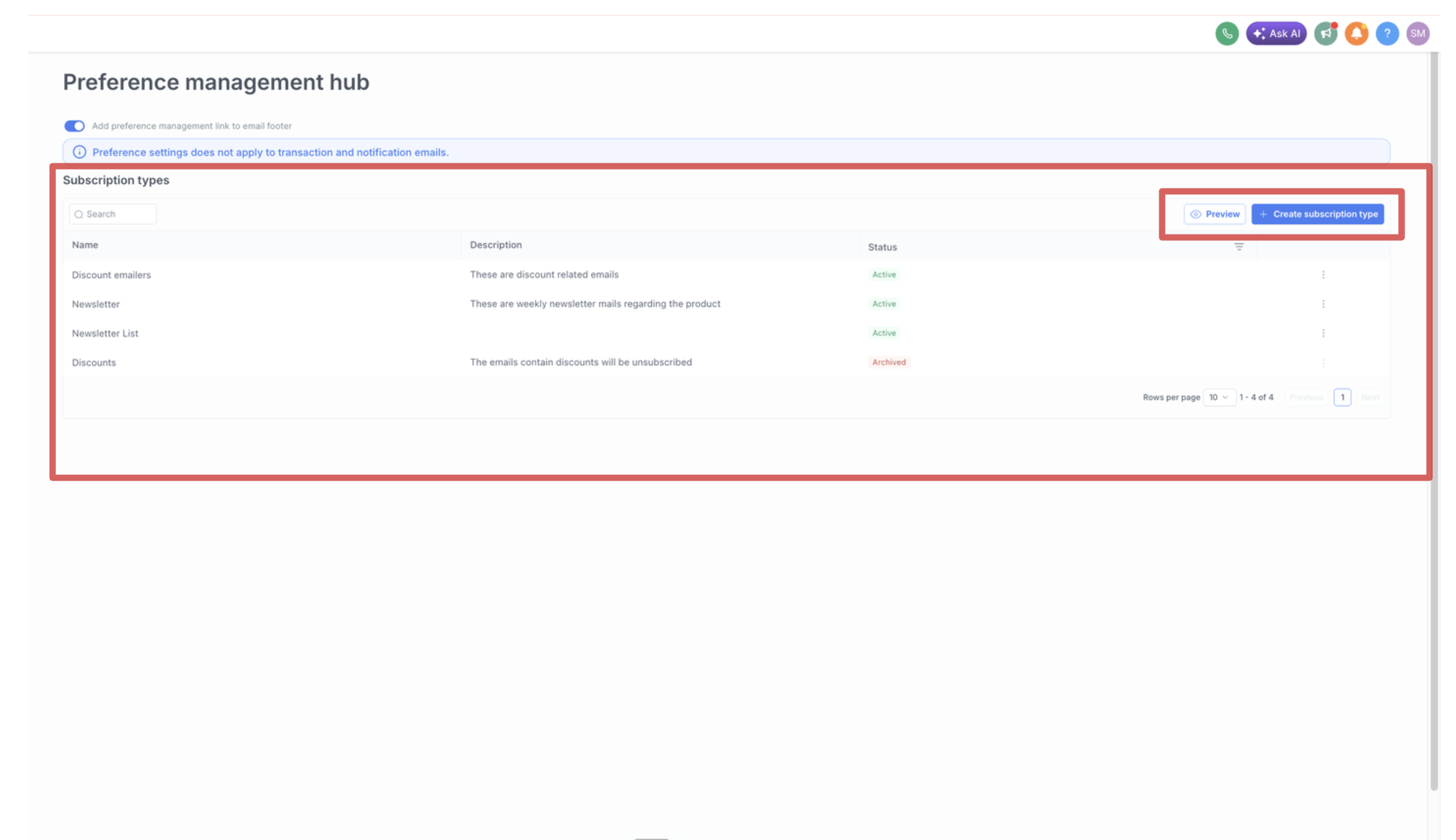
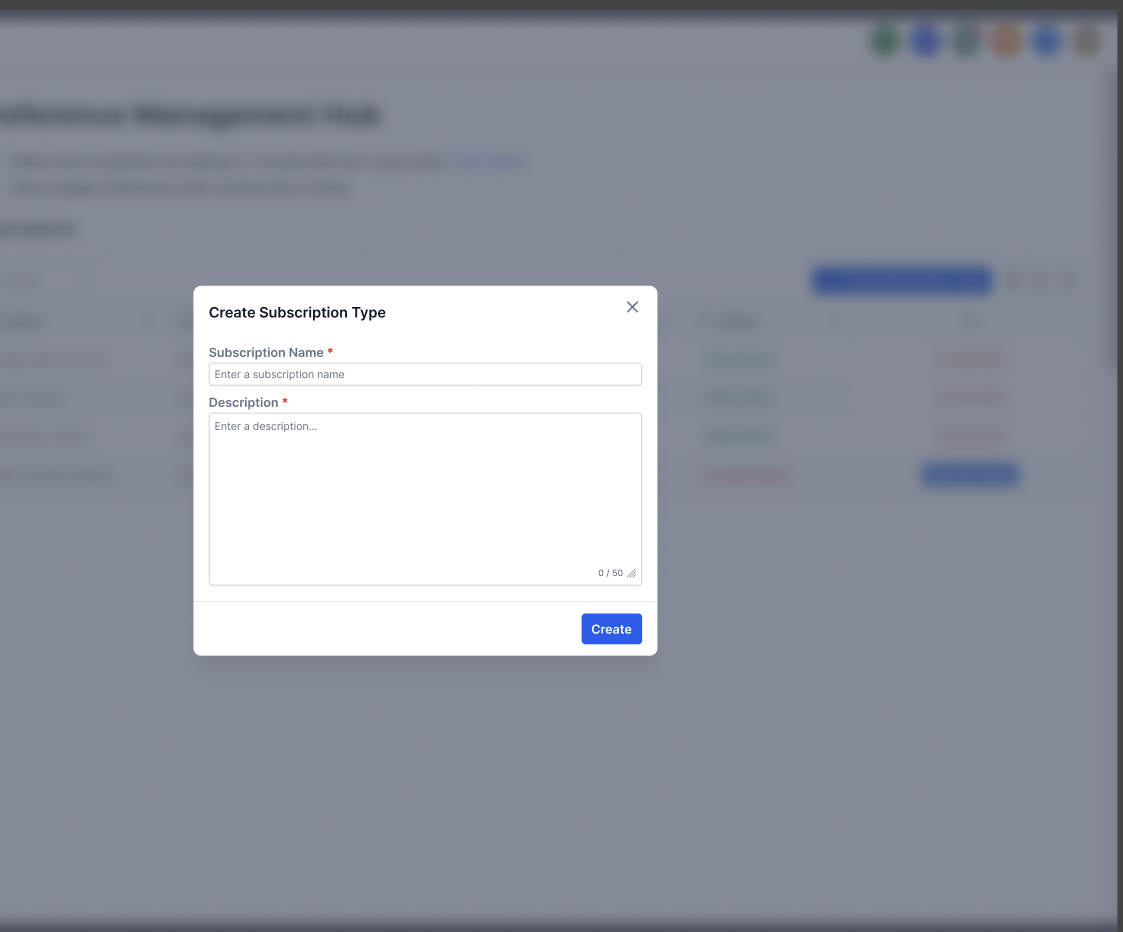
Go to Settings → Preference Management Hub at the location level, click + Create Subscription Type, then enter a clear Subscription Name and Description. Pick names recipients will understand. Names support up to 100 characters and can be edited after creation. Save and confirm, then repeat for each category.
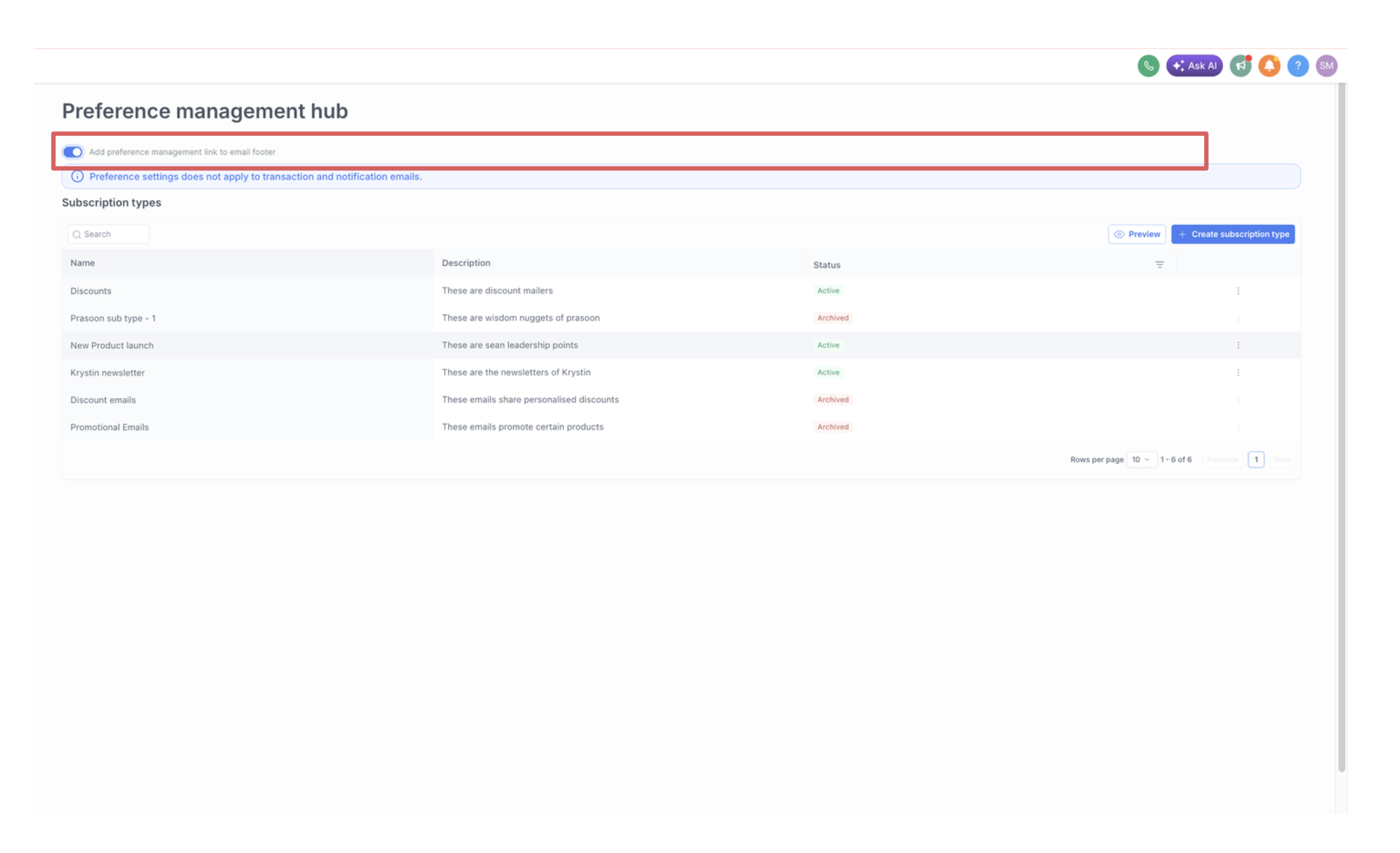
Inside the Preference Management module, enable Add Preference Management Link to the Footer to automatically include the preference center link in your email footers. This toggle is off by default. You can also insert the link manually using the Email Marketing Custom Values section.
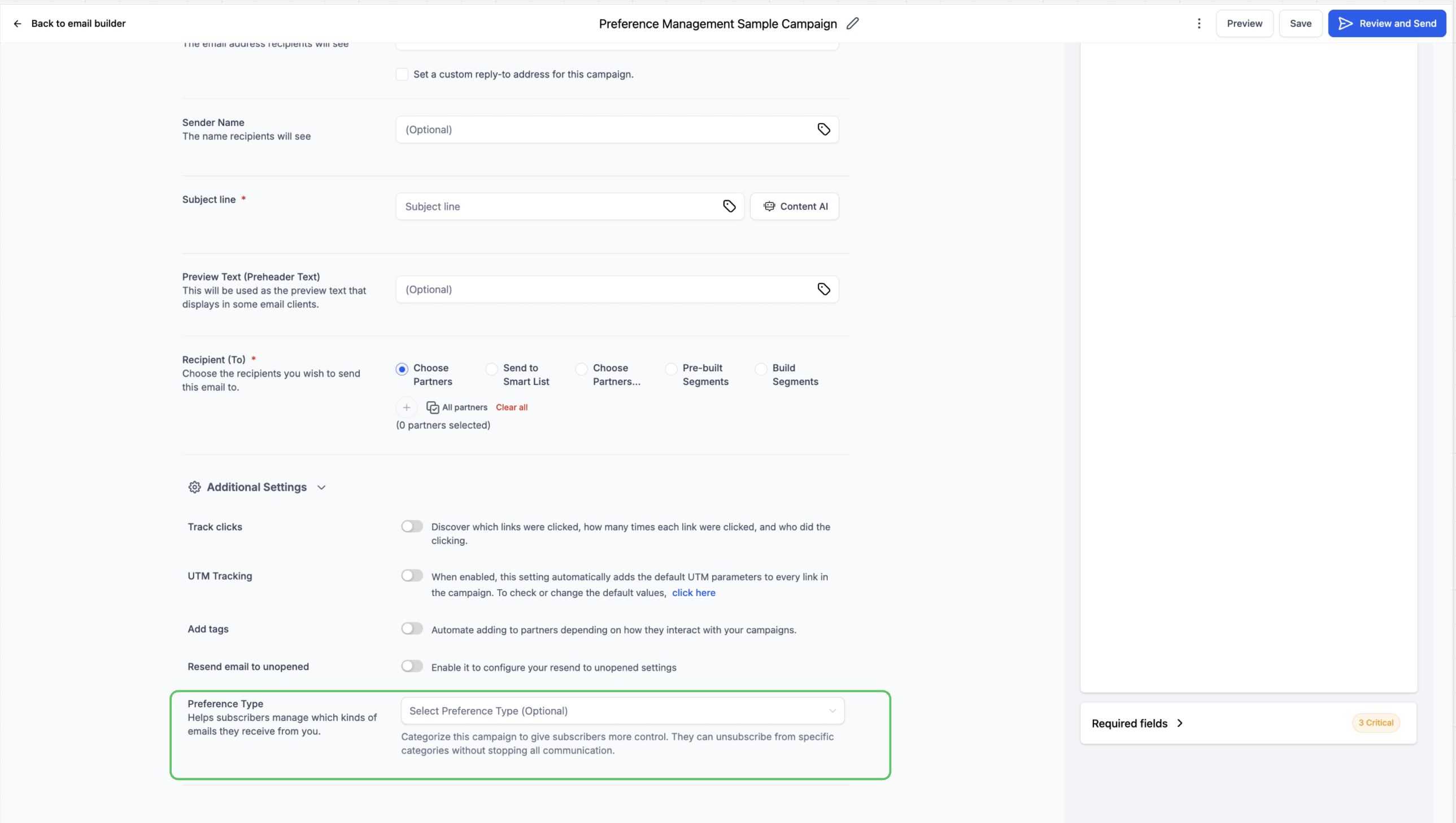
When building or editing an email campaign, assign a Preference Type so the system knows what kind of communication the campaign represents. Open the campaign, click Send or Schedule, and choose the Preference Type from the dropdown.
Once preferences are set, contacts who have opted out of a category are automatically excluded from any campaign assigned to that category, even if they were in the original audience. This keeps targeting accurate and prevents unwanted emails. Filtering applies to emails sent from workflows as well, regardless of how a contact was added to the audience.
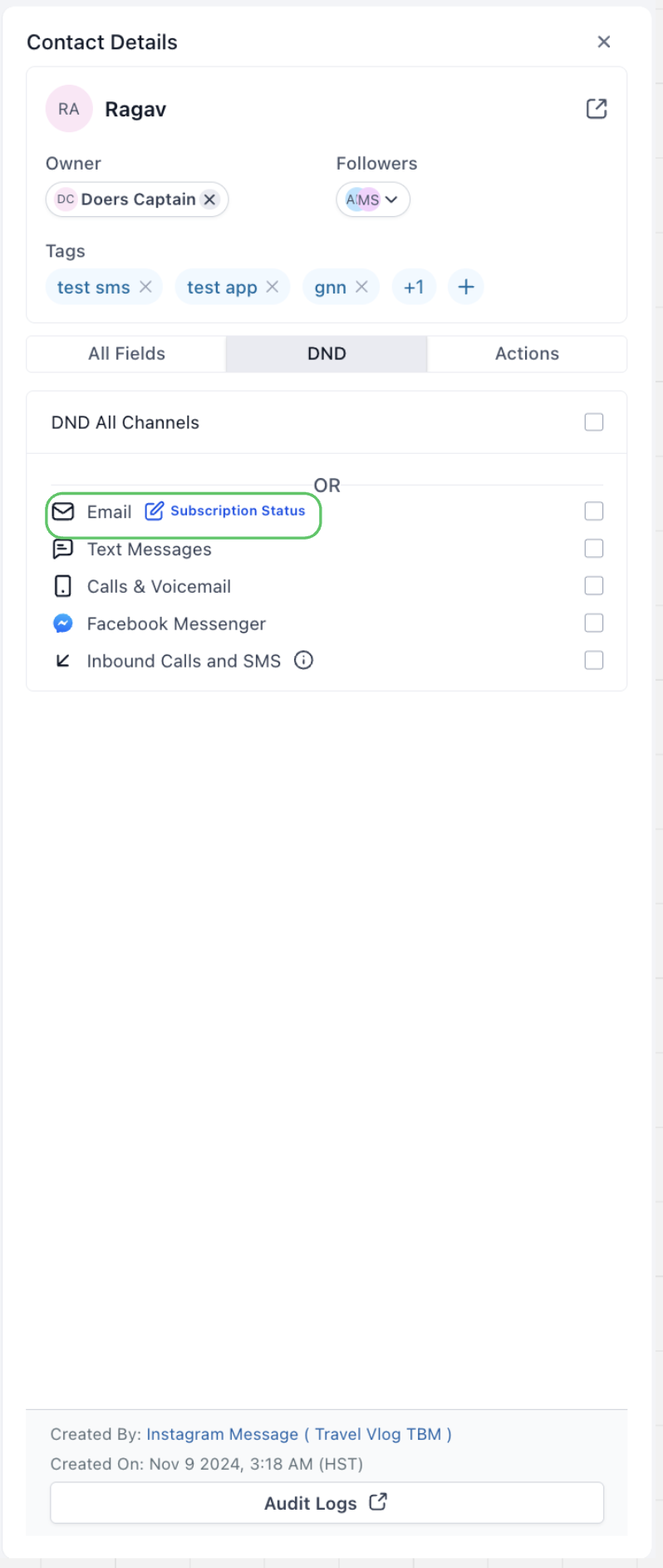
You can view or manually adjust a contact's preferences at any time. Go to Contacts, select a contact, open the DND tab, and click Subscription Status. In the Manage Email Subscriptions popup, set each Preference Type to Subscribed or Unsubscribed as appropriate.
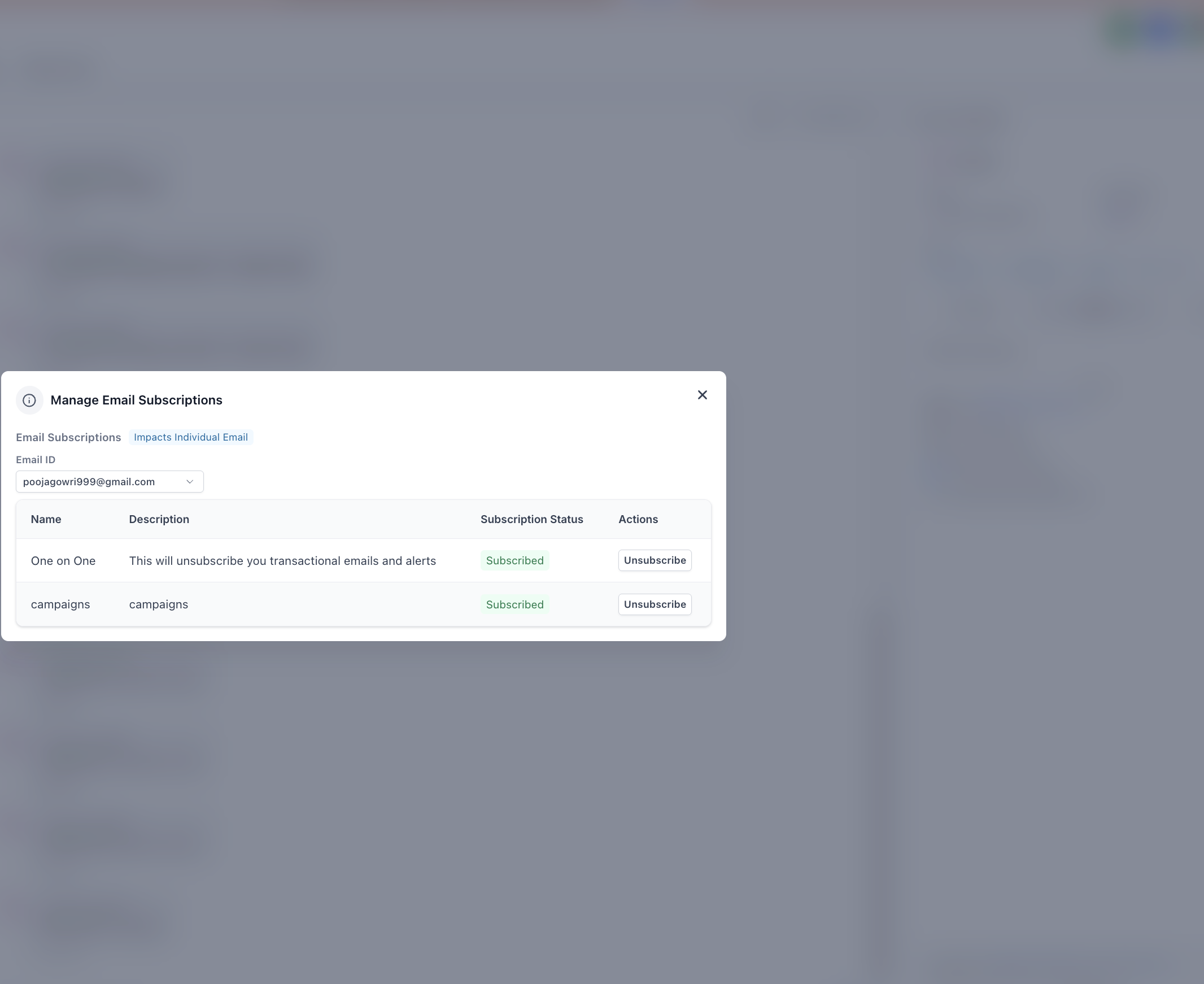
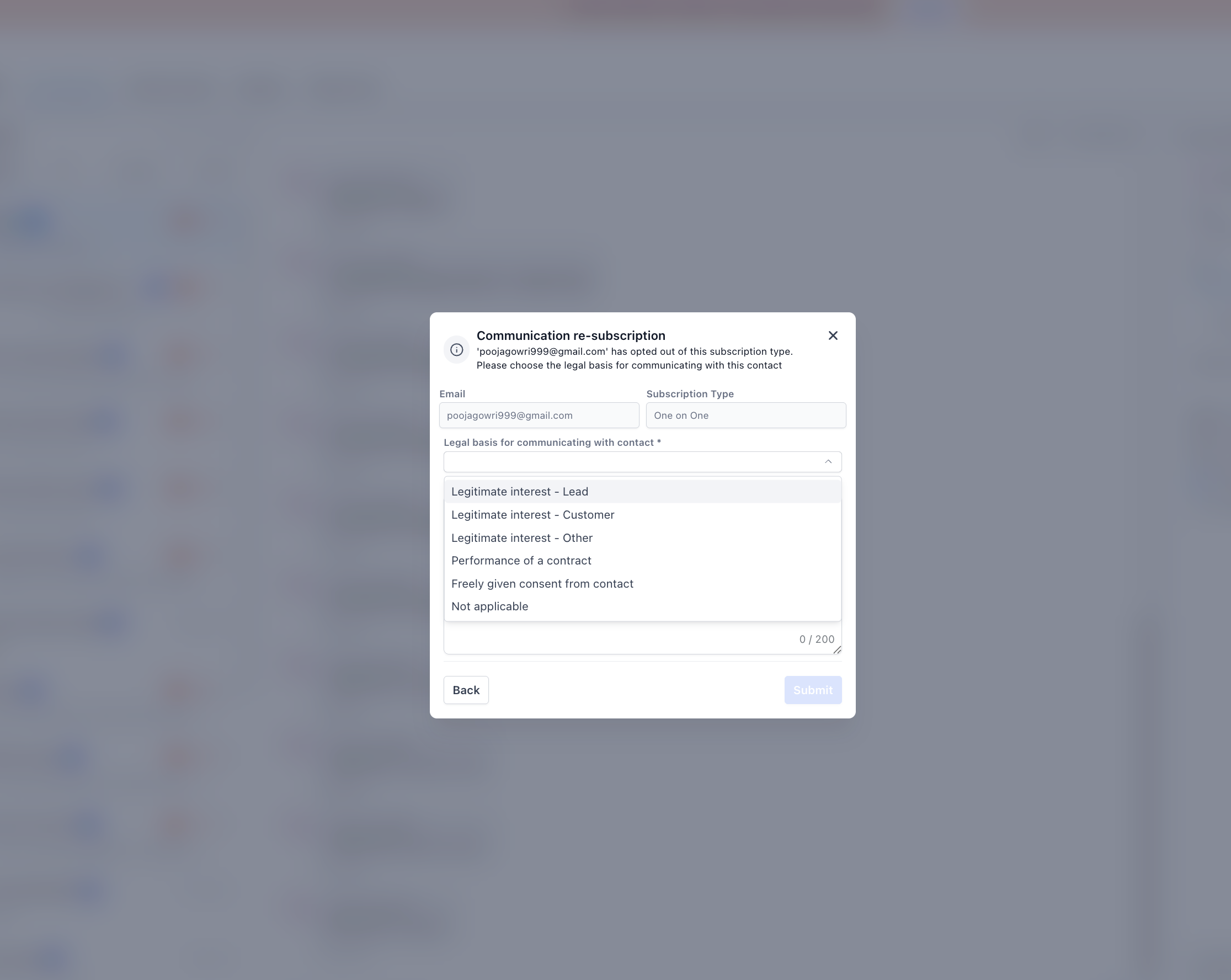
For any category marked Unsubscribed, you must provide a valid legal basis before the contact can be resubscribed at the location level.
Preference status changes are logged in the Inbox so your team can review updates in context. Logs are created for changes made from both the contact's end and the user's end.
A note on DND: category-level opt-outs give you more granular control than a single switch. Do Not Disturb for email is triggered only when a contact has unsubscribed from every subscription type. A category opt-out suppresses only the selected topics, while a global unsubscribe opts the contact out of all marketing email from the location.
There are two ways a contact's email eligibility can be restored: the contact opts back in themselves, or your team does it with a documented legal basis.
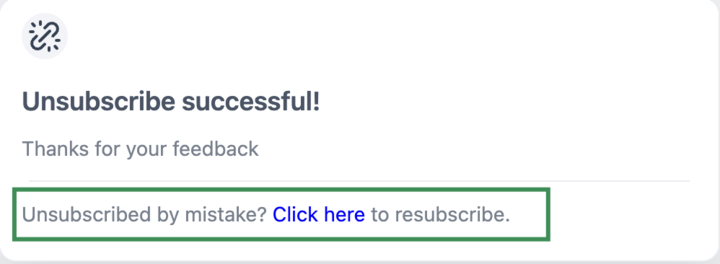
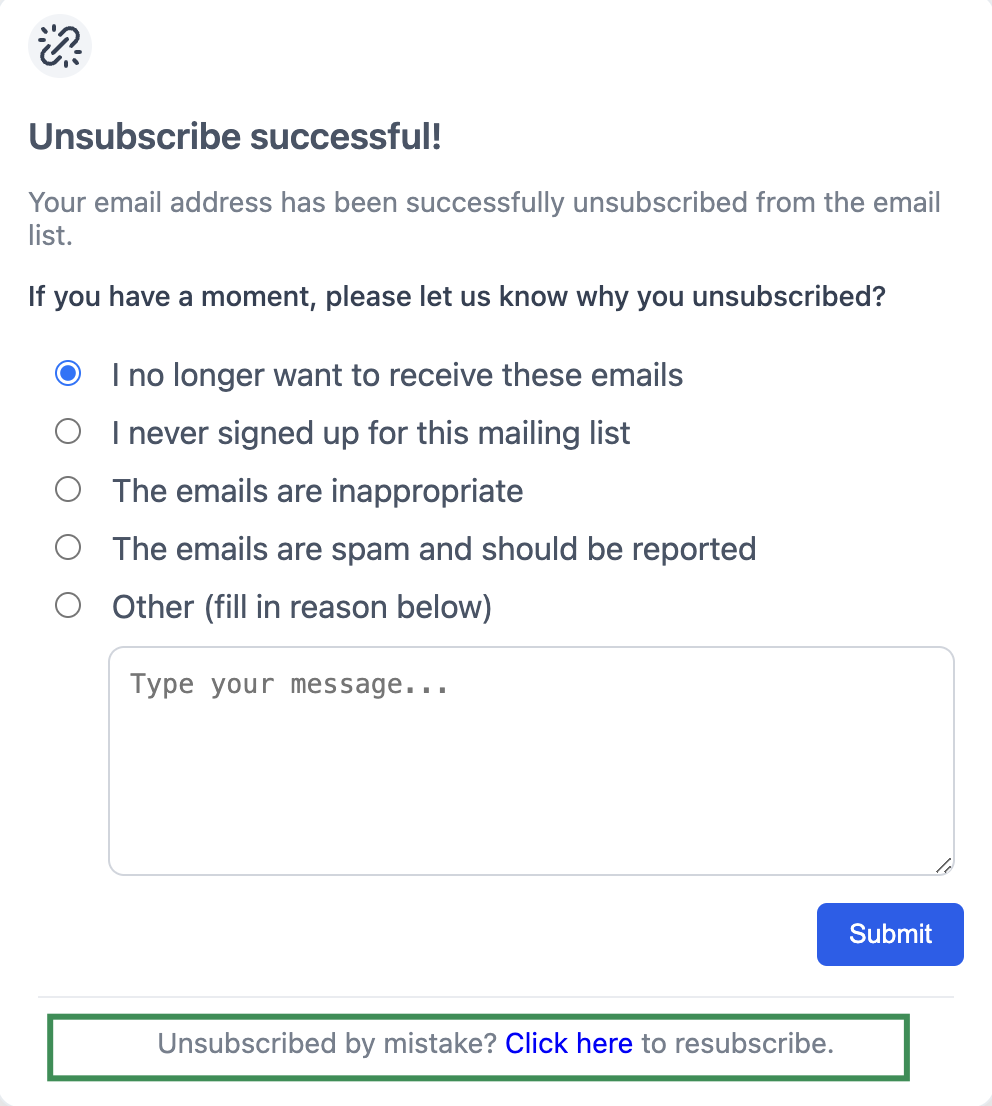
After a contact completes an unsubscribe, the unsubscribe success page shows a Resubscribe option. Clicking it immediately opts the contact back into marketing email, with no manual edits to the contact record. This supports compliant, contact-initiated consent recovery and reduces "please add me back" support requests.
If the preference center is enabled, contacts can also revisit the Preference Management link in any email footer and use Update Preferences to change their selections at any time. The preference center always shows their current subscriptions and updates in real time.
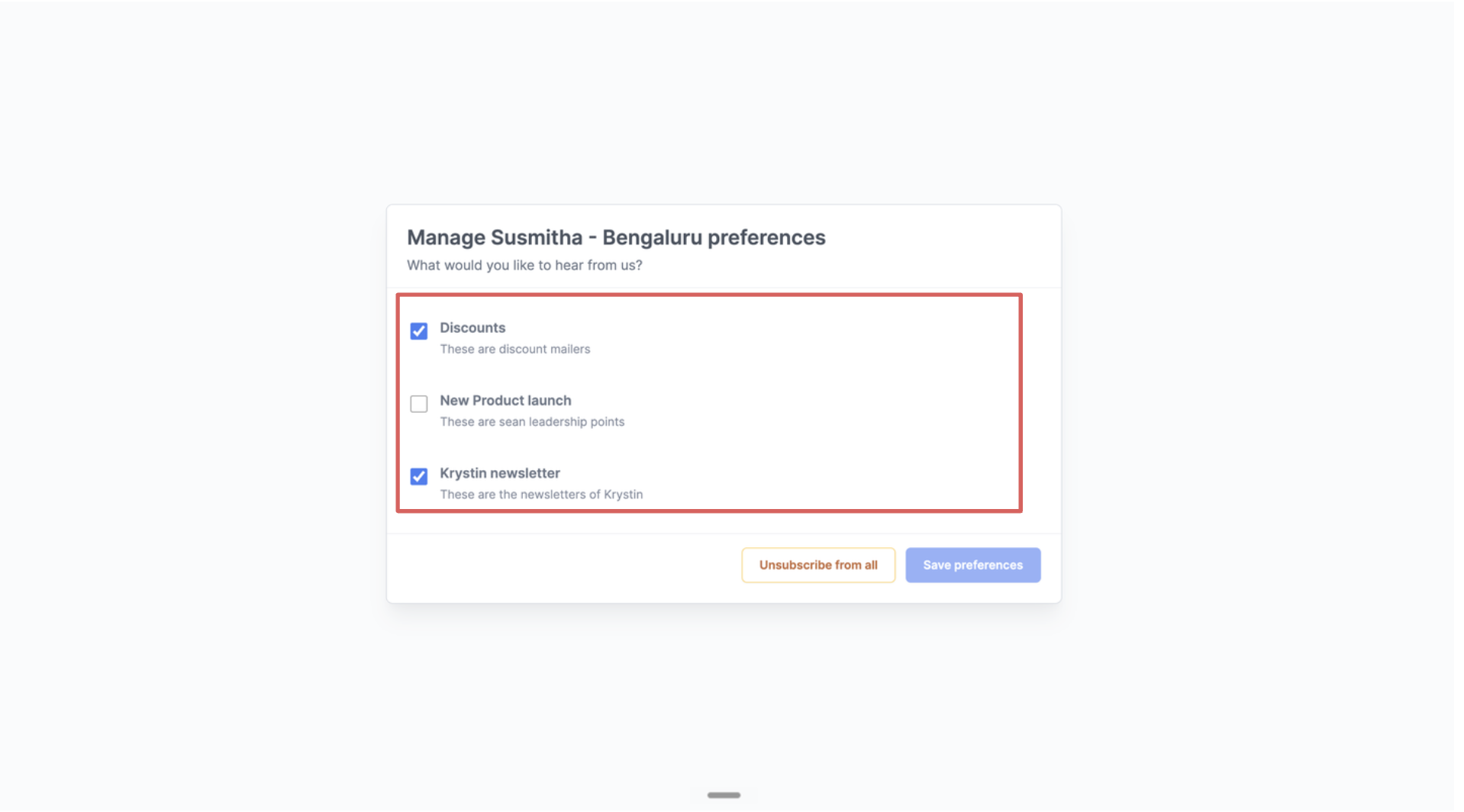
A few things to know:
The resubscribe link is intended for the same contact who unsubscribed. Forwarded or altered links may not behave as expected.
Resubscribing is recorded as a new, positive consent event on top of the existing history. Prior actions remain visible in the activity log for audit purposes.
After a resubscribe, confirm email eligibility is restored. Open the contact, review the DND status and recent Activity entries, and compare the record before (Email = Unsubscribed or Blocked) and after (Email = Eligible and not in DND). Adding a note or tag such as Resubscribed - {date} keeps a clean audit trail for your team.
A quick end-to-end test confirms everything works before you rely on it.
Prepare a test contact you can email and who is not currently suppressed.
Send a test email that includes the default unsubscribe link in the footer.
Unsubscribe using the email and complete the flow until you reach the success page.
Click Resubscribe on the success page to opt back in.
Verify the contact record to confirm email eligibility is restored, then add a tag or note for tracking.
Campaign analytics may not immediately reconcile unsubscribe and resubscribe events. Some statistics may continue to show a contact as unsubscribed for a period of time even after they resubscribe. When validating performance, rely on current contact-level status and recent activity, and consider segmenting reports by current eligibility for an accurate audience snapshot.
When someone opts back in, respect the fresh consent. Send a short "welcome back" confirmation that links to preference settings, then start a gentle, low-volume re-engagement series rather than dropping them straight into large broadcasts. You can automate this with a workflow triggered by a contact or DND status change, and auto-apply a tag like Resubscribed with the date to simplify future consent audits.
A compliant list grows from contacts who actively choose to hear from you. Give people multiple, easy ways to subscribe to your email newsletter, such as a pop-up on your website and a sign-up in the footer.
Aesthetix CRM includes an email subscriber form and workflow that automate this. When a contact submits the form, they receive a personalized welcome email and are added to your mass email contact list for future campaigns. Pairing a clear sign-up path with the preference center gives new contacts control from the very first email, which keeps engagement high and complaints low.
Email is not the only channel where opt-outs matter. If a contact replies STOP to an SMS, your phone number is blocked from messaging them until they reply START to opt back in. The platform enforces this automatically to honor opt-out preferences and stay compliant. Before messaging any contact on any channel, make sure they have consented to hear from you, and manage email and SMS preferences independently through their DND settings.
Is an unsubscribe link required in every email?
Yes. It is legally required. Either the default footer link or the {{unsubscribe}} tag must be present in every email you send.
What happens if I remove the default link and forget to add a manual tag? Your email sends without an unsubscribe link, which violates email compliance policies and can result in suspension of your sending ability.
Can I change what the unsubscribe link says?
You cannot edit the default label from the {{unsubscribe}} tag, but you can customize the message around it or build a branded unsubscribe page.
Can I track who unsubscribed? Yes. Filter your contact list for the "Unsubscribed" status to see opted-out contacts.
How does a category opt-out relate to a global unsubscribe? A category opt-out suppresses only the selected topics. A global unsubscribe opts the contact out of all marketing email from the location.
Can contacts manage their own preferences? Yes. When Preference Management is enabled, the unsubscribe link includes a "Manage your preferences" link where contacts choose their category-level subscriptions directly.
Can Preference Management be turned off after enabling it? No. It is irreversible once enabled, because it introduces location-level unsubscribe controls. Enable it only when you are ready to commit.
Can I bulk-resubscribe contacts? Resubscribe is a contact-initiated action from the unsubscribe success page. For manual exceptions, you must provide a valid legal basis and follow your compliance procedures.
Does resubscribing affect SMS or other channels? No. Resubscribe restores email eligibility only. Manage SMS and other channels independently through DND settings.
