Email verification (also called email validation) checks whether an address can actually receive mail before you send to it. Validating addresses ahead of time removes bad contacts from your sends, reduces bounces, and protects your sender reputation so more of your campaigns reach the inbox. This article covers how to verify a single contact, how to verify many contacts at once, how to read an address's risk assessment, and how verification status powers a "Valid Email" Smart List filter.
Aesthetix CRM verifies your emails for you. During onboarding, our team verifies all of the email addresses on your initial contact imports. After that, every contact's email address is automatically verified the first time the system sends them an email. So in normal use you rarely need to run verification manually. The main exception is when you import or update existing contacts, which clears their verification status (see the caution below).
Every email you send to an invalid or risky address increases your bounce rate, and high bounce rates damage your domain and IP reputation. Once mailbox providers distrust your sender reputation, they start routing your messages to spam or dropping them entirely, which hurts deliverability for everyone in your account.
Verifying addresses before you send helps you:
Boost delivery rates by removing undeliverable addresses.
Keep your contact list clean and up to date.
Improve email metrics like open rate, click-through rate, and click-to-open ratio.
Protect your sender reputation and long-term deliverability.
It is especially worth verifying a list that you inherited, that you have not validated in a while, or that has grown significantly since your last check.
Verification has a cost. Email verification consumes credits each time an address is checked. To control spend, verify each address only when you need to, and avoid re-verifying the same contacts repeatedly.
When Aesthetix CRM verifies an address, it confirms that:
The email syntax is correctly formatted.
The domain is configured to receive mail.
The mailbox actually exists.
The address is not high-risk.
The address is not a role-based catch-all such as [email protected] or [email protected].
You can check any individual contact directly from their record:
Open the contact record.
Scroll down the right-hand panel.
Click the envelope icon next to the email address.
The status color tells you the result:
Green = Valid, the address is deliverable.
Yellow = Verified with caution, deliverable but flagged.
Red = Invalid, too old, previously bounced, unsubscribed, or otherwise undeliverable. The error message specifies the reason.
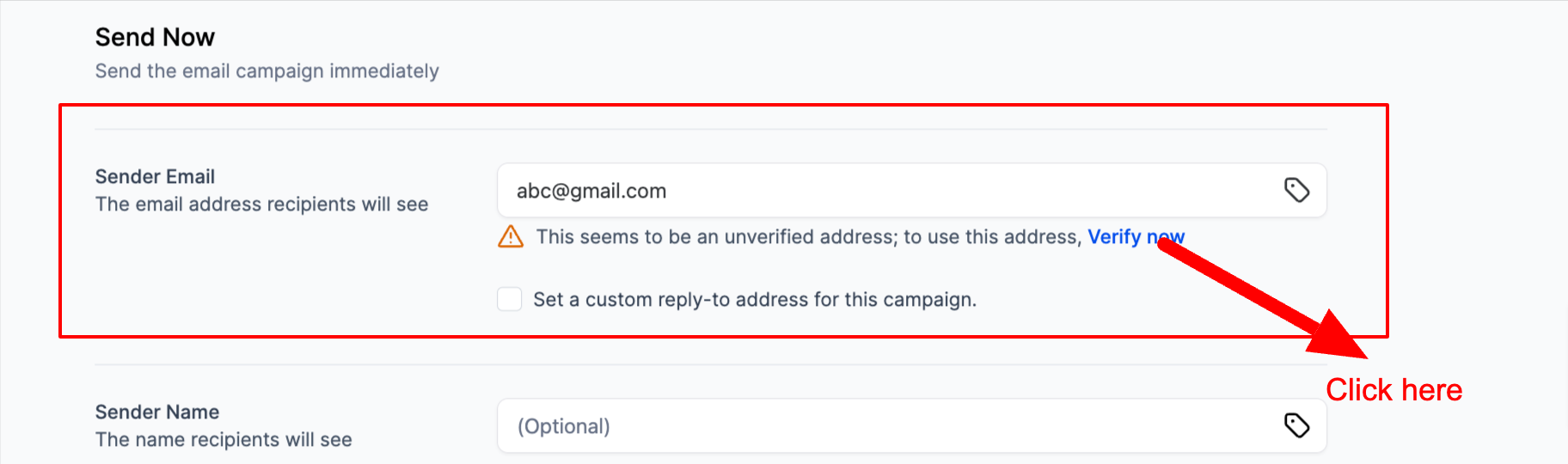
To validate many contacts at once, use the Verify Email Addresses action from a contact list or Smart List:
Open Contacts and select the contacts you want to verify, or select all in a Smart List.
Choose the Verify Email Addresses bulk action.
Confirm the action to start verification.
Each address in the selection is checked and its status is updated on the contact record. Because every address verified draws from your credits, only run the bulk action on contacts that have not already been verified, and avoid re-running it on the same group.
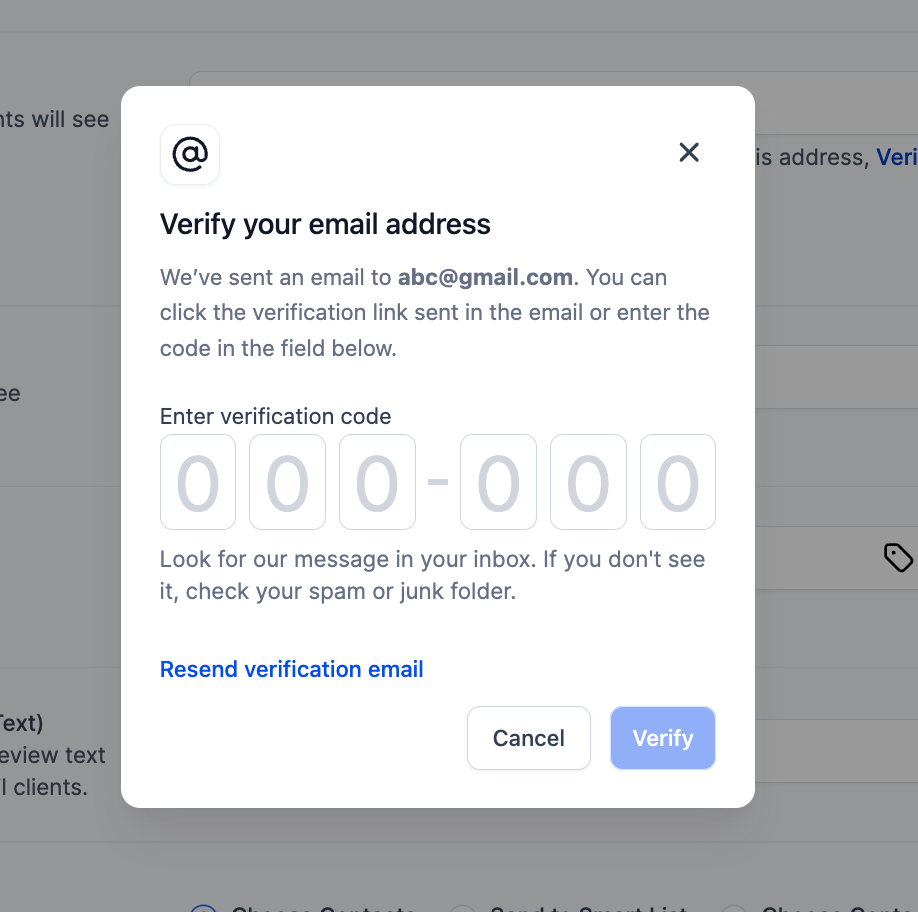
Beyond a simple valid or invalid result, verification returns a risk assessment for each address. A deliverable address can still be flagged as risky when it shows traits associated with bounces or complaints, such as a catch-all domain, a role-based mailbox, or an address that has gone stale. Use the risk level to decide whether to keep mailing an address, suppress it, or confirm it through another channel before your next campaign.
Once contacts are verified, you can build a Smart List that targets only deliverable addresses by adding the Valid Email filter. This lets you send campaigns exclusively to addresses that passed verification, keeping bad addresses out of your sends automatically.
Importing or updating a contact clears its verification status. When you import a contact or edit its details, the stored verification result is reset. Those contacts will no longer appear in a "Valid Email" Smart List until you verify them again, and re-verifying consumes additional credits. After any import or bulk update, plan to re-verify the affected contacts before relying on the Valid Email filter.
When does Aesthetix CRM verify an email? An address is checked when it first enters the system through a form, survey, calendar, or chat widget, and when you run a single or bulk verification. You can also trigger a check manually from the contact record.
Do I need to verify the same contact more than once? No. Once an address is verified, the result is stored on the contact, so avoid re-verifying the same contacts. The main exception is after an import or update, which clears the status and requires re-verification.
Why did a previously valid contact drop out of my Valid Email Smart List? Most likely the contact was re-imported or its record was updated, which cleared its verification status. Re-verify the contact and it will return to the filter.
Does verifying emails cost anything? Yes. Verification consumes credits each time an address is checked, so verify deliberately rather than re-running it on contacts that are already validated.
What does a yellow or red status mean? Green is valid and deliverable, yellow is deliverable but flagged for caution, and red is undeliverable. A red status includes an error explaining why the address failed, such as a bounce, an invalid mailbox, or an unsubscribe.
