Once an email campaign is created in Aesthetix CRM, you still have full control over it. You can resend to contacts who did not open, pause or cancel a scheduled send, reschedule the delivery time, correct content on a campaign that is already running, and add CC or BCC recipients in the composer. You can also drive direct purchases with product checkout links and recover lost sales with automatic abandoned cart emails. This guide covers each of those actions, plus how to read the status indicators that tell you where a campaign stands.
Resending a campaign to contacts who did not open it gives your message a second chance and can meaningfully lift engagement. Studies show recipients overlook a large share of their inbox, so a well-timed resend recovers opens you would otherwise miss. The goal is to increase engagement without generating complaints or unsubscribes.
Best practices before you resend:
Timing is crucial. Resend within a day of the original send to minimize the risk of unsubscribes and complaints.
Choose impactful emails. Resend your strongest messages, which are less likely to draw negative feedback. This works best when your campaign regularly sees open rates above 20 percent.
Modify the subject line to catch the recipient's attention and avoid appearing repetitive.
Limit resending to once. Multiple attempts can annoy recipients and damage your sender reputation.
How to resend manually:
Go to the Email Marketing section.
Select the campaign you want to resend and click the three dots for options.
Choose Resend email to Unopened.
Specify the scheduled time and the subject line for the resent campaign.
Confirm. A new campaign with the same content is scheduled to send only to contacts who did not open the original.
Pre-configuring a resend during campaign creation:
You can also set up a resend in advance so it triggers automatically, then track and adjust it from the campaign list.
Create or open a campaign from your Email Campaigns dashboard.
Click Send or Schedule and set up the message as you normally would.
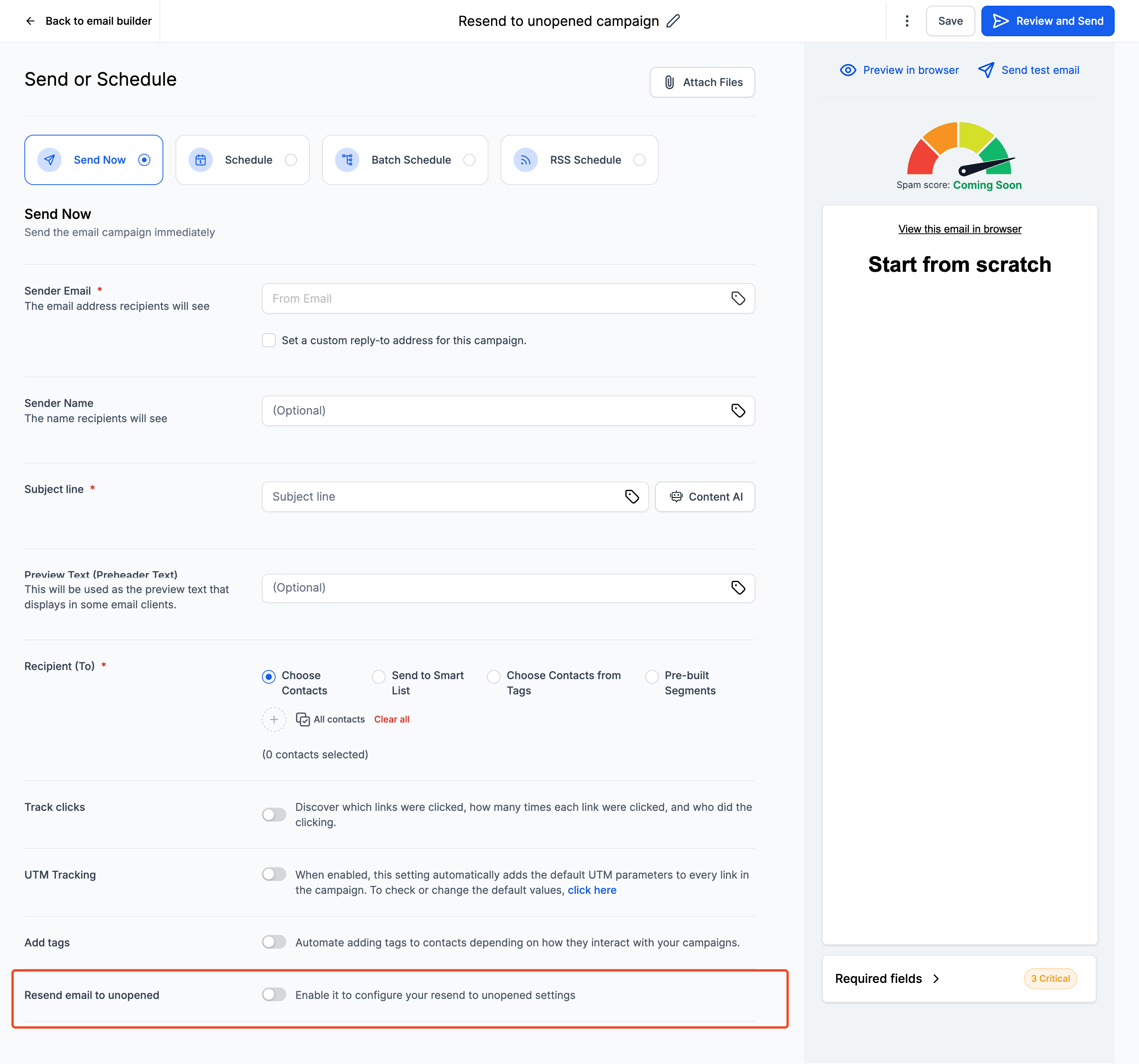
Enable the resend settings and choose a duration before the resend (for example, 2 days) and a new subject line for the resend.
Send the campaign. The resend is now scheduled automatically.
Track the status. The resend appears as Waiting in the campaign list.
To modify or cancel, use the three-dot menu to edit the resend duration or cancel the scheduled resend.
Notes:
The resend window is 12 hours to 10 days, which balances maximum engagement against minimum complaints and unsubscribes per industry standards. Stay within this window for best results.
The manual resend option is not available for batch schedule, RSS, or A/B test campaigns in this release. The pre-configured resend toggle does work with batch and RSS campaigns.
A pre-configured resend cannot be rescheduled directly. To change its timing, cancel it and schedule the resend again.
If you cancel the original email, the resend will not send either.
For SMTP sending, results may be limited because of insufficient engagement metrics. This is being improved.
You have full control over campaigns that are scheduled but not yet sent, including A/B tests. This lets you make corrections or changes before the send goes live. These actions work for all scheduled, batch schedule, and A/B test campaigns.
When to use each option:
Pause a campaign if you need more time to review or make last-minute changes. Pausing gives you the flexibility to resume at any time.
Cancel a campaign if you decide not to send it at all. This is useful when you spot critical errors or the campaign is no longer relevant. Canceling stops all future sends, including any batches or automated RSS emails.
Steps to pause or cancel:
Go to Marketing > Email Marketing > Campaigns.
Find the campaign you want under the Scheduled status.
Click the three dots (menu icon) next to the scheduled campaign.
Choose your action:
Select Pause to temporarily stop the campaign. If you resume after the original scheduled time, the email sends immediately. If you resume before the scheduled time, it sends as originally planned.
Select Cancel to completely stop the campaign and prevent it from being sent, including any RSS or batch emails.
Steps to reschedule:
Rescheduling is available for Simple Schedule, Batch Schedule, and RSS Schedule campaigns up to one hour (60 minutes) before the execution time.
Go to Marketing > Email and open the Email Campaigns tab to see your scheduled campaigns and their execution dates.
Under the action button drop-down, select Reschedule Campaign.
Change the schedule details or the delivery model, then mark it as the rescheduled campaign to save your settings.
When an ongoing campaign for Simple Schedule, RSS Schedule, or Batch Schedule delivery has a content error, such as a spelling mistake, a text change, or a link that needs fixing, you can update it before the next send without deleting the campaign. Deleting would erase the campaign's statistics, so this option lets you correct content while preserving your data.
Go to Marketing > Email and open the Email Campaign tab. It lists the ongoing Simple Schedule, RSS Schedule, and Batch Schedule campaigns along with their execution dates.
Open the Actions menu for the campaign and select Update Email Content.
Make your changes to the email, such as editing elements or wording, then choose Save Edits.
Note: Edits apply to upcoming executions, but a send that is already being processed on the server for the next execution may go out before the change takes effect. Make edits well ahead of the next execution date.
The Aesthetix CRM email composer supports CC (Carbon Copy) and BCC (Blind Carbon Copy), so you can include additional recipients on a single email thread while controlling who sees whom.
CC emails additional recipients beyond those in the To field. Everyone who receives the message can see all recipient addresses, including those who were CC'd.
BCC also adds recipients, but privately. BCC'd addresses are hidden from all other recipients, so no one knows those recipients also received the email.
Common uses:
Keep stakeholders in the loop. Put the primary recipients in To and CC managers or another team so everyone shares the same information.
Inform privately. BCC a department, such as a manager looping in another staff member, without the primary recipient knowing.
Protect addresses on a mass send. BCC recipients on an announcement or newsletter so no recipient sees the others' email addresses.
How to use CC and BCC:
Open the email composer by clicking New Email, or click Reply in an existing thread.
Locate the CC and BCC fields alongside the regular To field.
Click a field to expand it, then enter the recipients. You can select an address from the dropdown of your contact emails or type a new one manually.
Click the field again to collapse it. The added recipients are saved.
A few things to keep in mind:
Two-way sync. Recipient changes (added or removed) sync between Aesthetix CRM and Gmail or Outlook in both directions.
Replying. You can only do a Reply All on an email that has CC or BCC recipients, and you cannot remove CC or BCC recipients in the middle of a thread.
Note: This feature is available in the New Message Composer and can be enabled via Labs.
You can add product elements to an email campaign and connect them to a direct checkout page, so recipients can buy without being routed through a generic link. Each product can generate its own payment link and its own customized checkout page within the same campaign, and any resulting purchases flow automatically into your conversion and campaign statistics.
How to set it up:
Go to the Email Marketing section.
Create a new email campaign.
Add a product element and select direct checkout.
Click the link icon next to the product to customize that product's checkout page.
Adjust the checkout page layout and save your changes.
Send test emails to confirm everything works before the live send.
An automatic abandoned checkout email is sent when a customer adds items to their cart, begins checkout, enters their email address, but does not complete the purchase. Aesthetix CRM detects the incomplete order and follows up automatically with an email that links back to the abandoned cart, helping you recover revenue with no manual effort. The feature is enabled by default and runs quietly in the background.
How the abandoned cart link works:
Cross-device access. The link works across devices, browsers, and sessions.
One link per cart. Each link represents a single abandoned session, and only those items appear.
View-only. Shoppers cannot add new items from the link.
Dynamic updates. The checkout shows the latest product names and prices when opened.
Inventory aware. If an item is out of stock, a Remove item option appears.
Guest checkout. Guest shoppers get a temporary session to complete the purchase.
Fallback. If every product in the cart is deleted or unavailable, the checkout shows a Continue Shopping option instead.
How to access and configure abandoned checkout notifications:
These settings are managed at the sub-account level.
Open the Payments section from the left navigation menu, where all eCommerce settings are managed.
Click the Settings tab at the top.
Select Notifications from the left-hand menu.
Toggle on Enable Abandoned Cart emails.
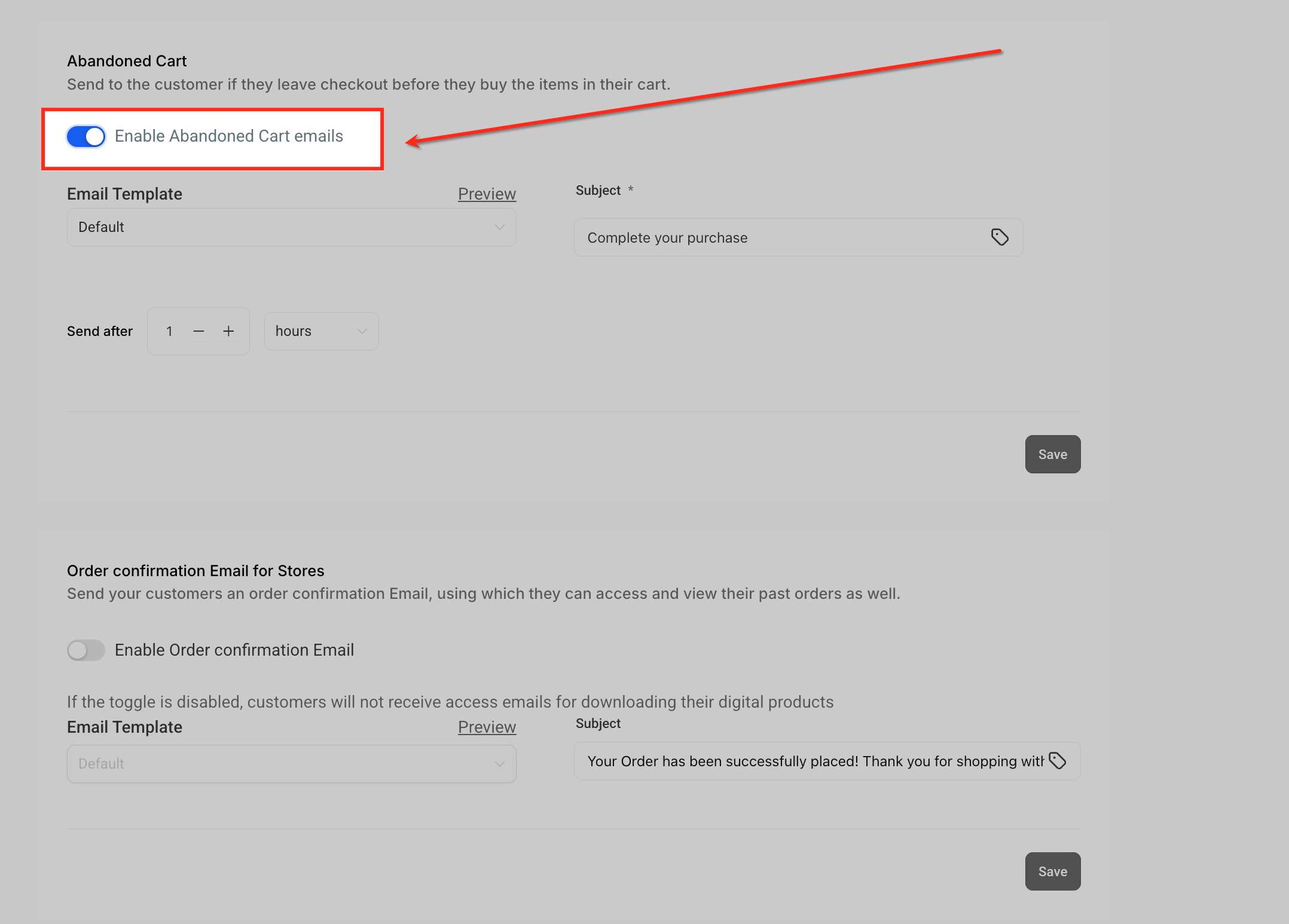
Choose an email template from the dropdown. Use the default or link a custom template built in the Email Builder.
Enter the email subject that recipients will see. Use a friendly, action-driven phrase that encourages completing the purchase.
Use the Send after option to set how long the system waits before sending the email, in hours or minutes. The default delay is 10 hours.
Customizing the abandoned checkout email:
Aesthetix CRM includes a basic abandoned checkout email, but a custom template makes it more engaging.
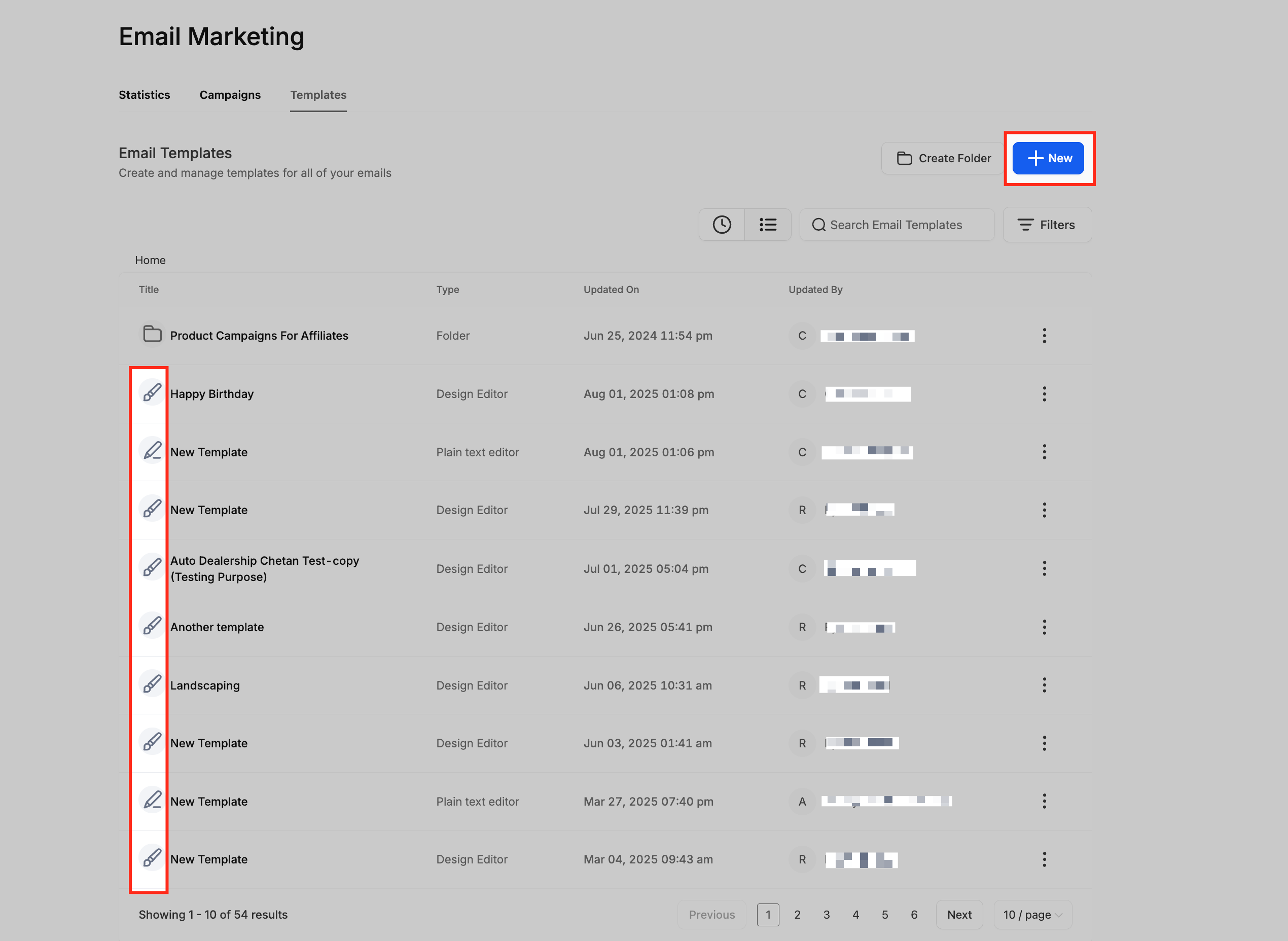
Go to Marketing > Emails > Templates to create or edit the email used for abandoned checkout reminders.
Click the Templates tab to view your saved email designs.
Click + New to build a fresh template, or click an existing one to edit it.
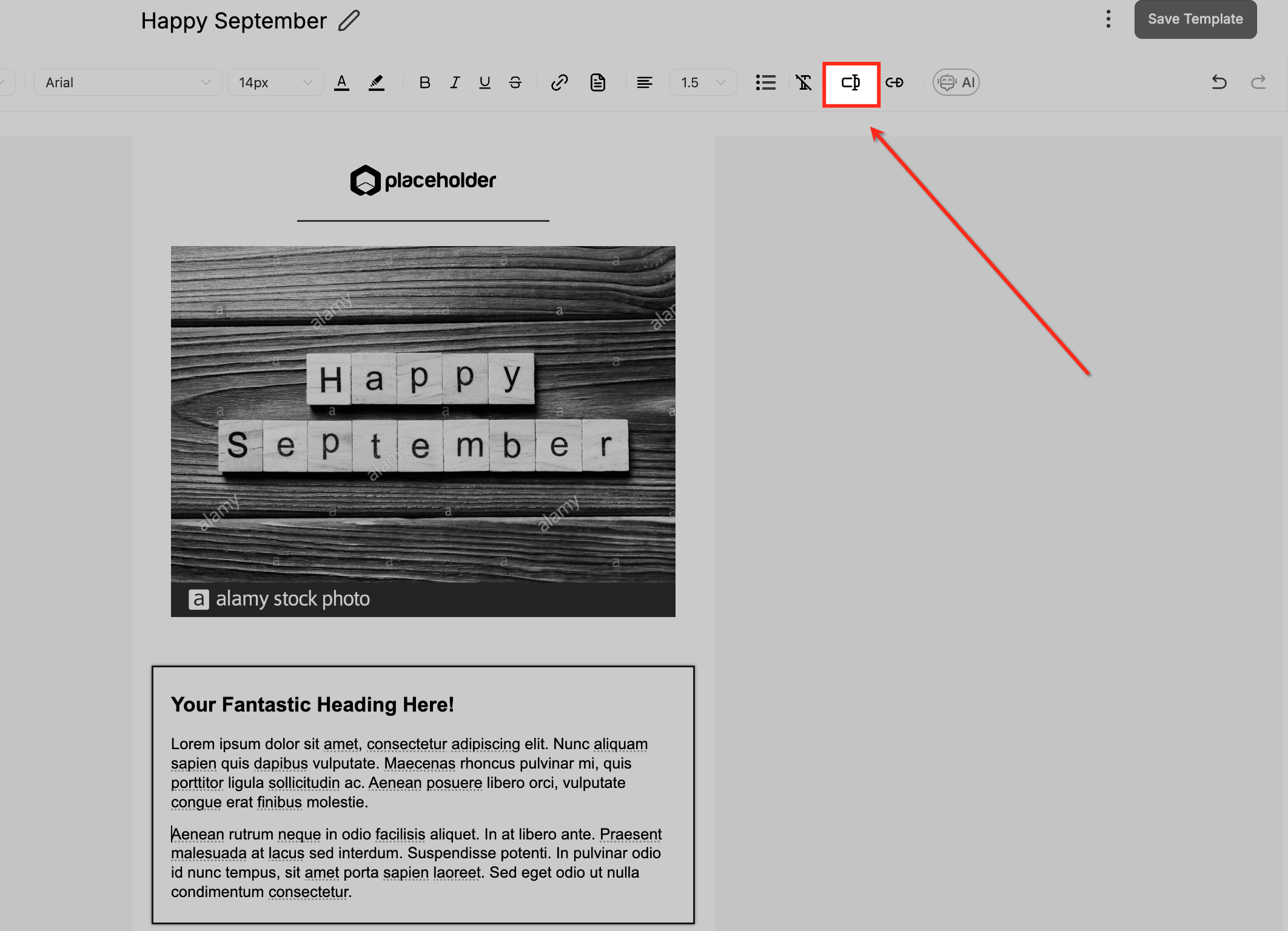
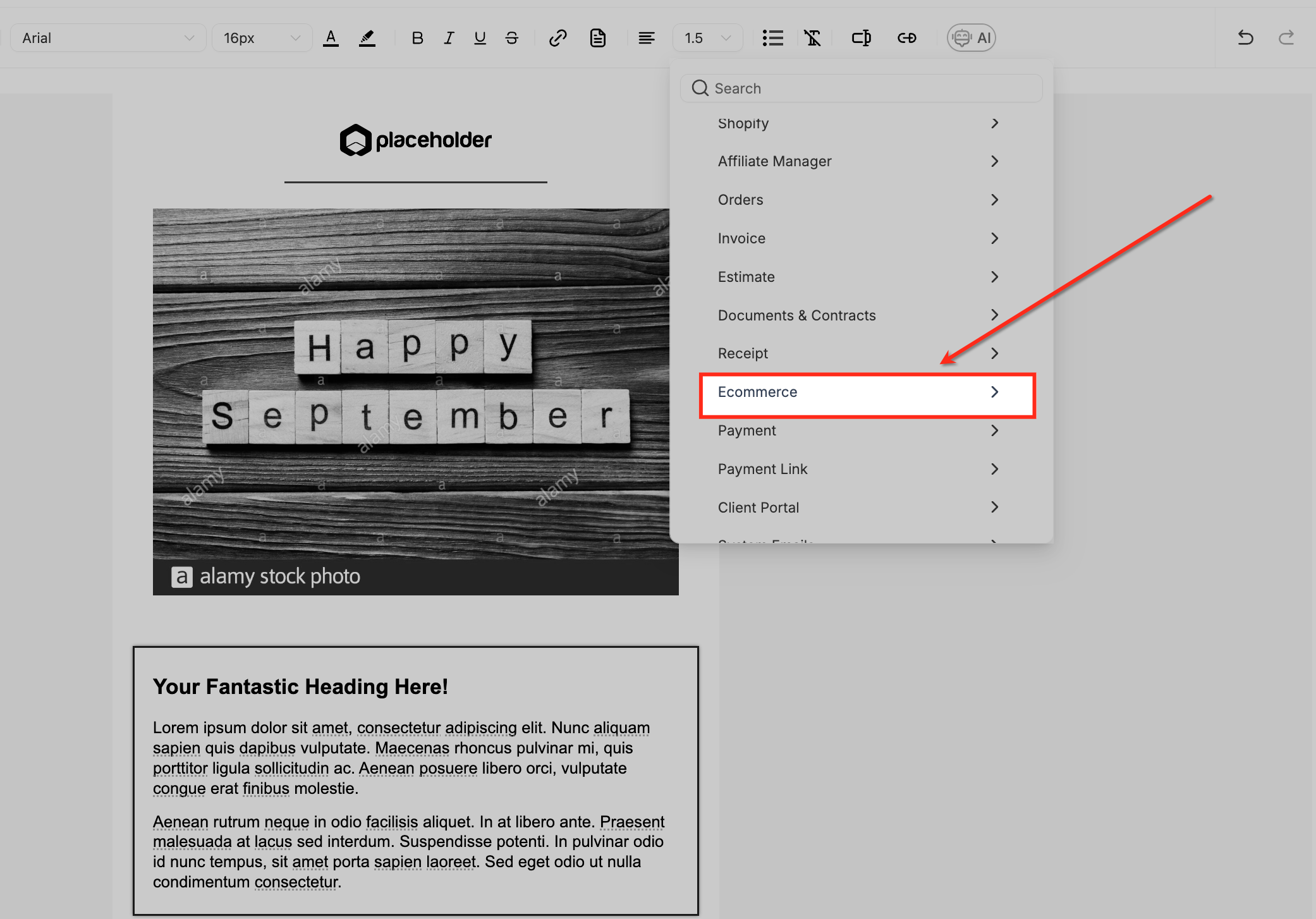
To insert a dynamic link, click the custom value icon in the editor toolbar.
Select Ecommerce from the custom value menu to access store-specific fields.
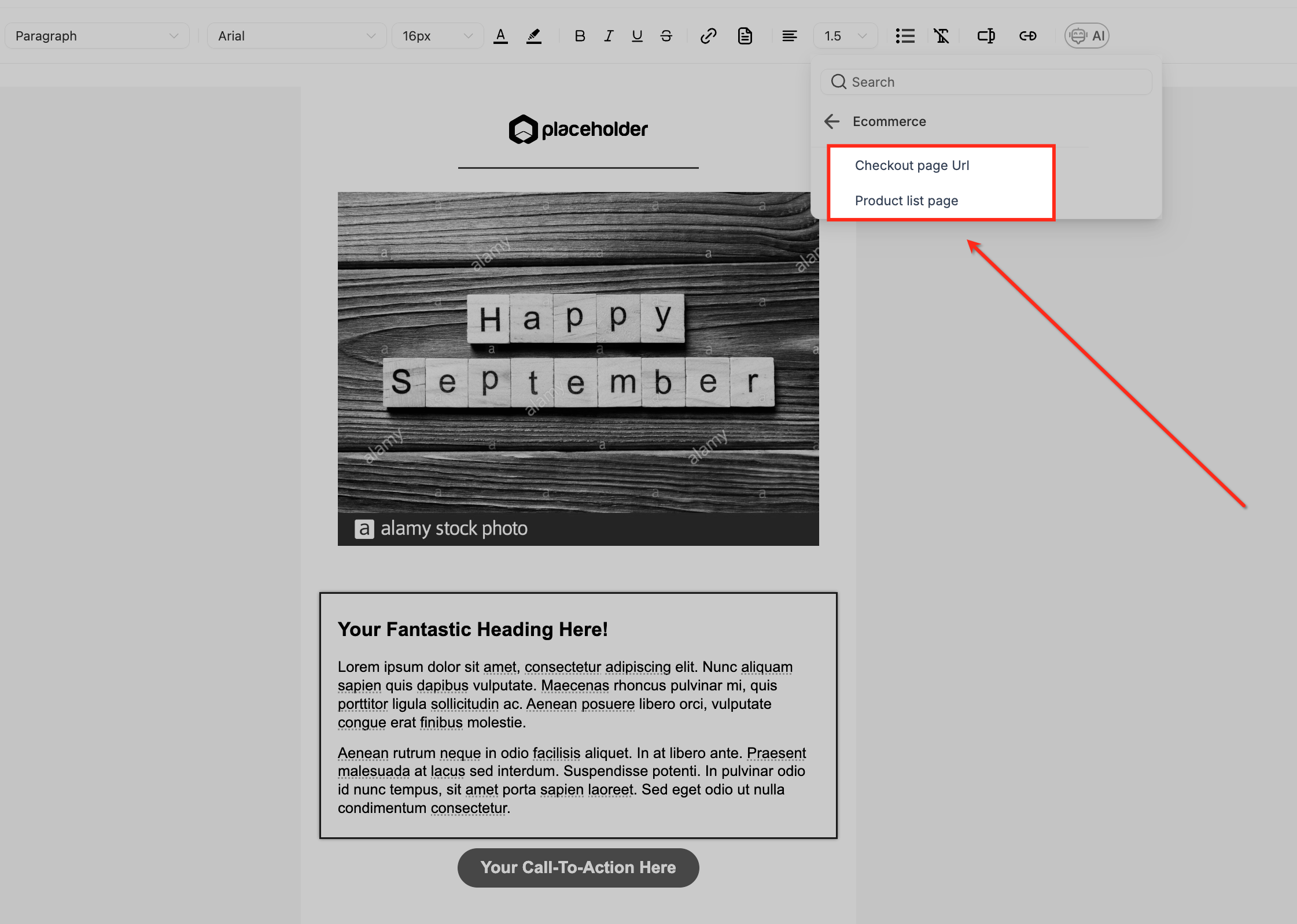
Choose Checkout page URL or Product list page to insert the dynamic link that guides customers back to their cart or your catalog.
Show the exact cart contents:
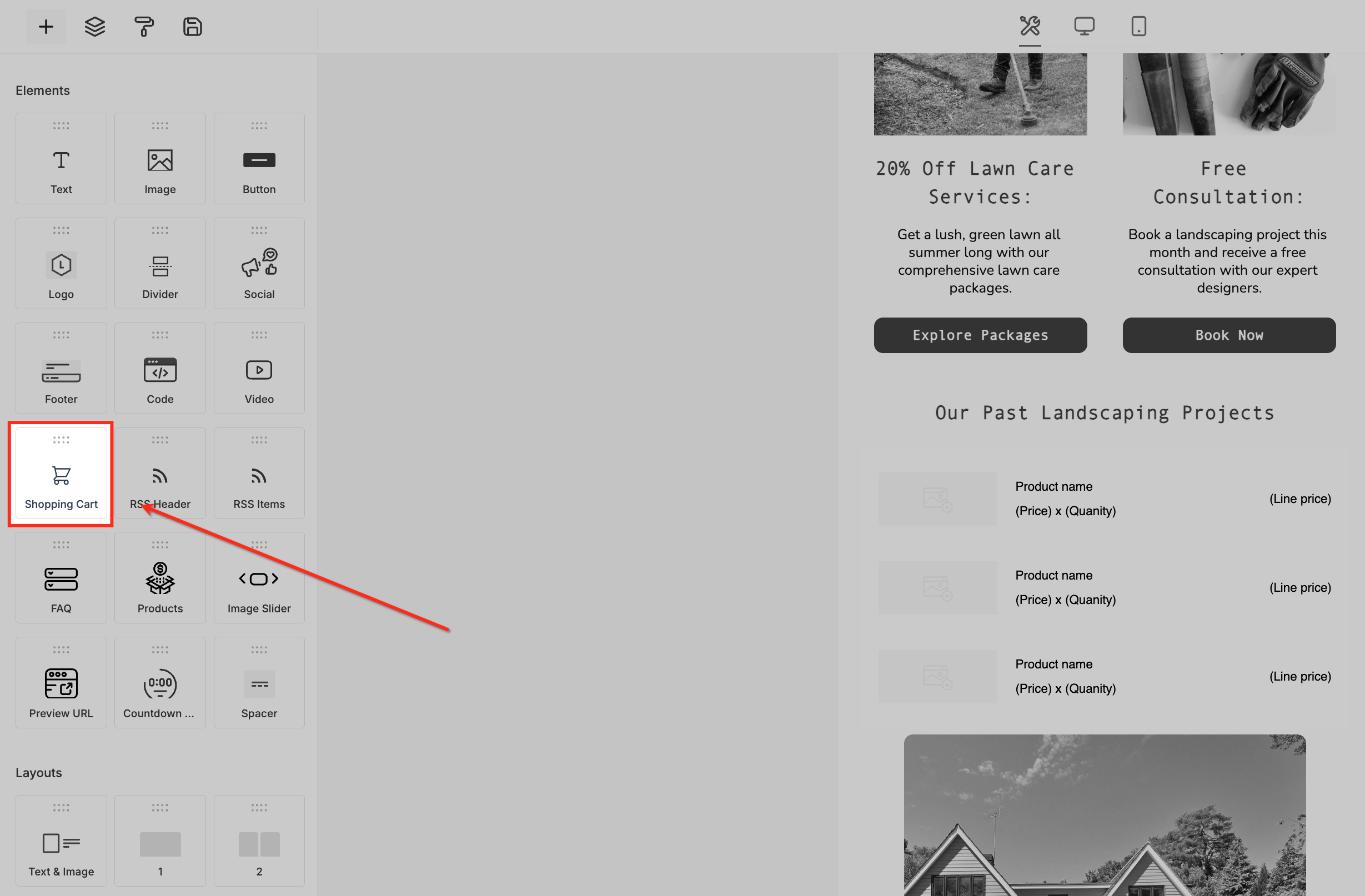
To make the email more personal, display the items left behind, including product images, names, prices, and quantities. In the email builder, locate the Shopping Cart element under the eCommerce elements and drag it into your layout. It auto-populates with the cart contents when the customer reached the checkout page.
Note: The cart display works only when the system has captured cart data, which typically happens once the customer reaches the checkout page and provides an email address.
Each campaign in Email Marketing displays a status so you can quickly see whether it is a draft, active, sent, or completed. The available statuses depend on the campaign type: Email Campaigns, Workflow Campaigns, and Bulk Action Campaigns.
Email Campaigns are one-time or recurring sends you create and manage manually.
Status | Description |
|---|---|
Draft | Being created or edited and not yet sent. You can still change content or settings before scheduling. |
Sent | Successfully delivered to recipients. View performance under Statistics. |
Failed | Could not be sent due to an error, such as an invalid sender email or a configuration issue. Review the setup before retrying. |
Archived | Manually archived to remove it from the active view without deleting it. You can restore it anytime. |
All | Displays every campaign, regardless of status. |
Workflow Campaigns are automated email sequences triggered by workflow actions.
Status | Description |
|---|---|
Draft | Created but not yet activated. You can still change triggers, emails, or actions. |
Published | Live and running based on your triggers. Contacts entering the workflow receive the emails automatically. |
All | Displays all workflow campaigns, both draft and published. |
Bulk Action Campaigns send mass emails to a list of contacts instantly or in scheduled batches.
Status | Description |
|---|---|
Draft | Setup is incomplete or waiting to be scheduled. |
Queued | Lined up and waiting to be processed for sending. |
Processing | Actively being sent to recipients. |
Paused | Temporarily stopped. You can resume it anytime. |
Complete | Successfully sent to all recipients. |
Cancelled | Stopped before completion and will not send to remaining contacts. |
All | Displays every bulk action campaign, regardless of status. |
Q: Can I change the subject line for a resend? Yes. You can set a custom subject line during resend configuration.
Q: Where do I see if a resend is pending? Campaigns with a scheduled resend display Waiting in the status column.
Q: Can I resend to people who clicked but did not convert? The resend feature only targets unopened emails. For click-based follow-ups, use an automation workflow.
Q: What is the difference between Paused and Cancelled? Paused campaigns can be resumed at any time. Cancelled campaigns are permanently stopped and cannot be resumed.
Q: Will a new contact be created if I add an outside email to the CC or BCC fields? No. Adding an outside email to CC or BCC does not create a new contact.
Q: What happens if I add an existing contact's email to the CC or BCC fields? The conversation shows only under the primary contact's thread (the To recipient), not under the CC or BCC contact's thread.
Q: Is CC and BCC available for all email channels? Yes. It works with all email channels, including Gmail and Outlook two-way sync, SMTP, and custom providers.
Q: Can I disable abandoned checkout emails? Yes. Go to Payments > Settings > Notifications in your sub-account and toggle the email off.
Q: Does the abandoned cart email work for Funnel or Website order forms? No. It applies only to Store checkouts managed under Payments. To recover order-form sales, build a workflow that tracks order form visits and follows up if no payment is recorded after a delay.
Q: Can I send more than one abandoned cart reminder? Currently only one automated abandoned checkout notification is sent per cart abandonment. For more, build a custom workflow.
Q: Can I resend a campaign once it is marked Complete or Sent? Yes. Duplicate the campaign and send it again to a new segment or list.
Q: Can I restore an archived campaign? Yes. Go to Email Campaigns > Filters > Archived, select the campaign, and click Unarchive to move it back to the active view.
