Sending a marketing email the moment you finish building it is not always the best move. Aesthetix CRM gives you several delivery options on the Send and Schedule screen so you can control exactly when and how an email reaches your audience. You can schedule a one-time send for later, spread a large send across timed batches, auto-send fresh blog content from an RSS feed, repeat a send on a recurring cadence, or let Smart Send pick each campaign's optimal delivery time for you.
This guide covers each scheduling option, how to set it up, and how to reschedule or follow up after a send.
A few things to have ready before you schedule any campaign:
Create an email template so you have content to send.
Verify the sending domain for your account so your emails deliver reliably.
On the Send and Schedule screen, you can optionally attach files (up to 10MB total) and configure Additional Settings like Link Tracking, UTM Tracking, and Tags for any delivery option.
You will find every scheduling option below on the Send and Schedule screen, which appears after you click Send or Schedule inside the Email Builder. To get there, go to Marketing > Emails > Campaigns, create a new campaign or edit an existing one, design your email, then click Send or Schedule.
Use Send Now when you want a campaign delivered immediately, with no scheduling involved.
Open your campaign in the Email Builder and design your email. Use Preview and Test Email to check the layout on desktop and mobile.
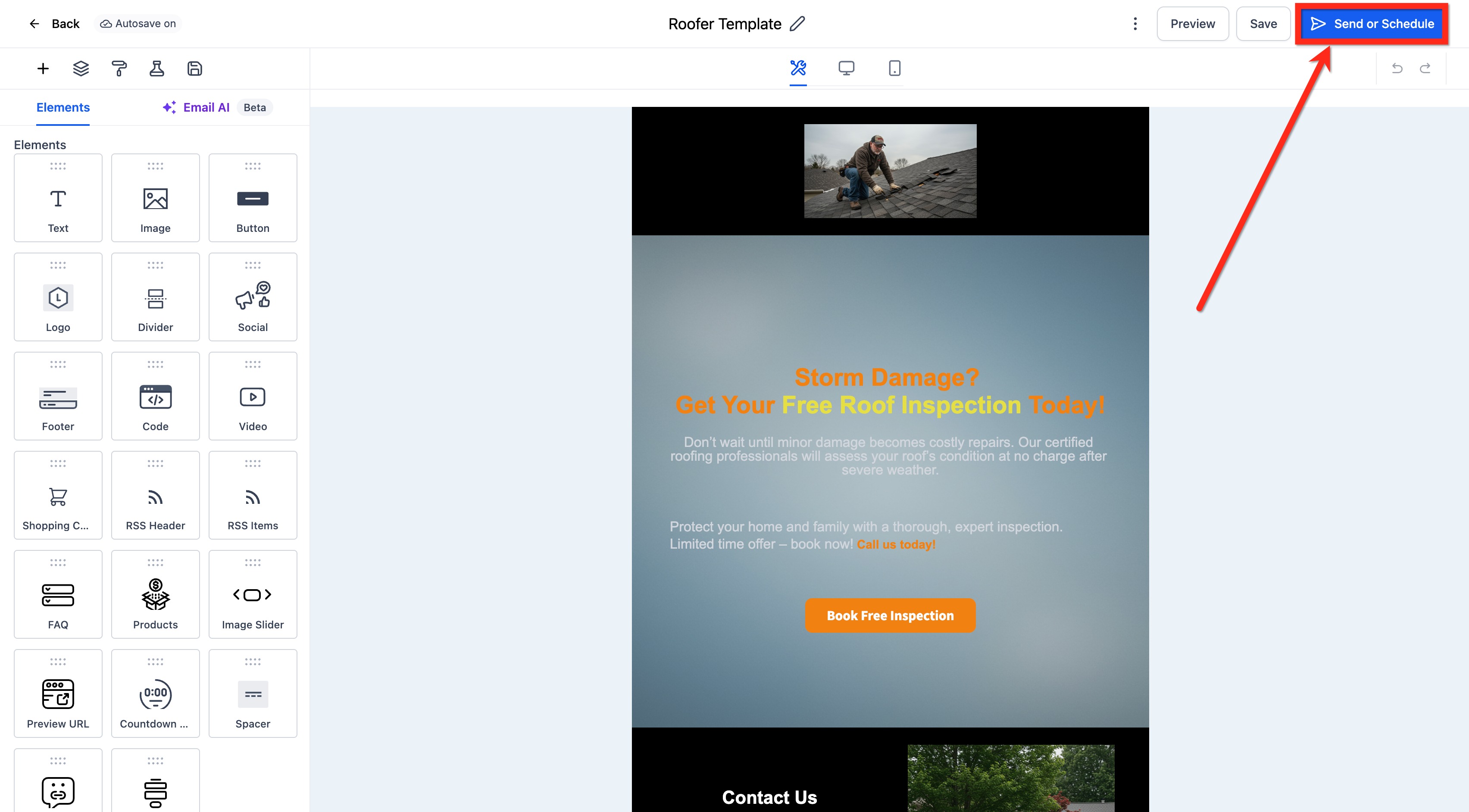
Click Send or Schedule.
From the Sending Options, choose Send Now.
Complete the sender name, sender domain, sender email, subject line, and preview text (optional).
Add your recipients in the To section by choosing email addresses or smart lists.
Optional: click Attach Files to add attachments to the email, then confirm the file or files are listed before sending. Total attachment size must stay within 10MB.
Configure Additional Settings such as Link Tracking, UTM Tracking, and Tags as needed.
Click Send to deliver the campaign immediately.
Use Simple Schedule when you want a one-time send to go out at a specific future date and time.
Open your campaign in the Email Builder and design your email. Use Preview and Test Email to check the layout on desktop and mobile.
Click Send or Schedule.
From the Sending Options, choose Simple Schedule.
Set the date, time, and time zone for the send.
Add your recipients in the To section by choosing email addresses or smart lists, then complete the sender details and subject line.
Confirm and schedule the campaign.
Always double-check the execution date, time, and time zone before scheduling. You can reschedule or delete a scheduled campaign up until one hour before it is due to send. For example, if a campaign is set for 11:00 AM, you can reschedule it any time before 10:00 AM.
Batch scheduling, also called drip mode, delivers your campaign in timed batches instead of sending to your entire audience at once. Pacing the send this way helps manage traffic to your websites and funnels and reduces load on your sending infrastructure.
Key benefits
Traffic management: Sends in timed batches to avoid sudden surges to your websites or funnels.
Server load control: Paces the send so your infrastructure is not overwhelmed.
Flexible timing: Lets you choose batch quantity, repeat frequency, active days, and start and end times.
How to set up a batch campaign
Go to Marketing > Emails > Campaigns.
Create a new campaign or edit an existing one.
Build or select a template, add your content, images, and links, then use Preview and Test Email to verify the layout.
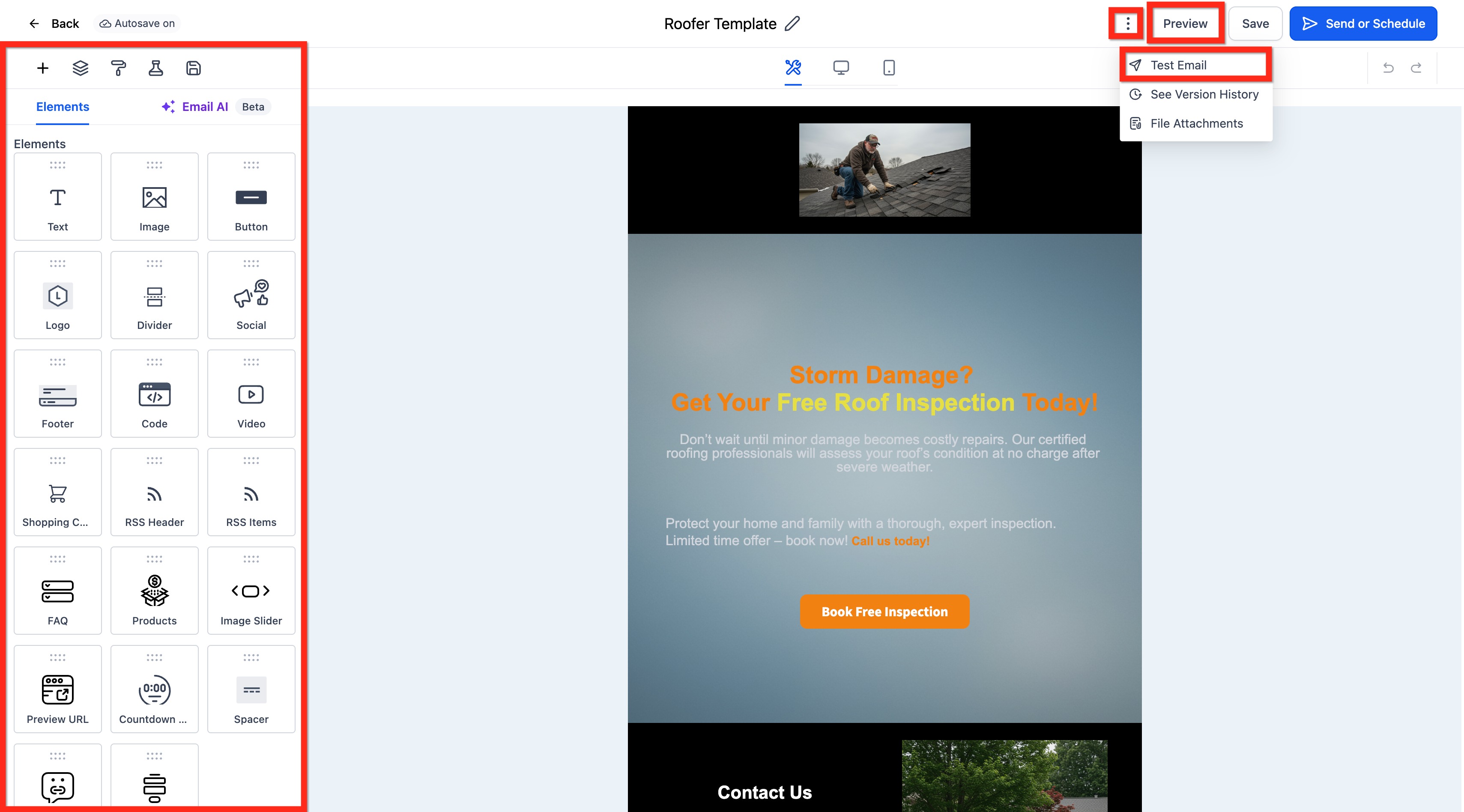
Click Send or Schedule.
From the Sending Options, select Batch Schedule and complete these fields:
Start date and time for the campaign.
Batch Quantity. This is the number of emails sent per batch, not the number of batches. For example, with 10,000 recipients and a Batch Quantity of 1,000, the system sends 10 batches of 1,000 emails each.
Repeat after. Enter a number and choose a frequency in days, hours, or minutes. If a saved draft previously used a seconds-based interval, that field clears automatically to prevent scheduling errors. Select 1 minute or higher.
Active days. Uncheck any days of the week when you do not want batches to send.
Start and end time for each active day.
Sender Name (optional), Sender Domain, Sender Email, Subject Line, and Preview text (optional).
Add your recipients in the To section by choosing email addresses or smart lists.
Start and end time validation
When you set the daily start and end times, Aesthetix CRM checks them for you:
If the end time is earlier than the start time, an inline error appears under End time: End time can't be before start time.
If you pick an end time before a start time, a prompt appears under Start time: Please enter a valid start time.
Send and Schedule stay disabled until the errors are fixed.
Editing the start time confirms with a single OK button.
Midnight (12:00 AM) boundaries are handled without false errors.
Always confirm the execution date, time, and time zone before scheduling. You can reschedule or delete a batch campaign up until one hour before it sends.
An RSS campaign automatically pulls newly published content from a blog feed and emails it to your audience on a schedule you set. Instead of sending an email every time you publish a post, which can wear out your subscribers, you can send a periodic digest or newsletter that rounds up recent content readers may have missed. RSS stands for Really Simple Syndication, a standard format that makes it easy to gather and deliver fresh content in one place.
How to set up an RSS campaign
Create a new campaign and select the email template you want to use. A preview option lets you check the template first.
In the Email Builder, design your content and lay out the elements for the campaign.
Click Send or Schedule.
Add your recipients in the To section by choosing email addresses or smart lists, then add your sender email, sender name (optional), subject line, and preview text (optional).
In the Sending Options, select RSS and complete these fields:
RSS Feed URL for the blog feed you want to pull from.
Frequency: Daily, Weekly, or Monthly.
Send time for the campaign.
Active days. Uncheck any days of the week when you do not want the campaign to send.
The screen highlights the next execution date and time, including the time zone. RSS campaigns also offer a pause option, so you can temporarily stop sends without deleting the campaign. As with other delivery types, you can reschedule or delete an RSS campaign up until one hour before it sends.
Because an RSS campaign sends repeatedly, you will see multiple entries for the same campaign in your campaign list, each one showing the statistics for that individual send.
Both Batch Schedule and RSS campaigns send on a repeating cadence rather than a single one-time send.
With Batch Schedule, the Repeat after setting controls how often each batch goes out (for example, every 30 minutes), and you choose which days of the week and which hours are active.
With RSS, the Daily, Weekly, or Monthly frequency controls how often the digest goes out, on the active days you select.
In both cases, the system keeps sending on the cadence you configured until the audience is fully delivered (batch) or until you pause or delete the campaign (RSS).
Smart Send takes the guesswork out of choosing a send time. It analyzes your recipients' engagement from the past 60 days (opens, clicks, and other events) and recommends the single best time to send for maximum engagement. Smart Send appears as a fifth delivery option on the Send and Schedule screen, alongside Send Now, Simple Schedule, Batch, and RSS, and you can always accept its recommendation or override it with a custom time.
Key benefits
Higher engagement: Sends when your audience is most active to lift open and click rates, with no manual analysis.
Seamless workflow: Built into the existing Send and Schedule flow, so there is no extra setup.
Flexibility: Accept the recommendation or override it with any custom date and time.
Transparent results: Post-send analytics show the engagement lift compared with your location's historical average.
Eligibility requirements
Smart Send only appears when Aesthetix CRM has enough recent data to make an accurate prediction:
At least 1,000 emails delivered from the same location in the last 60 days.
The campaign must be created in Email Builder > Campaigns.
Currently supported for regular email campaigns (A/B and batch support are on the roadmap).
If your location has not crossed the 1,000-email threshold, Smart Send is greyed out and a progress bar shows how close you are. Keep sending regular campaigns and the option unlocks automatically once you qualify.
How the recommendation works
Smart Send builds a 60-day engagement model that weighs:
Open events by hour of day, local to your account.
Click events and other interactions to fine-tune predictions for revenue-driving engagement.
Performance relative to your location's averages, so it avoids recommending historically weak time slots.
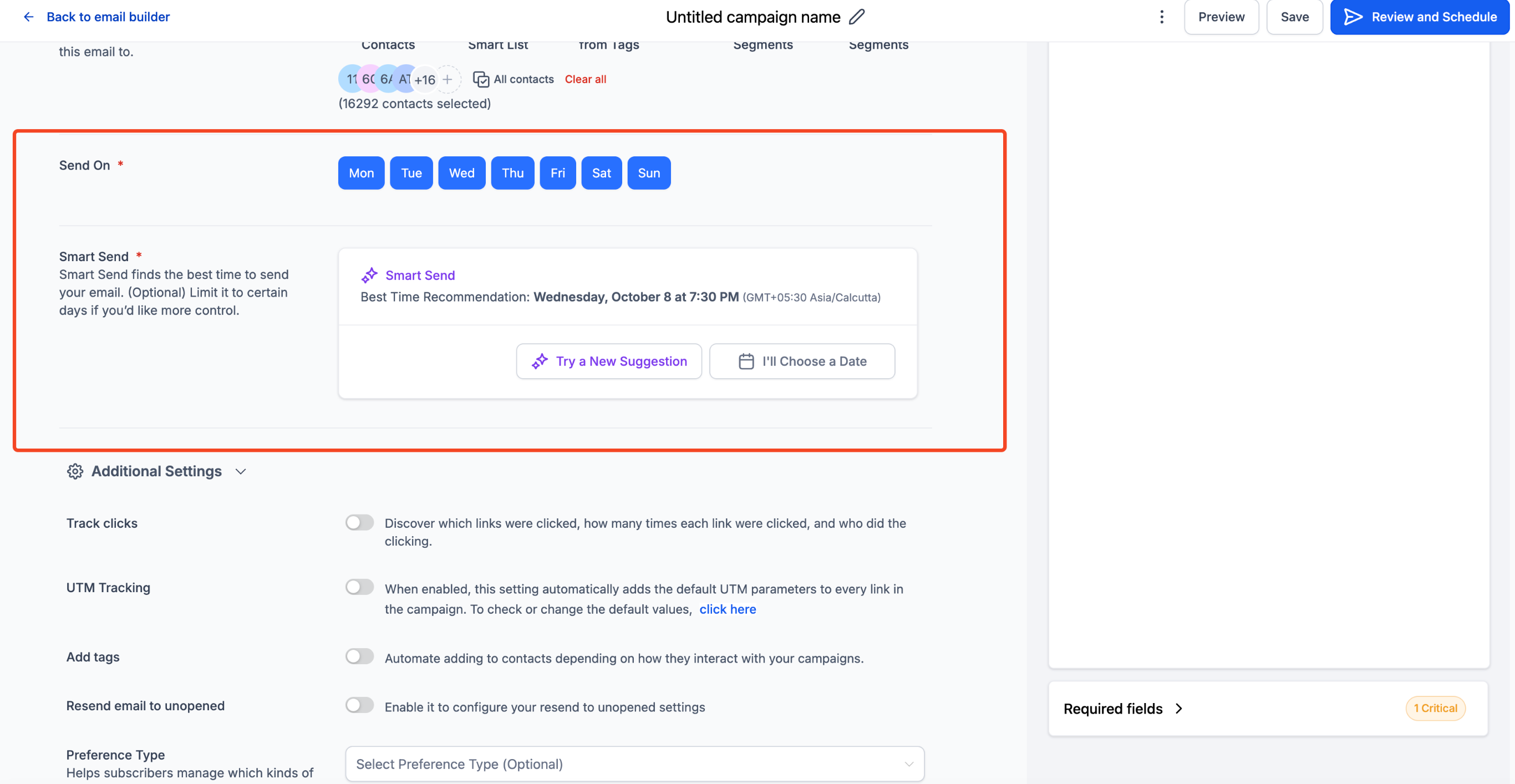
If there is not enough data for a particular hour, Smart Send automatically widens the window until the model meets its confidence threshold. After the campaign sends, the Email Statistics dashboard highlights the engagement lift percentage versus your 60-day baseline, a breakdown of opens and clicks by the recommended hour, and a comparison of Smart Send versus manually scheduled campaigns.
How to use Smart Send
Go to Marketing > Emails.
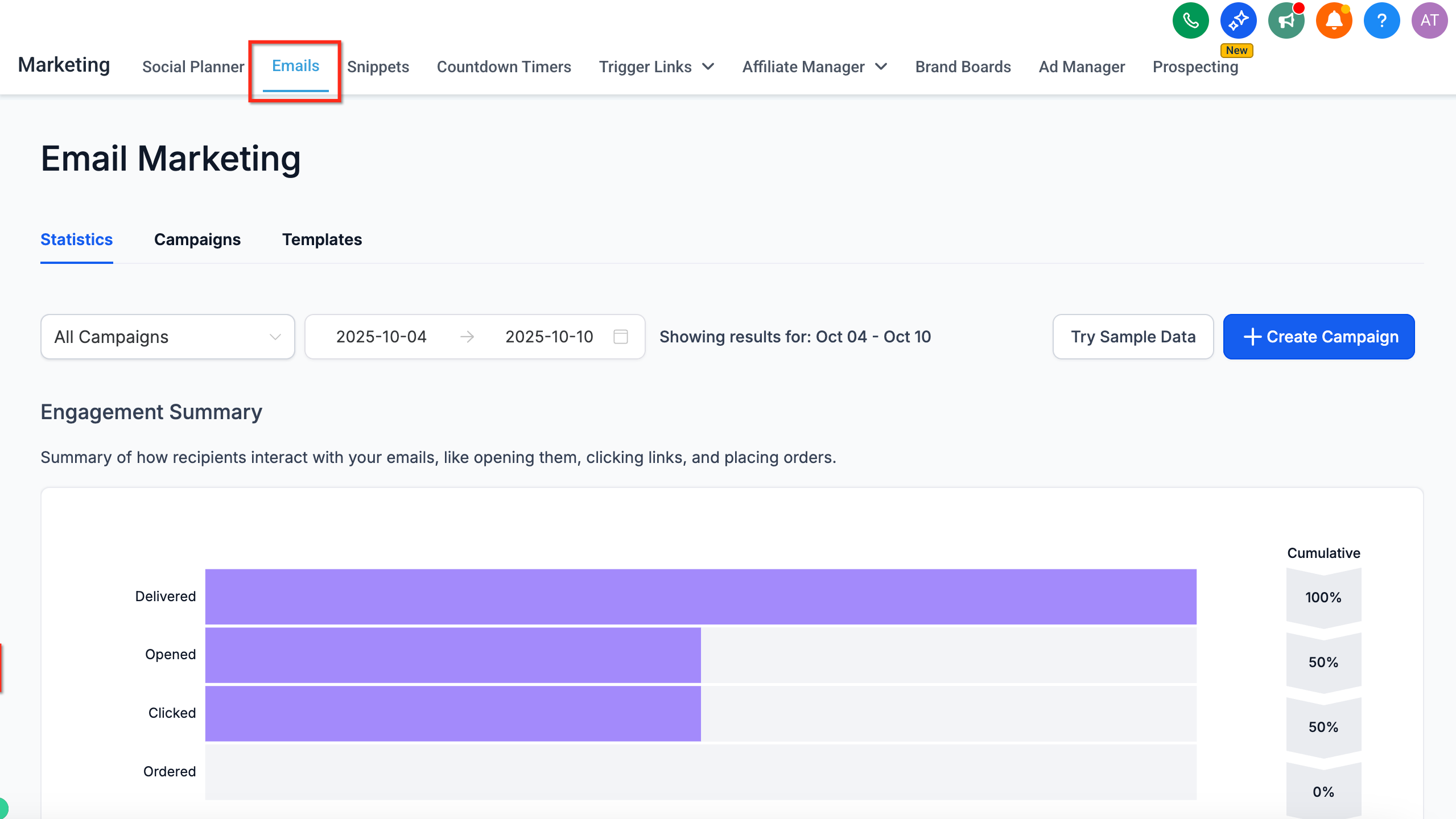
Click Campaigns > Create New Campaign.
Design your email, then click Send or Schedule.
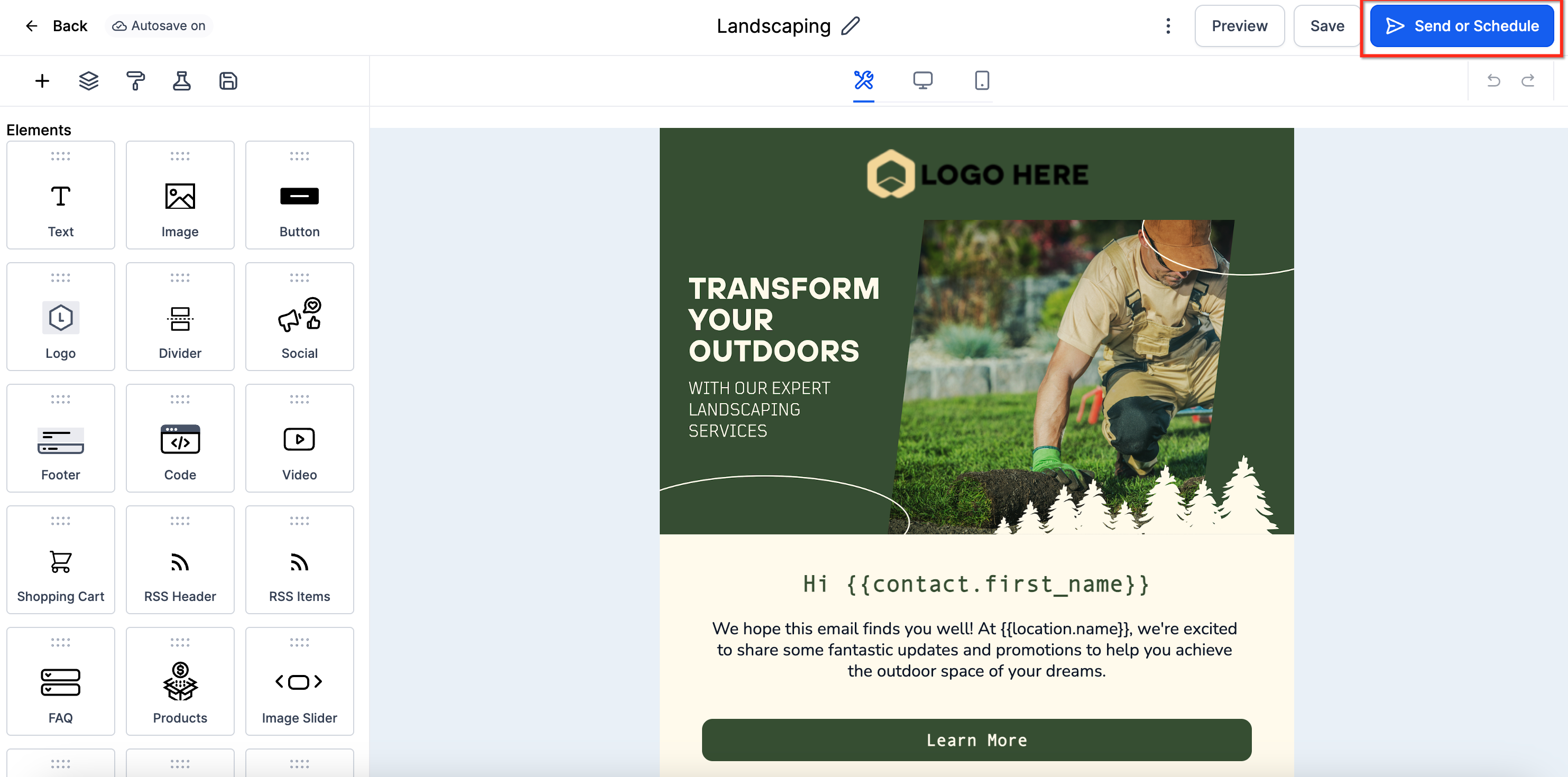
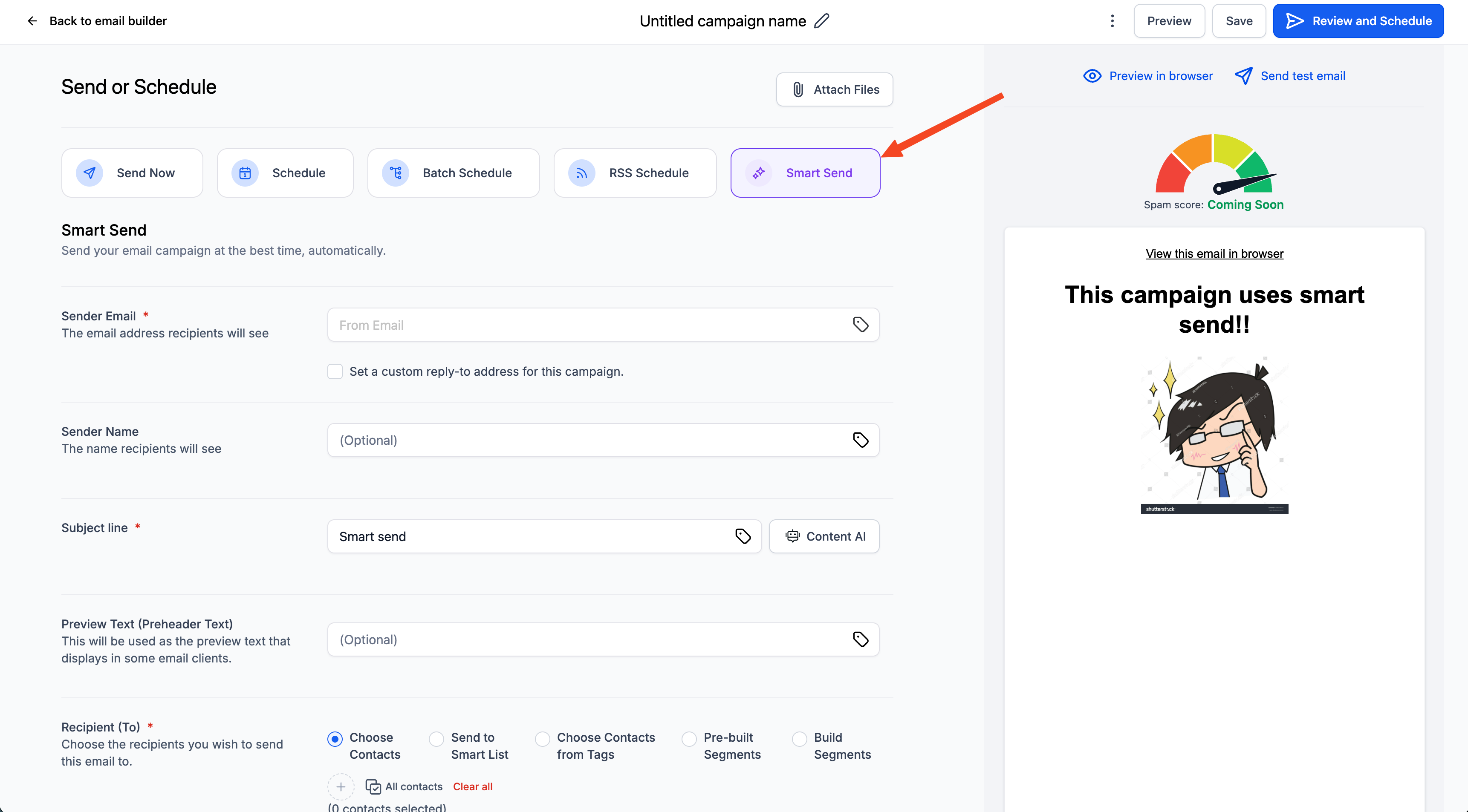
Choose Smart Send, the fifth delivery option.
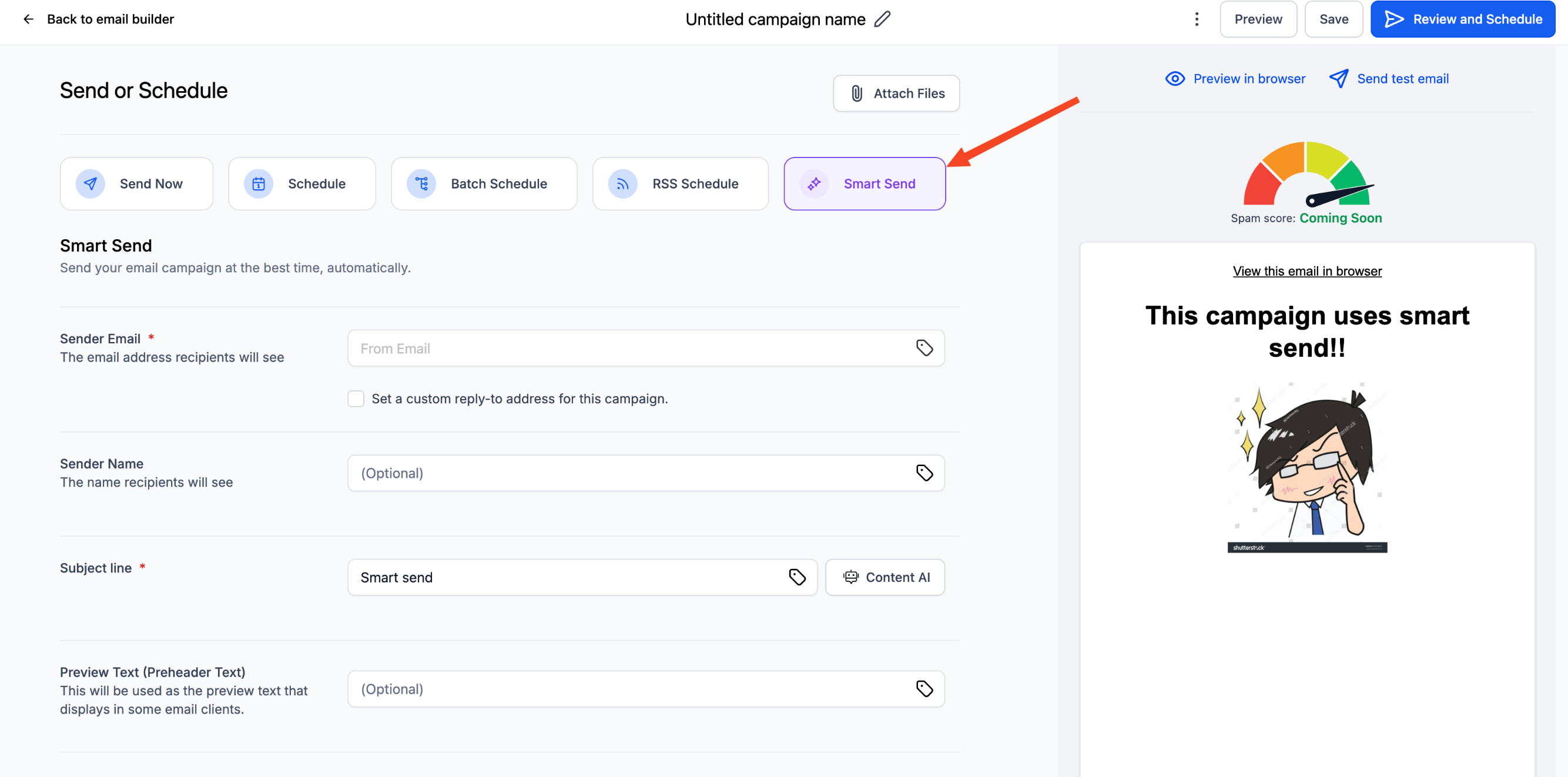
Complete the required fields, then click Get Recommendation. Aesthetix CRM analyzes your engagement data and displays the best send time.
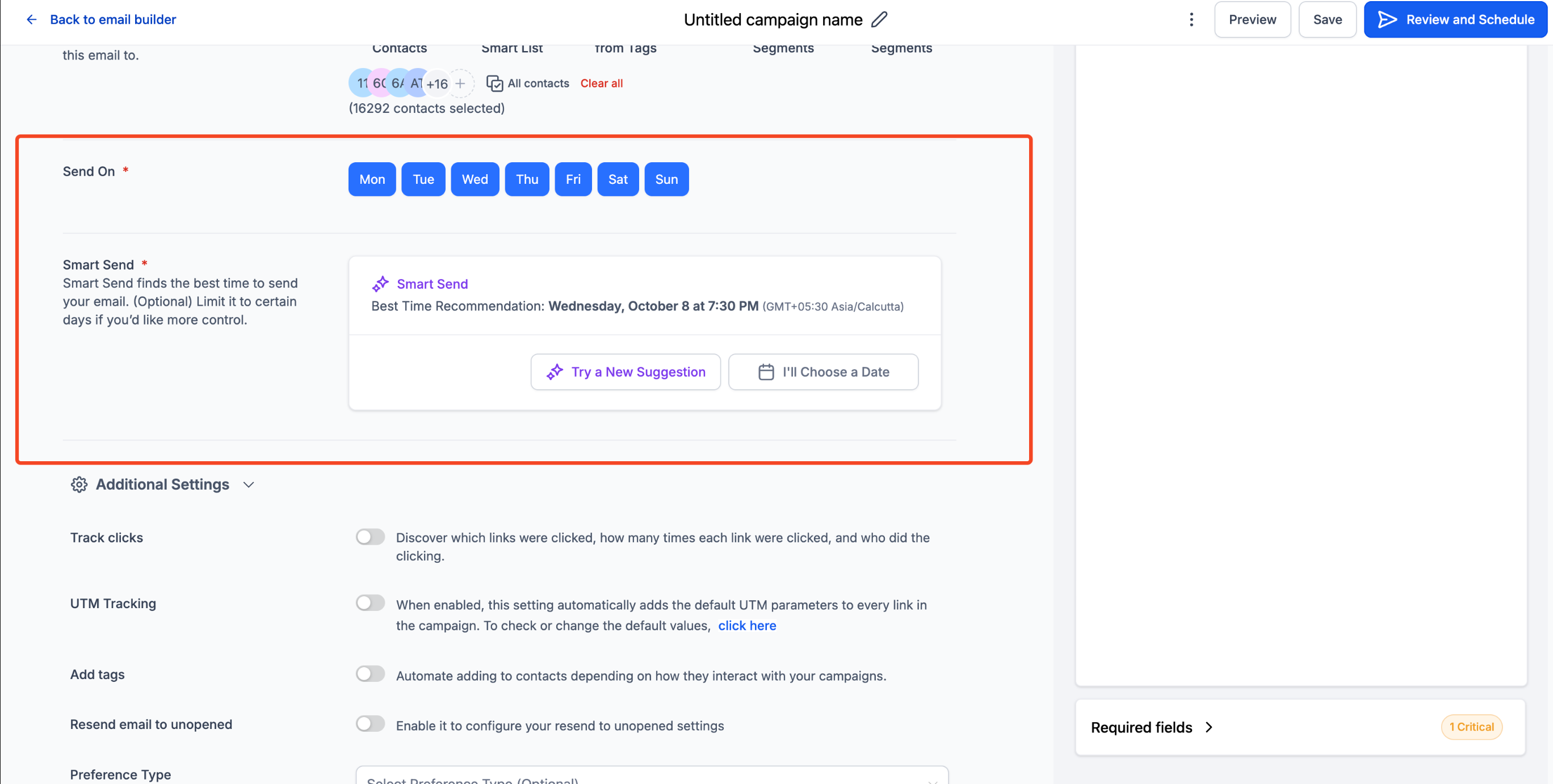
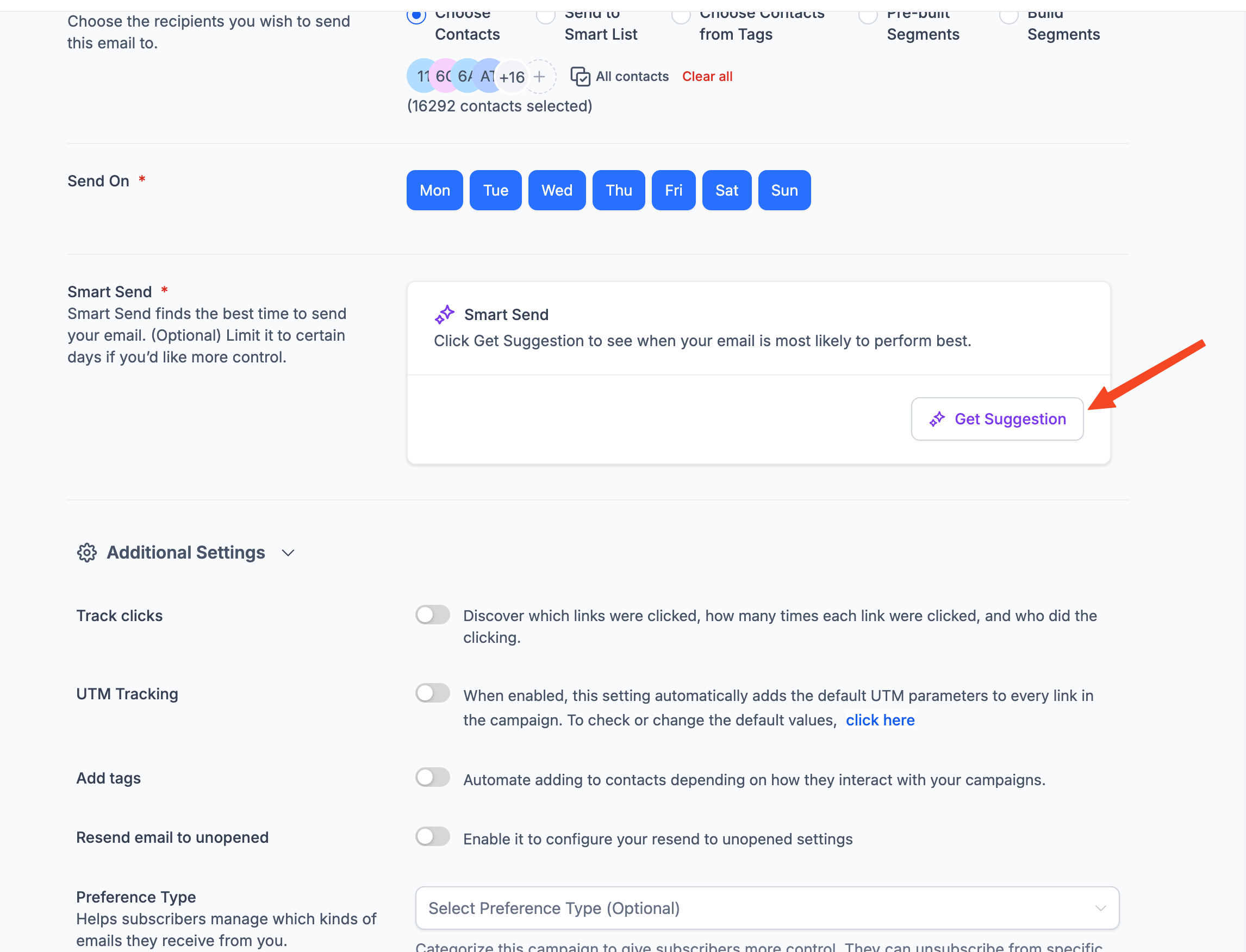
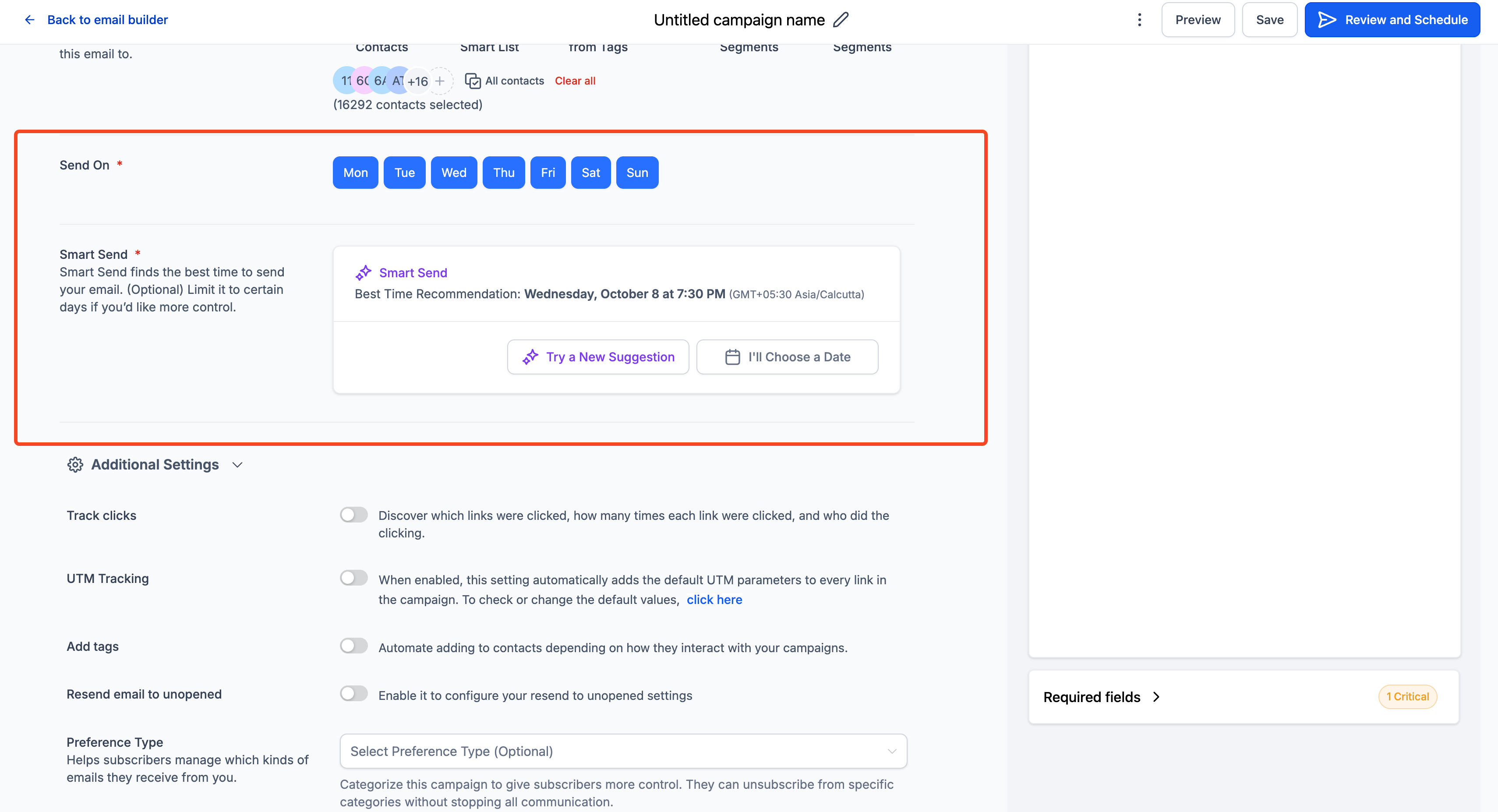
Accept the recommended time or override it with a custom time, then launch your campaign. Once it sends, review performance in Marketing > Emails > Statistics to see the engagement lift.
Smart Send system behavior
Scenario | System behavior |
|---|---|
Not yet eligible | Smart Send is disabled and greyed out. A progress bar shows the 1,000-delivered-email minimum for the last 60 days. |
Recommended time is in the past | For campaigns saved earlier whose recommended time has passed, the system prompts you to click Try New Suggestion to refresh the calculation. |
Data retrieval issue | A banner reads "Something went wrong. Please try again," prompting you to re-fetch the recommendation. |
No recommendation available | A warning advises you to select a custom time and date manually. |
Recipients updated after recommendation | Try New Suggestion instantly re-runs the analysis to reflect the new audience. |
You can reschedule Simple Schedule, Batch Schedule, and RSS campaigns up until one hour (60 minutes) before the execution time.
To reschedule, go to Marketing > Emails and open the Campaigns tab. Your scheduled campaigns are listed there. In the action menu for the campaign, choose Reschedule Campaign, adjust the schedule details or delivery model, then mark it as rescheduled to save your changes.
To edit the email content of an ongoing Batch or RSS campaign without resetting its statistics, click Update Email Content, make your edits before the execution date, and click Save edits. The system applies the update before the send queue runs on the server whenever possible.
You can follow up with contacts who did not open your RSS or Batch Schedule campaign, without switching campaign types.
Go to Marketing > Emails > Campaigns and locate your sent RSS or Batch Schedule campaign.
Click the three-dot menu on the right side of the campaign entry.
Select Resend to Unopened.
Enter a new subject line (optional, but recommended to lift open rates) and choose a resend time.
Click Schedule. The system queues the resend only for contacts who did not open the original email.
A few best practices: use a different subject line to see what resonates, give your audience time before resending so you are not too aggressive, and watch your engagement metrics afterward to refine your approach.
What does Batch Quantity actually control? It is the number of emails sent per batch, not the number of batches. With 10,000 recipients and a Batch Quantity of 1,000, the system sends 10 batches of 1,000 emails each.
Can I reschedule an RSS, Batch, or Simple Schedule campaign? Yes. All three can be rescheduled up to one hour before the execution time from the action menu on the Campaigns tab.
Can I edit a campaign's copy without affecting its statistics? Yes. Click Update Email Content, edit before the execution date, and click Save edits. The system applies the change before the send queue runs whenever possible.
Can I override the Smart Send recommendation? Yes. You can accept the recommended time or pick any custom date and time instead. You can also click Reschedule before the scheduled hour to change it after scheduling.
What if my recommended Smart Send time has already passed? You will be prompted to click Try New Suggestion, or the system adjusts to the next closest available future time.
What if my account does not have enough data for Smart Send? If your location has fewer than 1,000 delivered emails in the past 60 days, Smart Send stays disabled. Keep sending regular campaigns and it unlocks automatically once you cross the threshold.
Does Smart Send respect each contact's time zone? Smart Send currently optimizes at the location level. For per-contact time-zone sending, use Workflows with a Wait step set to a date and time.
Can I see which contacts received the email at which time? Yes. The campaign's Recipient tab shows the scheduled timestamp for each send, so you can audit timing or export the data.
What's the difference between Campaigns and Workflows for sending emails? Campaigns are one-time broadcasts you send or schedule from Marketing > Emails > Campaigns. Workflows automate multi-step sequences and can send emails automatically based on triggers and conditions.
Can I attach files to a campaign email? Yes. On the Send and Schedule screen, click Attach Files and select the file or files to include, then confirm they are listed before sending. Total attachment size must stay within 10MB.
Is there anything different about a test or preview email? Yes. Test and preview emails let you check your campaign before sending, but recipients cannot unsubscribe from a test or preview email.
