The Aesthetix CRM email system is the built-in, recommended way to send email from your practice. It is fully managed for you, requires no extra setup, and gives you access to every built-in deliverability tool, including managed sending domains, dedicated IPs, postmaster integrations, bounce classification, inbox placement testing, and blacklist monitoring. For the vast majority of practices, this is the only email option you ever need.
This guide explains the advanced options that sit alongside the built-in email system: dedicated IPs for high-volume senders, custom SMTP and external providers for specialized cases, and the older direct-Mailgun integration that some early accounts may still be using. Each of these has trade-offs, so read the caveats before changing anything.
The Aesthetix CRM email system is the default email infrastructure for your account, and it is what we recommend for nearly every practice. It is built directly into the platform, so there is nothing to install, no credentials to manage, and no third-party billing to track.
Choosing the built-in system gives you:
Reliable sending on professionally managed, reputable email infrastructure.
Branded sending domains so your emails come from your own practice domain.
Full access to all built-in deliverability tools, including risk assessment, bounce classification, inbox placement testing, spam score checking, blacklist monitoring, and Google and Microsoft postmaster integrations.
Managed domains and IPs, including the option to add a dedicated IP when your volume warrants it.
Unless you have an established external sending reputation you specifically need to keep, or you are sending at an exceptionally high volume, the built-in email system is the right choice. The options below are for advanced cases only.
A dedicated IP lets you send your email from a unique, exclusive IP address rather than sharing one with other senders. Email service providers (such as Gmail and Yahoo) watch the reputation and sending behavior of each IP to decide how to handle the mail tied to it. With a dedicated IP, you have full and exclusive control over that sender reputation.
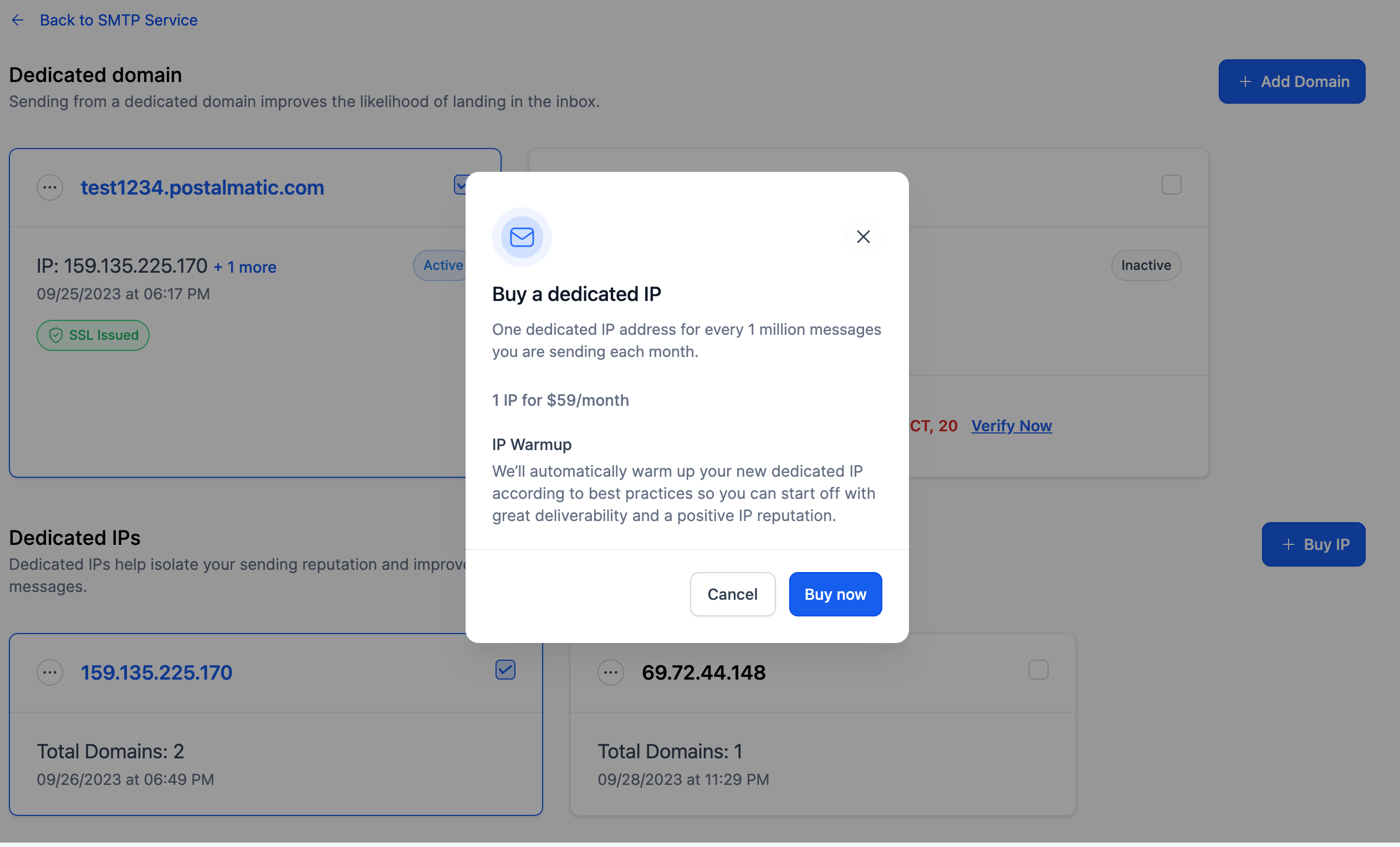
A dedicated IP is purchased and managed through the Aesthetix CRM email system, so you keep all of the built-in deliverability tooling while gaining your own dedicated sending address. A dedicated IP is an optional upcharge that starts at $79 per month.
A dedicated IP is worth considering only for larger, high-volume senders. As a general rule, it becomes prudent once you are sending in the range of hundreds of thousands to millions of emails per month, especially above 200,000. To keep a healthy reputation, a dedicated IP needs consistent volume, so we suggest a minimum of roughly 50,000 messages per week, with about one dedicated IP for every million messages sent monthly.
If your sending is intermittent or low volume, a shared IP is usually the better choice. Sporadic, high-volume bursts from a dedicated IP can actually trigger spam filters or blocklisting, because providers are wary of sudden surges. A shared IP blends your traffic with the steady patterns of other senders and is generally more forgiving for most practices.
Enhanced deliverability. Providers often favor mail from established dedicated IPs, and your performance is not affected by anyone else's sending.
Full control over sender reputation. As the sole user of the IP, you control your sending habits and reputation entirely.
Efficient problem resolution. Being the only sender on the IP makes it far easier to identify and fix any deliverability issue.
Added security. A dedicated IP provides an extra layer of protection against threats like domain hijacking and spoofing, especially when paired with SPF, DKIM, DMARC, and SSL.
New dedicated IPs go through an automated warm-up process to build a strong reputation. During warm-up, your sending may alternate between the new dedicated IP and a shared IP (often around a 50/50 split) until the dedicated IP is fully established. This transitional period can last a while, so do not be surprised if you are still warming up some time after the IP is assigned. To stay in good standing, pace your sending and increase volume gradually rather than in sudden spikes.
A dedicated IP is available for purchase at an additional cost through the Aesthetix CRM email system. For current pricing, see the Aesthetix CRM pricing page.
To purchase a dedicated IP:
Go to your Settings and open Email Services.
In the Aesthetix CRM email section, open Dedicated Domain and IP.
On the next page, click Buy IP.
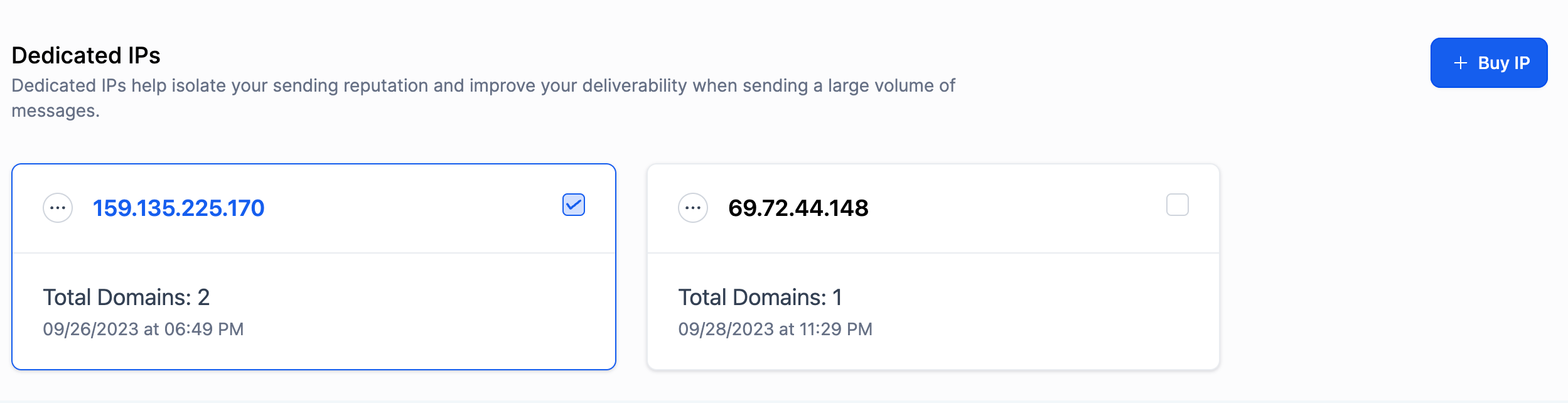
In the confirmation window, click Buy Now to complete the purchase.
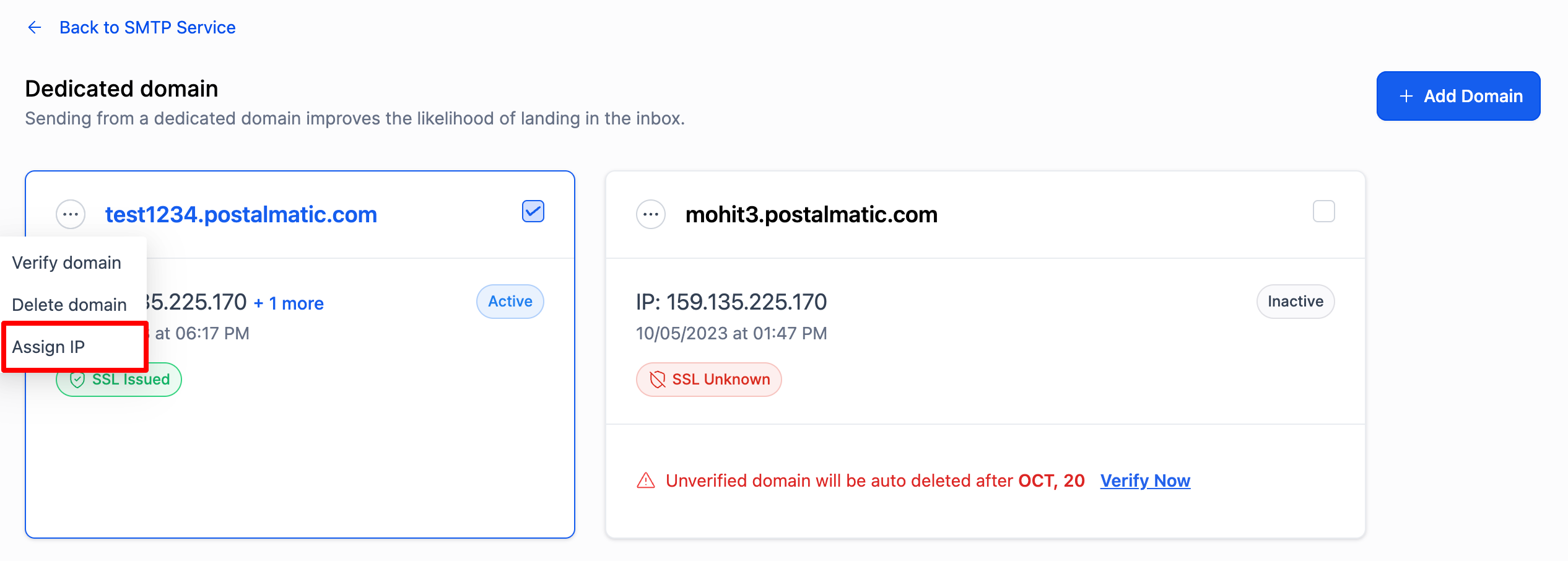
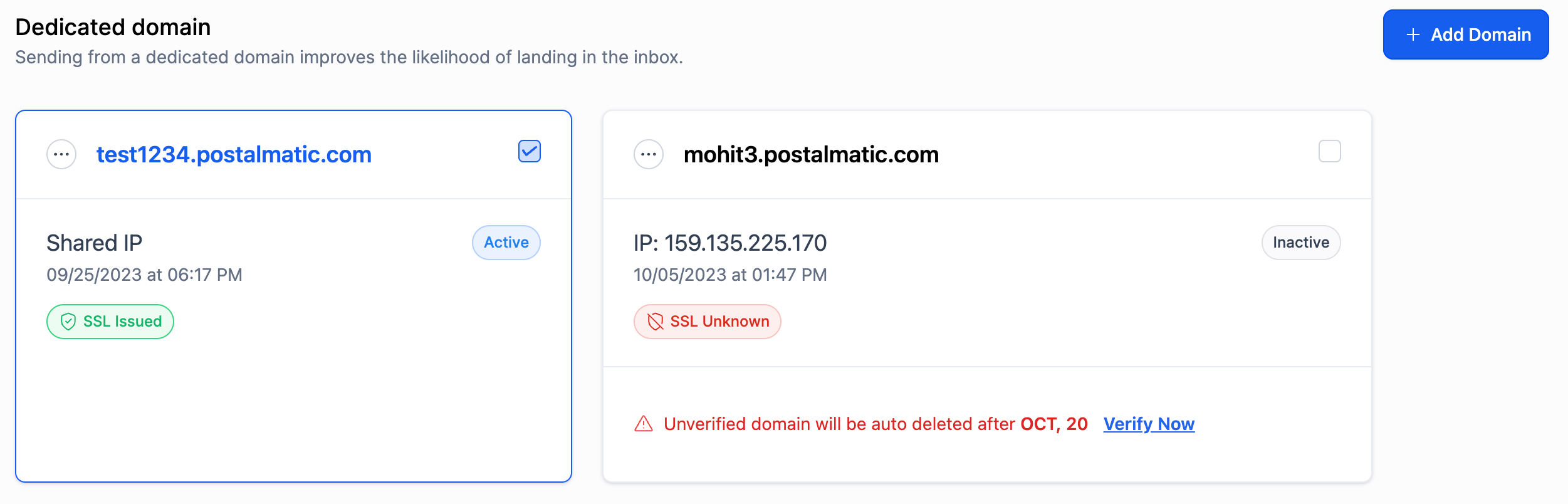
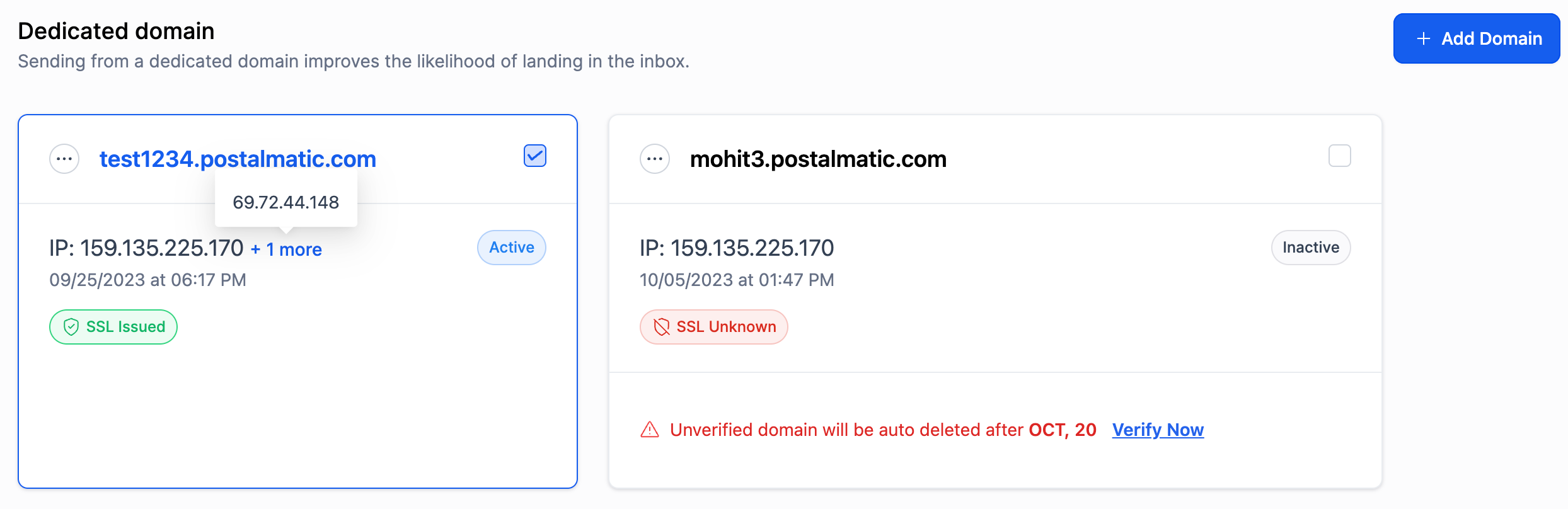
A dedicated IP can only be linked to a dedicated sending domain. Once you own one or more IPs, you can assign them to your domains:
Click the three dots next to your domain and select Assign IP.
In the IP Assignment window, choose the IP you want to assign.
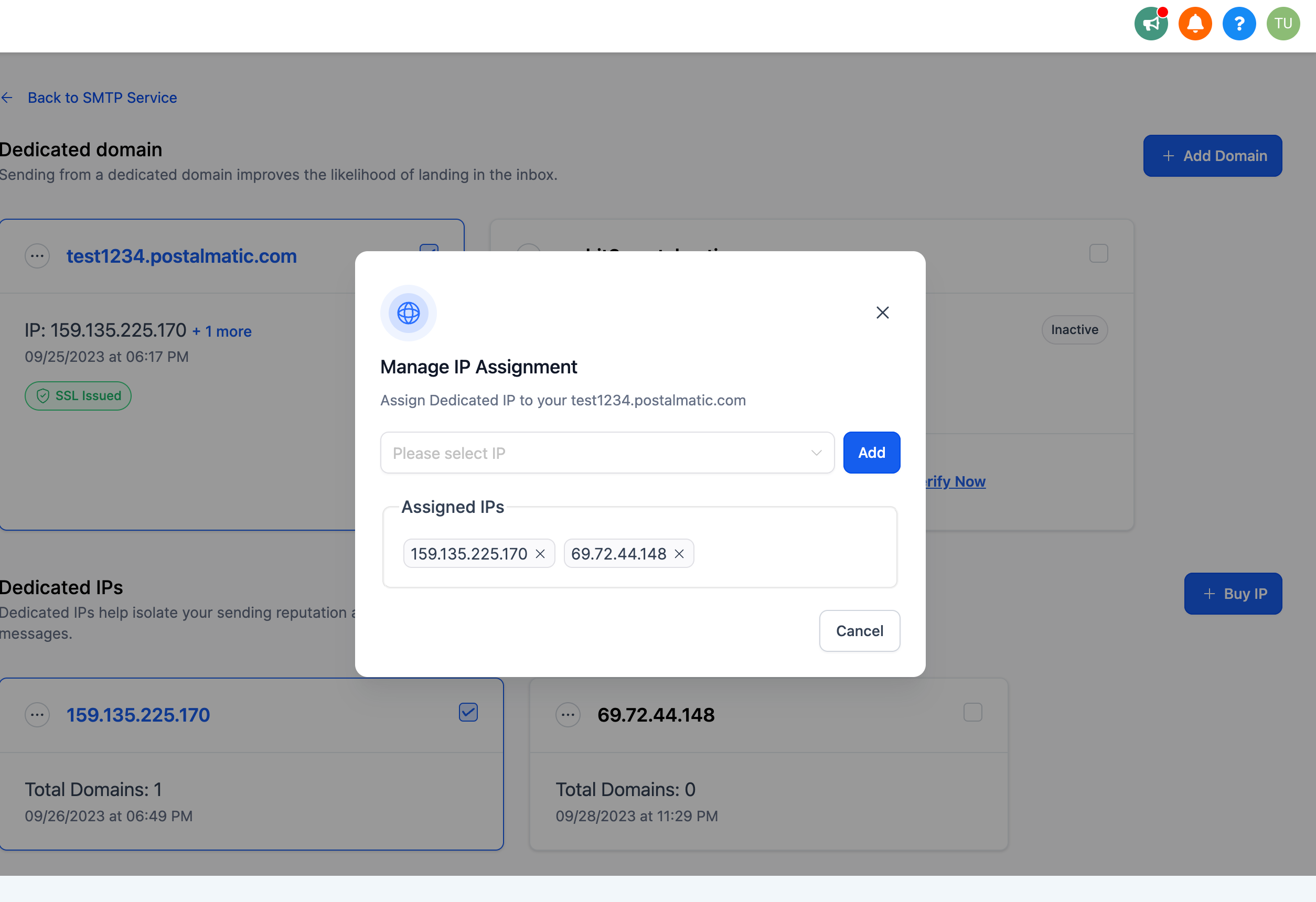
A single domain can be linked to multiple IPs, and a single IP can serve multiple domains. When a domain is linked to more than one IP, mail is sent across them in a round-robin pattern to balance the traffic.
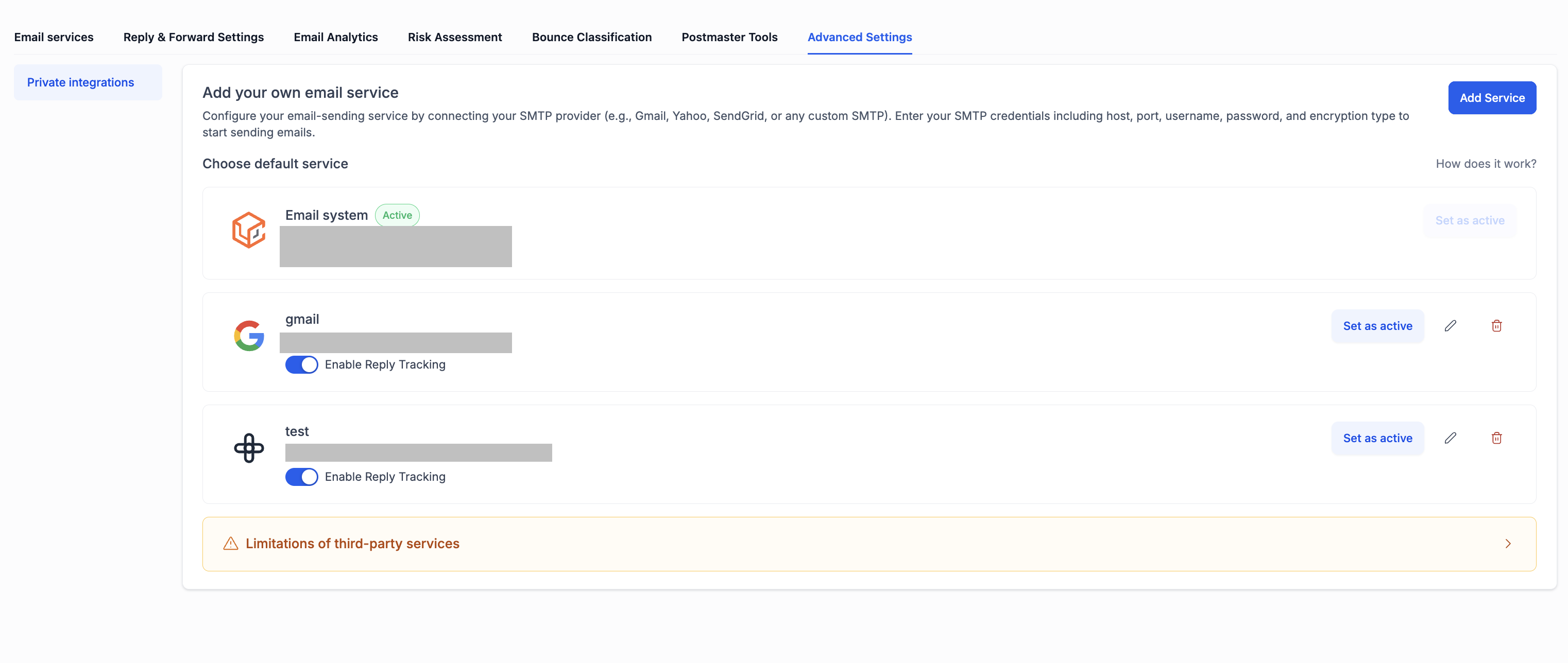
For advanced cases, Aesthetix CRM lets you connect your own third-party email sending service over SMTP instead of using the built-in email system. Supported options include Gmail or Google Workspace, Yahoo Mail, SendGrid, and an "Other" option that covers services such as Mailgun, Amazon SES, Postmark, and Zoho.
This is useful only in specific situations: you already have an established sending reputation you want to keep, you need higher volume limits from an existing provider, or you prefer to manage your own email infrastructure directly.
The built-in Aesthetix CRM email system is still the recommended choice, and most practices do not need a custom SMTP provider. Before switching, be aware of an important trade-off: when you use a third-party SMTP service, several built-in deliverability tools become unavailable, including the ability to create a dedicated sending domain in-app, Google and Microsoft postmaster integrations, risk assessment, bounce classification, inbox placement testing, the spam score checker, the blacklist monitor, and managed domains and IPs. If those tools matter to your email strategy, stay on the built-in email system.
Aesthetix CRM email system (default) | Custom SMTP (third-party) |
|---|---|
Managed by the platform | Managed by you or your provider |
Full access to all built-in deliverability tools | Some built-in tools are unavailable |
No extra setup required | Requires SMTP credentials from your provider |
Recommended for most practices | Best only for those with existing sending infrastructure |
Go to Settings, open Email Services, and go to the SMTP Service tab (it may be labeled Advanced Settings in some interface versions; both lead to the same place).
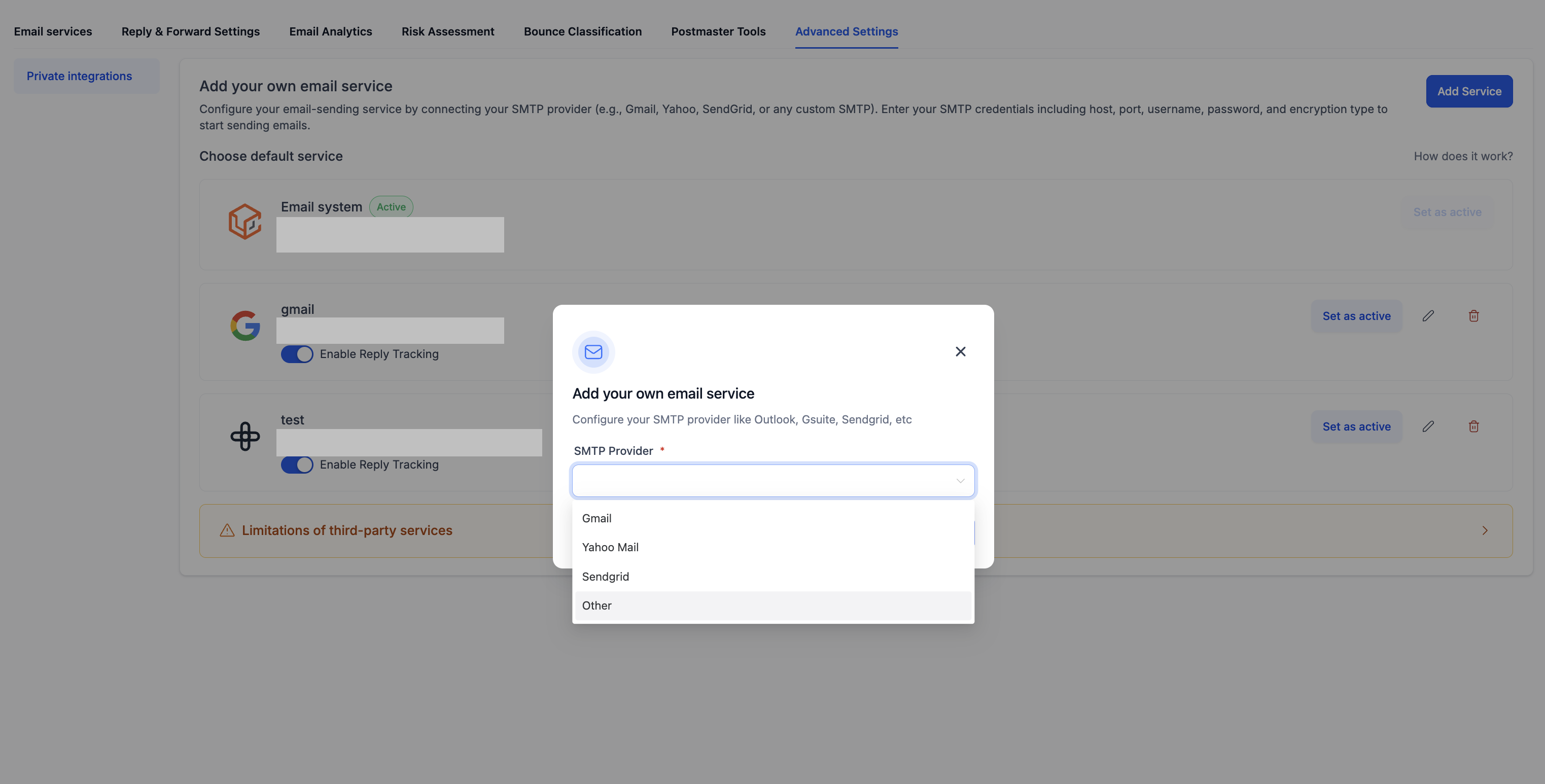
In the top-right corner, click + Add Service. A window titled "Add your own email service" appears.
From the SMTP Provider dropdown, select your provider (Gmail, Yahoo Mail, SendGrid, or Other for Mailgun, Amazon SES, Postmark, and similar services).
Enter the SMTP credentials from your provider's dashboard: SMTP host, port (usually 587 for TLS or 465 for SSL), username, password or API key, from name, and from email.
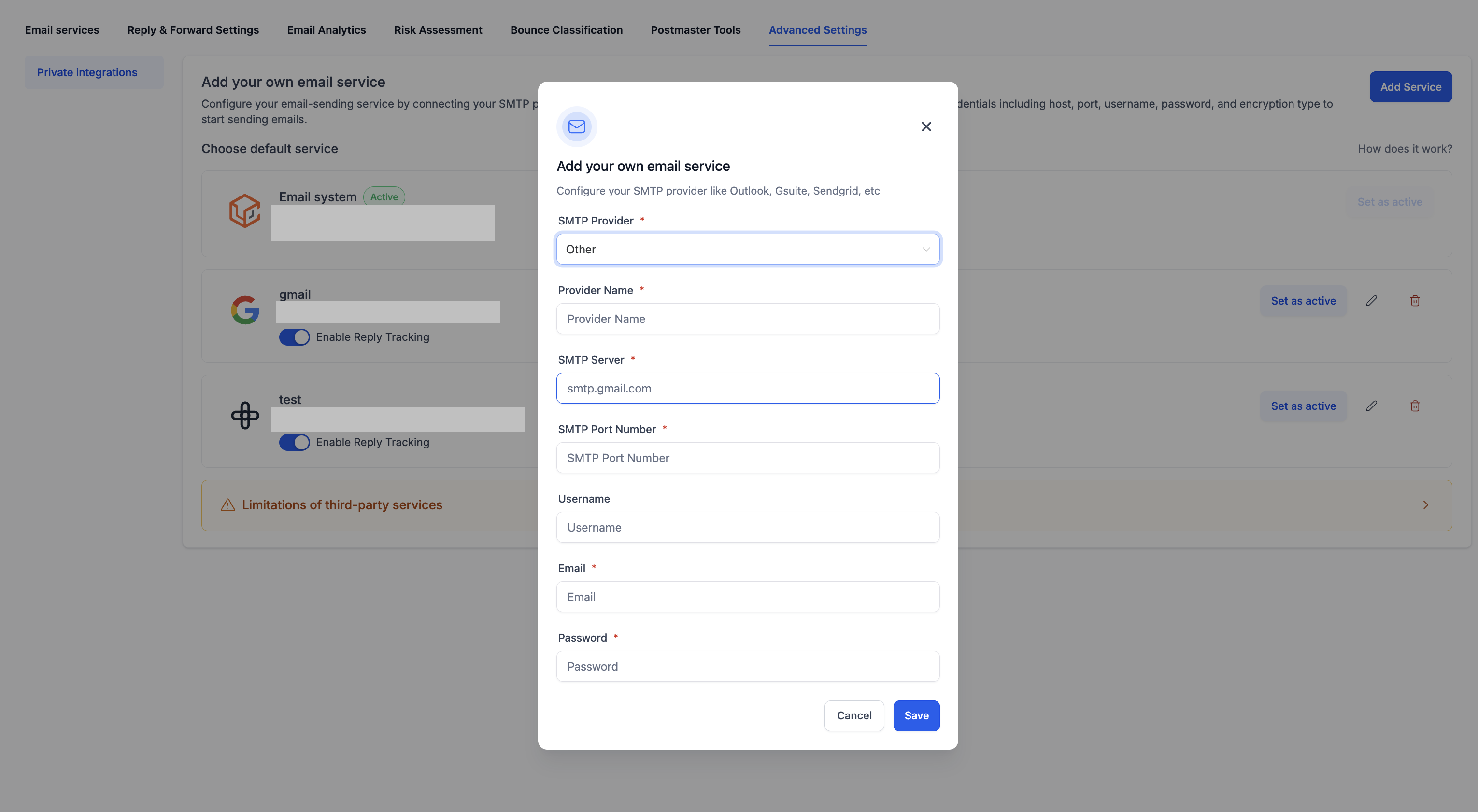
Save the service, then find it in the list and click Set as active to begin sending through it.
You can save multiple SMTP services and switch between them, but only one can be active at a time. To return to the built-in system, open the SMTP Service tab, select the Aesthetix CRM email system, and set it as active. Your saved SMTP services remain stored and can be reactivated later.
Verify these values in your provider's dashboard before entering them, as they can change.
Provider | SMTP host | Port | Notes |
|---|---|---|---|
Gmail | smtp.gmail.com | 587 / 465 | Requires an App Password if 2-Step Verification is on |
SendGrid | smtp.sendgrid.net | 587 | Use "apikey" as the username |
Mailgun | smtp.mailgun.org | 587 | Use your Mailgun SMTP credentials |
Amazon SES | email-smtp.[region].amazonaws.com | 587 | Requires IAM SMTP credentials |
Postmark | smtp.postmarkapp.com | 587 | Use the server API token as credentials |
Yahoo Mail | smtp.mail.yahoo.com | 587 | Requires an app password |
Zoho Mail | smtp.zoho.com | 587 | Use your Zoho account credentials |
When viewing your active SMTP service, you will see an Enable reply checkbox. Turning it on lets inbound replies to emails sent through your SMTP service be received and tracked inside Aesthetix CRM conversations. If you need two-way email with your patients, make sure this is checked.
The most common cause of failed SMTP sends is that the sender email does not match the verified sender configured in your SMTP provider. SMTP providers require outbound mail to come from a verified sender identity, and they will reject mail that does not match. When a send fails, the exact provider error appears in the conversation activity, and you can click the warning icon beside the failed message to read the details.
To resolve delivery failures:
Confirm the sender email matches the verified email or domain configured in your SMTP provider.
Verify the SMTP host, port, username, and password are correct, and that port 587 or 465 is not blocked.
For Gmail, use an App Password if 2-Step Verification is enabled.
For SendGrid, make sure your sending domain is verified in your SendGrid account.
If the sender email already matches and mail still fails, contact your SMTP provider directly for delivery logs, since the rejection is happening on their side.
Some early Aesthetix CRM accounts were set up on an older integration that connected Mailgun directly, rather than through the modern built-in email system. If your account was created during that earlier period, you may still be on this legacy setup.
The legacy direct-Mailgun integration works, but it offers reduced functionality compared to the built-in email system. It does not include the full suite of managed deliverability tools (such as managed domains and IPs, postmaster integrations, and the built-in monitoring and assessment tools), and it requires more hands-on management of domains, DNS records, and reply routing.
Newer accounts use the standard built-in Aesthetix CRM email system by default, which is the recommended setup. If you believe you are on the older direct-Mailgun integration and would like to move to the built-in system, contact support and we can help you evaluate the switch.
Which email option should most practices use? The built-in Aesthetix CRM email system. It is fully managed, requires no setup, and includes every built-in deliverability tool. The other options are for advanced or high-volume cases only.
When does a dedicated IP make sense? Only for larger, high-volume senders, generally those sending hundreds of thousands to millions of emails per month. If your volume is low or inconsistent, a shared IP usually performs better.
How do I get a dedicated IP? A dedicated IP is available for purchase at an additional cost through the Aesthetix CRM email system, under Settings, Email Services, Dedicated Domain and IP. See the pricing page for current cost.
Why is my dedicated IP still warming up after a while? New dedicated IPs go through an automated warm-up that can take time, during which your sending may split between the dedicated IP and a shared IP. This is normal, and pacing your volume helps it complete.
Do I need a custom SMTP provider? No, most practices do not. Custom SMTP is only worthwhile if you already have an established external sending reputation or infrastructure you need to keep. Switching to it disables several built-in deliverability tools.
What do I lose by switching to a third-party SMTP provider? You lose in-app dedicated sending domains, Google and Microsoft postmaster integrations, risk assessment, bounce classification, inbox placement testing, the spam score checker, the blacklist monitor, and managed domains and IPs.
Will my patients see my SMTP provider details? No. They only see the from name and from email you configure, not the underlying provider.
Why are my SMTP emails failing to send? Most often because the sender email does not match the verified sender in your SMTP provider's settings. Correcting the sender email usually resolves it. The exact error appears in the conversation activity.
What is the legacy direct-Mailgun integration? It is an older setup used by some early accounts that connected Mailgun directly. It has reduced functionality compared to the built-in email system. Newer accounts use the standard built-in email, which we recommend.
If you are unsure which email option fits your practice, or you would like to move off the legacy direct-Mailgun integration, contact Aesthetix CRM support and we will help you choose the right setup.
