Mailbox providers like Gmail, Outlook, and Yahoo weigh dozens of signals before deciding whether a message reaches the inbox, lands in spam, or never arrives at all. This guide explains why emails get filtered as spam and exactly how to fix each cause: authentication, sender reputation, content quality, list hygiene, the Google and Yahoo 2024 sender requirements, and the deliverability stats worth tracking. It closes with step-by-step recovery playbooks for the specific delivery failures Aesthetix CRM may flag, so you can diagnose a problem from its bounce message and restore healthy sending.
Two terms get mixed up constantly, so let's separate them up front. Delivered means the email reached the recipient's mail server somewhere. It could be the inbox, spam, promotions, or updates. It is the stat you can see in your email reports. Deliverability means inbox placement specifically: how much of your mail lands in the primary inbox versus spam or nowhere. Deliverability is the stat you cannot see directly, because mailbox providers do not report where your mail landed. Everything in this guide is about pushing your deliverability as close to the inbox as possible.
For every message, mailbox providers are essentially trying to answer three questions:
Is the message safe? Authenticated, free of malware, and coming from trusted sending infrastructure.
Is it wanted by most subscribers? Engagement signals across your audience (opens, clicks, replies) suggest the email is valued.
Is it wanted by this subscriber? Individual behavior: has this recipient opened, clicked, or moved your mail out of spam before?
If the answer to all three is yes, the message belongs in the inbox. If any answer is no, it lands in spam. To make the call, providers lean heavily on the sender reputation they have calculated for you.
There are literally hundreds of inputs that affect inbox placement. The factors below move the needle most:
IP and domain reputation. The single biggest lever. Driven mostly by sending volume, consistency, and engagement.
Provider filtering preferences. Gmail, Yahoo, Outlook, and Apple each filter differently, and none publish their logic. What works for Gmail may not work for Outlook.
Authentication. Your SPF, DKIM, and DMARC DNS records, plus correctly configured MX records. Misconfiguration can land you in spam or prevent delivery entirely.
Domain age. A new domain has no history and no reputation, so it must be warmed up gradually. A strong reputation can overcome a young domain.
Domain suffix (TLD). The most trusted suffixes are .com, .co, .net, and .org (plus .edu and .gov for those who qualify). Some TLDs carry a bad reputation from day one. Check yours on Spamhaus.
Subject line and body copy. Avoid spammy triggers like "click here," "opportunity," "free," "100%," and heavy punctuation. Removing a single word like FREE from a subject line has improved deliverability by several percentage points.
Blacklistings. Different blacklists carry different consequences, some severe and some temporary. Check whether your domain or IP is listed with MXToolbox.
Link types, length, count, and reputation. A single blacklisted or bad-reputation link makes your whole email guilty by association. Only include links you trust or control. Even a simple email signature tool can hurt deliverability.
Text-to-HTML ratio. A general rule is roughly 60:40 leaning text-heavy. Audience trust and past engagement let you get away with more HTML.
Volume and consistency. How much you send, how fast, and how often all shape reputation. Spammers send huge volume all at once. Do not behave like one.
Recipient email behavior. How a recipient interacts with their own inbox factors into where your message is routed.
And many others: image-to-text ratio, attachment types, time of send, engagement recency, complaint-rate trends, spam-trap exposure, and unsubscribe behavior.
The short version: proper setup and authentication get you to the inbox. Consistent behavior (good list hygiene, relevant content, steady volume, real engagement) keeps you in the inbox. You cannot control every factor, so isolate the things you can influence and commit to controlling them entirely.
Below are the most common reasons emails end up in spam, each with its fix.
If you send from a free provider like gmail.com, yahoo.com, or outlook.com, most mailbox providers route your emails to spam, because the DMARC policies on those domains forbid anyone except the provider from sending on their behalf.
How to fix: Send from a domain you own that matches your brand (for example, [email protected]). Set up a branded sending domain in Aesthetix CRM.
If your sending domain has a DMARC policy but you have not authenticated it, messages will almost certainly fail alignment and land in spam. SPF and DKIM are how providers verify the platform is authorized to send on your behalf.
Record | What it does |
|---|---|
SPF | Lists which servers are allowed to send mail from your domain. |
DKIM | Cryptographically signs your mail to prove it was not altered in transit. |
DMARC | Tells receivers what to do when SPF or DKIM fail: none, quarantine, or reject. |
How to fix: Verify your domain in Settings > Email Services, add the SPF and DKIM records to your DNS, and confirm DMARC alignment.
Once the technical pieces are in place, list quality becomes the biggest deliverability factor. A dirty or unconsented list will sink even a perfectly authenticated sender. Make sure:
Everyone on your list gave direct consent to receive email marketing.
Cold or unengaged subscribers are cleaned from your list on a regular cadence.
Forms are secured with double opt-in and reCAPTCHA to prevent bot abuse.
How to fix: Never buy lists. Remove hard bounces immediately. Suppress subscribers who have not engaged in 90+ days, and run win-back campaigns before deleting them.
Sending from and to the same domain (for example, [email protected] to [email protected]) often lands in spam. Your mailbox sees a message "from itself" that it did not actually send, so it treats the message as spoofing.
How to fix: For testing, use a free inbox like Gmail. For legitimate internal sends, ask your mail administrator to whitelist the IP address of the sending infrastructure.
Mailbox providers watch how often and how much you send. Sudden spikes, especially from a new or dormant domain, read as spammy.
How to fix:
Warm up your sending domain gradually by increasing volume over time.
Keep a consistent sending schedule with no dormant periods followed by massive blasts.
Segment large lists and ramp sends in batches rather than dispatching everything at once.
Even with perfect authentication, content can trip filters, especially on newer or low-reputation domains. Common offenders:
Overuse of promotional words ("Free $$$," "Act Now," "Limited Time," "Guaranteed," "URGENT").
Too many images with very little text (image-heavy emails are a classic spam signal).
Link shorteners like bit.ly or tinyurl.
Large attachments or unsupported file formats.
Broken HTML, unclosed tags, or inline styles copied from a word processor.
ALL CAPS subject lines, excessive punctuation, or emoji overload.
How to fix:
Write in a clear, conversational tone.
Balance images and text. If images fail to load, your message should still make sense.
Link directly to your website instead of using shorteners.
Test your email in a spam checker before sending.
Every domain and IP has a reputation score calculated from past sending behavior. If your spam complaint rate climbs or your bounce rate creeps above 5%, providers start filtering aggressively.
How to fix:
Monitor reputation via Google Postmaster Tools and Microsoft SNDS.
Immediately suppress contacts who mark you as spam.
Only send to engaged contacts. Shrink audience size if complaints spike.
Check your domain against blacklists using MXToolbox.
Gimmicky subject lines like "Re: Your Order #2095642" may boost opens briefly, but they erode trust, drive complaints, and cause long-term deliverability damage. A missing or generic From name has the same effect.
How to fix:
Use a clear, honest subject that reflects the actual email content.
Set a recognizable From name (for example, "Sarah from Acme" rather than "noreply").
Keep subject lines under about 50 characters for best mobile rendering.
Gmail and Yahoo now require bulk senders to include a one-click List-Unsubscribe header. Without it, or without a visible unsubscribe link in the footer, your messages get throttled or dropped into spam.
How to fix: Ensure every marketing email includes a visible unsubscribe link in the footer. Aesthetix CRM automatically adds the List-Unsubscribe header. Verify it is enabled in your Email Service settings.
Role-based addresses like info@, admin@, sales@, and support@ often belong to distribution lists that never opted in. Spam traps, which are dormant addresses reactivated by providers to catch senders with stale lists, do even more damage.
How to fix:
Filter out role-based addresses or require explicit opt-in for them.
Validate your list with an email verification service before large sends.
Never import lists you did not collect yourself.
Mailbox providers such as Gmail, Microsoft, and Yahoo each create a reputation score for your sending domain. Think of it like a credit score, except there is no single source of truth and no published formula. The single most important factor driving that score is how your subscribers engage (or do not engage) with your messages.
Three pillars drive positive engagement and a strong reputation:
Only import subscribers who gave direct permission. Quality beats quantity. You do not want anyone on your list who did not clearly sign up.
Secure your forms with double opt-in and reCAPTCHA. Unsecured forms attract bot abuse that silently damages deliverability.
Prune your list regularly. Cold subscribers pile up fast. When unengaged contacts become the majority, your reputation drops and more mail is filtered to spam.
Sudden changes to how you send make providers suspicious. Keep three variables steady:
Sending domain: Use a recognizable domain. Avoid brand-new domains or ones that have not sent mail in 6+ months.
Volume: Keep weekly volume steady. Ramp new subscribers in small batches. Do not jump from 5,000 to 20,000 overnight.
Frequency: Send at least monthly to keep your reputation alive, but not so often that subscribers mark you as spam.
Content matters less than it used to, but it still influences deliverability, especially when your reputation is not yet established. When providers lack historical data on you, they lean on your content as a signal. Once you have built consistent volume and reputation, most providers largely stop scrutinizing content.
Do not use link shorteners. Spammers abuse them, so they raise flags.
Avoid spammy words and false urgency. Write the way a human would talk.
Balance image-to-text ratio so the email still reads clearly if images fail to load.
Avoid gimmicks like "Re: Your Order #..." subject lines.
Encourage authentic engagement. Invite replies by asking a simple, friendly question. Real interaction lifts reputation.
Spam filters analyze content, sender behavior, and recipient engagement patterns together. Even legitimate emails can trigger filters if they contain certain keywords or formatting, and previous recipient complaints significantly impact future deliverability.
Content-based triggers:
Excessive promotional language ("FREE," "URGENT," "ACT NOW").
Poor grammar, excessive punctuation, or ALL CAPS text.
Suspicious links or shortened URLs.
Image-heavy emails with little text content.
Behavioral triggers:
High sending volume without proper IP or domain warm-up.
Low engagement rates (opens, clicks) from recipients.
High complaint rates or spam reports.
Sending to purchased or unverified email lists.
Subject lines: Keep under 50 characters, avoid excessive punctuation, and reflect the real content.
Body content: Focus on value, use a conversational tone, and maintain a healthy text-to-image ratio (aim for roughly 60 to 80% text).
Calls to action: Use clear, specific language instead of a generic "Click Here." Put one clear CTA at the end of short emails, and repeat the same CTA in a few spots in longer emails.
Personalization: Use recipient names and relevant content.
Test before sending: Use external tools like Mail-Tester (mail-tester.com), GlockApps, or Litmus to score your content. Aim for a score above 8 out of 10. Send test messages to Gmail, Outlook, and Yahoo to see where each one lands.
The list-unsubscribe header is an additional unsubscribe link generated by common email providers (Gmail, Outlook, and others). When list-unsubscribe instructions are detected in the email header, recipients can remove themselves from your distribution list without hunting for the unsubscribe link inside your email.
Why it is good for deliverability: It is a best practice that reduces complaints. It gives subscribers a quick, safe way to unsubscribe rather than reaching for the "report spam" button, which damages your reputation. Unsubscribes do not hurt reputation. Complaints do, and by a lot, so this header is a net win.
Can it be disabled? No. This is an RFC and industry standard, so it cannot be turned off.
Why some recipients do not see the unsubscribe option in the header: Providers only show the auto-unsubscribe option for senders with a high reputation that they are confident will honor the request. They will not show it for messages from suspected spammers. As your reputation grows, the option appears more consistently.
Aesthetix CRM automatically adds a one-click list-unsubscribe link to the header of every email you send, except 1:1 emails. Here, "header" refers to the behind-the-scenes information in your email that includes sender and authentication details. The visual appearance of one-click unsubscribe varies by email platform. Your job is to also include a clear, visible unsubscribe link somewhere in the email body. The footer is the common spot. It does not have to be one-click, but it should be easy to find.
Starting in February 2024, Google and Yahoo require email senders to use email authentication, along with policy changes around consent and engagement. Senders who do not comply may see emails delayed, blocked, or marked as spam. Use this checklist to meet both providers' requirements.
Set up a branded sending sub-domain to control your sender reputation and improve inbox branding. This removes the "sent via" disclaimer and is required for bulk senders reaching Google and Yahoo recipients. After enabling it, expect a gradual warm-up of your sending infrastructure over the next two to four weeks.
DMARC (Domain-based Message Authentication, Reporting and Conformance) enhances SPF and DKIM. It tells mailbox providers how to handle emails that fail SPF, DKIM, or both while claiming to be from your domain (potentially spoofed).
If you lack a DMARC record and are sending more than 5,000 emails per day (aggregated across sub-accounts that share a sending domain), add one to your DNS:
Use a free DMARC checker like Dmarcian to see whether you already have a valid record. Enter your root domain (for example, yourdomain.com) and inspect. If it reports a valid record, you are done. If not, continue.
Visit your DNS hosting provider and create a TXT DNS record.
Choose TXT as the record type.
Set the Host/Name value to _DMARC (or _dmarc.yourdomain.com, adjusted to include your domain).
In the Content/Points-to field, enter: v=DMARC1; p=none;
Save and use Dmarcian to verify the record was added (it may take a few minutes). You can also confirm by sending yourself an email and inspecting the header.
Every DMARC record must define a policy: none, quarantine, or reject. The minimum requirement is p=none. For stronger protection you can move to p=quarantine or p=reject, but that takes extra effort to ensure every third party sending on your behalf is included. Incorrect publication can impact mail delivery, so roll the policy toward enforcement gradually and work with a technical expert if needed.
Align your From address with your branded domain. To meet DMARC standards, your From address domain must match the root domain of your branded sending domain. Double-check all From addresses in your automation emails and campaigns to ensure alignment. If you are a bulk sender, transition to a branded sending domain.
Gmail and Yahoo are getting stricter with the DMARC "quarantine" policy. Acting as though you are sending from Gmail or Yahoo harms delivery. Do not send emails claiming to be from an @gmail.com or @yahoo.com address.
Senders must make unsubscribing simple. Aesthetix CRM automatically includes a one-click list-unsubscribe link in the header of every email (except 1:1 emails). Before relying on this alone, review all campaign templates and automation emails to confirm there is also a clear unsubscribe link in the body, typically in the footer.
Only email people who want to hear from you. If too many recipients complain (around 3 out of every 1,000), your emails may be delayed, sent to spam, or blocked. Aim to keep complaints under 1 out of every 1,000 emails sent. You can review Yahoo spam complaints in your Spam Reports. Gmail spam complaints are not visible in your in-app email metrics, because Gmail handles them privately to protect user information. To monitor Gmail complaints, use Google Postmaster Tools.
Available stats vary by sending provider, and every situation is different. Use these benchmarks as guidelines, not rules, and monitor your stats weekly so you can course-correct.
Processed: Total message requests received by the sending server, both outgoing and incoming.
Accepted: Total outgoing message requests accepted for sending (email you tried to send).
Delivered: Requested messages that reached the recipient's mail server (not necessarily the inbox).
Opened: Times a delivered message triggered an open (does not always mean a person literally opened it).
Clicked: Times a delivered message triggered a click.
Replied: Times a delivered message triggered a reply.
Bounced (Hard): Accepted messages that could not be delivered due to bad addresses or inactive accounts. Also called "Permanent Failure."
Bounce (Soft): A temporary delivery failure. Retries happen automatically. While retrying, the email shows in Sent status and the detail view shows Delivery in Progress. Once retries are exhausted it resolves to Delivered or Failed.
Complained: Delivered messages marked as spam or junk by the recipient.
Unsubscribed: Delivered messages that triggered an unsubscribe.
Suppressions: Accepted messages not delivered because the address had previously bounced, complained, or unsubscribed.
Stat | Healthy | Watch | Red Flag |
|---|---|---|---|
Delivered | At or above 98% | 97 to 98% | Under 97% |
Opened | 40 to 60%+ | 16 to 26% | Under 15% |
Clicked | Above 10% | 7 to 9% | Under 5% |
Replied | 30%+ | 15 to 25% | Under 10% |
Complained | About 0.00% | Under 0.04% | At or above 0.04% |
Bounced (Hard) | Under 1% | 1 to 2% | Over 2 to 2.5% |
Bounce (Soft) | Under 2% | 2 to 5% | Over 5% |
A few important details behind those numbers:
Delivered: Monitor at both the domain level and individual email level. Delivered just means it reached the mail server, not the inbox. Delivered under 97% usually means a majority of delivered mail is landing in spam or promotions, and it is almost always caused by multiple problems (reputation, authentication, and list quality) rather than just one.
Opened: Control everything a recipient sees before they open: From name, From email, domain recognition, subject line, and preview text. Note that Apple Mail Privacy Protection (iOS 15+) auto-triggers opens for many Apple users, so open rate is inflated if a large share of your list uses Apple Mail. Pair it with clicks and replies.
Clicked: The psychology of a click differs from a reply. Keep the one click you care about as the clear, single focus, and tell recipients exactly what they get.
Replied: Make the reply CTA easy to act on. Ask simple, low-friction questions and avoid muddying it with competing links.
Complained: The AUP ceiling of 0.05% is roughly 1 complaint per 2,000 emails. Following best practices should keep complaints well under 0.03%. Once it approaches 0.04% it starts affecting your reputation, and high rates can get your domain or account disabled and land you on a blacklist. Always give recipients an easy way to opt out.
Bounced (Hard): The AUP threshold is 5%, but good list hygiene keeps this well under 1%. Approaching 2 to 2.5% damages your reputation.
Bounce (Soft): Common causes are a full mailbox, a temporarily unavailable server, or an oversized message. Retries are automatic, so do not manually resend during the Delivery in Progress window. If an address soft-bounces repeatedly across campaigns, treat it like a hard bounce and remove it. A spike in soft bounces across a send can signal throttling.
The real goal is not a specific number. Look at your current numbers, set goals, make one small tweak at a time, and measure the effect. Improve from where you started.
Inbox providers continuously judge your sending against three benchmarks:
Metric | Target | What it means |
|---|---|---|
Bounce Rate | Below 2% | Percentage of emails that could not be delivered |
Spam Complaint Rate | Below 0.1% | Percentage of recipients who marked your email as spam |
Open Rate | Above 15% | Percentage of delivered emails that were opened |
Even a short spike can affect your sending health, so build good habits from the start. Gmail treats a complaint rate above 0.08% as a warning and above 0.1% as critical, and Yahoo applies similar enforcement. Sustained high complaint rates can get your mail bulk-foldered or blocked entirely.
Open-rate benchmarks vary by industry. B2B and transactional emails often see 25 to 40%, while promotional e-commerce emails may see 10 to 20%. The 15% threshold is a general health signal. If your industry typically sees higher, aim higher.
If your account includes the Email Health Report dashboard, navigate to Dashboard > Email Health Report to review your performance. You must have sent at least 500 emails in the last 30 days to view it, and reports exclude the most recent 24 hours of data to keep scoring stable. The report summarizes deliverability as an overall health score from 0 to 100:
80 to 100 (High, Green): Excellent deliverability.
60 to 79 (Good, Blue): Strong performance with room to optimize.
40 to 59 (Low, Orange): Needs attention.
0 to 39 (Bad, Red): Requires immediate action.
The score is a weighted formula across five metrics, each normalized against industry benchmarks and capped between 0 and 1 before weighting:
Open Rate (30% weight): Recipient engagement. Target above 33%.
Click Rate (25% weight): Content relevance and quality. Target above 1.2%.
Bounce Rate (20% weight): List quality and sender reputation. Target below 1%.
Unsubscribe Rate (15% weight): Content-audience fit. Target below 0.3%.
Complaint Rate (10% weight): Critical for reputation. Target below 0.01%.
Delivery rate is also tracked, with a target above 95%. Each metric shows a trend arrow. For positive metrics (delivery, open, click), green up arrows are good. For negative metrics (bounce, unsubscribe, complaint), a downward trend is good and an upward trend needs attention. If your score drops suddenly, check recent campaigns for unusual bounce or complaint rates, review list sources for quality issues, and analyze recent content changes.
Bulk verification analyzes your imported contact list and reports deliverability and risk levels before you send, which reduces bounce rates and protects your sender reputation. When you import a CSV and have not enabled individual email verification, the list is analyzed automatically and you receive a notification summarizing the risk of those addresses.
Each address is sorted into a risk category:
Risk Category | Description |
|---|---|
High | Highly likely to be undeliverable. The account may not exist, the domain may lack MX records, or the mailbox may be full. |
Medium | May or may not be deliverable. The server responded ambiguously, the domain is a catch-all, or the address looks randomly generated. |
Low | Likely deliverable. The server responded positively and the address is properly structured on a legitimate domain. |
Unknown | Could not be verified due to errors or temporary server issues. Status remains uncertain unless re-verified later. |
You can review historical verification data in Settings > Email Services > Risk Assessment.
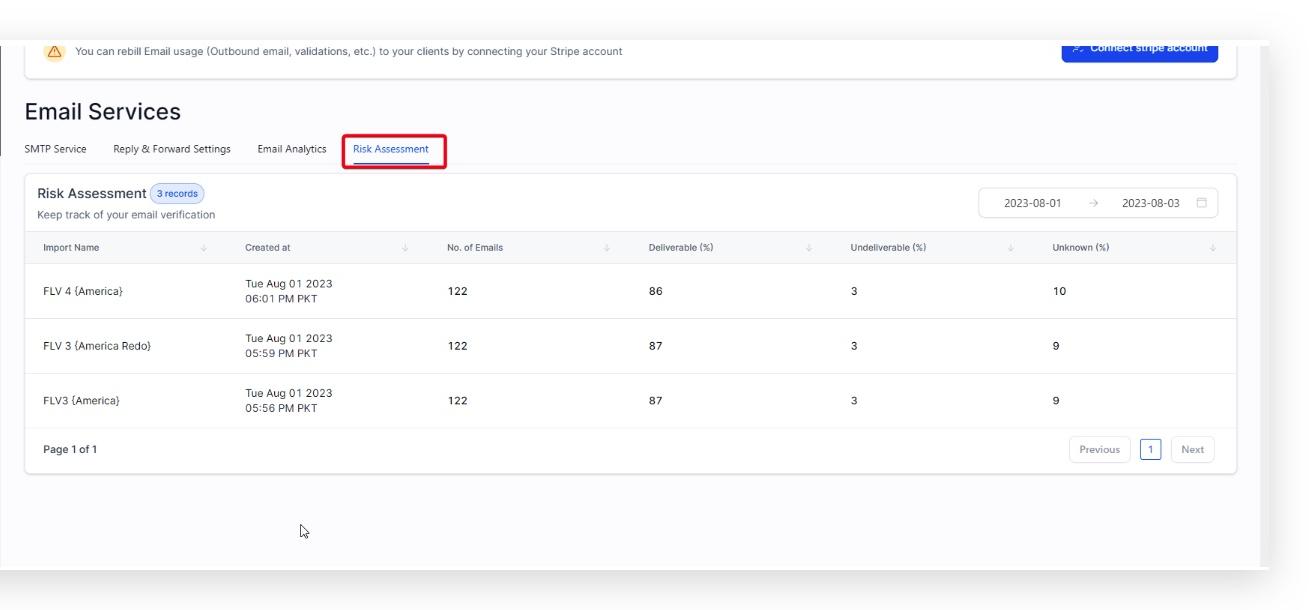
The tab shows each job's import name, creation date and time, number of emails, and the Deliverable, Undeliverable, and Unknown percentages. After receiving a report, remove or re-check the Undeliverable and Unknown addresses before running a campaign. Re-run verification for a batch if a large share came back Unknown, which often points to temporary server issues. Verify your list before any significant campaign, and use reliable collection sources and double opt-in to keep your deliverable percentage high. Note that some addresses marked Deliverable can still bounce later if the mailbox fills up, the server goes down, or the recipient marks you as spam.
Still landing in spam? Run these checks.
Emails land in spam when SPF, DKIM, or DMARC fail. The fastest way to confirm authentication status is to send a test email to a Gmail address and inspect the original message.
Step 1. Trigger a test send from your sending domain to any Gmail inbox you control.
Step 2. Open the message in Gmail, click the three vertical dots next to Reply, and select Show original. A new window displays the full headers. Verify that SPF, DKIM, and DMARC all show PASS.
An SPF fail in the header (SPF: FAIL) means the sending server is not authorized in the domain's SPF record.
A DMARC fail (DMARC: FAIL) means that even though SPF or DKIM may pass on their own, alignment with the From-address domain is broken.
If all three show PASS, the header is clean. Move on to the domain reputation check.
SPF or DKIM fail: Add the SPF and DKIM records provided for your sending domain to your DNS, then re-verify the domain in your Email Service settings. Allow up to 24 hours for DNS propagation before testing again.
DMARC fail, scenario 1 (sending domain and From-address domain differ): When the sending domain differs from the From-address domain and either has a DMARC policy of Reject or Quarantine, authentication fails. Send from the same domain as the From address, or set the DMARC policy to none (v=DMARC1; p=none;).
DMARC fail, scenario 2 (domains match but DMARC still fails): This usually means the DMARC record itself is misconfigured. Use Dmarcian to inspect the record, then update it on both the root and sending subdomains to v=DMARC1; p=none;.
If the header passes on all three but emails still hit spam, the issue is no longer authentication. Move to the reputation check.
Google Postmaster Tools is a free platform from Google that gives you visibility into how Gmail scores your domain and IP reputation, spam rate, and authentication success. If you have not connected it yet, it is a one-time setup:
Step 1. Go to postmaster.google.com and sign in with a Google account.
Step 2. Add the sending domain you use in Aesthetix CRM. The domain must already have SPF, DKIM, and DMARC configured correctly.
Step 3. Verify ownership by adding the TXT record Google provides to your domain's DNS settings.
Step 4. Give it a few days to start populating data, then view domain reputation, IP reputation, spam rate, and more directly from your account.
A new or low-volume sending domain needs a meaningful stretch of consistent sending before Postmaster Tools has enough data to show reliable numbers, so do not expect a complete picture in the first few days.
A bad or low reputation routes messages to spam regardless of authentication.
Step 1. Go to Settings > Email Service > Postmaster Tools > Google Postmaster Tool.
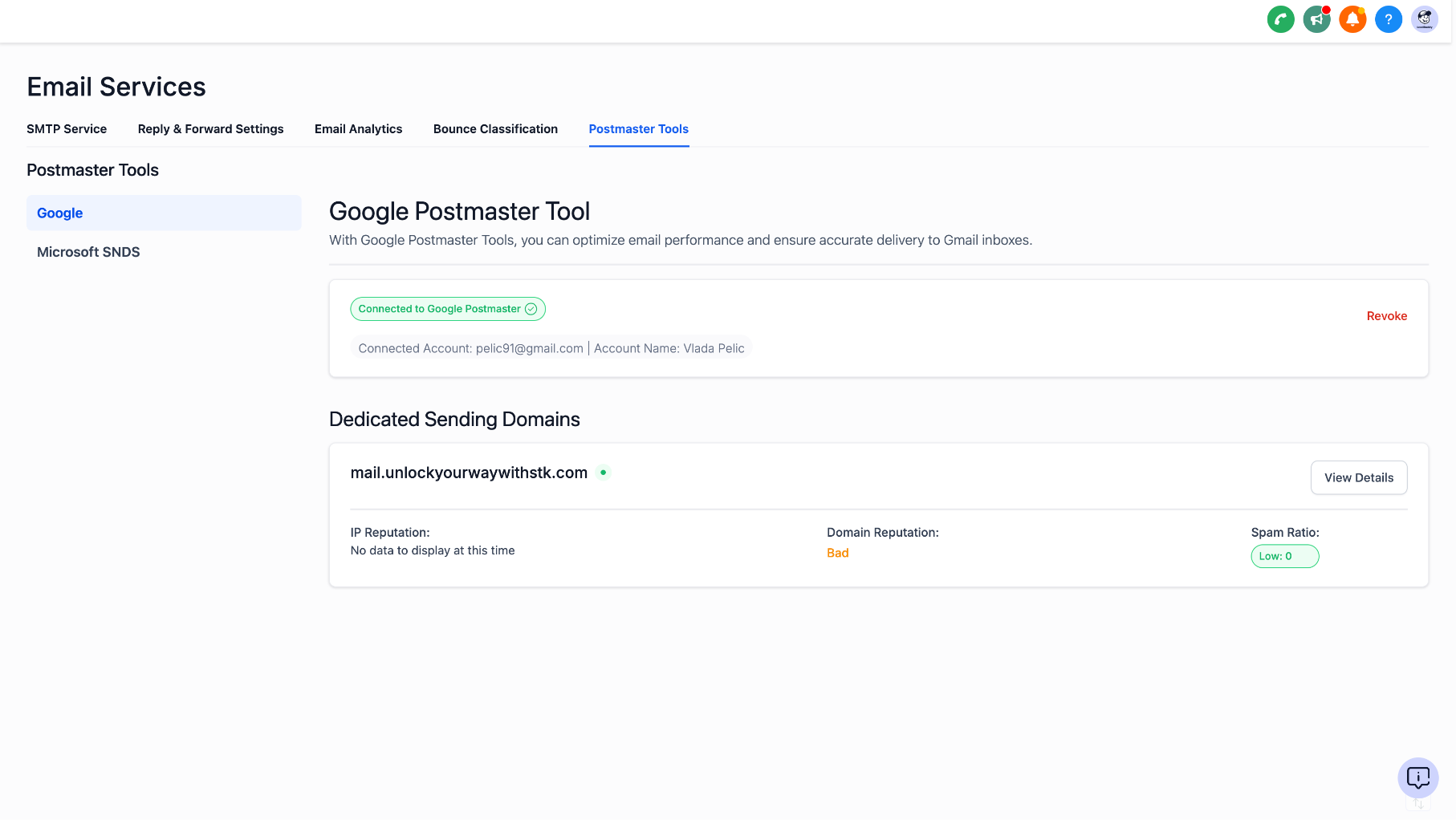
Step 2. Review the dashboard: domain reputation, IP reputation, spam rate, authentication results, and delivery errors. Look for anything in the Bad or Low category.
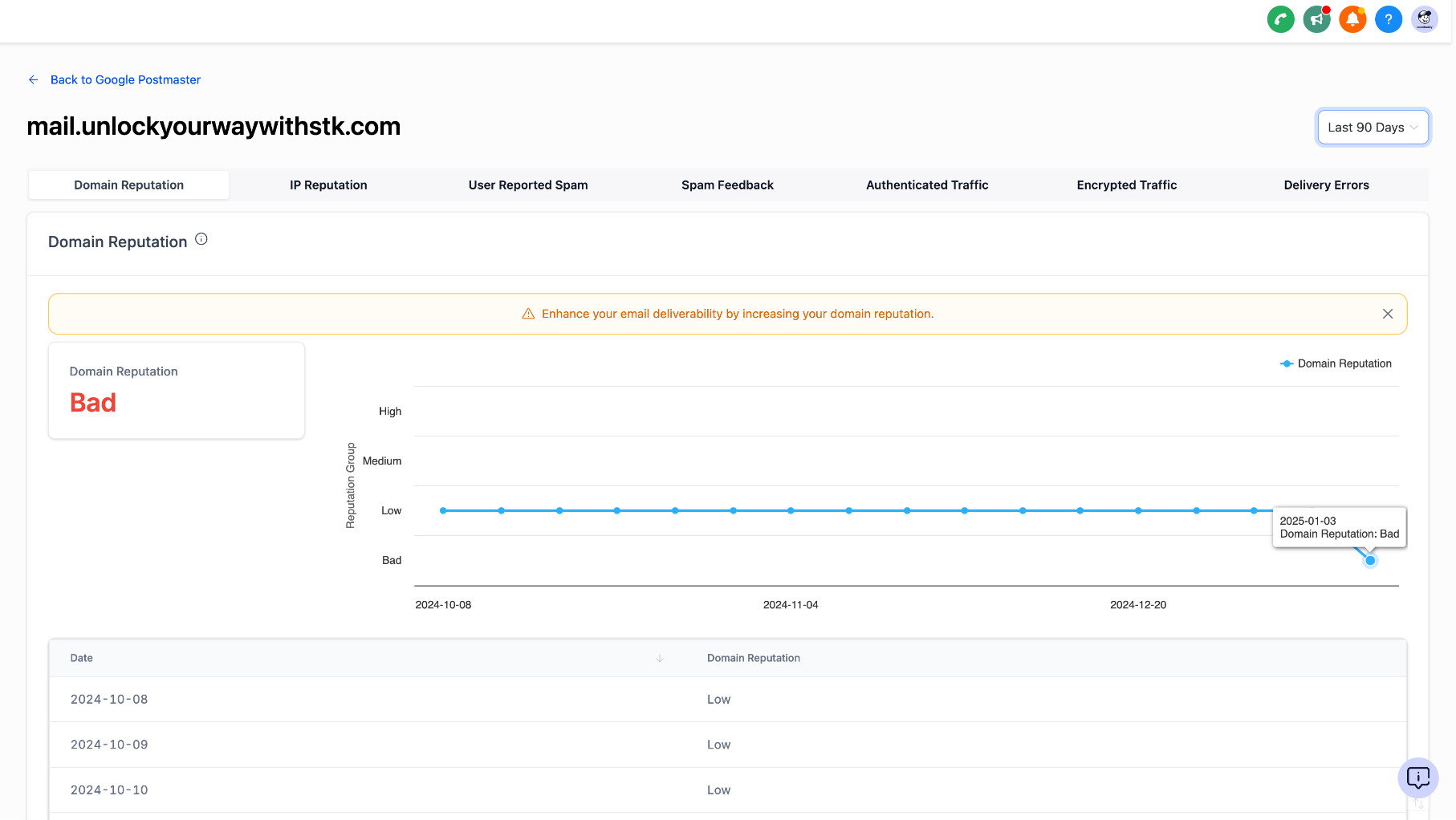
A frequent cause of a Bad reputation is recipients marking your emails as spam at an elevated rate, which is the single most damaging signal for sender reputation.
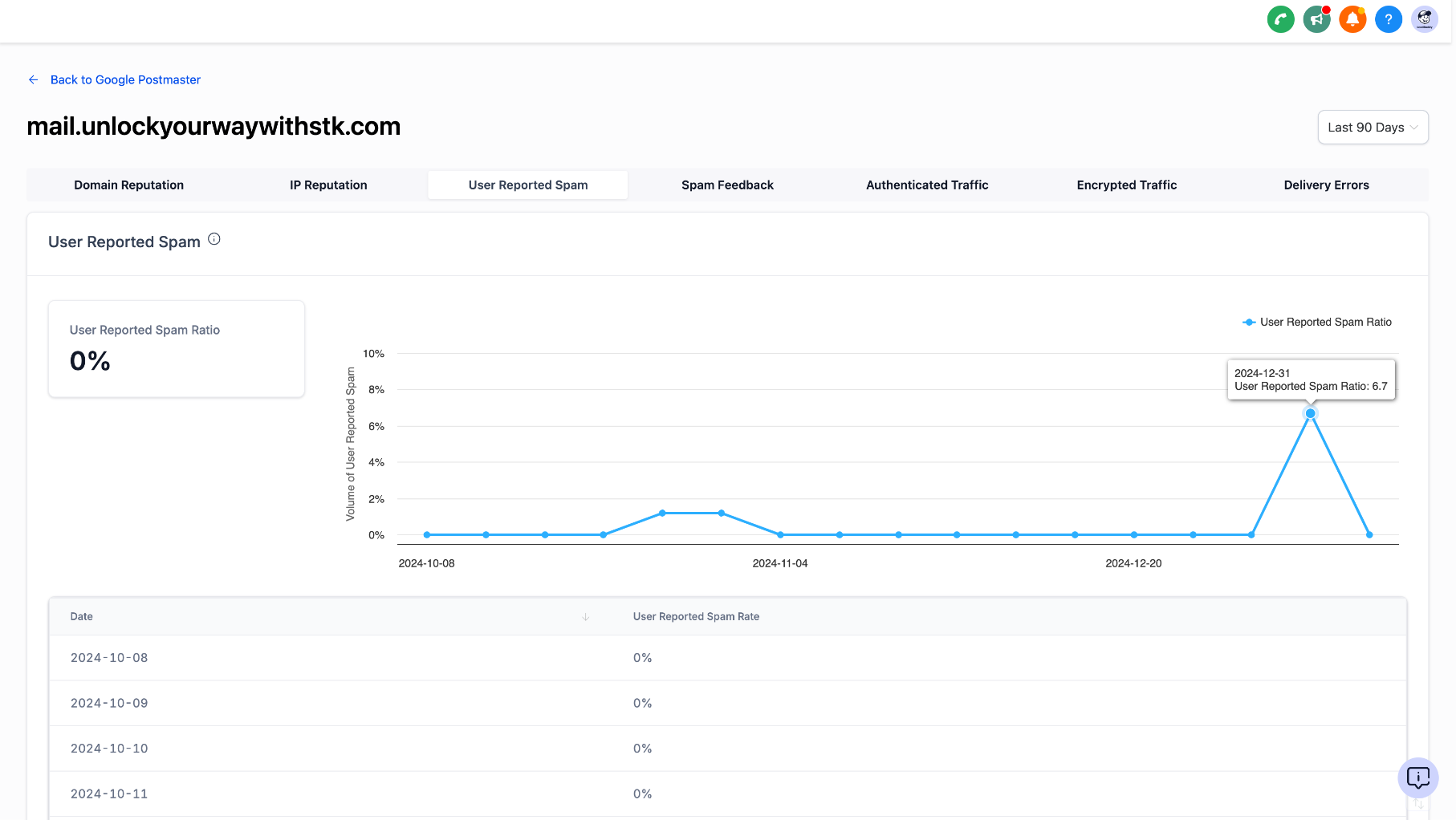
To recover: stop all cold email immediately (cold sends are the most common cause of complaints), warm up the domain following the warm-up best practices, send only to engaged recipients for several weeks while reputation recovers, and audit content for anything that invites complaints (misleading subject lines, missing unsubscribe link, frequency too high).
When Aesthetix CRM or a recipient server flags a specific problem, use the matching playbook below. Each bounce-message family points to a different root cause.
Your emails are being blocked or rejected because recipient servers, ISPs, or spam filters identified them as spam-like, unsolicited, or in violation of content policies. This can happen even with legitimate marketing when triggers appear in your content, sending patterns, or reputation.
Bounce messages you may see (white-labeled):
"The message was blocked because it was detected as spam or contained spam-like content."
"The message was rejected because it was flagged as spam or failed content filtering policies."
"The message was blocked because it was detected as spam or unsolicited by the recipient's provider."
"The message was rejected because it was flagged as spam or unsolicited by the recipient's server."
"The message was rejected as spam or for violating recipient security or content policies."
"Message rejected due to spam detection or blacklisted URLs."
"Recipient previously marked your emails as spam, so future messages are not delivered."
"The message was rejected because it was detected as spam by the recipient's content filters."
"Gmail blocked your IP for sending a high volume of unsolicited or spam-like emails."
Resolution:
Audit your content. In Marketing > Emails > Templates, examine subject lines and body for trigger words. Replace promotional language with value-focused messaging, and aim for roughly 60% text and 40% images. Test with Mail-Tester and send to Gmail, Outlook, and Yahoo to see where each lands.
Review lists and segmentation. In Contacts > Smart Lists, segment engaged versus unengaged contacts, remove anyone inactive for 90+ days, and confirm everyone has proper opt-in records. Run re-engagement campaigns and remove non-responders.
Optimize sending patterns. In Marketing > Emails > Campaigns, start with small batches (100 to 500) to your most engaged contacts and increase based on engagement. Use Campaigns > Schedule to spread sends throughout the day rather than blasting all at once.
Monitor external reputation. Check Sender Score (senderscore.org), confirm you are not blacklisted on MXToolbox, and review Talos Intelligence and Google Postmaster Tools weekly.
Success indicators: spam-test scores above 8 out of 10, test emails landing in the primary inbox, engagement improving within 2 to 3 campaigns, bounce rates falling, complaint rates below 0.1%, and no spam-related bounce messages.
Recovery timeline:
Days 1 to 7: content audit and list cleaning. Slight improvement in new campaigns.
Weeks 2 to 4: gradual volume increases and engagement-focused campaigns. Noticeable improvement in inbox placement.
Months 2 to 3: consistent high-quality sending and ongoing hygiene. Stable, optimal deliverability.
Provider blocks (ESP blocks) occur when major providers (Gmail, Yahoo, Outlook) reject your emails due to authentication failures, poor sender reputation, spam-like content, policy violations, or technical configuration problems. Unlike regular bounces, these blocks are calculated separately and trigger immediate restrictions to protect your long-term deliverability.
The block system escalates through three temporary blocks, with a warning email before each one:
Block Rate | Action | Duration | Level |
|---|---|---|---|
3% | Warning email sent | Immediate notification | Pre-block warning |
5% | Email sending suspended | 12 hours | 1st block |
3% (after 1st block) | Critical warning email sent | Immediate notification | Pre-2nd-block warning |
5% (after 1st block) | Email sending suspended | 24 hours | 2nd block |
3% (after 2nd block) | Final warning email sent | Immediate notification | Pre-3rd-block final warning |
5% (after 2nd block) | Permanent suspension | Permanent | 3rd block, final |
All blocks reset after 7 consecutive days of keeping your block rate below 1%. However, three blocks within any 7-day period lead to permanent suspension.
When your service is blocked, you will see this banner inside the affected sub-account: "Email sending is blocked due to a high number of spam blocks from email providers." This protects deliverability and prevents further reputation damage.
Permanent unblocking cannot be done automatically. Reach out to your account administrator, who reviews each request manually before lifting a permanent suspension to confirm the underlying issues are resolved.
What to do:
Use Bounce Classification to identify your specific block categories.
Fix the identified issues (authentication, reputation, content, technical configuration).
Monitor improvement through your analytics dashboard.
Verify fixes are working before resuming normal sending.
Within 24 hours of a warning, review your analytics, identify your top 3 block categories, and begin critical fixes. Within 48 hours of a block, complete technical fixes, clean lists, remove problematic content, and test delivery across major providers. Provider blocks are separate from regular bounces and require immediate attention.
Your sending IP has developed a poor reputation, causing emails to be blocked or rejected. Unlike domain reputation, IP reputation is tied to the specific infrastructure sending your mail. IP reputation issues are often more immediate than domain issues, because they can cause complete blocking rather than just spam placement, but they can also be restored more quickly.
Bounce messages you may see:
"The sending server's IP address is on a block list, causing the message to be rejected."
"The sending server's IP is blocked due to poor reputation or suspicious activity."
"The sending server's IP address is blocked or refused due to a history of abuse."
"The sending server's IP is blocked or blacklisted due to poor reputation or spam reports."
"The sending server's IP address has a poor reputation, causing the recipient to reject the message."
"The sending IP is listed on one or more DNS-based blacklists or reputation blocklists."
Shared IP (default, professionally managed): Aesthetix CRM maintains excellent IP reputation for shared-IP users with automatic load balancing, monitoring, and blacklist management, and no warm-up is required. If this is you (most users), you do not need to manage IP reputation. Focus instead on your domain reputation, list quality, content quality, engagement, and authentication.
Dedicated IP (for high-volume senders): A dedicated IP is assigned only to your account, giving you full control over reputation, built-in Microsoft SNDS monitoring, and advanced analytics. It is suited to consistent high-volume sending (roughly 150,000+ emails per month) and requires a proper warm-up.
Recovery, step by step:
Identify your IP setup. Go to Settings > Email Services and check for the Postmaster Tools tab and a Microsoft SNDS section. If you see SNDS data, you have a dedicated IP. If you see "IP not found in your account," you are on a shared IP (which is fine). To check the actual sending IP, send yourself a test email and view the source for Authentication-Results: spf=pass (sender IP is [IP]).
Assess reputation. Shared-IP users can stop here. Dedicated-IP users should review SNDS data in Settings > Email Services > Postmaster Tools (target complaint rate below 0.1%, trap hits at 0, authentication success above 95%) and check external tools: Sender Score (senderscore.org), Talos Intelligence (talosintelligence.com/reputation_center), Google Postmaster Tools (postmaster.google.com), and blacklist checkers (MXToolbox, Spamhaus, MultiRBL).
Take recovery actions. Shared-IP users: keep SPF, DKIM, and DMARC configured, maintain clean and engaged lists, send relevant content, and follow best practices. Dedicated-IP users: monitor SNDS, submit blacklist-removal requests where needed, and warm up the IP if necessary by starting with low volume to engaged contacts and increasing over 4 to 6 weeks.
Optimize sending practices. In Contacts > Smart Lists, separate unengaged contacts (no activity in 90+ days) from recent openers and clickers. Use double opt-in, maintain suppression lists, and in Settings > Email Services > Dedicated Domain and IP, verify your domain and keep authentication records current.
Interpret SNDS status as a traffic light: green means continue current practices, yellow means monitor closely and optimize, red means immediate action.
Recovery timeline. Shared IP: focus on domain reputation and list quality immediately, see improvement in 1 to 2 weeks, and reach stable performance within a month. Dedicated IP: address blacklist issues in days 1 to 7, monitor SNDS for gradual improvement over weeks 2 to 6, and reach full recovery in months 2 to 4. Remember: the shared infrastructure maintains IP reputation automatically, so focus on what you control, which is domain reputation, list quality, and content.
Your emails are being temporarily delayed or rejected because recipient servers are limiting how fast they accept messages from your domain or IP. This is a protective measure, usually temporary, that can affect legitimate senders when volume spikes or reputation drops.
Bounce messages you may see:
"The recipient's server is temporarily limiting or delaying incoming messages due to high volume or policy."
"The sending server is temporarily restricted due to high volume or low reputation."
"The recipient is receiving too many emails too quickly, so further messages are temporarily blocked."
"Yahoo is temporarily deferring messages due to high volume or user complaints."
"The recipient's mailbox has reached its hourly message receiving limit."
"The receiving server delayed or rejected the message due to too many delivery attempts."
Rate limits fall into three categories: volume-based throttling (too many emails too quickly, or sudden spikes), reputation-based restrictions (a low sender score, recent complaint or bounce increases, or a new domain with little history), and recipient-level limits (an individual mailbox or domain receiving cap). Each provider has different thresholds, and most rate limiting resolves within hours to days.
Resolution:
Implement batch sending. In Marketing > Campaigns > Create Campaign, select Email Campaign, then under Scheduling Options choose Batch Sending. Start with 50 to 100 emails per batch, spaced 2 to 4 hours apart. Pause existing high-volume campaigns and convert them to batches, prioritizing essential communications.
Monitor external reputation. Check Sender Score (senderscore.org); a score below 70 indicates reputation issues. Check blacklists on MXToolbox. Review Google Postmaster Tools (Gmail), Microsoft SNDS, and Yahoo Sender Hub.
Leverage automatic bounce handling. In Marketing > Email > Reports, review bounce rates and types; hard bounces are automatically marked invalid. In Contacts > All Contacts, filter by Invalid or Bounced to confirm they are excluded. Prioritize batch sending to your most engaged contacts first.
Verify domain authentication. In Settings > Email Services > Sending Domain, confirm SPF, DKIM, and DMARC show as verified. Add any missing DNS records and allow 24 to 48 hours for propagation.
Recovery timeline: switching to conservative batch sending brings immediate relief in 2 to 6 hours (target a 50% reduction in rate-limiting bounces), short-term stabilization over 1 to 3 days (80%+ delivery to engaged segments), and full recovery in 1 to 2 weeks (under 2% rate-limiting bounces). If issues persist, reduce batches to 25 to 50 emails with longer intervals, segment by provider (Gmail, Yahoo, Outlook separately), review content, and avoid peak sending times when providers are most restrictive.
Your emails are rejected because they do not meet the technical formatting standards in RFC 5322, the specification governing email format. These rejections happen when headers, sender addresses, or message structure violate the protocol, causing receiving servers to refuse delivery outright.
Bounce messages you may see:
"The email was rejected because the From header or domain does not meet required technical standards."
"The message was rejected due to protocol or formatting issues, causing the connection to be refused."
"The message was rejected due to a mail loop or excessive hops, violating email transmission standards."
"The sender address or message format does not meet email standards or is not accepted by the recipient server."
"The email does not meet required formatting or header standards, such as a missing or invalid From header or disallowed characters."
"The sender address format does not comply with email standards (RFC 5321/5322)."
Common violations include header issues (missing or malformed From header, invalid characters, improper date formatting, excessive Received headers), address-format problems (special characters not encoded, missing angle brackets, invalid domain formatting, improper display names), and message-structure issues (mail loops causing excessive hops, line lengths over 998 characters, missing message boundaries).
Resolution:
Audit all sender configurations. Check sender fields everywhere mail originates: Marketing > Email > Campaigns (the From Name and From Email on each email step), Automation > Workflows (each Send Email action), and Contacts > Bulk Actions (sender name and email). Standardize sender information: use only alphanumeric characters, spaces, and basic punctuation in sender names; remove quotes, brackets, and symbols; keep display names under 64 characters; verify addresses follow [email protected] format; ensure addresses are authenticated; and confirm reply-to addresses are valid.
Validate template structure. In Marketing > Emails > Templates, confirm line lengths do not exceed 998 characters and test templates across different email clients.
Use external validation. Send a test to Mail-Tester.com and address flagged violations, paste headers from a delivered message into the MXToolbox Email Header Analyzer, and use an online RFC 5322 validator before importing contacts.
Recovery timeline: correcting sender formatting reduces rejections within 1 to 2 hours, template fixes take 2 to 4 hours, and comprehensive testing across campaigns, workflows, and bulk actions confirms consistent delivery within 1 to 2 days.
Your email gets trapped in an endless routing cycle between mail servers, creating an infinite delivery-attempt loop. Servers detect the pattern and reject the message to prevent overload. This blocks delivery and can damage your reputation if not resolved quickly. Mail loops occur when forwarding rules, MX configurations, or automated responses create circular routing.
Bounce message you may see: "The message was rejected because it was caught in a routing loop between mail servers" (or references to "too many hops").
Common causes:
Forwarding loops: Email A forwards to B, which forwards back to A; catch-all addresses that forward to themselves; multiple rules creating circular references; auto-responders replying to automated messages.
DNS and MX issues: Duplicate or conflicting MX entries, incorrect priority ordering, misconfigured routing, or DNS propagation conflicts.
Workflow loops: Workflows triggering each other in circular patterns, email-based triggers creating infinite responses, or conversation forwarding conflicts.
Resolution:
Immediate diagnosis. In Settings > Email Services > Dedicated Domains and IP, check for warnings or incomplete setup and verify authentication status. Review recent changes to forwarding rules, workflows, or conversation email integration. In Marketing > Emails > Reports, look for patterns in bounce messages and identify affected domains.
External diagnostics. Use MXToolbox, DNSChecker.org, WhatsmyDNS.net, and IntoDNS.com for MX and DNS analysis. From bounced emails, collect complete headers, examine all "Received:" lines for the routing path, and note repeated server names. Analyze headers with the MXToolbox Email Header Analyzer, Google Admin Toolbox Message Header, or Microsoft Message Header Analyzer.
Configuration review. In Settings > Email Services > Dedicated Domain & IP > [Your Domain] > Authentication, verify the SPF record and ensure the DMARC policy is not causing rejection and re-routing. In Automation > Workflows, look for workflows triggering each other or creating reply loops. Check auto-responder settings in Marketing > Emails > Templates, and review Conversations > Settings > Email Integration for forwarding conflicts.
External infrastructure. In your domain registrar or hosting panel, remove circular forwarding rules and disable catch-all settings that forward to themselves. Disable auto-responders that reply to automated messages. Clean up MX records: remove duplicates and conflicts, set proper priority ordering (lower numbers are higher priority), confirm all records point to valid servers, and wait 24 to 48 hours for propagation.
If standard fixes do not work, consider removing and re-adding your domain in Settings > Email Services > Sending Domains to reset cached routing (ensure DNS is correct first), then test with small volume. Pause affected campaigns and document bounce messages and headers while you work.
Recovery timeline: in the first 24 hours, pause affected campaigns, document evidence, identify the root cause, and remove circular forwarding. Over 1 to 3 days, allow DNS propagation and cache clearing. Over 3 to 7 days, run small-scale tests, increase volume gradually, and confirm no recurrence. You will know it is resolved when bounce rates return below 2%, "too many hops" errors disappear, delivery times return to under 5 minutes for most providers, and previously affected domains accept your mail again.
When several problems happen simultaneously, they compound: each issue makes the others worse. Recovery requires addressing them in the correct priority order, because some fixes must be completed before others take effect, and partial fixes can worsen overall reputation. This usually appears as a mix of recipient rate limits, low domain reputation, spam-like content, missing PTR records, and DMARC or authentication failures.
Address issues in this priority order:
Infrastructure (highest priority): Missing or incorrect PTR records, DMARC failures, SPF and DKIM misconfigurations.
Reputation (high priority): Low domain reputation, IP reputation problems, recipient rate limiting from complaints.
Content (medium priority): Spam-like patterns, trigger words, poor text-to-image ratios.
Step-by-step:
Infrastructure foundation (Week 1), complete ALL before moving on. In Settings > Email Services > Sending Domain & IP, verify all DNS records show "Verified"; update any that are Pending or Failed and wait 24 to 48 hours for propagation. Have your hosting provider or IT administrator set up a PTR record for your sending IP and verify it with MXToolbox. Add a DMARC record to your DNS (for example, v=DMARC1; p=quarantine; rua=mailto:[email protected]) and monitor DMARC reports. Success looks like all records verified, PTR resolving, passing DMARC, and no more authentication-failure bounces.
Content optimization (Week 2). In Marketing > Email Templates, review active templates for trigger words, remove excessive capitalization and exclamation marks, and aim for roughly 80% text and 20% images. Score templates with Mail-Tester.com and target above 8 out of 10.
Reputation recovery (Weeks 3 to 8). Start with 50 to 100 emails per day to your most engaged contacts, increasing by 25% weekly only if delivery rates improve. Monitor Sender Score (senderscore.org), Talos Intelligence, and MXToolbox blacklists.
List hygiene and re-engagement (ongoing). In Contacts > Smart Lists, segment by engagement and send initial campaigns to highly engaged contacts only. Remove or suppress contacts with multiple bounces or complaints, and implement double opt-in for new subscribers.
Recovery timeline: infrastructure fixes in Weeks 1 to 2 (all records verified), content cleanup and limited testing in Weeks 3 to 4 (Mail-Tester above 8/10), reputation building in Weeks 5 to 12 (Sender Score above 80, delivery above 95%), and full recovery in Weeks 13 to 16 (sustained 98%+ delivery).
Monitoring during recovery: for the first 4 weeks, check bounce rates, delivery stats, bounce-reason changes, and complaints daily. Weekly, track Sender Score, blacklist status, and DMARC report success rates.
Stop sending immediately if you see: bounce rates above 5% for two consecutive days, new blacklist listings, complaint rates above 0.1%, a Sender Score dropping below its current level, or major providers implementing temporary deferrals.
If you see this error when sending to Gmail recipients, Gmail has temporarily limited mail from your sending IP due to unusual sending behavior:
4.7.28 Gmail has detected an unusual rate of unsolicited mail originating from your IP
This is not a permanent block or blacklist. The 4.x.x code means Gmail is deferring (not rejecting) your mail. Once your sending behavior improves, Gmail usually removes the restriction automatically, with no delisting request required.
Why it happens: a sudden increase in volume (especially to Gmail addresses), sending from a new or recently warmed IP, campaigns to inactive or unengaged contacts, workflows sending too frequently, higher-than-normal complaints or low engagement, or authentication problems (SPF, DKIM, DMARC misalignment). Even legitimate senders can trigger it if volume increases too quickly.
How to fix:
Reduce volume to Gmail. Temporarily lower the number of emails sent to @gmail.com and @googlemail.com addresses, and increase volume gradually instead of sending large bursts.
Send only to engaged contacts. Focus on users who recently opened or interacted, and avoid old, inactive, or purchased lists.
Review automations. Check for workflows sending repeatedly or too frequently, and pause or adjust any campaign that caused a spike.
Recovery time: Gmail usually lifts the limit within 24 to 72 hours once sending stabilizes. Continued good practices restore normal delivery faster.
Situation | Immediate action | Next step |
|---|---|---|
Bounce rate above 2% | Pause campaigns. Export and suppress all bounced addresses. | Run the list through email verification. Resume with engaged contacts only. |
Spam complaint rate above 0.1% | Pause all campaigns. Suppress all complainants immediately. | Audit the opt-in flow. Rewrite content and subject lines. Add a prominent unsubscribe. |
Open rate below 15% | Stop sending to the full list. Identify the active segment (opened in 60 days). | Run a re-engagement campaign. Remove non-responders. A/B test subject lines. |
All three metrics poor | Stop all sending. Audit your entire list and consent records. | Start fresh with a verified, consented list. Warm up volume gradually. |
To recover a high bounce rate specifically: stop full-list sends, permanently suppress everyone who bounced, verify the remaining list, suppress anyone who has not opened in 90 days, resume with your most engaged segment (opened in the last 30 days), and expand only after bounce rate returns below 2%. Never re-send to hard-bounced addresses; they are suppressed automatically, and re-adding them signals poor list hygiene.
To recover a high complaint rate: pause all bulk campaigns, identify the worst-offending segments, suppress everyone who complained, review your opt-in flow, soften aggressive content and subject lines, add a visible one-click unsubscribe, resume only to recent openers, and monitor complaint rate daily until it returns below 0.1%.
To recover a low open rate: do not send to the full list; identify contacts who opened in the last 60 days, send a re-engagement campaign to inactive contacts (for example, "Are you still interested in hearing from us? Click here to stay subscribed."), remove non-responders, A/B test 2 to 3 subject lines on a small segment, review frequency, and expand once open rate recovers above 15%.
Only email contacts who explicitly opted in. This reduces bounces and complaints.
Send a welcome email immediately after sign-up to set expectations and build recognition.
Clean your list every 90 days to remove dead and inactive addresses (every 6 to 12 months at the absolute minimum).
Include a visible, working unsubscribe link in every email.
Verify email addresses before importing large lists to prevent hard-bounce spikes.
Never re-add suppressed or hard-bounced addresses.
Use a dedicated, branded sending domain to build your own reputation over time.
Set up SPF, DKIM, and DMARC records.
Segment your audience and send relevant content.
Monitor your metrics after every campaign so you catch problems early.
What is the difference between Delivered and Deliverability?
Delivered means the message reached the recipient's mail server somewhere (inbox, spam, or promotions). Deliverability means inbox placement specifically: the percentage of mail that lands in the primary inbox versus other folders.
Where can I see my Deliverability rate?
You cannot see it directly, because providers do not report inbox placement. Monitor delivery rate, open rate, spam complaint rate, and Postmaster Tools data (Google Postmaster, Microsoft SNDS) together as a strong proxy.
What counts as a good delivery rate?
98% or higher. Anything lower signals list-hygiene problems, authentication issues, or reputation damage worth investigating.
What is the single most important stat to watch?
Complaint rate, closely followed by bounce rate. Both directly and quickly damage sender reputation and can trigger account-level action. Opens and clicks fluctuate; complaints and bounces compound.
My authentication is correct, so why are my emails still going to spam?
Authentication is necessary but not sufficient. Check engagement metrics, content quality, list hygiene, and sending consistency, and confirm your domain is not on a blacklist via MXToolbox.
How long does it take to recover from being marked as spam?
Typically 4 to 8 weeks of consistent good sending. Slow down volume, send only to engaged subscribers, and focus on content that invites replies and clicks. There is no shortcut.
What does "Delivery in Progress" mean in the email detail view?
It means the email soft-bounced and the system is actively retrying. This is not a failure. The email shows in Sent status during this time. Do not resend manually. Wait for it to resolve to Delivered or Failed.
What is the difference between a hard bounce and a soft bounce?
A hard bounce is a permanent failure (bad, nonexistent, or closed address); no retry is attempted. A soft bounce is temporary (server unavailable, mailbox full, message too large); retries happen automatically. If an address soft-bounces repeatedly across campaigns, treat it as a hard bounce and remove it.
Why does my open rate keep jumping around since iOS 15?
Apple Mail Privacy Protection pre-fetches images, which triggers opens automatically whether or not the recipient read anything. If a large share of your audience uses Apple Mail, your open rate is inflated. Pair it with click and reply rates, or focus on the trend.
Unsubscribe or complaint: which is worse?
Complaints are worse, by a lot. Unsubscribes do not damage reputation; they just remove an uninterested contact. Always give people an easy unsubscribe so they do not reach for the spam button instead.
Can I recover a damaged sender reputation?
Yes, but it takes time. Suppress problematic contacts, re-engage only your warmest audience, and rebuild volume gradually while keeping authentication perfect. Significant recovery typically takes 4 to 8 weeks.
How often should I clean my list?
Every 90 days is ideal, and every 6 to 12 months is the minimum. Remove unengaged subscribers (no opens or clicks in 90+ days) and hard bounces.
Does a low open rate affect deliverability?
Yes. Providers track engagement, and consistently ignored mail gets routed toward spam or promotions over time.
Can a permanent provider suspension be reversed?
Not automatically. Reach out to your account administrator, who reviews each request manually before lifting a permanent suspension to confirm the underlying issues are resolved.
How is a provider block different from a regular bounce?
Provider blocks are calculated separately from regular bounces and have their own escalating block system tied to reputation, authentication, and policy. Regular bounces (invalid addresses, full mailboxes) are handled differently.
Do I need to set up Google Postmaster Tools myself?
Yes, it is a self-serve Google product. Sign in at postmaster.google.com, add your sending domain, and verify ownership with the TXT record Google provides. Once connected, you can also view the same data inside Aesthetix CRM under Settings > Email Service > Postmaster Tools.
