To send reliable, HIPAA compliant email from Aesthetix CRM, your sending domain needs the right DNS records in place: SPF, DKIM, MX, a tracking CNAME, and DMARC. These records authenticate your messages so that inbox providers like Gmail, Outlook, and Yahoo trust them instead of rejecting them or routing them to spam.
In most cases you do not need to set any of this up yourself. Aesthetix CRM typically configures your dedicated sending domain and all required DNS records during onboarding. Your main responsibility is to provide our team with access to your DNS provider so we can add the records for you. Some clients prefer to add the records themselves, so this guide also includes the full self serve steps, the record values to use, and how to fix authentication errors if they come up.
When you onboard, our team sets up a dedicated sending subdomain (for example, mail.yourdomain.com) and adds the DNS records that authenticate your email. To do this we need access to wherever your domain's DNS is managed.
What we need from you:
Access to your DNS provider or domain registrar (for example, GoDaddy, Cloudflare, Namecheap), or delegated access so our team can add records on your behalf.
Confirmation of which domain you want to send email from.
Once we have access, we add the SPF, DKIM, MX, CNAME (tracking), and DMARC records, then verify the domain inside your account. After DNS propagates, your sending domain shows as "Verified" and your email system is fully functional.
If you would rather add the records yourself, follow the self serve steps below and then notify your Onboarding Manager so we can verify and finalize setup.
These three protocols work together to prove your email is legitimate and not spoofed.
SPF (Sender Policy Framework): Verifies which servers are authorized to send email from your domain.
DKIM (DomainKeys Identified Mail): Adds a digital signature to verify email authenticity.
DMARC (Domain-based Message Authentication, Reporting and Conformance): Tells recipient servers what to do when SPF or DKIM checks fail, and combines both methods into a single policy.
Domain Alignment: Your "From" address must match your authenticated sending domain.
DMARC is free to use and helps prevent email fraud like phishing. It lets the domain owner specify how unauthorized use of their domain should be handled through a policy value (p=).
Starting in February 2024, Gmail and Yahoo require proper email authentication (DKIM and DMARC). Without it, emails can silently land in spam, get rejected by major providers, and damage your sender reputation. We strongly recommend that every sending domain has DKIM and DMARC set up.
Policy | What it does |
|---|---|
p=none | Monitors your email traffic. No further action is taken on failing mail. |
p=quarantine | Sends unauthorized (failing) emails to the spam folder. |
p=reject | Rejects all failing emails outright. This is the strongest policy and the ultimate goal of DMARC. |
A basic DMARC record looks like this:
v=DMARC1; p=none;If you are adding the records yourself, this section walks through adding each record to a common DNS host so you can send HIPAA compliant email from your subdomain through Aesthetix CRM. You will add the records your account generates for your domain. Step by step provider guides are available for GoDaddy, Cloudflare, Namecheap, Google Domains, and DigitalOcean.
Go to Settings → Email Services → Sending Domain.
Click Add Domain and enter your domain name (for example, yourdomain.com).
Your account will display the required DNS records. Copy the SPF, DKIM, MX, CNAME, and DMARC records provided and keep this page open for reference.
Log into your domain registrar or DNS hosting provider and open the DNS management or DNS zone editor. Add each record below. Because you are sending from a subdomain, the hostnames use your sending subdomain (for example, mail.yourdomain.com). With some providers you only enter the subdomain portion (for example, just mail). You can leave TTL at the default.
TXT Records (SPF and DKIM): These are required to send and receive email. You will add two separate TXT records.
Add a TXT record with the hostname mail.yourdomain.com and the SPF value provided. Clicking Add Record saves your first DNS entry. An SPF value typically looks like v=spf1 include:mailgun.org ~all.
Add a second TXT record for DKIM with the hostname mx._domainkey.mail.yourdomain.com and the DKIM public key provided. (Some providers, such as Cloudflare, display only the subdomain portion.)
MX Records: Add two separate MX records the same way you added the TXT records. The hostname is mail.yourdomain.com, and the priority should be 10.
CNAME Record (Tracking URL): Add a CNAME record with the hostname email.mail.yourdomain.com and the value provided. The CNAME record enables open and click tracking and is highly recommended so you gain full insight into your email performance.
DMARC Record: Add a TXT record with the hostname _dmarc (or _dmarc.yourdomain.com) and a starting value of v=DMARC1; p=none;.
Every DNS host's dashboard looks a little different, but the record types you're adding (TXT, MX, CNAME) are the same everywhere. If you would like provider-specific click-by-click instructions, these hosts publish their own guides for adding DNS records: GoDaddy, Cloudflare, Namecheap, Google Domains, AWS Route 53, Bluehost, HostGator, Hostinger, Hover, InMotion Hosting, Squarespace, and Hostwinds.
Don't see your provider listed? Search "[your provider name] add DNS records" in your provider's help center. The steps for adding TXT, MX, and CNAME records are similar across all major registrars.
When you believe all DNS records have been added, send an email confirmation to your Onboarding Manager. Our team will verify the records were added properly and finalize email setup in your account. If you have questions at any point, email [email protected] or your Onboarding Manager.
If you already send email through a domain configured directly with Mailgun (outside of Aesthetix CRM) and want all of that sending to route through your Aesthetix CRM account instead, you can migrate the domain over. The process is simple: remove the domain from Mailgun, then add the same domain inside Aesthetix CRM as your dedicated sending domain.
Your existing DNS records (SPF TXT, DKIM TXT, MX, and CNAME) can usually stay exactly as they are. Aesthetix CRM's email system runs on the same underlying infrastructure Mailgun uses, so the records you already added typically remain valid after the migration.
Log in to your Mailgun account and go to Sending → Domain Settings.
In the top-right dropdown, confirm the domain you want to migrate is selected.
Scroll to the bottom of the page and click Delete, then confirm the deletion.
Deleting a domain from Mailgun is permanent. Any API keys or SMTP credentials scoped specifically to that domain stop working immediately, and email logs stored in the Mailgun dashboard become inaccessible once the domain is deleted. Make sure you are no longer sending through Mailgun directly before you proceed. Your domain's sending reputation with inbox providers like Gmail and Outlook is not affected: that reputation lives with the recipient mail servers, not with Mailgun.
Go to Settings → Email Services → Sending Domain → Add Domain.
Enter the same domain name you just deleted from Mailgun and click Add & Verify.
Aesthetix CRM displays the DNS records it needs confirmed. Click Verify DNS Settings. Because your existing records typically already point at the same infrastructure, most or all of them show a green checkmark right away.
Once every record shows verified, send a test email to confirm everything is working.
If any record does not verify automatically, follow the self serve steps above to correct it, or reach out to your Onboarding Manager for help.
Wix DNS does not support the configurations required for advanced email delivery. Specifically, it does not allow multiple MX records for subdomains, which blocks the records needed for HIPAA compliant email in Aesthetix CRM. If your domain is currently managed through Wix, it must be moved to a DNS provider that supports these records. We recommend GoDaddy because it is reliable, widely used, and fully supports the records required for secure, compliant email.
Our team will guide you through the transfer and handle the technical setup. To get started, we need the following:
Grant full admin access in Wix. Make sure our team has full admin access to your Wix account so we can view and manage your domain settings.
Create a GoDaddy account. Create the account and add a valid payment method, then share delegate access with full permissions (including the ability to purchase domains) to [email protected].
Prioritize the transfer. Domain transfers can take up to seven days to complete. Completing these steps promptly helps minimize delays and reduces the risk of downtime.
What to expect during the transfer:
Temporary website downtime. Once the DNS transfer is initiated, you may experience brief website downtime. Our team will reapply your existing DNS records in GoDaddy to restore your website and connected services as quickly as possible.
Email configuration. After the transfer completes, we add all required DNS records for HIPAA compliant email so your email system is fully functional.
For additional reference, Wix and GoDaddy both publish guides on transferring a domain away from Wix and transferring a domain to GoDaddy. If you have questions at any point, reach out to our team.
If you have more than one dedicated sending domain, you can control which domain handles which kind of email, split volume across domains, and set a default domain for anything that is not explicitly assigned. This is useful once your practice is sending a higher volume of email and wants to separate marketing sends from transactional and manual sends.
Go to Settings → Email Services → Sending Domain → Domain Configuration. This one panel holds the per-type domain assignments, frequency splits, and default domain setting.
You can assign a specific validated sending domain to each of the following email categories:
Workflows: automated emails sent from workflow actions.
Email Campaigns: bulk marketing campaigns and newsletters.
Bulk Action Emails: emails sent in bulk from a contact list or smart list.
Manual 1-to-1 Emails: individual emails sent from a contact record or conversation.
Separating these can help protect deliverability. For example, sending high volume marketing campaigns from a different domain than the one your front desk uses for one-to-one patient replies keeps a deliverability issue on one domain from affecting the other.
If you have added more than one domain, frequency settings let you split sending volume across them by percentage instead of routing everything through a single domain. This is recommended mainly for high-volume senders who want to prioritize domains with stronger deliverability, or who want to spread load across domains rather than relying on one. Your percentage allocations across all assigned domains must add up to 100%.
The default sending domain is used for any email sending action that is not specifically assigned to another domain under Domain Configuration. Always designate a default domain before launching campaigns. Doing so ensures no email ever goes out from an unvalidated domain, even if a specific assignment was missed during setup.
If your emails are being rejected, it is usually because your domain failed an authentication check required by recipient servers. When SPF, DKIM, or DMARC fails or is missing, providers like Gmail, Outlook, and Yahoo reject your messages to protect their users.
"The sender's domain failed DMARC authentication, which is required by the recipient's server"
"Message rejected due to failing DMARC authentication or related sender policy checks"
"Email rejected due to failed or missing SPF or DMARC authentication for the sending domain"
"The sender domain lacks proper SPF authentication, causing delivery to be blocked"
"The sender's domain failed DKIM authentication, not meeting recipient's authentication standards"
"The From header domain does not align with authenticated SPF or DKIM domains"
"Sender was not authenticated, so delivery to the group was blocked by recipient policy"
"The sending server failed authentication checks or lacks valid security certificates"
SPF failures:
Missing SPF record in DNS
Too many DNS lookups in the SPF record (exceeds the limit of 10)
DKIM failures:
DKIM keys not published in DNS
Mismatched DKIM signatures
DMARC failures:
No DMARC policy published
DMARC policy set to "reject" without proper SPF/DKIM setup
Domain alignment issues between the From address and the authenticated domain
Step 1: Confirm your dedicated domain. In Settings → Email Services → Sending Domain, confirm your domain is added and that the system has generated your SPF, DKIM, MX, CNAME, and DMARC records.
Step 2: Add or correct the DNS records. Log into your DNS provider and verify each record exists and matches what your account shows:
SPF: TXT record, Name/Host @ (or blank for the root domain), value copied from your account.
DKIM: TXT record using the DKIM selector provided, value is the DKIM public key.
MX: MX record using the MX selector provided, value copied from your account.
CNAME (tracking): CNAME record using the CNAME selector provided, value copied from your account.
DMARC: TXT record, Name/Host _dmarc, value starting with v=DMARC1; p=none;.
Step 3: Verify the setup. Return to Settings → Email Services → Sending Domain and click Verify Domain. Wait for all checks to show "Verified." You can also confirm with external tools: MXToolbox SPF/DKIM/DMARC lookups, Mail-Tester.com for a full analysis, or by sending a test email to Gmail/Outlook and checking the headers.
Step 4: Align your From addresses. Update every "From" email address to use your authenticated domain (for example, change [email protected] to [email protected]). Review existing campaigns and automations, update their From addresses, and send a test to confirm authentication passes.
Your account shows "Verified" status for the domain.
DNS lookup tools confirm your records are live.
Authentication test emails pass SPF/DKIM/DMARC checks.
Bounce rates decrease significantly within 24 to 48 hours.
Aesthetix CRM proactively checks your email configuration before you send a campaign, so deliverability problems are caught before they hurt your sender reputation. There are three validation cases.
Error: "No DMARC record found for this domain. Please try a different email."
This means your "From" email domain has no DMARC record in DNS. For example, your sending domain inbox.yourdomain.com is authenticated, but your From email [email protected] points at yourdomain.com, which has no DMARC record.
Permanent solution (1 to 2 hours): Add a DMARC record to your main domain's DNS.
Field | Value |
|---|---|
Record Type | TXT |
Name/Host | _dmarc.yourdomain.com |
Value | v=DMARC1; p=none; rua=mailto:[email protected] |
TTL | 3600 (or default) |
Quick fix (5 minutes): Change your From email to match your authenticated sending domain, for example from [email protected] to [email protected].
Error: "Invalid DMARC record format detected for the Sender Email's domain. Please use a different email."
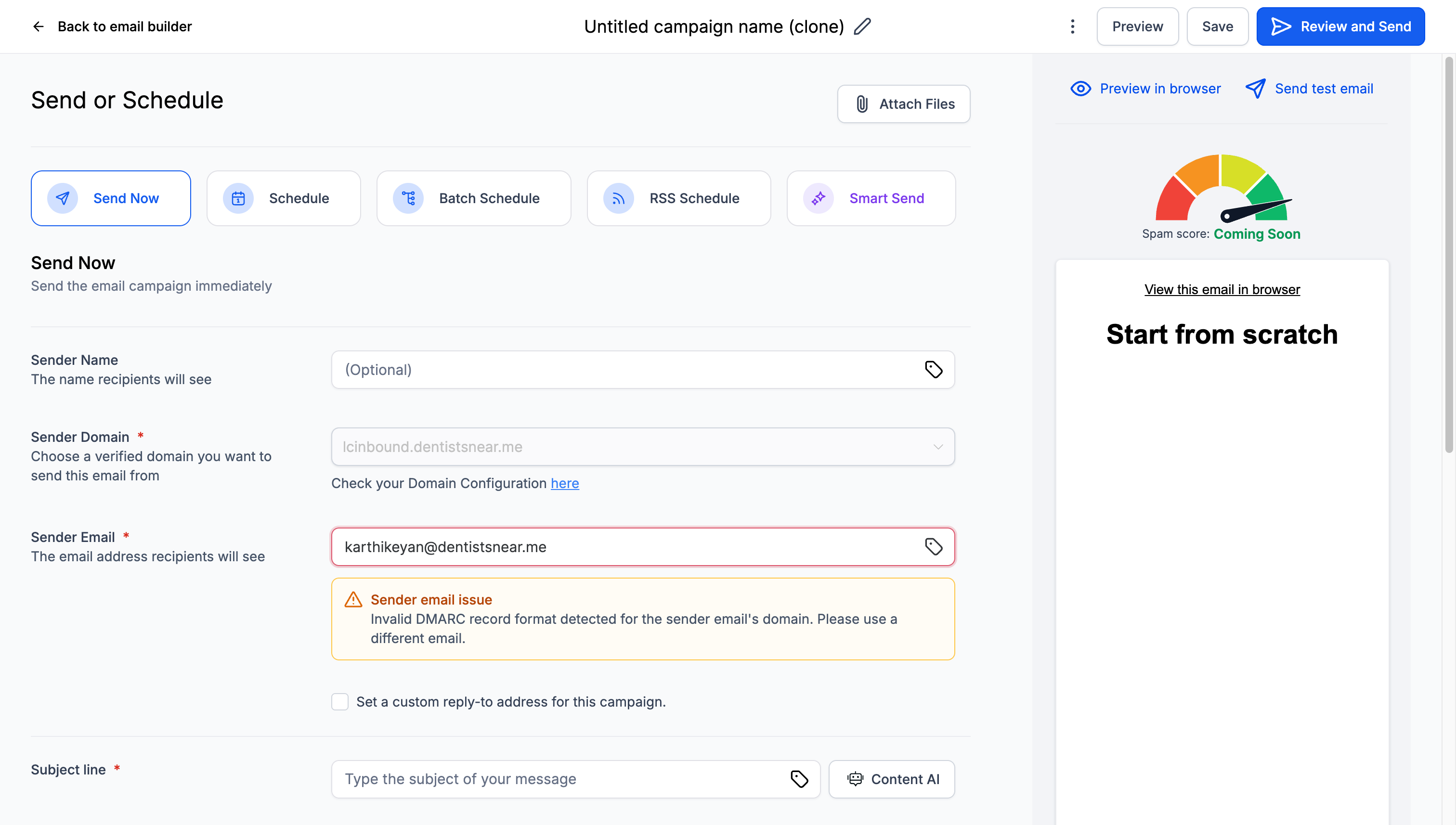
This means your domain has a DMARC record, but it contains syntax errors. Common invalid examples include a wrong version (v=DMARC2), an invalid policy (p=invalid), missing semicolons (v=DMARC1 p=none), or a wrong email format ([email protected], which is missing mailto:).
Issue | Wrong | Correct |
|---|---|---|
Version | v=DMARC2 or v=dmarc1 | v=DMARC1 |
Policy | p=invalid or p=block | p=none, p=quarantine, p=reject |
Syntax | v=DMARC1 p=none (no semicolon) | v=DMARC1; p=none; |
Email format | rua=mailto:[email protected] |
A corrected record looks like this:
_dmarc.yourdomain.com TXT "v=DMARC1; p=none; rua=mailto:[email protected]"Error: "The sender email's domain doesn't match the selected sender domain. Please try a different email."
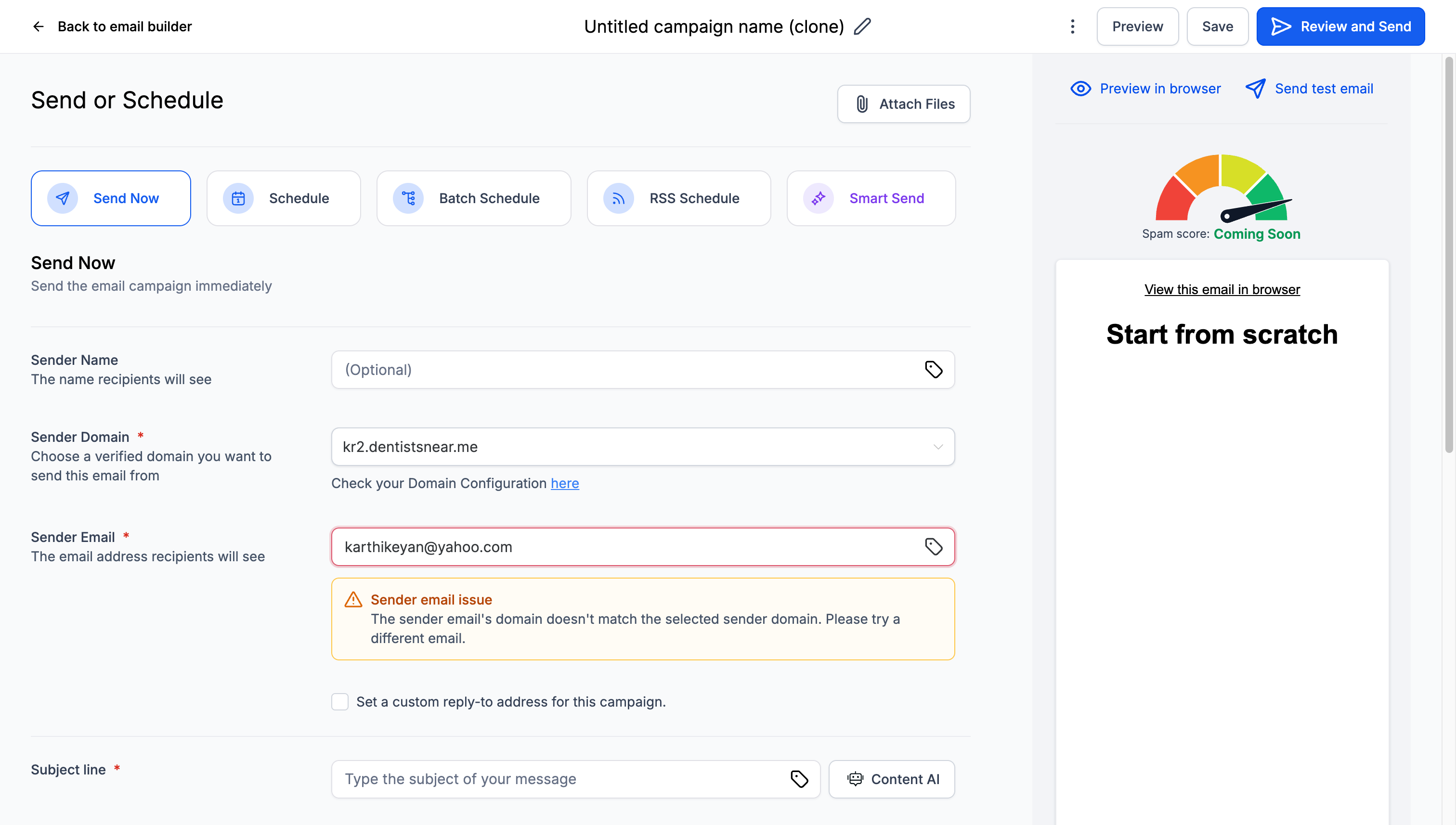
This means your "From" email uses a different domain than your selected sending domain. For example, your sending domain is inbox.yourdomain.com but your From email is [email protected].
Option 1 (immediate): Update your From email to match your sending domain, for example [email protected].
Option 2: Select your own authenticated domain as the sender domain, use a matching email address, and make sure that domain has proper SPF, DKIM, and DMARC setup.
Option 3 (subdomain strategy): Use aligned subdomains, for example sending domain mail.yourdomain.com and From email [email protected], which maintains brand consistency.
A DMARC record lives in a TXT-type DNS entry named _dmarc and is made up of tags assigned values separated by semicolons. For help building one, a DMARC generator tool such as the dmarcian record wizard is recommended.
Key tags:
v (Version): Default DMARC1. Denotes the protocol version. Must always be DMARC1. If missing or incorrect, the entire record is ignored.
p (Policy): Default none. Action for emails failing DMARC checks: none (collect feedback only), quarantine (route to spam), reject (reject outright).
adkim (DKIM Alignment Mode): Default r. r (relaxed) allows DKIM domains sharing a common organizational domain to pass; s (strict) requires an exact match between the DKIM and header-From domains.
aspf (SPF Alignment Mode): Default r. Same as adkim but for SPF.
sp (Sub-domain Policy): Default is the p= value. Lets you publish a separate policy for subdomains under this record.
fo (Forensic Reporting Options): Default 0. 0 reports if all mechanisms fail to produce a pass; 1 reports if any mechanism fails; d reports on DKIM failure; s reports on SPF failure.
ruf (URI for Forensic Reports): Default none. Where to send forensic reports, in the form mailto:[email protected].
rua (URI for XML Feedback): Default none. Where to send aggregate XML feedback reports, in the form mailto:[email protected].
rf (Reporting Format for Forensic Reports): Default afrf. The format for individual forensic reports.
pct (Percentage): Default 100. Percentage of failing email the policy applies to. Only applies when the policy is quarantine or reject.
ri (Reporting Interval): Default 86400. How often aggregate XML reports are sent.
How DMARC works:
Authentication: Receiving servers check SPF or DKIM. Domain alignment validates whether the SPF domain (Return-Path) or DKIM domain (d=) aligns with the "From" domain in the header. The server then extracts and enforces the DMARC policy from the "From" domain's DNS record.
Alignment modes: Relaxed (r) allows subdomains; strict (s) requires exact matching of SPF/DKIM domains with the "From" domain.
Reporting: Aggregate reports (via rua) include periodic pass/fail results. Forensic reports (via ruf) are detailed failure reports, though many providers avoid sending them due to sensitive information. The reporting interval (ri) sets the frequency.
Example configurations:
SPF passes and aligns with the "From" domain:
v=DMARC1; p=none; aspf=r;

DKIM passes and aligns with the "From" domain:
v=DMARC1; p=none; adkim=s;

Both SPF and DKIM fail:
v=DMARC1; p=reject;

Aggregate reports every 24 hours:
v=DMARC1; p=none; rua=mailto:[email protected]; ri=86400;

Forensic reports every 7 days:
v=DMARC1; p=none; ruf=mailto:[email protected]; ri=604800;

Quarantine 50% of traffic for testing:
v=DMARC1; p=quarantine; pct=50;

Full enforcement:
v=DMARC1; p=reject;Phase | Timeframe | What happens |
|---|---|---|
DNS propagation | 2 to 48 hours | Records propagate globally; your account and external tools confirm them. Some providers propagate in 1 to 4 hours. |
Authentication recognition | 1 to 7 days | Email providers recognize your setup; bounce rates and authentication rejections drop. |
Reputation building | 2 to 4 weeks | Consistent authenticated sending builds positive reputation and improves inbox placement. |
Use these free tools to check and monitor your records:
MXToolbox.com: SPF, DKIM, and DMARC record lookup and validation.
DMARC Analyzer: Free DMARC record checker and policy validator.
Mail-Tester.com: Comprehensive email authentication testing.
Google Admin Toolbox: Dig tool for DNS record verification.
Command line: nslookup -type=txt _dmarc.yourdomain.com
To set up DMARC reporting, add a reporting address to your record (rua=mailto:[email protected]), set up forwarding for those reports, and review them weekly for authentication failures.
Multiple SPF records: Only one SPF record is allowed per domain.
Immediate reject policy: Start with p=none for monitoring before tightening to quarantine or reject.
Missing include statements: Make sure your SPF record includes all of your sending services.
Subdomain confusion: Match your From domain exactly with your authenticated domain.
DNS syntax errors: Extra spaces or quotes can break authentication.
Does Aesthetix CRM set up my DNS records for me? Yes. In most cases our team configures your dedicated sending domain and all required DNS records during onboarding. You mainly need to provide access to your DNS provider.
Can I add the records myself instead? Yes. Follow the self serve steps in this guide, then notify your Onboarding Manager so we can verify the records and finalize setup.
Why does my domain need to move off Wix? Wix DNS does not allow the multiple MX records on a subdomain that HIPAA compliant email requires. The domain must move to a provider like GoDaddy that supports these records.
Can I disable the sender validation check? No. This validation protects your deliverability. It does, however, offer multiple quick fix options when an issue is found.
Will validation affect my existing campaigns? Only new campaigns are validated. Existing scheduled campaigns continue as planned.
Can I use a Gmail or Yahoo address as my "From" address? Not recommended. Use your authenticated domain for better deliverability and to pass validation.
How long does DNS propagation take? Typically 24 to 48 hours, though some providers are faster (1 to 4 hours).
What if I can't access my DNS settings? Contact your IT team or domain registrar, or grant access to our team. As a temporary workaround, you can align your From email with your authenticated sending domain.
My emails fail because my company domain has a p=reject policy. What do I do?
If you are sending without a dedicated sending domain and your domain has a p=reject or p=quarantine policy, failing messages will not reach the inbox. To keep messages delivering, temporarily change your DMARC policy to p=none with your DNS provider. A relaxed policy is not recommended long term, so make this change temporary and configure a dedicated sending domain.
I added my DMARC record but still see alerts. Why? This is usually DNS propagation delay. Wait 24 to 48 hours for full propagation, then re-verify. Also confirm there are no duplicate or conflicting SPF/DKIM records and no syntax errors.
I already send email through Mailgun directly. Can I migrate that domain to Aesthetix CRM? Yes. Delete the domain from your Mailgun account, then add the same domain in Aesthetix CRM as your dedicated sending domain. Your existing SPF, DKIM, MX, and CNAME records usually do not need to change since Aesthetix CRM's email system runs on the same underlying infrastructure.
Can I use different sending domains for campaigns, workflows, and manual emails? Yes. Once you have more than one dedicated sending domain, use Domain Configuration to assign specific domains to Workflows, Email Campaigns, Bulk Action Emails, and Manual 1-to-1 emails, and to set a default domain for anything unassigned.
My DNS provider isn't listed anywhere in this guide. What do I do? The record types (TXT, MX, CNAME) work the same across every provider. Search "[your provider name] add DNS records" in your provider's help center, or contact your Onboarding Manager for help.
