These recipes turn your social comment sections into lead-capture engines. Each one combines a social comment trigger with an interactive-messenger or reply action so that, the moment someone comments on a post, Aesthetix CRM responds for you publicly, privately, or both. Use them as starting points and adjust the keywords, copy, and branches to fit your med spa.
Every recipe follows the same shape: a goal, the trigger that starts the workflow, the action or actions that respond, the step-by-step setup, and a med-spa example. For the full list of trigger filters and action options, see the Social & Ad Event Triggers and Social & WhatsApp Messaging Actions reference guides.
Goal: When someone comments a keyword on a Facebook post (for example, "price" on a promo), auto-reply in the comment thread and slide into their DMs with an interactive message.
Trigger: Facebook Comment(s) On A Post Actions: Reply In Comments, then Facebook Interactive Messenger (DM)
Go to Automation > Workflows and create a new workflow (or open an existing one) to reach the Workflow Builder canvas.
Click + Add Trigger and choose Facebook Comment(s) On A Post.
In the filters, set Page Is to your business page, choose a Post Type (Published Post to pick from a list, or Custom Post to paste a URL), then select the Post. If you leave the post unset, the workflow watches every post on the connected page.
Add a Contains Phrase or Exact Match filter for the keyword you want to catch, such as "price" or "book."
Leave Track First Level Comments Only on if you only want to respond to top-level comments and ignore nested replies.
Click + on the canvas and add Actions > Communication > Reply In Comments. Write up to ten reply variations (the system picks one at random) and toggle Like Comments on if you want to like the original comment too.
Add a second action, Facebook Interactive Messenger, and set the Reply Type to Reply to Comment via DM so the conversation moves to a private message.
Compose the DM body, add buttons or quick replies for next steps, and configure the wait time and default timeout branch (covered in detail under Instagram below, since the setup is identical).
Click Save, then Publish, and test by commenting the keyword on the post yourself.
For replies that adapt to each comment instead of pulling from a fixed list, add an AI action before the reply.
Use the same Facebook Comment(s) On A Post trigger, set to fire on first-level comments.
Add a Workflow AI action and choose a Custom action type. Write a short prompt asking for a friendly, on-brand response, and insert the Facebook Comment body custom value so the AI sees what the person wrote.
Add the Reply In Comments action and, in the comment field, pull in the AI response from the previous step using the custom value picker.
Add a second Workflow AI action to run sentiment analysis on the original comment, then split the workflow into positive and negative paths.
On the positive path, add a Facebook Interactive Messenger action to send the DM, so only happy commenters get the follow-up.
Med-spa example: A client comments "Tell me more" on your Botox special. The AI writes a warm, specific public reply, confirms the comment is positive, and only then DMs them your new-patient offer and a "Book a consult" button.
Goal: When a follower comments on an Instagram post, reply publicly and send a private DM with buttons that route them to your site or deliver a resource.
Trigger: Instagram Comment(s) On A Post Actions: Reply In Comments, then Instagram Interactive Messenger (DM)
In the Workflow Builder, click + Add Trigger and choose Instagram Comment(s) On A Post.
Set Page Is to your account, pick the Post Type (Published or Custom), and select the Post you want to watch.
Add a Contains Phrase or Exact Match filter for your keyword. Contains Phrase fires when the comment includes your text anywhere; Exact Match fires only when the whole comment matches.
Decide whether to enable Track First Level Comments Only so you skip nested replies.
When a comment passes the filters, the commenter is saved as a contact with their first and last name.
Add a Reply In Comments action first if you want a quick public acknowledgment ("Just sent you a DM!").
Click + and add Actions > Communication > Instagram Interactive Messenger.
In Action Name, give the step a clear label like "IG DM - Send Price List Prompt."
Set the Reply Type to Reply to Comment via DM (the trigger was a comment) or Reply to DM (if you are responding to an incoming message).
Optionally pull a saved Template (Snippet) to keep tone consistent across campaigns.
In Message > Body, write the DM. Use Custom Values for personalization and Trigger Links to track clicks or route users to a URL. Keep it short: one hook, one clear call to action.
To attach a file (a guide or checklist), use Add Attachment or Add file through URL. Note that quick replies cannot be added in the same message as an attachment, so send the attachment in a later action if you need both.
Add interactive controls, choosing one type per message:
Buttons stay visible after a tap and are best for durable actions like "Book Call" or "Visit Site."
Quick Replies disappear after one tap and are best for short questions like "Pricing / Demo / Tour."
Each button or quick reply automatically creates a workflow branch. Inside each branch, add follow-up actions such as another DM, a tag, a pipeline update, or another workflow.
Set the Wait Step, which is how long the workflow pauses for the user to respond. The default is one minute; lengthen it for slower campaigns. If no one responds in time, the contact moves to the Default Timeout branch, where you can send a reminder, apply a "No Response" tag, or end the conversation gracefully.
Click Save and Publish, then test by commenting the keyword and confirming the DM, buttons, and branch actions all behave as expected.
Med-spa example: Someone comments "price" on your microneedling promo. The workflow replies "Check your DMs!" publicly, then DMs them your treatment menu with two buttons: "See full price list" (a Trigger Link to your site) and "Book a consult" (which tags them and starts your booking sequence).
Goal: Route TikTok comments and DMs into your CRM Inbox and let workflows reply automatically, publicly in the comments or privately by DM.
TikTok comments and DMs sync to your Conversations Inbox in real time, alongside SMS, email, and your other channels, with full message history saved on each contact record. Before building, connect your account under Settings > Integrations > TikTok.
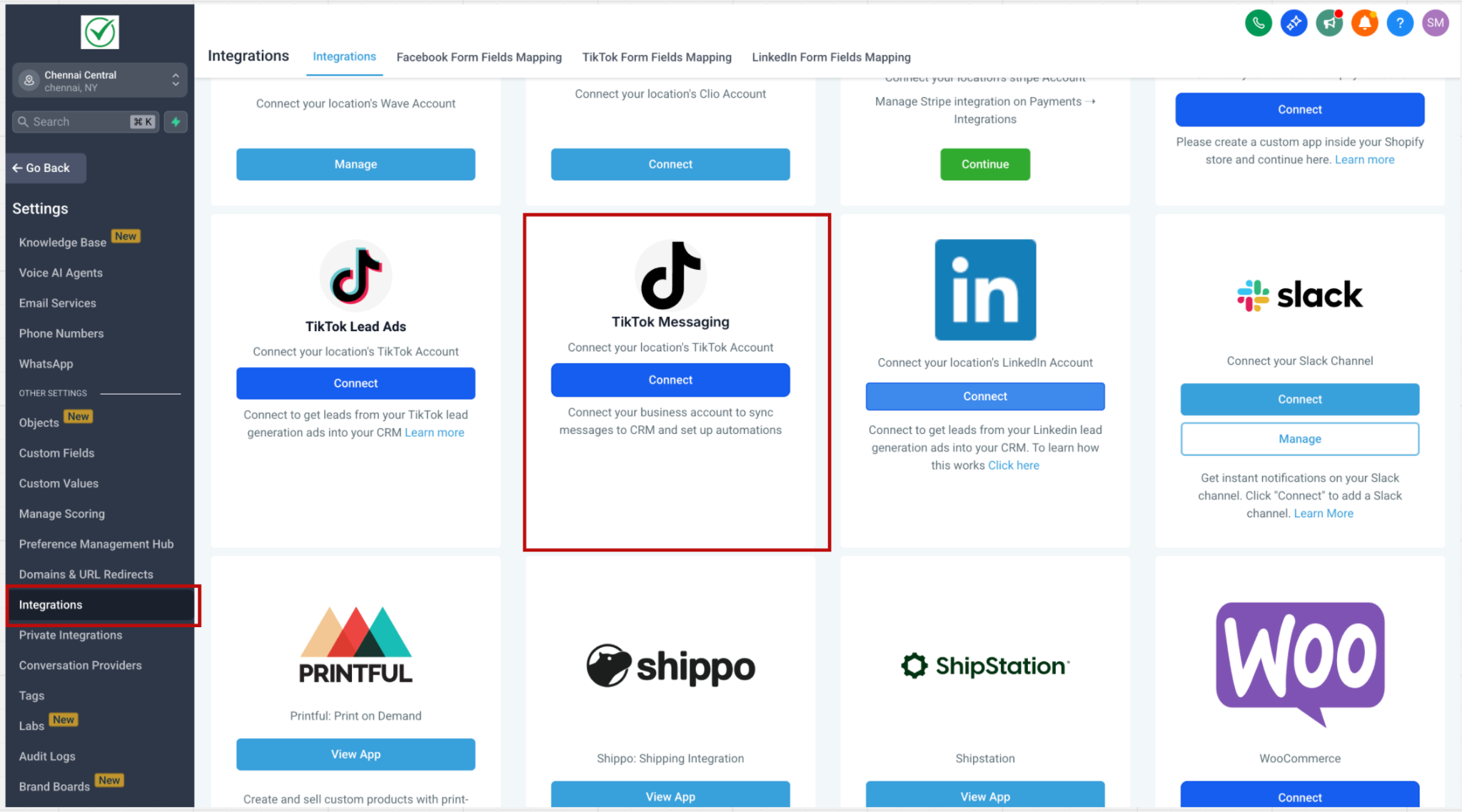
Availability: TikTok Messaging & Comment Automation is currently available only for business accounts registered in the United States. It is not yet available in the European Economic Area, Switzerland, or the United Kingdom, due to TikTok API restrictions.
In the Workflow Builder, click + Add New Trigger and select TikTok - Comment(s) on a Post.
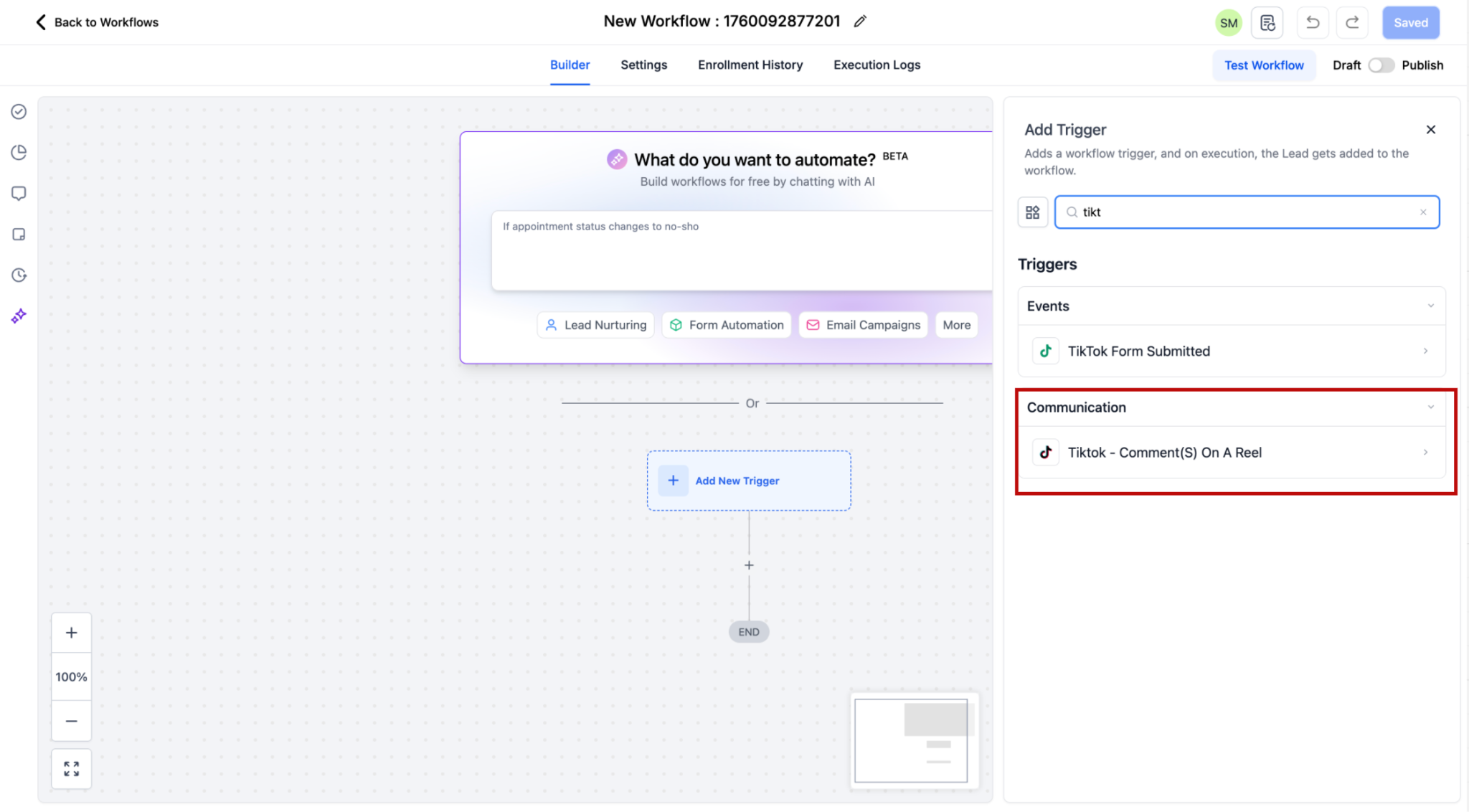
In the sidebar filters, select the Account. If you leave it unset, the workflow runs across every TikTok account connected at the sub-account level.
Choose the Post Type: Published Post lists all posts on your business account in a dropdown, while Custom Post lets you target a single post by URL. If no specific post is selected, the trigger watches all posts on the connected account.
Select the post, or paste its URL, to run the automation on.
Set the Match Phrase. Exact Match fires only when the comment matches your text exactly ("Price" matches "Price" but not "Please share the Price"). Contains Phrase fires when your text appears as a whole phrase ("I bought from you" matches "I bought from you yesterday" but not "I bought one from you").
When a comment passes the trigger, the commenter is saved as a contact with their first and last name.
Add the Reply in Comments action to the workflow.
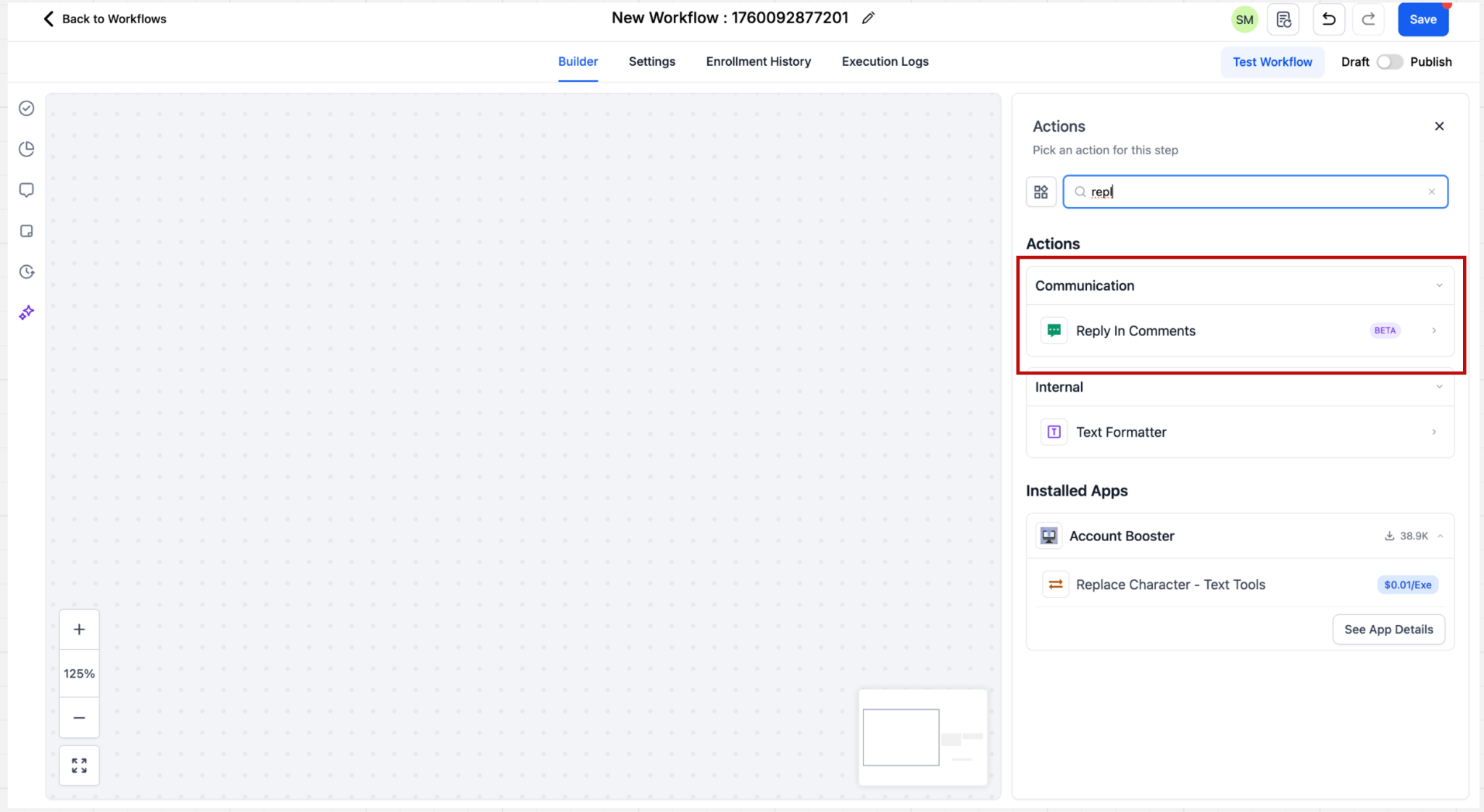
Configure up to ten reply comments. One is chosen at random each time the action runs.
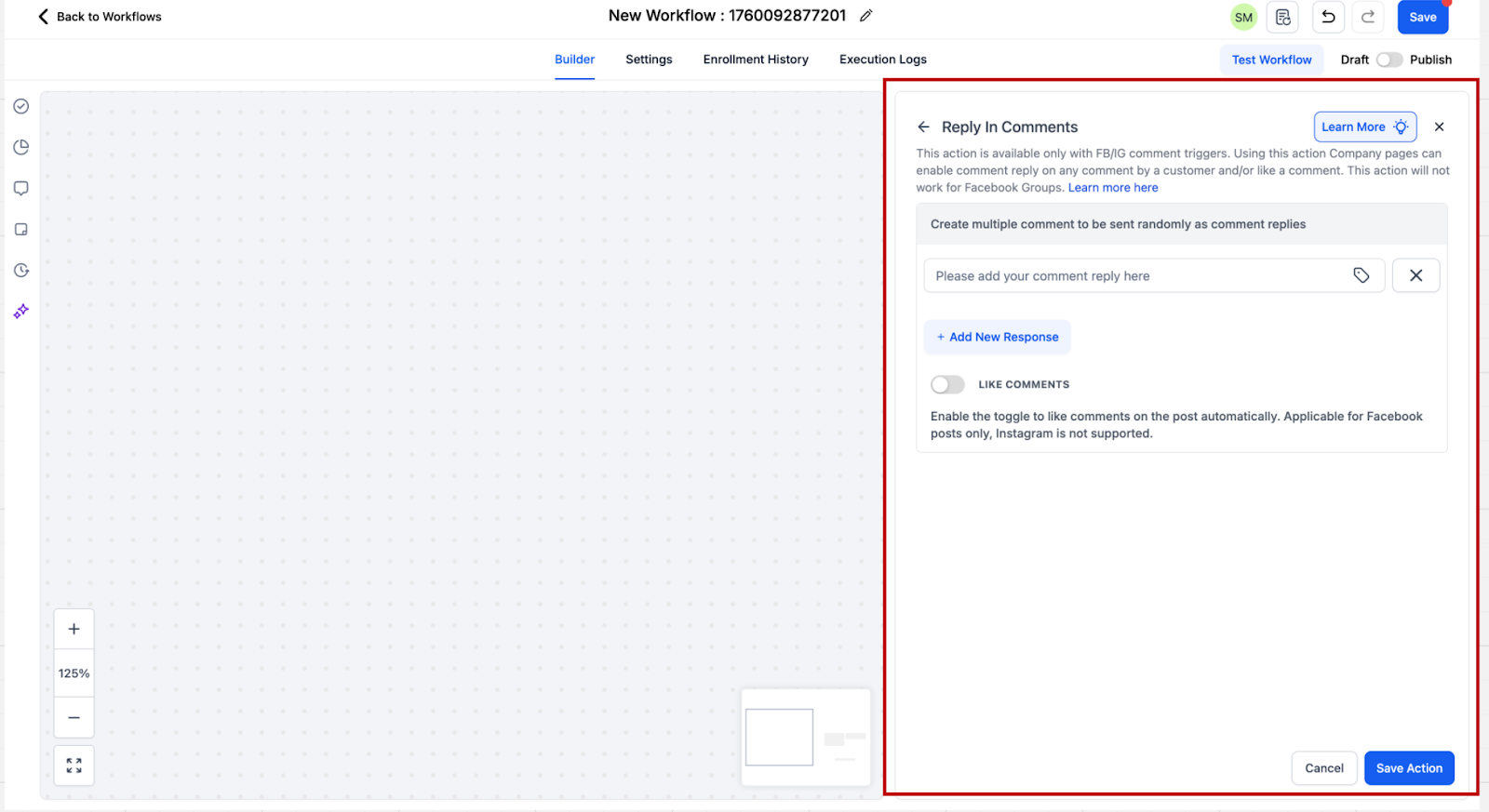
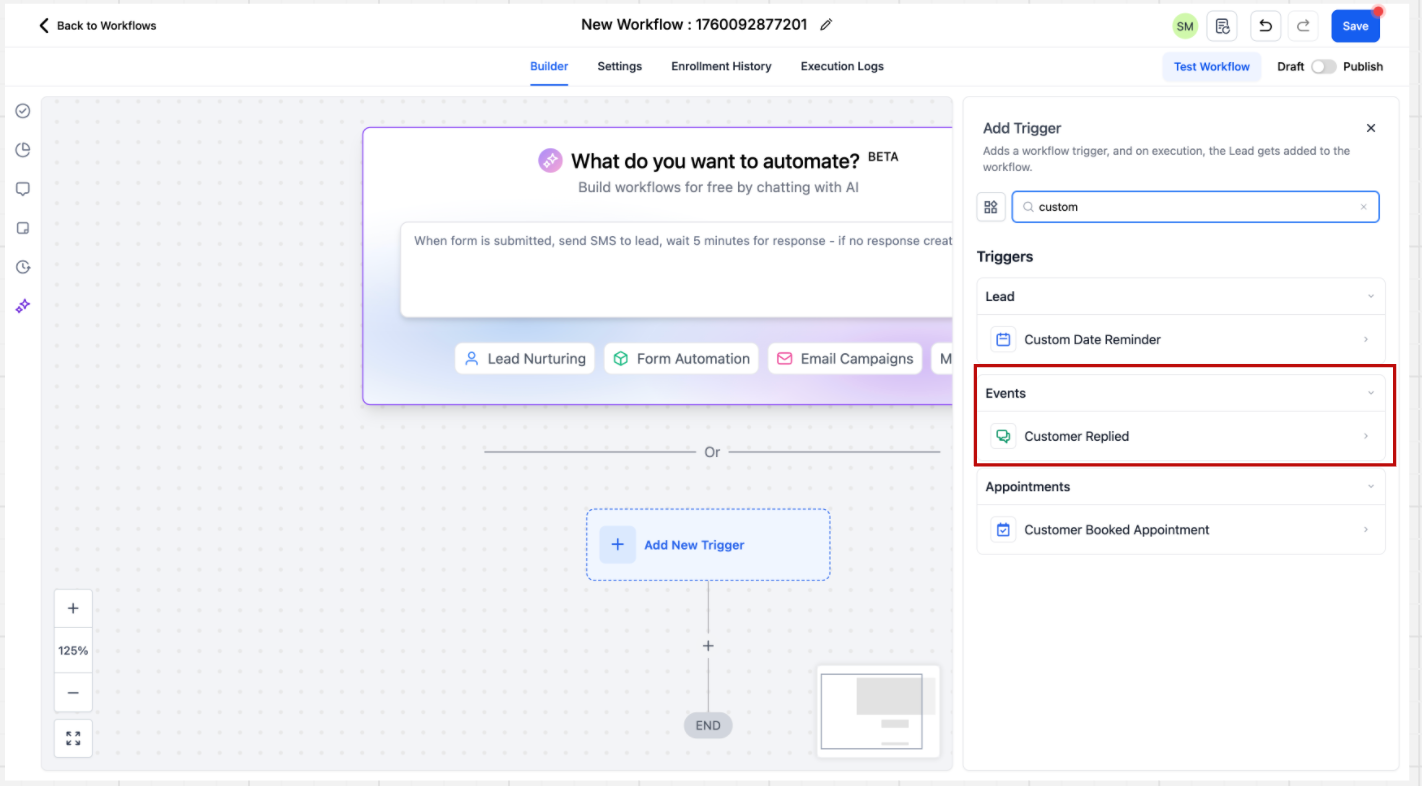
Click Add Trigger and select Customer Replied, found in the Events category.
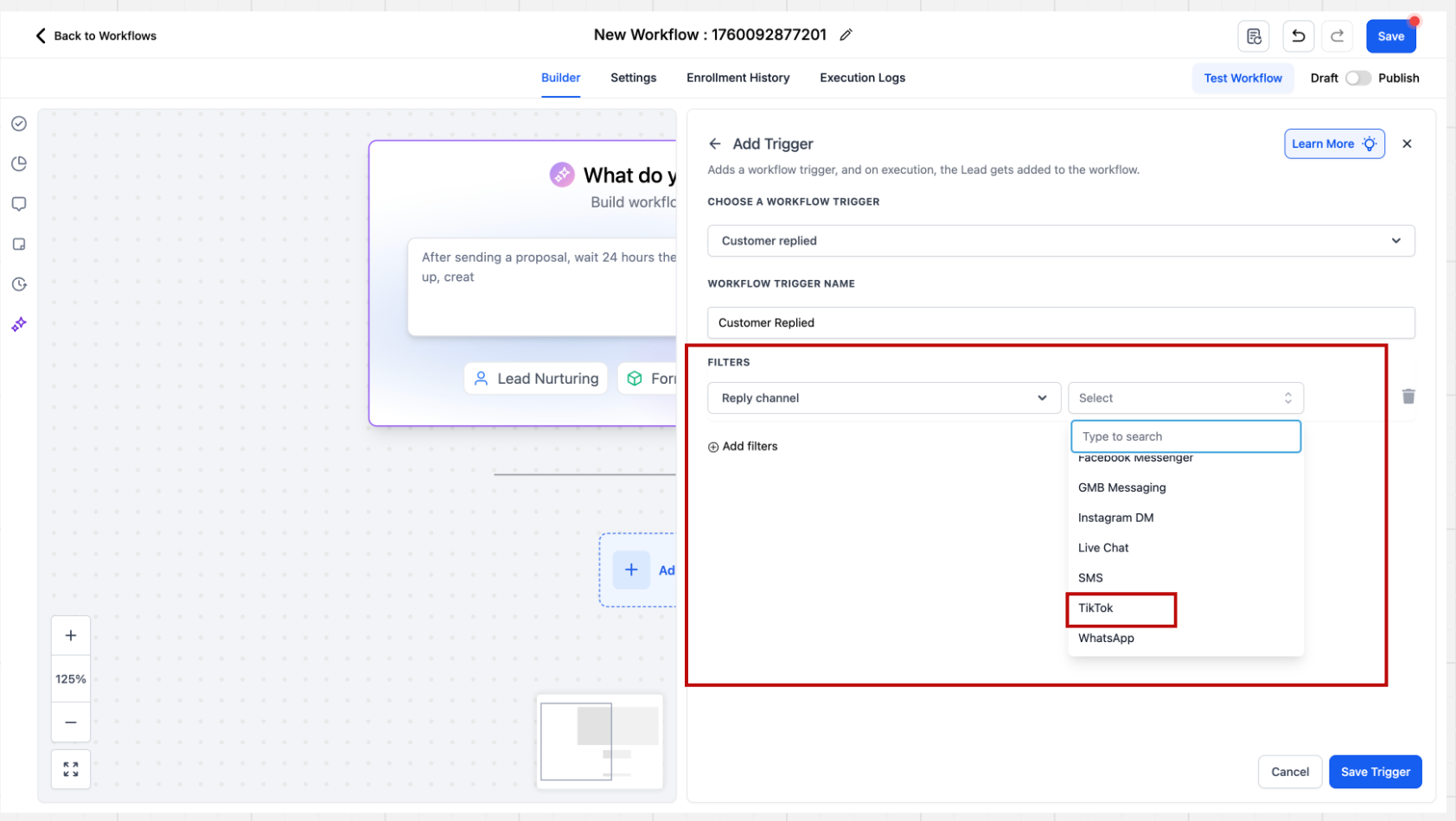
In the sidebar filters, set the Reply Channel filter value to TikTok so the workflow only fires for TikTok DMs.
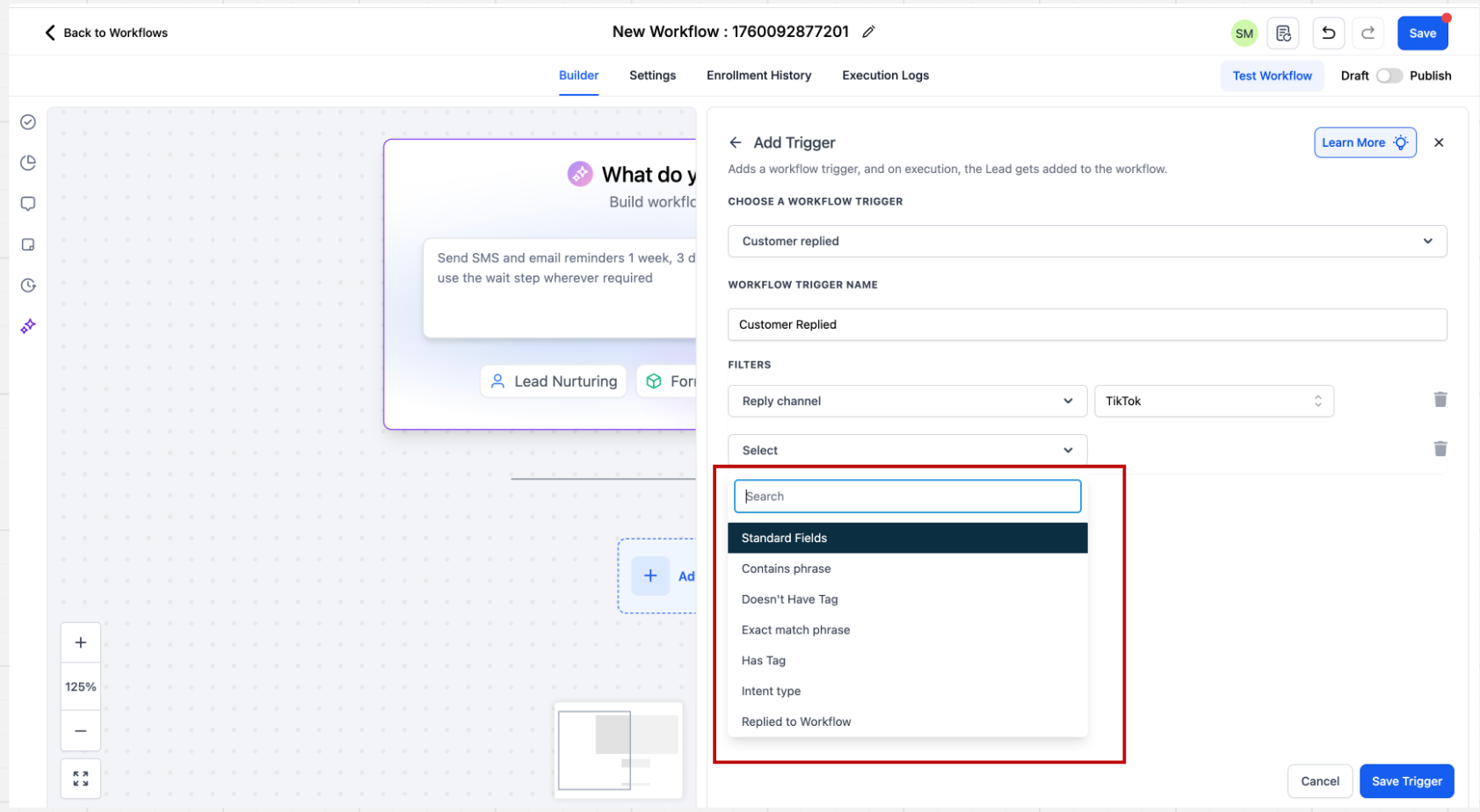
Configure your matching rules using Contains Phrase or Exact Match Phrase to define exactly which messages start the automation.
Click + Add New Action and select TikTok Interactive Messenger.
Enter the message you want to send to the contact, then save the action.
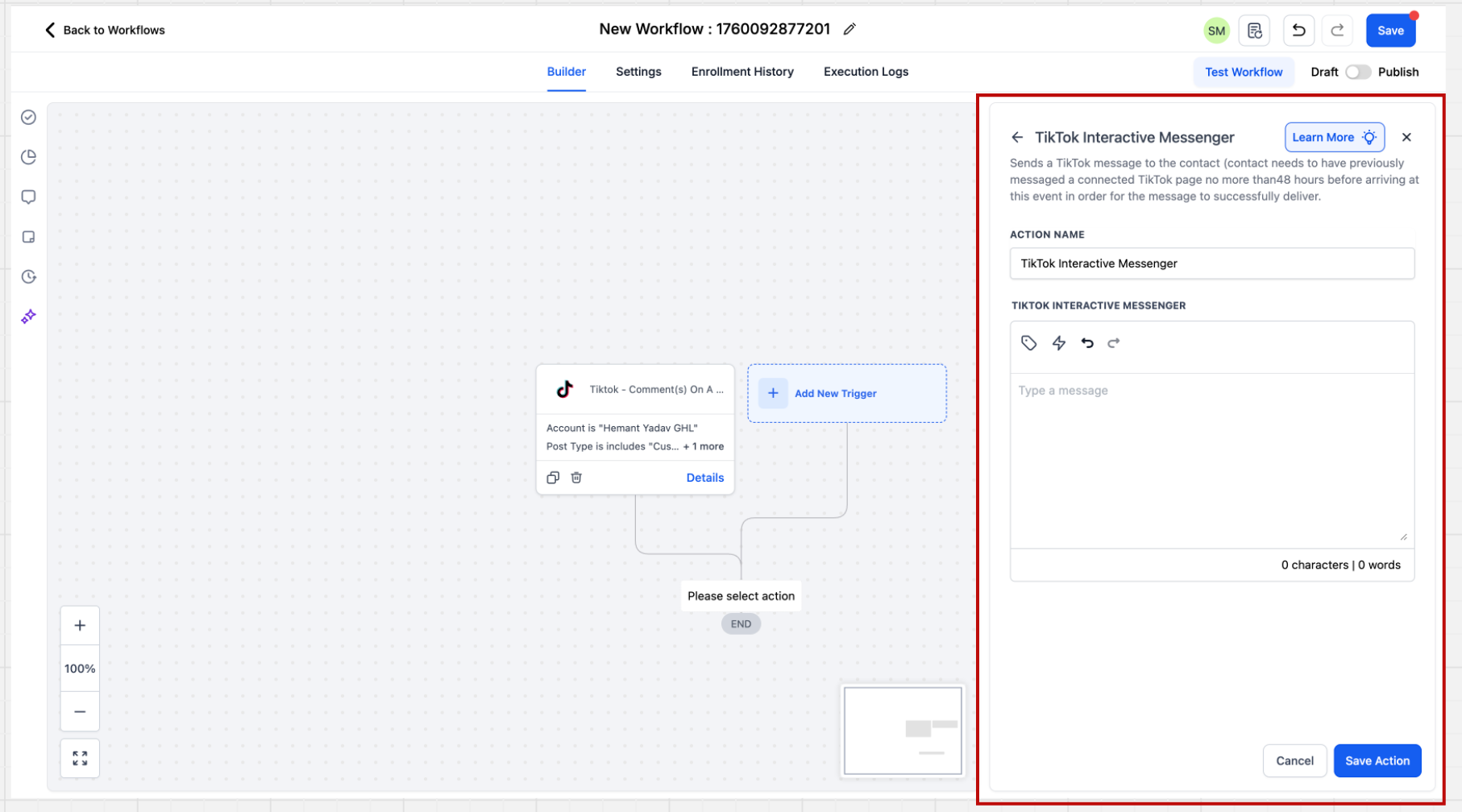
The TikTok Interactive Messenger action is intentionally simple right now. Unlike the Facebook and Instagram versions, it does not yet support a Reply Type field, templates, attachments, buttons, or quick replies; these will be enabled as TikTok's APIs add support.
Med-spa example: A viewer comments "info" on your lip-filler reel. The Reply in Comments action posts a friendly public reply, and a paired DM workflow sends them a message with your booking link the moment they reply to that comment.
Goal: Respond to a Facebook or Instagram comment with a public comment underneath it, and optionally like the original comment.
Trigger: Facebook Comment(s) On A Post or Instagram Comment(s) On A Post Action: Reply In Comments
This is the simplest recipe and the building block for the ones above. It must be paired with a comment trigger so the action knows which comment to reply to.
Add a Facebook Comment(s) On A Post or Instagram Comment(s) On A Post trigger and set your filters.
Add the action at Actions > Communication > Reply In Comments.
In Comments, write up to ten reply variations. The action picks one at random each time it runs. You can type replies directly or use the tag icon to pull in a custom value or the output of a previous AI action.
Toggle Like Comments on to like the comment you are replying to, or off to skip it.
Save and publish.
For replies tailored to each comment, place a Workflow AI action before this one and pull its response into the comment field, as shown in the Facebook AI variation above.
Med-spa example: Anyone who comments "info" on your laser hair removal post gets an automatic public reply ("Sent you the details, check your DMs!") and a like, so your post looks active and engaged even when your team is busy.
Why is the Interactive Messenger action greyed out in my workflow? The action only becomes available when the workflow uses a matching social trigger. Instagram Interactive Messenger needs an Instagram trigger (Instagram Comment(s) On A Post or a Customer Reply on Instagram); without one, you cannot select the action.
What is the difference between buttons and quick replies? Buttons stay visible in the conversation after a tap and can open a website, dial a number, or branch into another workflow path. Quick replies are temporary one-tap options that disappear once selected, keeping the chat focused and clean.
Why do I need a wait step with the Interactive Messenger action? The wait step pauses the workflow so the contact has time to tap a button or quick reply. If no one responds within the set time, the contact moves to the Default Timeout branch so no lead is left hanging.
Can comment automations create an infinite loop? No. The comment triggers automatically ignore any comments posted by workflow actions, so your own automated replies will not re-trigger the workflow.
How many reply variations can I add in Reply in Comments? Up to ten. One is selected at random each time the action runs. You cannot map a specific reply to a specific comment, so use a Workflow AI action or separate workflows with different keyword filters when you need tailored responses.
Does Instagram limit when I can send automated DMs? Yes. Instagram follows Meta's 24-hour messaging rule, so automated DMs can only be sent within 24 hours of the contact's last interaction. You also cannot include quick replies in the same message as an attachment.
Can I connect more than one TikTok account? Yes. Authorize the accounts you intend to use at the sub-account level, then scope each workflow's trigger and filters to the right account.
