The social and WhatsApp messaging actions let your workflows reach contacts on Facebook Messenger, Instagram, Google Business Profile, TikTok, and WhatsApp directly from automation. Some are simple "send a message" steps; others build interactive, branching conversations with buttons and quick replies. This reference covers every action, the fields it exposes, and how to use each one in a med-spa workflow.
Several of these actions are "greyed out" (unavailable) in the builder until the workflow contains the specific trigger they depend on. Where that applies, it is called out at the top of the section.
Most social platforms also enforce a 24-hour messaging window: an outbound automated message can only be delivered within 24 hours of the contact's last interaction with your connected page or account. If the contact has not messaged or interacted within that window, the platform may block delivery.
The steps to add any of these actions are the same:
Go to Automation > Workflows.
Open an existing workflow or click Create Workflow, then Continue.
Make sure the workflow has any required trigger in place (see each action below). Click + Add Trigger to add one if needed.
Click Add your first action (or the + on the canvas where you want the message to send).
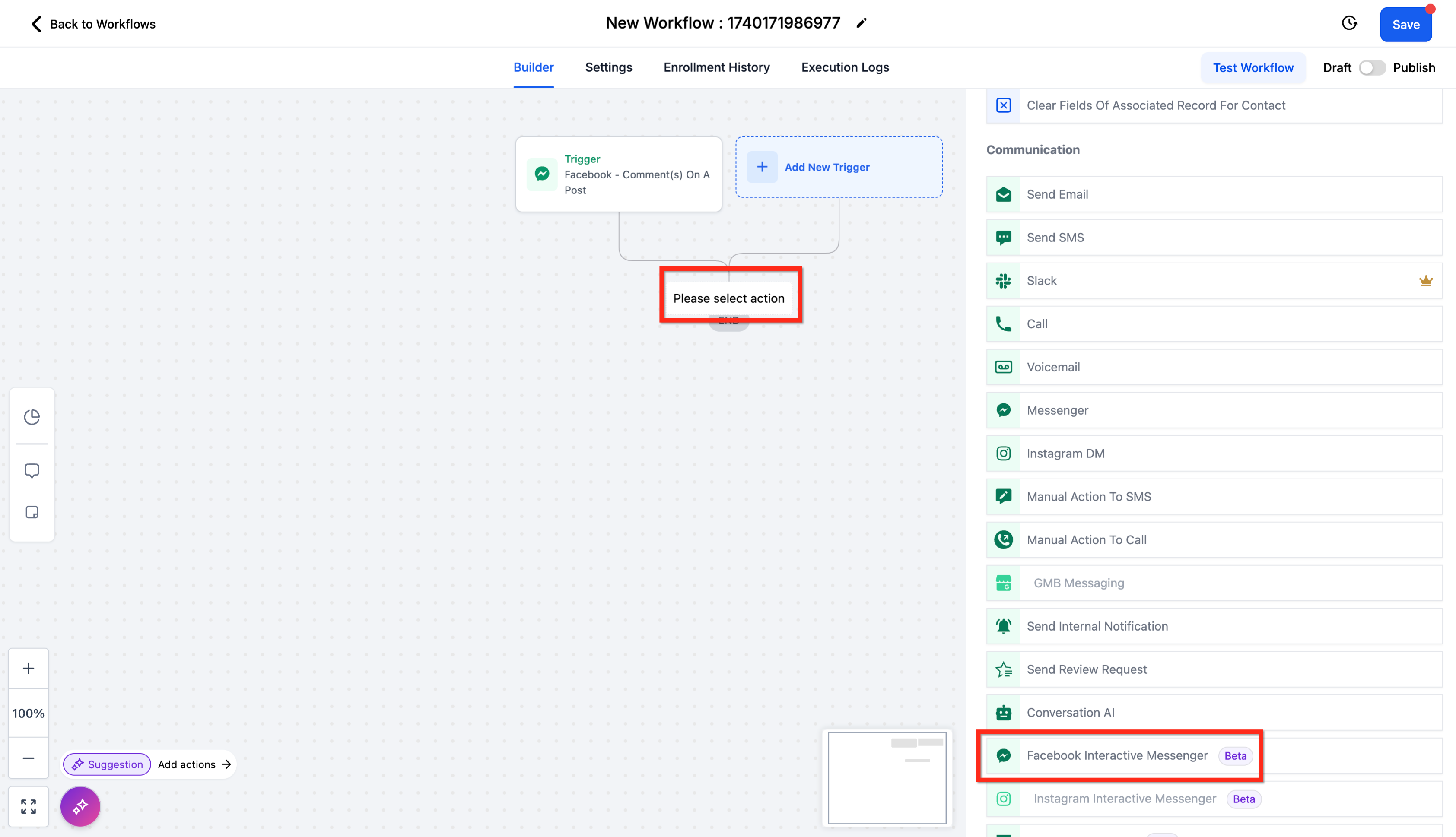
Choose the action from Actions > Communication.
Configure the fields described in that action's section.
Click Save (or Save Action).
What it does: Sends a one-way message to a contact through Facebook Messenger. Use it for reminders, updates, follow-ups, or promotional messages to contacts who have recently messaged your connected Facebook Page.
Requirement: For the message to deliver, the contact must have messaged your connected Facebook Page within the past 24 hours before reaching this action. This follows Facebook's messaging policy.
Configuration fields:
Field | Description | Required |
|---|---|---|
Action Name | The label for this step inside the workflow. | Yes |
Templates | Select a pre-built Messenger template (Snippet) to reuse approved copy and keep formatting consistent. | No |
Message | The body of the message. Supports custom values and dynamic content for personalization. | Yes |
Add Attachment | Upload a file from your computer (image, document, or other media) to send with the message. | No |
Add files through URL | Attach a hosted file by entering its URL and clicking + Add. | No |
Test Phone Number | Send a test of the message to a phone number to preview it before publishing. | No |
Inputs and output: Takes the contact's Facebook Messenger thread as the recipient. Outputs the sent message into that thread; it does not create branches or wait for a reply.
When to use it: Fast, single-message follow-ups after a contact reaches out on Messenger.
Med-spa example: A prospect submits a lead form from your Facebook ad for a Botox special. The workflow sends a Messenger message: "Thanks for reaching out about our Botox special! Our team will follow up shortly to get you booked." Attach a treatment menu image so they can browse while they wait.
Notes and gotchas:
Personalize with custom values so each contact sees their own name and details.
If you want interactive buttons or quick replies, use the Facebook Interactive Messenger Action instead.
What it does: Sends a one-way Instagram direct message to a contact. Use it for reminders, updates, promotions, or follow-ups to leads who have recently messaged your connected Instagram account.
Requirement: The contact must have messaged your connected Instagram account no more than 24 hours before reaching this action, per Instagram's messaging policy.
Configuration fields:
Field | Description | Required |
|---|---|---|
Action Name | The label for this step inside the workflow. | Yes |
Templates | Select a pre-built Instagram DM template (Snippet) for consistent, compliant copy. | No |
Message | The body of the DM. Supports custom values for personalization. | Yes |
Add Attachment | Upload a file (image, document) to send with the DM. | No |
Add files through URL | Attach a hosted file by entering its URL and clicking + Add. | No |
Inputs and output: Takes the contact's Instagram DM thread as the recipient and posts the message into it. No branching or wait step.
Behavior with triggers: Pair this action with the Customer Replied trigger where the reply channel is Instagram DM. If you instead use it with an Instagram Comment on Post trigger:
The message is sent as a reply to the comment if there is a recent comment on your post.
The message is sent as a direct DM if there is no recent comment, provided the contact has messaged your business within the last 24 hours.
When to use it: Simple, single-message Instagram follow-ups.
Med-spa example: A lead submits a form from your Instagram ad for a microneedling package. The workflow sends an Instagram DM: "Thank you for your interest in our microneedling package! We received your inquiry. Keep an eye out for next steps." Attach a before-and-after image.
Notes and gotchas:
Only send DMs to contacts who have sent you a DM in the last 24 hours.
Until August 31, 2024, a platform bug let you DM anyone who commented on your post regardless of the 24-hour window. That bug has been resolved, so the 24-hour rule now applies normally.
For richer, interactive conversations, use the Instagram Interactive Messenger Action instead. Set the Reply Type to Reply to Comment via DM when replying to a comment, or Reply to DM when responding to an incoming DM.
What it does: Sends a message to a contact through Google Business Profile messaging (Google Business Messages), so you can engage customers who reached out via your Google listing.
Requirement: This action is greyed out until the workflow contains a Google Business Messages inbound message trigger. Add that trigger first so the action knows which Google conversation to respond in.
Configuration fields:
Field | Description | Required |
|---|---|---|
Action Name | The name of the action. Defaults to "GMB". | Yes |
Message | The body of the message. Supports text, custom values, and trigger links. | Yes |
Personalization controls inside the Message field:
Custom Values: Click the {} icon to insert dynamic data such as contact name, appointment date, or other fields.
Trigger Links: Use the link icon to insert a tracked, clickable link that the contact can tap inside the Google message.
Inputs and output: Takes the contact's Google Business Messages conversation as the recipient and posts the message. No branching or wait step.
When to use it: Responding to inquiries that come in through your Google Business Profile, or sending personalized reminders to those contacts.
Med-spa example: A contact messages your clinic through your Google listing asking about availability. The workflow replies: "Hello {{contact.name}}, thanks for reaching out! This is a reminder for your upcoming consultation on {{appointment.date}}. Let us know if you have any questions." Insert the name and date with the {} custom-value icon.
Notes and gotchas:
Keep messages concise and helpful; Google messaging is a customer-service-style channel.
Trigger links let you route the contact to a booking page directly from the message.
What it does: Automates Facebook Messenger conversations with interactive elements such as buttons and quick replies. Unlike the basic Messenger action, this one can branch your workflow based on what the contact taps.
Requirement: This action is greyed out until the workflow contains a Facebook or Instagram comment trigger (for example, Facebook Comment(s) On A Post) or a Facebook message trigger. Use it in combination with those triggers.
Messaging window: Follows Facebook's 24-hour messaging policy. Outbound messages deliver only within 24 hours of the contact's last interaction with your Facebook Page. If the contact does not interact again in that window, the message may not be delivered.
Configuration fields:
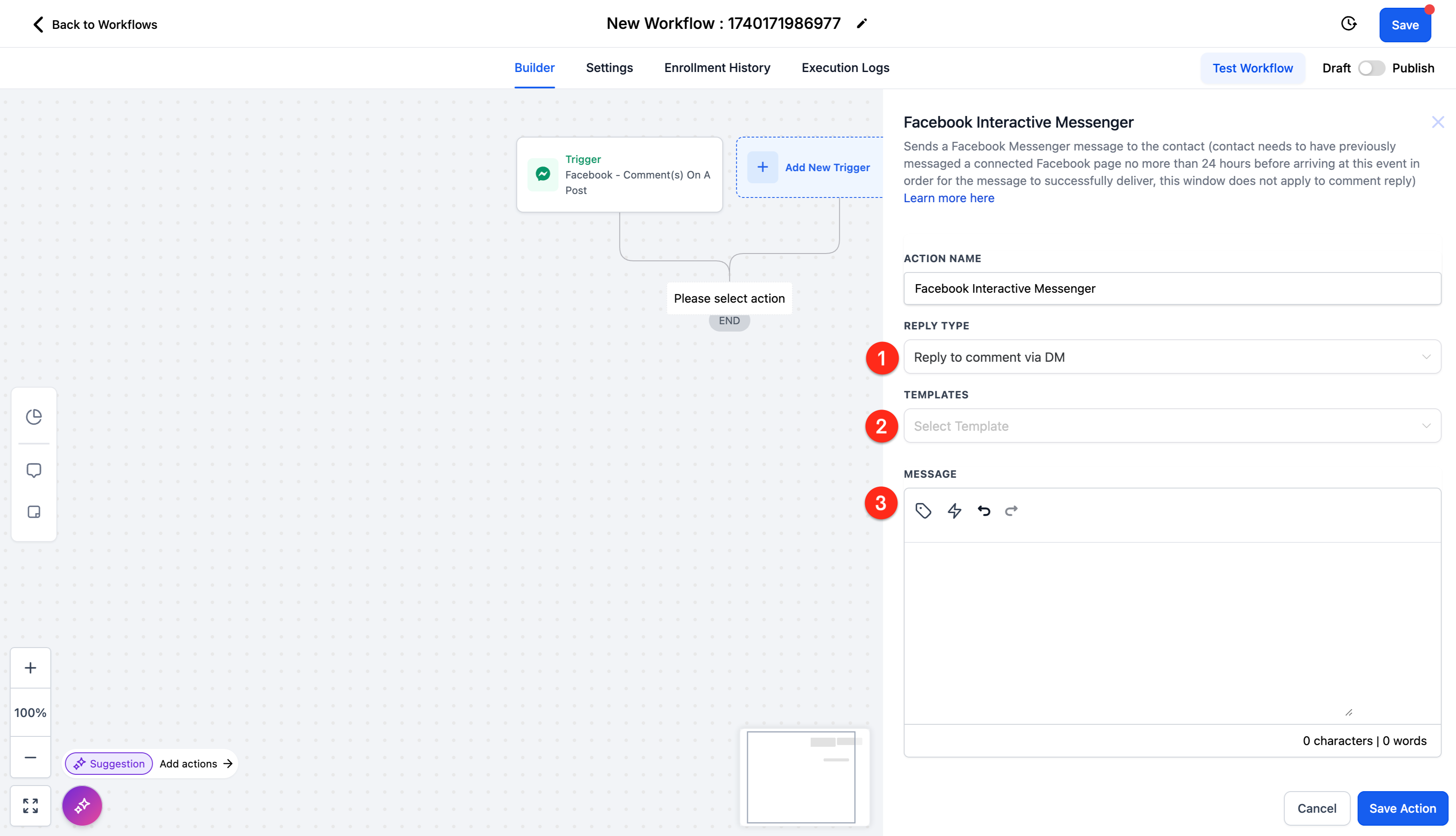
Reply Type:
Reply to Comment via DM: use when the trigger was a new comment and you want to start a private DM conversation.
Reply to DM: use when you are responding to an existing DM.
Templates: pull reusable copy from your Snippets.
Message:
Body: the message builder.
Custom Values: insert dynamic contact data created in Settings > Custom Values.
Trigger Links: insert tracked links created in Marketing > Trigger Links.
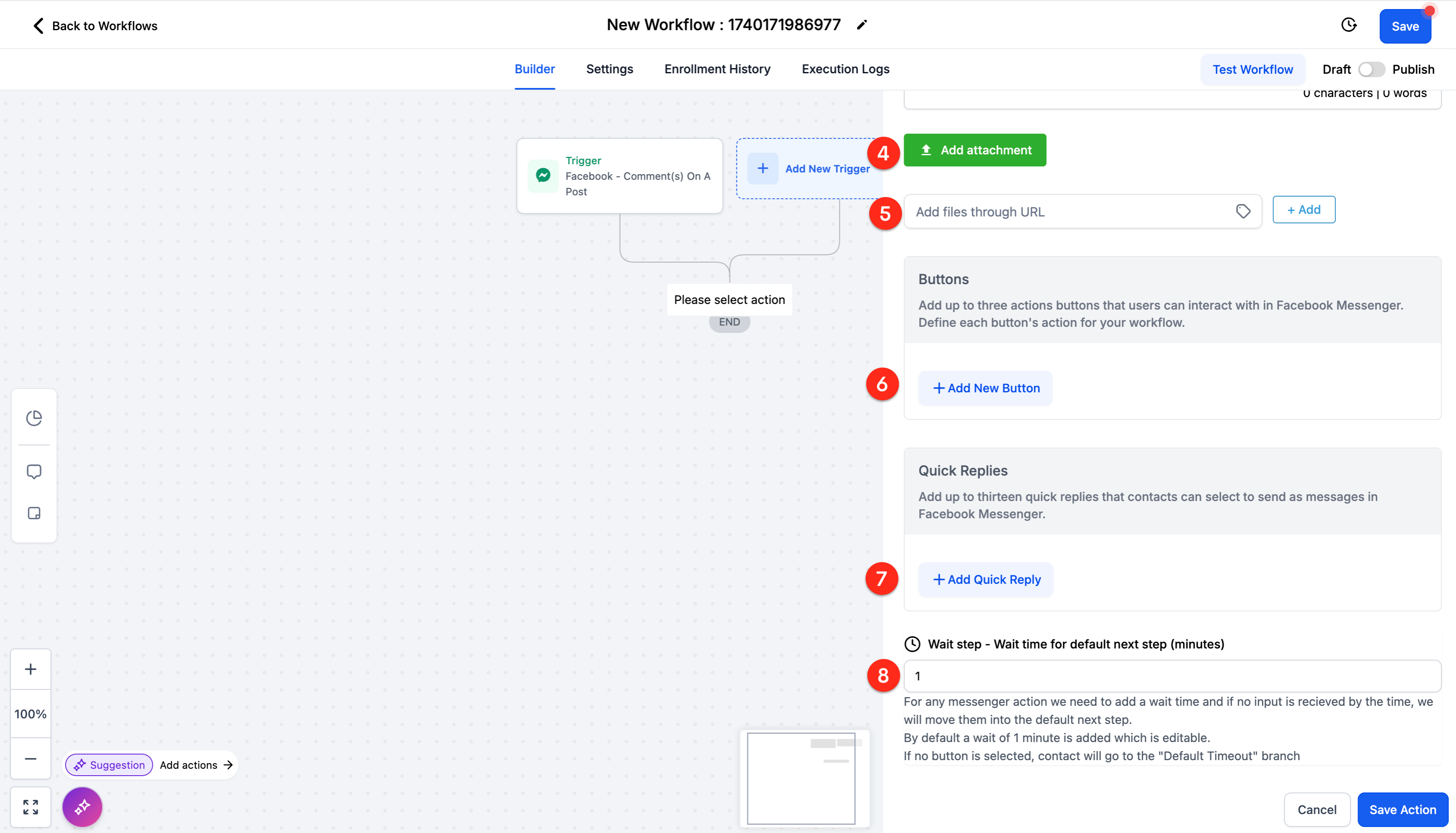
Add Attachment: upload a file from your computer to attach.
Add file through URL: attach a hosted file by URL.
Add New Button: add an interactive button (up to 3).
Add Quick Reply: add a one-tap quick reply (up to 13).
Wait Step: sets how long to pause after sending the message-button-file-quick-reply combo before moving the contact to the default branch.
Buttons vs. Quick Replies: Both create the same kind of workflow branch, but they behave differently:
Buttons are for persistent actions and stay visible even after the contact taps them. They can open a website, open the dialer, or simply branch the workflow. You can add up to 3 buttons.
Quick Replies offer one-tap response options and disappear after the contact selects one, keeping the conversation clean. You can add up to 13 quick replies.
In this Facebook action you can include buttons, quick replies, and files together in one action. (In the Instagram Interactive Messenger action you must choose either buttons or quick replies, and quick replies are only allowed when no attachment is present.)
Button actions:
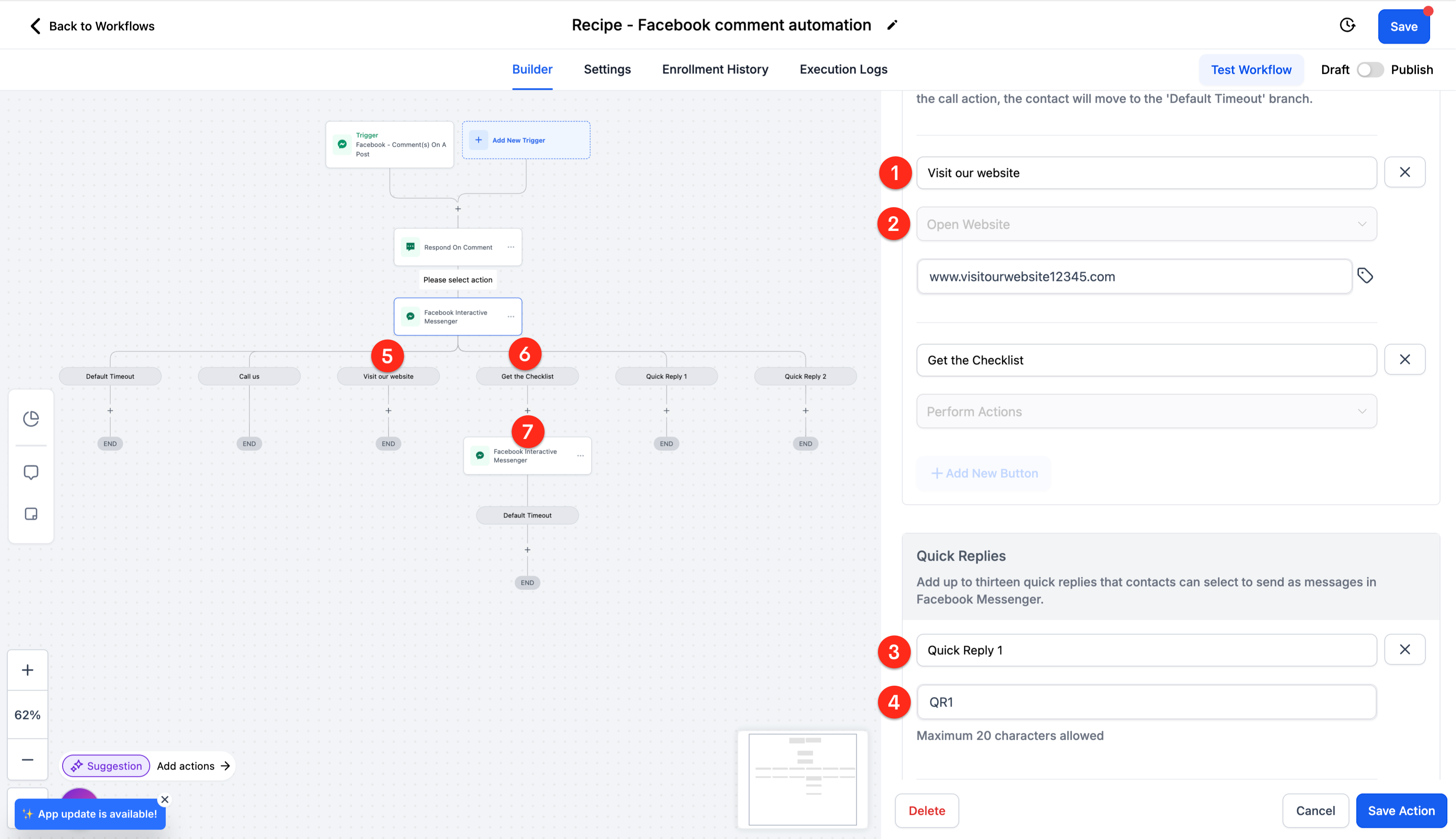
Open Website: add a URL; tapping opens it in a new tab without disrupting the conversation, and the button stays active.
Call Number: add a phone number; tapping opens the contact's dialer, and the button stays active.
Perform Action: no external event, it just creates a workflow branch that continues to the next action in that branch.
Branching: Each button or quick reply automatically creates a workflow branch. Inside each branch you can add follow-up actions (send another message, apply a tag, update a pipeline stage, trigger another workflow). The Wait Step determines how long to wait for a tap; contacts who do not respond in time fall through to the default branch.
Inputs and output: Takes the contact's Messenger thread (or the comment to reply to) as the recipient. Outputs the message plus interactive controls and routes the contact down a branch based on their selection.
When to use it: When you want a comment or DM to kick off a guided, branching Messenger conversation instead of a single message.
Med-spa example: A follower comments "info" on your Facebook post about a laser hair removal promo. The comment trigger fires, and this action replies via DM: "Thanks for your interest in our laser hair removal special! What would you like?" with quick replies "Pricing", "Book a consult", and "See results". Each choice branches to a tailored follow-up, for example sending the price sheet or a booking link.
Notes and gotchas:
The contact must keep interacting within the 24-hour window for follow-up messages to deliver.
Set a sensible Wait Step so non-responders are handled gracefully (a reminder or a "No Response" tag).
What it does: Automates Instagram DM conversations with interactive elements like buttons and quick replies. It lets you respond to comments or DMs with personalized, branching messages instead of replying manually, moving followers from a public post into a private conversation.
Requirement: This action is greyed out until the workflow contains a Facebook or Instagram comment trigger. Use one of these Instagram triggers:
Instagram Comment on Post for when a follower comments on your post.
Customer Reply (Instagram) for when a contact sends or replies to a DM.
Without an Instagram-specific trigger, the action stays unavailable.
Configuration fields:
Action Name: a descriptive label (for example, "IG DM - Send Lead Magnet Prompt") so it is easy to find in complex workflows.
Reply Type:
Reply to Comment via DM when the trigger is a new comment and you want to move the conversation private.
Reply to DM when you are responding to an incoming DM.
Templates: optionally pull reusable copy from your Snippets.
Message > Body: write the DM. Use Custom Values (from Settings > Custom Values) to personalize and Trigger Links (from Marketing > Trigger Links) to track clicks or route users to URLs.
Add Attachment / Add file through URL: upload or link a file (great for checklists or guides).
Buttons OR Quick Replies: choose one type per message (see below).
Wait Step: how long to pause while waiting for the contact to tap a button or quick reply. Defaults to 1 minute and is editable.
Buttons vs. Quick Replies:
Buttons present persistent actions that remain visible even after the contact taps them. Ideal for durable options like opening a website, dialing a number, or branching the workflow.
Quick Replies are short, one-tap responses that disappear after selection. Best for guiding the conversation in real time (for example, asking whether someone wants a checklist, pricing, or a demo).
Important: Quick Replies cannot be added in the same message as an attachment. If you need quick replies, skip the attachment or send it in a later action.
Branching and the default path: Adding a button (Perform Action) or a quick reply automatically creates a workflow branch. Inside each branch you can send a follow-up, apply a tag, update a pipeline stage, or trigger another workflow. If the contact does not interact within the Wait Step time, they route into the Default Timeout branch, useful for sending a reminder, tagging "No Response," or ending the conversation gracefully.
Inputs and output: Takes the contact's Instagram DM thread (or the comment to reply to) as the recipient. Outputs the DM plus interactive controls and routes the contact down a branch based on their tap.
When to use it: After a comment on a promotional post, or when a user initiates a DM, to capture leads and guide them through a private, interactive conversation.
Med-spa example: A follower comments "GLOW" on your Instagram post about a HydraFacial offer. The comment trigger fires, and this action sends a DM via Reply to Comment via DM: "Want our HydraFacial glow guide? Tap below." Quick replies "Yes, send it" and "Book now" branch to deliver the guide PDF (in a later action) or send a booking link.
Notes and gotchas:
Instagram follows Meta's 24-hour messaging rule: automated DMs send only within 24 hours of the last user interaction.
You cannot include quick replies in the same message as an attachment.
Keep messages short: a hook plus one clear call to action works best in the DM format.
Test by triggering the real scenario (comment the keyword or send a test DM) and confirm the reply type, buttons/quick replies, and branch actions all behave correctly.
What it does: Replies to a Facebook or Instagram comment with a public comment underneath it. It can also like the comment being replied to.
Requirement: This action is greyed out until the workflow contains a Facebook or Instagram comment trigger. Use it with Facebook Comment(s) On A Post or Instagram Comment(s) On A Post so the action knows which comment to reply to.
Configuration fields:
Comments: create up to ten (10) replies, chosen at random when the action runs. Type each reply manually, and/or use the tag icon to pull in a reply from another source such as a custom value or the output of a previous AI action.
Like Comments: toggle on to like the comment you are replying to, or off to skip liking.
Inputs and output: Takes the triggering comment as input and posts a public reply comment beneath it (and optionally a like). It does not create branches.
When to use it: Acknowledging or responding to comments on your social posts at scale, especially alongside an AI action that drafts a context-aware reply.
Med-spa example: A follower comments "How much is lip filler?" on your Instagram post. An AI action drafts a friendly reply, then Reply in Comments posts it publicly: "Great question! We will send pricing in a DM, keep an eye out." with Like Comments toggled on.
Notes and gotchas:
Replies are chosen randomly from the list, so you cannot map a specific reply to a specific comment. For tailored replies, put an AI action before this one, use an If/Else branch, or split criteria across different comment triggers in different workflows.
Combine with an AI action to turn the AI's response into the comment reply.
What it does: Sends an automated direct-message reply inside a TikTok DM conversation, so your workflow can respond to a contact who messaged your connected TikTok business account. Despite the "Interactive Messenger" name, this action is a simple text DM: it does not yet support the reply types, templates, attachments, buttons, or quick replies that the Facebook and Instagram interactive actions offer.
Requirement: This action is greyed out until the workflow contains a TikTok message trigger. Add the Customer Replied trigger and set its Reply channel filter to TikTok so the action knows which TikTok conversation to respond in. (This is a reply-to-DM trigger, not a comment trigger like the Facebook and Instagram interactive actions use.) On that trigger you can also set matching conditions such as Contains Phrase or Exact Match Phrase to control which incoming messages start the automation.
Configuration fields:
Field | Description | Required |
|---|---|---|
Message body | The text of the DM to send to the contact. Personalize with custom values for the contact's name or appointment details. | Yes |
That is the only configurable field. The following controls that exist on the Facebook and Instagram interactive actions are not available on the TikTok action today:
No Reply Type: you cannot choose "Reply as DM" or "Reply to Comment via DM"; it always replies in the DM thread.
No Templates: you cannot pull reusable Snippet copy.
No rich formatting: attachments, buttons, and quick replies are unsupported, so there is no branching and no Wait Step.
Inputs and output: Takes the contact's TikTok DM thread (identified by the Customer Replied trigger) as the recipient and posts the text message into it. It does not create branches or wait for a reply.
When to use it: Fast, single-message replies to contacts who DM your TikTok business account, for example an auto-reply that points an interested viewer toward booking.
Med-spa example: A viewer DMs your clinic's TikTok account "PRICE" after seeing a filler special. The Customer Replied trigger fires with Reply channel = TikTok and Contains Phrase = price, and this action sends: "Thanks for reaching out about our filler special! Our team will follow up shortly to get you booked. You can also book here: {{custom_value.booking_link}}".
Notes and gotchas:
This action is available only for TikTok business accounts registered in the United States. It is not yet available for accounts in the EEA, Switzerland, or the UK.
Because there are no buttons or quick replies, use a follow-up workflow (for example a later Customer Replied trigger keyed to the contact's response) if you need a branching conversation.
TikTok enforces its own messaging-window rules; automated DMs generally deliver only within a limited window after the contact's last interaction.
What it does: Sends an automated WhatsApp message to a contact from within a workflow, so you can reach contacts on their preferred channel for reminders, confirmations, and follow-ups. The action supports both customer-initiated conversations (free-form messages) and business-initiated conversations (approved templates), and it works for both real-time replies and scheduled outreach.
Requirement: WhatsApp must be enabled and connected on your account, and any template you plan to send must already be created and approved. Connecting your WhatsApp number and creating and submitting templates for approval is covered in the WhatsApp collection; set that up before relying on this action.
Configuration fields:
Field | Description | Required |
|---|---|---|
Action Name | A descriptive label for the step (for example, "Send WhatsApp Appointment Reminder"). | Yes |
Message Type | Choose how the message sends: a free-form text message (allowed inside the active session window) or a pre-approved template message (required when you are starting the conversation or messaging outside the session window). | Yes |
Message body | The text of the message. Supports dynamic personalization with custom values such as | Yes |
Template | When sending a template message, select the approved WhatsApp template to use. | Conditional |
Inputs and output: Takes the contact's WhatsApp conversation as the recipient and posts the message into it. It does not create branches or wait for a reply. The action respects each contact's Do Not Disturb (DND) settings and communication preferences, so messages are suppressed for contacts who have opted out.
When to use it: Automated WhatsApp reminders, confirmations, or follow-ups for contacts who use WhatsApp as their preferred channel, for example an appointment confirmation right after a contact books online, or a same-day reminder.
Med-spa example: After a contact books online, the workflow sends a WhatsApp confirmation: "Hi {{contact.first_name}}, your appointment on {{appointment.date}} is confirmed. Reply here if you need to reschedule." Because the clinic is starting this conversation, it sends an approved template; if the contact had just messaged the clinic, a free-form reply would work instead.
Notes and gotchas:
WhatsApp's 24-hour session window: when a contact messages you first, you can send free-form or template messages within that customer-initiated session. To start a conversation or message outside the session window, you must use a pre-approved template.
Templates must be created and approved before they can be selected here. Submit them in advance so they are ready when the workflow runs.
Full WhatsApp setup (connecting your number, registering templates, and approval) lives in the WhatsApp collection. See those articles before relying on this action.
What it does: Sends a message to a contact through your website Live Chat widget from within a workflow, so automation can respond inside an active or recent Live Chat conversation.
Configuration fields (expected):
Action Name: a label for the step.
Message > Body: the message text, with Custom Values for personalization and Trigger Links for tracked links.
Add Attachment / Add file through URL: attach a file where supported.
Inputs and output: Takes the contact's Live Chat conversation as the recipient and posts the message. It does not create branches.
When to use it: Automating responses or follow-ups inside Live Chat, for example after a visitor starts a chat and provides their contact details.
Med-spa example: A website visitor starts a Live Chat asking about consultations and shares their email. The workflow sends a Live Chat message: "Thanks for chatting with us! A team member will join shortly. In the meantime, here is our consultation booking link."
Notes and gotchas:
Live Chat messaging depends on an active or recent chat session with the contact.
Confirm field names and session-window behavior against the live builder.
Why is a messaging action greyed out in my workflow? Several of these actions only become available when the workflow contains the trigger they depend on. Reply in Comments, Facebook Interactive Messenger, and Instagram Interactive Messenger require a Facebook or Instagram comment trigger; TikTok Interactive Messenger requires a TikTok comment trigger; GMB Messaging requires a Google Business Messages inbound message trigger. Add the matching trigger and the action becomes selectable.
What is the 24-hour messaging window? Most social platforms only allow an automated outbound message to deliver within 24 hours of the contact's last interaction with your connected page or account. If the contact has not interacted in that window, the message may not be delivered. WhatsApp behaves similarly, requiring approved templates to message outside the active session window.
What is the difference between buttons and quick replies? Buttons are persistent actions that stay visible after a contact taps them and can open a website, open the dialer, or branch the workflow. Quick replies are one-tap options that disappear after selection, keeping the conversation focused. Both create workflow branches.
Why does an interactive messenger action need a Wait Step? The Wait Step pauses the workflow so the contact has time to tap a button or quick reply. If they do not respond within the set time, they route to the default (timeout) branch, so no lead is left hanging.
Which action should I use for a simple one-off message versus an interactive conversation? Use the basic Messenger, Instagram DM, GMB Messaging, WhatsApp, or Send Live Chat Message actions for a single message. Use the Facebook, Instagram, or TikTok Interactive Messenger actions when you want buttons, quick replies, and branching.
