Social and ad event triggers let an Aesthetix CRM workflow start the moment something happens on one of your connected advertising or social channels. A lead can fill out a Facebook or LinkedIn lead form, comment on an Instagram post, or tap a WhatsApp ad, and your automation responds instantly with a text, an email, a task for the front desk, or a new opportunity in your pipeline. These triggers are the foundation of speed-to-lead automation for any med spa running paid social or organic engagement campaigns.
Each trigger in this guide requires the matching channel to be connected before it will fire. Lead form triggers require the relevant ad platform (Facebook, LinkedIn, TikTok, or Google) connected and the form fields mapped. Comment triggers require the Facebook, Instagram, or TikTok account connected. The Click to WhatsApp Ads trigger requires your WhatsApp/Meta channel connected. If the channel is not connected or the form fields are not mapped, leads and events will not flow into the workflow.
The steps to add any of these triggers are the same. The trigger you select and the filters you set are what differ.
From the left navigation, go to Automation > Workflows.
Click Create Workflow in the top right, then choose Start from Scratch (or pick a recipe) to open the workflow builder.
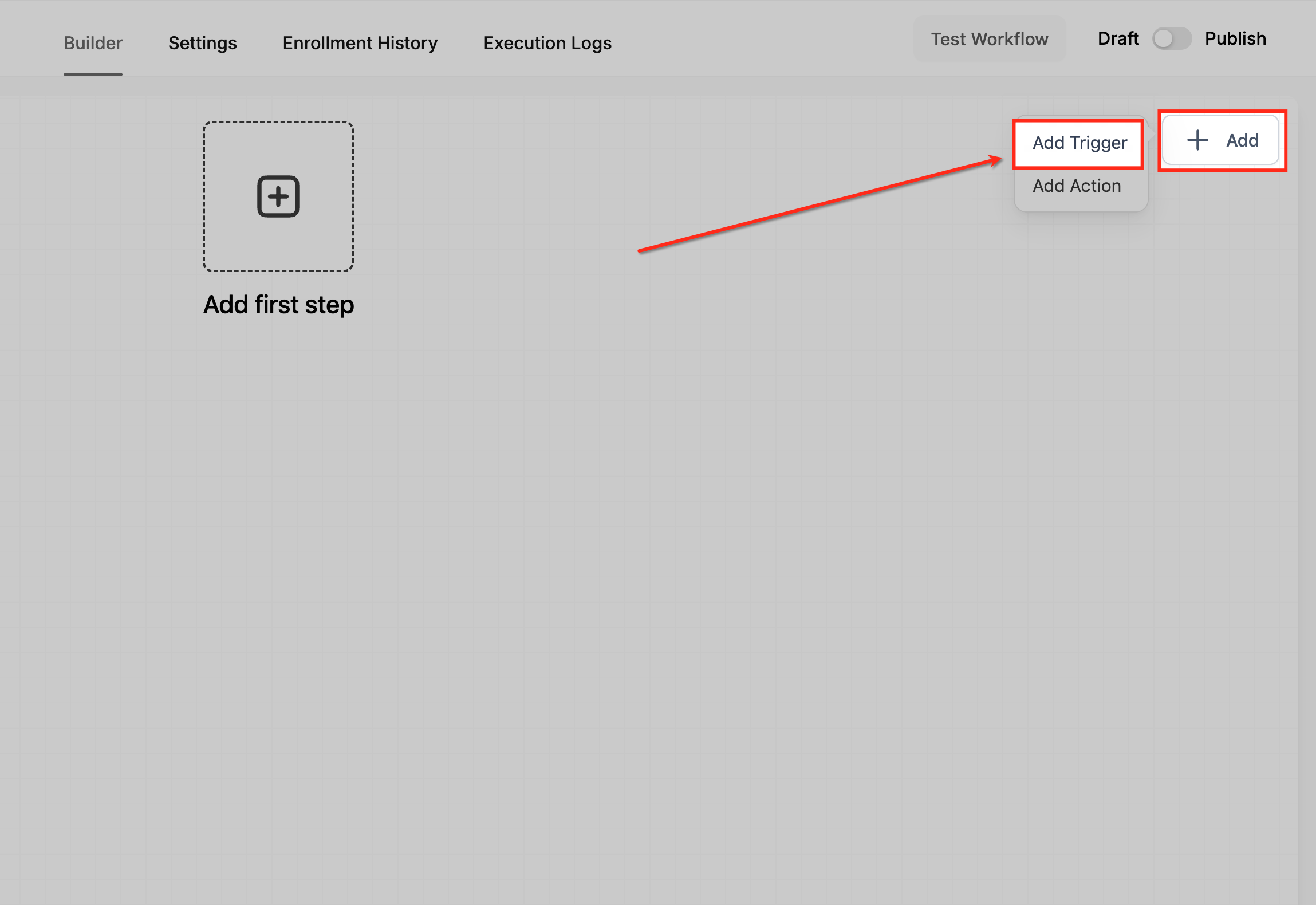
In the builder, click Add New Trigger (the + Add option at the top of the canvas).
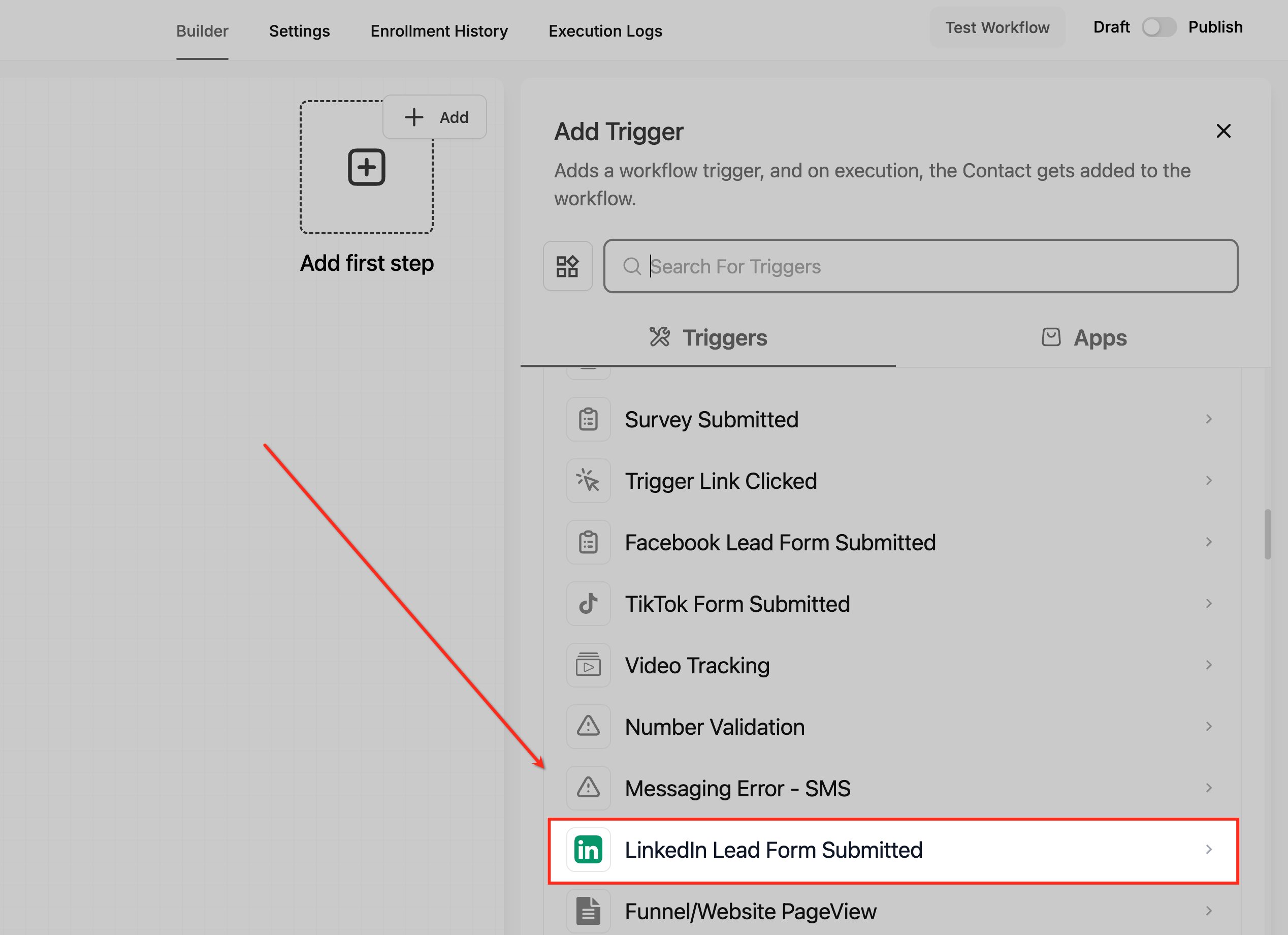
Use the search field to find the trigger you want, or scroll to the relevant category, then click the trigger to select it.
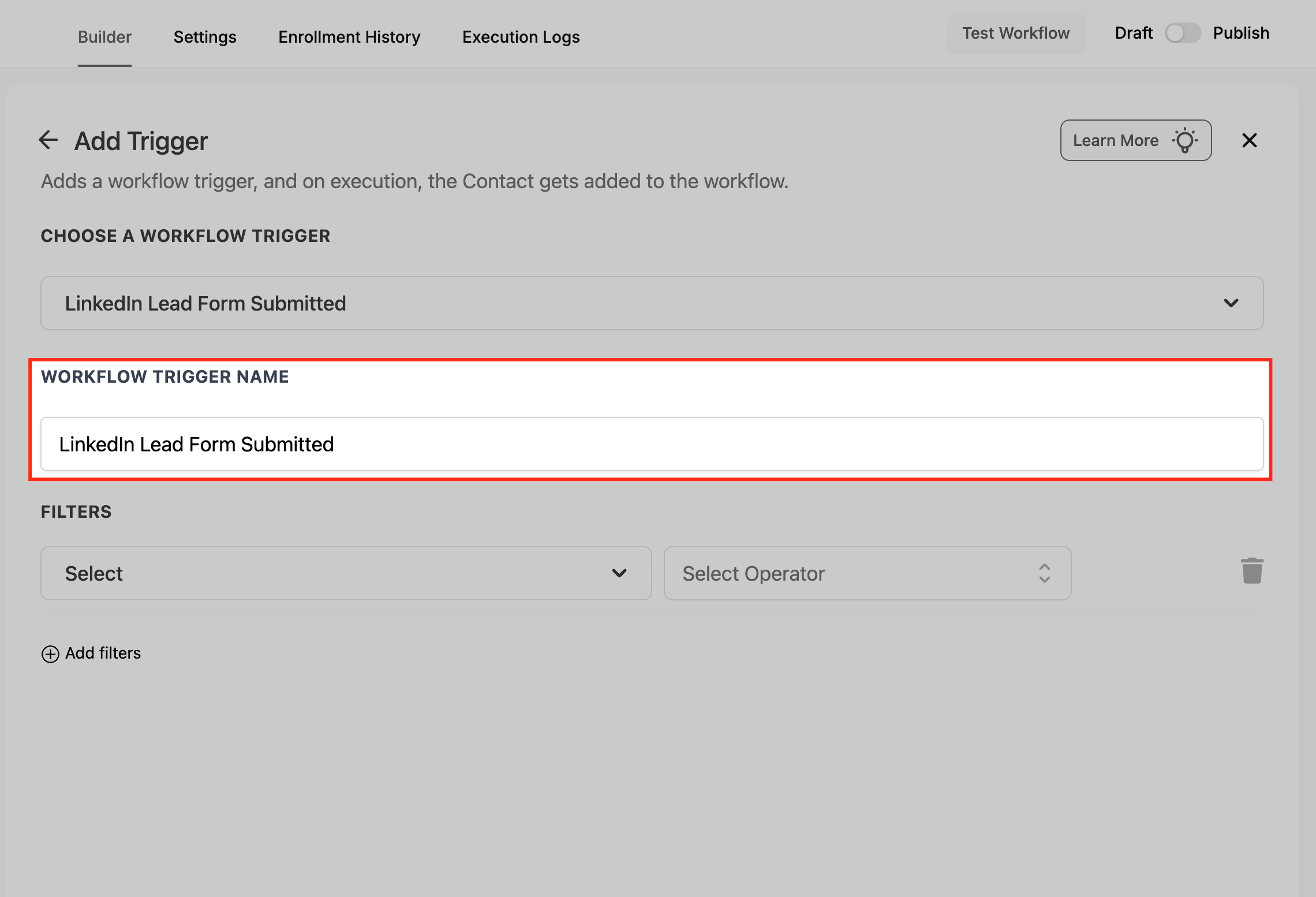
Edit the Workflow Trigger Name if you want a clearer label that teammates will recognize at a glance.
Add and configure any filters for that trigger (covered per trigger below).
Click Save Trigger.
Build out your actions, then save and publish the workflow. Set the toggle under Save to Publish when the workflow is ready to go live, and use Test Workflow to confirm it behaves as expected before enabling it.
The sections below cover the lead form triggers first, then the comment triggers, then the Click to WhatsApp Ads trigger.
Fires on: A contact submitting one of your connected Facebook Lead Forms (the instant lead forms that open inside Facebook or Instagram when someone clicks your lead ad). The contact is created or updated in Aesthetix CRM and enrolled in the workflow as soon as the submission syncs.
Prerequisites:
Your Facebook account must be connected under Settings > Integrations.
Your account must have been granted access to the Facebook Lead Forms.
In Settings > Integrations > Facebook Form Fields Mapping, confirm each lead form is mapped and its status shows as active. If the fields are not mapped, leads will not be added to the workflow.
Configuration and filters:
When you add the trigger, a Page is filter is added automatically. Under Page is, select the Facebook Page that owns the form.
After selecting a Page, choose a form from the list. This scopes the trigger to a specific lead form.
Click + Add filters to bring up additional Filters:
In Form: specifies which Facebook Lead Form will activate this trigger.
Custom Fields: restricts enrollment to contacts whose mapped custom fields match the values you set (for example, a treatment-interest field captured on the form).
With no filters added, the trigger fires any time any contact submits any Facebook lead form on the connected account.
Data made available / merge fields: Every field on the lead form that is mapped in Facebook Form Fields Mapping is written to the contact record and becomes available as a merge field in your actions. Standard mappings include {{contact.first_name}}, {{contact.last_name}}, {{contact.email}}, and {{contact.phone}}. Any custom questions on the form (for example "Which treatment are you interested in?" or "Preferred location") flow into the custom fields you mapped them to and are referenced as {{contact.custom_field_name}}. Mapping these answers is what lets the AI Employee and your follow-up actions personalize the reply to what the lead actually asked for.
When to use it: Use this trigger for instant speed-to-lead on Facebook and Instagram lead ads. A med spa example: a new lead submits a "Free Botox Consultation" lead form. The workflow immediately sends an SMS ("Hi {{contact.first_name}}, thanks for your interest in our Botox consultation! When works best for you this week?"), emails a consultation prep guide, creates an opportunity in the New Leads pipeline stage, and assigns a task to the front desk to call within five minutes.
Notes and limits:
The Facebook channel must be connected and the specific form's fields must be mapped, or no leads will enter the workflow.
Test by submitting a test lead in Facebook, then confirm in Contacts that the record was created with the mapped fields, and check the workflow's enrollment/execution logs.
Fires on: A contact submitting a LinkedIn Lead Gen form connected to your Aesthetix CRM account. The contact is enrolled into the workflow immediately after submission. Use it to launch instant follow-ups, assign leads to staff, create opportunities, and start nurture automations based on where the lead came from and the data they provided.
Prerequisites:
LinkedIn Lead Ads integration connected under Settings > Integrations, with access to the correct LinkedIn Page and Ad Account.
At least one LinkedIn Lead Gen Form published for the Page.
Field mapping planned and completed for the chosen form (for example, map Email, Phone, Company, Job Title, and any qualifier questions to matching custom fields). If field mapping is not completed, the leads will not be fetched into the CRM.
Configuration and filters:
Add the trigger using the shared flow above, then configure filters:
Click Add filters to open the field picker, which lists Standard Fields (such as Page) and your Custom Fields. Use the search box to locate mapped fields quickly.
Page: the LinkedIn Page that owns the Lead Gen form. Set Page > Is and pick the specific Page to scope which submissions enter the workflow. This field is optional.
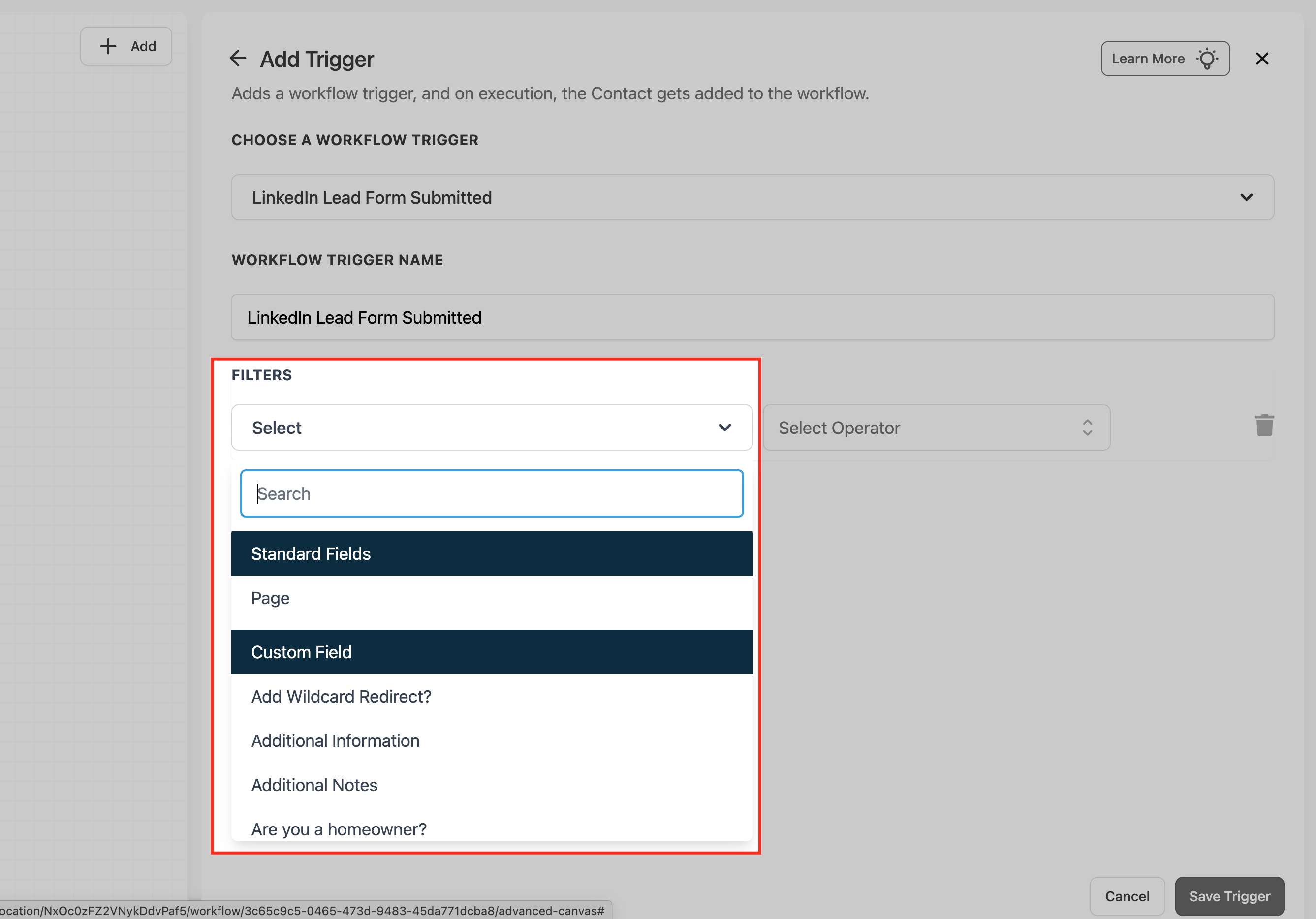
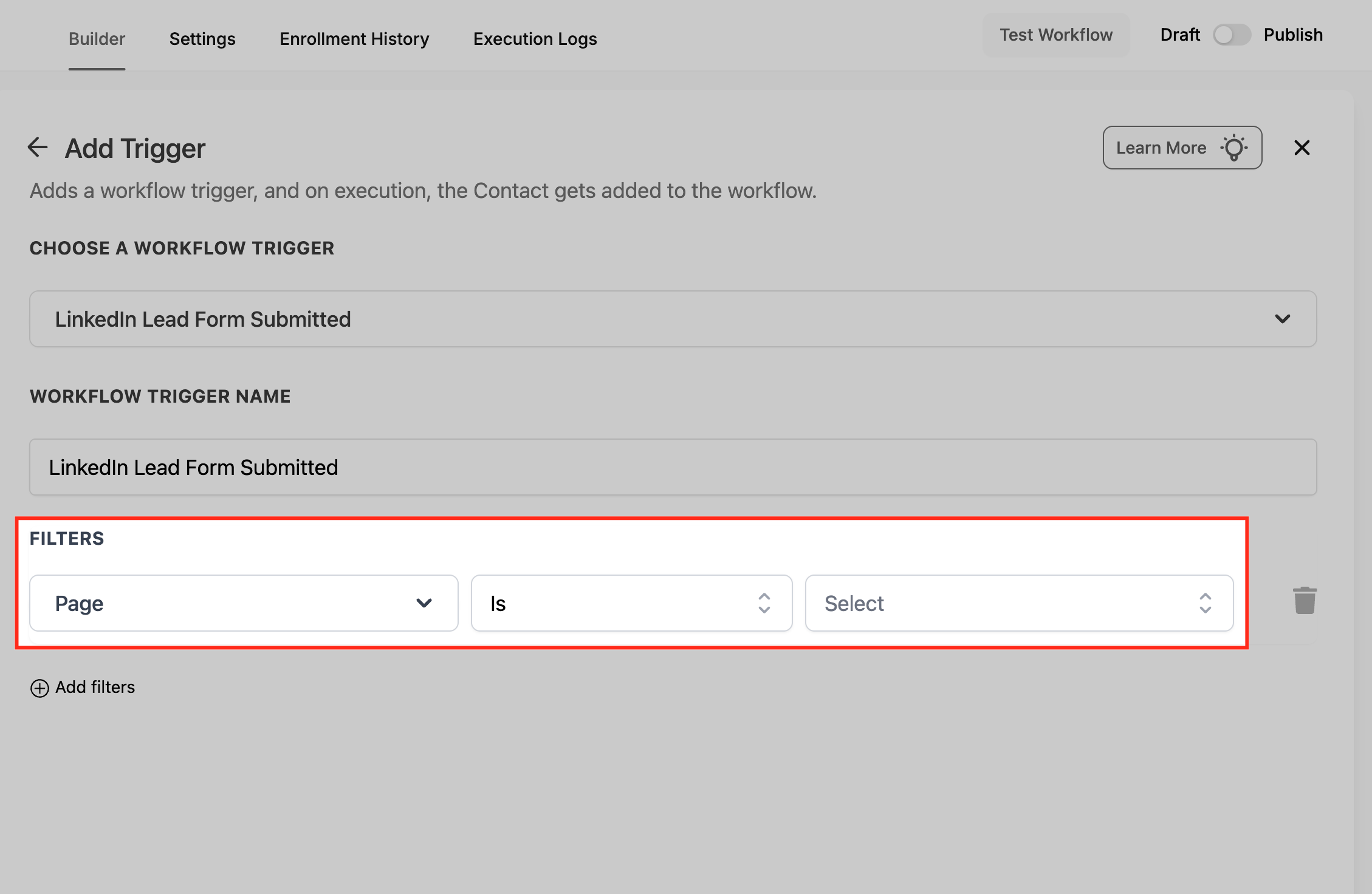
If you added multiple ad accounts to the sub-account, use the filters to select the correct page/ad account. If no ad accounts appear in the dropdown, confirm your LinkedIn account is integrated with the sub-account.
Operators available in filters:
Operator | Description |
|---|---|
Is (Exact Match) | Triggers when the field exactly matches the selected value. |
Contains Phrase | Triggers when the field contains the phrase you enter. |
Does Not Contain Phrase | Triggers when the field does not contain the phrase you enter. |
Is Empty | Triggers when the field has no value. |
Is Not Empty | Triggers when the field has any value. |
Multiple filters are evaluated together with AND logic. Start broad (for example, Page > Is > Your Page) and add qualifiers only after you confirm leads are flowing. One workflow per Page is easier to maintain than one workflow with many complex conditions.
Data made available / merge fields: Every mapped form field is written to the contact and available as a merge field. Common mappings include {{contact.first_name}}, {{contact.last_name}}, {{contact.email}}, {{contact.phone}}, plus company and job-title fields and any qualifier answers mapped to custom fields (referenced as {{contact.custom_field_name}}). Pair the trigger with field mapping and deduplication to keep a single, accurate contact record.
When to use it: Use this for B2B-leaning or higher-ticket campaigns where LinkedIn is the source. A med spa example: a clinic running a "Medical Director Partnership" or "Corporate Wellness Event" LinkedIn lead ad enrolls each submission, texts and emails the lead instantly, assigns it to the practice manager, and creates an opportunity in a dedicated Partnerships pipeline.
Notes and limits:
Allow Re-entry: enable during testing or when a lead might submit more than once; disable if only the first submission should trigger.
Duplicates are matched on identifiers like email or phone. If a match exists, the contact updates; otherwise a new contact is created. Keep dedup preferences tuned and merge when necessary.
Leads typically sync shortly after submission. Allow a brief delay during testing, then verify in Contacts and in the workflow's Enrollment History / Execution Logs that the trigger fired and actions ran.
Fires on: A specific form being submitted via TikTok. The submission starts the workflow and the lead's information is captured into the CRM. This is useful for capturing leads, collecting feedback, or gathering information from TikTok users and then automating the follow-up.
Prerequisites: Your TikTok account must be connected and the form's fields mapped so submissions sync into the CRM.
Configuration and filters:
Choose a Workflow Trigger: select TikTok Form Submitted from the list of available triggers.
Workflow Trigger Name: enter a descriptive name, such as "TikTok Lead Capture" or "TikTok Feedback Form."
Filters: use filters to specify which form submissions activate the workflow. You can filter by form name to narrow the trigger to specific forms.
Value | Description | Mandatory |
|---|---|---|
In Form | Selects the specific TikTok form that will trigger the workflow when submitted. | Yes |
Data made available / merge fields: Each mapped field on the TikTok form is written to the contact and available as a merge field, for example {{contact.first_name}}, {{contact.email}}, and {{contact.phone}}, plus any custom questions mapped to custom fields and referenced as {{contact.custom_field_name}}.
When to use it: Use this to capture and respond to leads from TikTok lead ads. A med spa example: a "Skincare Quiz" or "New Patient Offer" form is submitted on TikTok. The workflow tags the contact, sends a thank-you email, and texts a booking link. A second example: after a feedback form is submitted, send a thank-you email and tag the contact as "Feedback Provided" to track who responded.
Notes and limits: The In Form filter is mandatory, so the trigger always runs against a chosen form rather than all TikTok forms at once. The TikTok channel must be connected and the form mapped, or submissions will not flow in.
Fires on: A prospect submitting a Google lead form that is enabled and properly mapped in your integration (the lead form asset attached to a Google Ads campaign). A contact is created in Aesthetix CRM each time a lead is submitted through an enabled, mapped Google lead form, and that contact is enrolled in the workflow as the submission syncs. Edge case: if a form is live but its fields are not mapped, submissions will not sync and no contact is created, so the trigger never fires for that form.
Prerequisites:
Your Google Ads account must be connected to your Aesthetix CRM account under Settings > Integrations.
At least one Google lead form must be created and linked to a Google Ads campaign.
The lead form must be enabled and its fields mapped in the integration. Click the Play/Edit icon for the form you want to sync leads from, then use the Map Fields button to align each Google lead form field with the matching Aesthetix CRM field. All required fields must be mapped or leads will not sync.
Configuration and filters:
Add the trigger using the shared flow above.
Ad Account: scope the trigger to submissions from a specific connected Google Ads account.
Lead Form: scope the trigger to a specific Google lead form so only that form's submissions enter the workflow.
With no filters added, the trigger fires for any submission of any enabled, mapped Google lead form on the connected account.
Data made available / merge fields: Every Google lead form field you mapped with the Map Fields button is written to the contact record and becomes available as a merge field in your actions. Standard mappings include {{contact.first_name}}, {{contact.last_name}}, {{contact.email}}, and {{contact.phone}}. Any qualifier questions on the form (for example "Which treatment are you interested in?" or "Preferred location") flow into the custom fields you mapped them to and are referenced as {{contact.custom_field_name}}. Mapping these answers is what lets your follow-up actions and the AI Employee personalize the reply to exactly what the lead requested.
When to use it: Use this for instant speed-to-lead on Google search and display lead form campaigns. A med spa example: a lead submits a "CoolSculpting Consultation" Google lead form. The workflow immediately texts and emails the lead, creates an opportunity in the New Leads stage, and assigns a callback task to the front desk to call within five minutes.
Notes and limits: The Google Ads channel must be connected and the specific form enabled and mapped, or no leads will enter the workflow. Incomplete field mapping silently prevents the sync, so confirm each form's mapping before relying on it. Test by submitting a test lead, then confirm in Contacts that the record was created with the mapped fields, and check the workflow's enrollment and execution logs.
Fires on: A comment on one of your Facebook posts that matches the filters you set. By default it fires on any comment, including nested replies, unless you limit it to first-level comments only.
Where to find it: In the trigger picker, this trigger is in the Facebook/Instagram Events category. You can search for it directly or scroll to the category.
Prerequisites: Your Facebook account must be connected.
Components:
Choose A Workflow Trigger: set to this trigger by default; you can change it to a different trigger.
Workflow Trigger Name: defaults to the trigger name; edit it for a clearer label in the workflow.
Filters: the criteria that decide when the trigger fires (detailed below).
Track First Level Comments Only: a toggle. When off, the trigger fires for all nested comments. When on, it fires only for top-level comments, not for replies under a comment.
Configuration and filters:
Filter | Options |
|---|---|
Page Is | List of your account's pages |
Post Type | Published Post (all posts on your business page) or Custom Post (enter a URL) |
Post Is | List of the posts that match your Page Is and Post Type settings |
Contains Phrase | Fires when the comment body contains one of the text strings you provide |
Exact Match | Fires when the entire comment body exactly matches one of the text strings you provide |
To configure:
Select the Page. Under Standard Fields, choose Page Is and pick the page.
Select the Post Type. Choose Published Post to pick from a list of all posts on your business page (text, photo, video, or live video), or Custom Post to connect a post by entering its Facebook post URL or ID. For a custom post, add the Post is filter and paste the post URL.
Identify the exact post. If you chose Published Post, pick it from the list; if you chose Custom Post, the URL or ID you entered identifies it.
Set the comment match. Use either Contains Phrase or Exact Match:
Contains Phrase: Phrase "I bought from you" passes for "I bought from you yesterday" but fails for "I bought one from you" and "how much."
Exact Match: Phrase "I bought from you" passes only for "I bought from you" and fails for "I bought from you yesterday" or "I bought one from you."
Track First Level Comment Only. Toggle on to fire only for the first comment in a chain, or off to fire for any comment including nested replies.
Data made available / merge fields: The comment body is available to your actions (for example, you can pass it to a GPT-powered AI action to generate a tailored reply, or use it in a Reply In Comment action). The commenter becomes a contact you can message, and standard contact merge fields such as {{contact.first_name}} are available once the contact is created.
When to use it: Use this for comment-to-DM and comment-to-offer automations. A med spa example: a post advertising a "Summer Glow Facial" asks people to comment a keyword like "GLOW." When a first-level comment contains "GLOW," the workflow replies in the comment ("Just sent you a DM!"), sends an interactive Messenger DM with a booking button, and creates an opportunity. You can also route the comment through an AI action to generate a personalized public reply and split the workflow by sentiment, sending a DM only when the comment is positive.
Notes and limits:
This trigger works only for Facebook. Use the Instagram Comment Trigger for Instagram.
Automatic comments do not create an infinite loop; the trigger ignores any comments posted by workflow actions.
Fires on: A comment on one of your Instagram posts that matches the filters you set. By default it fires on any comment, including nested replies, unless you limit it to first-level comments only.
Where to find it: In the trigger picker, this trigger is in the Facebook/Instagram Events category. You can search for it directly or scroll to the category.
Prerequisites: Your Instagram account must be connected.
Components:
Choose A Workflow Trigger: set to this trigger by default; you can change it to a different trigger.
Workflow Trigger Name: defaults to the trigger name; edit it for a clearer label in the workflow.
Filters: the criteria that decide when the trigger fires (detailed below).
Track First Level Comments Only: a toggle. When off, the trigger fires for all nested comments. When on, it fires only for top-level comments, not for replies under a comment.
Configuration and filters:
Filter | Options |
|---|---|
Page Is | List of your account's pages |
Post Type | Published Post (all posts on your business page) or Custom Post (enter a URL) |
Post Is | List of the posts that match your Page Is and Post Type settings |
Contains Phrase | Fires when the comment body contains one of the text strings you provide |
Exact Match | Fires when the entire comment body exactly matches one of the text strings you provide |
To configure:
Select the Page. Under Standard Fields, choose Page Is and pick the page.
Select the Post Type. Choose Published Post to pick from a list, or Custom Post to enter a post URL.
Identify the exact post. Pick it from the list (Published Post) or via the URL you entered (Custom Post).
Set the comment match. Use either Contains Phrase or Exact Match:
Contains Phrase: Phrase "I bought from you" passes for "I bought from you yesterday" but fails for "I bought one from you" and "how much."
Exact Match: Phrase "I bought from you" passes only for "I bought from you" and fails for "I bought from you yesterday" or "I bought one from you."
Track First Level Comment Only. Toggle on to fire only for the first comment in a chain, or off to fire for any comment including nested replies.
Data made available / merge fields: The comment body is available to your actions (for example, pass it to a GPT-powered AI action to generate a tailored reply, or use it in a Reply In Comment action). The commenter becomes a contact you can message, with standard merge fields such as {{contact.first_name}} available once the contact is created.
When to use it: Use this for Instagram comment-to-DM lead capture. A med spa example: a Reel promoting a "First-Time Filler" offer asks viewers to comment "INFO." When a first-level comment contains "INFO," the workflow replies publicly ("Check your DMs!"), sends an interactive Messenger DM with "Book now" and "See pricing" buttons, then delivers a follow-up DM with the details.
Notes and limits:
This trigger works only for Instagram. Use the Facebook Comment Trigger for Facebook.
Automatic comments do not create an infinite loop; the trigger ignores any comments posted by workflow actions.
Fires on: A new comment on one of your TikTok posts (videos) that matches the filters you set. The workflow starts when there is a new comment on your TikTok post, and the commenter is created as a contact in Aesthetix CRM.
Where to find it: In the trigger picker, search for or select TikTok - Comment(s) on a Post.
Prerequisites: Your TikTok account must be connected at the account level under Settings > Integrations > TikTok.
Configuration and filters:
Filter | Options |
|---|---|
Account | A specific connected TikTok account, or leave blank to monitor all integrated accounts |
Post Type | Published Post (select from existing posts on your business account) or Custom Post (provide a post URL manually) |
Post Is | The specific post that matches your Account and Post Type settings |
Contains Phrase | Fires when the comment body contains the text you enter anywhere in it |
Exact Match | Fires only when the entire comment body exactly matches the text you enter |
To configure:
Select the Account. Filter to a specific connected TikTok account, or leave it blank to monitor all integrated accounts.
Select the Post Type. Choose Published Post to pick from existing posts on your business account, or Custom Post to provide a post URL manually.
Identify the post. Pick it from the list (Published Post) or via the URL you entered (Custom Post).
Set the comment match. Use either Contains Phrase (for example "Price" matches any comment that includes "Price") or Exact Match (for example "Price" matches only a comment that is exactly "Price").
Data made available / merge fields: When a comment triggers the workflow, the commenter is created as a contact and their First Name and Last Name are stored, so {{contact.first_name}} and {{contact.last_name}} are available in your actions. You can respond with a Reply in Comments action (post a public reply, with up to 10 randomized variations) or a TikTok Interactive Messenger action to send a DM follow-up.
When to use it: Use this for TikTok comment-to-DM lead capture. A med spa example: a video promoting a "New Patient Special" asks viewers to comment a keyword like "INFO." When a comment contains "INFO," the workflow posts a public reply in comments, sends a TikTok Interactive Messenger DM with the offer details and a booking link, and creates an opportunity.
Notes and limits:
This trigger works only for TikTok. Your TikTok account must be connected, or comments will not flow in.
The TikTok Interactive Messenger action does not support Templates, Attachments, Buttons, or Quick Replies, so DM follow-ups are plain messages.
Fires on: Someone clicking one of your Click to WhatsApp ads, or a Facebook Page call-to-action button, and sending a message to your business from an Android or iOS device. The contact is created or updated in Aesthetix CRM and enrolled in the workflow when that opening message arrives.
Prerequisites:
Your WhatsApp channel must be connected to Aesthetix CRM so inbound WhatsApp conversations sync in.
A Facebook (Meta) ad account with Click to WhatsApp ads or a Facebook Page CTA configured.
Configuration and filters: Add the trigger using the shared flow above, then apply any of these optional filters to restrict which ad clicks enter the workflow. With no filters, the trigger fires whenever any Click to WhatsApp ad or Page CTA starts a conversation.
Filter | What it does |
|---|---|
Ad ID / Post ID | Restricts the trigger to one specific ad or post. |
Ad/Post URL | Filters by the ad or post destination URL. |
Headline | Narrows the trigger to ads with a specific headline text. |
Source Type | Filters by the Facebook surface the click came from (for example a paid ad versus an organic post). |
Data made available / merge fields: The lead's WhatsApp phone number and name flow into the contact record, available as {{contact.phone}} and {{contact.first_name}}. The customer's opening WhatsApp message is passed through so your actions can route or reply based on what they asked, and the originating Ad ID and campaign name can be written into custom fields (referenced as {{contact.custom_field_name}}) so you can attribute and segment by campaign. The device type (Android or iOS) is also available.
When to use it: Use this to respond instantly when someone taps a WhatsApp ad. A med spa example: a "Message us about Botox" Click to WhatsApp ad starts a conversation. The workflow replies on WhatsApp with a greeting and a few quick-reply options ("Book a consult," "See pricing," "Ask a question"), creates an opportunity, and notifies the front desk.
Notes and limits:
Your WhatsApp channel must be connected, or conversations will not flow in.
Responding within 24 hours opens a free customer service window so you can send non-template messages. You can only send non-template messages while that window is open; after 24 hours with no customer re-engagement, your replies must use approved message templates. Build your first reply action to fire quickly so you stay inside the window.
Q: Do these triggers require the channel to be connected? Yes. Each trigger requires its matching channel connected under Settings > Integrations. Lead form triggers also require the form's fields to be mapped, or leads will not enter the workflow.
Q: Can the Facebook Comment trigger work for Instagram (or the reverse)? No. The Facebook Comment Trigger fires only for Facebook and the Instagram Comment Trigger fires only for Instagram. Use the trigger that matches the platform.
Q: Can comment automations create an infinite loop? No. The comment triggers automatically ignore any comments posted by your own workflow actions, so an automated reply will not re-trigger the workflow.
Q: What is the difference between Contains Phrase and Exact Match? Contains Phrase fires when the comment contains the text you entered anywhere in the body. Exact Match fires only when the entire comment is exactly the text you entered.
Q: What does Track First Level Comments Only do? When on, the trigger fires only for top-level comments on the post. When off, it also fires for nested replies under other comments.
Q: Will a lead resubmitting a form trigger the workflow again? That depends on the workflow's Allow Re-entry setting. Enable it for testing or for campaigns where a lead might submit more than once; disable it if only the first submission should trigger.
Q: How are duplicate leads handled? Aesthetix CRM matches on identifiers like email and phone. If a match exists, the existing contact is updated; otherwise a new contact is created. Keep your deduplication preferences tuned and merge records when needed.
Q: How do I map ad-form answers to my follow-up actions? Map each form field to a standard or custom field in the integration settings. Once mapped, those answers are available as merge fields (for example {{contact.first_name}} or {{contact.custom_field_name}}) that your messages, tasks, and AI actions can reference.
Q: How do I confirm a trigger fired? Submit a test lead or comment, then check Contacts for the new or updated record and open the workflow's Enrollment History and Execution Logs to see the enrollment and the action path.
