Ecommerce Store triggers start a workflow when something happens to an online order, cart, or product review. Use them to automate post-purchase follow-ups, recover abandoned carts, manage product reviews, and keep your CRM, inventory, and team notifications in sync.
Aesthetix CRM works with three order sources: the native eCommerce Store built into your account, plus the Shopify and WooCommerce integrations. The generic triggers in this category (Order Fulfilled, Abandoned Checkout, Product Review Submitted) listen across all connected sources, so a single workflow can cover every storefront you run.
Shared "add a trigger" flow. Every trigger below is added the same way:
From the left navigation, open Automation and go to Workflows.
Click + Create Workflow and choose Start from Scratch (or open an existing workflow you want to edit).
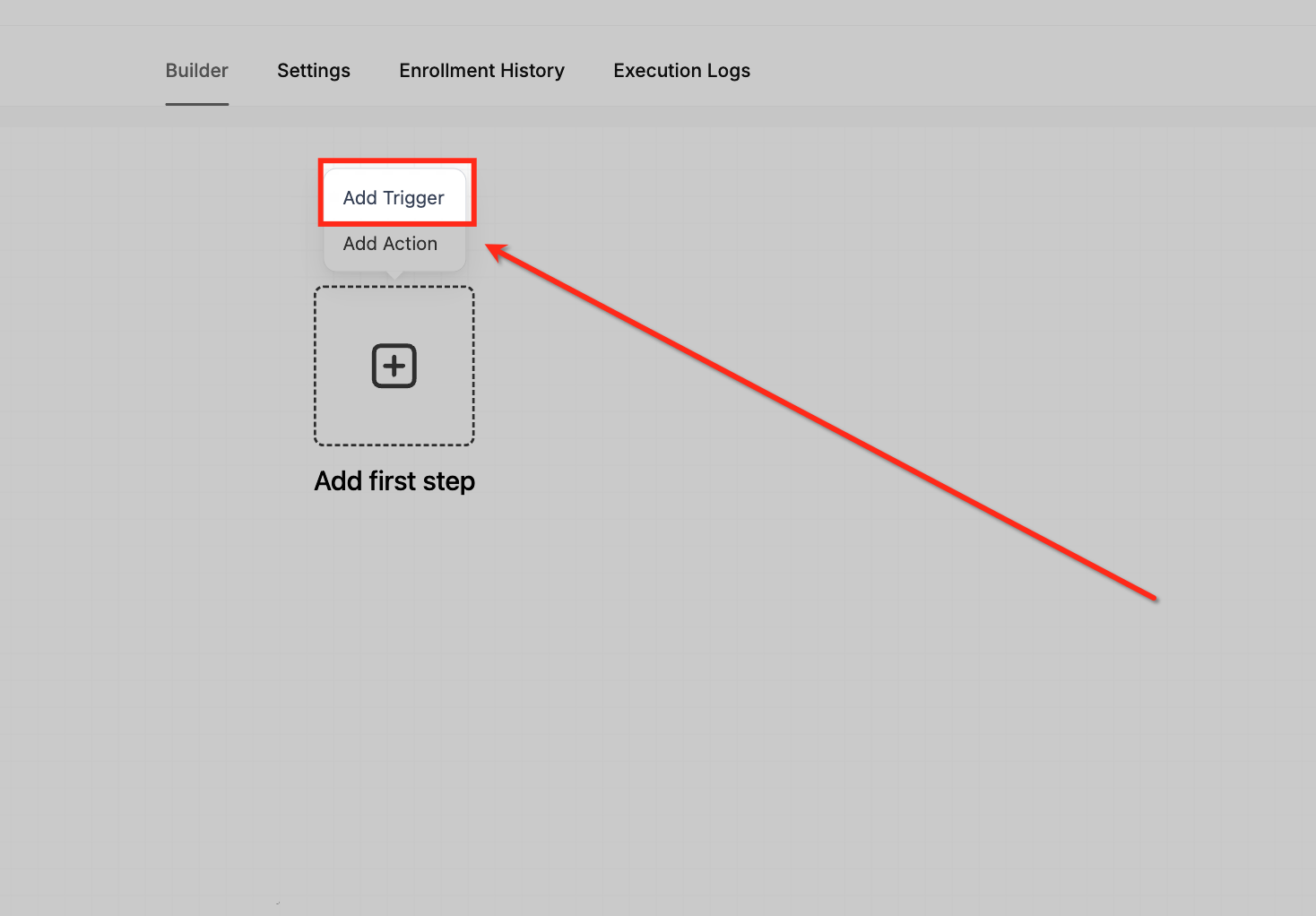
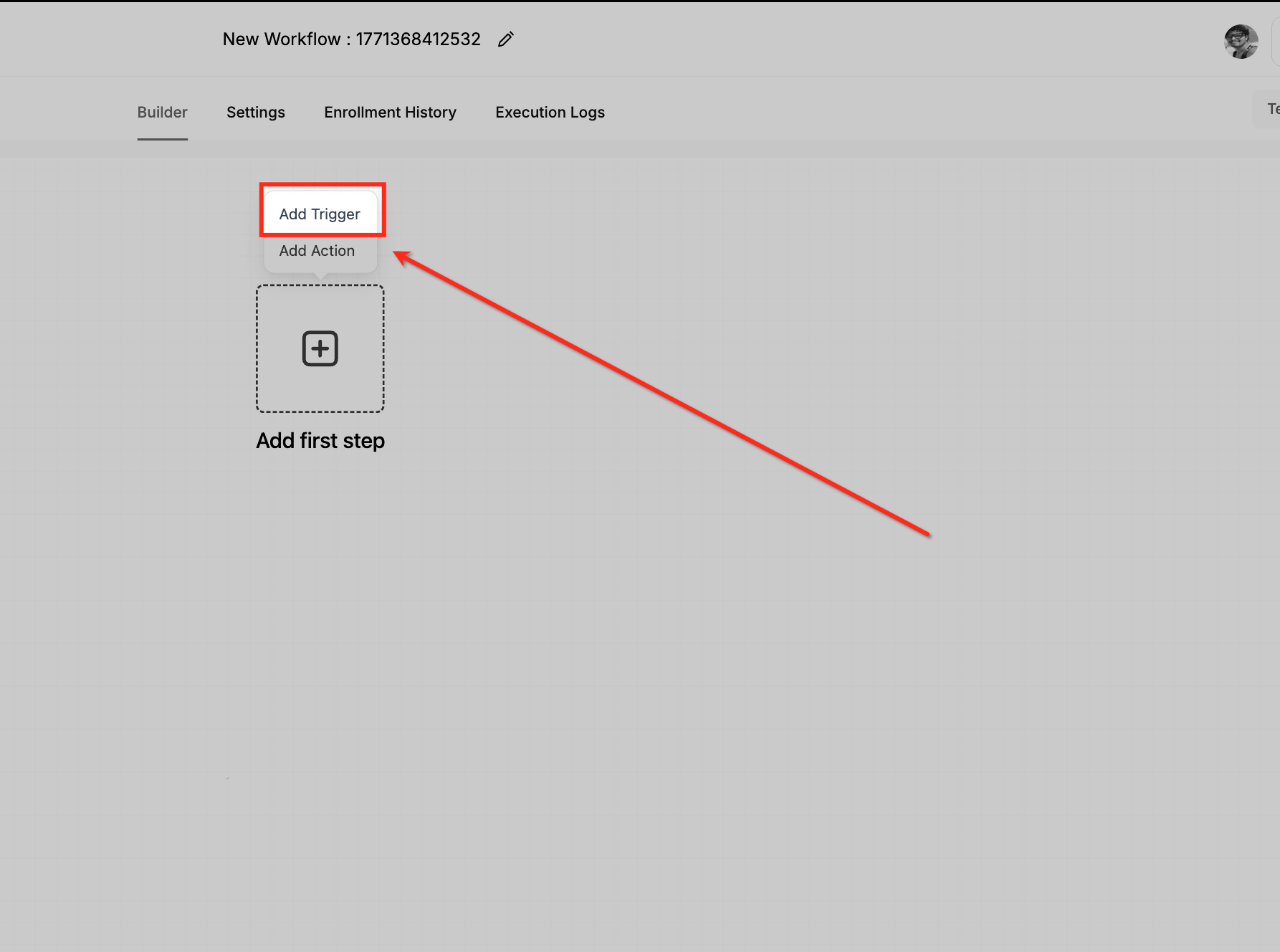
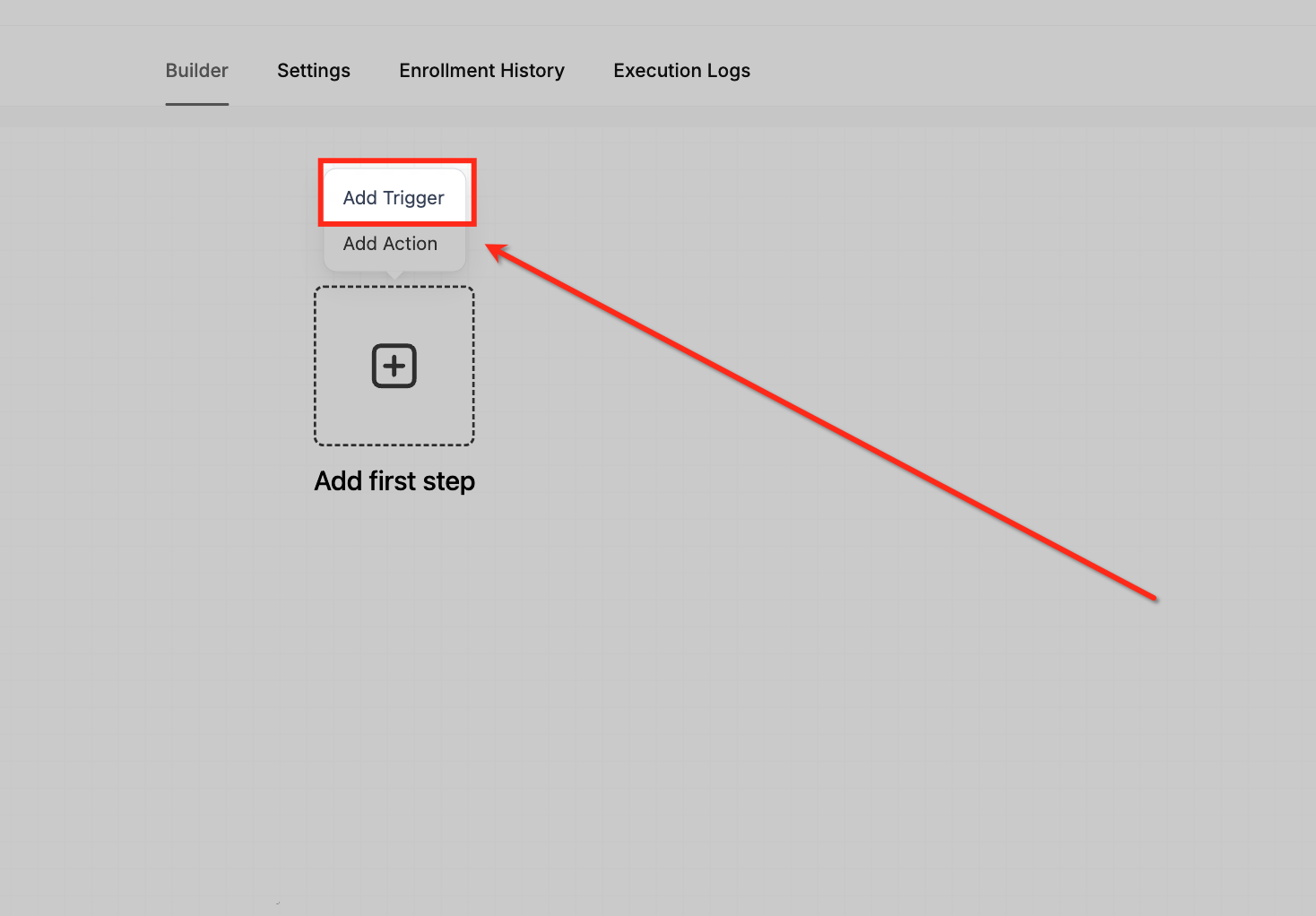
In the Workflow Builder, click Add Trigger.
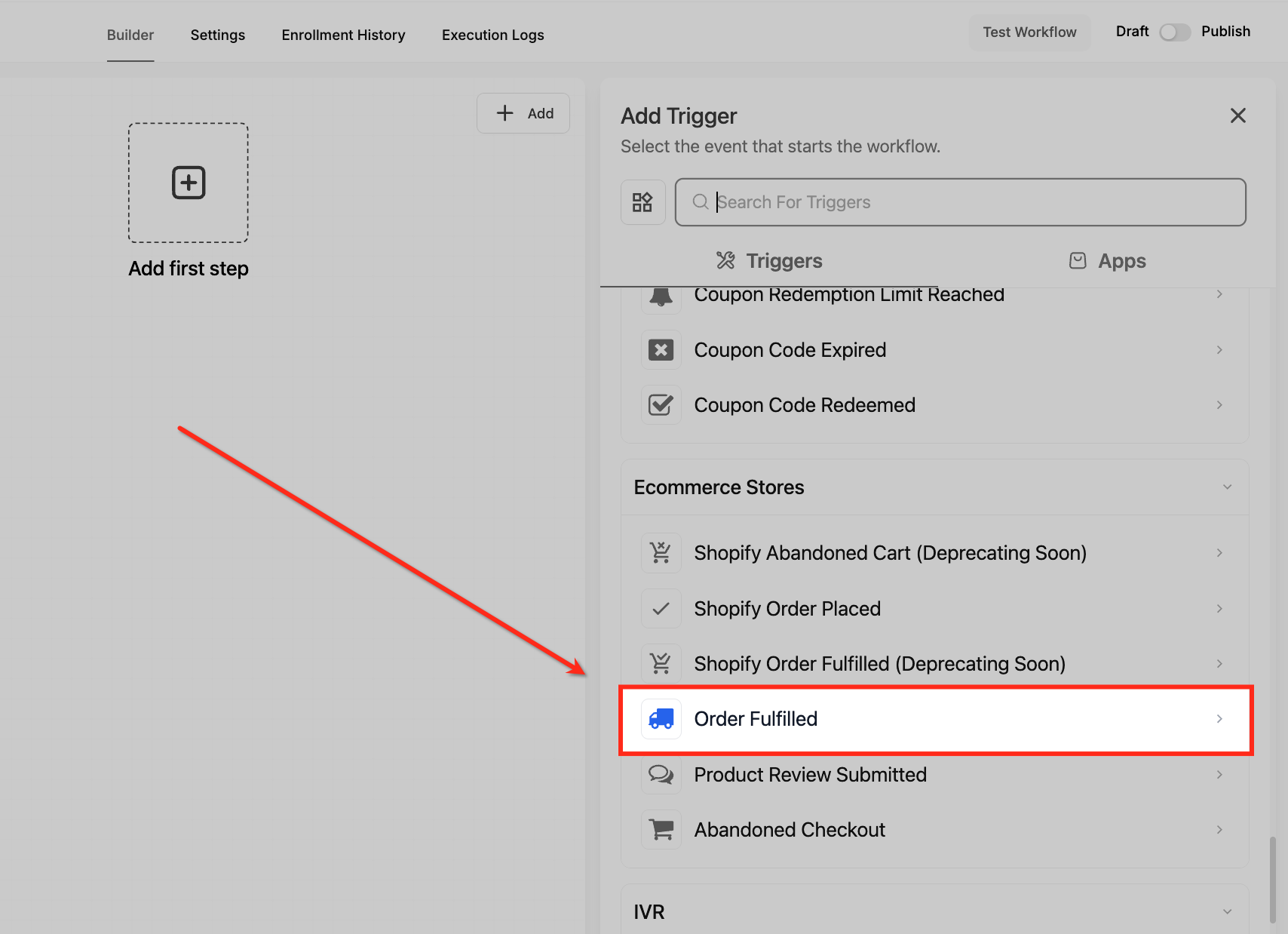
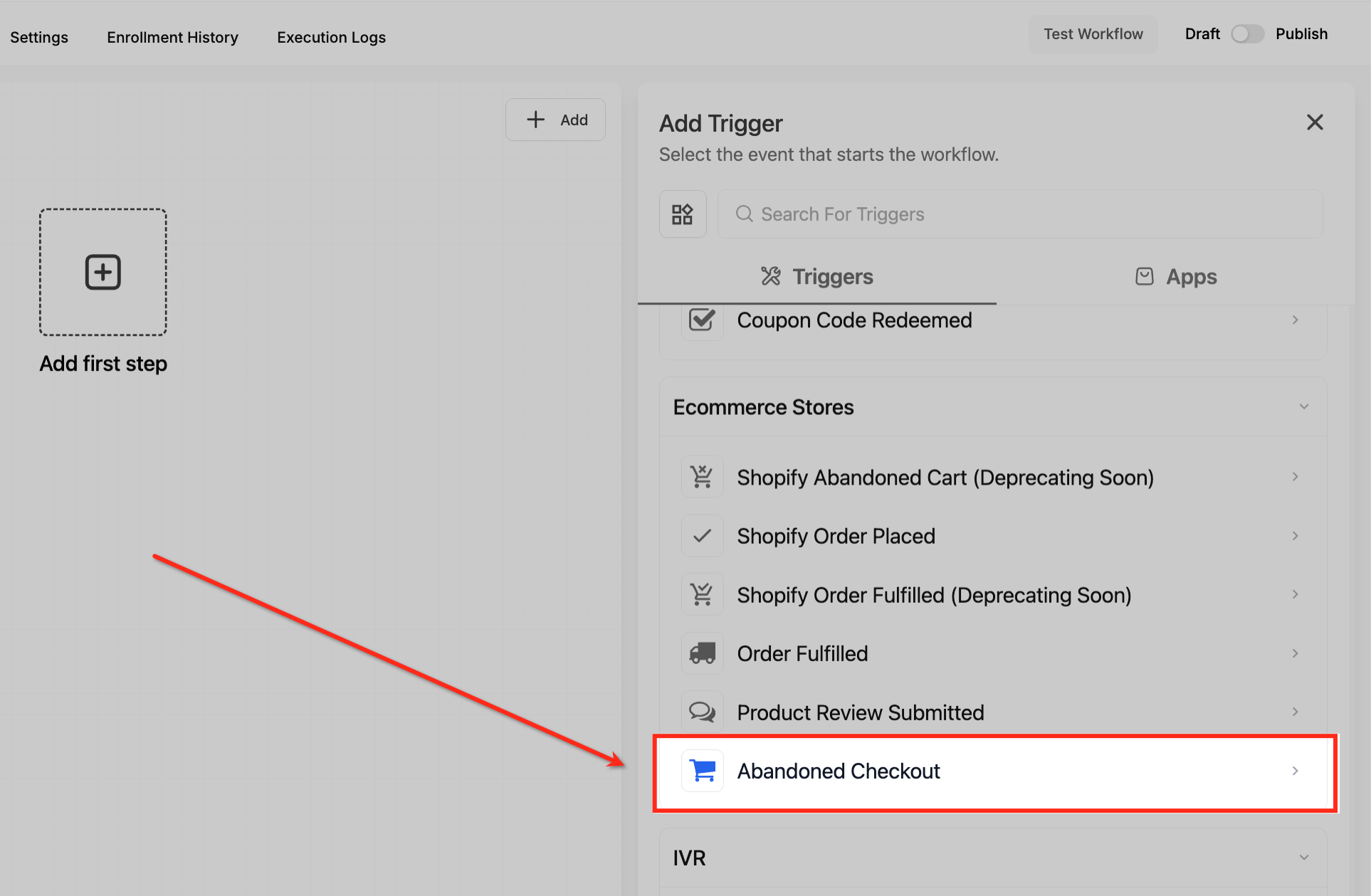
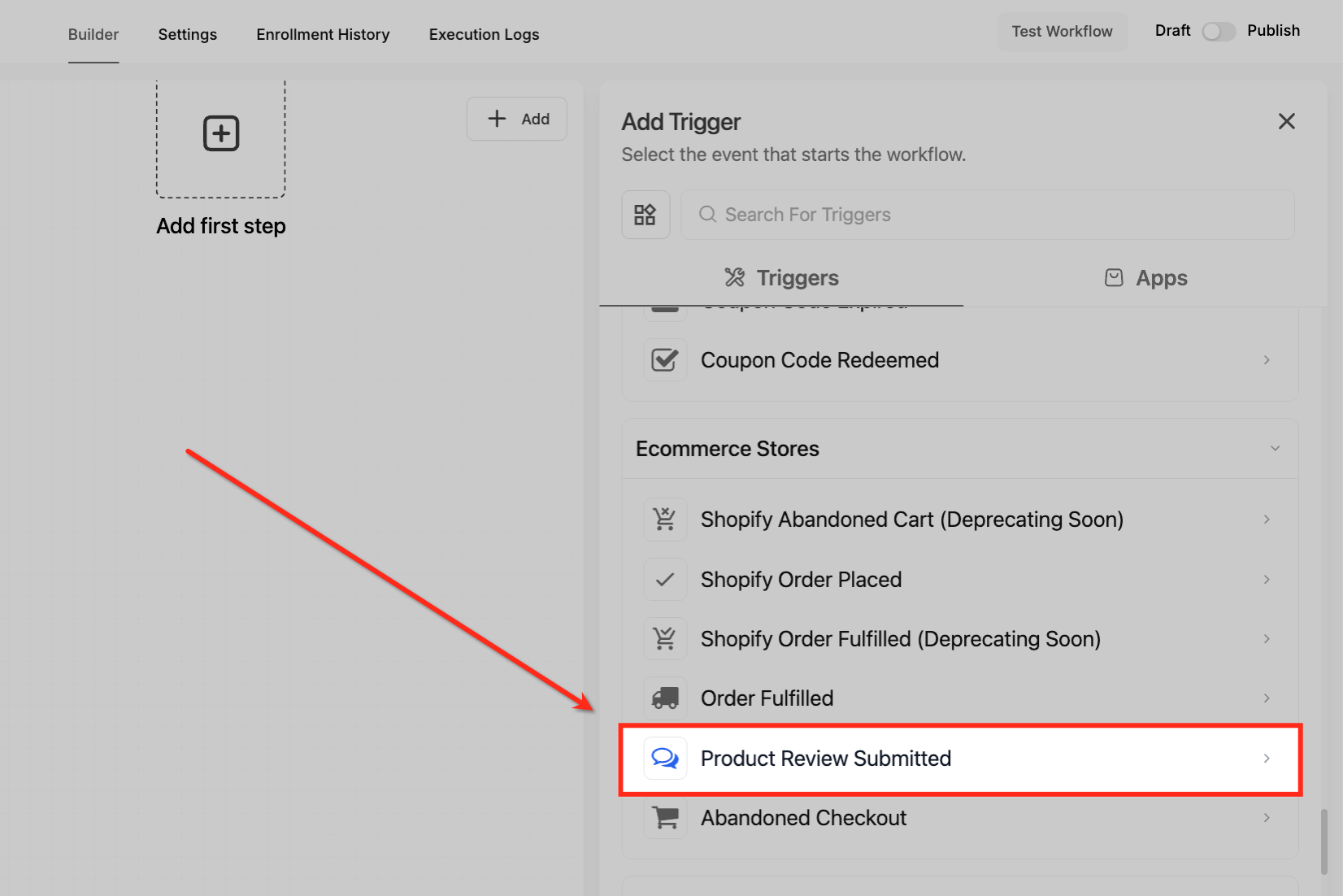
In the Add Trigger panel, scroll to the Ecommerce Stores category and select the trigger you want.
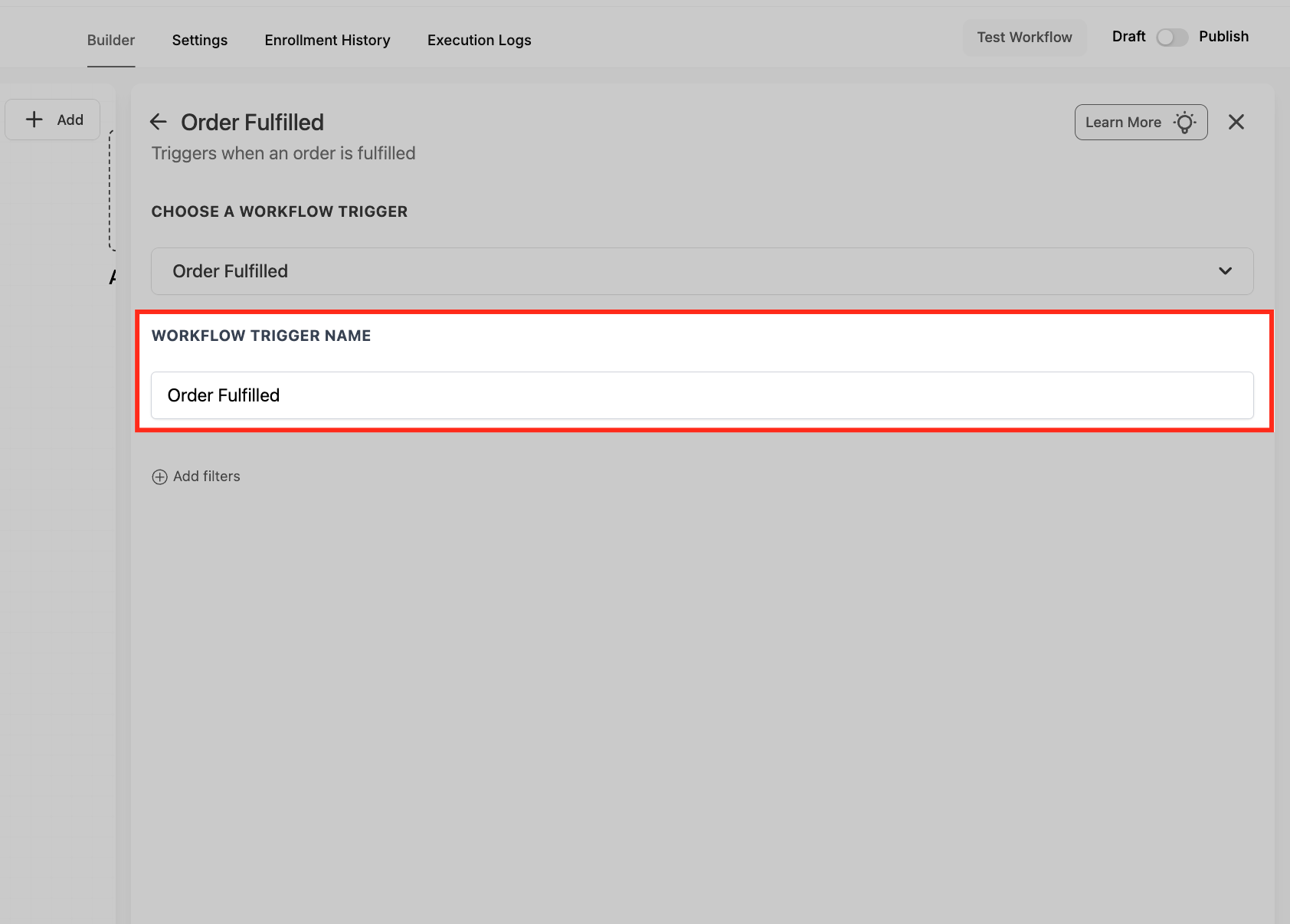
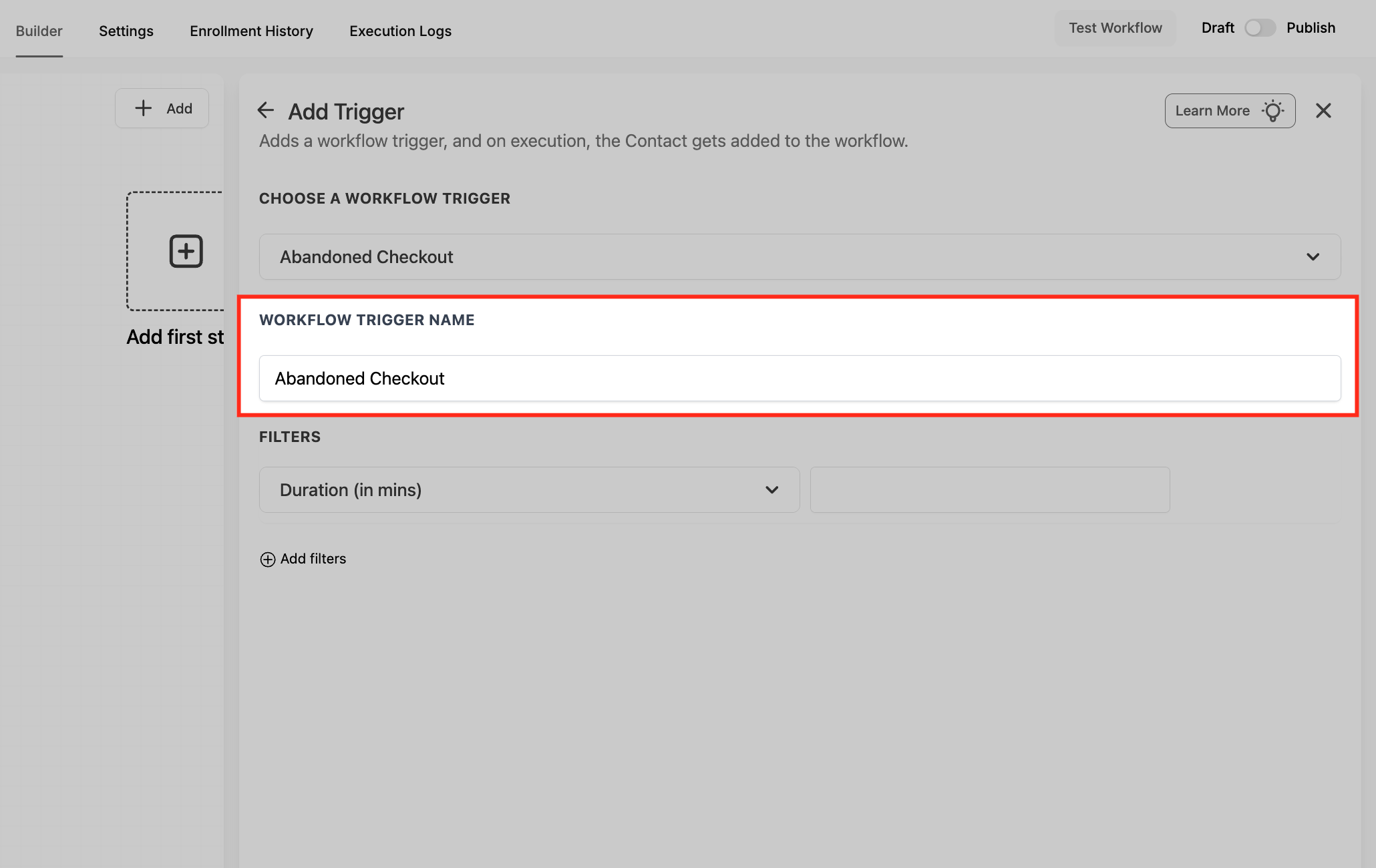
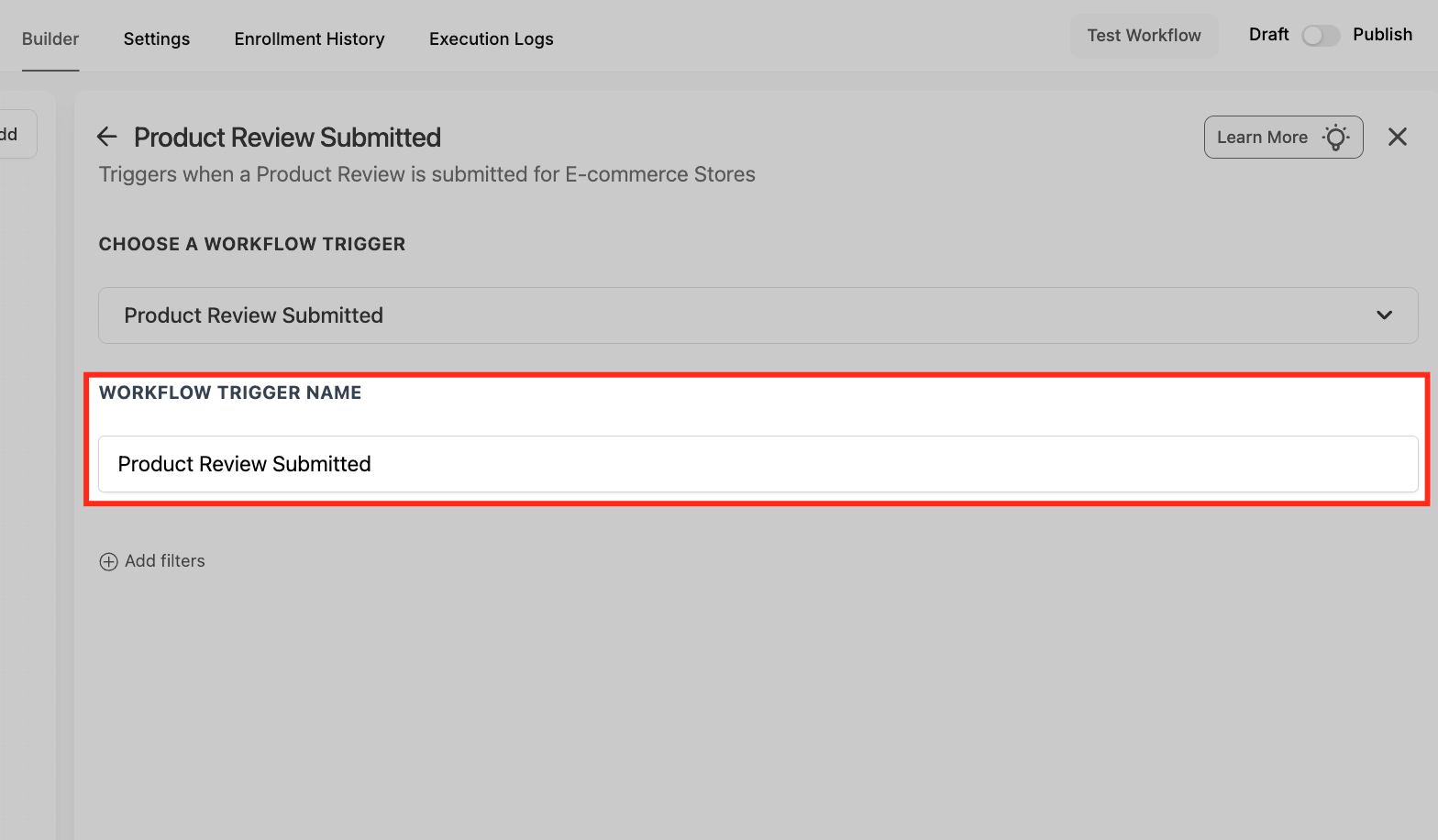
Enter a clear Workflow Trigger Name so the trigger is easy to find later.
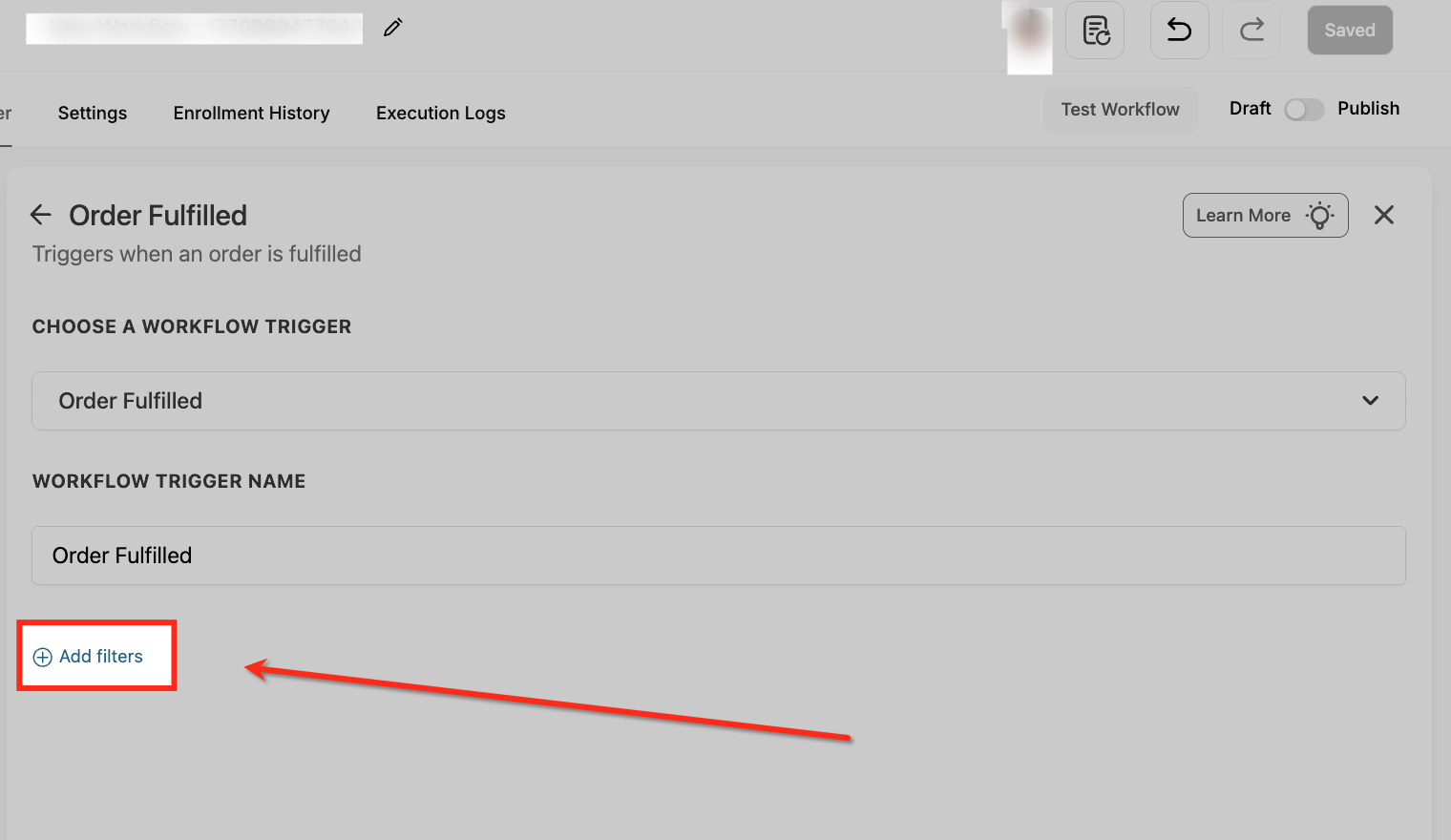
Optionally add Filters to control which orders, carts, or reviews enroll.
Click Save Trigger, then build your actions and publish the workflow.
The sections below cover what each trigger fires on, every filter and its values, the data each makes available, when to use it, and any limits to watch for.
The Order Fulfilled trigger is the recommended, cross-source trigger for post-shipment automations. It works across the native eCommerce Store, Shopify, and WooCommerce, replacing the older Shopify-only fulfillment trigger.
Fires on: an order's status changing to Fulfilled, whether fulfillment happens inside your native eCommerce Store or via a connected external storefront. Fulfillment events pushed in from connected shipping tools (for example, Shippo or ShipStation) also fire this trigger, so one workflow can cover every place labels are created.
Edge cases:
Partial fulfillments fire the trigger. Each time an item group is marked Fulfilled, the workflow runs again. Use filters or a Tracking Number condition to control duplicate notifications on split shipments.
Marking an order Delivered does not retrigger it. This trigger fires only on the change to Fulfilled. Use a different trigger for delivery-stage automations.
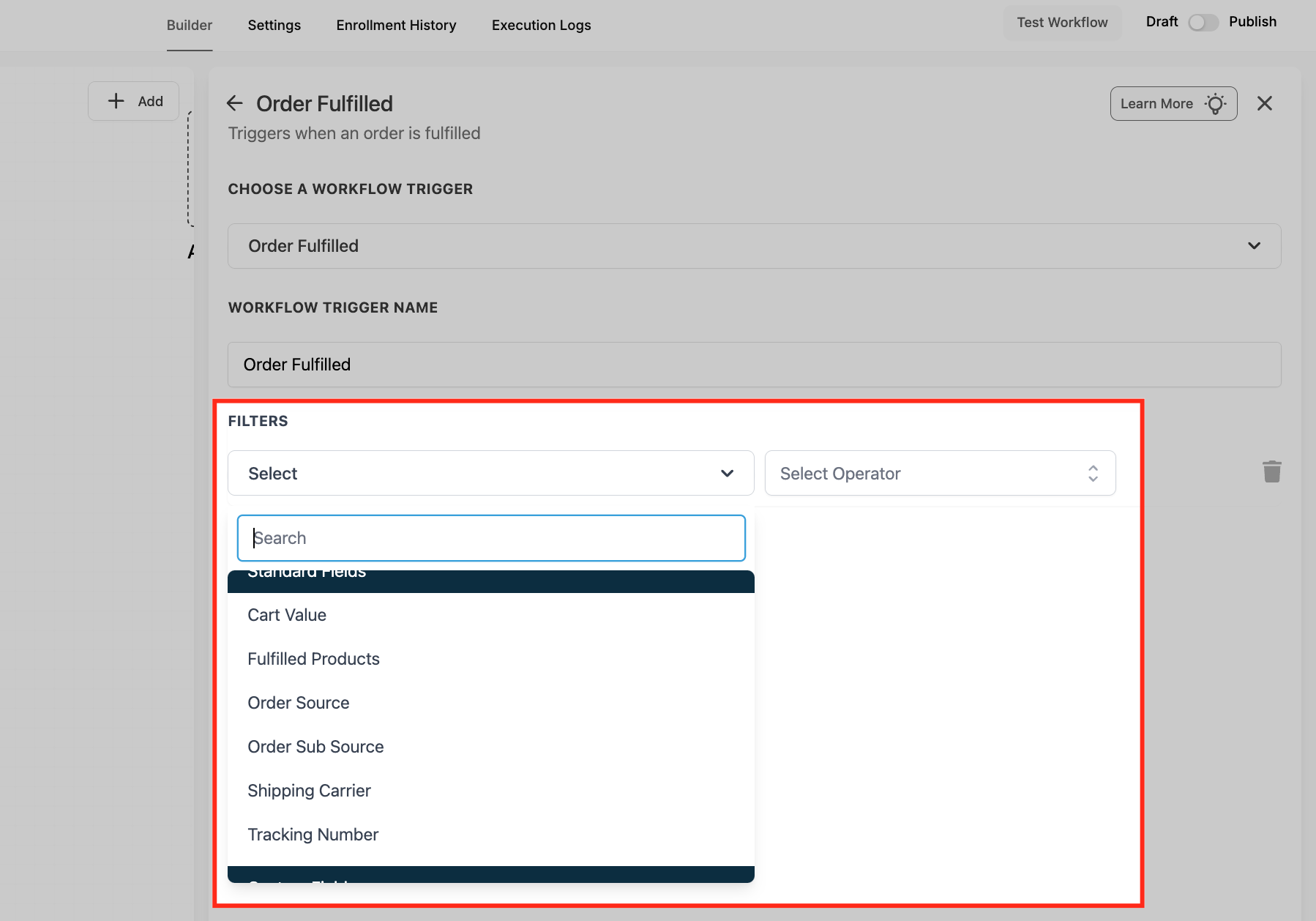
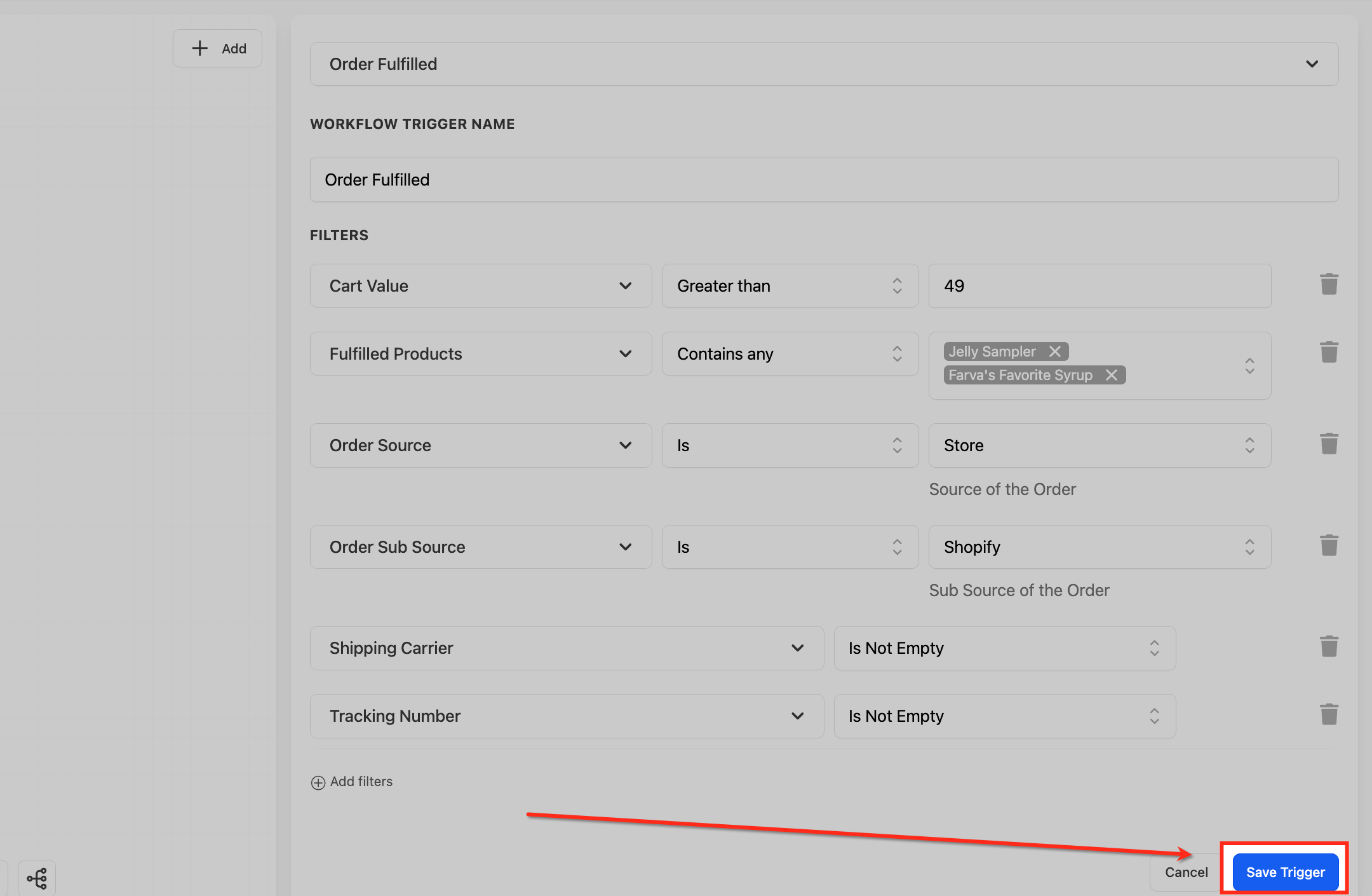
Configuration and filters. Click Add filters to control which fulfillment events enroll. Combine any of these:
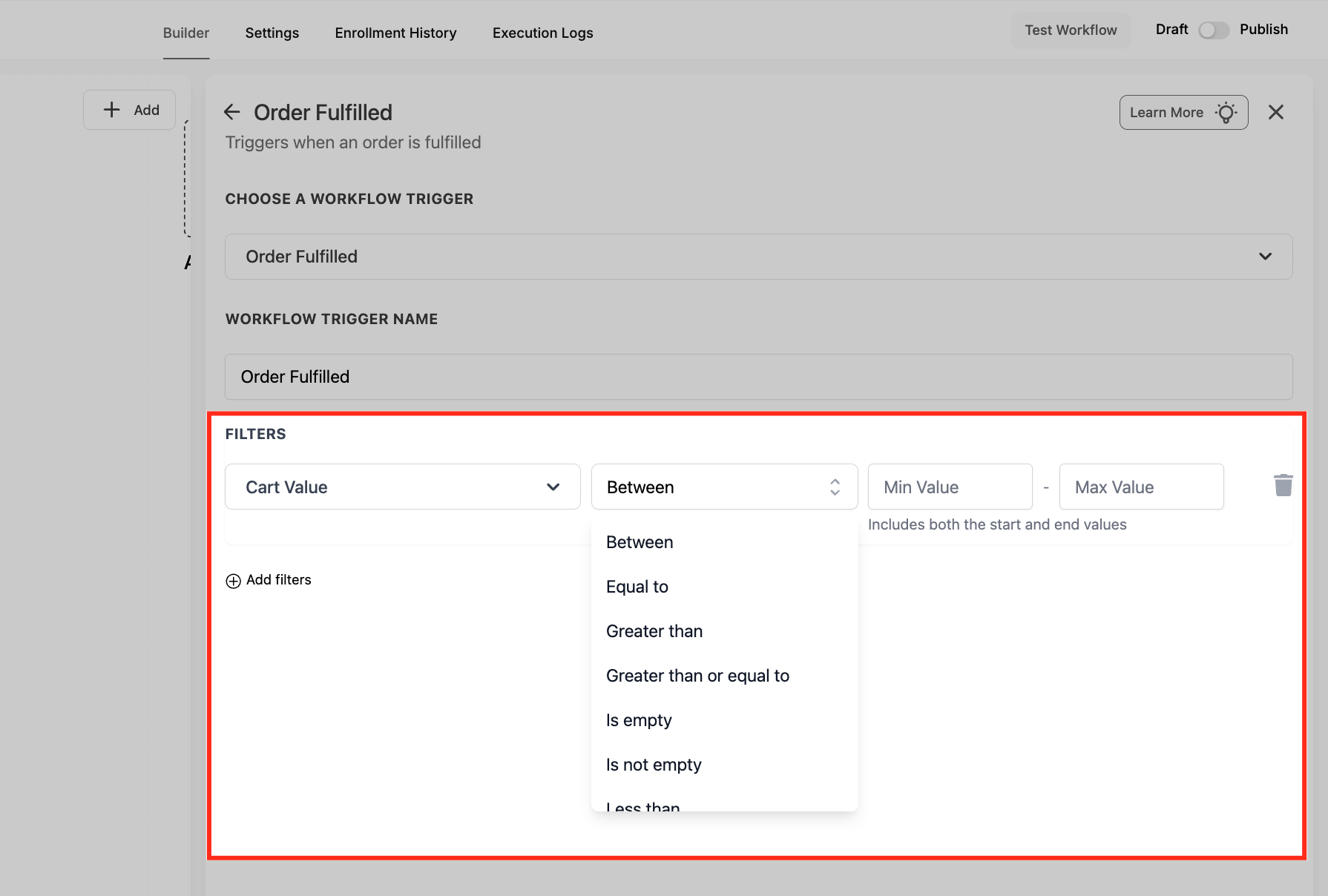
Cart Value - target orders by amount spent. Operators include Equals to, Greater than, Greater than or equal to, Less than, Less than or equal to, Is not equal to, Between, Is empty, and Is not empty.
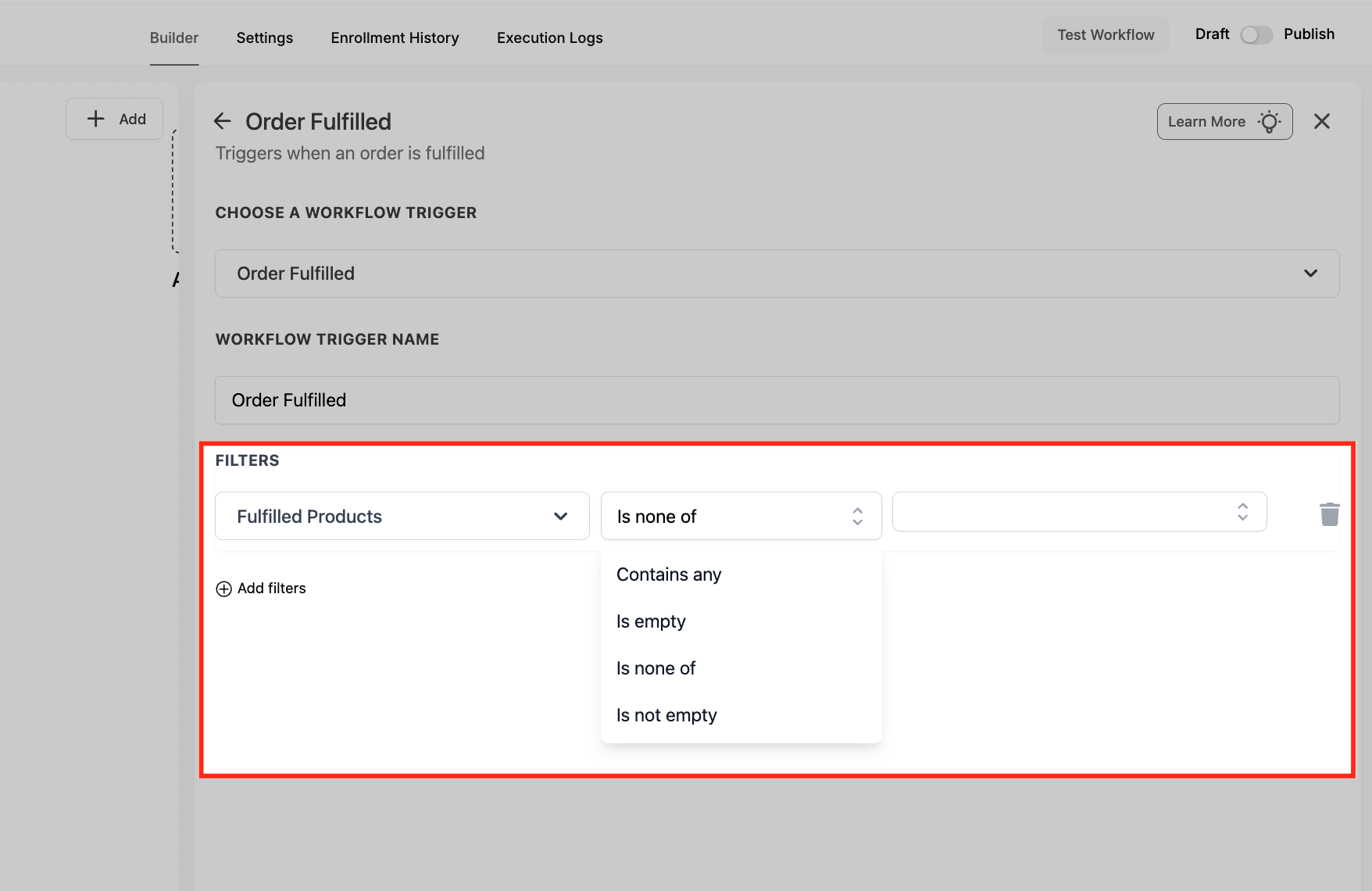
Fulfilled Products - run follow-ups only for specific catalog items. Operators include Contains any (include selected products) and Is none of (exclude them). This evaluates what was actually fulfilled, not just what was ordered.
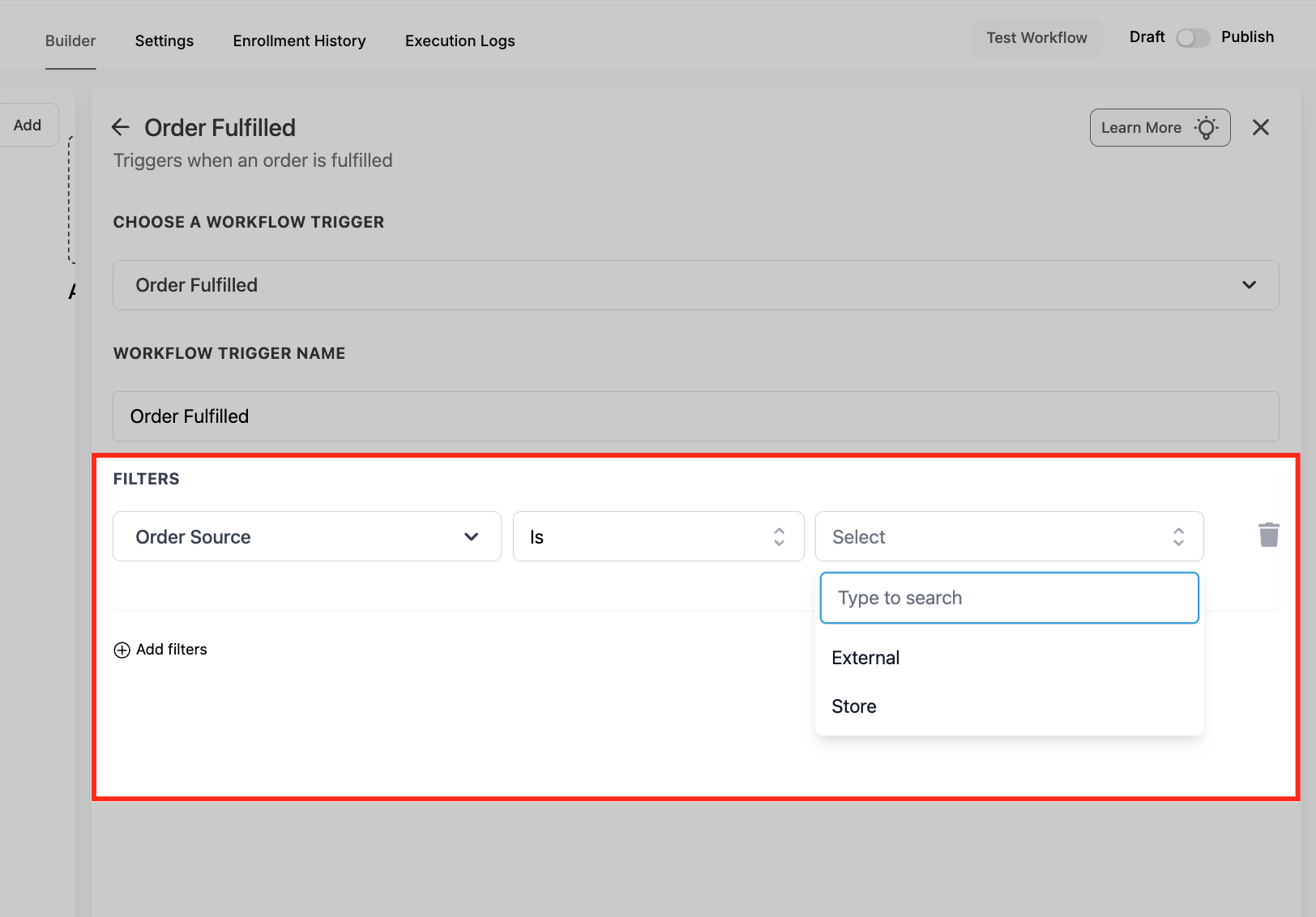
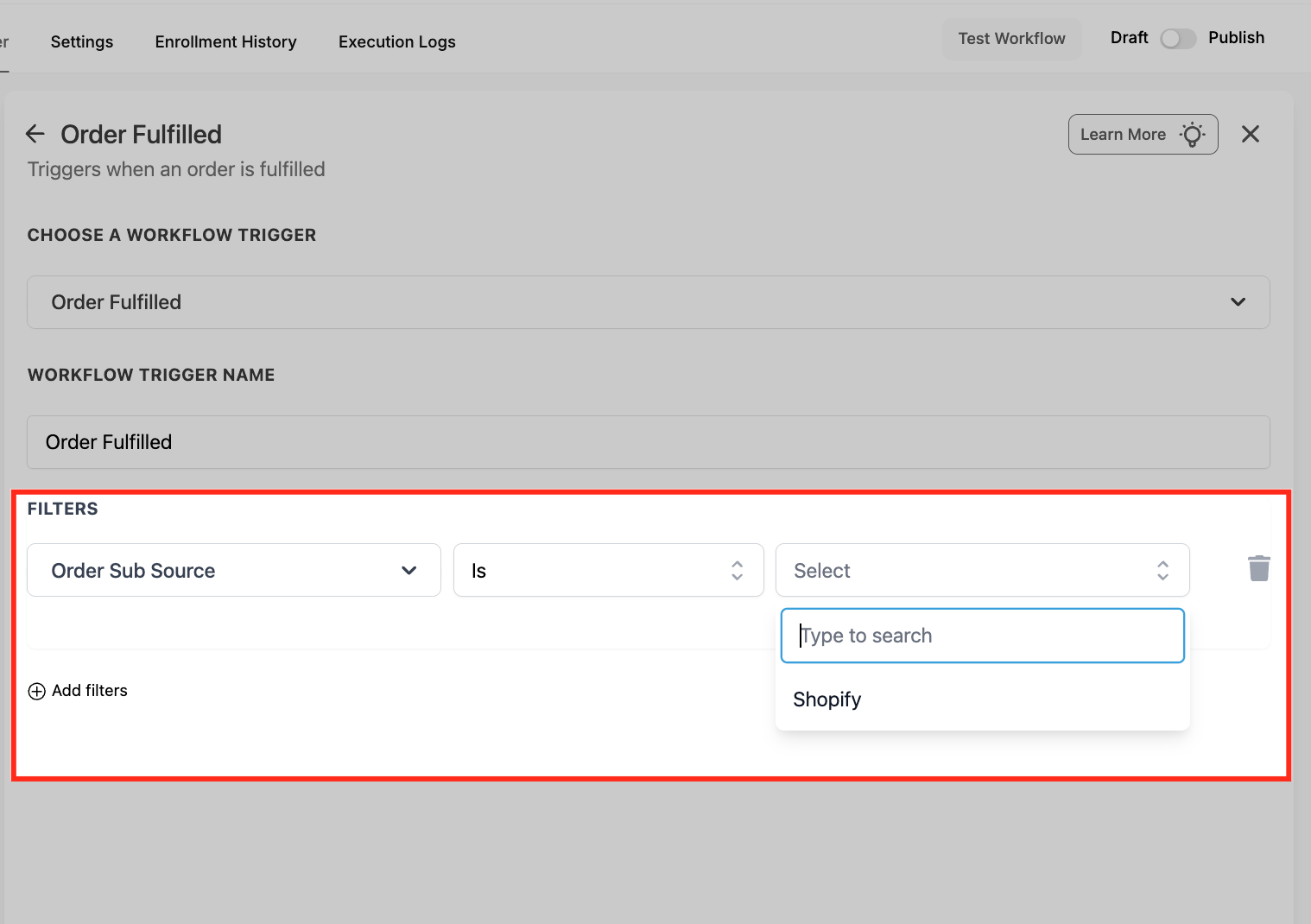
Order Source - choose Store (native eCommerce Store) or External (a connected integration).
Order Sub Source - appears when Order Source is External. Narrow to a specific platform such as Shopify.
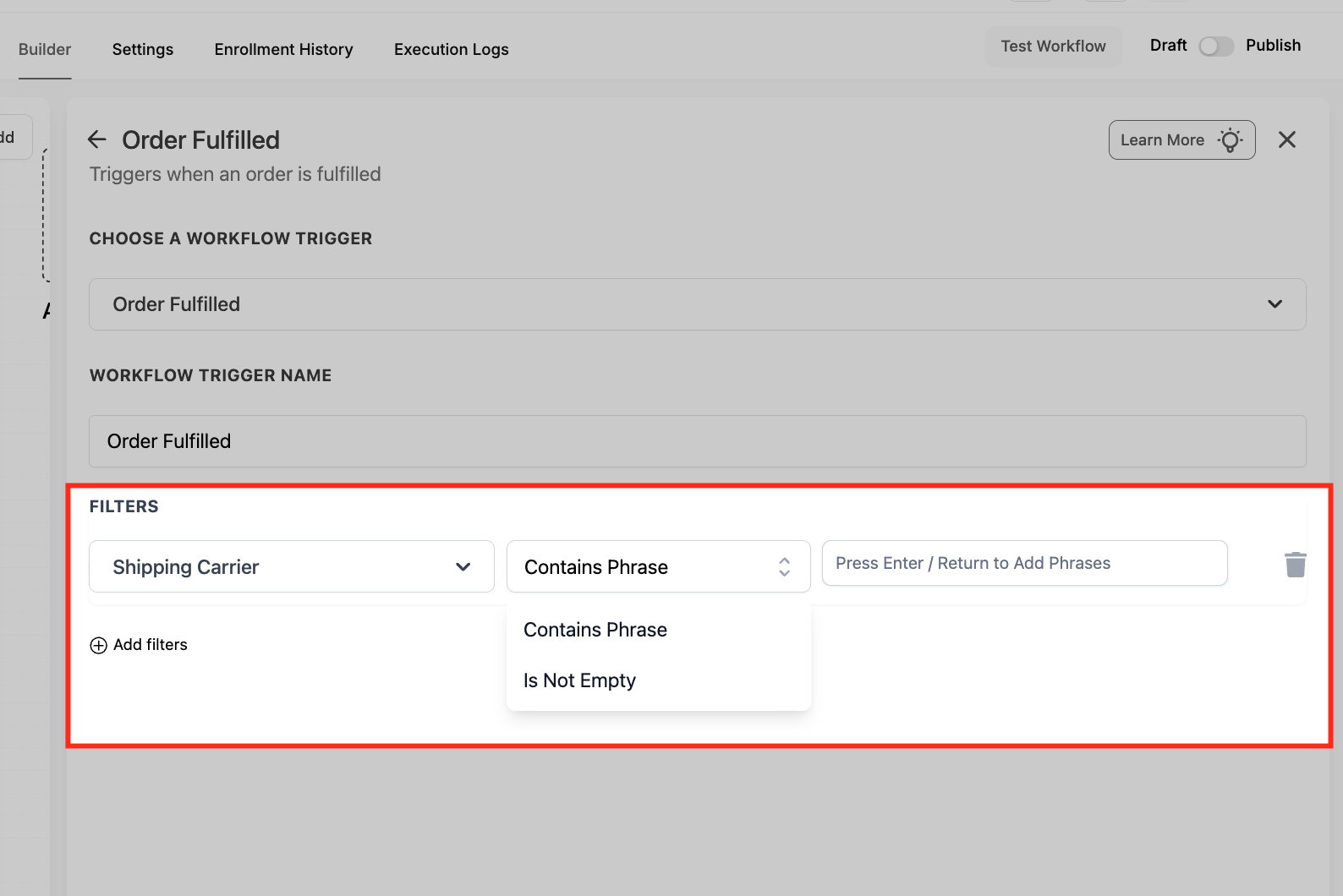
Shipping Carrier - segment by carrier (for example FedEx, UPS, USPS). Operators include Contains Phrase (type the carrier name and press Enter to add it) and Is Not Empty.
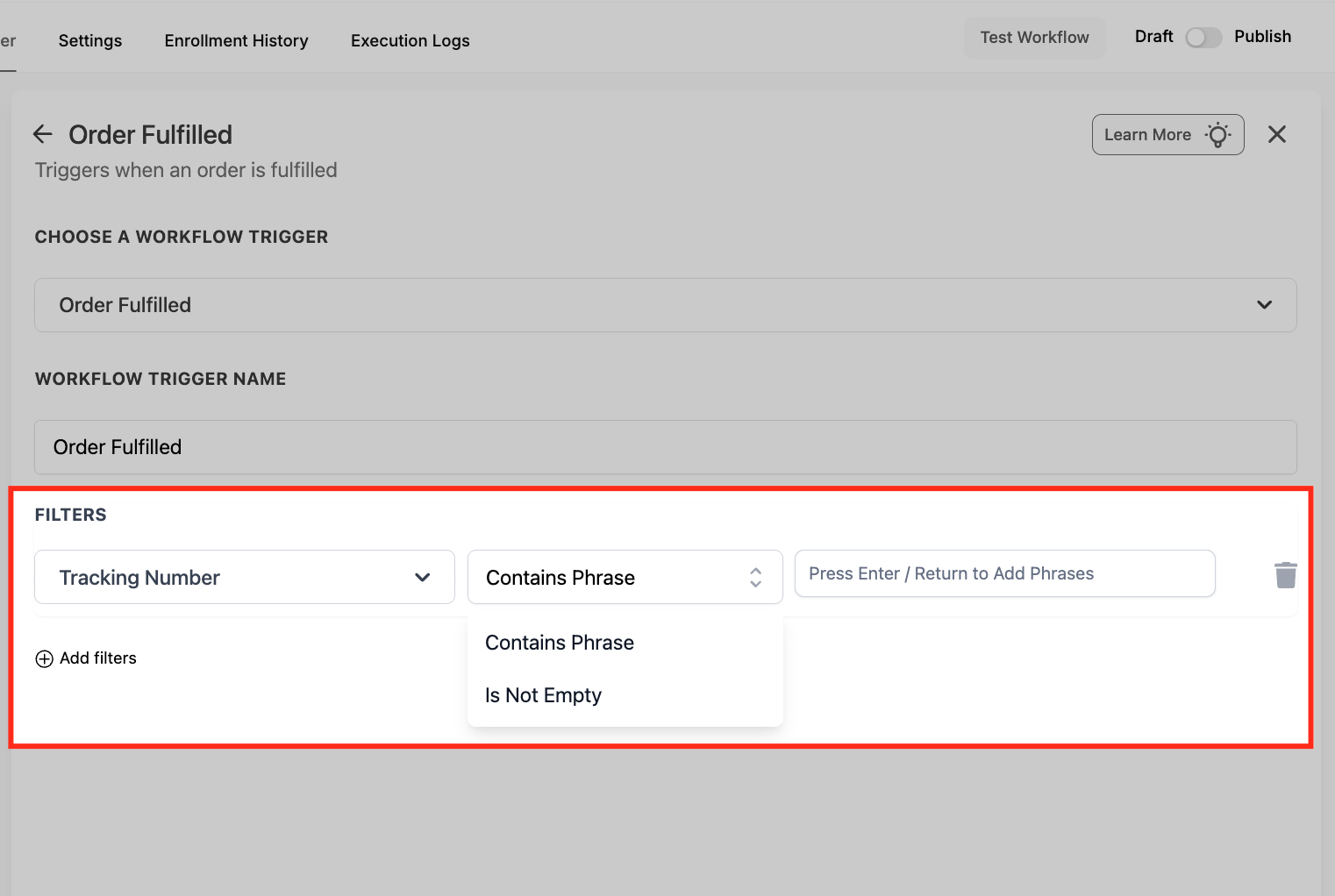
Tracking Number - set to Is Not Empty to run only once a tracking number exists, or match specific patterns (for example overnight-shipping codes). This prevents premature notifications.
Optionally toggle Allow Multiple if you expect multiple shipments per order and want the workflow to enroll each one.
Data made available. Fulfillment-level order data is available to downstream actions and merge fields, including cart value, fulfilled products and SKUs, order source and sub-source, shipping carrier, and tracking number. Standard contact fields such as {{contact.first_name}}, {{contact.email}}, and {{contact.phone}} are also available so you can personalize messages.
When to use it. Use Order Fulfilled to close the customer-experience loop the moment a package ships: send a shipment notification with a tracking link, move the contact to a "Shipped" pipeline stage, update inventory or accounting, or notify your fulfillment team.
Med-spa retail example: A client orders a $180 home-care skincare set from your online store. When the order is marked Fulfilled with a tracking number, the workflow sends a branded "Your skincare is on the way" email with the tracking link, waits three days, then sends an application-tips SMS. A Cart Value filter of "Greater than $150" routes higher-value orders into a VIP thank-you sequence with a loyalty offer.
Notes and limits.
To delay a follow-up until tracking is live, add a Wait step set to "until tracking number is not empty," or use the Tracking Number filter set to Is Not Empty.
Contact records are not required for the trigger to fire; you can create or update a contact inside the workflow.
The Abandoned Checkout trigger is the recommended, cross-source trigger for cart-recovery automations. It detects carts abandoned in your native eCommerce Store or in a connected external platform such as Shopify, giving you one consistent entry point for every recovery campaign. It replaces the older Shopify-only abandoned-cart trigger.
Fires on: a shopper adding items to the cart and entering a valid email address, but not completing payment within the abandonment window (Duration) you define.
Edge case: if the shopper never enters an email address, the checkout cannot be marked abandoned and the trigger will not fire.
Configuration and filters.
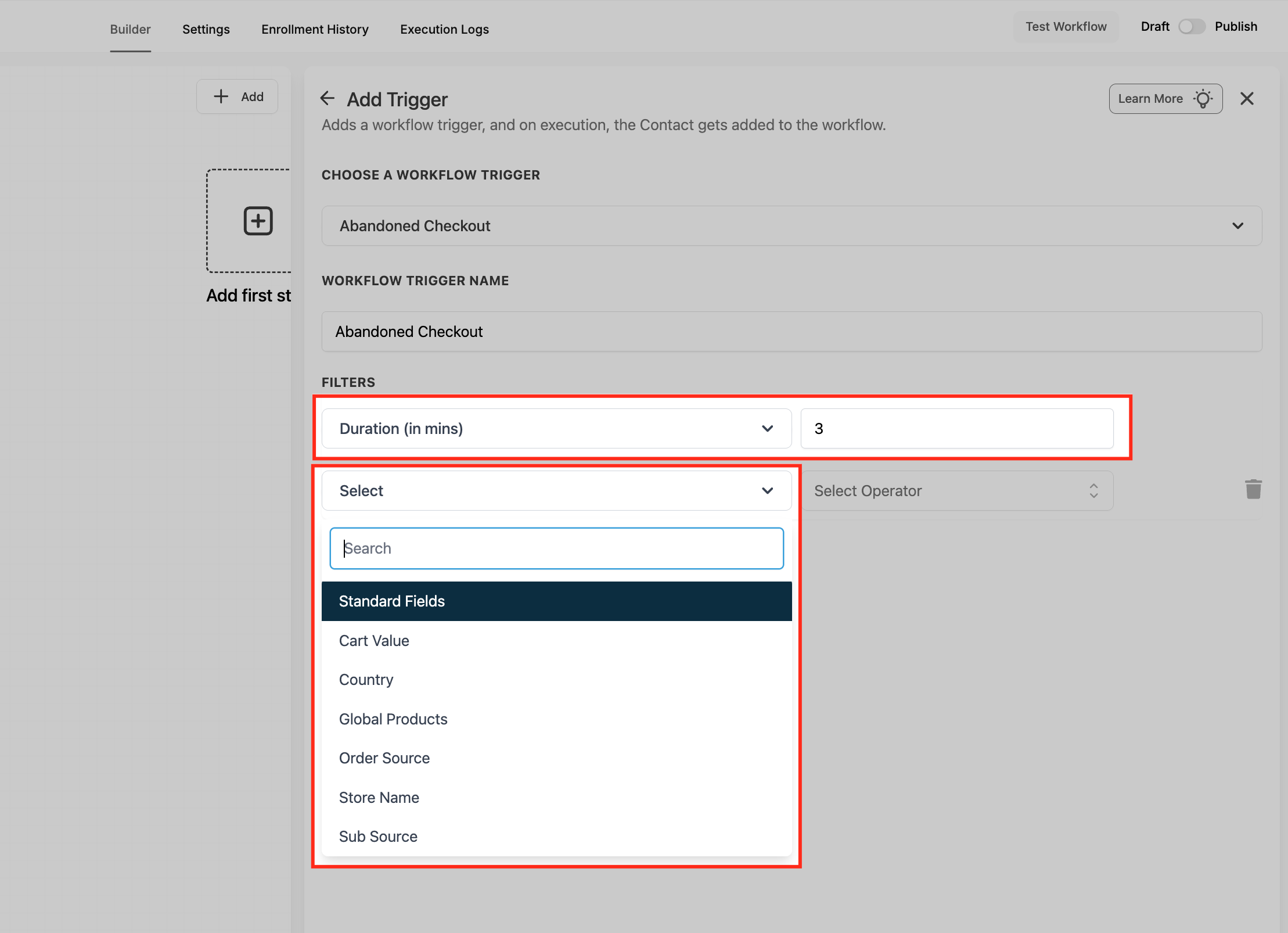
Duration (in mins) - the wait time before a checkout counts as abandoned. Set this to match your buying cycle; fast-moving, low-ticket stores often use 15 to 30 minutes, while high-ticket or considered purchases may extend to several hours.
Cart Value - trigger only on high- or low-value carts. Operators include Equals to, Greater than, Greater than or equal to, Less than, Less than or equal to, Is not equal to, Is empty, and Is not empty.
Country - limit automation to shoppers in specific locations, useful for localized shipping or tax messaging.
Global Products - multi-select one or more products so the trigger fires only when those items are in the cart.
Order Source - choose Store (native eCommerce Store) or External.
Sub Source - appears when Order Source is External. Choose the platform, such as Shopify, with more integrations supported over time.
Store Name - limit which storefront(s) can fire the workflow when you manage multiple stores.
You can also add a Condition action after the trigger to segment contacts further. For example, branch on Cart Value, Order Source, and Sub Source so high-value carts and store-origin carts receive different recovery messages.
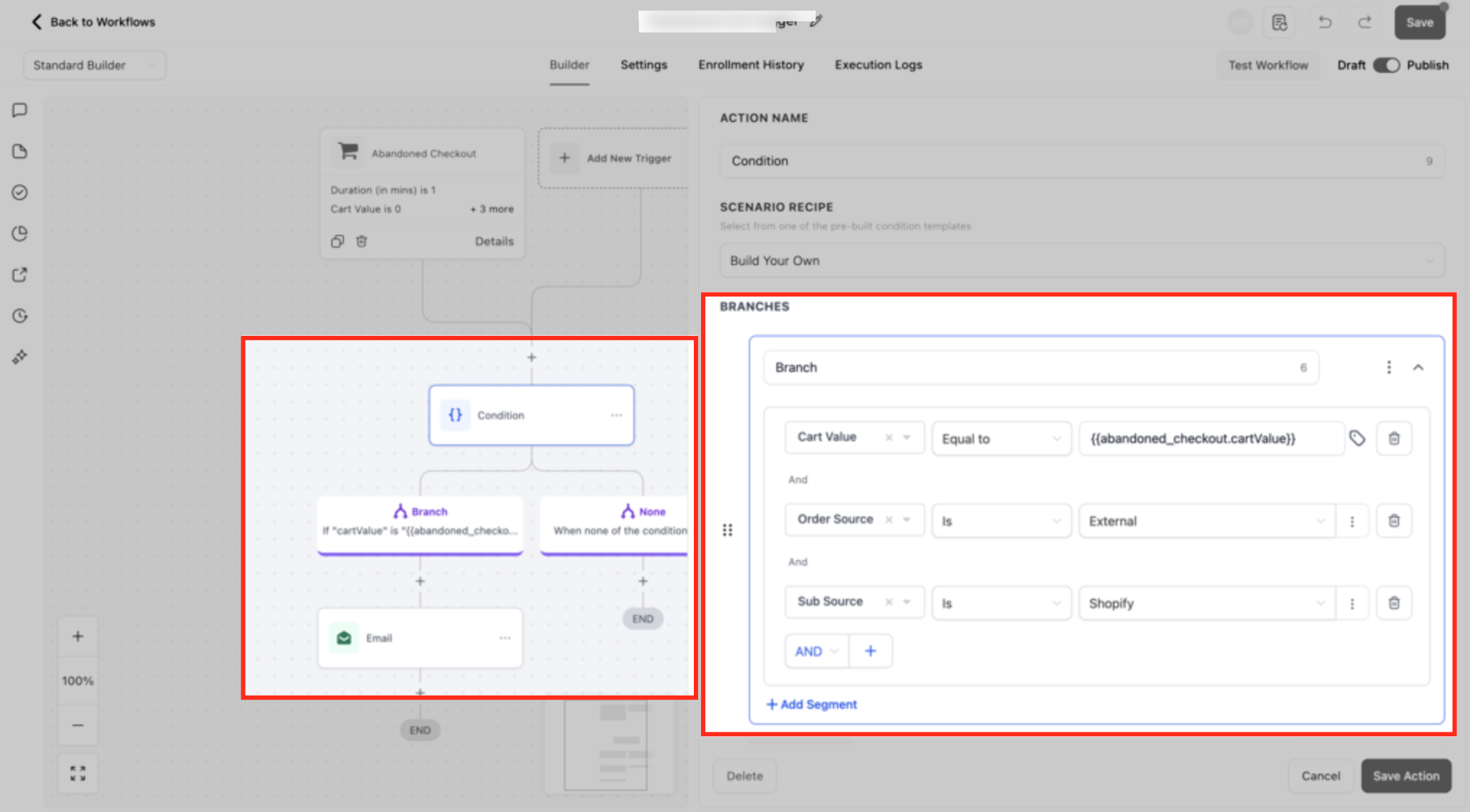
Data made available. Cart and checkout data is available downstream, including cart value, the products in the cart, country, order source and sub-source, and store name, plus standard contact fields like {{contact.first_name}} and {{contact.email}}. In the Email Builder, use the Shopping Cart element to automatically list the abandoned products and a checkout link.
When to use it. Use Abandoned Checkout to recover lost sales with timely, personalized nudges across any storefront. Vary the message or incentive by cart value, and add discount logic after a set number of follow-ups.
Med-spa retail example: A shopper fills a cart with a $95 retinol serum and a cleanser, enters their email, then leaves without paying. After a 30-minute window, the workflow sends a reminder email that lists the exact cart items and a one-click checkout link. If the cart is still unpaid after 24 hours, an If/Else branch on Cart Value over $75 sends a 10 percent-off SMS to close the sale.
Notes and limits.
Any workflow action (email, SMS, call, task) works after the trigger, regardless of store type.
The trigger can fire each time a customer abandons a cart within the window. Add logic to avoid over-messaging the same contact.
Track results in the workflow Analytics tab (sent, open, click, recovered revenue) and on the Payments Orders screen for recovered orders.
The Product Review Submitted trigger fires the instant a customer leaves a product review, letting you thank buyers, request more feedback, amplify five-star reviews, or flag low-star submissions automatically.
Fires on: a shopper clicking Submit review on a native eCommerce Store product. It captures the review details (rating, headline, comment, reviewer info, store, and product) and launches the workflow immediately.
Edge cases:
The trigger fires on customer submission, before any approval. Approval status does not affect it.
Editing a review does not retrigger the workflow; only the initial submission fires it.
If reviews are globally disabled in your store settings, no review events are emitted and the trigger will not fire.
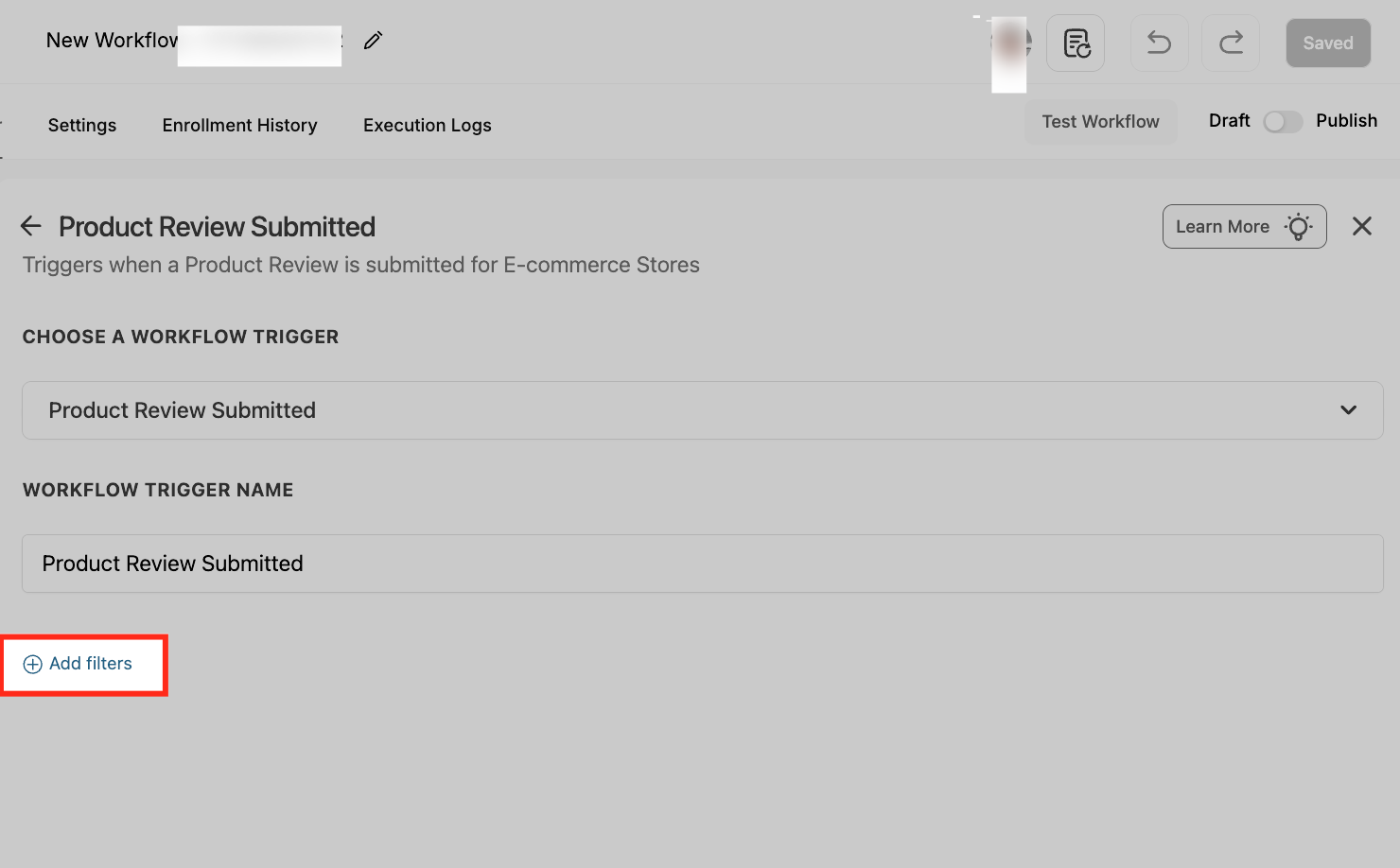
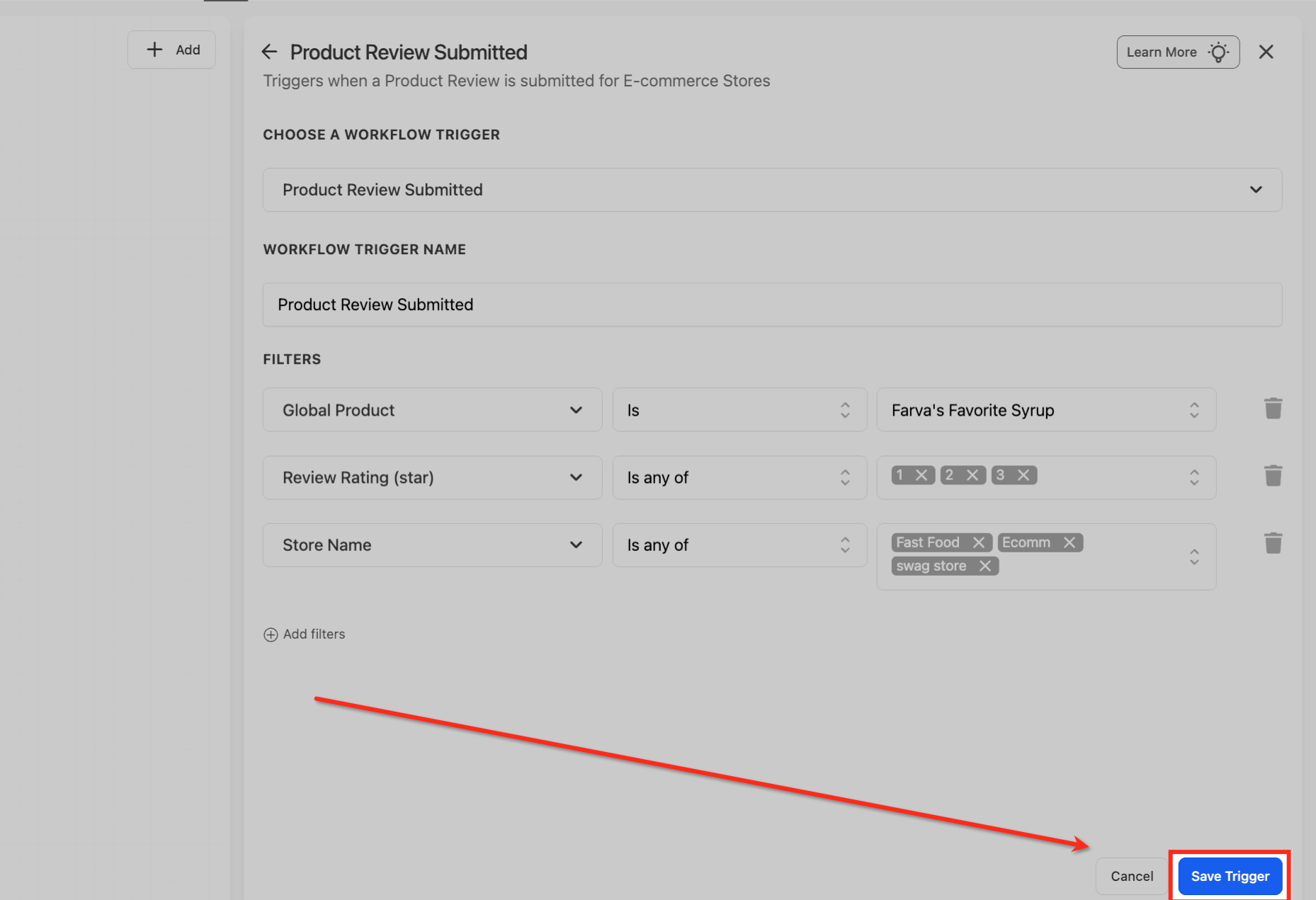
Configuration and filters. Add one or more filters and use Require All vs Require Any to narrow or broaden targeting. Leave filters off to capture every review.
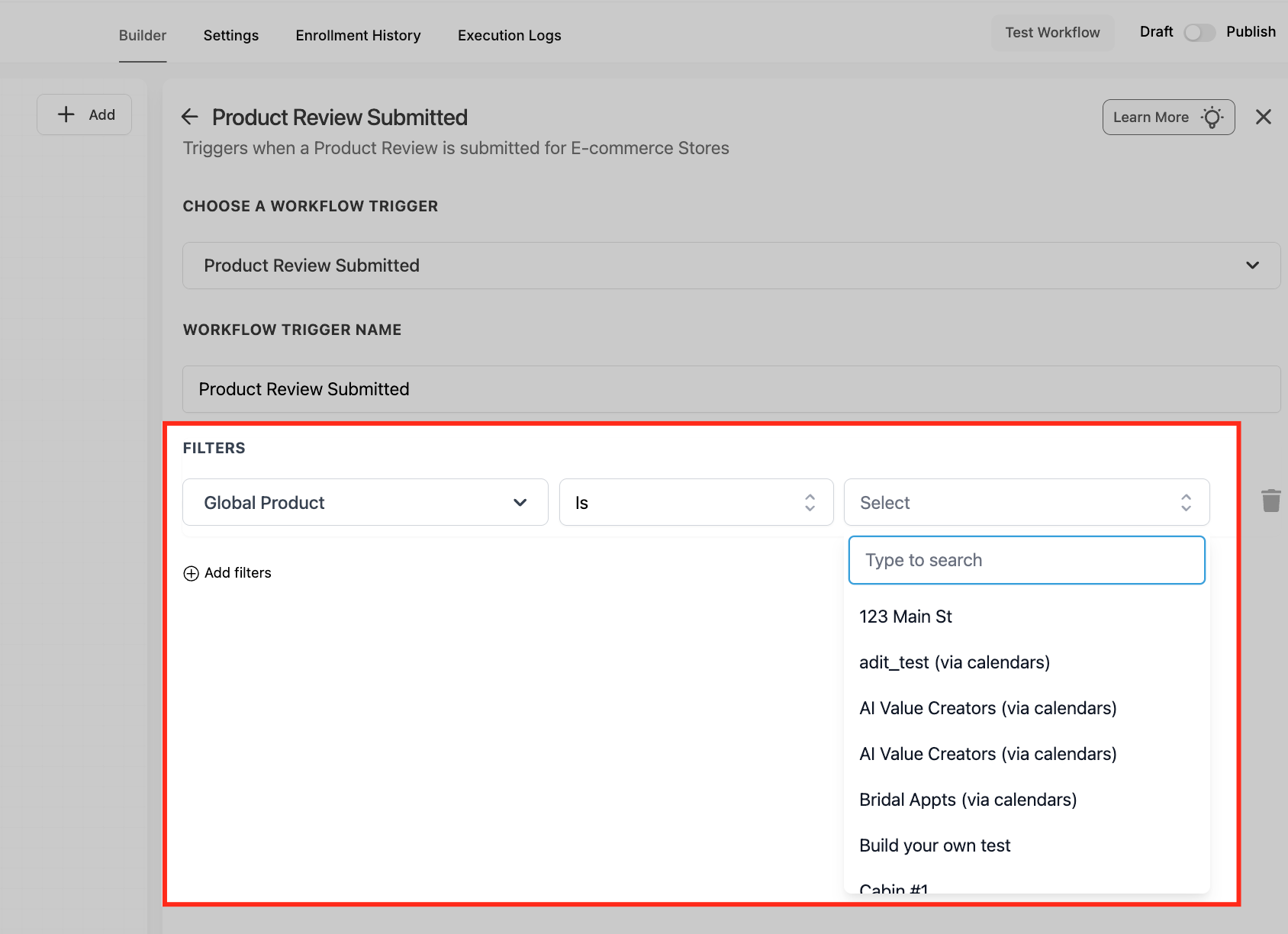
Global Product - operator Is, then pick a single catalog item to watch. Useful for launches, flagship items, or product-specific follow-ups. Only one product per trigger; create additional triggers for other products.
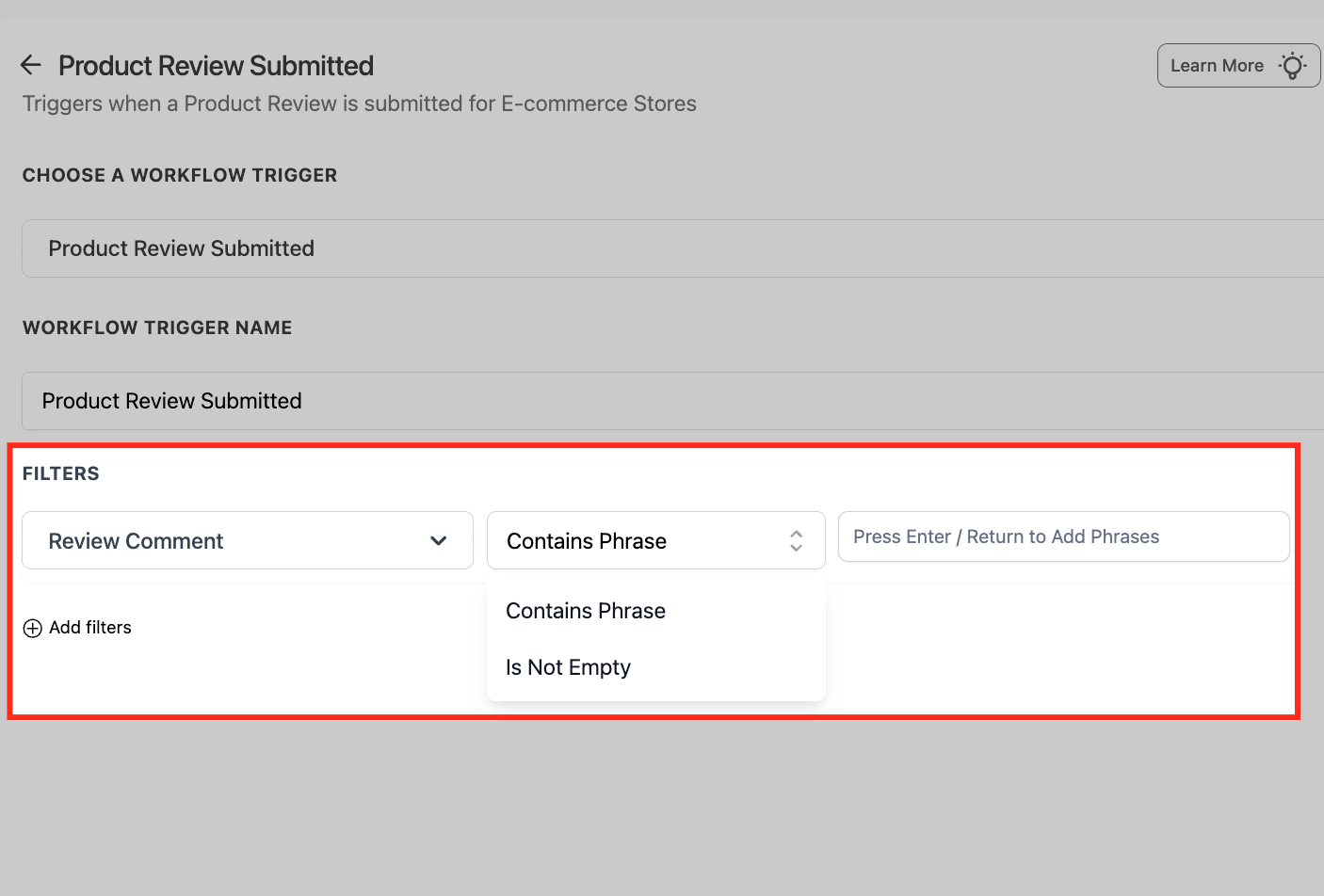
Review Comment - target written feedback. Operators include Contains Phrase (add one or more terms such as "shipping," "refund," or "size") and Is Not Empty (any review with a written comment).
Review Headline - target the review title. Operators include Contains a phrase and Is Not Empty (useful for spotting empty or vague titles).
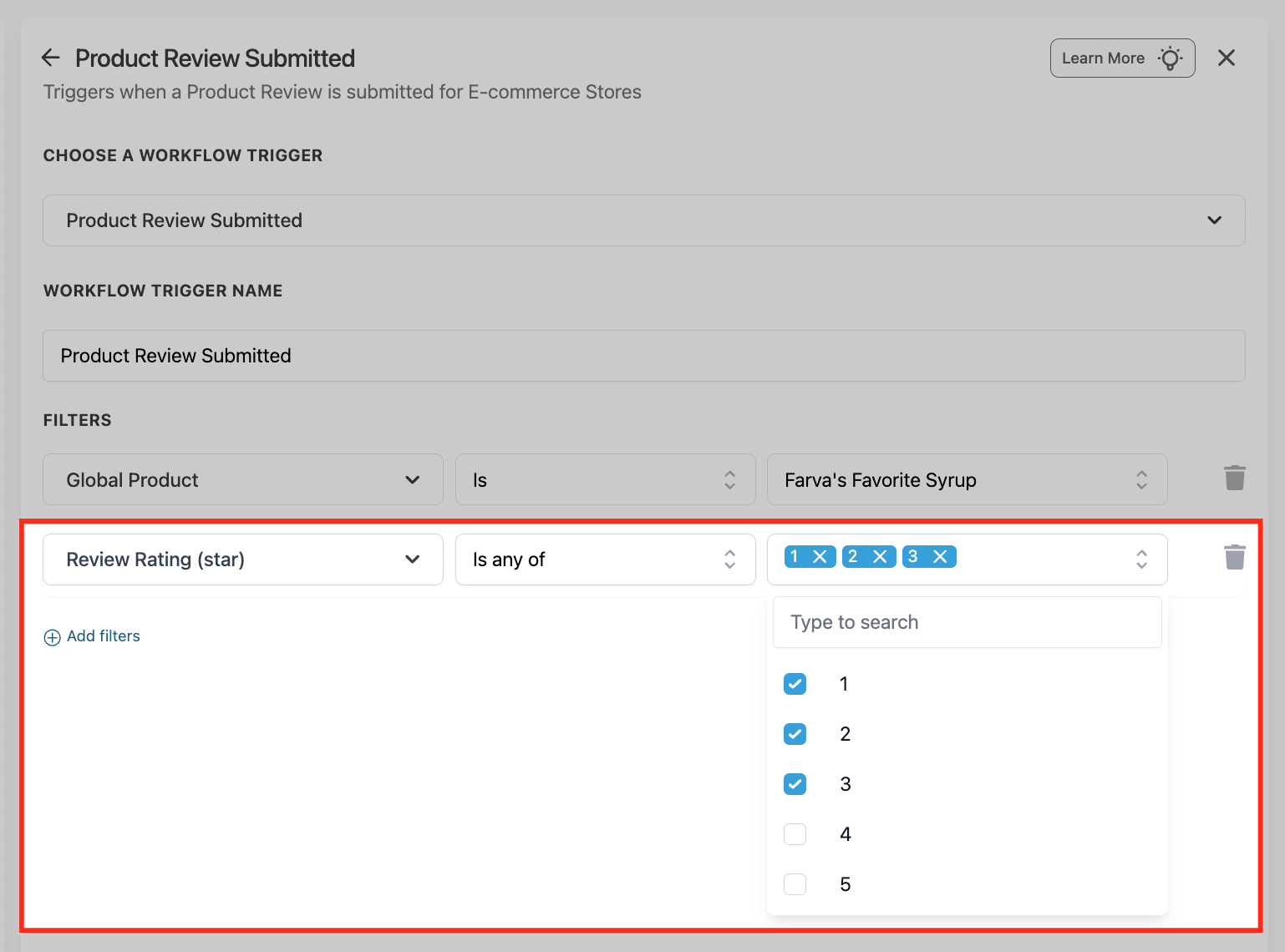
Review Rating (star) - control which 1 to 5 star ratings can enroll. Operators include Is any of (selected ratings), Is none of (exclude specific ratings), Is empty (missing ratings), and Is not empty (only reviews that include a rating).
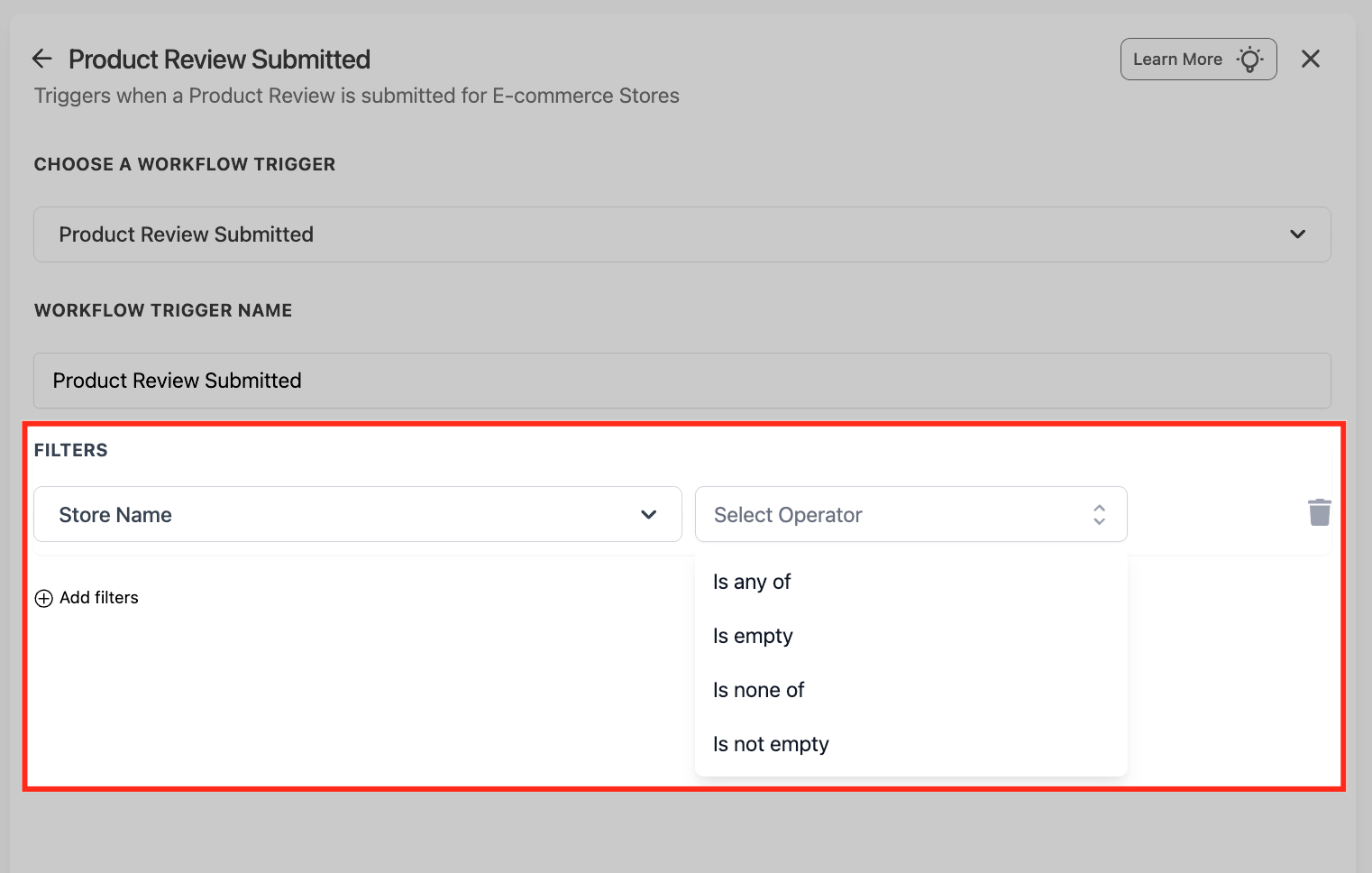
Store Name - limit which storefront(s) can fire the workflow. Operators include Is any of, Is none of, Is empty, and Is not empty.
User Email and User Name - prioritize or exclude specific reviewers (VIPs, affiliates, internal testers, suspected spam). Operators include equals, contains, is empty, and is not empty, and can be combined with rating, product, or keyword filters.
Data made available. Review data is available downstream, including star rating, headline, comment text, the product reviewed, store name, and the reviewer's submitted email and name, plus standard contact fields such as {{contact.first_name}} when a matching contact exists.
When to use it. Use Product Review Submitted to engage reviewers instantly, moderate hands-free, and amplify social proof. Route 1- and 2-star reviews to your support inbox for priority handling, and push 5-star reviews to a team channel or spreadsheet for reuse on ads and landing pages.
Med-spa retail example: A client leaves a 5-star review on a lash-serum product. A Review Rating filter set to "Is any of 5" enrolls the review, and the workflow sends a thank-you email with a referral code and posts the review text to your marketing channel for use in social content. A separate trigger with a "Less than 4" rating routes lower-star reviews to a recovery sequence and notifies your team.
Notes and limits.
Contact records are not required; the workflow can run contact-less, or you can create or update a contact inside it.
To avoid replying to high-star reviews, add a Review Rating filter such as "Less than 4" so only lower-rated reviews enter the workflow.
Which triggers should I use for new workflows? Use the generic cross-source triggers: Order Submitted, Order Fulfilled, and Abandoned Checkout. They work across the native eCommerce Store, Shopify, and WooCommerce. The Shopify-specific Order Placed, Abandoned Cart, and Order Fulfilled triggers are deprecating.
Will my existing Shopify-specific workflows stop working? No. Existing Shopify Order Placed, Shopify Abandoned Cart, and Shopify Order Fulfilled workflows keep running. We recommend migrating them to the generic triggers before the legacy versions are retired.
Is WooCommerce supported by the generic triggers? Yes. The generic Order Submitted, Order Fulfilled, and Abandoned Checkout triggers are built to listen across the native eCommerce Store, Shopify, and WooCommerce. Use the Order Source and Sub Source filters to target a specific source when needed.
Does the Abandoned Checkout trigger work without an email address? No. A valid email address is required for a checkout to be marked abandoned, so the trigger can identify and re-engage the shopper.
Does the Order Fulfilled trigger fire on partial shipments? Yes. Each time an item group is marked Fulfilled, the workflow runs. Use the Tracking Number filter set to Is Not Empty to avoid duplicate notifications on split shipments.
Does editing or approving a product review re-trigger the workflow? No. The Product Review Submitted trigger fires once, on the customer's initial submission. Approval status and later edits do not retrigger it.
Do Ecommerce Store triggers require a contact record? No. They can run contact-less, but you can create or update a contact inside the workflow if you need to message or segment the buyer.
