Opportunity triggers start an Aesthetix CRM workflow based on what happens to an opportunity in your pipelines. Use them to automate follow-up, internal notifications, task creation, stage moves, and reporting whenever a lead enters or moves through your sales process. This reference covers every trigger in the workflow builder's Opportunities category, what each one fires on, every filter you can apply, the data each makes available, and a med-spa example for each.
Pipelines, stages, opportunities, and statuses. An opportunity is a potential sale or treatment plan tied to a contact (for example, a consultation that could become a booked Botox package). Opportunities live in a pipeline, which is an ordered set of stages that represent your process (for example: New Lead, Consult Booked, Consult Completed, Treatment Plan Sent, Won). Separately, every opportunity carries a status, which is always one of four values: Open, Won, Lost, or Abandoned. A stage describes where the opportunity is in your process; a status describes whether it is still active or how it closed. The triggers below key off different parts of this model, so the difference matters when you choose one.
The steps to add any opportunity trigger are the same; only the trigger you pick and the filters you set differ.
Go to Automation in the left sidebar, then open Workflows.
Click Create Workflow, then choose Start from Scratch (or open an existing workflow).
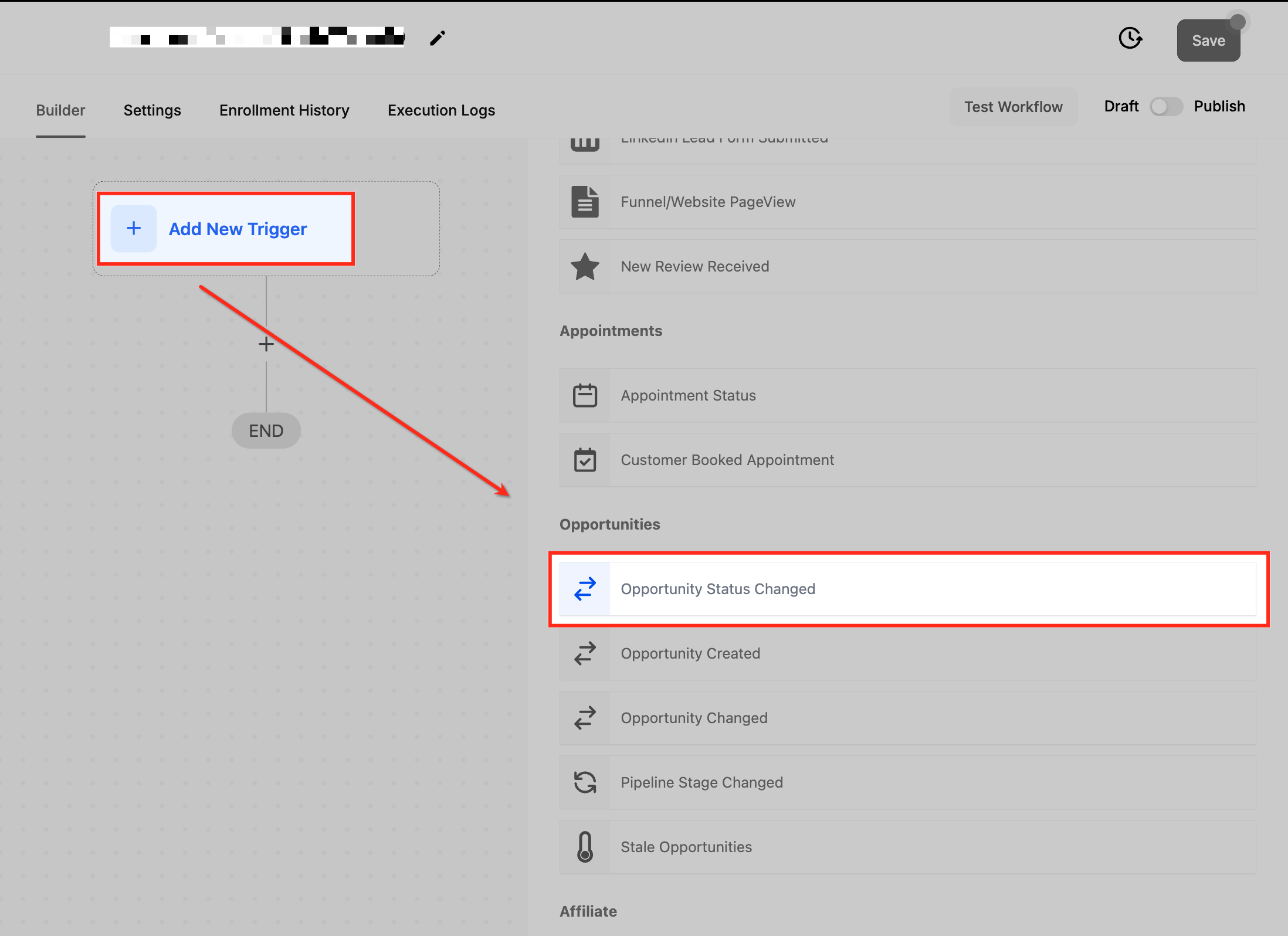
Click Add New Workflow Trigger (the + in the builder).
Select the opportunity trigger you want from the list (for example, Opportunity Created).
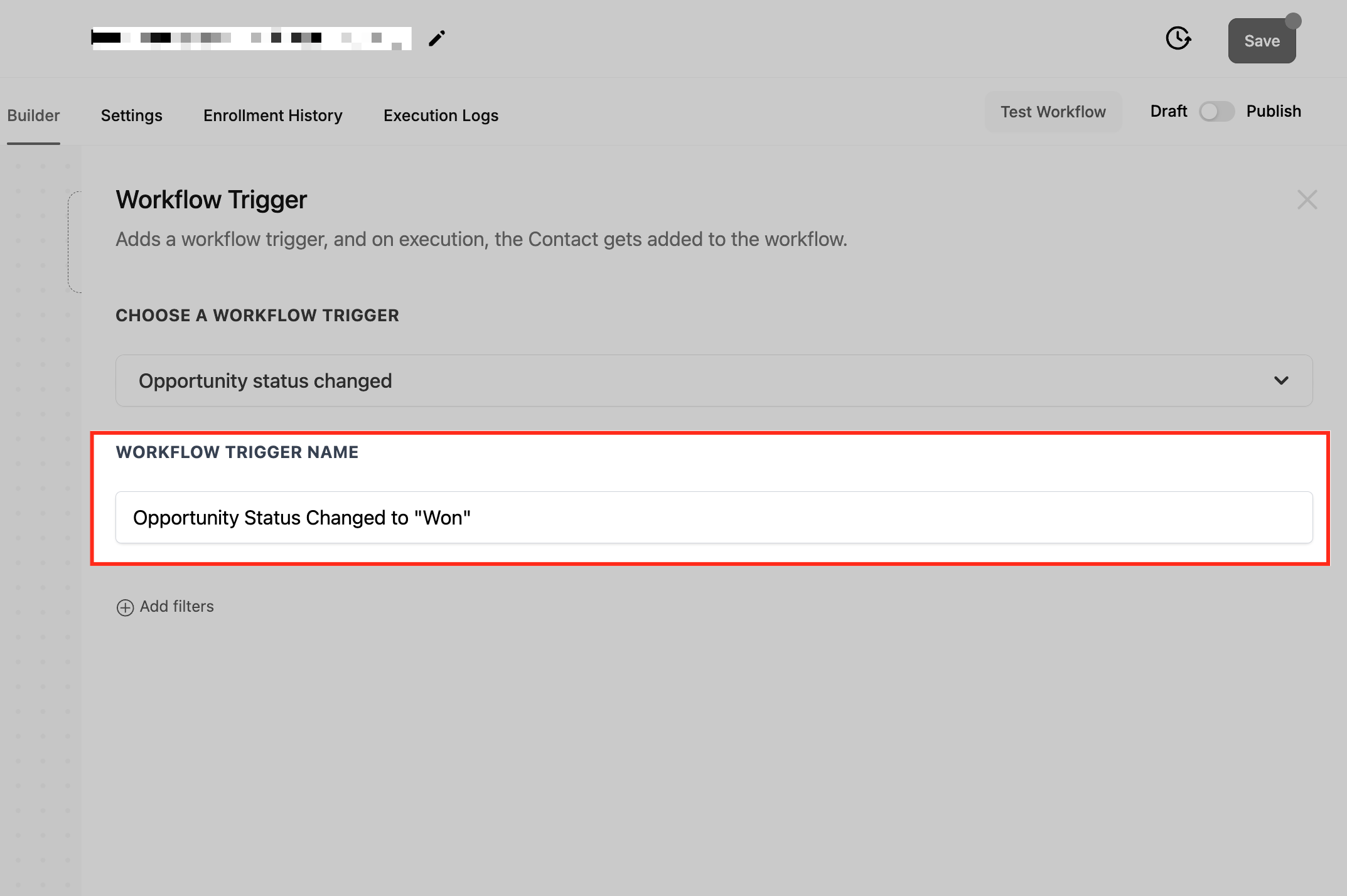
Give the trigger a clear, descriptive name so you can recognize it later in your workflow list.
Click Add filters and set any filters that narrow when the trigger should fire.
Click Save Trigger, then add at least one action.
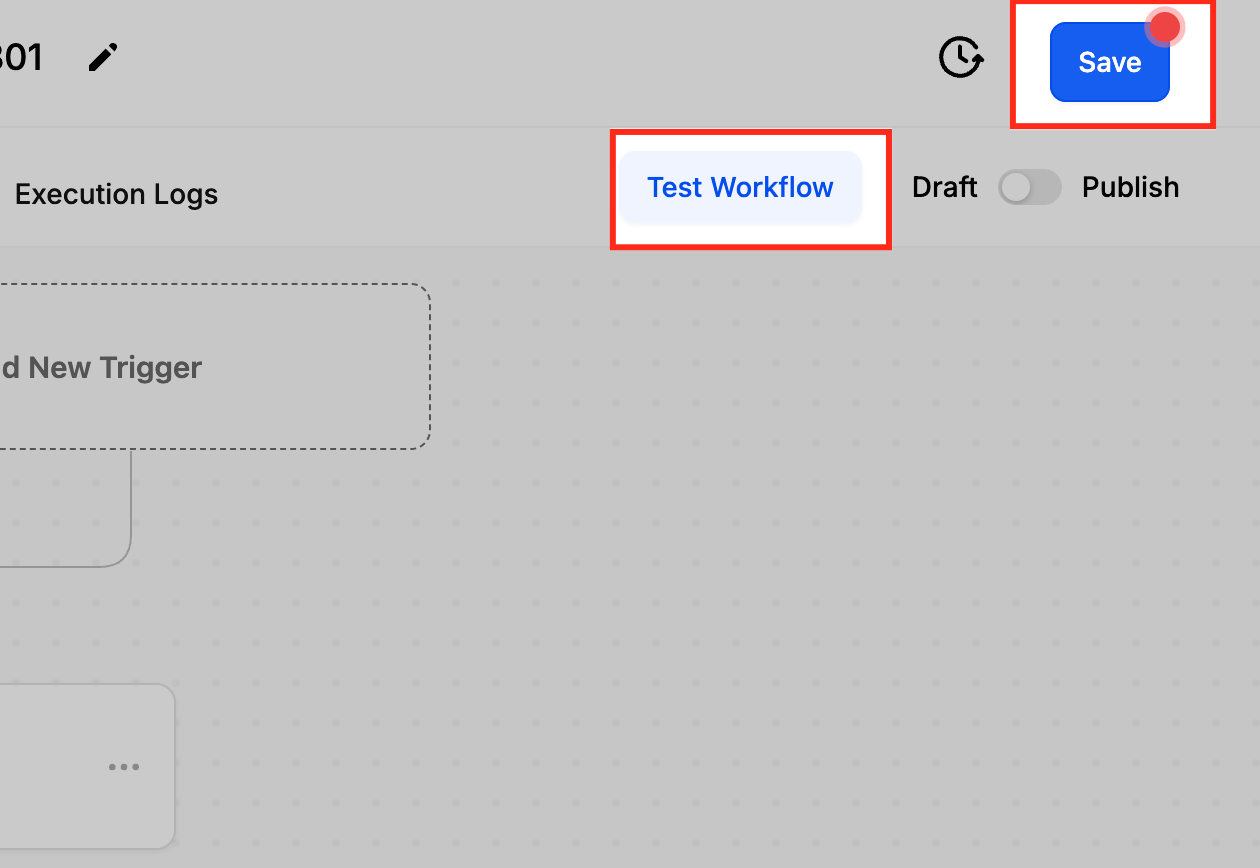
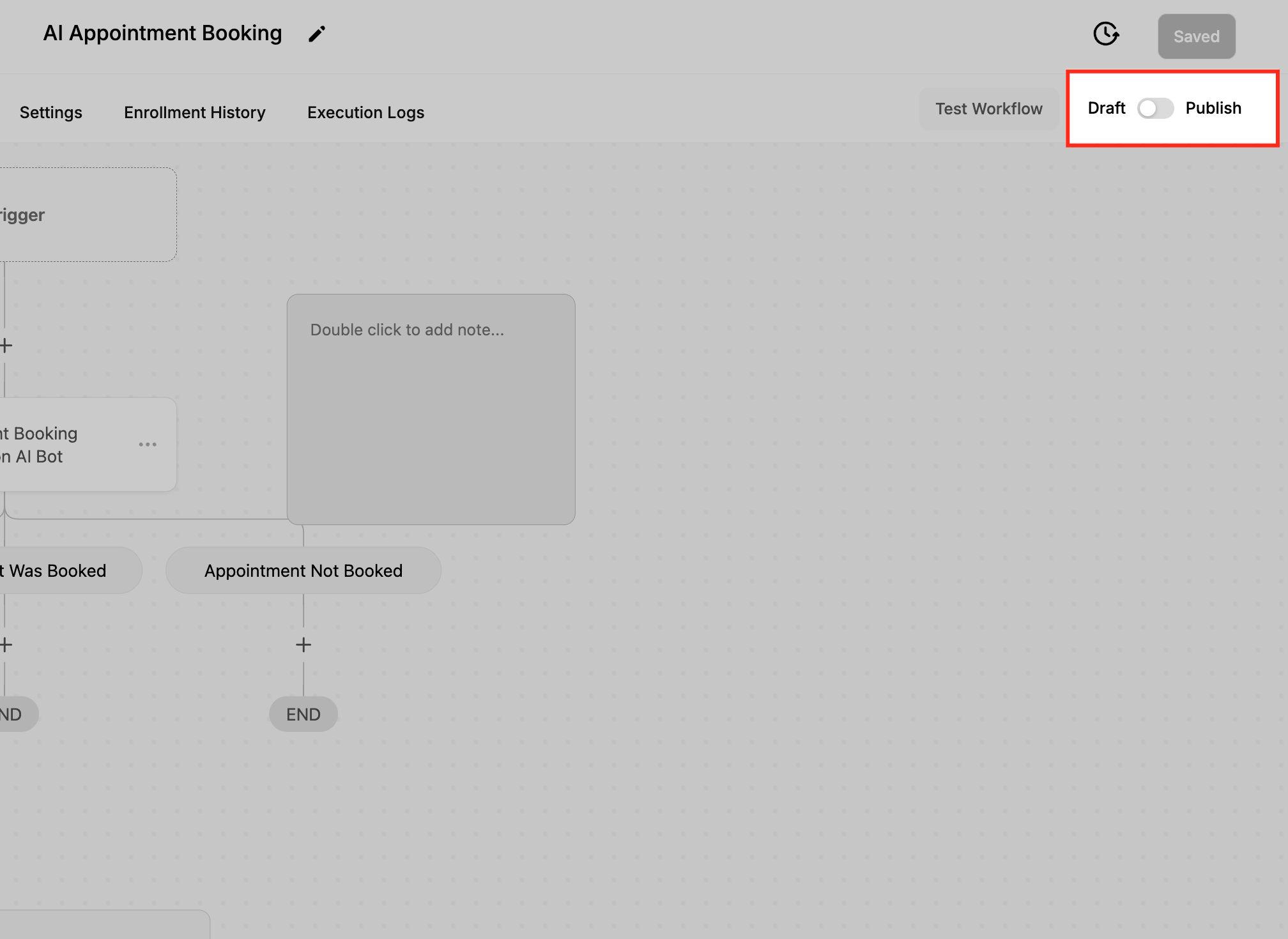
Test the workflow, then use the Publish toggle to activate it.
To publish a workflow you must define both a trigger and at least one action. Without both, you can only save the workflow as an unpublished draft. Save at every step. Until you click Save, your changes are an unsaved draft.
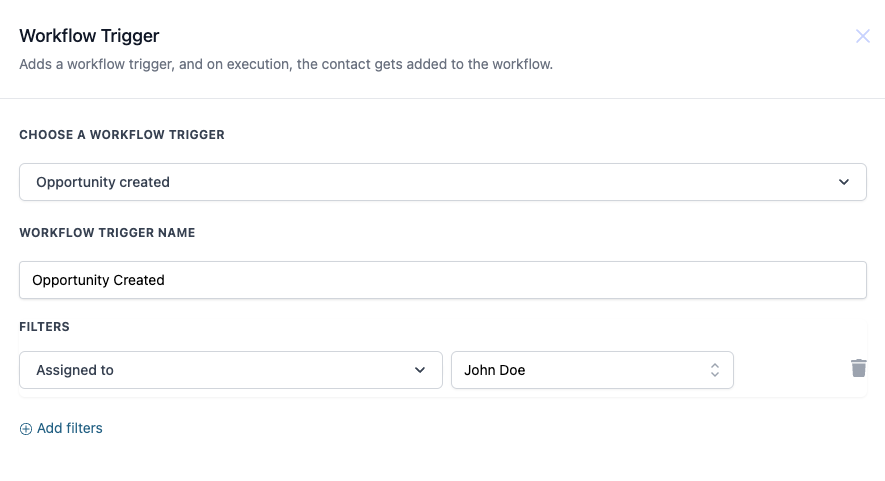
The Opportunity Created trigger fires the moment a new opportunity is created in a pipeline, whether it is added manually, created by a form or calendar booking, imported, or created by another automation. Use it to react to brand-new leads the instant they enter your process.
Fires on: the creation of a new opportunity. It fires once per opportunity, at creation. It does not fire when an existing opportunity is edited, moved between stages, or has its status changed (use the other triggers below for those events).
Configuration and filters. All filters are optional; with none set, the trigger fires for every newly created opportunity. Add a filter, then click Add filters again to stack more for precise targeting.
In Pipeline: Limit the trigger to opportunities created in a specific pipeline.
Assigned To: Fire only when the new opportunity is assigned to a specific user.
Lead Value: Filter on the opportunity's monetary value using an operator (see the operator list below), for example only opportunities valued greater than a set amount.
Status: Fire only when the new opportunity is created with a given status (Open, Won, Lost, or Abandoned). Most new opportunities start as Open.
Lost Reason: Filter on the reason recorded when an opportunity is marked Lost.
Tag: Include or exclude opportunities by the contact's tags. Tag supports multi-select operators (Equals to, Not equals to, Any of, None of), and you can add multiple Tag filters to build advanced include/exclude rules.
Filter value operators available where applicable:
Operator | Matches when |
|---|---|
Equals to | The value exactly matches the input |
Greater than | The value is greater than the input |
Less than | The value is less than the input |
Contains | The value contains the given text |
Is Empty | The field has no value |
Is Not Empty | The field has any value |
Data made available. Inside the workflow you can reference the new opportunity and its contact through merge fields, including {{opportunity.name}}, {{opportunity.pipeline_name}}, {{opportunity.pipeline_stage}}, {{opportunity.status}}, {{opportunity.lead_value}}, {{opportunity.assigned_user}}, {{opportunity.source}}, and standard contact fields such as {{contact.first_name}}, {{contact.email}}, and {{contact.phone}}.
When to use it. Reach for this trigger to onboard every new lead automatically: send an instant welcome text, notify the front desk, assign a follow-up task, or start a nurture sequence the moment an opportunity appears.
Med-spa example. A prospective patient submits your "Book a Botox Consult" form, which creates a new opportunity in your Consultations pipeline. Filter on In Pipeline = Consultations and Lead Value greater than your high-value threshold, then have the workflow text the patient a booking link and notify the lead injector so high-intent leads are handled immediately.
Notes and limits. The trigger fires once at creation, so the opportunity's status and stage are whatever they were set to at that moment. To react to later changes, use Opportunity Status Changed, Pipeline Stage Changed, or Opportunity Changed.
The Opportunity Status Changed trigger fires when an opportunity's status transitions from one value to another. Status is the Open / Won / Lost / Abandoned state of the opportunity, independent of which pipeline stage it sits in. Use this trigger to react specifically to deals being won, lost, abandoned, or reopened.
Fires on: a change to the opportunity's status (for example, Open to Won, or Open to Lost). It fires each time the status changes. It does not fire when the opportunity simply moves to a different stage within the same status (use Pipeline Stage Changed for that).
Configuration and filters. The Moved From Status and Moved To Status filters are the primary controls, and you must select at least one of them for the trigger to be valid; it cannot be saved without one. The status values are Open, Won, Lost, and Abandoned.
Moved From Status: The status the opportunity held before the change. For example, set this to Open to fire only when an opportunity leaves the Open state.
Moved To Status: The status the opportunity moves into. For example, set this to Won to fire when a deal closes, or Lost to fire when one is lost.
In Pipeline: Restrict the trigger to status changes within a specific pipeline.
Pipeline Stage: Narrow to a specific stage within a pipeline.
Assigned To: Fire only for opportunities assigned to a specific user or team.
Lead Value: Fire only when the opportunity's value meets your criteria.
Tag: Include or exclude by tag using the multi-select operators (Equals to, Not equals to, Any of, None of); multiple Tag filters are supported. Use a "doesn't have tag" style rule to target untagged opportunities.
Lost Reason: Filter on the recorded reason an opportunity was marked Lost.
Data made available. You can reference the opportunity and contact, including {{opportunity.name}}, {{opportunity.status}}, {{opportunity.pipeline_name}}, {{opportunity.pipeline_stage}}, {{opportunity.lead_value}}, {{opportunity.assigned_user}}, {{opportunity.lost_reason}}, and contact fields such as {{contact.first_name}} and {{contact.email}}.
When to use it. Use it for milestone automation tied to outcomes: celebrate and process wins, follow up on losses, or re-engage reopened opportunities.
Med-spa example. When a treatment-plan opportunity moves to Moved To Status = Won, the workflow sends the patient a booking confirmation and prep instructions, notifies the coordinator to schedule the appointment, and tags the contact as an active treatment patient. Set up a second workflow with Moved To Status = Lost to send a "we'd love to see you" win-back offer and alert the manager for high-value losses.
Notes and limits. The trigger fires on every qualifying status change, so an opportunity that flips status repeatedly can fire it multiple times. Use workflow conditions, wait steps, or goals to avoid redundant actions. This trigger watches status only; it will not fire for a stage move that keeps the same status.
The Opportunity Changed trigger fires whenever an existing opportunity record is updated, no matter which part of it changed. This makes it the broadest of the opportunity triggers: it responds to lead value adjustments, stage movements, reassignments, status changes, and custom field updates alike. Use it when you want to react to edits to an opportunity regardless of which field changed, or to catch changes the narrower triggers do not.
Fires on: any update to an existing opportunity record. Qualifying changes include the opportunity's lead value, its assigned user (owner), its pipeline, its pipeline stage, its status, its lost reason, and any custom field on the opportunity (checkbox, radio, single or multi-select dropdown, and date fields). Because it watches the record as a whole, it fires for the same events that Opportunity Status Changed and Pipeline Stage Changed respond to, plus the edits those two ignore, such as a lead value adjustment or a reassignment that does not move stage or status.
How it differs from the status-only and stage-only triggers:
Opportunity Status Changed fires only when the Open / Won / Lost / Abandoned status transitions from one value to another. It is blind to lead value, owner, and custom field edits.
Pipeline Stage Changed fires only when the opportunity moves from one stage to another within a pipeline. It is blind to status flips that keep the same stage, and to field edits.
Opportunity Changed fires when any of those happen, or when any other field on the opportunity is edited. Choose it when you care about edits broadly. Choose one of the narrower triggers when you only care about a status or stage move, because the narrower trigger is easier to target and less likely to fire more often than you intend.
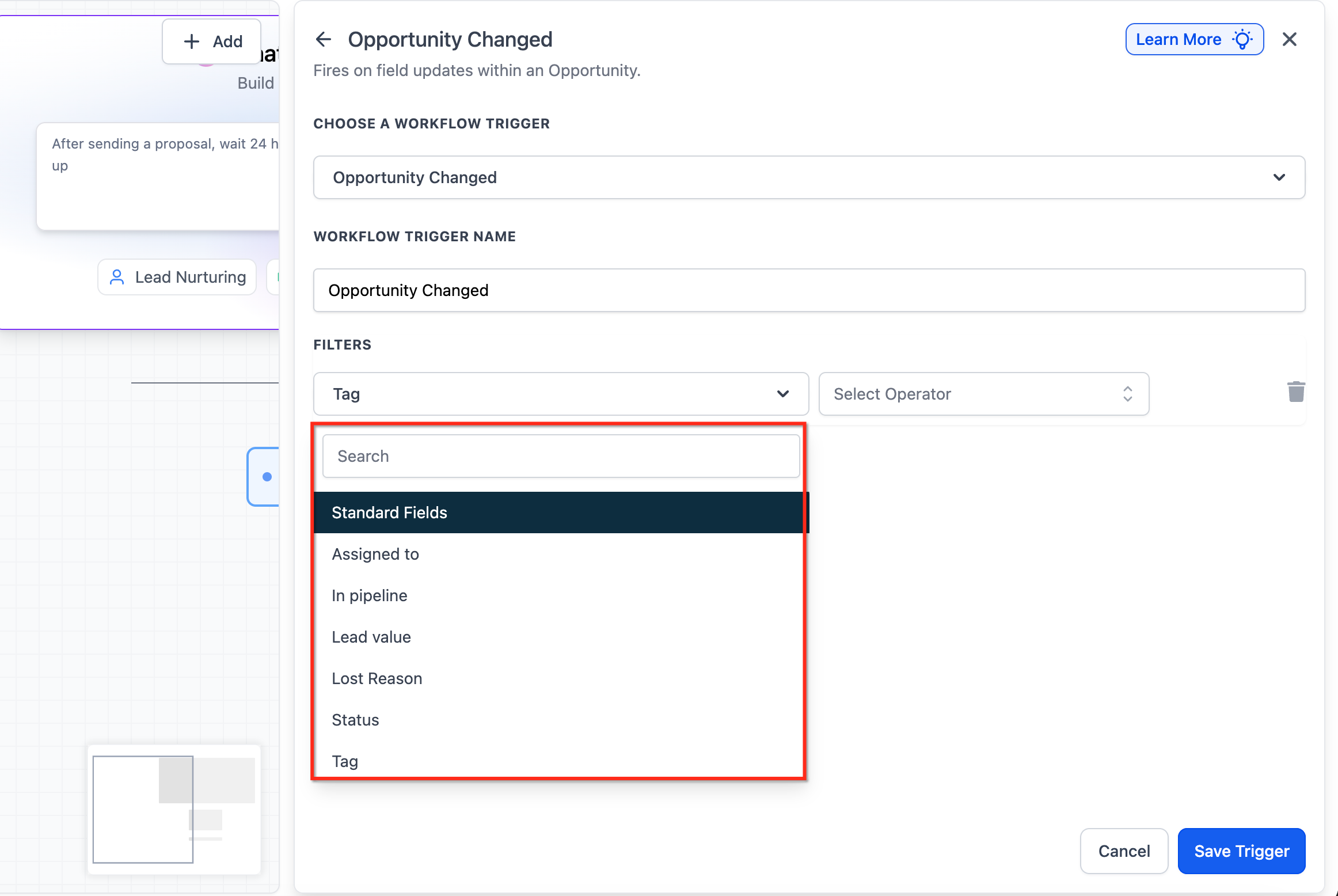
Configuration and filters. All filters are optional, but with none set this trigger responds to a wide range of edits, so filtering is strongly recommended. Click Add filters, then stack as many as you need; the workflow fires only when all conditions are met. You can combine filters to target precise scenarios, such as tracking only high-value leads that get reassigned to a senior injector.
Assigned To: Narrow by the opportunity's owner. Operators: Has Changed (the assignee changed at all), Has Changed To (changed to a specific user), and Equals (the assignee is a specific user). Select the user to match.
In Pipeline: Narrow by pipeline. Operators: Has Changed, Has Changed To (a specific pipeline), and Equals (a specific pipeline).
Status: Narrow by the opportunity's status. Operators: Is, Is Not, Has Changed, and Has Changed To. Status values are Open, Won, Lost, and Abandoned.
Lead Value: Narrow by the opportunity's monetary value, for example only opportunities above a high-value threshold.
Lost Reason: Narrow by the recorded reason an opportunity was marked Lost. Operators: Has Changed, Has Changed To (a specific reason), and Equals (a specific reason).
Tag: Include or exclude opportunities by the contact's tags.
Checkbox custom fields: Operators: Added, Removed, and Equals. Use these to fire when a specific checkbox option is checked or unchecked.
Radio select custom fields: Operators: Has Changed, Has Changed To (a specific option), and Equals (a specific option).
Dropdown custom fields (single and multi-select): Operators: Has Changed, Has Changed To (a selected value), and Equals (a selected value).
Date custom fields: Operators: Has Changed, Has Changed To (a specific date), and Equals (a specific date). Useful for firing when a date such as an install or treatment date is added.
Data made available. Inside the workflow you can reference the changed opportunity and its contact through merge fields, including {{opportunity.name}}, {{opportunity.status}}, {{opportunity.pipeline_name}}, {{opportunity.pipeline_stage}}, {{opportunity.lead_value}}, {{opportunity.assigned_user}}, {{opportunity.lost_reason}}, any custom field values on the opportunity, and contact fields such as {{contact.first_name}}, {{contact.email}}, and {{contact.phone}}.
When to use it. Reach for this trigger when the change you care about is not a clean status or stage move: notify a team member when opportunity ownership changes, start onboarding when a custom install or treatment date is added, kick off a follow-up when a checkbox field is checked, or keep records in sync and audit edits to high-value opportunities.
Med-spa example. In your Treatment Plans pipeline, add a Date custom field filter set to Has Changed To on a "Procedure Date" field, and Lead Value greater than your high-value threshold. When a coordinator fills in the procedure date on a high-value plan, the workflow starts a pre-procedure prep sequence for the patient and notifies the practice manager with the opportunity name and current value, all without anyone watching the board.
Notes and limits.
Because it responds to many kinds of edits, this trigger can fire frequently. Always apply filters and use workflow conditions, wait steps, or goals to keep it targeted and avoid redundant actions.
If you only need status or stage changes, use the dedicated Opportunity Status Changed or Pipeline Stage Changed trigger instead; they are simpler to target.
Operator and date field support are additions to this trigger. Existing Opportunity Changed workflows keep their current behavior unless you manually update them, so older workflows are not affected by the newer operators or date field filtering.
Test the workflow by making a real opportunity edit before you publish, to confirm it fires only on the changes you intend.
The Pipeline Stage Changed trigger fires when an opportunity moves from one stage to another within a pipeline, for example advancing from Consult Booked to Consult Completed. It keys off stage position in your process, not the Open / Won / Lost / Abandoned status. Use it to automate handoffs and follow-ups as deals progress through your pipeline.
Fires on: a change to the opportunity's pipeline stage. As an opportunity card advances (or moves back) between stages, the trigger fires. It does not fire on a status change that keeps the same stage (use Opportunity Status Changed for that).
Configuration and filters. Click Add filters to target specific pipelines and stages.
In Pipeline: Restrict the trigger to a specific pipeline, so it fires only when a card moves between stages within that pipeline.
Pipeline Stage: Specify the stage that should fire the workflow when an opportunity advances into it. For example, selecting your "Treatment Booked" stage fires the workflow only when a card reaches that stage.
Assigned To: Fire only for opportunities assigned to a specific user.
Lead Value: Fire only when the opportunity's value meets your criteria.
Tag: Fire only when an opportunity carrying a specific tag changes stage. Tag supports the multi-select operators (Equals to, Not equals to, Any of, None of), and multiple Tag filters can be stacked.
Data made available. Reference the opportunity and contact, including {{opportunity.name}}, {{opportunity.pipeline_name}}, {{opportunity.pipeline_stage}}, {{opportunity.status}}, {{opportunity.lead_value}}, {{opportunity.assigned_user}}, and contact fields such as {{contact.first_name}}, {{contact.email}}, and {{contact.phone}}.
When to use it. Use it for stage-by-stage automation: send the right message at each step, assign tasks when a deal reaches a stage, or alert a team when an opportunity advances to a key milestone.
Med-spa example. In your Consultations pipeline, when an opportunity moves into the Consult Completed stage, the workflow texts the patient a personalized treatment-plan link, creates a task for the coordinator to send pricing, and notifies the injector. Add In Pipeline = Consultations and Pipeline Stage = Consult Completed so it fires only for that step.
Notes and limits. The trigger fires on each qualifying stage move, including backward moves, so use conditions if you only want forward progress to act. Stage changes and status changes are separate events; pick this trigger when you care about movement through your process rather than the won/lost outcome.
The Stale Opportunities trigger fires when an opportunity has sat in the same pipeline stage for a set number of days without progress or updates. Use it to catch deals going cold and automatically re-engage them, notify owners, or move them for review, so nothing slips through the cracks.
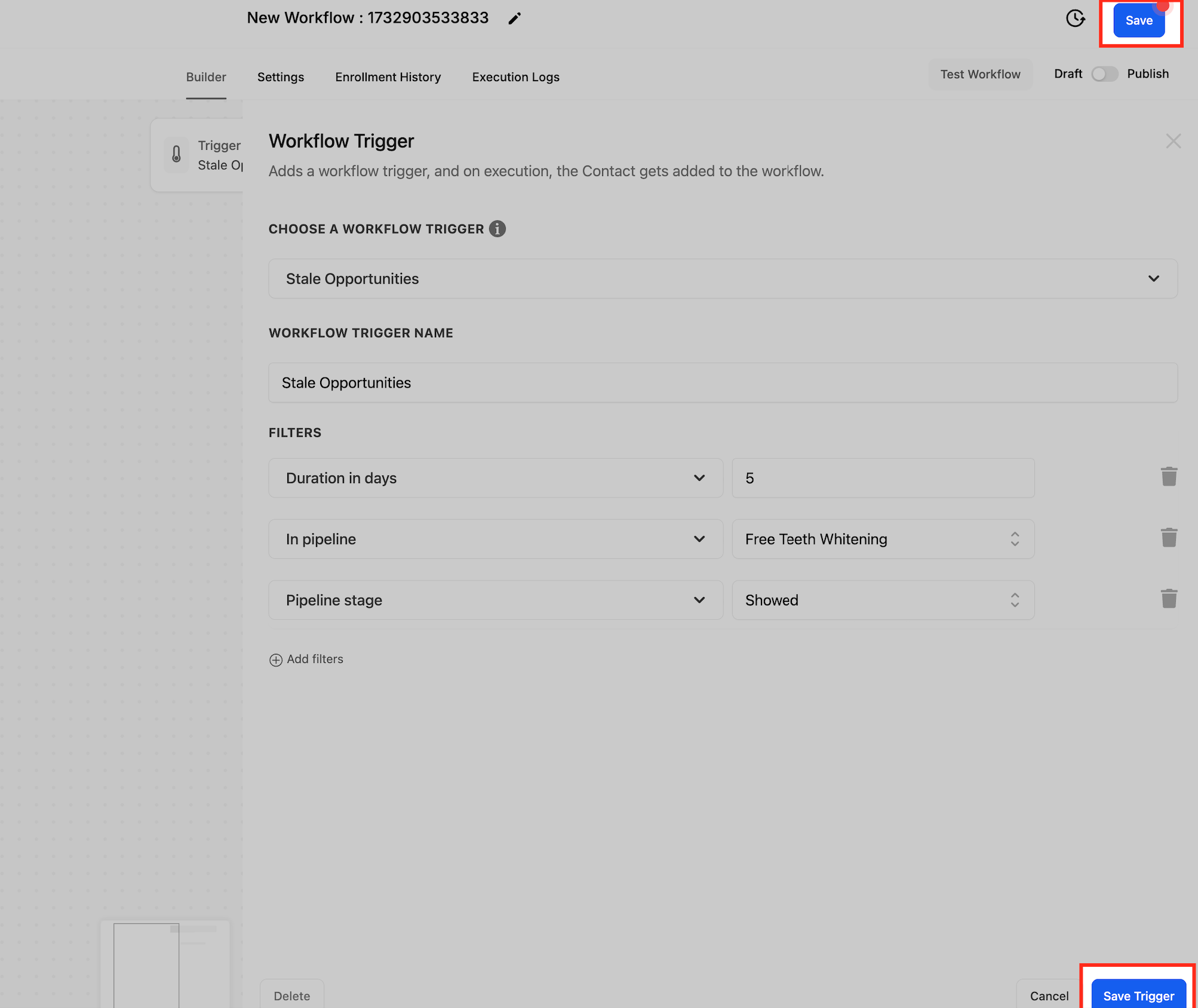
Fires on: an opportunity reaching your defined inactivity threshold in a stage. For example, if you set the duration to 5 days, the trigger fires for an opportunity that has been in the same stage for 5 days without an update.
Configuration and filters. Click Add Filters and set the staleness criteria.
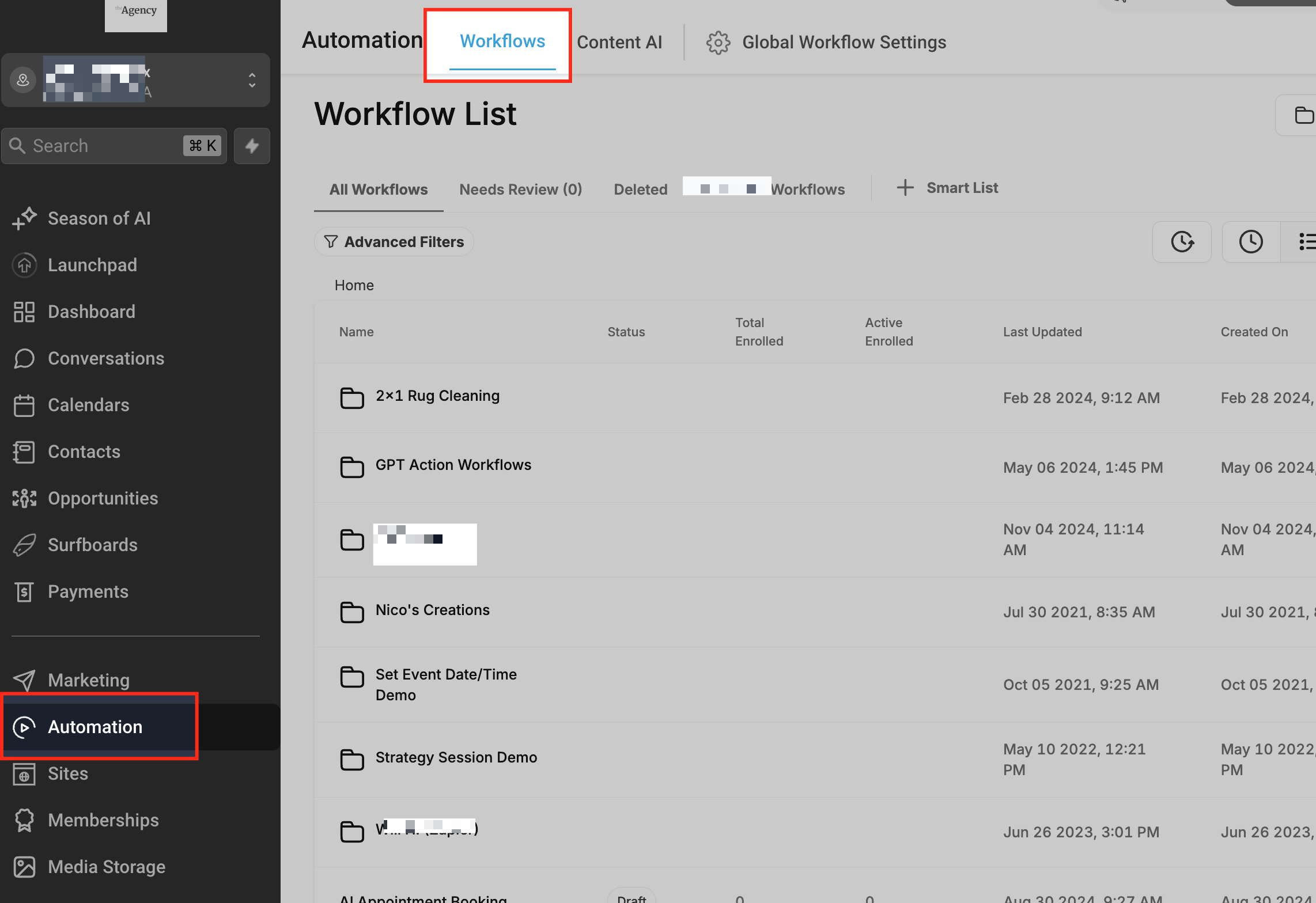
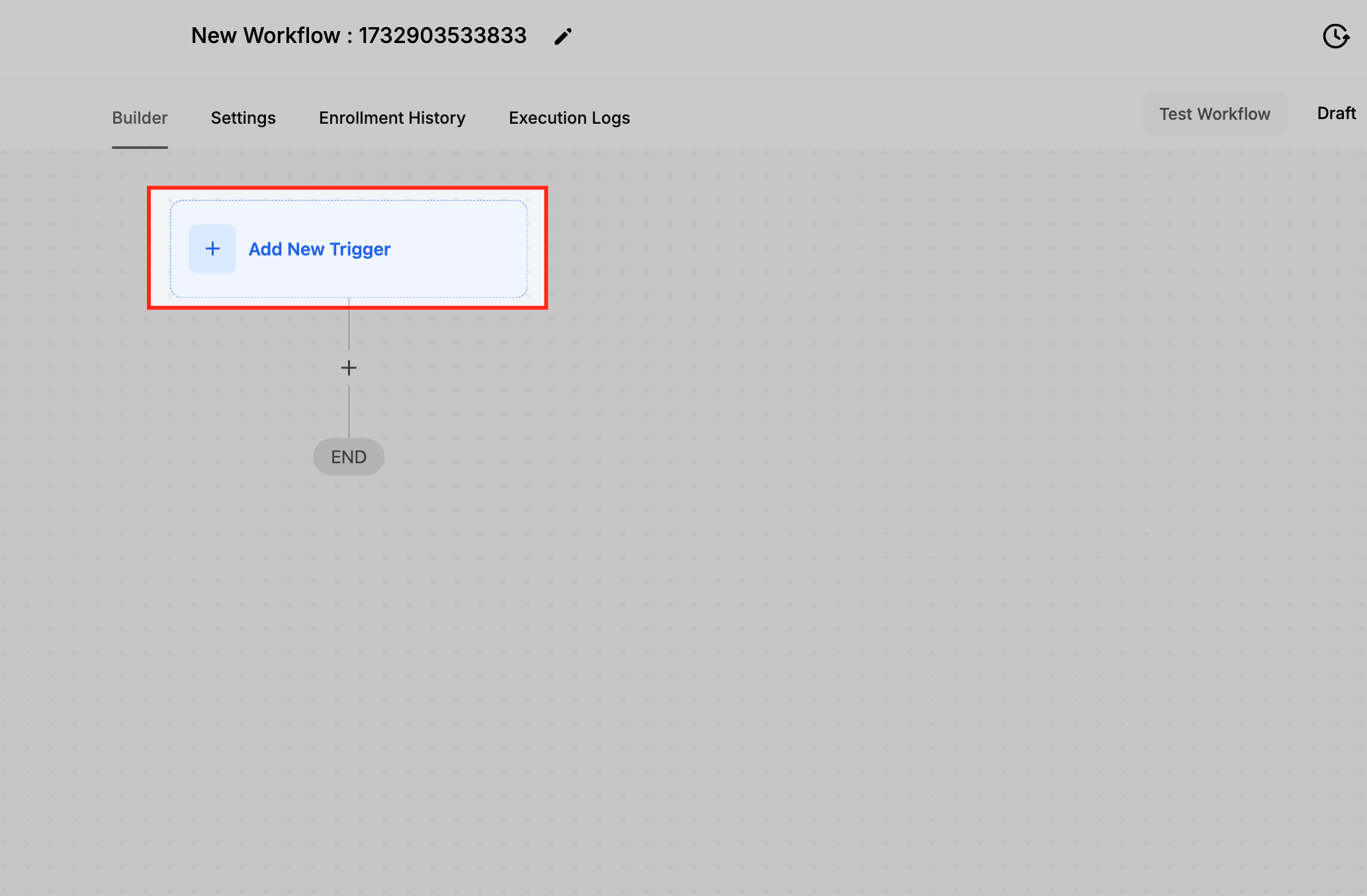
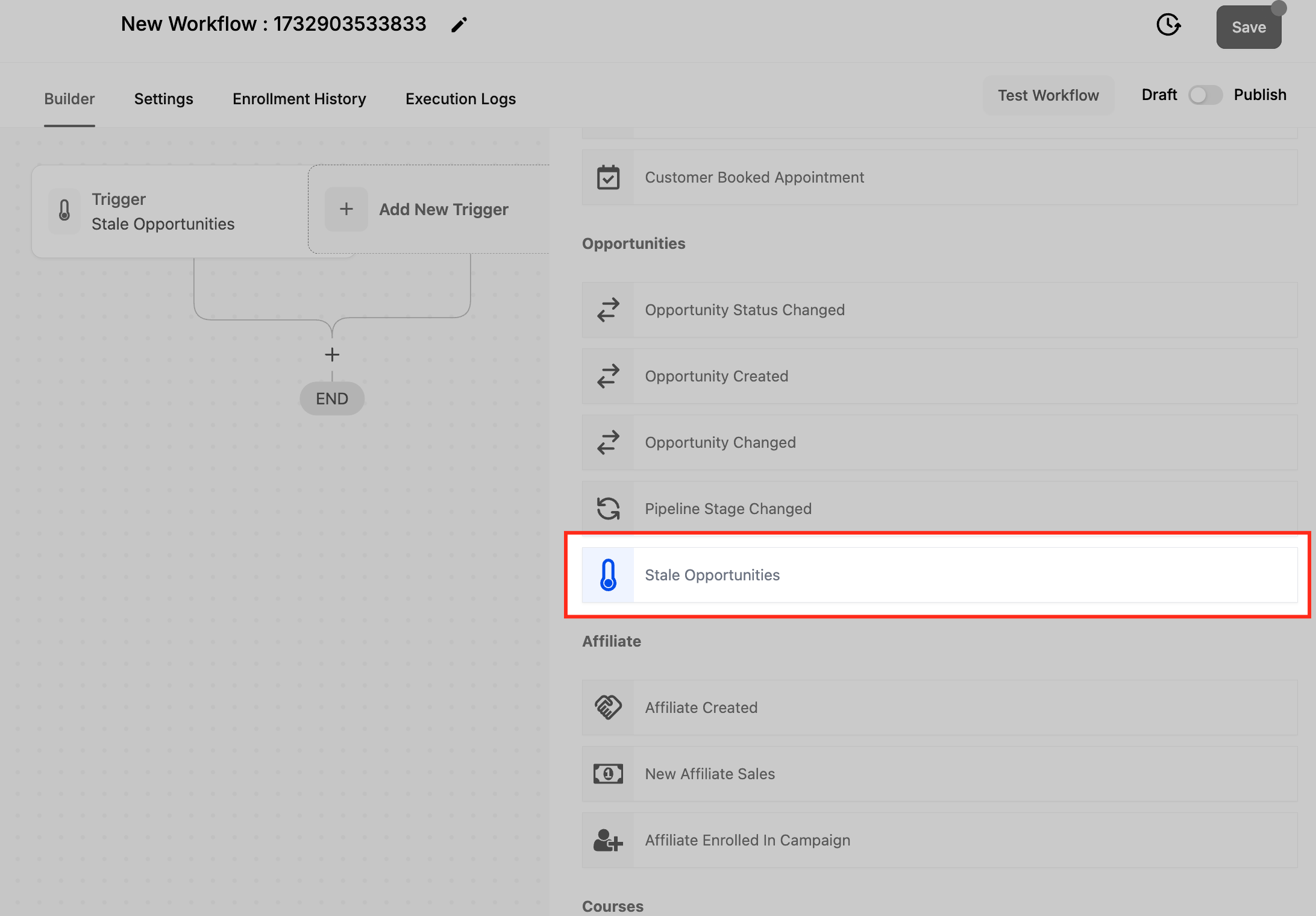
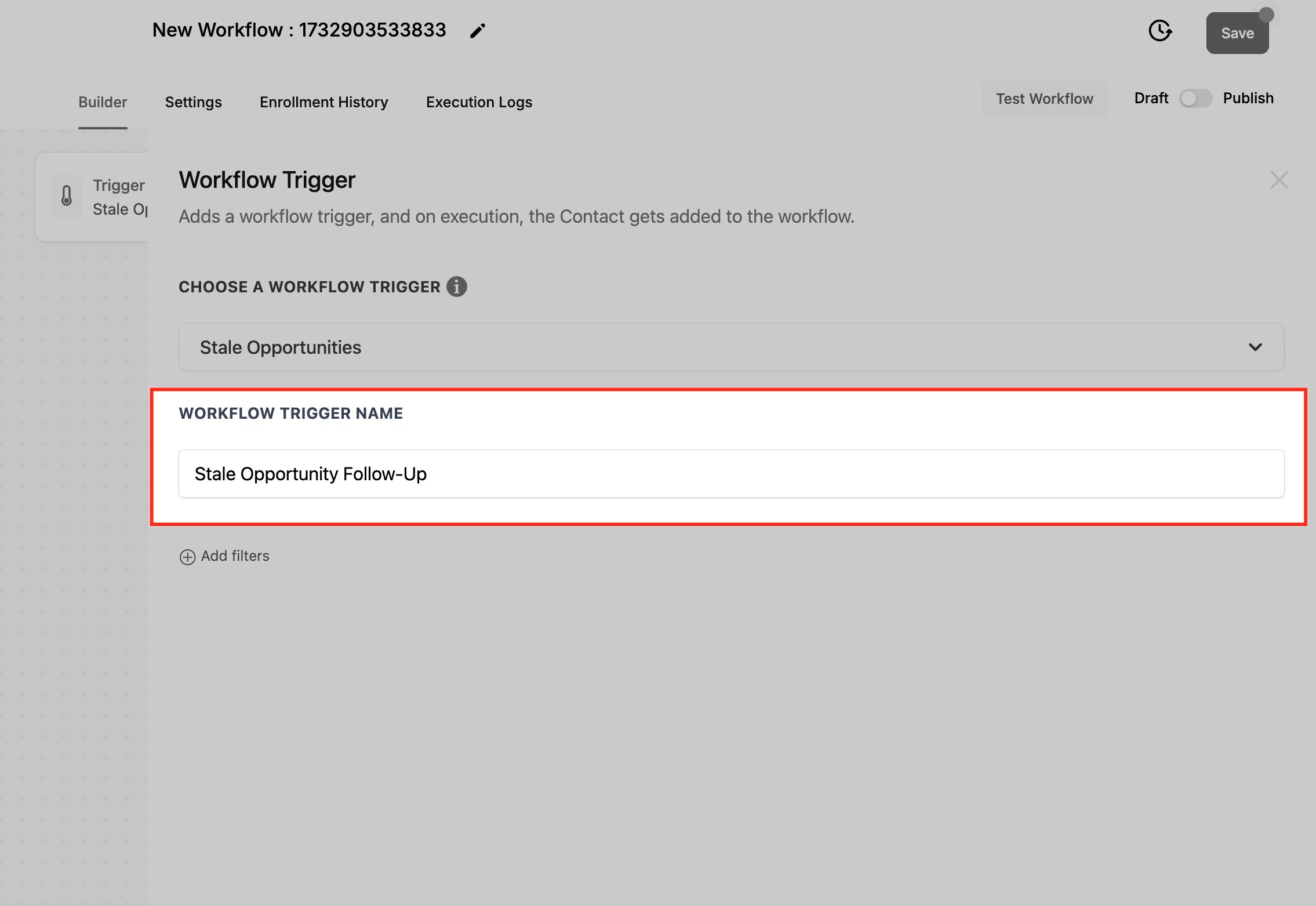
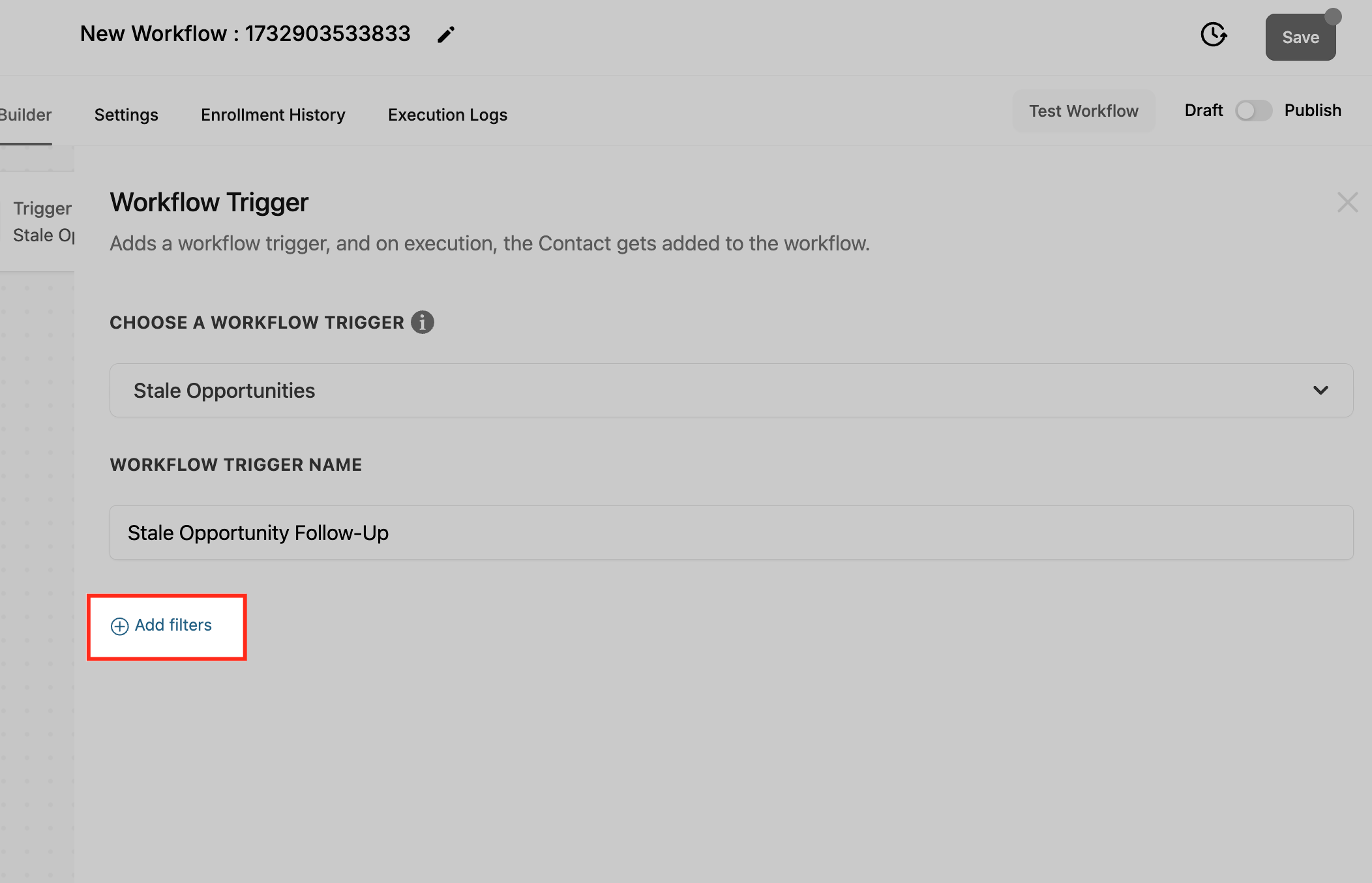
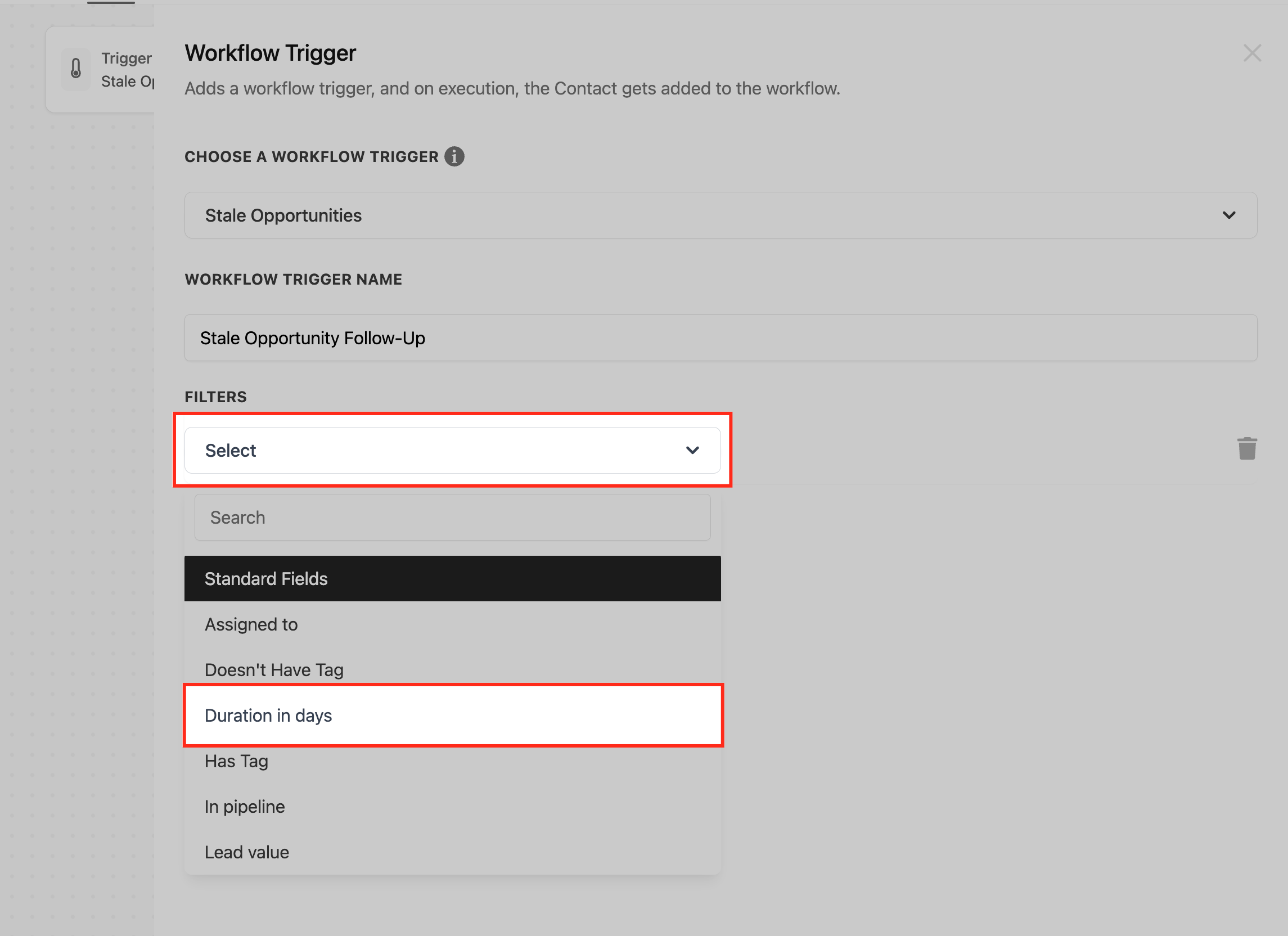
Duration in Days: The number of days an opportunity can remain inactive in a stage before it is marked stale (for example, 2 days). This is the core setting for the trigger.
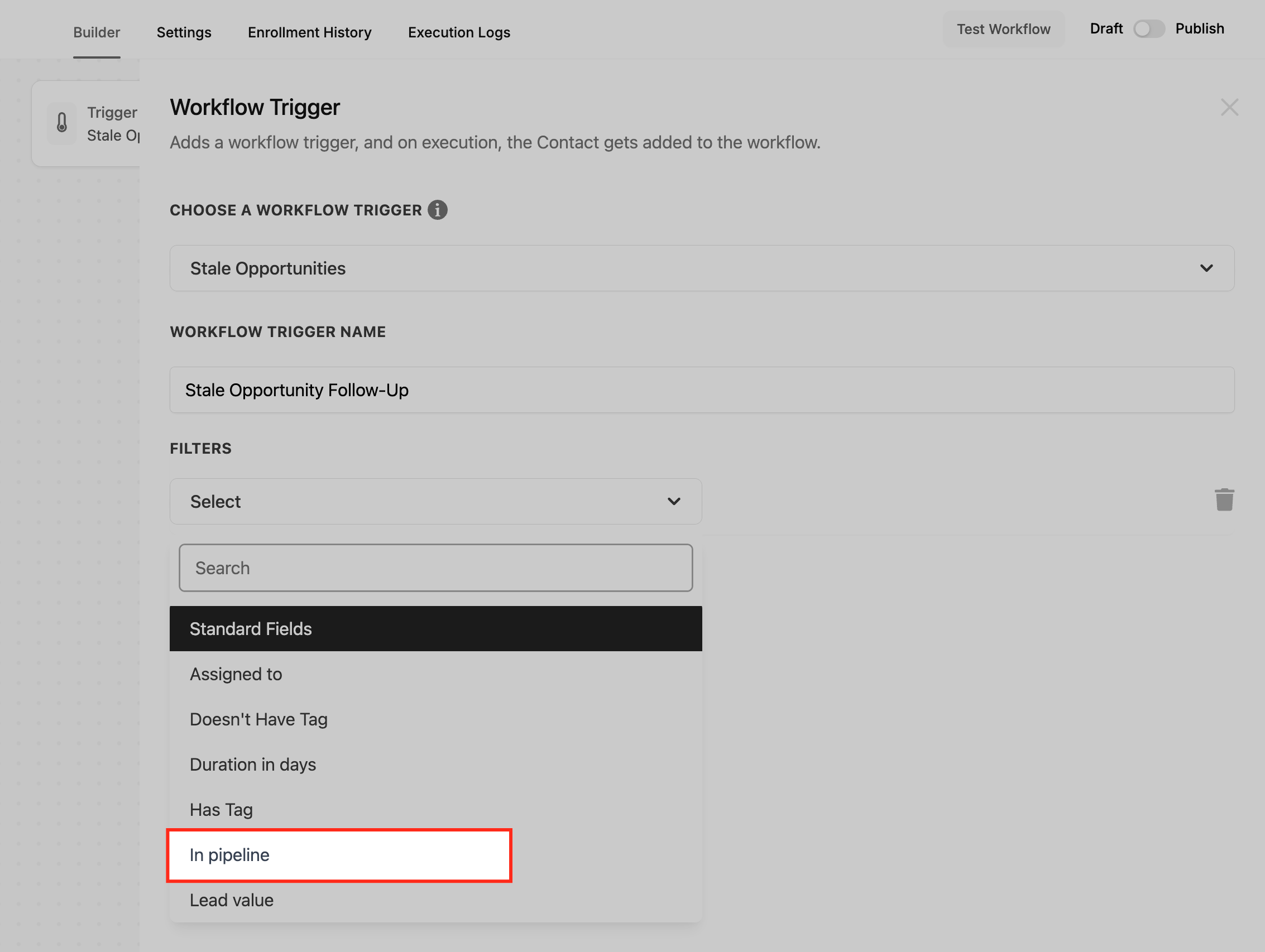
In Pipeline: Restrict the trigger to a specific pipeline (for example, your Sales pipeline).
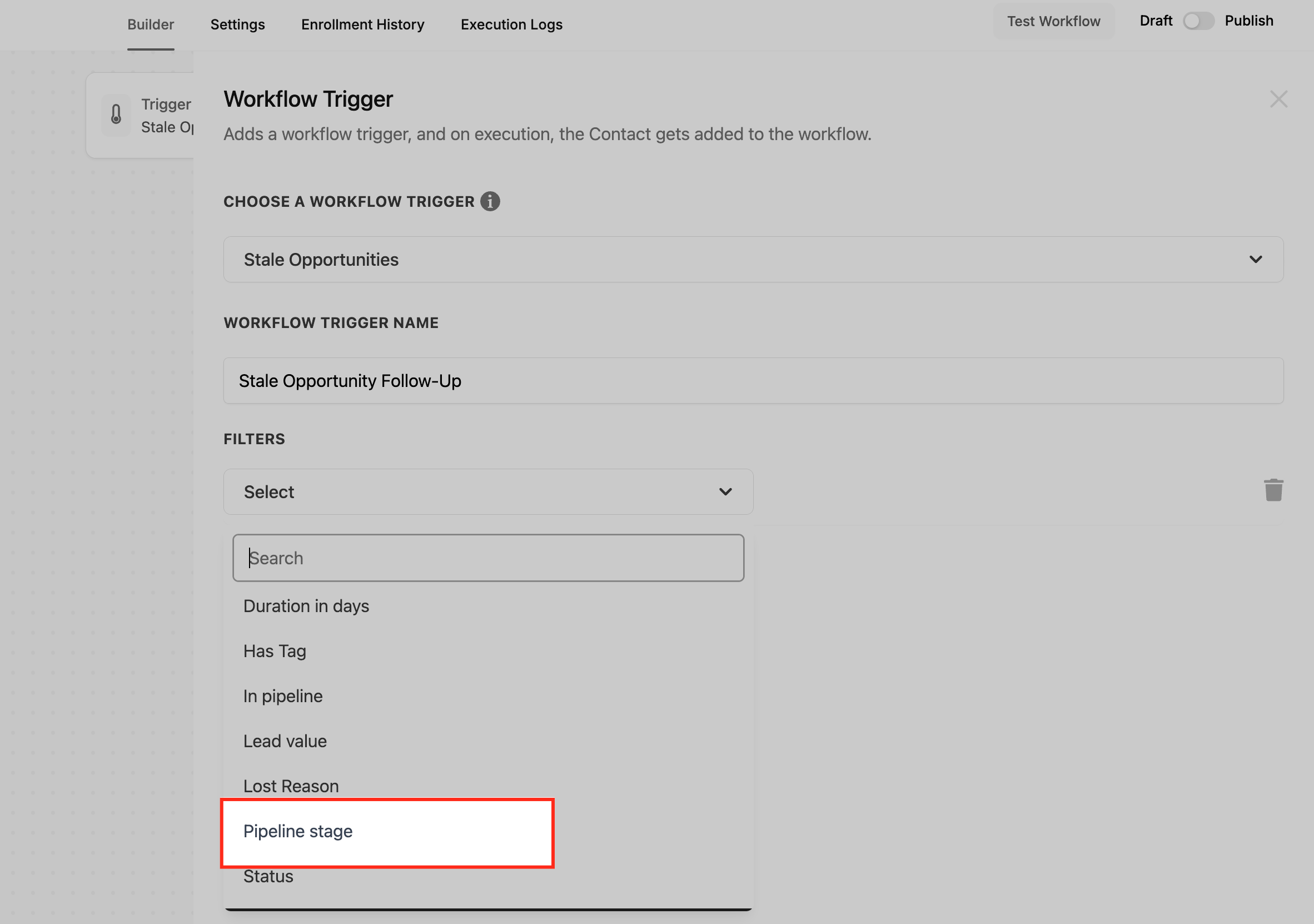
Pipeline Stage: Limit the trigger to a specific stage, so only opportunities idle in that stage are treated as stale (for example, a Negotiation or Treatment Plan Sent stage).
After configuring the filters, click Save Trigger.
Data made available. Reference the opportunity, pipeline, and inactivity period, including {{opportunity.name}}, {{opportunity.assigned_user}}, {{opportunity.pipeline_stage}}, {{opportunity.lead_value}}, {{pipeline.name}}, {{duration}}, and contact fields such as {{contact.first_name}} and {{contact.email}}.
When to use it. Use it for pipeline hygiene and accountability: remind reps about cold deals, alert managers to neglected high-value opportunities, or auto-move stale cards to a review stage.
Med-spa example. For your Treatment Plans pipeline, set Duration in Days = 3, In Pipeline = Treatment Plans, and Pipeline Stage = Plan Sent. When a patient's treatment plan has gone 3 days without movement, the workflow emails the assigned coordinator a reminder, notifies the manager for plans above your high-value threshold, and adds the contact to a gentle nurture sequence. A reminder email body might read: "The opportunity '{{opportunity.name}}' in the '{{pipeline.name}}' pipeline has been inactive for {{duration}} days. Please follow up to move it forward."
Notes and limits.
Stale tracking is not retroactive: the inactivity clock starts only after you add the trigger, not from past inactivity.
The clock resets when the opportunity moves to a new stage or is updated. If it later goes stale again under your criteria, the workflow can run again.
To avoid false positives on opportunities that are actually being worked, add conditions that exclude ones with recent activity (notes, replies, logged calls).
After setting the trigger, add the follow-up actions you want (reminder email, internal notification, stage move, or adding the opportunity to another workflow), then test and publish.
What is the difference between a status and a stage?
A status is the opportunity's Open / Won / Lost / Abandoned state, which describes whether it is still active or how it closed. A stage is its position in a pipeline's ordered steps, which describes where it is in your process. Status Changed watches the former, Pipeline Stage Changed watches the latter.
Which trigger should I use if I want to react to any change on an opportunity?
Use the Opportunity Changed trigger. It fires on edits to any field, whereas Opportunity Status Changed and Pipeline Stage Changed fire only on status or stage moves respectively.
Can I use multiple filters on the same trigger?
Yes. You can stack filters such as In Pipeline plus Tag plus Lead Value so the workflow runs only when all your conditions are met. Add each filter with Add filters.
What happens if an opportunity's status changes several times quickly?
The trigger fires on each change. Use workflow conditions, wait steps, or goals to prevent redundant actions when an opportunity flips status repeatedly.
Can I run automations across multiple pipelines?
Yes. Leave the In Pipeline filter empty to apply a trigger across all pipelines, or build separate workflows or filters to target specific pipelines.
How do I target opportunities without a specific tag?
Use the Tag filter with a "not equals" or "none of" rule to fire only for opportunities that do not carry the chosen tag.
How do I pick the right Duration in Days for stale opportunities?
Base it on your sales cycle. Shorter cycles may use 2 to 3 days, while longer cycles might use 7 to 10 days before an opportunity is considered stale.
Does the Stale Opportunities trigger work retroactively?
No. The stale duration is calculated only after the trigger is added; it does not look back at inactivity that occurred before then.
