The VoIP Deskphone (SIP) feature lets you register a physical, SIP-compatible deskphone to Aesthetix CRM, which runs on native Twilio. Every call placed or received on the handset flows through Aesthetix CRM, so you keep call tracking, recordings, and automations in one place while your team uses familiar desk hardware.
This guide covers connecting a deskphone, managing your devices, and troubleshooting poor call quality. For an overview of using Aesthetix CRM as your phone system, see the existing articles 'VOIP Desk Phone Integration (Twilio SIP)' and 'Using Aesthetix CRM as your VOIP phone system'.
All of your Aesthetix CRM calling features keep working with a deskphone connected, including call recording and call transfers.
Admins – can provision deskphones inside their own account.
Other users – have a read-only view and see a tooltip prompting them to "Ask an admin to configure this."
Network & protocol prerequisites
SIP over UDP, TCP, or TLS
Outbound ports 5060/5061 open for SIP signaling
UDP ports 10000–20000 open for RTP audio
PoE switch or external power adapter
What to look for when buying hardware
"SIP" and "PoE" on the spec sheet
At least two programmable line keys
Avoid carrier-locked phones or those that require proprietary provisioning codes
Popular models
Any open-SIP handset should work; these are just proven examples.
Yealink T54W / T58W
Poly VVX 450
Grandstream GXP 2170
Snom D785
Cisco 7841
Step 1: Open the wizard
Go to Settings → Phone Numbers → Advanced Settings → VoIP Deskphone (SIP) → Get Started.
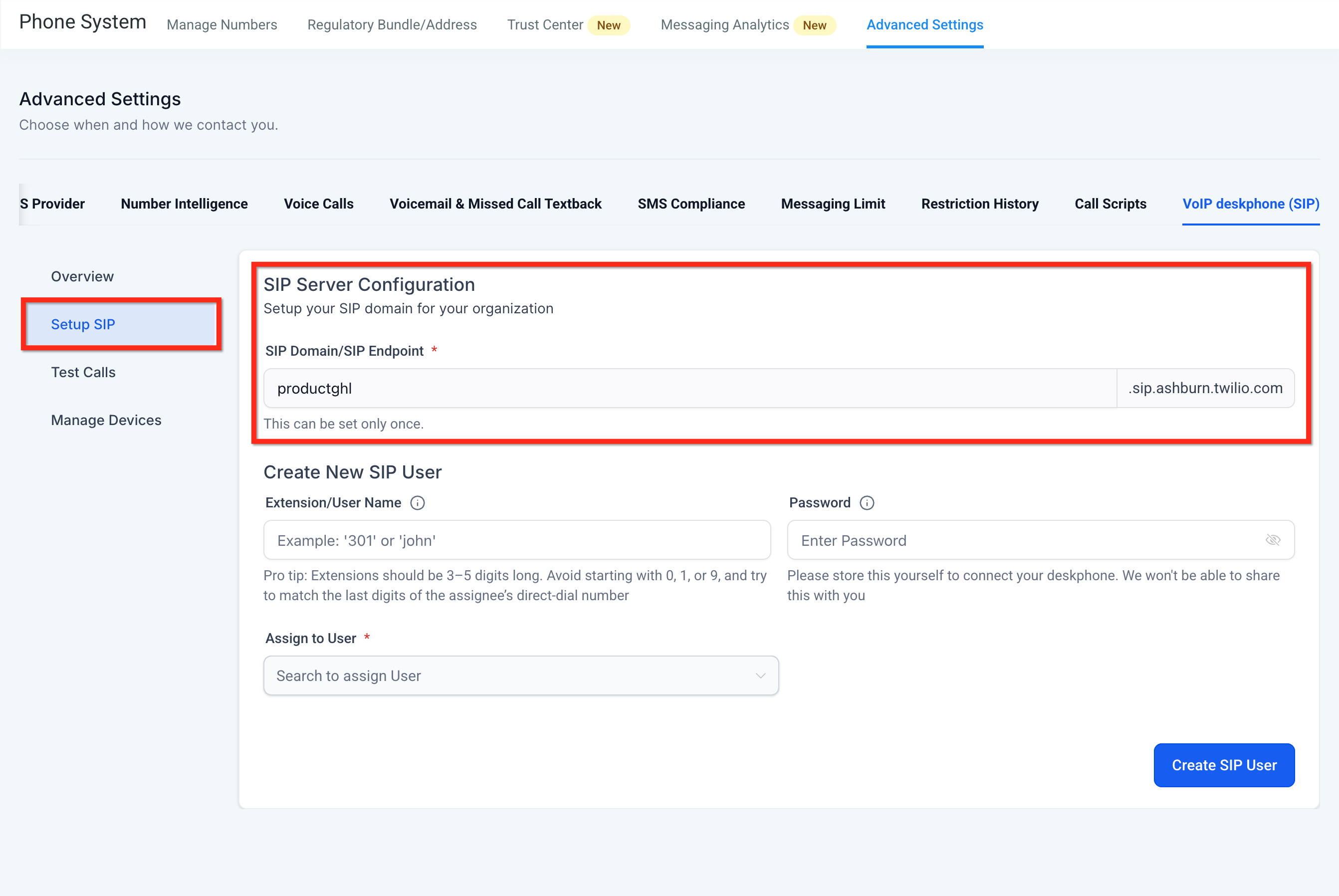
Step 2: Configure the SIP server
Confirm or edit your SIP domain. A suggested domain such as <YourBusiness>.sip.ashburn.twilio.com appears. You can change it once before saving.
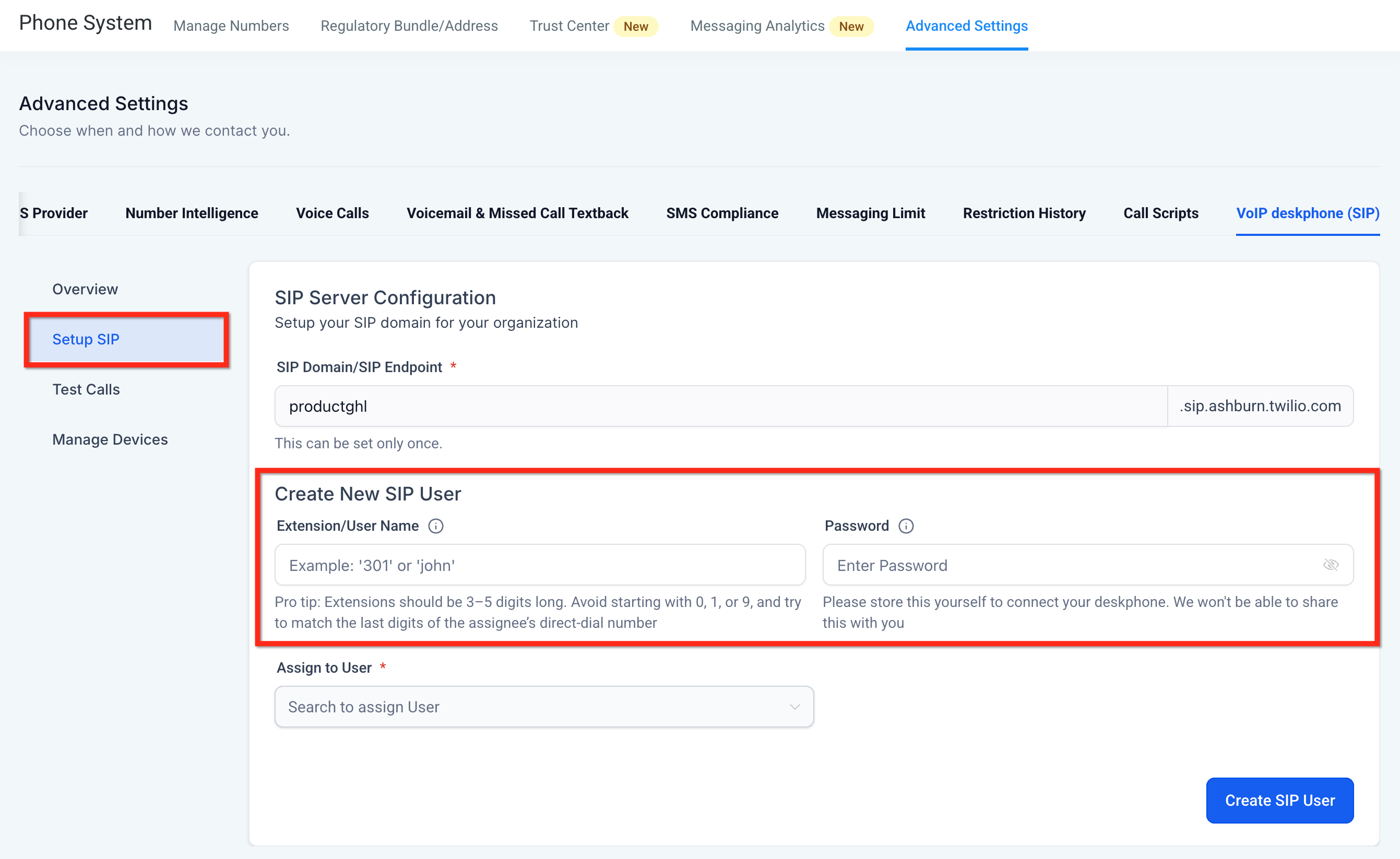
Step 3: Create the SIP user
Choose an extension or username (number or text) plus a strong password, and save them somewhere safe. You'll need these when you configure the physical phone.
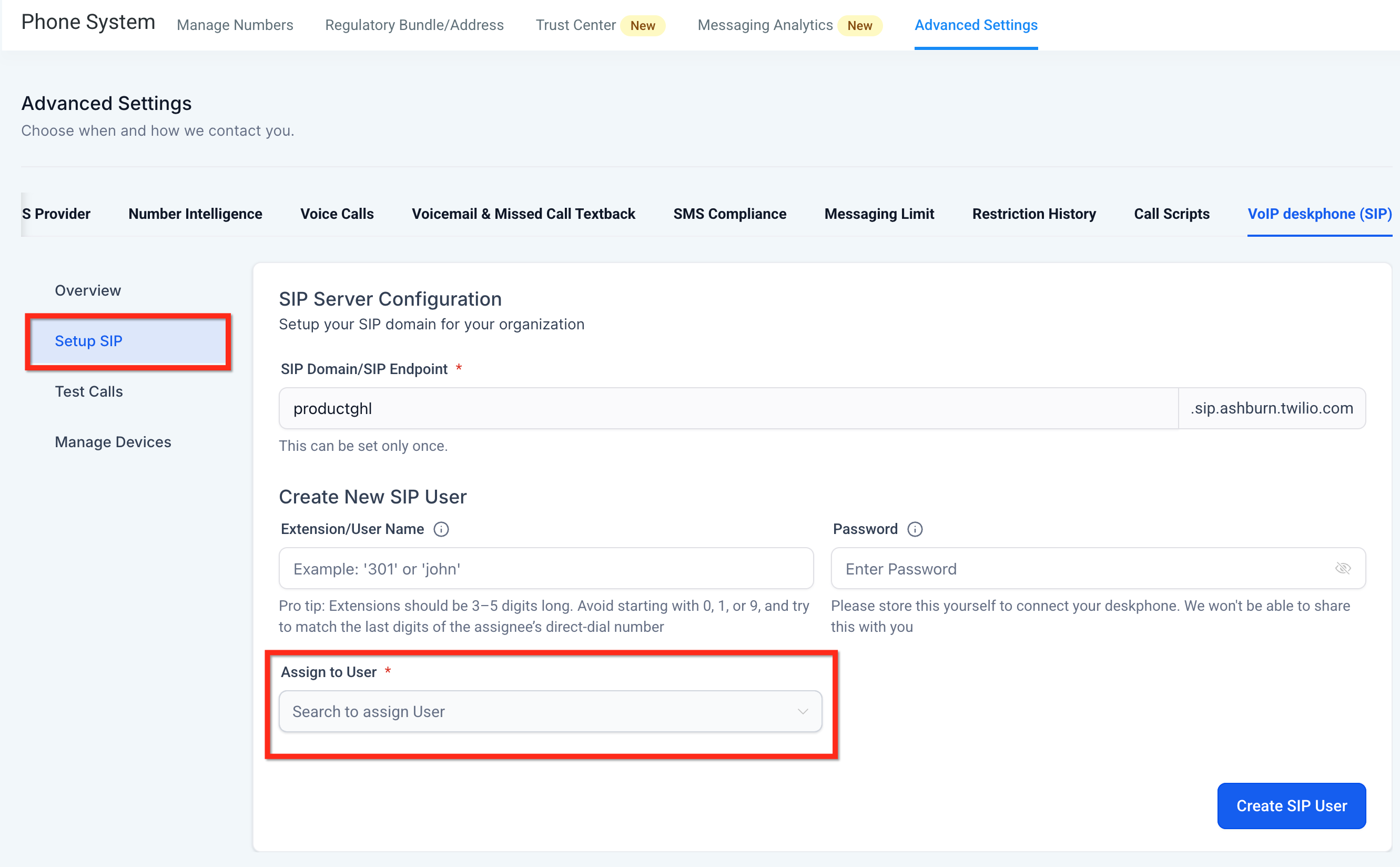
Step 4: Assign a user
Each deskphone must be linked to one user in your account (one deskphone per user). Select the user from the Assign to User dropdown. If needed, create the user first.
Then make sure that user's individual phone settings are set to use the deskphone. Go to Settings → My Staff → choose the staff member → Edit → Call & Voicemail Settings and enable "Deskphone" for the options you need. Enable it under "Forward Calls to" to receive calls addressed to you on the deskphone. If you receive calls as part of "Ring multiple" and want them on the deskphone, enable Deskphone under "Ring all."
Step 5: Configure the physical phone
On your deskphone, enter the SIP Domain, Username, and Password into the matching fields — often named Registrar, Server, or Proxy, plus Username and Password. Field names vary by phone model and manufacturer. If you run into setup issues on the handset, a factory/hard reset of the phone often helps.
Step 6: Run the built-in test calls (optional)
Go to VoIP Deskphone (SIP) → Test Calls → Simulate Calls.
Outbound test – Dial the displayed number; you should hear "This is a test call" three times if successful.
Inbound test – Click Inbound Test Call; your deskphone should ring. Answer and hang up to confirm two-way audio.
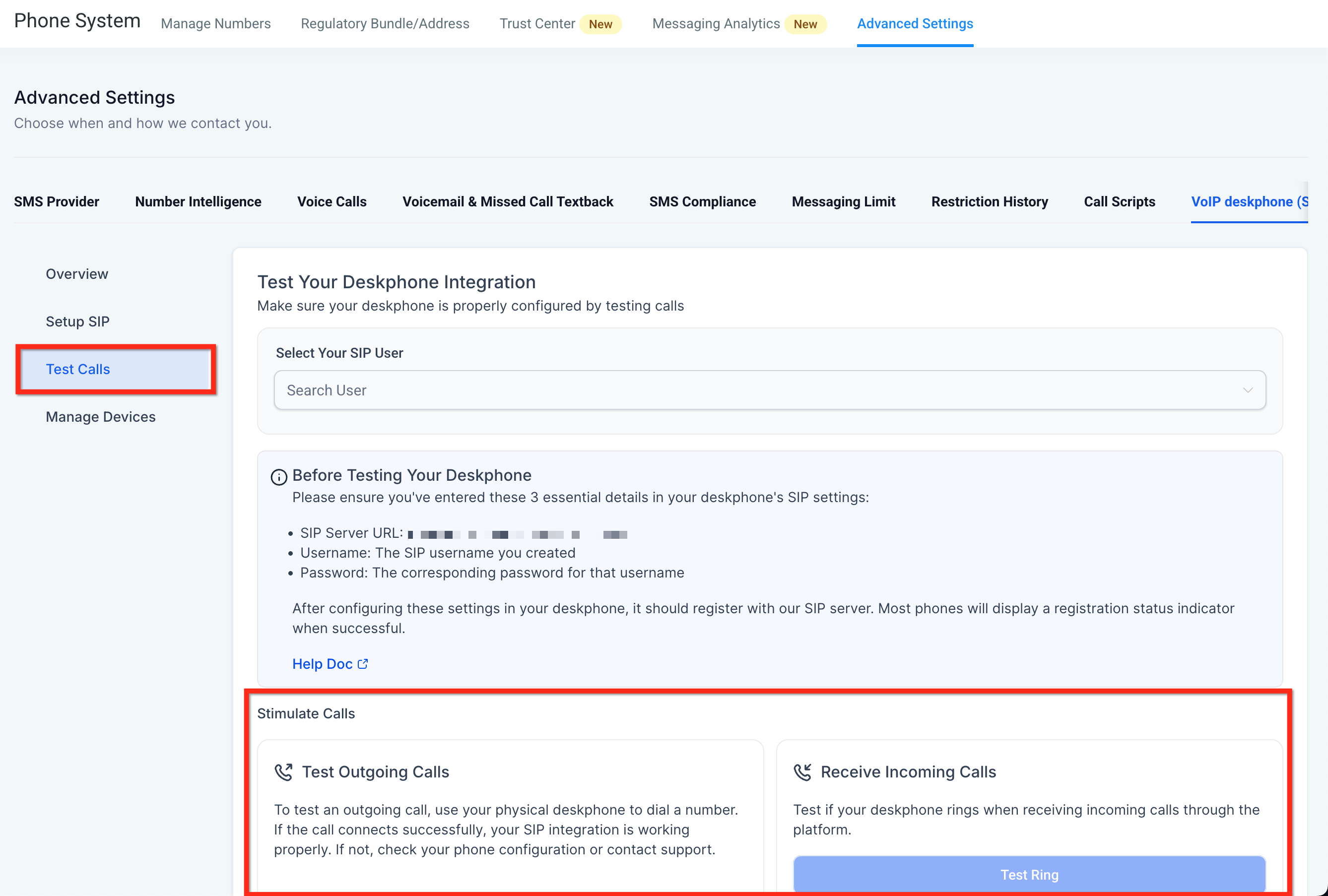
If either test fails, click Details for error codes or choose Contact Support with your SIP domain and handset model.
Reset a device (SIP user) password
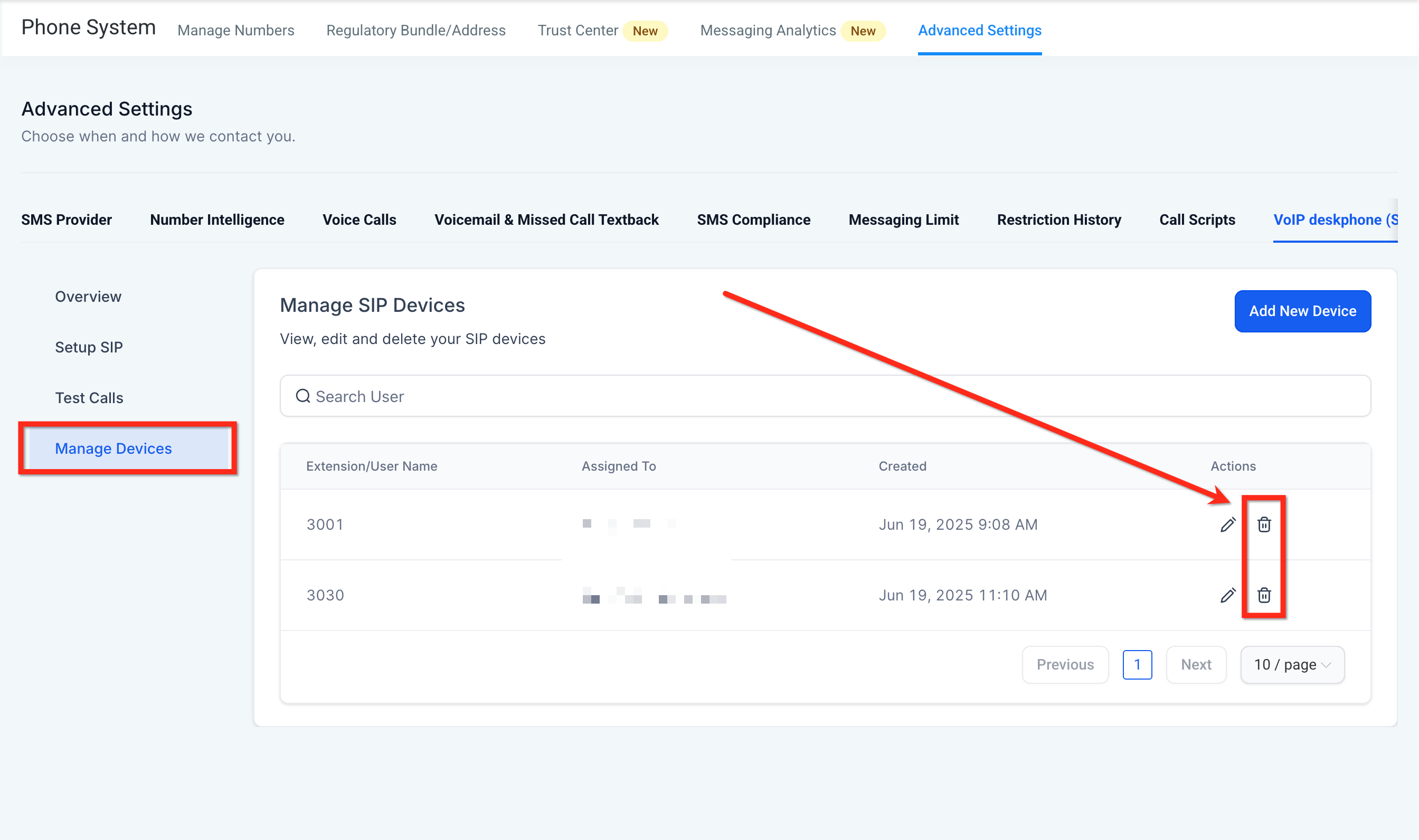
Go to Settings → Phone Numbers → Advanced Settings → VoIP Deskphone (SIP) → Manage Devices and select the pencil icon for the device you want to update.
Delete a device
In the same Manage Devices tab, select the trash can icon to remove a device. This immediately unregisters the handset.
Add another phone
Repeat the wizard. Each deskphone must be linked to a different user, so create an additional (hidden) user for each handset if needed.
View call logs & recordings
Open Conversations for a contact's call thread, or use Reporting → Call Reporting for a consolidated list of calls and recordings.
When a linked user is deleted or transferred, the SIP credentials are automatically disabled. Outbound calls return "403 Forbidden," and inbound calls play an intercept message.
You can call any teammate who has a configured deskphone simply by dialing their extension — no external numbers or extra routing required. If your teammate's extension is 101, just dial 101 from your deskphone to connect instantly.
Fast extension-to-extension calling
Works between configured deskphones
Supported on deskphones only
This makes internal communication quicker for teams using deskphones.
Because Aesthetix CRM calling uses internet-based telephony, even small problems in your local setup can affect call quality. Choppy audio, one-way audio, and dropped calls are usually caused by internet instability, device interference, or network misconfiguration. Work through these steps to eliminate the most common causes.
Scope the issue first. Note whether the problem affects one person, one device, one network, or your whole team. Knowing this up front tells you whether to focus on a device, a local network, or something broader before you start troubleshooting.
Use a wired internet connection. Wi-Fi is more prone to packet loss. Connect your device directly to your modem/router via Ethernet.
Close bandwidth-heavy applications. Pause streaming, large downloads, and cloud backups during calls.
Restart your router and modem. Unplug the power cable from both, wait 30 seconds, plug them back in, and wait for a full reconnection.
Update your browser or app. Make sure Google Chrome or the desktop app is on the latest version.
Use the web app in Google Chrome. Chrome provides the most stable calling performance. Avoid other browsers or mobile web access for calling.
Use headphones with a built-in microphone. A headset reduces echo and improves mic quality. Avoid laptop speakers and mics for professional calls.
Check your microphone and speaker selection. Confirm the correct input and output devices are selected in your computer's sound settings and in the calling interface. The wrong device selection is a common cause of one-way audio or echo.
Check third-party apps and extensions. Some can conflict with audio settings or consume bandwidth. Disable them to help isolate the cause.
Check device and network compatibility. The recommended minimum is 5 Mbps upload/download. Test your connection at Speedtest.
Check for firewall or port blocking. Some firewalls block SIP traffic. Ask your IT team to ensure UDP ports 10000–20000 are open.
Contact Support. Still having issues? Open a support ticket with your call logs and setup details.
More advanced audio problems often come from network jitter, latency, or packet loss. These targets help IT teams identify deeper connectivity issues.
Jitter: Irregular delays in packet delivery. Aim for less than 30 ms.
Latency (RTT): Delay between when a sound is sent and heard. Target under 150 ms.
Packet loss: Lost voice data during transmission. Should always be 0%.
Aesthetix CRM detects network issues affecting call quality in real time and displays them during a live call.
Web app error codes — shown as a call error indicator at the top of your dashboard:
high-rtt: High round-trip time indicates network latency. Calls may sound delayed or out of sync.
high-jitter: Inconsistent packet delivery. This may cause audio crackling or robotic voices.
high-packet-loss: Voice data is being lost, so calls can sound choppy or cut out.
Mobile app notifications — real-time warnings so you can switch networks or pause bandwidth-heavy apps before the issue worsens:
high-rtt: High round-trip time detected on this network.
high-jitter: You could experience choppy audio or crackling.
high-packet-loss: Some audio may be missing or distorted.
low-mos: A low Mean Opinion Score, signaling poor overall call quality.
Symptom | Likely cause | Fix |
|---|---|---|
401 / 403 Unauthorized | Wrong username or password (case-sensitive) | Re-enter the credentials exactly |
No audio | Firewall blocking RTP (UDP 10000–20000) | Open the ports / disable SIP ALG |
Phone rings but won't answer | NAT or SIP ALG interfering with RTP | Disable SIP ALG on your router |
Can't save SIP domain | The name is already taken | Edit the domain or accept the suggested increment |
Inbound calls fail (outbound works) | Keep Alive not configured | Set Keep Alive Type = Options under Account → Advanced |
Still stuck? | – | Click Contact Support with your SIP domain & handset model |
Which VoIP deskphones are compatible?
Most open-SIP models work when standard SIP registration is supported — see the recommended list above. Factory-reset the phone first, then follow the setup steps. If you're unsure, share your handset make/model and firmware so we can point you to the best approach.
Can I record and transcribe every call?
Yes. Once enabled, calls are automatically recorded and transcribed, just like calls from the web or mobile app.
Is there an extra charge for using a deskphone?
Deskphone calls share the same per-minute rates as web and mobile calls. For current pricing, see the pricing page.
Can two deskphones point at the same user?
No. Connect only one user to each deskphone. Create an additional (hidden) user for each extra handset.
Why am I not receiving calls on my deskphone when I receive a call on my assigned number?
The deskphone device type is likely not enabled in your staff settings. Enable it under Settings → My Staff → Edit Staff → Call & Voicemail Settings.
How do I transfer a call from a deskphone?
Supported SIP handsets can perform a blind transfer to another user's extension using the Blind Transfer option on the deskphone. Warm (assisted) transfers from a deskphone are not currently supported, and showing other users' extensions on the deskphone screen is not supported.
Can I place callers on hold with music from a deskphone?
Music during a handset Hold depends on your SIP phone model and its local Hold behavior. Aesthetix CRM does not control music-on-hold triggered by a device's Hold button.
Can I check voicemail from the deskphone's voicemail button?
Voicemails that route to Aesthetix CRM are reviewed in Conversations and in Reporting → Call Reporting. A phone's native voicemail feature (if present) is separate and does not access Aesthetix CRM voicemail.
Why do my calls sound robotic or distorted?
Usually high jitter or packet loss. Try a wired connection and close unused apps.
Can I make calls over Wi-Fi?
Yes, but a wired connection offers more stability and better quality.
Why can't the other person hear me?
Check your microphone input settings and Chrome's mic permissions.
What if call quality is still bad after troubleshooting?
Submit a support ticket with specific examples so our team can help.
