Aesthetix CRM gives you flexible control over how inbound calls reach your practice. You can forward calls from an existing cell or landline into your Aesthetix CRM number, ring a single call to several team members at once, transfer calls to teammates who don't have a personal phone number on file, and route calls through your account so every patient call is tracked. This article covers forwarding calls into Aesthetix CRM, ringing inbound calls to multiple users, transferring calls without a personal number, and how to avoid (and fix) call loops.
For routing calls in the opposite direction, see Inbound Call Routing in Aesthetix CRM with Twilio.
Call forwarding lets you redirect calls from your personal cell phone or office landline to your Aesthetix CRM phone number. This way you can manage and track every patient call inside Aesthetix CRM without changing the number printed on your business cards, website, or online listings.
When forwarding is enabled, incoming calls to your personal number are automatically redirected to your Aesthetix CRM number, where they're handled, logged, and routed according to your settings.
Forwarding into Aesthetix CRM lets you:
Track every call in one place for better follow-up and reporting.
Keep your existing number visible to patients without updating marketing materials or directories.
Streamline operations by managing all incoming calls through your Aesthetix CRM account.
Follow the steps for your carrier below. If your carrier isn't listed, contact them directly or try the "Other Carriers" steps.
Press Call.
Wait for a confirmation tone or message.
To deactivate call forwarding, dial *****73.
There are two ways to forward calls from your Verizon Wireless phone:
To forward ALL CALLS: Dial *72 followed by your Aesthetix CRM phone number (e.g., *72 555-555-5555).
To forward MISSED CALLS (unanswered calls or calls that receive a busy signal): Dial *71 followed by your Aesthetix CRM phone number (e.g., *71 555-555-5555).
Press Call.
Wait for a confirmation tone or message.
To deactivate call forwarding, dial *73.
Dial *21 followed by your Aesthetix CRM phone number (e.g., *21 555-555-5555).
Press Call or Send.
Wait for the confirmation tone.
To deactivate, dial #21#.
Dial *72 on your landline phone and listen for the dial tone.
Enter your Aesthetix CRM phone number (e.g., 555-555-5555).
Wait for the confirmation tone. The system places a call to the forward-to number; if that party answers, the feature is activated.
To deactivate call forwarding, dial *73.
Press Call.
To deactivate call forwarding, dial ##61# or ##21#, respectively.
There are two ways to forward calls from your T-Mobile phone:
To forward ALL CALLS: Dial **21*1 + your Aesthetix CRM phone number + # (e.g., **21*1555-555-5555#).
To forward MISSED CALLS (unanswered calls or calls that receive a busy signal): Dial **61*1 + your Aesthetix CRM phone number + # (e.g., **61*1555-555-5555#).
Press Call.
To deactivate call forwarding, dial ##61# or ##21#, respectively.
Press Call.
Listen for a confirmation tone.
There are two ways to forward calls from your Xfinity Mobile phone:
To forward ALL CALLS: Dial *72 followed by your Aesthetix CRM phone number (e.g., *72 555-555-5555).
To forward MISSED CALLS (unanswered calls or calls that receive a busy signal): Dial *71 followed by your Aesthetix CRM phone number (e.g., *71 555-555-5555).
Press Call.
Listen for a confirmation tone.
To turn off call forwarding, dial *73.
Press Call and wait for the confirmation tone.
To deactivate, dial *****73.
There are two ways to forward calls from your Spectrum Mobile phone:
To forward ALL CALLS: Dial *72 followed by your Aesthetix CRM phone number (e.g., *72 555-555-5555).
To forward MISSED CALLS (unanswered calls or calls that receive a busy signal): Dial *71 followed by your Aesthetix CRM phone number (e.g., *71 555-555-5555).
Press Call and wait for the confirmation tone.
To deactivate, dial *73.
If your carrier isn't listed, contact them directly or try the following:
After you enable call forwarding, confirm it's working correctly before you rely on it:
Use a different phone to call the original number you just set up to forward.
Confirm the call reaches your Aesthetix CRM number and follows your expected call flow.
Make sure the call doesn't repeat the same audio or create multiple inbound calls stacking up in your Inbox.
If you notice repeated calls or unexpected routing, turn off call forwarding and review your setup before testing again.
If your test turns up looping or repeating calls, see Fixing a Phone Call Redirect Loop below.
To forward MISSED CALLS (unanswered calls or calls that receive a busy signal): - Dial *****92 on your phone and listen for the dial tone.
If a key practice number must never go unanswered, you can direct each incoming call to several members of your team at once. The first person to answer is connected to the caller; everyone else can ignore the ring. This is the "Ring Incoming Call to Multiple Users" option.
Go to Settings > Phone Numbers, find the number, and click the three dots in its row to open Edit Configuration, then locate Ring Incoming Call to Multiple Users.
Enable the checkbox.
Add one or more team members to the field (up to 6 users).
Click Save.
Each user can choose the device or channel where they want to answer these calls. Go to Settings > My Staff > Edit User > Call & Voicemail Settings > Default Channel for Ring All. This is set per user.
Incoming-call handling follows this order of priority. Ring to Multiple Users applies in these cases:
Call goes to the user linked to the called number — works.
Call goes to the user linked to the contact who called — works.
Call goes to a forwarding number — works.
Call goes to your business profile phone number — works.
If a forwarding number and Ring to Multiple Users are both set up, everyone receives the call and the first to answer stays connected.
A team member doesn't need a personal phone number configured to receive a transferred call. Aesthetix CRM can route the transfer to whatever calling destinations that team member already has enabled, so as long as they can be reached through the CRM in some way, they can pick up the handoff.
When you transfer an active call to a team member, Aesthetix CRM checks that user's Forward Calls to destinations under Settings > My Staff > Edit User > Call & Voicemail Settings and rings whichever ones are turned on, for example their Aesthetix CRM mobile app, the web app, their forwarding phone number, or a connected VoIP/SIP deskphone. If more than one destination is enabled, all of them ring at the same time so the team member can answer from whichever one is in front of them. This works for both inbound and outbound calls, and for warm and blind transfers alike.
The team member needs at least one eligible destination turned on in their Call & Voicemail Settings. If none are enabled, they'll appear unavailable in the transfer list.
You transfer to the team member, not to a specific device. Aesthetix CRM rings everything they have enabled under Forward Calls to on their behalf.
A call that's already been transferred once can't be transferred again by the person who receives it.
Make or answer a call in the Aesthetix CRM mobile app.
Tap Transfer in the top-right corner of the call screen.
Open the Staff Members tab and select the team member you want to transfer to. Anyone without an eligible destination appears disabled and can't be selected.
Choose how to hand off the call: - Hold and Call keeps you on the line so you can introduce the caller before connecting them (warm transfer).
Transfer and End hands off the call and disconnects you immediately (blind transfer).
The receiving team member sees that the incoming call is a transfer, along with who sent it, and taps Accept to pick it up.
Transferring from the Aesthetix CRM web app works the same way using the built-in Phone Dialer's warm and blind transfer controls.
Aesthetix CRM lets you use your CRM phone number across different parts of your account — including as your business phone number and in advanced routing setups — so experienced users can design custom call flows for their needs.
However, certain configurations, such as using an Aesthetix CRM number as a call forwarding destination, can unintentionally create a call loop if not set up correctly. A call loop happens when a call is forwarded back into the system repeatedly, which can cause:
Calls failing to connect
Calls disconnecting unexpectedly
Inbound calls not reaching the intended recipient
To keep you informed without limiting flexibility, Aesthetix CRM displays a warning message wherever using your CRM number could lead to call issues. The warning is informational only and does not prevent you from saving your settings.
Using your CRM phone number here may cause some calls to fail because it can create a call loop.
The warning appears when you use an Aesthetix CRM phone number in these areas:
Phone Number Settings (Call Forwarding)
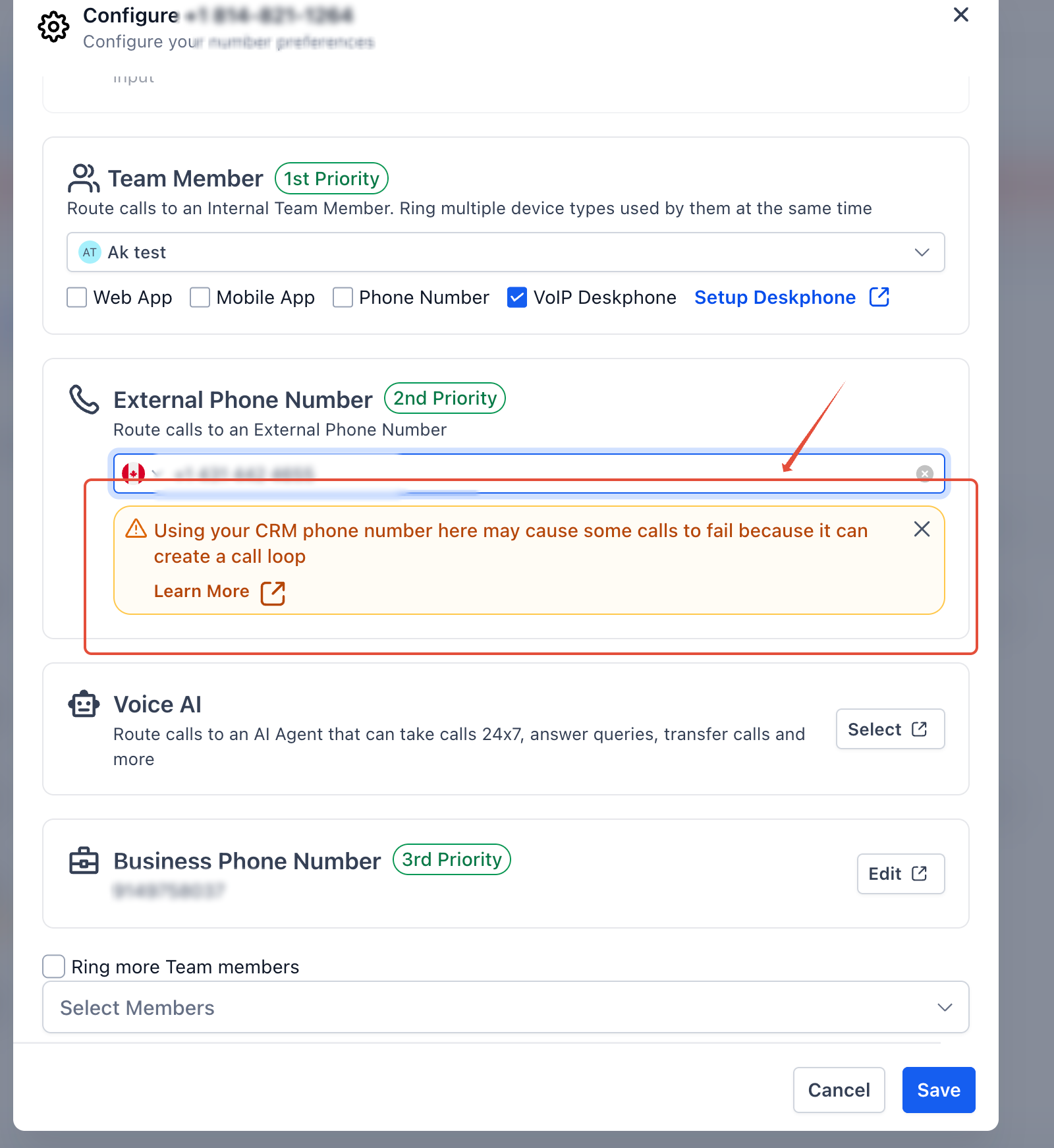
Business Profile (Business Phone Number)
Staff Profile (User Phone Number)
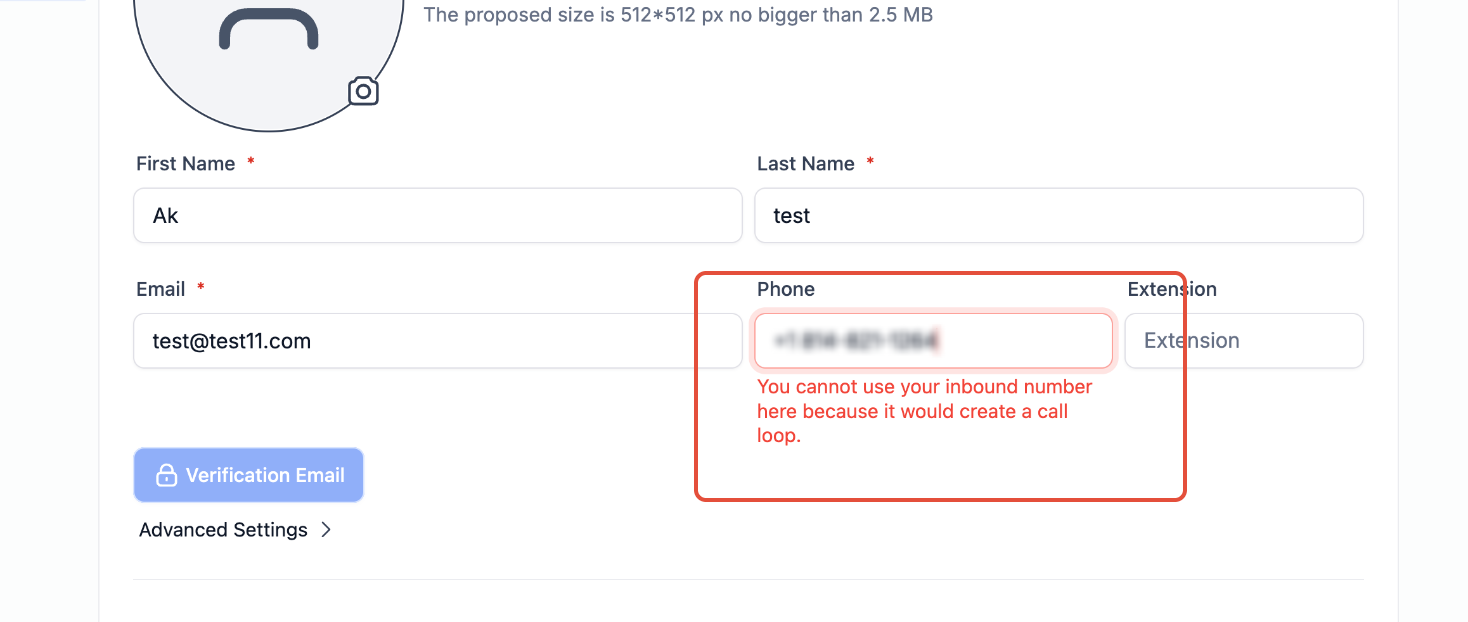
Number Pool
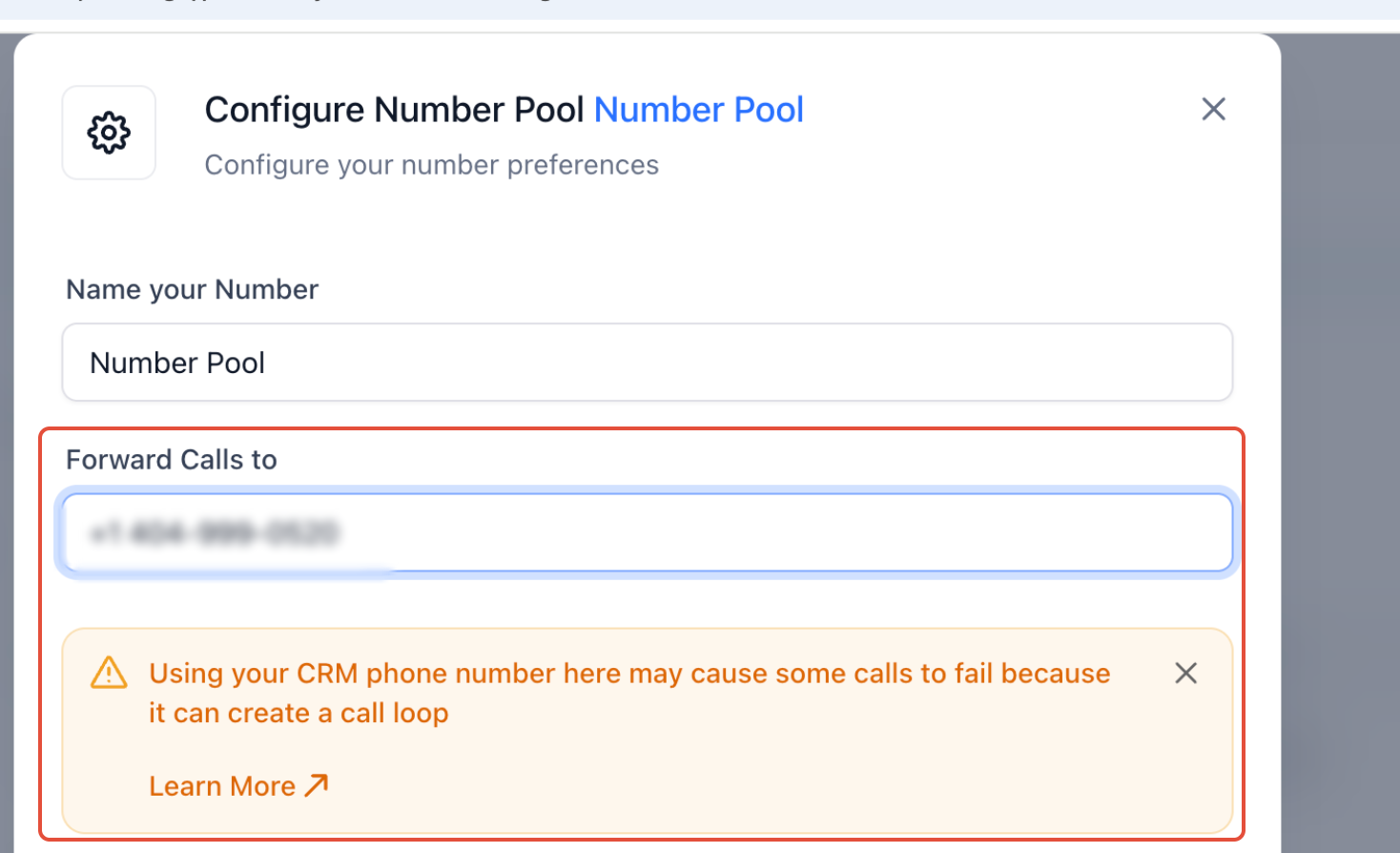
Workflows (call routing or forwarding actions)
To avoid call issues:
Use an external phone number (mobile, landline, or VoIP) for call forwarding whenever possible.
If you do use an Aesthetix CRM number:
Make sure your call flow does not route calls back to the same number.
Test your setup thoroughly after saving changes.
Monitor call logs for failed or dropped calls.
If you hear calls that loop and play the same message over and over, or you see inbound calls stacking up one after another in your Inbox, you likely have a redirect loop. This happens when a call to Number A is routed to Number B, and Number B routes it back to Number A.
Signs of a redirect loop:
You hear the call repeat the same sounds over and over.
You see inbound calls stack up quickly (within less than a minute).
Work through these three checks to find and fix the loop.
Go to Settings > My Staff and edit the specific user. Make sure the user's phone number (the number you call to reach them) is not the same as their Aesthetix CRM number. If it is, the call forwards to itself and creates a loop.
Go to Settings > Phone Numbers > Forwarding Number. The forwarding number must be different from the Aesthetix CRM phone number.
Go to Settings > Business Profile > Business Phone. This is the fallback number for inbound calls. In addition to checking it, call the number to test it — a number that looks different may still be set up to route back to your Aesthetix CRM number, so verify it manually.
Can I forward calls from multiple numbers into Aesthetix CRM?
Yes. As long as each number supports call forwarding, you can forward multiple numbers to your Aesthetix CRM phone number.
Will callers know their calls are being forwarded?
No. Call forwarding is seamless, and the caller isn't notified of the redirection.
Can I still make calls from my personal number after setting up forwarding?
Yes. Call forwarding only affects incoming calls. Outgoing calls from your personal number are unaffected.
Does call forwarding work internationally?
It depends on your carrier. Contact your carrier to confirm whether international call forwarding is supported.
How many people can I ring at once with Ring to Multiple Users?
Up to 6 users in parallel. The first to answer talks to the caller; the rest do nothing.
What if one of the users declines the call?
The call keeps ringing the other users as usual. One person declining doesn't affect anyone else.
What if a phone number is already linked to a user and I also add that user to Ring to Multiple Users?
Because the number is already linked to that user, they'll receive the call according to their Settings > My Staff > Call & Voicemail > Forward calls to preference. The Default Channel for Ring All setting won't be used, since the user is already set to receive the call.
Can a team member receive a transferred call if they don't have a personal phone number set up?
Yes. As long as they have at least one destination enabled under Call & Voicemail Settings, such as the mobile app, web app, or a deskphone, Aesthetix CRM can ring them for the transfer.
Can I transfer a call that was already transferred to me?
No. Re-transferring an already transferred call isn't currently supported.
Should I test my forwarding setup after I turn it on?
Yes. Call the forwarded number from a different phone and confirm the call reaches your Aesthetix CRM number cleanly, with no repeated audio or duplicate inbound calls. If something looks off, turn off forwarding and work through the checks in Fixing a Phone Call Redirect Loop before turning it back on.
