The Phone Dialer is a browser-based softphone built into Aesthetix CRM. Running on native Twilio, it lets your front desk and team place outbound calls, search for patients as you dial, transfer live calls, capture post-call notes and tags, and follow call scripts—all without leaving the platform. It works in a desktop or mobile browser, so there's no separate softphone app to install.
For step-by-step guidance on placing your first call, see How To Make Calls In Aesthetix CRM.
The Phone Dialer centralizes your call activities—dialing, transfers, notes, tags, and call scripts—into one tool, minimizing clicks so your team can focus on the conversation instead of the software.
Immediate dialing: Open the dialer and start entering a number right away.
Real-time patient lookup: As you type digits, Aesthetix CRM searches your database and suggests matching contacts so you can connect faster.
One-tap access: Reach your Contacts list and Recent Calls from inside the dialer with a single click.
Live call controls: Mute, hold, and transfer calls without switching screens.
Comprehensive call logging: Add notes and tags after each call to capture context and categorize interactions.
Call scripts: Pull up a saved talk track during a live call to stay consistent and on-message.
In the top bar, visible on nearly every page, click the green phone icon to open the dialer.
Once the dialer is open, you have several ways to place a call:
Dial manually by clicking the keypad buttons.
Select a recently used number from Recent Calls.
Search for a patient or contact by name or number.
The dialer also includes dedicated tabs for Contacts and Recent Calls, so your address book and call history are always one tap away. You can sort and filter by call date, contact name, or tag to make follow-ups and callbacks easy to find.
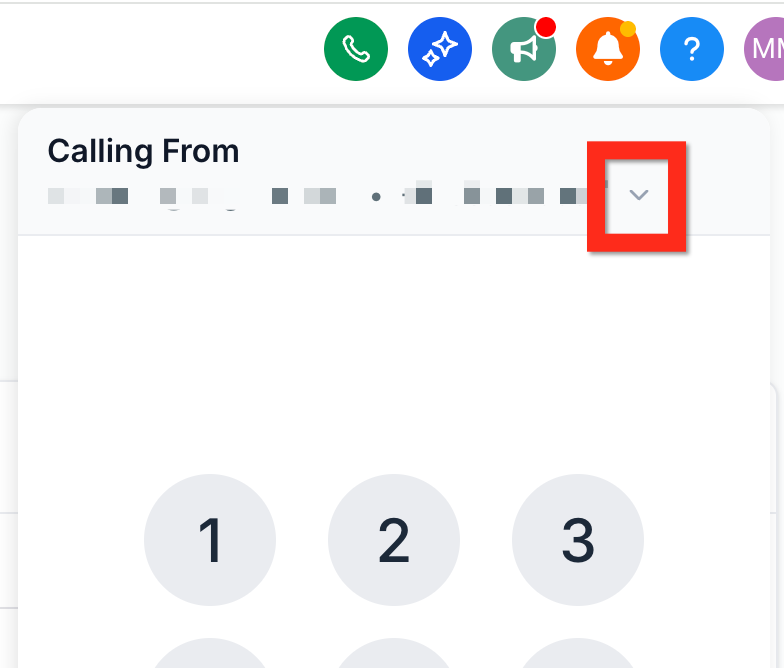
If your user account has access to all records, you can choose which of your business numbers a call goes out from using the Calling From dropdown in the dialer. If a user has only their assigned data enabled and the User role, calls automatically dial out from that user's assigned number.
Open Audio Settings from the dialer to choose which microphone and speaker it uses for calls. The Main Speaker you select plays the other caller's audio, and you can preview your speaker and test your microphone before saving your changes.
Audio settings are saved per browser and device. If you use Aesthetix CRM in a different browser or on another computer, you'll need to configure your audio devices there as well.
If you disconnect your microphone, headset, or speaker mid-call, your browser or operating system may automatically switch to another available device, and the exact behavior depends on your browser and OS. To avoid interruptions, keep your selected device connected for the duration of the call, and reopen Audio Settings to confirm the correct devices are selected if audio stops working.
You can't set different primary devices for inbound versus outbound calls. The same microphone and speaker apply to both.
Once a call is connected, you have several controls available.
Press Mute to turn off your microphone so the person on the other end can't hear you. Press it again to unmute.
Press Hold to put the entire call on hold—neither party can hear the other until you resume.
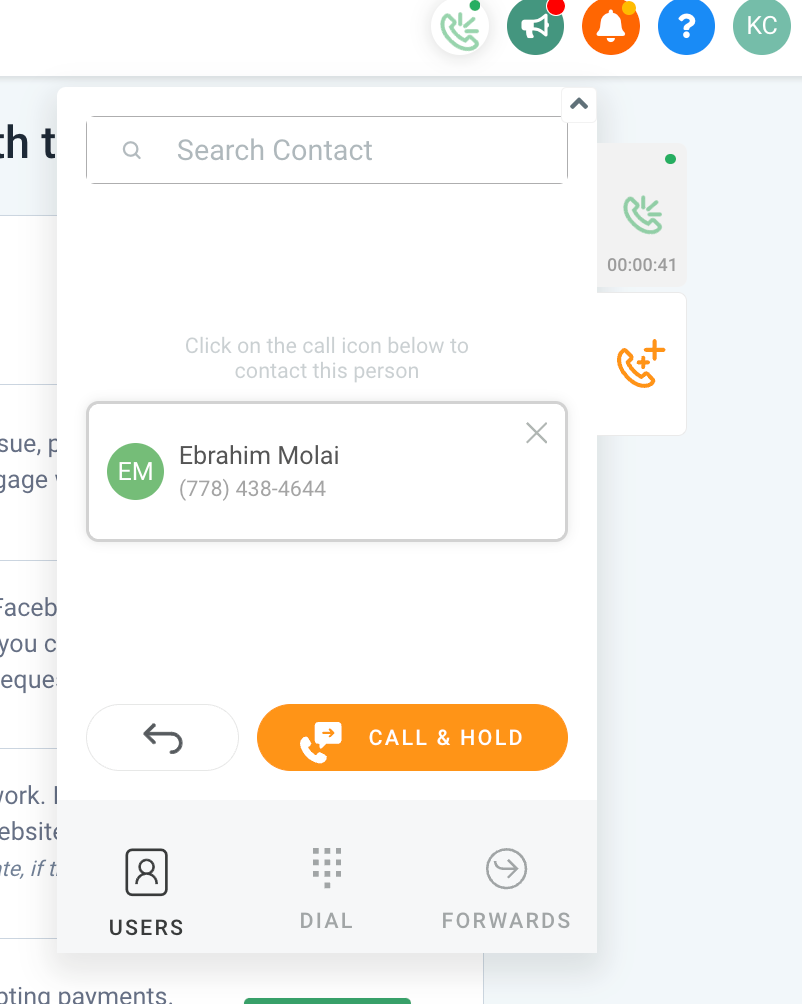
A warm transfer lets you speak with the other team member before handing off the call. Search for another user or manually dial a number to open a second call, then switch between the two. When you're ready to connect the patient with your colleague, click Patch Call to join the two calls together.
A blind transfer redirects the call to another number and disconnects you from it immediately, with no hand-off conversation.
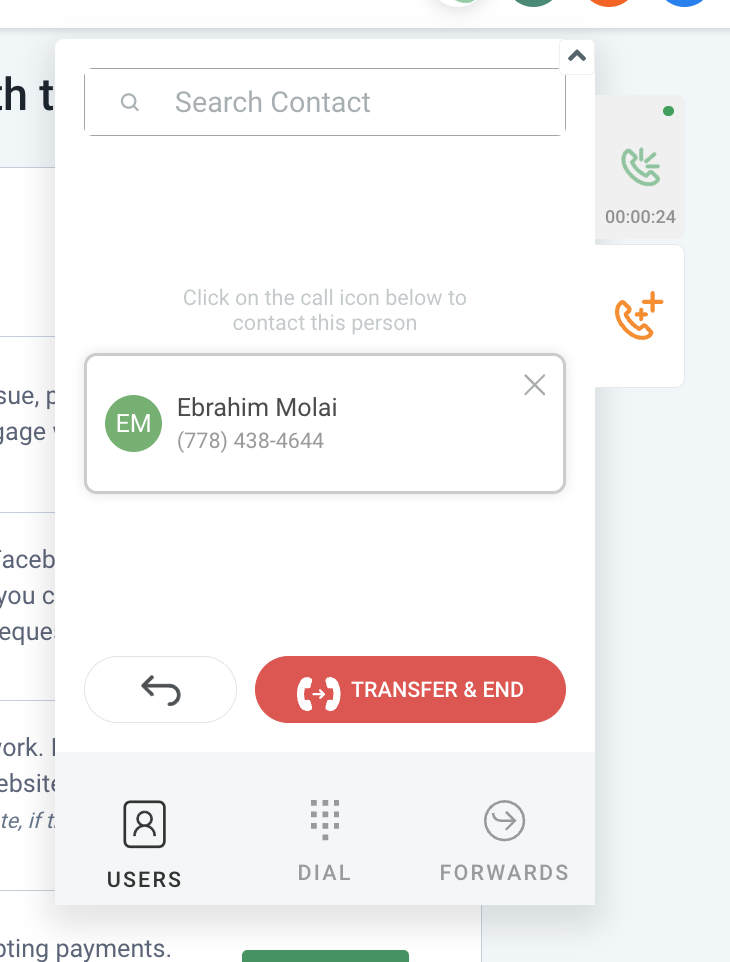
Call context is preserved when you transfer, so notes and tags stay linked to the correct patient record.
The dialer is designed to stay accessible while you keep working in Aesthetix CRM during a call. Three behaviors give you control over how and where it appears: auto-minimize, pin, and drag.
When the dialer is open and not pinned, clicking anywhere outside it minimizes the dialer so it doesn't block contact or pipeline information. Minimizing only changes how the dialer appears—it does not end the call. Reopen it whenever you need the call controls again.
Click the pin icon to keep the dialer visible while you move through other areas of the platform—useful when you want call controls on screen while reviewing records, following a script, or updating notes. When pinned, the dialer stays open instead of minimizing when you click elsewhere. Unpin it or minimize it manually to return to the standard behavior.
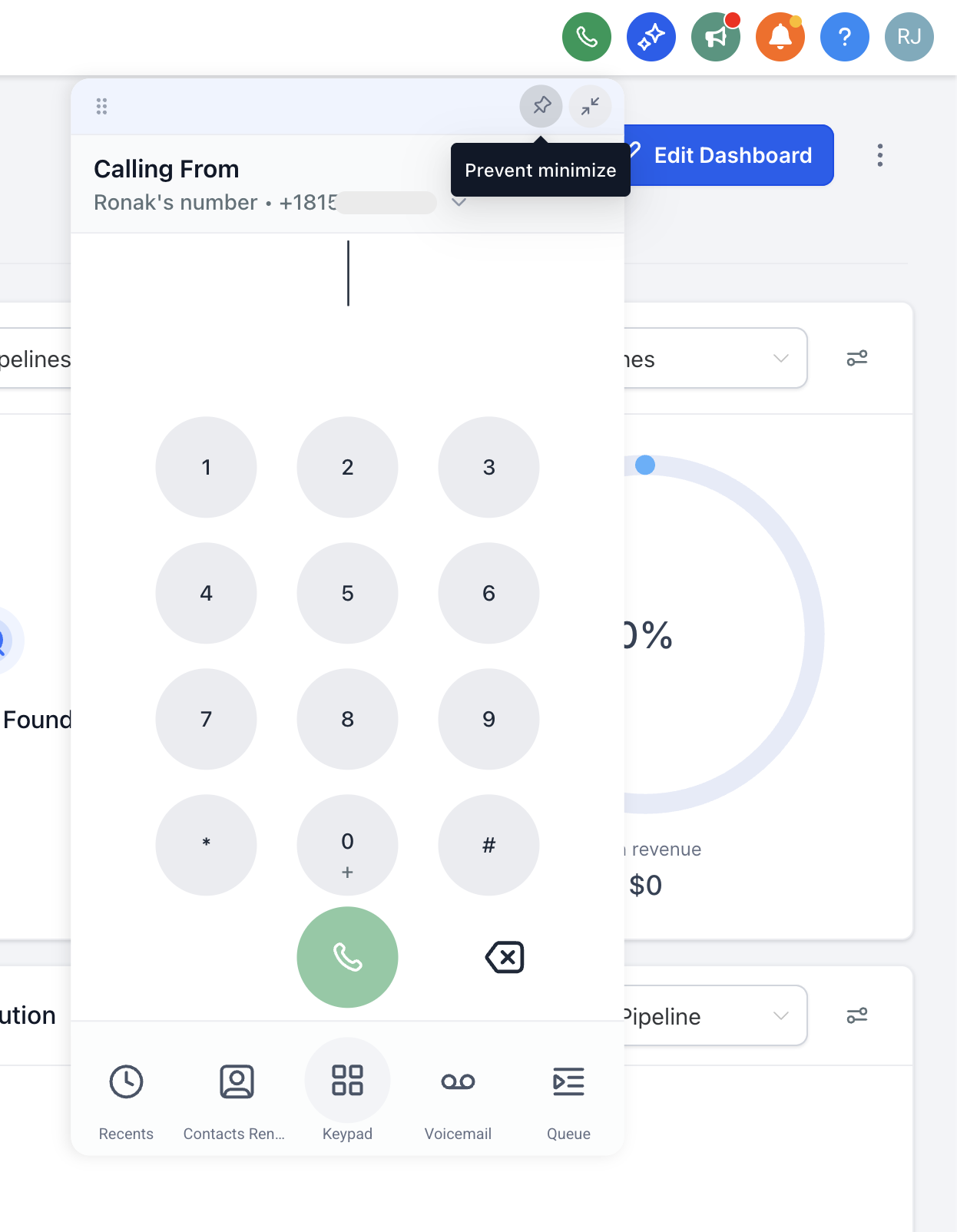
Click and hold the dialer header, then move the dialer to wherever it fits best on your screen and release to place it. If the dialer is pinned, it remembers its position and reopens where you last left it.
Call Scripts give your team on-demand conversation guidance during a live call, helping agents stay consistent, handle objections smoothly, and ramp up faster—without switching tabs or hunting for notes.
Scripts can include opening statements, discovery questions, qualification criteria, objection-handling responses, required disclosures, and closing or next-step prompts.
Click Settings in your Aesthetix CRM account.
Go to Phone System and click Voice.
Click Call Scripts, then click the Add Scripts button.
Enter your script content and click Save.
All users in your account can access the full list of available scripts during a call. Scripts can be edited at any time from the web interface, and updates are available to everyone the next time they open the dialer.
Make or receive a call using the dialer.
Click the Scripts button in the dialer interface.
Select a script from the dropdown list.
Read and follow the script during the live call.
Call Scripts currently support plain text only—rich formatting and hyperlinks are not supported.
Capturing details after a call is key to effective follow-up. When a call ends, the Recents screen prompts you to add notes and assign tags, which improves segmentation and reporting on patient interactions. To add multiple tags, click the Tags field in the Recents screen and select or create as many tags as you need before saving. You can later filter Recent Calls by tag using the filter dropdown.
If the dialer isn't connecting, work through these checks.
Step 1: Enable your microphone
Make sure the microphone is allowed in the browser you're calling from. This may require enabling app microphone permissions in Windows or on Mac. In Chrome, check by clicking the icon to the left of the address bar.
Step 2: Rule out browser extensions
Make sure no extensions—such as VPNs—are interfering with the dialer. Try the browser in incognito or guest mode, where extensions are disabled.
Step 3: Check the call timeout
Make sure the phone number's outbound call timeout is set to at least 20 seconds.
Why is a call going out from the default number instead of my assigned number?
Calls dial out from your assigned number automatically when your user account has only assigned data enabled and the User role. If your account has all records enabled, you can change the outgoing number using the Calling From dropdown in the dialer.
How do I remove the "this call will be recorded for quality purposes" message?
We generally don't recommend removing the call recording warning, as it's often legally required. If you do need to change or turn it off, you can do so in your phone number settings.
Why do I hear a short "connecting" tone before the normal ringing sound?
Aesthetix CRM plays a brief connecting tone while it's still reaching the recipient's carrier. You'll hear the familiar ringback tone only after the carrier confirms the destination device is actually ringing. If the carrier can't be reached, the call ends after the connecting tone rather than ringing indefinitely.
Does auto-minimize end my call?
No. Auto-minimize only changes how the dialer appears on screen. Your call stays active.
Where do I open the dialer?
Click the green phone icon in the top navigation bar of the web app.
Can I edit a call script after creating it?
Yes. Call scripts can be updated at any time from the web interface, and changes are available to all users the next time they open the dialer.
Can I filter Recent Calls by tag?
Yes. Use the filter dropdown in the Recent Calls tab to select one or more tags.
