Text messaging is one of the most effective ways to reach patients, but messages only help when they actually arrive. This guide explains how to keep your SMS deliverability high, avoid carrier restrictions and suspensions, and troubleshoot messages that fail or don't show up. Aesthetix CRM's phone system runs on native Twilio, so the practices and error codes below reflect how Twilio and the mobile carriers handle your traffic.
When you send a text from Aesthetix CRM, it travels through several layers before it reaches a patient's phone:
The Aesthetix CRM layer — the message is composed and queued (checked against Do Not Disturb status, sending limits, and account standing).
The Twilio layer — the message is processed and routed by the underlying carrier platform.
The carrier network layer — the recipient's mobile carrier accepts, filters, or delivers the message.
If a message fails at any layer, it may never reach the recipient. The sections below show how to spot where it went wrong and how to fix it.
If a message didn't go through, start in your Conversations view. When a message fails to send or deliver, Aesthetix CRM displays an error directly in the conversation thread. The error message and error code give you the clues you need to diagnose and fix the problem using the tables further down in this guide.
Issue | Cause | Fix |
|---|---|---|
Contact has DND (Do Not Disturb) enabled | When DND is enabled for a contact—on the SMS channel or overall—Aesthetix CRM does not send the message and shows an error in the conversation. | Remove the DND status from the contact to resume sending. |
Account is new and ramping up | New accounts have message volume limited to prevent spam, with limits increasing automatically over time. | Wait for limits to increase, or contact support to request a review. |
Daily message limit reached | Each account has a daily message limit. Bulk and automated messages stop once the limit is hit, though individual replies can still go out. | Wait until the next day, or contact support to adjust your limit. |
Sending suspended for high errors, opt-outs, or complaints | Accounts that exceed error, opt-out, or complaint thresholds have sending temporarily suspended. Messages attempted during a suspension are skipped and show an error. | Follow the deliverability best practices in this guide, then contact support if needed. |
Error | Cause | Fix |
|---|---|---|
Number is on Twilio's DND list | The number opted out previously or generated a carrier complaint, so messages fail until the contact opts back in. | The contact must text START to your number to re-enable messaging. |
30001: Queue Overflow | Messages queue based on your sending rate. If a message sits in the queue longer than about 4 hours, it fails. | Reduce the volume sent in short bursts so messages clear the queue faster. |
30002: Suspended Account | The message fails if the account is suspended between queuing and sending. | Contact support to resolve the suspension. |
Error | Cause | Fix |
|---|---|---|
30003: Unreachable Handset | The recipient's phone may be off, out of signal, a landline, or there may be a carrier issue. | Retry later, and verify the number is a reachable mobile line. |
30004: Message Blocked | The destination number is blocked, can't receive the message (e.g., a landline), is on a Do Not Call registry, has a carrier issue, or previously opted out of a toll-free number. | Confirm the number is valid and opted in. Avoid sending to blocked or DND numbers. |
30007: Carrier Filtering | The carrier flagged and filtered the message, often due to content patterns, shortened URLs, or prior sending behavior. | Review your message content and follow the best practices below. |
Attachment File Too Large | The file exceeds carrier size limits for MMS. | Reduce the attachment size and resend. |
International Geo Permissions | Your account may not have permission to send to that country. | Contact support to enable the destination country. |
Message Body Too Long | A message—often one built from a custom value such as a full inbound email pasted into | Trim the message, or adjust the automation so it doesn't insert oversized custom values. |
Note: You may be charged once a message is attempted, even if it later fails downstream.
Check Conversations for any red error badge.
Match the error code to the cause using the tables above.
Apply the fix from the matching row.
Retry the message after making adjustments.
Monitor to confirm delivery, or note any new error code.
Carriers monitor sending behavior closely. Following these practices keeps your delivery rate high and reduces the risk of a temporary restriction.
1. Add opt-out language to first messages. Include "Reply STOP to unsubscribe" in the first SMS you send to any new contact.
2. Identify yourself. Introduce yourself or your practice in the first message so the recipient knows who is texting.
3. Don't text landlines. Landlines and other SMS-incapable numbers drive up your error rate. Validate or clean your lists so you're only texting mobile numbers.
4. Avoid public URL shorteners. Links shortened with services like bit.ly or tinyurl.com hurt deliverability—carriers, especially T-Mobile and AT&T, flag them as high risk because they're associated with spam and phishing. Instead:
Use custom or branded short URLs tied to your own business domain.
Limit redirects to no more than one, and never cloak the destination.
When possible, include the full URL for transparency, even if it uses more characters.
5. Register your business and campaigns (A2P). Carriers increasingly require Business Profile, A2P Brand, and campaign registration before they'll deliver messages reliably. Aesthetix CRM handles A2P/toll-free registration on Twilio for you. Campaign verification can take time to be approved—if it stalls, contact support so we can escalate it.
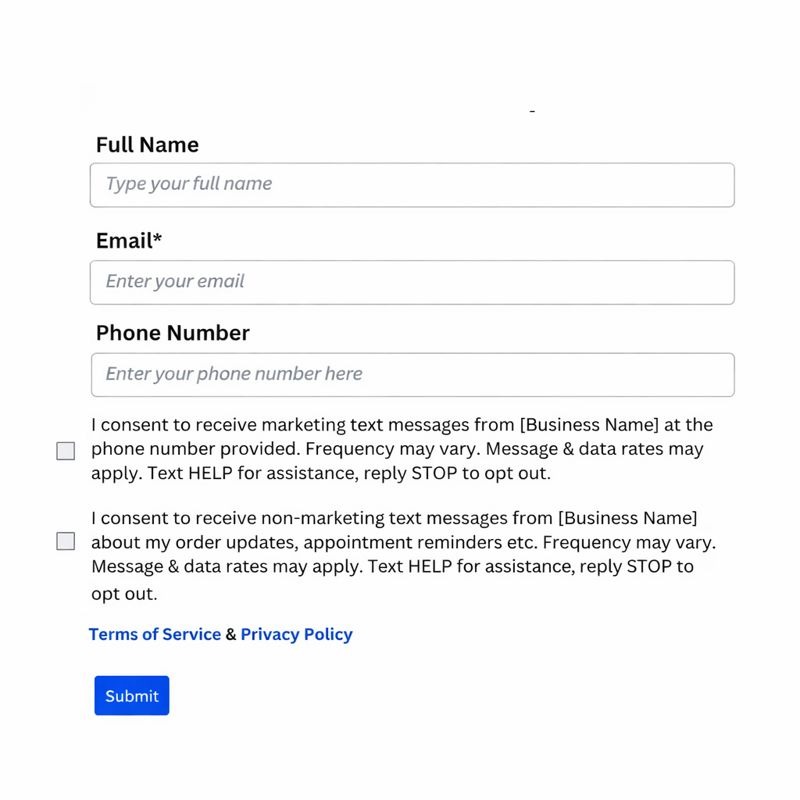
6. Collect consent on your web forms. When a web form is where leads opt in, include a consent checkbox so each lead actively agrees to receive messages.
When the phone field is required, use separate consent checkboxes for marketing and non-marketing messages. Checkboxes cannot be pre-selected and must always be optional. Include links to your Privacy Policy and Terms in the footer.
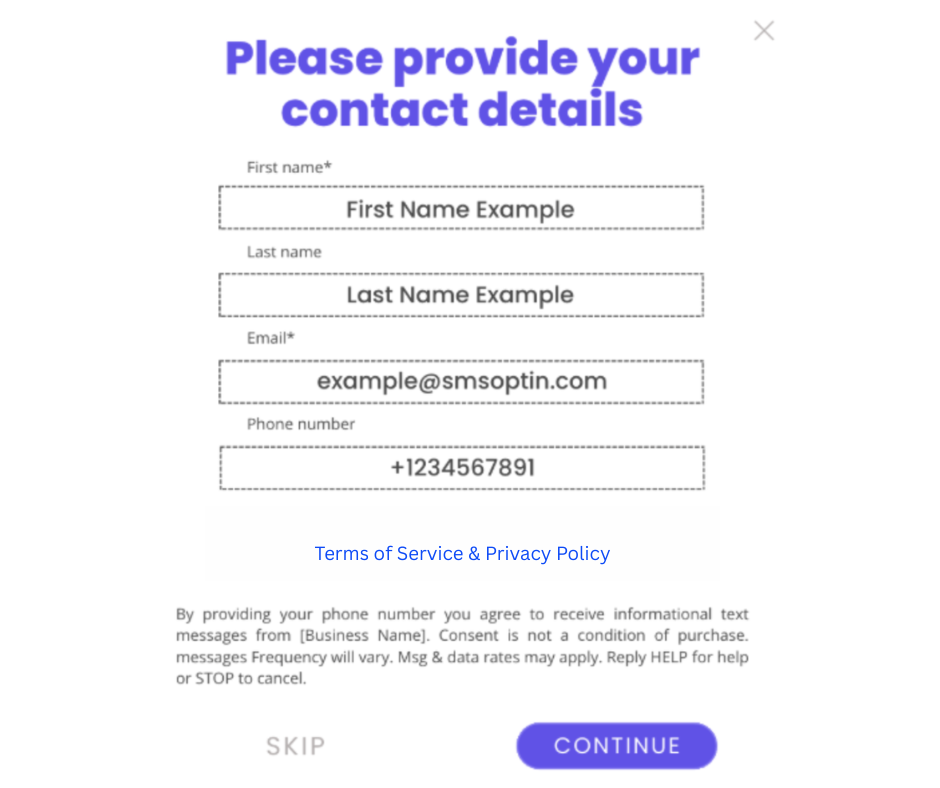
When the phone field is not required, a consent checkbox isn't necessary, but still include your Privacy Policy and Terms in the footer.
7. Reference how leads opted in. Where helpful, the first message can note how the contact opted in (for example, "You signed up at our front desk").
8. Use double opt-in where possible. Have contacts actively confirm via SMS and a web-form checkbox (for example, "Reply 1 to subscribe") so consent is unmistakable.
For the full list of fixes when texts aren't arriving, see the related article SMS Not Sending / Delivering to Contacts.
Aesthetix CRM monitors your overall delivery rate to keep your account in good standing and prevent carriers from blocking or permanently suspending it. Two proactive measures apply:
Violation email — sent when your account reaches a 6% error rate or a 2% opt-out rate.
Temporary restriction — a suspension notice is sent when your account reaches a 10% error rate or a 3% opt-out rate.
Please note: Once an account hits a temporary restriction, all upcoming outbound SMS will fail until 00:00 UTC the following day.
Pause any workflows, campaigns, triggers, or bulk actions sending to contacts who have not explicitly opted in.
Enable and customize your opt-out language and sender identification so future messages aren't flagged.
Hold off on bulk sends. Avoid message blasts and cold-prospecting campaigns until the issue is resolved.
Opt-out rate — A high opt-out rate means recipients are objecting, complaining, or marking your texts as spam. A good rate is 0–1%. Once it reaches 2%, the account is locked from sending for 24 hours.
Delivery error rate — A high error rate means you're texting numbers that are out of service, unreachable, or SMS-incapable (such as landlines), or that carriers are filtering your messages due to past sending behavior. A good rate is 0–6%. Once it reaches 10%, the account is locked from sending for 24 hours.
A temporary suspension lifts automatically after 24 hours—your account can send again after 00:01 UTC the day after the non-compliant notice. Use the time to review your recent sends, message content, list hygiene, and compliance settings before resuming. If your account is permanently suspended, contact support.
For more on watching these metrics and acting before a restriction hits, see the related article Error and Opt-out Rate Monitoring.
The SMS Restriction History dashboard is a read-only log of any warnings or temporary restrictions applied to SMS sending on your account. It shows what happened, when, and why, so you can correct issues quickly and stay compliant. Typical triggers include daily or weekly sending-limit violations, a high opt-out rate, and a high delivery error rate (including carrier filtering such as Error 30007).
Where to find it: Go to Settings → Phone Numbers → Advanced Settings (top-right), then open the Restriction History tab.
Each event in the table lists:
Date — when the warning or restriction occurred
Restriction Type — Warning or Temporary Restriction
Restriction Reason — for example, opt-out rate exceeded threshold
Percentage / Count — the measured value at the time
Additional Details — related metrics, such as the error rate
Use the Start Date and End Date filters on the right to view a specific window, and the pagination controls to page through records.
There is no separate Messaging Analytics dashboard under Settings. To track SMS volume, delivery status, and team performance over time, add SMS and Conversations widgets to one of your Aesthetix CRM Dashboards instead.
SMS widgets cover volume over time, delivery status (Sent, Delivered, Failed, Pending, Undelivered, Clicked, Read), the source that triggered each send (Workflow, Campaign, Bulk action, Other), volume by sender, and incoming SMS count. See Revenue, Payments, and SMS Reporting Widgets for the full list of SMS widgets and how to add them to a Dashboard or Custom Report.
Conversation widgets cover unread and assigned conversation counts, channel breakdowns, and new conversations started, useful for tracking two-way SMS engagement. See Understanding Dashboard Widgets for the full widget catalog.
To add either type, open a Dashboard, click Add Widget, and choose from the SMS or Conversations category.
Some use cases are prohibited by carriers for SMS and MMS in the United States and Canada, regardless of number type or destination. Sending this content can lead to fines and suspension of your messaging capability. These restrictions exist at the carrier level and apply to all senders.
Category | Examples | Notes |
|---|---|---|
High-risk financial services | Payday loans, short-term high-interest loans, third-party auto or mortgage loans, student loans, cryptocurrency | "Third-party" means originating from any party other than the one servicing the loan. |
Third-party lead generation | Companies that buy, sell, or share consumer information | |
Debt collection or forgiveness | Third-party debt collection, debt consolidation or reduction, credit repair | "Third-party" means originating from any party other than the one owed the debt. A practice may message its own patients about their bills, assuming they opted in. |
"Get rich quick" schemes | Work-from-home programs, risky investment opportunities, pyramid schemes | Differs from compliant employment outreach or investment alerts sent with proper opt-in. |
Illegal substances | Cannabis (US), CBD (US), prescription drugs | Cannabis is federally illegal in the US and cannot be messaged regardless of content. CBD messaging is not permitted by US carriers. Offers for drugs not sold over the counter are forbidden. |
Gambling | Casino apps, gambling websites | Prohibited in the US and Canada on all number types. |
"S.H.A.F.T." use cases | Sex, Hate, Alcohol, Firearms, Tobacco | Tobacco is prohibited on toll-free but allowed on other number types with proper age-gating. Alcohol is allowed (US only) with age-gating. Firearms and vaping are prohibited. |
If your use case falls into one of these categories, consider other channels such as email or social media, where allowed and with proper age-gating.
If incoming texts aren't appearing in Conversations—or are showing up as calls—the number's configuration usually needs attention. Confirm the following on the number:
The number is SMS/MMS-capable (not a landline or voice-only number).
The messaging webhook is correctly configured so inbound messages route into Aesthetix CRM.
Messaging services are enabled for the number.
After correcting the configuration, send a test text to confirm inbound messages appear correctly. You can also review the message logs to check delivery status. If a message shows as "Delivered" in the logs but never appears in Conversations, contact support with the message details so we can investigate.
By default, inbound texts appear in the Conversations tab in the Aesthetix CRM web and mobile apps. If you also want incoming texts forwarded to a specific number as a notification, build a workflow:
Go to Automation → Workflows → Create Workflow, then Start from Scratch.
Add a workflow trigger and choose Customer Replied.
Add a filter, select Reply Channel, and choose SMS. Save the trigger.
Add an action and choose Send Internal Notification.
Personalize the notification using custom values such as Message → Message Body and Contact → First Name.
Note: Forwarding each inbound text as an SMS notification generates a charge per message sent.
When sending SMS in Mexico, recipients may sometimes see a different number than the one in your Phone Numbers tab. This is not an account error—it's a result of local carrier regulations and anti-spam enforcement.
Sender ID behavior: Mexican carriers have strict sender-ID rules. Messages from long codes (regular phone numbers) may have their sender ID replaced with a random or generic number, especially for application-to-person (A2P) traffic.
Volume and reclassification: If a number sends a high volume of texts in a short time, carriers may reclassify the traffic as A2P, rewrite the sender ID, or block the messages—part of local spam and regulatory enforcement.
Registered sender IDs: If you have a registered Sender ID approved for Mexico, Twilio uses it consistently. Without one, default carrier behavior applies and the sender ID may change.
To get consistent delivery in Mexico, register a Sender ID approved for Mexico, or use another compliant A2P messaging channel. If recipients see a different number, it's due to carrier enforcement—not a misconfiguration in your account—and it's outside your direct control unless you register an official Sender ID.
Why am I getting charged for messages that failed?
Charges can apply once a message is attempted, even if it fails later in the delivery pipeline.
How do I know exactly why a message failed?
Check the error code shown in the conversation thread and match it to the tables above. For deeper detail, the underlying Twilio message logs record the final status of each message.
Does Restriction History show real-time data?
It records events with timestamps. Use the date filters to explore a specific window of time.
Will I see both warnings and temporary restrictions in the log?
Yes. The log includes both, along with the reason and the measured values.
How do I lower my error rate?
Clean your lists regularly, remove landlines, verify numbers at capture, and avoid content patterns (like public link shorteners) that trigger carrier filtering.
Is there a Messaging Analytics dashboard in Settings?
No. Aesthetix CRM doesn't have a separate analytics dashboard under Settings. To track SMS volume and performance, add SMS and Conversations widgets to your Dashboard instead. See Revenue, Payments, and SMS Reporting Widgets and Understanding Dashboard Widgets for the full widget lists and setup steps.
