Aesthetix CRM runs calling and texting on a native Twilio connection, so you can buy phone numbers, send and receive SMS, place and receive calls, and route everything straight into your patient conversations. Aesthetix CRM manages Twilio for you behind the scenes — you don't need a Twilio account or direct access to it; everything happens inside the Aesthetix CRM app. This guide covers buying a number, assigning numbers to team members, and deleting or restoring numbers. To configure a number's behavior after you buy it, see the Phone Number Settings article.
For current pricing on numbers and per-minute usage, see the pricing page.
A dedicated Aesthetix CRM number lets you communicate with patients directly inside the platform, without using a personal cell. With a number in place you get:
Two-way communication — send and receive both SMS and voice calls.
Local or toll-free presence — build trust and a professional appearance with patients.
Full integration — connect the number to campaigns, pipelines, team members, and workflows.
Separation — keep practice calls and texts separate from personal lines.
Automation — power workflows, voicemail, call routing, and call tracking.
Watch the quick walkthrough below, or follow the written steps.
Go to Settings, then Phone Numbers.
Click + Add Number (top right), then from the drop-down select Add Phone Number (or Add Number for SMS and Calls).
Select a Country from the dropdown. Then click Filters to refine the available numbers by:
Digit or phrase — and whether it should match the first, last, or any part of the number.
Capabilities — SMS, MMS, Voice.
Number type — Local or Toll-Free.
Review the available numbers. You can select more than one. If you don't like the options, click Refresh Results to load a new list.
Select the number (or numbers) you want, then click Proceed to Buy to complete the purchase.
You'll be charged a small monthly rental fee for each number, plus per-minute usage. Rates vary by number type (local or toll-free) and region — see the pricing page for current rates.
For some countries and number types, you may be prompted for extra information, such as a business address or regulatory documentation, before the purchase can complete. Fill in whatever's requested and the purchase will go through.
Once the number is added, confirm it shows up under Settings → Phone Numbers, then set up its routing, forwarding, and voicemail (see Phone number settings below) and place a test call to make sure everything works. If you plan to send SMS from a local number, or SMS/MMS from a toll-free number, you may also need to complete messaging registration before those messages will go through. See the SMS Compliance Overview article for what's required.
International numbers aren't purchased in the app. Aesthetix CRM buys them directly in Twilio on your behalf, so to get an international number, submit a request to Aesthetix CRM support and our team will set it up for you.
Aesthetix CRM sources numbers through Twilio, and Twilio's inventory changes regularly. If no numbers are available in your selected area code, it won't appear as an option — this is common in high-demand regions like New York (212), Los Angeles (310), and San Francisco (415). To work around it:
Try nearby or overlay area codes (for example, if 310 is unavailable, try 424 in Los Angeles).
Use a toll-free number (888, 877, and similar) if a local area code isn't critical; these usually have more availability.
Refresh results, since availability changes frequently.
Contact support to request a number that isn't currently in the platform. If a number is supported by Twilio but not shown in Aesthetix CRM, our team can help request it, including for specific countries or regulatory requirements.
If you want to bring a number you already own into Aesthetix CRM, the path is to port or host it — a separate process. Contact Aesthetix CRM support to start it.
Once a number is on your account, you can configure its name, forwarding, caller ID, call connect, whisper message, call recording, call timeouts, and inbound routing. Those settings are covered in the dedicated Phone Number Settings article.
Once a number is purchased and added, you can route all inbound calls on that number to a specific team member. There are a few ways to do this:
From the team member's profile:
Go to My Staff and edit the team member who needs the number.
Expand the Call & Voicemail Settings section.
Use the Inbound Number dropdown to select the number you added.
Only one number can be assigned to one team member this way, and once assigned, all incoming calls to that number go to that person.
From Phone Numbers: open the number's settings and select the team member under the Ring All option to route contact calls to them. You can add up to six team members to ring simultaneously on a shared number, which is useful for a shared sales or front-desk line. If one team member declines or misses the call, it keeps ringing for the others. Each team member can pick their own preferred device for these calls under their own Call & Voicemail Settings.
From Phone Numbers: open the number's settings and select the team member under the Ring All option to route contact calls to them.
From a contact record: open the contact, select Unassigned User, and choose the appropriate team member.
To remove a number from your account:
Go to Settings, then Phone Numbers.
Find the number you want to delete and click the trash icon next to it.
When prompted, type Delete in the field and click Confirm Delete.
Decide whether to keep or release the number:
To keep the number's configuration and prevent it from being released, click NO.
To fully release the number (making it available for others to purchase), type Release and click Confirm Release.
Releasing a number is permanent. If you didn't release it and later want to reactivate it, click Add to reassign it back to the account.
If you delete a number by accident, you may still be able to restore it within a limited window. Keep these rules in mind:
10-day window — you have 10 days from the deletion date to restore a number. After that, it may be permanently released and unavailable.
Immediate billing — the standard monthly fee may be charged immediately upon restoring.
Configurations are not restored — call routing, webhooks, and automations won't come back automatically; you'll need to reconfigure them.
If the number has already been claimed by someone else, restoration isn't possible.
To restore within 10 days, contact support with the details of the deleted number, and our team will check availability and attempt to restore it on your behalf. After 10 days, restoration is no longer guaranteed.
Once a number is back on your account, double-check that: it shows up under Settings → Phone Numbers, call routing and voicemail are reconfigured, SMS and calling both work with a quick test, the number is assigned to the right team member, any workflows or automations that reference it are updated, and any SMS compliance registrations tied to the number (A2P or Toll-Free Verification) are still valid.
This section is about changing the phone number on your own user profile (the number tied to your login), not the calling numbers you buy for the practice.
Whenever you change the phone number on your Aesthetix CRM profile, you must complete two-factor authentication (2FA). This closes a common account-takeover path: a verification code is sent only to a channel you've already verified — never to the new number being added.
Make sure you have at least one verified channel on your profile:
Verified Email (recommended)
Verified Phone (SMS)
Authenticator App (TOTP) enabled (optional, recommended)
If you don't have any verified channel yet, set up TOTP or verify your email first so you aren't blocked mid-update. A maximum of 5 phone/email change attempts per user per day is allowed.
Go to Settings, then My Profile.
In Personal Data, edit the phone number.
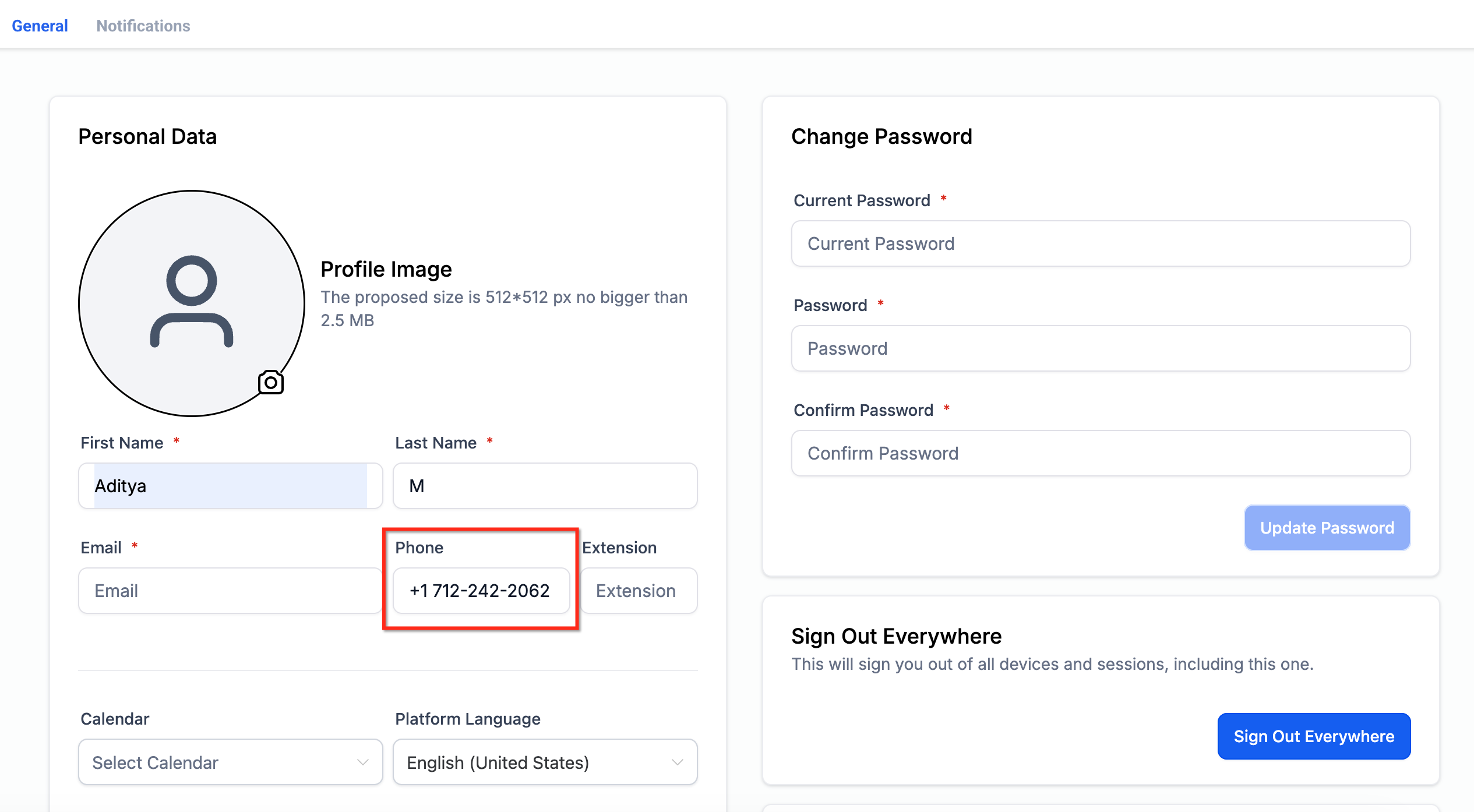
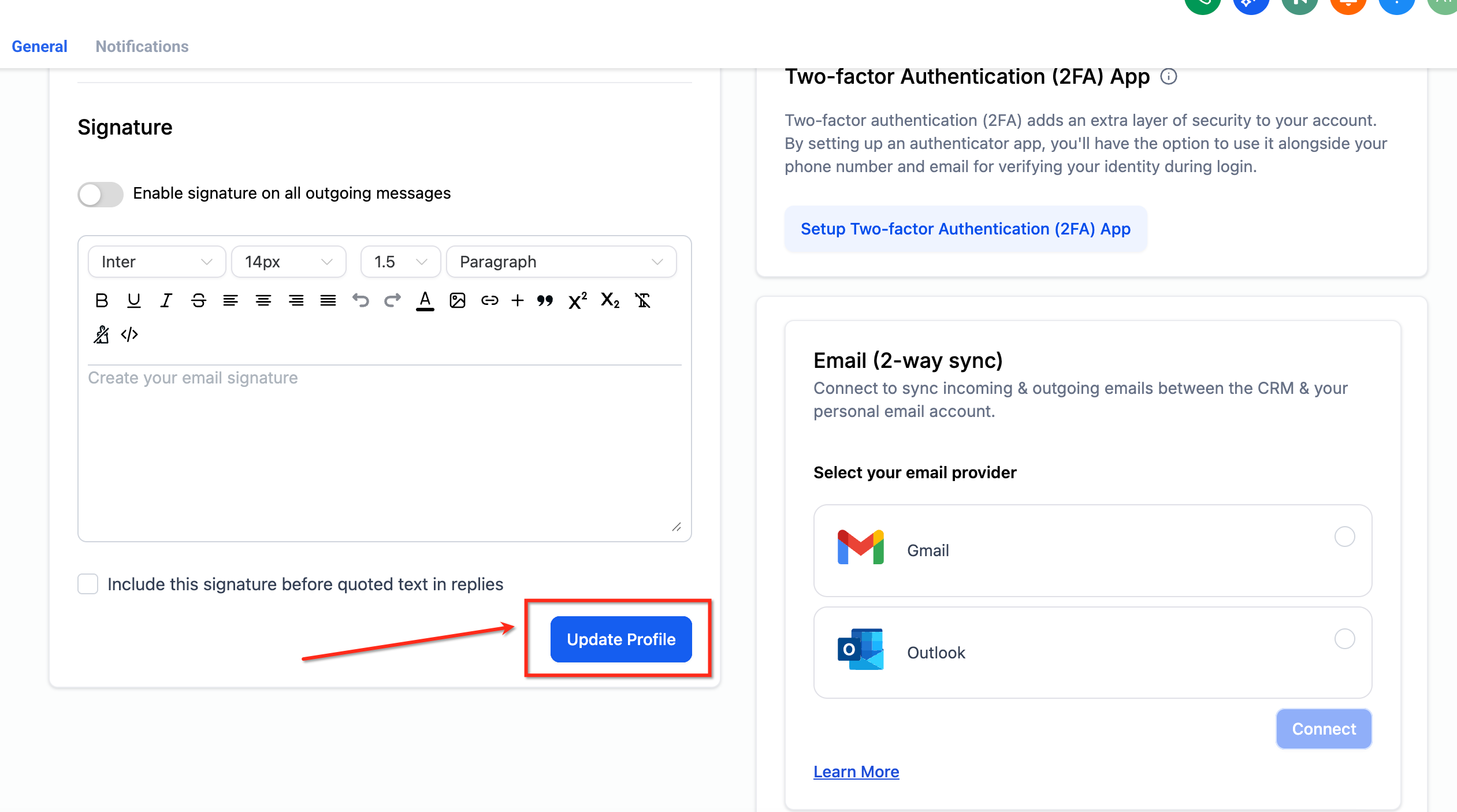
Enter the new number, then click Update Profile.
When the Choose how to verify modal opens, select an available channel — Email, Text message (to your existing verified phone), or Use Authenticator App.
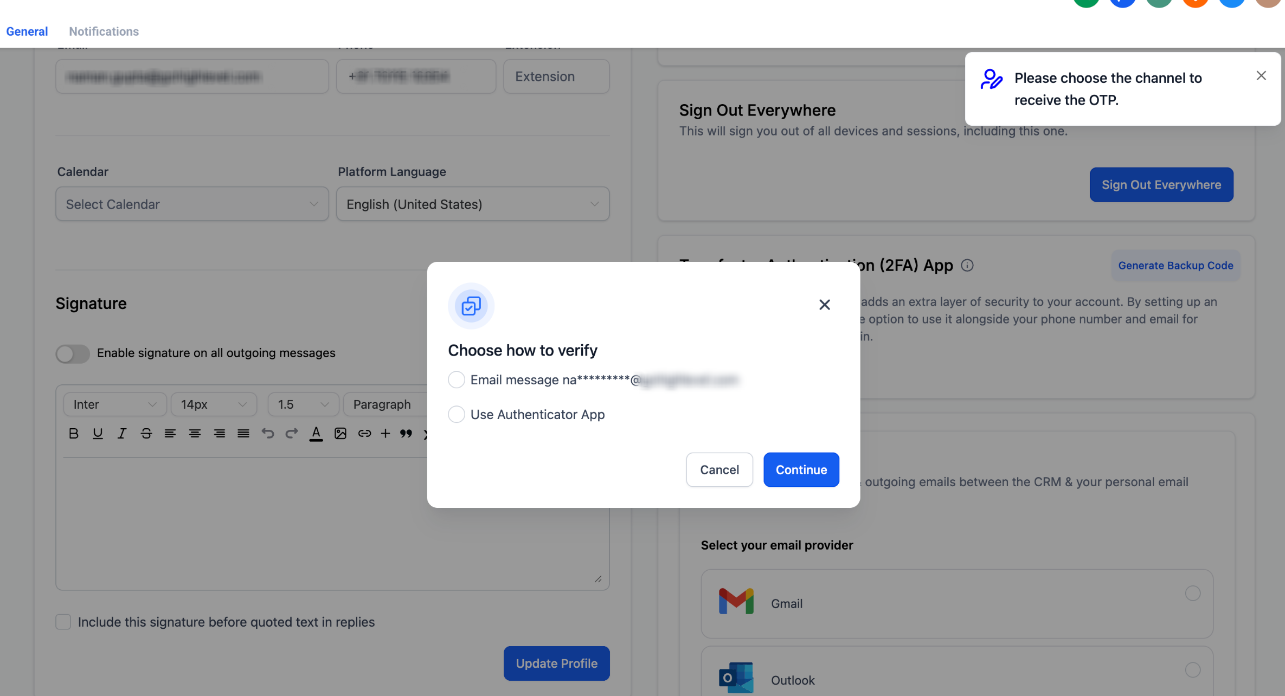
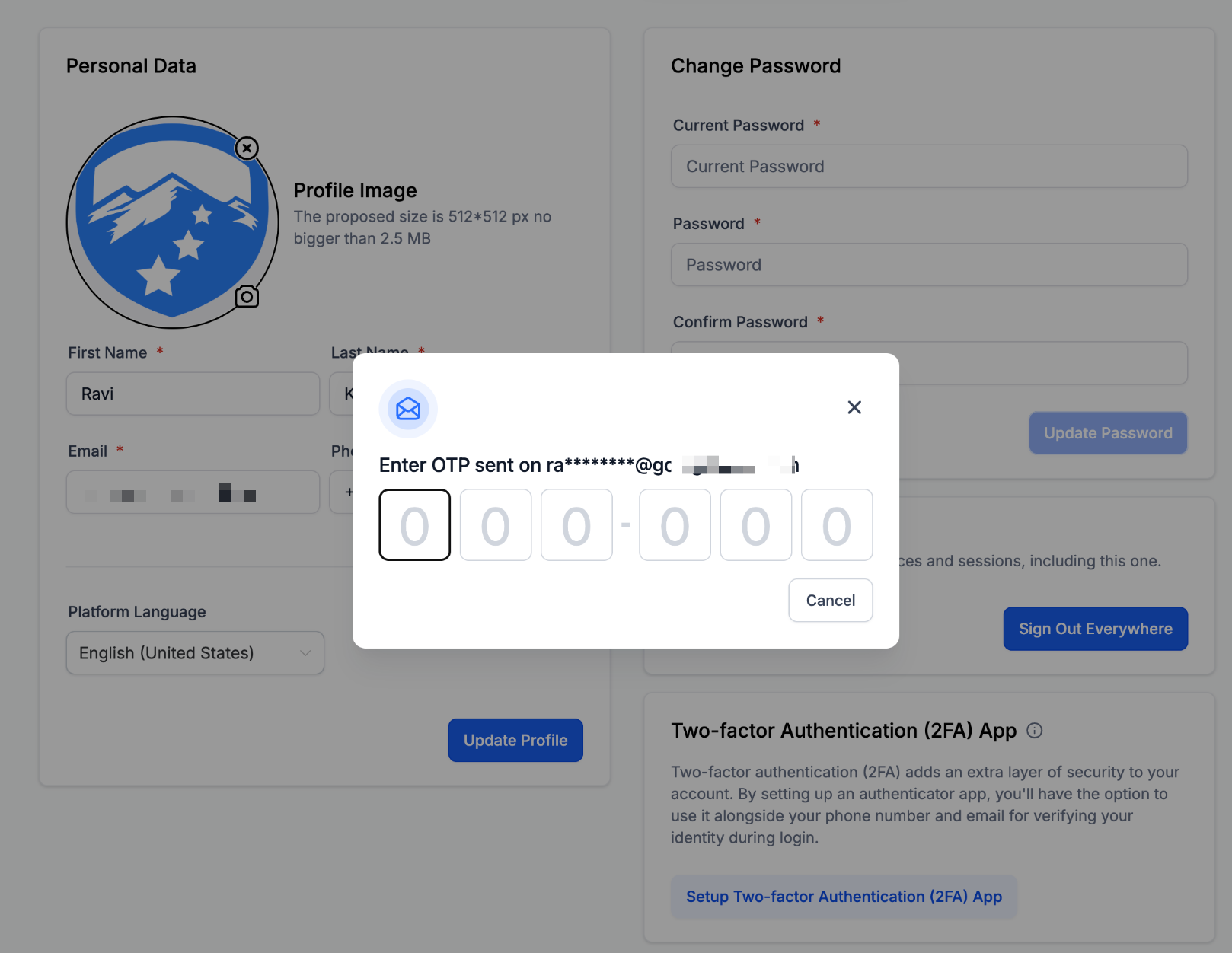
Click Continue. If you chose Email or SMS, retrieve the code and enter it.
After successful verification, confirm the change. You'll see a success message and your profile will show the new number.
If you don't see SMS as an option, your current phone isn't verified — use Email or Authenticator App instead, or verify your phone first.
Go to Settings, then Team, and open the team member's profile.
Edit the phone number and enter the new one.
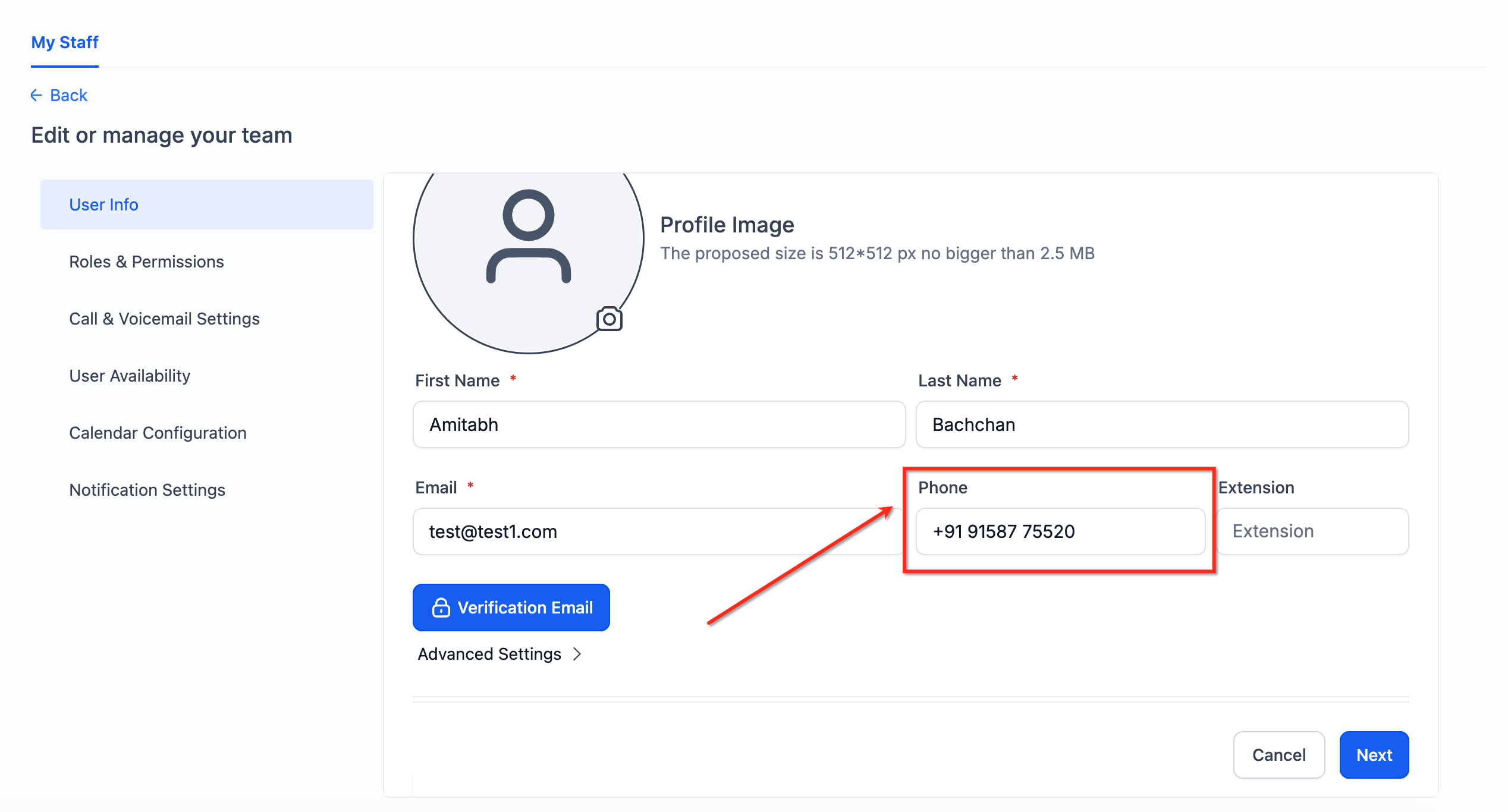
On Choose how to verify, select a channel. The code goes to the team member's verified email or phone, or they can provide a code from their Authenticator App.
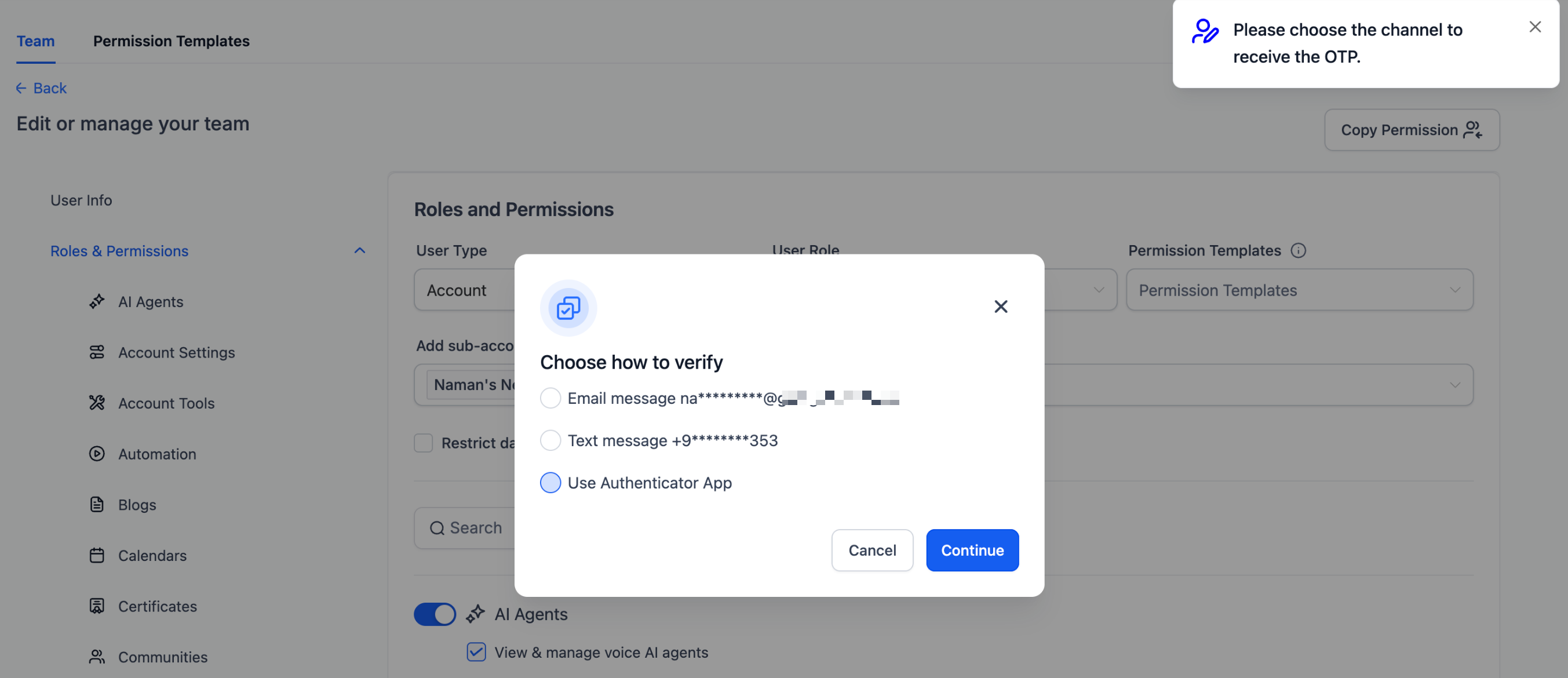
Enter the code (or have the team member provide it securely) and click Continue to complete the change.
OTPs are never sent to the new number being added.
No verification options available — set up TOTP or verify your email first.
Don't see SMS — your current phone isn't verified; use Email or TOTP, or verify the existing number.
Code not received — check spam/junk, confirm SMS coverage, and request a new code after the resend timer allows.
Daily limit reached — you've hit the 5-attempts-per-day limit; wait for the reset, and consider setting up TOTP to reduce reliance on SMS.
Lost access to both email and phone — use backup codes if enabled, or contact your account owner/admin for help.
Can I buy multiple phone numbers for the same account?
Yes. Multiple numbers are helpful for managing different departments, services, or geographic regions within the same account.
Do I need a separate number for each team member?
Not necessarily. One number can serve multiple team members if routed correctly, but dedicated numbers per team member are recommended for personalized outbound messaging and tracking.
Will I be charged monthly for purchased numbers?
Yes. There's a small monthly rental fee for each number, plus per-minute usage. Rates vary by type (local or toll-free) and region — see the pricing page.
How long do I have to restore a deleted number?
Up to 10 days from the deletion date. After that, the number may be permanently released.
Are my old workflows or call settings restored when I restore a number?
No. You'll need to reconfigure call routing and automations after restoring.
Why can't the profile-update code be sent to my new phone number?
For security, codes only go to channels already verified on your account. This prevents an attacker from adding a new number and receiving the code there.
Do I need to do anything else before a new number can send texts?
Possibly. Depending on the country and number type, a short SMS registration step (like Toll-Free Verification) may be required before messages will go through. See the SMS Compliance Overview article for what's needed and how long it typically takes.
What happens if one team member misses a shared incoming call?
Nothing changes for everyone else on that number. Declining or missing the call on one team member's device doesn't stop it from ringing for the others assigned to it.
How many team members can share one phone number?
Up to six team members can be added to ring simultaneously on a shared number, in addition to anyone with the number directly assigned to them.
