Collecting and documenting clear consent before you text patients is the foundation of compliant SMS and voice outreach. Aesthetix CRM gives you tools to capture consent at the point of booking, audit consent language across all of your lead-capture assets, and keep proof of how each contact opted in. This article explains how those features work and how to use them.
Informational only. This guide describes how Aesthetix CRM's consent features work. It is not legal advice and does not establish your legal obligations. Consent and messaging laws vary by region and use case, so confirm your specific requirements with your own compliance or legal advisor.
To register and run SMS campaigns under A2P 10DLC regulations, every text you send must be backed by valid, explicit, and documented consent. Carriers require proof showing how each contact opted in and where the consent was collected. Generally, an opt-in must clearly state that the patient agrees to receive text messages from your practice, use an unchecked checkbox for that consent, and provide an opt-out option (for example, instructing the patient to text "STOP" to unsubscribe).
Lack of proper consent proof is one of the top reasons A2P 10DLC campaign registrations are rejected.
You can meet the opt-in requirements for your 10DLC registration through any of the approved consent methods below. Select the method your practice will use to collect patient permission, and follow its specific requirements.
Website Form: A standalone consent form on your website or app, presented with an unchecked checkbox, clear consent language, and opt-out instructions (for example, "Text STOP to opt out").
QR Code: A QR code that directs the patient to a web form where they enter their phone number and provide consent, or that opens a pre-filled templated message in their SMS app to send a keyword confirming opt-in.
Paper Form: A signed physical document clearly stating the patient's agreement to receive messages (for example, "By signing below, I agree to receive text messages from [Practice Name].").
Verbal: A documented script explaining how consent was obtained, with a record of when and how the patient verbally agreed.
Kiosk: An on-screen consent statement and a required checkbox the patient must select before submitting their information.
Facebook Lead Form: A custom consent disclaimer within the lead form so patients knowingly agree to receive text messages from your practice.
The patient provides their phone number and agrees to receive SMS messages through a form on your website. This is the most common and preferred method because it provides clear, written consent.
Requirements for web form opt-in:
The opt-in checkbox MUST be selectable by the patient.
The opt-in checkbox MUST include a consent disclaimer such as: "I consent to receive SMS notifications and alerts from COMPANY NAME HERE. Message frequency varies. Message & data rates may apply. Text HELP to (XXX) XXX-XXXX for assistance. You can reply STOP to unsubscribe at any time."
The opt-in consent message and checkbox MUST be separated from the Privacy Policy / Terms of Service and from any promotional consent checkboxes. A promotional consent line might read: "By checking this box I agree to receive occasional marketing messages from INSERT COMPANY NAME HERE."
The opt-in disclaimer MUST include all of these call-to-action disclosures to be considered compliant:
Program name and/or a description of the messages that will be sent (appointment reminders, marketing messages, occasional offers, etc.).
The organization or individual being represented in the initial message.
Fee disclosure ("Message and data rates may apply").
Service delivery frequency or recurring messages disclosure ("4 messages per month", "Message frequency varies", "1 message per login", etc.).
Customer care information (typically "Text HELP for help" or "Help at XXX-XXX-XXXX") — not required for single-message programs such as 2FA.
Opt-out instructions ("Text STOP to unsubscribe") — not required for single-message programs such as 2FA.
A link to your Privacy Policy describing how the patient's opt-in information will be used. Be sure there is no mention of sharing personal information with third parties. This must not be part of the checkbox statement — provide the link at the bottom of the form instead.
A link to your Terms and Conditions describing the terms of service. This must not be part of the checkbox statement — provide the link at the bottom of the form instead.
A checkbox the patient must select in order to receive SMS messaging. The checkbox cannot be pre-selected. It gives the patient the ability to agree, or not agree, to receive SMS messaging.
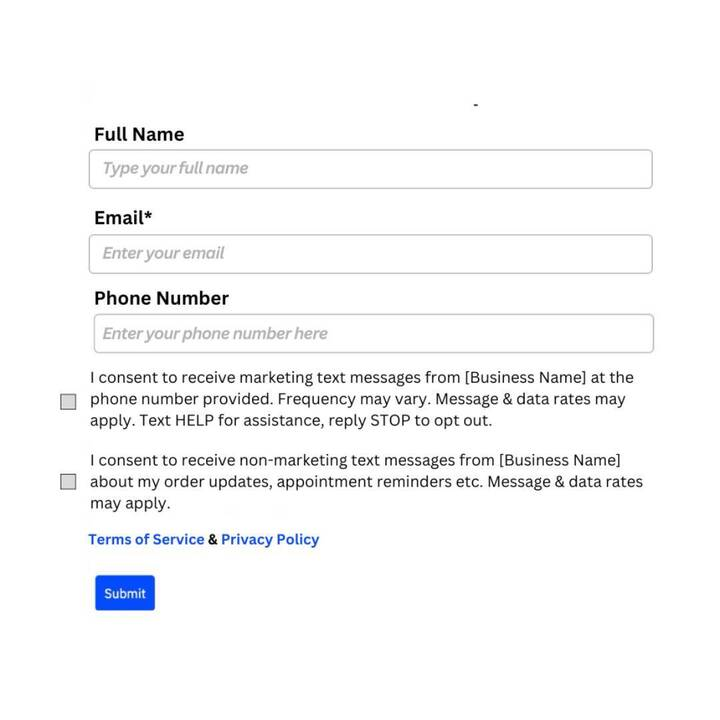
When the phone number field is mandatory:
Separate consent checkboxes for both marketing and non-marketing messages.
Consent checkboxes cannot be pre-selected and should be optional when the phone number is required.
SMS notifications cannot be forced — you cannot require BOTH consent and the phone number to proceed.
Privacy Policy and Terms & Conditions at the footer.
When the phone number field is not mandatory:
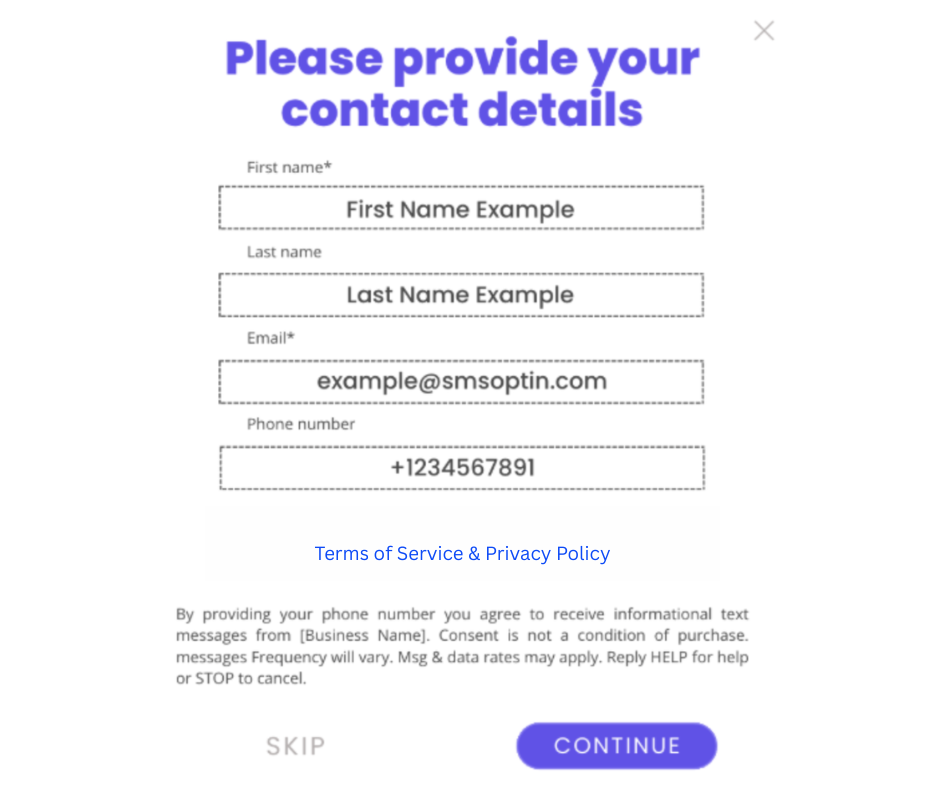
Consent checkboxes are not required when the phone number field is not mandatory.
Privacy Policy and Terms & Conditions at the footer.
If your web opt-in is behind a login or not yet published, host a screenshot on a publicly accessible location (such as OneDrive or Google Drive) and provide both the image URL and the website URL in your registration form where it asks, "How do end-users consent to receive messages?" To get a usable image link, you can upload the screenshot to your Media Storage Library in your account.
Proof needed: Provide a live URL and/or screenshots showing the exact opt-in form.
For step-by-step setup of GDPR-style consent checkboxes inside forms, see the Forms collection.
A QR code links to an online form prompting the patient to enter their mobile phone number and opt into the texting campaign. The code can direct the patient to the messaging app on their mobile device (for example, iMessage) with a templated opt-in message, or take them directly to a web-form opt-in on your website.
If the QR code leads to a web-form opt-in, follow all of the web-form opt-in requirements above.
An in-store visitor completes a physical form that collects their phone number and their consent to subscribe to your texting campaign. Host a screenshot of the paper form on a publicly accessible location (such as OneDrive, Google Drive, or your account's media library) and provide the URL in the answer for "How do end-users consent to receive messages?".
A patient verbally agrees to receive SMS during a phone call or in-person interaction. This method is accepted but highly regulated.
Compliance requirements:
The conversation must include a clear consent statement.
You must record that the patient explicitly agreed to receive SMS.
Documentation must include the date and time, the agent or representative, and a summary of the exact consent statement used.
A verbal opt-in happens live, during a phone call or an in-person interaction. To use this method, you maintain a written verbal opt-in script that your staff reads to the patient, and you keep a record of when and how each patient verbally agreed. For example:
Representative: "As part of our service we can send you automated monthly text alerts regarding account payment activity. We will send two messages per month. Message and data rates may apply, depending on your mobile phone service plan. At any time you can get more help by replying HELP to these texts, or you can opt out completely by replying STOP. Mobile Terms of Service are available at http://yourcompany.com/terms and our Privacy Statement can be found at https://yourcompany.com/privacy. Please reply with 'yes' or 'no' to indicate if you would like this service."
Customer: "Yes please."
Representative: "Great! We will send you a text message to confirm your enrollment here shortly."
Notes:
If you select verbal opt-in, provide a publicly accessible Google Doc or PDF link that includes the exact verbal opt-in script used (in the opt-in form / image URL field), along with a brief explanation of when and how the script is presented to obtain consent.
Verbal consent is strictly forbidden for marketing campaigns.
A patient enters their phone number through a kiosk, tablet, or in-store digital signup device.
Compliance requirements:
The screen must display the full SMS consent wording.
The patient must manually enter the phone number (it cannot be pre-filled).
All disclosures must be visible at the time of consent, including the brand name, the purpose, STOP/HELP instructions, and Terms & Privacy Policy.
A patient consents to SMS messaging while filling out a Facebook Lead Ad form.
Compliance requirements:
The lead form must include clear SMS consent language.
The consent checkbox must not be pre-checked.
The form must identify your business/brand name.
The opt-in must specify the message purpose and opt-out instructions when possible.
Facebook's shortened text area must still clearly show SMS consent.
Whichever method you choose, every opt-in should clearly demonstrate:
Business/brand identity
Clear SMS consent language
Purpose of messaging
STOP & HELP instructions
Message frequency or "frequency varies"
"Message and data rates may apply" disclaimer
Visible Terms of Service & Privacy Policy
The ability to provide proof of opt-in
Meeting these requirements helps ensure higher chances of A2P approval, reduced message filtering, lower suspension risk, and better patient trust.
Beyond the SMS-specific opt-in methods above, Aesthetix CRM lets you add a consent checkbox and disclosure language anywhere you collect a patient's contact information, including Calendars, Forms & Surveys, Webchat, and Order Forms. Add your own consent language at each touchpoint and link to your Privacy Policy so patients can give informed permission before they submit their information.
You can include a consent checkbox in your calendar settings so it appears on the booking form when patients provide their phone numbers while booking an appointment. This is important for compliance, particularly in relation to A2P 10DLC regulations, and helps you avoid issues with telecom providers.
When you choose a default form in your calendar settings, you'll see an option called Show consent checkbox. It is enabled by default. We strongly recommend keeping it enabled so you capture essential information — including the consent itself and the IP address of the patient who agrees by checking the box during booking. You can also customize the text of the consent checkbox to match your requirements.
Once an appointment with consent is booked, you can review the consent details in two ways:
Appointment list view: Click the three-dots menu for the specific appointment and select View Consent to display the consent information associated with that appointment.
Contact's activity tab: An icon appears next to appointments where consent was provided during booking. Click the icon to reveal the appointment details, including the consent text the patient accepted and their IP address at the time of consent.
Use the Custom Checkbox element in the Form Builder to add your own consent disclosure language to any form or survey. The patient's selection is captured and stored as a contact custom value, so you can reference it later or use it to trigger automations, such as tagging the contact once consent is recorded.
Add consent language to your chat widget so visitors agree before they submit their contact information:
Go to Chat Widget → Chat window → Additional options → Compliance notice & consent.
Enable Show legal notice to display a read-only disclosure alongside the contact form.
Enable Add a consent checkbox when you need visitors to actively acknowledge or agree to your consent text.
Use Make this checkbox required to require consent before the visitor can submit the form, or leave it off to make consent optional.
Use Pre-check the box by default only where that fits your use case. For SMS-specific opt-in under A2P 10DLC, the checkbox must not be pre-selected; see the opt-in method requirements above.
To link your Privacy Policy, highlight the Privacy Policy text in your disclosure, click Link, and paste your URL. You can also configure this in the Legal Message description box.
Enable the Terms & Conditions checkbox in your Order Form settings, add your own disclosure language based on your business practices, then highlight Privacy Policy, click Link, and paste your URL.
Recording why you have the right to process a contact's data (consent, a contractual obligation, or a legitimate interest) is a separate step from collecting the checkbox itself. See the Data Privacy & GDPR article in this collection for how to track legal basis using custom fields and tags.
Requires AI features. The automated Audit & Fix tool is part of the AI features in Aesthetix CRM (the AI Employee / Voice AI capabilities) and may not be available on all plans. If you don't have these features, you can still stay compliant — review your consent language manually across your forms, calendars, and other lead-capture assets to confirm each one includes the elements described above.
The Audit & Fix tool centralizes consent maintenance by scanning your supported lead-capture assets for compliant opt-in language and helping you correct issues in bulk. This keeps your capture points consistent so downstream messaging and calling respect each contact's preferences.
Key benefits:
Complete visibility: See consent status across Forms, Surveys, Calendars, Facebook Lead Forms, and Chat Widgets in one place.
Bulk corrections: Apply compliant consent text to supported assets with one click to standardize language quickly.
Outbound recognition: Ensure contacts who opted in via surveys, appointment bookings, Facebook forms, or chat widgets are recognized for outbound calling and messaging.
Time savings: Replace manual, asset-by-asset checks with a single audit workflow.
Risk reduction: Reduce missed or inconsistent consent language that could affect deliverability.
Supported assets: Forms, Surveys, Appointment Forms / Calendars, Facebook Lead Forms, and Chat Widgets.
If your plan includes the AI features, follow these steps to run an automated audit and apply fixes in bulk.
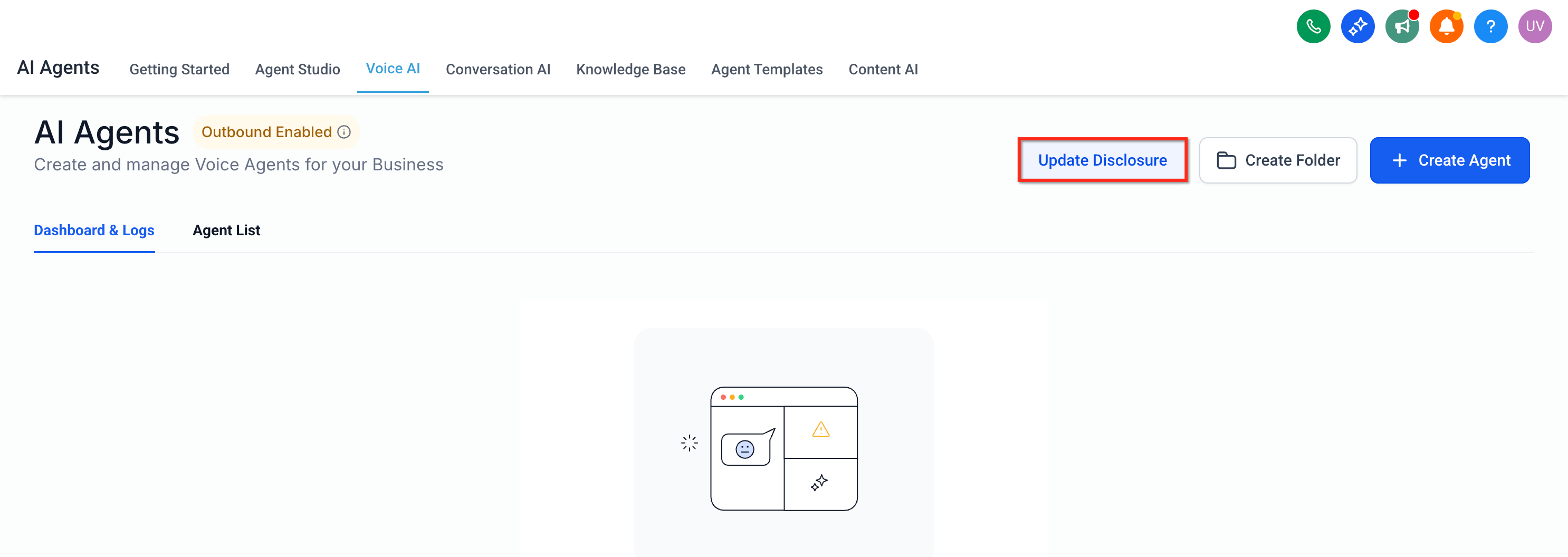
Open Voice AI. Locate the AI Agent option in the left pane of your account and choose the Voice AI page. If Outbound is enabled, you'll see the same tooltip on the page.
Complete verification. If verification hasn't been done before, click Update Disclosure to complete the verification process.
Run the audit. Select the location(s) and asset types to include, start the scan, and wait for the results to populate.
Review results. Filter by Needs Attention. Click an asset to preview its current consent language.
Select assets. Check the boxes for the assets you want to update now.
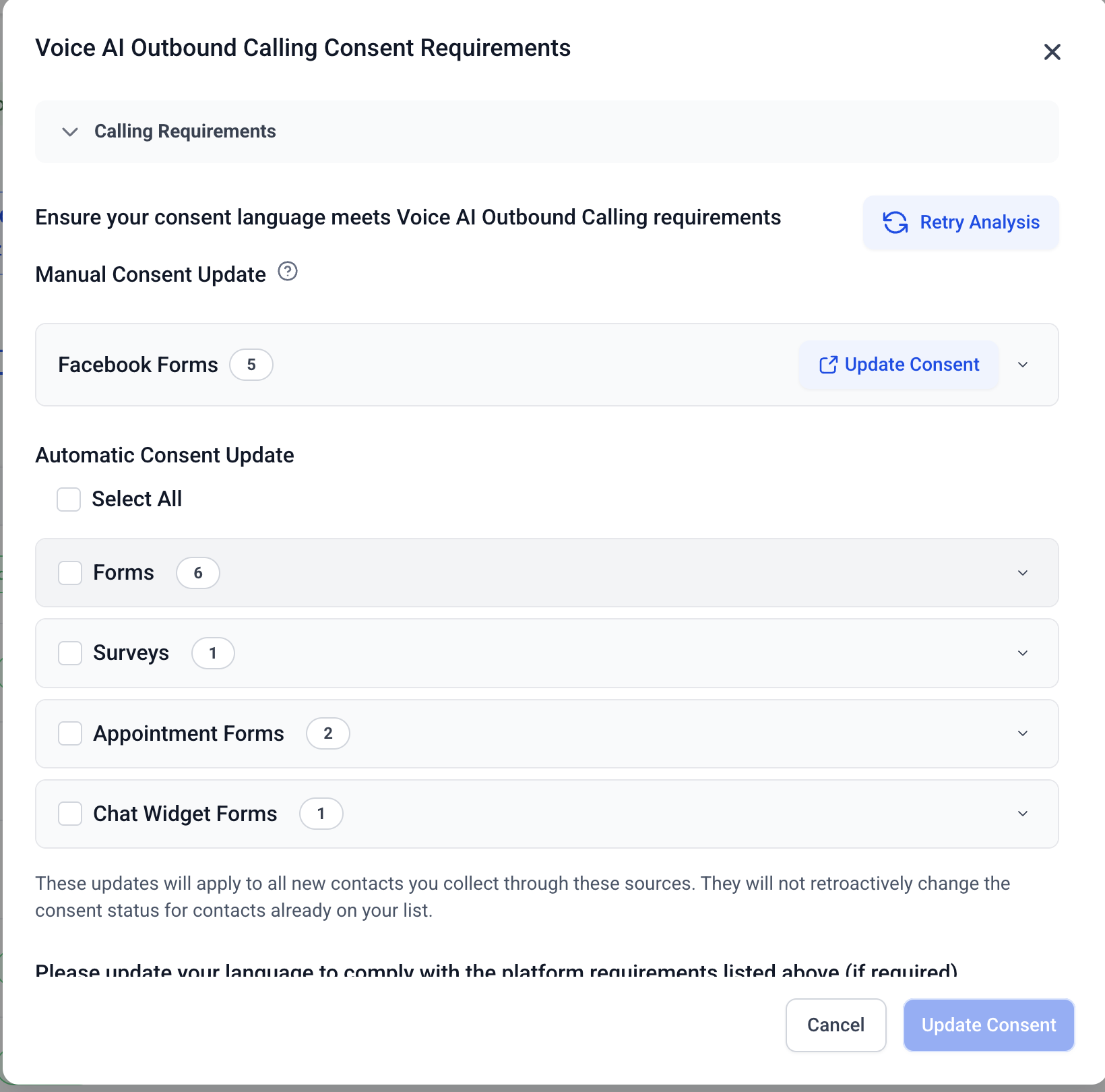
Preview the fix. Open the Bulk Fix modal to review the standardized consent text and placement.
Apply. Confirm to apply compliant text to the selected assets.
Verify. Spot-check a few assets and, if needed, re-run the audit to confirm status.
Facebook Lead Forms. Edit the consent text on Facebook directly, then return and re-scan to refresh the status.
Voice AI also runs its own consent checks before placing outbound calls. See the Voice AI collection for how those checks work.
If you use a third-party consent certification service (such as ActiveProspect TrustedForm), you can capture a certificate URL on your forms and surveys to document each opt-in.
Build your form as you normally would.
Create a Custom Short Text field called xxTrustedFormCertUrl and drag it into your form above the submit button.
Save the form, click Integrate Form, open the Link tab, and copy the form URL. Open it in another browser tab — you'll return to this tab in a later step.
Drag an HTML field into the form below the submit button, select it, click Edit Script, and paste in the custom script your provider supplies. Don't save yet.
Go back to the form URL you opened in step 3, right-click the page, and select Inspect. Use the pointer tool to click the xxTrustedFormCertUrl field and copy its ID.
Return to the Edit Script modal and replace FORMID in both instances with the ID you copied, then save.
Copy the custom CSS below, open the Styles tab, paste it into the Custom CSS field, and change the number in parentheses to match the position of the xxTrustedFormCertUrl field in your form.
Save the form.
Custom CSS for forms:
.form-field-wrapper:nth-child(n) {
  display: none;
}
Custom CSS for surveys:
.slide-no-SlideNumber .form-field-wrapper:nth-child(n) {
  display: none;
}
Notes:
SlideNumber is a placeholder. Replace it with the actual survey slide number.
n is a placeholder for the field you want to hide.
Place xxTrustedFormCertUrl above all hidden fields in a slide or form.
Example: If the xxTrustedFormCertUrl field is on the 2nd slide and is the 4th element:
.slide-no-2 .form-field-wrapper:nth-child(4) {
  display: none;
}Can I include clickable links for my Privacy Policy or Terms in the calendar consent checkbox?
No. The consent checkbox does not support HTML or clickable links. To meet A2P 10DLC requirements, include your Privacy Policy and Terms links elsewhere on the form, such as in a description block or page footer.
Does the audit change my existing custom legal language?
You can choose whether to replace or append when applying a bulk fix. Review the preview before confirming.
Can I undo a bulk fix?
If the asset type offers change history or versioning, revert there. Otherwise, manually edit the asset back to your preferred text and re-run the audit.
Are Facebook Lead Forms fixed automatically by the tool?
No. They appear in results for visibility, but you must update their consent language directly on Facebook.
How often should I run the audit?
Run it after creating or importing new assets, after major policy updates, and periodically as part of your compliance hygiene.
Does the audit evaluate language for every region's law?
The tool checks for standard elements of compliant consent. Because laws vary, confirm final wording with your own legal counsel.
Will the audit update double opt-in settings?
No. The audit focuses on consent language in your assets. Manage double opt-in and related messaging settings in your messaging and compliance configuration.
Where do I see a contact's consent status once it's captured?
Check the contact record and any outbound messaging or calling eligibility indicators supported by your account.
Can I exclude certain assets from bulk updates?
Yes. Use selective apply — only the assets you select are updated.
Where do I record why I have the right to process a contact's data, not just that they consented?
Use the legal basis custom field and tags described in the Data Privacy & GDPR article. Consent is only one legal basis; a contractual obligation or legitimate interest can also apply.
